Key takeaways
- Five verified accessories for the Dell XPS 14, from a fitted 14.5-inch sleeve and Thunderbolt dock to a USB-C hub and wireless mouse, with fit checks first.
Buying accessories for the Dell XPS 14 is really a decision about fixing the two gaps Dell designed into the machine: it has almost no ports, and its 14.5-inch body does not match the dimensions most 14-inch sleeves were built around. Choose well and a single cable turns it into a full desk setup while a correctly sized sleeve keeps the aluminium shell unmarked. Choose by screen name alone and you end up with a loose case, a hub that cannot charge the laptop properly, or a dock that duplicates ports you never use.
This guide is for three kinds of XPS 14 owner. Desk-based workers need displays, Ethernet and peripherals connected through one Thunderbolt cable. Travellers need protection that fits the 9440 body precisely, plus compact connectivity for hotel rooms and presentation screens. Hybrid workers need a bit of both, without buying the same function twice. Every product below was selected from its Amazon listing, using the specifications and compatibility statements published there, and each entry flags the check that matters before ordering.
Quick Picks
As an Amazon Associate we earn from qualifying purchases.
| Product | Best for | Key spec from title |
|---|---|---|
| Smatree 14.5 Inch Laptop Sleeve for Dell XPS 14 9440 | Exact-fit protection for the 14.5-inch 9440 | Designed for XPS 14 9440, internal 13.31 x 8.98 x 0.79 inches |
| DOMISO 14 Inch Laptop Sleeve | Carrying the XPS 14 with handle and pockets | Internal 13.98 x 10.04 x 0.98 inches, fits Dell XPS 14 |
| Anker 7-in-1 USB-C Hub, Dual Display | Two external monitors from a portable hub | Dual HDMI, 85W max power delivery, 10Gbps data, for Dell XPS |
| Dell Thunderbolt Dock WD22TB4 | A permanent one-cable desk setup | 130W delivery to Dell laptops, two Thunderbolt 4 ports, HDMI and DisplayPort |
| Logitech MX Master 3S Wireless Mouse | All-day desk work without a receiver cable | 8K DPI, track on glass, quiet clicks, Logi Bolt receiver, Bluetooth |
How to Choose
Measure your exact model before buying any case or sleeve
XPS 14 is a name shared by machines with different footprints. The 2024 XPS 14 9440 carries a 14.5-inch screen in a body roughly 12.6 inches wide, the 2025 successor was sold as the Dell 14 Premium DA14250, and the 2026 XPS 14 DA14260 shrank to a 14.0-inch display in a narrower shell around 12.19 inches wide. A sleeve that swallows the 9440 can leave the newer model sliding around, while a snug case made for the 2026 machine will not close over the older one. Compare the accessory’s internal dimensions with your laptop’s width, depth and thickness, and treat generic 14-inch labels as a starting point rather than a guarantee.
Separate the jobs of a hub and a dock
Both devices add ports, yet they solve different problems. A travel hub is light, bus-powered or pass-through charged, and built to live in a bag: think one external display, a couple of USB ports and a card reader for a few hours at a time. A desk dock is heavier, carries its own power supply, and is designed to stay wired to monitors, Ethernet and peripherals so the laptop connects with a single cable every morning. Buying a hub to run a permanent two-monitor desk usually leads to cable clutter and charging compromises, while buying a full dock for occasional travel adds weight you will resent. Decide where the accessory will spend its life first.
Check charging wattage against what the laptop expects
The XPS 14 charges over USB-C, and Dell’s own dock for this class of machine delivers up to 130W to Dell laptops. Smaller hubs commonly pass through far less, with 85W being a typical ceiling on the portable models in this guide. That difference rarely matters during a presentation or a short hotel work session, but it can matter during long days of heavy processing, when a laptop drawing more than the hub supplies slowly loses ground. Read the pass-through figure in the listing rather than the headline input figure, remember that the hub itself consumes a small share, and keep the original Dell charger in your travel kit for demanding days.
Spend first on protection, then on connection, then on comfort
It is easy to assemble an accessory basket backwards, starting with an enjoyable mouse and ending with the laptop rattling unprotected in a general-purpose bag. A more sensible order protects the machine first, because a cracked corner or scratched lid costs more than everything else in this article combined. Connectivity comes second, since the port selection genuinely limits what the laptop can do at a desk or in a meeting room. Comfort items such as a premium mouse, a stand or a keyboard come third, improving hours of daily work once the essentials are covered. Following that order also makes budgeting easier, because each tier only gets funded when the tier above it is sorted.
The 5 Best Options
1. Smatree 14.5 Inch Laptop Sleeve for Dell XPS 14 9440
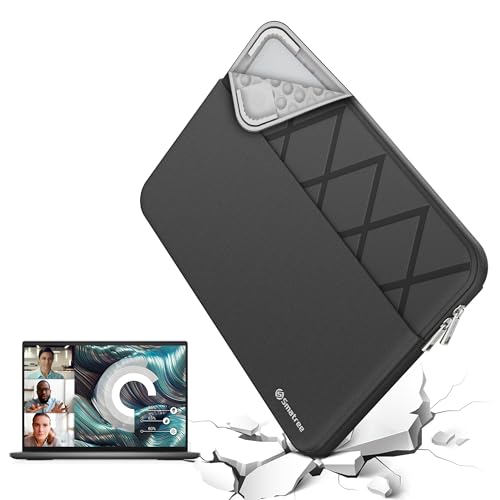
Most sleeves claim to fit the XPS 14 while being cut for a MacBook-shaped 14-inch laptop, but this Smatree model is designed specifically around the 14.5-inch XPS 14 9440, and that specificity is its entire appeal. The listing gives internal dimensions that match the 9440 body closely, describes a reinforced corner design intended to absorb knocks, and adds a separate accessory bag for the charger and cables that otherwise scratch the lid. For owners who carry the laptop daily in a backpack or tote, a fitted sleeve like this is the most direct protection available short of a hard case, and it removes the guesswork that generic sizing creates.
Specs
- Designed specifically for the 14.5-inch Dell XPS 14 9440, per the Amazon listing title
- Internal dimensions: 13.31 x 8.98 x 0.79 inches, model E420
- Super Corner impact protection design, per the listing
- 300D polyester outer with water-resistant finish
- Includes an accessory bag for cables, charger and small items, plus a luggage strap
Best for: XPS 14 9440 owners who carry the laptop in a larger bag and want a sleeve cut for this exact machine.
Watch out for: The fit is generation-specific, so owners of the smaller 2026 XPS 14 DA14260 should confirm dimensions before ordering.
ASIN: B0DXFM8652
2. DOMISO 14 Inch Laptop Sleeve
Where the Smatree is a fitted insert, this DOMISO sleeve behaves more like a slim briefcase, with an extendable handle, pockets and room to spare. Its listing states internal dimensions noticeably larger than the XPS 14 body and names the Dell XPS 14 among the machines it fits, which makes it a forgiving option for buyers who also carry a notebook, a mouse or a second smaller device alongside the laptop. The outer material is described as waterproof, a secure webbing strap holds the computer in place inside, and the handle lets it travel on its own for short trips between rooms or buildings without a second bag.
Specs
- Internal dimensions: 13.98 x 10.04 x 0.98 inches; external dimensions: 14.37 x 10.43 x 0.98 inches, per the Amazon listing
- Listing states it fits the Dell XPS 14, alongside other 14-inch laptops
- Waterproof outer material and secure internal webbing strap
- Extendable handle, converting the sleeve into a carry briefcase
- Pockets for charger, mouse and accessories
Best for: Owners who want one slim case that carries the XPS 14 plus everyday extras, without a separate laptop bag.
Watch out for: The generous internal space means the slimmer 2026 XPS 14 will move around more than in a fitted sleeve, so check the size table against your model.
ASIN: B0DR1QTLF2
3. Anker 7-in-1 USB-C Hub, Dual Display
A portable hub earns its place in an XPS 14 bag by restoring the connections Dell left off, and this Anker model’s listing is unusually explicit about the audience, naming Dell XPS machines directly. It offers two HDMI outputs for a dual-monitor setup away from your main desk, power delivery up to 85W so the laptop can charge through the same connection, and data transfer at up to 10Gbps for fast external drives. Seven functions in one small body will not replace a full docking station, but for hotel desks, hot-desking and presentation rooms it covers the connections owners actually reach for, in a format that weighs almost nothing.
Specs
- 7-in-1 USB-C hub, model A8374, per the Amazon listing
- Dual HDMI display outputs for two external monitors
- Up to 85W max power delivery output
- Up to 10Gbps data transfer
- Listing names Dell XPS among compatible laptops
Best for: Travelling and hybrid XPS 14 owners who need two screens and charging through one portable hub.
Watch out for: The 85W ceiling is below the 130W a Dell dock supplies, so keep the original charger handy for long, heavy workloads.
ASIN: B0D3WVCW3P
4. Dell Thunderbolt Dock WD22TB4
For a fixed desk, Dell’s own Thunderbolt dock is the accessory that changes how the XPS 14 feels to live with. The Amazon listing describes power delivery of up to 130W to Dell devices with ExpressCharge, two Thunderbolt 4 ports, two DisplayPort 1.4 outputs, HDMI 2.0, a USB-C multifunction DisplayPort, several USB-A ports and Gigabit Ethernet, all fed by a 180W adapter. Arrive, plug in one cable, and the laptop charges while driving external monitors and wired peripherals. The dock also supports firmware management through Dell tools, which matters in offices where several machines share the same desk hardware across a working week.
Specs
- Model WD22TB4, manufactured by Dell, per the Amazon listing
- Up to 130W power delivery to Dell laptops with ExpressCharge; 180W power adapter included in the design
- Two Thunderbolt 4 ports and one USB-C 3.2 Gen 2 port
- Two DisplayPort 1.4, one HDMI 2.0 and one USB-C multifunction DisplayPort for external displays
- USB-A 3.2 ports including one with PowerShare, plus Gigabit Ethernet RJ45
- Listed for Windows 10 and Windows 11 systems
Best for: XPS 14 owners with a permanent desk who want charging, monitors, Ethernet and peripherals over a single cable.
Watch out for: It is a desk fixture with its own power supply, not a travel accessory, and its full charging benefit applies to Dell laptops.
ASIN: B0B13Y2QVW
5. Logitech MX Master 3S Wireless Mouse
The XPS 14’s glass touchpad is excellent for travel, but long desk days reward a proper mouse, and the MX Master 3S in graphite is the specification most office buyers end up comparing against. Its Amazon listing highlights an 8K DPI sensor that tracks on glass, quiet clicks, an ergonomic shape, USB-C charging and connection either through the included Logi Bolt USB receiver or Bluetooth. That second option matters here: pairing over Bluetooth keeps all three of the laptop’s Thunderbolt ports free, while the receiver sits happily in a dock’s USB-A port for anyone who prefers it. It is a comfort purchase, but a considered one.
Specs
- Standard Edition with Logi Bolt USB receiver included, graphite, per the Amazon listing
- 8K DPI sensor with tracking on glass surfaces
- Quiet clicks and ultra-fast scrolling wheel
- USB-C charging, Bluetooth and Logi Bolt wireless connection
- Listed compatibility includes Windows, Linux and Chrome systems
Best for: Desk-based XPS 14 owners who work long hours in documents, timelines or spreadsheets and want to keep laptop ports free via Bluetooth.
Watch out for: The sculpted shape is designed for right-handed use, and the Bluetooth Edition listing differs from this Standard Edition, so confirm which version is in the basket.
ASIN: B09HM94VDS
Which One Fits Your Situation
Your XPS 14 lives on one desk with external monitors
Start with the Dell Thunderbolt Dock WD22TB4. One cable handling 130W charging, displays, Ethernet and peripherals removes the XPS 14’s biggest daily friction in a single purchase. Add the Logitech MX Master 3S afterwards for comfort, connecting it through the dock or Bluetooth, and the desk setup is complete without touching the laptop’s limited ports each morning.
You travel weekly and work from hotels and client sites
Pack the Smatree sleeve and the Anker 7-in-1 hub. The sleeve is cut for the 9440 body you are carrying, and the hub restores HDMI, USB and charging pass-through wherever you land. Together they weigh little, solve the two problems travel actually creates, and leave the heavy dock at home where it belongs.
You carry the laptop between rooms more than between cities
The DOMISO sleeve suits short hops best. Its handle turns it into a briefcase for a meeting down the corridor, its pockets swallow the charger and a mouse, and its roomier interior tolerates a notebook or tablet joining the laptop. You give up the tailored fit of the Smatree in exchange for everyday carrying flexibility.
You are building the setup gradually on a budget
Buy in the order this guide recommends. Protection first with whichever sleeve fits your model, then connectivity with the Anker hub, which covers occasional desk use as well as travel. The Dell dock and the premium mouse are worthwhile later upgrades, but neither protects the laptop nor helps in a presentation room the way the first two purchases do.
Common Mistakes
- Buying a sleeve by the 14-inch label without comparing internal dimensions to your specific XPS 14 generation
- Expecting a travel hub with 85W pass-through to charge the laptop as quickly as Dell’s 130W dock during heavy work
- Purchasing both a hub and a dock before deciding where the laptop will actually be used each day
- Plugging a wireless receiver into the laptop itself and permanently losing one of only three Thunderbolt ports
- Choosing the Bluetooth Edition of a mouse while expecting a USB receiver to be included in the box
Frequently Asked Questions
Will a sleeve made for the XPS 14 9440 fit the 2026 XPS 14?
Not perfectly. The 2026 XPS 14 DA14260 uses a smaller 14.0-inch body, roughly 12.19 inches wide, against the 9440’s wider 14.5-inch chassis. A 9440 sleeve will physically hold the newer machine but leave it loose inside, which reduces protection in a bag. A case made specifically for the 2026 model will not close over a 9440 at all. Always match the accessory’s internal dimensions to the model code on your laptop.
Do I need a hub and a dock, or just one of them?
Most owners need only one. Choose a hub if the laptop moves constantly and the extra ports are needed for hours at a time in different places. Choose a dock if the laptop returns to the same desk, where monitors, Ethernet and peripherals wait permanently connected. Owning both makes sense only for people who genuinely split their week between a fixed home office and regular travel, and even then the hub should be bought second.
Why does charging wattage matter for a USB-C hub?
Because the hub sits between the charger and the laptop, and its pass-through ceiling decides how much power actually arrives. An 85W hub is fine for ordinary office work and presentations, but a hard-working XPS 14 can draw more than that under sustained load, slowly draining even while plugged in. Dell’s own dock avoids the issue by delivering up to 130W to Dell laptops. For demanding days, plug the original charger directly into the laptop.
Can the XPS 14 drive two external monitors?
Yes, through its Thunderbolt 4 ports, and the accessories in this guide are built around that ability. The Anker hub lists dual HDMI outputs, while the Dell WD22TB4 offers two DisplayPort 1.4 connections, HDMI 2.0 and a USB-C display output. The laptop itself has no full-size video socket, so some form of hub or dock is unavoidable for a multi-monitor desk. Check the listing of the specific unit you buy for its stated display configuration.
FAQ
Will a sleeve made for the XPS 14 9440 fit the 2026 XPS 14?
Do I need a hub and a dock, or just one of them?
Why does charging wattage matter for a USB-C hub?
Can the XPS 14 drive two external monitors?
More from Amazon
Programs that pair well with the guide above. Offers and eligibility are set by Amazon and may change.
Free shipping on eligible items, Prime Video and more. Eligible new members can start with a free trial.
Start a Prime free trialAd-free music streaming. Eligible new subscribers can start with a free trial.
Try Music Unlimited freeA Prime membership for ages 18-24 with a trial period. Eligibility is set by Amazon.
See Prime for Young AdultsAudiobooks and podcasts to listen to on the go. Eligible new members can start with a free trial.
Try Audible freeAs an Amazon Associate we earn from qualifying purchases.