
Key takeaways
- Native Minecraft for Nintendo Switch 2: Make sure you launched the correct Minecraft title rather than an older console tutorial or Minecraft Dungeons. Bedrock’s console split-screen feature is not available in Java Edition on Windows, Mac, or Linux.
- One controller setup per player: A Nintendo Switch 2 Pro Controller or paired Joy-Con 2 arrangement is a practical starting point. Nintendo allows individual Joy-Con 2 in some games, but the holding position supported in a particular game can vary. Do not assume that one horizontal Joy-Con 2 provides every control Minecraft needs.
- A readable shared display: Docked TV mode is recommended for setup and legibility. Use the Switch 2 dock, its specified power adapter, a compatible HDMI connection, and an input that shows the console’s HOME Menu normally.
- Local users and host account: Have a Nintendo console user available for the person hosting the world. Minecraft Help describes Microsoft-account requirements for console multiplayer and differences between a host and split-screen guests. Read any user-profile prompts displayed by the native build rather than assuming every guest can independently sign into a Microsoft account.
- A small test world: Creating a temporary Creative world makes it easy to test joining and controls without changing a valuable survival save.
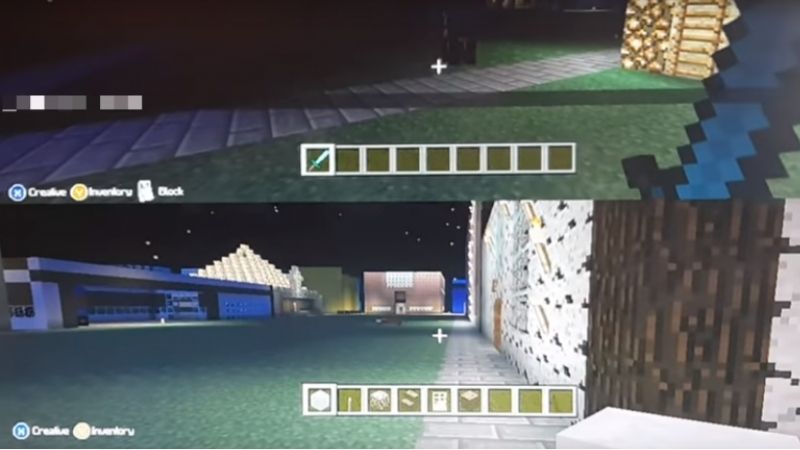
Minecraft Switch 2 local split screen lets up to four people share one console and one display, each playing in the same Bedrock world with a separate controller. Nintendo lists one-to-four-player single-system play for the native Switch 2 release dated October 27, 2026. The simplest way to begin is to connect two supported controller setups, launch a local world, then have the second person follow Minecraft’s on-screen join prompt. You do not need four Switch 2 consoles or four game purchases for this mode. However, the controller configuration, the world’s Multiplayer setting, and whether you are using local or online features all affect what works. This guide explains those distinctions, provides a safe setup sequence, and shows what to check when the second player cannot join.
Check what local split screen supports on Switch 2
Nintendo’s U.S. Minecraft for Nintendo Switch 2 listing explicitly identifies Single system (1–4), Local wireless (2–8), and Online (2–8) as different player counts. Minecraft’s own Bedrock feature comparison also describes split screen as a console feature for up to four people. The native release supports TV, tabletop, and handheld play as general software modes; that listing does not, by itself, confirm split-screen support in each of those modes. For the most dependable shared-screen setup, use the Switch 2 dock and a TV or monitor. Mojang’s general split-screen requirements discuss the earlier Nintendo Switch specifically, so a handheld-versus-tabletop claim for the new native build should not be extrapolated without an updated Switch 2 instruction or an observed in-game prompt.
| Mode | Number of players Nintendo lists | Equipment and connection |
|---|---|---|
| Single-system / split-screen | 1–4 | One Switch 2, one game copy, one shared screen, separate compatible controls |
| Local wireless | 2–8 | Separate consoles and their own game access, linked locally |
| Online / cross-platform | 2–8 | Internet features; Nintendo Switch Online and account requirements apply |
Important distinction: A menu or error mentioning Local Wireless does not mean that the game is setting up split screen on one console. It is a separate connection mode. Also, a television showing four smaller views does not mean the game has created four online logins: each local player occupies a section of a single in-game session.
What you need before adding a second player
- Native Minecraft for Nintendo Switch 2: Make sure you launched the correct Minecraft title rather than an older console tutorial or Minecraft Dungeons. Bedrock’s console split-screen feature is not available in Java Edition on Windows, Mac, or Linux.
- One controller setup per player: A Nintendo Switch 2 Pro Controller or paired Joy-Con 2 arrangement is a practical starting point. Nintendo allows individual Joy-Con 2 in some games, but the holding position supported in a particular game can vary. Do not assume that one horizontal Joy-Con 2 provides every control Minecraft needs.
- A readable shared display: Docked TV mode is recommended for setup and legibility. Use the Switch 2 dock, its specified power adapter, a compatible HDMI connection, and an input that shows the console’s HOME Menu normally.
- Local users and host account: Have a Nintendo console user available for the person hosting the world. Minecraft Help describes Microsoft-account requirements for console multiplayer and differences between a host and split-screen guests. Read any user-profile prompts displayed by the native build rather than assuming every guest can independently sign into a Microsoft account.
- A small test world: Creating a temporary Creative world makes it easy to test joining and controls without changing a valuable survival save.
For offline play, a Nintendo Switch Online subscription should not be needed merely for several people on the same machine when the world is configured as a local-only game. Mojang’s split-screen guidance describes turning off the world’s Multiplayer Game setting to avoid the online-subscription requirement for a private local session. That is not the same as canceling or bypassing a subscription for Realms, servers, or internet play.
Pair the controllers from the Switch 2 HOME Menu
Connecting hardware in Nintendo’s system menu before launching Minecraft is a useful diagnostic: it reveals a pairing problem before you change world settings. Nintendo’s official Switch 2 controller documentation gives the following menu path and button sequence.
- Press HOME, select Controllers, then choose Change Grip/Order. This temporarily disconnects other wireless controllers while the console waits for the arrangement you want to use.
- To set the two Joy-Con 2 as one dual-controller pair, press L on the left controller and R on the right controller together, or the corresponding ZL + ZR pair. A paired set represents one player-control arrangement.
- For an individual Joy-Con 2 in a game that supports the horizontal grip, press SL + SR on that Joy-Con 2. Nintendo warns that which grip arrangements are playable depends on the game. For Minecraft, verify all necessary actions after joining; if an individual unit cannot control the game, use a full dual-controller setup or a Pro Controller.
- For a controller not yet paired, hold its SYNC button for at least one second on the Change Grip/Order screen. Follow the on-screen prompts and confirm its player LED lights.
- Repeat for each extra controller arrangement. Return to the HOME Menu and test that each person can navigate the console when that controller is active. Then launch Minecraft with the intended host user.
If a controller does not appear: Recharge it, connect it physically where Nintendo supports that method, then retry Change Grip/Order. Nintendo documents attaching Joy-Con 2 to the Switch 2 to pair them. If you’re using a Pro Controller, use its relevant Nintendo pairing instructions. A connected HOME Menu controller is necessary, but not sufficient, proof that Minecraft accepts its grip configuration.
Disconnect Bluetooth headphones if pairing stalls
Nintendo’s Switch 2 support says that only two wireless controllers can be paired while a Bluetooth audio device is connected. A left and right Joy-Con 2 count separately for that limit even when held as a pair. This makes Bluetooth headphones a surprisingly important reason a couch group cannot connect enough controls. Disconnect the Bluetooth audio device and use TV speakers or another supported audio path, then visit Controllers > Change Grip/Order again. Do this before deciding a Joy-Con or Pro Controller is defective.
Start a private local world and add player two
The following sequence combines Minecraft’s general Bedrock split-screen workflow with Nintendo’s verified Switch 2 controller setup. The native Switch 2 version was released on October 27, 2026, and Mojang has not published a fully verified Switch 2-specific screenshot sequence for every join dialog. For that reason, any player-join button should be read from the actual in-game prompt rather than asserted as an unchanging button assignment.
- Launch the native Minecraft game. Choose the intended host profile. On Minecraft’s title screen select Play and open an existing local world, or select the control for creating a new world. Avoid a Realm or featured server for this initial test.
- Set the world for local play. If creating or editing a world, enter its Multiplayer options. For a same-room, offline-only session, switch Multiplayer Game off before loading it. In the Worlds list, use the world’s edit/pencil control to locate its settings if the game shows them there. Bedrock menu groupings can change with a new build, so follow the labeled Multiplayer settings you actually see.
- Let player one enter the world. Wait until the host can move, look around, and open inventory. Begin on safe ground with no mobs attacking. A local Creative world is useful for checking that each player’s inputs work before risking resources.
- Activate the second controller. On the already paired controller, press the join button indicated by Minecraft’s on-screen second-player prompt. Some Bedrock builds show a plus-button prompt on Nintendo layouts, but the prompt on the installed Switch 2 build is the authoritative instruction.
- Choose the second player’s profile if asked. Follow the console user or guest selection screen provided by the game. Do not assume that a guest can link an independent Microsoft account or retain identical inventory behavior across modes: Minecraft’s help materials distinguish Nintendo split-screen guest sessions from normal individual online logins.
- Verify both players. After the display divides, move player one without touching player two’s controls; then move player two independently. Open each player’s inventory, place a harmless block, and check that the game hasn’t assigned both controller sets to the same player.
If the split-screen join prompt does not appear, stop here and try the troubleshooting section below. Don’t delete or reset your existing Minecraft worlds just to make an additional controller show up.
Add a third or fourth local player
Once two players can control separate characters, pair another supported controller arrangement through Nintendo’s HOME Menu when necessary, then return to the running world. Have the next player follow the game’s new join prompt and select a profile if offered. Repeat for the fourth player. Nintendo’s single-system maximum is four; the console’s ability to connect more controllers for other games does not raise Minecraft’s supported player count.
Four players each get only a fraction of the display. Prioritize readable text and simple scenery for the first session. On a TV, sit where everyone can see hotbar labels and inventory menus without leaning forward. When a controller stops responding, first check whether it remained grouped as an additional controller instead of having the game treat it as part of an existing pair.
Mojang’s broader Bedrock support also documents cases where players joining split screen have been identified as guests rather than unique Microsoft-account users. This affects expectations around identity and progress. For important shared worlds, test a short session, save normally, exit, and re-enter with the same profiles before assuming guest inventory or character identity will persist exactly as expected in every multiplayer mode.
Understand the graphics trade-off: Vibrant Visuals turns off
Nintendo and Mojang specifically state that Vibrant Visuals is unavailable in split-screen gameplay on native Minecraft for Switch 2. The system can display its new lighting and shadow enhancements in supported single-player gameplay, yet switch to a compatible rendering experience when multiple local viewpoints are present. That does not mean your texture packs were deleted or that the game changed your world data.
Before starting the split-screen session, review Minecraft’s Settings > Video section. If the graphics selection changes when another person joins, compare it again after returning to solo play. Do not promise that a particular graphical mode can be forced back on during split screen or that every frame-rate target remains attainable with four views. Nintendo has not published a reproducible retail performance table for split-screen modes on Switch 2 that supports universal FPS claims.
If the screen appears crowded or stutters, first test with two players, reduce optional visual load using the settings your installed Bedrock build actually exposes, and return to the same world location for comparison. A more modest render distance may help the game draw fewer distant chunks, but any improvement is workload-dependent; it is not a guaranteed performance fix. Avoid unsupported console mods or altered game files advertised as a way to enable Vibrant Visuals with four people.
Troubleshoot when split screen will not start
Change one variable at a time in the following order. The table starts with the least disruptive checks. It draws on Nintendo’s controller documentation, Minecraft’s multiplayer help, and Mojang’s documented split-screen error categories rather than treating every failure as a network issue.
| Symptom | Likely category | First safe action |
|---|---|---|
| No second-player join prompt | Game has not recognized a second playable controller arrangement | Return to Controllers > Change Grip/Order; pair and test a full controller setup |
| Second controller will not pair | Bluetooth audio limit, battery, or pairing state | Disconnect Bluetooth headphones; retry pairing with SYNC |
| Join attempt asks for online service | World configured for online multiplayer | Edit the test world’s Multiplayer options and turn off Multiplayer Game |
| Wrong guest profile or unexpected inventory | Split-screen guest/session identity | Exit normally and rejoin using the expected console profile; verify progress before extensive play |
| Coal error in Minecraft | Split-screen requirements not met or session failed | Check the supported player count and controllers, then follow Mojang’s general Bedrock error guidance |
| Split screen begins but graphics look different | Expected Vibrant Visuals limitation | Do not reset the console; verify solo graphics after leaving local co-op |
| Only a local wireless option appears | Different multiplayer mode selected | Return to a locally hosted world on the same console |
Retry using two full controllers and a fresh world
- Save and quit the current world normally. Do not remove Minecraft save data or select any option that permanently deletes a world.
- Disconnect Bluetooth audio temporarily. In Controllers > Change Grip/Order, register two reliable complete controller arrangements, such as two supported Pro Controllers or properly configured paired Joy-Con sets. Avoid uncertain single-Joy-Con support for this first diagnosis.
- From the game title screen choose Play, create a small test world, and set Multiplayer Game off if you only need local co-op.
- Enter the world as player one and follow the additional player’s displayed join prompt. Check whether the game now shows two separate viewpoints.
- If it works, return to your desired world and repeat the same method. If it fails, update Nintendo Switch 2 via HOME > System Settings > System > System Update and check Minecraft for an available update using the console’s software-update controls.
Expected result: a private world shows two independently controlled players. If that does not happen after verified pairing and updates, document the exact game version, number of controllers, controller types, world settings, displayed error and screen mode for Minecraft Support. Avoid factory resets or reinstalling the game as the first troubleshooting step.
What if Minecraft displays the Coal error?
In Mojang’s official Bedrock error-code guide, Coal means the game encountered a split-screen problem. Mojang directs players to its split-screen requirements and general error troubleshooting. Check the number of people, controller recognition, and world settings first. Chain or Breeze errors, by contrast, point to version compatibility between hosts and connected games; they matter more when you are joining another console’s online world than when your only goal is a private single-system world.
Mojang’s Bedrock 26.40 release notes report a fix for an ID collision when adding split-screen guests on Nintendo Switch. If an older installation produces duplicate guest identity or broken guest joining, update to the latest available release before changing accounts. This is a documented change for Nintendo Switch, not a guarantee that every guest-profile issue has been eliminated in the new native Switch 2 edition.
Offline split screen versus online features
Local split screen does not automatically require Realms, cross-platform linking or several Nintendo Switch Online memberships. When the session is offline and the world is not advertised for online joining, two to four people can share a single console without buying separate copies. The Minecraft Help requirements page explains that enabled Multiplayer Game settings can trigger the console’s online-subscription requirements; turning that setting off keeps the scenario local.
Online play is different. Nintendo’s U.S. store clearly says a Nintendo Account, Internet access, and a paid Nintendo Switch Online membership are required for online features where supported. Mojang also lists Microsoft-account requirements for Switch 2 online Minecraft features. If you intend to play with someone on a different console or enter a Realm, check those entitlements separately. Switching off the local world’s Multiplayer Game option does not grant online access or override any account restrictions.
For a household with child accounts, do not change permissions broadly just to remove a split-screen prompt. First establish whether you are dealing with a private same-console session or online play. If the latter, consult Minecraft’s child multiplayer-access instructions and Nintendo’s parental controls instead of bypassing them.
Keep each player’s progress safe
Creating a new world, joining a friend’s world, and joining locally as a guest can lead to different player-identity behavior. Mojang has documented guest-specific split-screen fixes in its release notes, which is another reason not to promise that every account will see the same inventory across devices. After a short shared session, leave the world through the in-game save-and-exit flow, reopen it with the same host, and confirm that each participating player reappears with the expected equipment and location. If a profile is missing, do not clear account credentials or overwrite your world while investigating.
A useful first-day test is deliberately small: both players collect one basic item, walk to a recognizable structure, exit normally and rejoin. Record what persists. Only then invest hours in a shared survival build, particularly if secondary players join through a guest identity. Treat a missing guest name as an account/session issue until you have evidence of actual world-data corruption.
Tools That Help
- Nintendo Switch 2 Controllers > Change Grip/Order (free, built in): Pair or regroup controllers and identify whether an unresponsive player’s hardware reaches the console before opening Minecraft.
- Minecraft Bedrock world Multiplayer and Video settings (included with the game): Keep the test world offline and check graphics behavior during a two-player session; no purchase is necessary.
- Minecraft Help split-screen requirements and named error-code guide (free): Verify current eligibility, read the Coal error guidance, and collect precise details if a join problem persists.
Frequently asked questions
Can four people play Minecraft on one Switch 2?
Yes. Nintendo lists one to four players in its single-system mode for native Minecraft on Switch 2, and Minecraft’s Bedrock feature page documents console split-screen for up to four. You still need a supported controller setup for each participant and a display large enough to read.
Do we need four Minecraft copies or four consoles?
No for single-system split screen. One compatible console and game installation serves the shared local session. If you instead use Local Wireless across several Switch systems, each participant’s separate hardware and game access is a different arrangement.
Does Nintendo Switch Online matter for couch co-op?
For a private offline split-screen world, the Minecraft help guidance supports local play without requiring the online subscription when the world’s Multiplayer Game option is off. Nintendo Switch Online remains relevant for online sessions, Realms and other internet features under Nintendo’s terms.
Can I keep Vibrant Visuals turned on in split screen?
No supported official workaround is documented. Nintendo and Mojang both explicitly exclude split-screen from Vibrant Visuals support. Return to solo play if you want to use that enhanced graphics mode where available.
Will a single Joy-Con 2 work for each player?
Nintendo supports a horizontal single-Joy-Con 2 holding mode in certain games, but says each game’s supported holding position can differ. Do not assume Minecraft will accept one Joy-Con 2 as a full input device. Verify in the game’s current local session; a compatible full controller setup is the safer troubleshooting baseline.
Can I play split screen in handheld or tabletop mode?
Nintendo’s product page lists those as general supported play modes, but that does not establish the same-console split-screen availability for each mode. Mojang’s earlier Nintendo Switch guidance describes a docked TV setup. Use TV mode as the dependable starting configuration and follow a future explicit native Switch 2 update if it adds or clarifies other modes.
Final Thoughts
For the fastest safe test, connect two supported controller arrangements through HOME > Controllers > Change Grip/Order, play on a TV, create a temporary world with Multiplayer Game off, and add player two using the on-screen Minecraft prompt. Make sure both characters respond independently before introducing more controllers or online features. If the screen looks less vivid, remember that Vibrant Visuals is officially unavailable during split-screen play. If someone cannot join, check controller pairing and offline-world settings before touching accounts, network settings, or saved worlds.




