
Key takeaways
- OBS Studio: Install the supported desktop build from the OBS Project and launch it at least once. Make sure it can show a scene and capture an audio source before integrating a controller.
- Stream Deck software: Install the current desktop release from Elgato, connect the Stream Deck to the computer, and confirm that its on-screen keys respond in the Stream Deck app.
- Official OBS Studio plugin: Use the plugin published by Elgato in Elgato Marketplace, not an unrelated third-party plugin with a similar name.
- Compatible versions: Elgato’s May 2026 integration overview describes older minimums of Stream Deck 5.3 and OBS 27.0. The specific official Marketplace OBS Studio plugin listing checked for this guide is version 3.0.3.31, dated June 3, 2026, and lists Stream Deck 6.9 or later as its requirement. Follow the requirement shown for the version you actually install rather than assuming an older minimum covers the current plugin.
- A practice scene collection: Prepare at least two scenes, such as Gameplay and Starting Soon, and a microphone audio source in OBS. You can also add a webcam or overlay source to practice visibility controls.
This guide explains how to configure Stream Deck with OBS by installing the current Elgato desktop software and its official OBS Studio plugin from Elgato Marketplace. Create your scenes and sources in OBS first, then drag OBS actions onto Stream Deck keys and select the matching scene, source, microphone, or recording function. Keep OBS running while you assign and test each key. Start with a scene switch and microphone mute, then add recording and streaming controls after verifying that the software responds correctly. You normally do not need a separate WebSocket download for this official integration.
What you need before connecting Stream Deck to OBS
This walkthrough focuses on a standard OBS Studio installation on Windows 11 and a hardware Stream Deck recognized by Elgato’s desktop app. The OBS integration is also listed by Elgato for macOS, though operating-system permissions and paths differ. An OBS portable installation is a separate case discussed later.
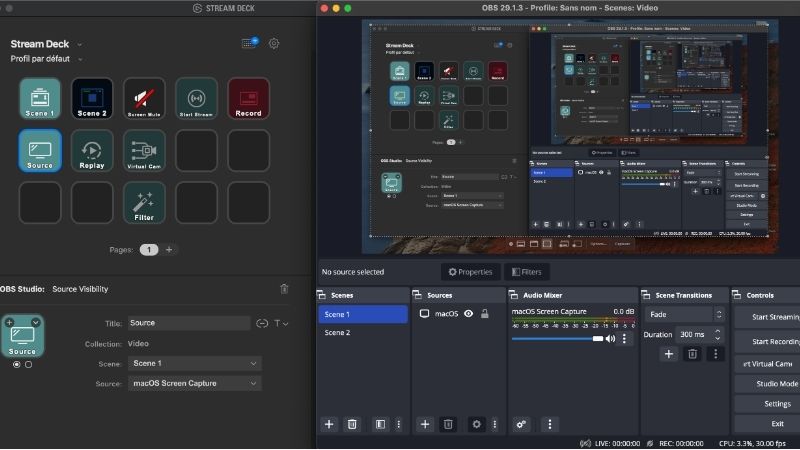
- OBS Studio: Install the supported desktop build from the OBS Project and launch it at least once. Make sure it can show a scene and capture an audio source before integrating a controller.
- Stream Deck software: Install the current desktop release from Elgato, connect the Stream Deck to the computer, and confirm that its on-screen keys respond in the Stream Deck app.
- Official OBS Studio plugin: Use the plugin published by Elgato in Elgato Marketplace, not an unrelated third-party plugin with a similar name.
- Compatible versions: Elgato’s May 2026 integration overview describes older minimums of Stream Deck 5.3 and OBS 27.0. The specific official Marketplace OBS Studio plugin listing checked for this guide is version 3.0.3.31, dated June 3, 2026, and lists Stream Deck 6.9 or later as its requirement. Follow the requirement shown for the version you actually install rather than assuming an older minimum covers the current plugin.
- A practice scene collection: Prepare at least two scenes, such as Gameplay and Starting Soon, and a microphone audio source in OBS. You can also add a webcam or overlay source to practice visibility controls.
Do not start a public livestream just to test the setup. OBS recommends first making a short local recording. If you already have Stream Deck profiles, export or back them up before major software updates; Elgato documents profile backups as a precaution when updating the Stream Deck app.
Set up OBS scenes and audio before mapping buttons
Stream Deck actions refer to objects already configured in OBS. A button cannot switch to a scene that has not been created, and it cannot mute an audio source that OBS does not see. The OBS Project’s Quick Start Guide and Overview Guide describe the standard scene, source, and Audio Mixer workflow.
- Open OBS Studio. In the Scenes dock, use the plus button to add a scene named Gameplay.
- With Gameplay selected, use the plus button in the Sources dock to add the appropriate game, window, display, or video capture source. Windows Game Capture works for many games, but capture support varies.
- Create a second scene named Starting Soon or Break. Add a simple image or text source so you can distinguish it clearly from Gameplay.
- Check the Audio Mixer. Speak into your microphone and watch the meter. If it stays still, go to Settings > Audio and select the input device, or configure the audio capture source used by your scene.
- If you want to toggle a webcam or overlay later, make sure that source appears in the OBS Sources dock and note its exact name.
- Use OBS’s Start Recording control for a brief local test; stop recording and play the resulting file. Confirm that video and microphone audio work before involving Stream Deck.
Expected result: OBS can move between your two scenes, show and hide an overlay, and capture a working microphone on its own. If those functions fail inside OBS, fix them there before troubleshooting Stream Deck.
Install the official OBS Studio integration in Stream Deck
Elgato’s official OBS Studio integration supports scene selection, source visibility, audio mute, recording, streaming, replay controls, Studio Mode, and more. The Marketplace listing identifies its publisher as Elgato. Its particular available actions can change across plugin versions, so use the controls shown in your installed release.
- Close OBS before installing or updating the integration, particularly if you are repairing an old connection.
- Open the Stream Deck desktop software and verify that your hardware is detected. Update the application if it is older than the plugin’s published compatibility requirement.
- Open the Stream Deck Marketplace or plugin browser. Find OBS Studio by Elgato and choose the official plugin. Install it if it is not already present, or update it when an official compatible version is offered.
- Return to the Stream Deck action list and confirm that the OBS Studio action category appears. If the category is not visible, check the plugin’s installed state and restart Stream Deck.
- Launch OBS Studio normally. Keep OBS and Stream Deck running while you configure buttons. On a standard installation, Elgato’s desktop software ordinarily deploys the companion OBS-side integration needed for communication.
- Check that the OBS actions can see the scene names from the active OBS scene collection. If the drop-down remains empty or an action shows Waiting for OBS, follow the troubleshooting section instead of repeatedly making duplicate actions.
Expected result: A Scene action in Stream Deck displays the scenes already present in OBS. The official Elgato integration comprises a Stream Deck plugin and a companion plugin loaded by OBS; installing only one part can produce a connection error.
Assign buttons for switching between OBS scenes
Scene switching is the simplest way to confirm that Stream Deck and OBS are communicating. Give each frequently used scene its own physical key first. You can organize larger collections into folders later.
- In the Stream Deck app, choose the device and profile that will control OBS. Select an unused key.
- From the OBS Studio category, drag the Scene action onto that key.
- In the action settings, choose the OBS scene collection or OBS instance if your installed plugin offers those selectors, then select Gameplay from the Scene drop-down.
- Label the key Game. Select a different key, add another Scene action, and assign it to Starting Soon or Break.
- Bring OBS into view and press the corresponding Stream Deck keys one at a time. Check the active scene in OBS and the program preview.
- Rename a test scene in OBS and return to Stream Deck to confirm whether you need to reselect it in the action. Broken selections after a rename are a configuration issue, not evidence that the Stream Deck hardware has failed.
Expected result: Pressing Game makes Gameplay the selected output scene; pressing Break switches to the other scene. Elgato documents a Scene action that selects a specific scene, and the official plugin offers status feedback on supported keys. Use the OBS canvas as the final confirmation rather than relying on the key icon alone.
Configure microphone mute and source visibility
A reliable stream needs a clear separation between muting the microphone and hiding a visual source. Elgato’s Audio Mixer action mutes or unmutes a source’s audio in OBS, while Source Visibility shows or hides a source in the active scene collection.
Make a mic mute key
- Verify that the microphone source is visible in OBS’s Audio Mixer and that its level meter moves when you speak.
- Drag the plugin’s Audio Mixer or labeled mute action to an unused Stream Deck key.
- Select the exact OBS microphone audio source in the action properties. This may be a global Mic/Aux input or an explicitly named audio source, depending on your OBS setup.
- Set a recognizable label such as Mic mute, then press the key while watching the microphone’s mute indicator in OBS.
- Make a short local recording with the mic muted and another with it unmuted. Verify the actual recorded audio; a changing icon alone does not prove the desired track is muted.
If you have a second microphone, a capture-card audio input, or an audio routing application, confirm which source OBS actually records. An action that mutes the wrong source can appear functional without muting your voice. Elgato describes its Audio Mixer integration as source audio mute/unmute, and OBS’s Audio Mixer Guide explains the meter and mute indicator.
Make an overlay or webcam visibility key
- In OBS, select the scene containing the overlay or camera source you intend to control.
- Drag Source Visibility to a new Stream Deck key, then choose the intended source from the available settings.
- Press the key and verify that the source disappears in OBS; press it again and confirm it returns.
- If the action targets the wrong item, recheck the active scene collection and source name. Different scenes may contain similarly named items or scene references.
Hiding a source is not the same as muting every possible audio path. If the hidden item also carries audio, verify whether its audio remains audible rather than assuming video visibility controls silence it. Choose an Audio Mixer action when you specifically need audio mute behavior.
Add recording and streaming controls safely
Elgato provides separate Record and Stream actions. Record starts or stops a local recording. Stream starts or stops the live broadcast configured inside OBS. These actions do not automatically set a stream destination, choose an encoder, or resolve an invalid stream key. Configure OBS first and test locally.
- Open OBS Settings > Output and verify the recording path and format you intend to use. For live streaming, complete Settings > Stream using the supported account connection or a securely entered stream key.
- In Stream Deck, drag the OBS Record action to a free key, then label it clearly, such as REC.
- In the action’s available settings, consider enabling the Long Press confirmation if your version supports it. Elgato documents a five-second long-press option for Record and Stream; this helps prevent an accidental start or stop.
- With no livestream active, press the Record key. Confirm OBS changes to an active recording state, make a short test, then stop recording and play the file.
- Add a separate Stream key only after the above succeeds. Label it distinctly from Record. If possible, rehearse using a private, unlisted, or test destination supported by your platform rather than a public broadcast.
- Do not place accidental go-live commands inside a broad Multi Action sequence during initial setup. Verify each step independently before combining actions.
Expected result: The Record key changes OBS recording state and produces a playable file. The Stream key should be tested only against a properly configured destination. A Stream Deck key cannot fix a platform authorization error, network outage, or incorrect broadcast service inside OBS.
Set up Studio Mode, replay buffer, and other useful actions
After your core controls work, add only the advanced features you actually use. The official Elgato list includes Studio Mode, Preview to Program, Replay Buffer, Replay Buffer Save, media controls, filters, screenshots, transitions, and chapter markers.
- Studio Mode: Use the Studio Mode action to turn OBS’s two-view workflow on or off. In OBS, the Preview is the scene being prepared and Program is the actual output. The Preview to Program action sends the prepared scene live; it requires Studio Mode to be enabled. Verify this carefully before broadcasting.
- Replay Buffer: First enable Replay Buffer in OBS’s Settings > Output and configure the buffer behavior. Add separate Stream Deck controls for starting/stopping the buffer and saving an active replay. Save Replay will not create a clip if the buffer was never enabled or started.
- Scene Collection: Switch between saved collections only when intentional; collections can contain different sources and scenes, so a profile mapped to an older collection may appear to lose entries.
- Media Source Control: Start, pause, stop, or restart a configured media source using supported actions. Test whether the selected source is the same one currently used by your production scene.
- Filters and transitions: Toggle a named filter or choose a scene transition when the requested filter or transition exists in OBS. Some options depend on OBS and plugin versions.
- Chapter Marker: If you use an OBS-supported recording workflow with chapter markers, the official plugin offers a corresponding action; do not assume every output container or playback editor handles markers identically.
A useful practice layout for a small device is Game | Break | Mic mute | Record | Overlay. On a larger Stream Deck, put replay controls and Studio Mode on a second row. Keep Go Live in a deliberately separate location or behind a confirmation behavior to reduce accidental broadcasts. This layout is a workflow suggestion, not an official factory preset.
Verify the entire setup before your first live session
A successful plugin connection should produce visible results in OBS, not just a populated Stream Deck editor. Use a repeatable rehearsal that checks every control against the program’s actual behavior.
- With OBS open, switch from Gameplay to Break using Stream Deck; confirm the intended scene is on the program canvas.
- Show and hide the overlay, watching its visibility state in OBS’s Sources dock.
- Speak into the microphone, press Mic mute, and confirm both the mute icon and your test recording reflect the change.
- Start and stop a local recording with the Stream Deck Record key. Locate the file on disk and watch or listen to it.
- If you use Studio Mode, enable it, select a preview scene, and test Preview to Program. Confirm which preview is live rather than guessing from the two canvases.
- Stop the rehearsal and restart both programs once. Make sure the actions reconnect, that the correct Stream Deck profile is active, and that your OBS scene collection still matches the assigned keys.
If a key works only before a restart, capture the installed Stream Deck version, OBS version, official plugin version, and the behavior that fails. That evidence will make later troubleshooting more targeted.
Fix Waiting for OBS, missing scenes, or buttons that do nothing
Elgato documents the Waiting for OBS error and explains that the integration has two components: one running through Stream Deck and another loaded by OBS. Use the simplest checks first and stop when the keys work.
| Symptom | Likely issue to check | First safe action |
|---|---|---|
| OBS actions show Waiting for OBS | OBS is closed, companion plugin did not load, or versions are incompatible | Launch OBS and update/reinstall the official Stream Deck software with OBS closed |
| OBS Studio action category is absent | Official Marketplace plugin missing or disabled | Check installed Stream Deck plugins and the publisher |
| Scene selector is blank | OBS connection not established or a different scene collection is active | Inspect OBS scenes and plugin connection, then reopen the selector |
| Mic mute key works but voice still records | Wrong audio source targeted or multiple microphones are active | Check OBS Audio Mixer and make a short recording |
| Source visibility key changes nothing | Wrong source or collection selected | Choose the exact source in the active OBS collection |
| Only portable OBS fails | OBS-side plugin files not loaded in portable install | Follow Elgato’s separate portable-mode instructions |
| Scene keys stopped after an update | Plugin compatibility issue or an outdated action mapping | Check Elgato’s current plugin requirements and reselect actions |
Repair an ordinary OBS installation
- Confirm that OBS Studio runs independently and is not frozen. Exit OBS completely.
- Open Stream Deck and check that the OBS Studio plugin is the one published by Elgato. Note its version and compare it with the compatibility requirements in the official Marketplace listing.
- Download a current Stream Deck installer from Elgato. Elgato’s Waiting for OBS article recommends reinstalling/updating the desktop software with OBS closed because the OBS-side companion component can be missing or outdated.
- Start OBS again and verify whether its Tools menu includes an Elgato Stream Deck entry on platforms/builds that expose it. The presence and menu appearance can vary with plugin generation; treat this as supporting evidence, not the only test.
- Reopen Stream Deck and test a simple Scene action before attempting complicated Multi Actions. If scenes remain blank, inspect the OBS-side log and the official plugin’s support instructions rather than downloading random replacement DLLs.
Elgato’s older troubleshooting article specifies Stream Deck 6.5.2 or later for OBS Studio 30.1 or later. That compatibility floor is not the same as the newer Marketplace plugin’s stated 6.9-or-later requirement. For the current plugin, use its own listing as the controlling requirement.
When OBS runs in portable mode
A portable OBS installation does not use the same plugin locations as a standard installation. Elgato’s Windows 11 portable-mode guide says the extra manual steps apply to OBS Studio 29.1 or later. It documents copying Stream Deck’s OBS companion plugin files into the appropriate portable OBS plugin and data directories and explicitly lists additional components for OBS 32 or later.
Do not paste a few DLLs from an unrelated online forum or assume the standard installer will update copied portable files automatically. Follow Elgato’s complete portable-mode article for your OBS version, retain a backup of the portable directory before making changes, and repeat the documented copy process when updating the integration. If you are uncertain about managing portable plugin files, using the normal supported OBS installation is generally simpler.
Do you need to enable OBS WebSocket for Stream Deck?
Not for the basic, official Elgato OBS Studio plugin setup described here. Elgato’s support identifies its own Stream Deck-side and OBS-side plugins, while the OBS Project separately documents a built-in obs-websocket service for remote-control tools. These are distinct integration paths. Do not troubleshoot the official Elgato plugin by randomly toggling WebSocket ports, disabling authentication, or installing obsolete WebSocket packages.
OBS has included its WebSocket implementation since OBS Studio 28. If you later choose an alternative tool that explicitly communicates using OBS WebSocket, use Tools > WebSocket Server Settings and follow that tool’s official instructions. The OBS Project recommends authentication with a password. Never expose an unauthenticated control interface to an untrusted network just to make a Stream Deck command work.
Back up your Stream Deck profile and recover your configuration
Stream Deck profiles represent work: scene names, button layouts, icon choices, and action selections. Elgato recommends exporting or backing up profiles before major software updates so they can be imported again if a problem occurs. Exact backup commands may move with desktop software revisions, so use the profile export or backup option shown in your installed Stream Deck application.
- Open the Stream Deck desktop app and locate the profile you configured for OBS.
- Use the app’s available Export or Backup control to save a local copy outside the application folder. Keep the copy somewhere you can retrieve it after a reinstall.
- In OBS, make a note of the active scene collection and the exact scene/source names that your keys reference. Exporting a Stream Deck profile does not itself create the missing scenes in OBS on a different PC.
- After an update or a move to another computer, import the profile and inspect the mapped OBS actions. Reassign items that no longer exist or that were renamed in the destination OBS configuration.
- Run the five-key rehearsal again before relying on the restored profile in a live production.
For a more complicated setup, keep a separate written record of the intended action on every physical key. A saved profile may restore labels and layouts without automatically restoring third-party apps, audio devices, or game capture sources that have changed.
Frequently asked questions
Can Stream Deck control OBS Studio without opening OBS?
The native OBS actions require OBS to be running and its companion integration loaded. You can assign a separate application-launch action to open OBS, but that is not the same as making an OBS Scene or Record action work while OBS is closed. Launch OBS first, wait for its scene collection to load, then test your mapped controls.
Does the official Stream Deck OBS plugin require a separate obs-websocket download?
No. The Elgato integration described here installs a companion OBS plugin through the Stream Deck software. Separately, OBS Studio 28 and newer already include the WebSocket feature for tools that specifically use that connection method. Do not mix the two setup procedures.
Why do scene buttons disappear after switching OBS scene collections?
A Stream Deck Scene action refers to a scene in a collection, and a different collection can contain different scene names. Reopen its settings, select the appropriate scene or collection if that control exists, and test again. Elgato also provides a separate Scene Collection action, which can intentionally change the entire set of available scenes.
Can one Stream Deck button mute my microphone and change scenes together?
Stream Deck supports Multi Actions that run multiple supported steps. Set up and independently verify the mic mute and scene controls first, then combine them deliberately. Remember that a toggle action may reverse an existing state if pressed twice. Avoid automatic start-stream commands in complicated sequences until the results have been rehearsed.
What is the safest way to test my Go Live key?
Confirm the Stream action is assigned correctly, enable its supported long-press safeguard, and verify OBS’s streaming destination. When the service provides a private or test broadcast option, use that for a live control rehearsal. Otherwise, rely on a local recording to test the remaining layout and do not press Go Live as a general diagnostic step.
Final checklist
- OBS Studio opens with the expected scene collection, microphone, and recording output already tested.
- Stream Deck desktop software recognizes the hardware, and the installed Elgato OBS Studio plugin is compatible with that version.
- The Scene key changes the intended OBS scene; source visibility changes the right visual element.
- The microphone mute action targets the actual recorded input, verified by a short test file.
- The Record action starts and stops a local recording, and its saved file is playable.
- Streaming controls are clearly separated from ordinary scene keys and have a confirmation safeguard if available.
- Profile backup is saved, and OBS-side scene/source names are documented for restoration.
If these checks pass, your Stream Deck is configured to control OBS with an intentional, verifiable layout. For a stuck connection, consult Elgato’s current OBS Studio Integration and Waiting for OBS guides; for scene, audio, or output problems that also happen without Stream Deck, return to the OBS Project’s Quick Start and Audio Mixer documentation. This guide is based on official support instructions and has not been validated on a physical Stream Deck test unit.




