The best PS5 Pro USB hubs are not necessarily the hubs with the most ports. A useful model gives low-power accessories such as a compatible keyboard, mouse, or USB receiver a convenient place to connect without turning the console into a cable jungle. For a rear USB-A connection, the Anker Ultra Slim 4-Port USB 3.0 Data Hub is our first specification-based choice. The Sabrent HB-UM43 adds individual port switches, while the Insignia Powered Hub is worth considering when a separate power adapter matters. Owners who want to expand a front USB-C connection should look at the Plugable USBC-HUB4A or Insignia USB-C hub. These are conditional recommendations: Sony has not confirmed PS5 Pro compatibility for each specific hub reviewed here.
Quick verdict: Which PS5 Pro USB hub should you buy?
Best overall for low-power rear accessories: Anker Ultra Slim 4-Port USB 3.0 Data Hub (A7516). The checked two-foot version connects to a rear USB-A port, provides four 5Gbps USB-A data ports, and places the hub farther from the console than a short direct-plug design. Anker explicitly says the hub does not support charging and warns about possible interference with nearby 2.4GHz receivers. Buy it for convenient data connections, not for powering multiple controllers.
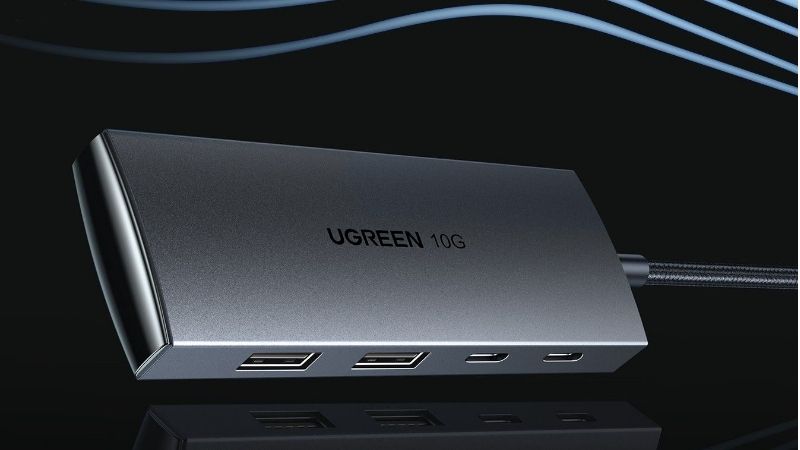
Best for independently switching accessories: Sabrent HB-UM43. Four USB 3.0 ports have their own power switches and indicator LEDs. This is a neat way to disable a spare accessory without pulling cables, although a switch is not a guarantee that every dongle will reinitialize correctly on a PS5 Pro.
Best for additional external power: Insignia NS-PH3A4AP. Best Buy specifies an included AC adapter and four USB 3.0 ports, with a stated 5V/900mA output per port. This design addresses the limited shared power budget of a bus-powered hub. It does not override Sony’s device-compatibility restrictions or turn a hub into an approved path for game storage.
Best front USB-C data option: Plugable USBC-HUB4A. It converts one USB-C connection into four USB-A 5Gbps data ports, but the manufacturer describes it as data-only. Keep the PS5 Pro’s front SuperSpeed USB-C port available for PS VR2 when needed; that headset must connect to the designated port directly.
PS5 Pro USB hub comparison: Six products and current listings
Prices and visible seller status below were checked October 27, 2026, for US listings. An “In stock” label refers to purchase availability shown on the cited seller page, not a guarantee of delivery to every ZIP code. “Purchase offered; stock unclear” means the page displayed buying options without a separate inventory confirmation. No product in this table has been independently plug-tested on our PS5 Pro; manufacturer specifications establish the hub’s own ports and power, not console-level certification.
| Product | Verified hub specification | Recommended connection/use | Price (US seller, Oct. 27) | Stock status (Oct. 27) | Main drawback |
|---|---|---|---|---|---|
| Anker Ultra Slim A7516 | USB-A upstream; four USB-A 3.0 data ports, up to 5Gbps; selected 2ft cable | Rear USB-A; spread low-power accessories away from console | $14.99, Anker US | In stock; buy now visible | No charging; shared power and 2.4GHz-interference caveats |
| Sabrent HB-UM43 | Four 5Gbps USB-A ports; independent switches and LEDs; approximately 10in built-in lead | Rear USB-A; turn individual wired accessories on or off | $14.95, Sabrent US | In stock; add to cart visible | Short cable and no separately specified AC adapter |
| TP-Link UH400 | USB-A upstream; four USB-A 3.0 5Gbps ports; foldaway cable | Rear USB-A; compact no-fuss cable management | $15.57, MaxGaming US | In stock on seller listing | No published PS5 Pro certification; no dedicated power supply |
| Insignia NS-PH3A4AP | Four USB 3.0 5Gbps ports; AC adapter; stated 5V/900mA per port | Rear USB-A; peripherals needing more dependable hub-side power | $24.99, Best Buy | In stock; add to cart visible | Extra wall outlet and no guaranteed support for all accessories |
| Plugable USBC-HUB4A | USB-C upstream; four USB-A 3.0 data ports, up to 5Gbps; 15cm lead | Front USB-C; compact USB-A data expansion | $17.95, Plugable US | Purchase offered; stock unclear | Data-only; very short lead; PS VR2 port priority |
| Insignia NS-PCHC4A | USB-C upstream; four USB-A 3.0 data ports, up to 5Gbps | Front USB-C; US retail pickup alternative | $19.99, Best Buy | In stock; add to cart visible | Short cable; manufacturer lists computer operating systems |
Know the PS5 Pro’s four USB ports before buying
Sony’s PlayStation Blog and official USB ports guide identify two SuperSpeed USB-A ports rated at 10Gbps on the rear of the PS5 Pro (CFI-7000 family). The front has two USB-C connections, but they are not interchangeable: one is SuperSpeed USB 10Gbps and the other is Hi-Speed USB, the older USB 2.0 class. A hub that advertises 5Gbps cannot make the Hi-Speed socket operate at 5Gbps, and attaching multiple devices does not provide each one with a separate connection to the console. All devices behind a hub share its upstream link.
Most of the straightforward picks here have a USB-A plug for a rear console port. That arrangement keeps the front USB-C sockets free and lets the hub sit on a nearby entertainment shelf. The USB-C picks are more convenient when a front-facing cable is acceptable, but pay attention to which socket you occupy. Sony specifies that PS VR2 connects to the front SuperSpeed USB-C port. Do not put the headset through a generic hub or assume the hub’s downstream USB-C or USB-A data sockets can substitute for a direct headset connection.
The most important restriction concerns USB Extended Storage. Sony explicitly states that a drive formatted as PS5 USB Extended Storage cannot connect through a USB hub. Plug that drive directly into a supported SuperSpeed console port instead. Compatible PS4 games can run from USB Extended Storage; PS5 games can be stored there but must be copied back to internal storage or a compatible internal M.2 SSD before play. A 5Gbps port label on a hub does not cancel the direct-connection requirement. This article therefore does not recommend any hub as an external game-drive solution.
Another distinction is power versus data. A bus-powered hub receives power from one console port and shares it across its connected devices. It should not be judged by how many USB sockets it shows. A separately powered hub can supply more downstream power, but it still relies on host compatibility and the console’s USB connection for data. The published specifications for Windows or macOS are useful to establish the hub’s design; they do not prove that Sony has qualified it for every PlayStation peripheral.
Best PS5 Pro USB hubs reviewed
Anker Ultra Slim A7516: Best overall for rear USB-A expansion
Anker’s A7516 earns our first choice for a straightforward reason: it offers a practical number of ordinary USB-A ports, a two-foot version of its integrated cable, and a low direct-store price without pretending to do jobs the PS5 Pro cannot delegate. The manufacturer lists four USB-A 3.0 ports capable of up to 5Gbps and shows the selected two-foot black option at $14.99, in stock on its US store. Its slim rectangular body can sit beside a TV stand while a single cable runs to a rear USB-A socket. That is tidier than suspending multiple USB receivers and cables immediately behind the machine.
For a buyer using a wired USB keyboard for console text entry and occasionally attaching another supported low-power accessory, that longer lead is more important than a theoretical peak transfer-rate advantage. The PS5 Pro rear connection is rated up to 10Gbps, but this hub is 5Gbps; it is the hub’s rated ceiling, not an upgrade to the console. Do not confuse four available sockets with four independent 5Gbps links. A hub distributes one upstream USB connection among everything attached.
Anker’s own documentation says this data hub does not support charging and advises against using high-draw devices beyond the total bus-power budget. Its support material also cautions that some 2.4GHz wireless receivers may behave poorly close to USB 3.0 equipment. That matters to gaming setups: if a headset or keyboard receiver begins disconnecting, try a direct console port and physical separation before declaring the controller or headset faulty. Advantages: manufacturer-specified data ports, useful two-foot cable, in-stock US direct listing, inexpensive entry point. Limitations: data-focused power design, possible wireless interference, PS5 Pro operation not explicitly certified.
Sabrent HB-UM43: Best hub with individual USB switches
Sabrent’s HB-UM43 is more of a control panel than the Anker hub. It provides four USB 3.0 ports, each with its own pushbutton and blue status LED, so you can selectively disable a connected device without unplugging it. Sabrent lists transfer speeds up to 5Gbps and backward compatibility with older USB generations. The current US product page shows model HB-UM43 at $14.95 with an active Add to Cart action. For a desk that rotates between a keyboard, wired mouse, or occasional USB peripheral, a per-port switch is a tangible feature rather than a decorative light.
The practical caveat is that the hub’s roughly 10-inch attached USB lead will not necessarily reach the front edge of a deep media cabinet from the PS5 Pro’s rear port. Plan where you will place the hub before buying. Also, a switch turning off USB power is not a promise that the PS5 Pro, a wireless dongle, or a game will re-detect the accessory instantly when switched back on. Test your important accessory while the game is idle, then fall back to a direct connection if recognition becomes inconsistent.
Sabrent lists protection features concerning voltage, current, overheating, and power failure, but these are manufacturer claims about the accessory’s electronics, not an independent performance test on a console. The listing does not establish that the hub has a dedicated external power adapter. It is consequently not our first pick for charging or for devices with demanding power requirements. Advantages: individually switched ports, clear LEDs, compact construction, active US product listing. Limitations: short cable, no verified PS5-specific approval, no basis for claiming reliable multidevice charging.
TP-Link UH400: Best compact foldaway-cable option
The TP-Link UH400 prioritizes cable organization over controls. TP-Link’s US specification page identifies a USB 3.0 Type-A input, four USB 3.0 output ports, and a compact 71-by-71-by-16.6mm housing. Its integrated connector folds into a groove rather than dangling next to a set of other console cables. Those details make it an appealing option for a PS5 Pro kept in a crowded entertainment center or moved occasionally between rooms. TP-Link’s technical material lists up to 5Gbps, though actual throughput depends on the full connection.
At the time of research, the MaxGaming US storefront displayed $15.57 and an In Stock purchase status for the UH400. That is a seller-specific snapshot, not a global street price; the buyer should confirm delivery location and final shipping charges. TP-Link’s own product page supports the model and port count independently from the storefront listing. This two-source approach matters because names like “four-port USB hub” are far too generic to determine which hardware revision or connector a listing actually contains.
TP-Link lists plug-and-play use with Windows, Mac, and Linux, and its documentation includes the same broad warning about 2.4GHz wireless devices near USB 3.0 equipment. It does not claim validated PS5 Pro support on the US model page checked. Treat the UH400 as a compact candidate for basic console accessories, not a safe substitute for a direct-connected gaming headset receiver that already works. Advantages: proven manufacturer model number, foldaway cable, compact footprint, current purchase listing. Limitations: no separate AC adapter, four sockets share host resources, console compatibility remains accessory-dependent.
Insignia NS-PH3A4AP: Best for a separately powered hub
The Insignia NS-PH3A4AP is the most relevant pick when bus power is a concern. Best Buy specifies four USB 3.0 data ports, a separate AC power adapter, a USB-to-micro-B connection cable, and up to 5Gbps data transfer. Its listing states 5V/900mA output from each port. The retailer displayed $24.99 with an Add to Cart option on the inspected US page. Unlike the smaller unpowered hubs, the Insignia model uses an additional wall outlet, which is a meaningful trade-off in a television setup with a crowded power strip.
A powered hub is worth considering when a basic data hub has unstable power delivery for multiple ordinary USB peripherals. It does not follow that every headset receiver, controller, microphone, or external device will work through it. PS5 support depends on how the console and accessory negotiate over USB. If Sony or the peripheral maker tells you to use a particular console socket, their connection instruction takes priority over this hub’s nominal electrical specifications. In particular, the direct USB Extended Storage requirement still applies, even if the hub has ample power and a SuperSpeed label.
The manufacturer compatibility field on the Best Buy page references computer operating systems rather than a PS5 Pro certification. We therefore do not claim a console-specific plug-and-play guarantee, measured charging rate, or reduced latency. This model is best for readers who have identified a power-budget issue with a supported low-power accessory set and can return the hub if the specific combination fails. Advantages: included AC adapter, documented per-port output, four SuperSpeed data ports, active US retail listing. Limitations: larger power setup, price premium, no independent PS5 Pro validation.
Plugable USBC-HUB4A: Best front USB-C data hub
Plugable’s USBC-HUB4A targets a different problem: you want USB-A peripheral ports without occupying a rear USB-A socket. Its upstream cable ends in USB-C, while the body presents four USB 3.0 Type-A data ports with a rated maximum of 5Gbps. Plugable specifies a 15cm integrated lead, two-year coverage, and lifetime technical support. The US manufacturer listing displays $17.95 and direct purchase options, although a separate stock confirmation was not visible in the listing we reviewed. It is deliberately a data hub, not a controller charger.
On a PS5 Pro, front convenience comes with two restrictions. First, the front Hi-Speed USB-C socket is a different speed class from the front SuperSpeed USB-C socket. If you need the hub’s full advertised USB 3.0 capability, the host port must support it, and even then real throughput is shared. Second, the SuperSpeed USB-C port is Sony’s designated PS VR2 connection, so a VR player should usually leave that port directly available rather than treating it as a permanent expansion dock. A very short cable may also leave connected peripherals visibly draped over the front panel.
The published Plugable compatibility list mentions PC and tablet operating systems but not PS5 Pro. A standard USB-C plug is not itself a Sony compatibility certificate. Choose this hub when the front-port location is the main benefit and the planned attached devices are low-power USB data peripherals you can verify individually. Advantages: USB-C upstream, manufacturer-documented four-port 5Gbps design, support policy, no USB-C-to-A adapter needed. Limitations: no charging, short cable, USB-C port competition with PS VR2, console support unverified.
Insignia NS-PCHC4A: Best USB-C option for US retail pickup
Insignia’s NS-PCHC4A fills the same general role as the Plugable USB-C model but may be easier to inspect or return at a nearby Best Buy. Its dedicated retailer listing identifies four USB-A outputs, a USB-C host connection, up to 5Gbps data rate, and a compact design. Best Buy’s inspected US page showed $19.99 and a purchase option. The model number matters here: NS-PCHC4A is the USB-C-connected four-port hub, not the separately powered USB-A hub NS-PH3A4AP discussed above.
That distinction helps avoid a common online-shopping mistake. If your PS5 Pro’s two rear USB-A connections already serve a directly connected drive and a receiver, a front USB-C data hub could be a convenient way to add temporary keyboard or mouse connections. But if you need continuous PS VR2 access, the location may be awkward. The hub does not create a new rear port, make its outputs behave like dedicated console sockets, or promise reliable charging of a collection of controllers.
Best Buy’s system requirements mention Windows and macOS; it does not state tested PS5 Pro compatibility. Store availability also depends on local ZIP code. Compared with the Plugable hub, the Insignia is a retailer-accessible alternative rather than a meaningful performance upgrade. Advantages: clear USB-C-to-four-USB-A design, accessible US retailer, compact size. Limitations: no published PS5 Pro validation, short cable, potential shared-power constraints.
How we selected and checked these PS5 Pro hub options
We started with Sony’s own PS5 Pro port map and the official USB Extended Storage guidance, because the wrong host socket or a prohibited connection defeats even a well-reviewed USB hub. We then looked for real manufacturer SKUs with published upstream connector type, downstream port count, data-rate ceiling, and power arrangement. For prices we used opened US seller pages for the exact model, recording whether the listing showed an active purchase action and whether the product claimed a separate supply. We did not extrapolate a seller’s price from another retailer, a regional version, or an old roundup.
Our ranking is editorial and specification-based, not a laboratory test. We did not perform device enumeration testing on a physical PS5 Pro, measure USB voltage under simultaneous loads, benchmark transfer speed, record input latency, or confirm headset-dongle stability. Sony’s compatibility resources identify supported peripheral categories and ports, while the hub makers mainly document compatibility with computers. That evidence supports a shortlist of reasonable candidates, but not a declaration that all connected PlayStation peripherals will function. The safest buyer uses a retailer with returns and validates the exact device combination before relying on a hub.
Buying checklist: Avoid the wrong USB hub for your console
Start with the devices, then choose the upstream plug
Write down the peripherals that actually need to remain connected. A keyboard used only for occasional messaging may not justify a permanent hub. A PS VR2 headset must reserve Sony’s specified front SuperSpeed USB-C port. An extended game drive must connect directly to a compatible SuperSpeed port. Only after accounting for these should you count which USB-A or USB-C sockets are genuinely available for low-power accessories. A rear USB-A hub with an attached lead is usually less disruptive than an adapter that blocks access to adjacent rear hardware or occupies the front port needed for VR.
Do not confuse USB 3.0, USB-C, data rate, and charging
USB-C describes the connector shape, not a promise of charging wattage or 10Gbps operation. Similarly, USB 3.0/5Gbps is a link capability, not a guarantee of transfer performance to every device. A four-port hub generally shares an upstream data link, and advertised hub speeds are not additive. Charging support must be stated separately. Anker’s A7516 and Plugable’s USBC-HUB4A are explicitly described as data-oriented products. An AC adapter on a powered hub can improve the hub’s downstream power budget, but it does not prove support for unusual console peripherals.
Check interference and the return path before installation
USB 3.0 cables and hubs can sometimes disrupt nearby 2.4GHz receivers. Anker, TP-Link, and Plugable provide manufacturer warnings to that effect. If you already own a wireless headset receiver or keyboard dongle, a new hub could make signal placement worse rather than better. Try moving the receiver to a direct port, separating it from the hub and other cables, and confirming whether the accessory behaves normally. Before ordering, verify the exact seller SKU, power adapter inclusion, and return window so a failed pairing does not become a permanent expense.
How to connect a USB hub and verify basic accessories
- Check the two rear USB-A connections and the two front USB-C connections on your PS5 Pro. Set aside any direct-only accessory, especially a USB Extended Storage drive and PS VR2.
- Connect the hub’s built-in USB-A or USB-C upstream lead to an appropriate available console port. If it is the Insignia powered model, connect its documented AC adapter and included host cable as the manufacturer directs.
- Connect just one low-power supported accessory first. For a USB keyboard, start at the PS5 home screen, open Settings > Accessories > Other Accessories and look for the keyboard settings described by PlayStation Support. For a USB mouse, check the mouse settings in the same area.
- Try the accessory’s intended action before adding a second device. A keyboard’s ability to enter text at the system level does not guarantee every game supports keyboard controls.
- Add additional accessories one at a time. If a receiver stops responding, move it directly to a console port and away from USB 3.0 equipment. If the accessory works directly but not through the hub, treat that as a compatibility warning rather than trying risky console resets.
- Keep storage drives that are configured as PS5 USB Extended Storage connected directly to an eligible SuperSpeed console socket. Never attempt to “fix” a hub compatibility problem by reformatting a drive that holds game data.
There is no reason to change PS5 system software, install a third-party driver, use a USB debugging utility, or reset the console merely to establish whether one of these hubs passes an ordinary keyboard signal. Sony’s keyboard and mouse settings also note that not all devices work with PS5 consoles. The direct-connection comparison is the fastest low-risk diagnostic when a particular hub or receiver combination is uncertain.
Frequently asked questions
Will any USB 3.0 hub work with a PS5 Pro?
No blanket guarantee exists. A standard USB connector and a familiar USB 3.0 chipset make a hub plausible for basic peripherals, but Sony does not certify every USB accessory combination. The manufacturers of the six models above chiefly list computer compatibility, not direct PS5 Pro validation. Test the precise keyboard, receiver, or other accessory you need, and keep a return option.
Can I connect my PS5 Pro external SSD through a powered hub?
Not when that drive is formatted as PS5 USB Extended Storage. Sony explicitly forbids connecting a USB Extended Storage drive through a hub. An external power adapter and a 5Gbps or 10Gbps label on the hub do not change that rule. Use an appropriate direct SuperSpeed connection instead.
Will a USB hub charge DualSense controllers faster?
A USB data hub should not be purchased on that assumption. Some reviewed hubs explicitly do not support charging, and a powered model’s electrical rating is not a verified DualSense charging benchmark. If reliable controller charging is your primary goal, a charging dock designed for DualSense controllers is the more relevant category than a data-expansion hub.
Can a USB-C hub add more HDMI outputs to the PS5 Pro?
Do not assume that a laptop-style USB-C dock’s HDMI socket can output PS5 Pro video. The console’s documented video output is its dedicated HDMI connection, and the fact that a USB-C hub works with a laptop’s display features does not establish video-output support on the console. This roundup deliberately covers basic USB data hub functionality rather than multifunction laptop docks.
Should I use the front or rear USB port?
Choose a rear SuperSpeed USB-A socket for a USB-A hub when it is available and not needed by a direct-connected accessory. A front USB-C hub is a convenience alternative, but account for the distinction between the Hi-Speed and SuperSpeed front sockets and reserve Sony’s required front SuperSpeed connection for PS VR2. Avoid placing the hub where cables restrict airflow or put stress on the console’s connectors.
Final thoughts
For most PS5 Pro owners who simply need more convenient connections for occasional low-power USB accessories, the Anker A7516 is the strongest starting point because its port layout, two-foot cable variant, manufacturer caveats, and direct US availability are clear. Choose Sabrent’s HB-UM43 if per-port switching matters, TP-Link’s UH400 when the foldaway cable is more useful, or the powered Insignia when you specifically need an external power source. Plugable and Insignia’s USB-C models make sense only when a front connection fits your setup. Before purchasing, identify the one device the hub must handle, confirm that it is not a direct-only accessory, and plan to test it on the actual PS5 Pro during the seller’s return window.