
Key takeaways
- PS5 Accessibility settings — built-in and free: Use Settings > Accessibility to prepare controls, visual settings and system narration before launch; no accessory purchase required.
- DualSense wireless controller — typically included with PS5: Test button assignments and vibration or trigger intensity using the controller you already own.
- Access controller or DualSense Edge — optional paid hardware: Consider specialized profiles only if regular console adjustments do not meet a specific motor-control need; GTA VI behavior still requires testing.
Looking for GTA 6 PS5 accessibility options before launch? As of October 27, 2026, Rockstar Games has not published a verified, game-specific list covering subtitles, colorblind filters, control remapping, screen-reader support, or motor assistance. That does not mean the game lacks these features; it means buyers should not treat online settings lists as confirmed. You can still prepare useful accessibility settings on a PlayStation 5 right now. This guide separates documented PS5 features from GTA VI features that need checking when the game launches on November 19, and explains exactly how to test each setting without relying on an invented GTA VI menu.
Quick answer: PS5 tools are available, GTA 6 options are not yet documented
The official US PlayStation Store listing identifies Grand Theft Auto VI as a PS5 game and lists DualSense vibration and trigger-effect support. Rockstar’s published platform-and-edition guidance confirms the PlayStation 5 release but does not supply an accessibility menu or individual options. Neither fact establishes subtitle customization, aim assistance, one-handed play, color-vision modes, or narrated gameplay menus. These remain unconfirmed for GTA VI in the official materials reviewed on October 27, 2026.
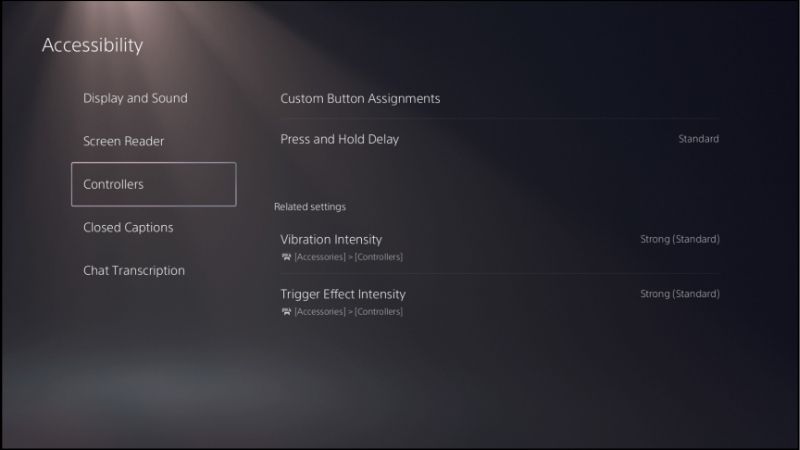
Sony independently documents PS5 button reassignment, display settings, zoom, screen reading for supported console text, game presets, mono headphone audio, and the optional Access controller. Those are genuine console capabilities that may improve how you use the system and your controller before the game arrives. Whether a setting also changes a particular GTA VI interface or scene must be tested in the released game.
| Accessibility question | What is verified today | What still needs a GTA VI check |
|---|---|---|
| Subtitle availability and size | PS5 has game subtitle presets and closed captions for supported media. | GTA VI subtitle support, size, speakers, backgrounds and dialogue cues. |
| Control remapping | PS5 can reassign DualSense buttons at the console level. | GTA VI’s own mapping menu, conflicts and per-action assignments. |
| Text and visual clarity | PS5 includes text-size, color correction, contrast and zoom tools. | Whether each affects GTA VI gameplay text, HUD or cutscenes. |
| Screen reader | PS5 has a system screen reader in supported languages. | Whether GTA VI menus or dialogue have in-game narration. |
| Sound and vibration | PS5 supports mono headphone audio and controller effect settings. | GTA VI’s independent mixing, audio cues, vibration options and triggers. |
| Motor assistance | Access and DualSense Edge support hardware-level profiles. | GTA VI hold-to-press alternatives, aim support and repeat-action options. |
How to check GTA VI’s actual accessibility features
Check PlayStation Store accessibility tags, not fan-created menus
Sony’s support instructions provide a specific route to game-provided accessibility information: from the PS5 Games home, open PlayStation Store, select the GTA VI game hub, and press the triangle button or open the side panel to view accessibility features when the developer has supplied accessibility tags. These tags can describe visual, hearing, subtitle, control, and gameplay accommodations. They are a useful starting point for identifying particular capabilities before purchase.
If the GTA VI hub does not display a tag panel, do not conclude that every feature is absent. Sony says supported titles can show tags; publication of that metadata is not mandatory evidence of the full menu. Record the listing date, console region and any tags that actually appear. The separate PlayStation Store line about DualSense vibration and trigger effects is platform-feature information, not confirmation of accessible vibration controls inside GTA VI.
Inspect the released game one category at a time
Once GTA VI is playable, open the game’s options or settings using the on-screen instructions provided by that version. Rockstar has not publicly verified the precise name, tab order, or controller shortcut for a GTA VI accessibility menu, so no responsible prelaunch guide can give an exact in-game button path. Look for actual headings related to subtitles, audio, display, controls, camera and accessibility, then note the setting names present on your screen rather than assuming categories from GTA V.
Change one option at a time and test it in an ordinary, low-pressure scene. For subtitles, use dialogue you can replay or encounter safely; for controller changes, test on-foot movement before driving or a timed mission; for readability, check nighttime scenes and bright backgrounds. Return to the previous setting if the change creates another barrier. Game menus and supported options can vary by version and patches, so make a short note of your installed version when reporting a problem to Rockstar Support.
Customize DualSense controls before launch
Remap buttons in PS5 settings
To change a button at the console level, start at the PS5 home screen and open Settings > Accessibility > Controllers > Custom Button Assignments for DualSense Wireless Controller. Choose the button you want to reassign, select its new function, and select Apply. Sony documents this exact route. This can help when a standard face-button placement is physically uncomfortable or you need an input on a different finger.
For example, moving an often-used input to an easier-to-reach button may reduce hand strain, but the system-wide reassignment changes the physical input understood by compatible software. It does not prove GTA VI offers a separate per-action remapping screen. It can also cause prompts shown in a game to differ from the physical button you now press. Write down the original mapping and verify the PS5 home screen remains navigable before changing several inputs. To undo the experiment, return to the same Custom Button Assignments screen and restore the previous assignments.
Reduce vibration and trigger resistance when necessary
Sony provides another verified path: Settings > Accessories > Controller (General). Adjust Vibration Intensity and Trigger Effect Intensity according to comfort, and consider the controller speaker volume if concentrated audio from the controller is distracting. The US GTA VI listing explicitly states that DualSense vibration and trigger effects are supported, but it does not describe their intensity, on-screen contexts, or a separate GTA VI toggle.
Lowering a console setting is a practical way to prepare for a game that might use physical feedback. A player sensitive to forceful resistance can set trigger effects lower before first launch. Test a known compatible game or the PS5 interface to understand the change, then check whether GTA VI respects the result after release. If the expected difference is not noticeable, verify the correct controller is connected and confirm whether the current software activity uses the feature.
Prepare text, color and zoom settings for readability
Improve PS5 display and text settings
Open Settings > Accessibility > Display and Sound on PS5. Sony documents options including Text Size, Bold Text, High Contrast, Color Correction, and Reduce Motion. Try a larger text size and bolder system labels if you struggle to read the console dashboard; use the color filter’s intensity control if a particular color combination is difficult to distinguish. Check a familiar screen after each adjustment.
These settings are not a substitute for confirmed GTA VI accessibility options. A console font control may improve PS5 menus but not alter text embedded in a game’s artwork or heads-up display. Sony also warns that its Invert Colors setting switches HDR off when enabled. If you rely on HDR, do not treat inversion as a cost-free adjustment. Compare legibility and display output before making it your default.
Use PS5 zoom carefully and test where it works
For magnification, go to Settings > Accessibility > Display and Sound > Zoom and turn on Enable Zoom. On a supported screen, press the PS and square buttons together to enter zoom adjustment; press the combination again to increase magnification, then press cross to confirm. Sony describes additional limitations: zoom does not work during certain features such as Remote Play or Share Screen, and when displaying some content the zoomed region cannot follow movement automatically.
The sensible prelaunch test is to practice zooming on a PS5 screen where it is supported, then verify the same behavior inside GTA VI after launch. Do not rely on system zoom as a guarantee that a small mission objective or map label will be magnified. If movement or controls become difficult while zoomed in, press PS and square again to bring up the adjustment screen and press circle to exit. For someone who regularly needs enlargement, any verified in-game HUD scaling would be a separate and more valuable feature to look for.
Set up subtitles and audio without confusing PS5 and game support
Use game presets to request subtitles
Go to Settings > Saved Data and Game/App Settings > Game Presets > Subtitles and Audio. Sony says PS5 Game Presets allow players to express a preference for subtitles and language before launching supported games. Set the subtitle and audio preference you want, then confirm whether GTA VI actually applies it when playable. Sony explicitly notes that some presets do not apply to every game.
There is a second, easily confused option at Settings > Accessibility > Closed Captions. It controls captions for supported media and lets you adjust caption style, including font and background choices. Enabling that PS5 feature is not evidence that GTA VI story dialogue is captioned, and the font controls in this media setting should not be advertised as GTA VI subtitle-size controls. In the released game, test whether spoken dialogue, ambient speech, and important audio-only alerts appear as readable text. Check both dark and bright scenes; a subtitle feature is less useful if its contrast fails in the environments where you need it.
Balance headphone audio and use mono output if helpful
Sony’s verified headphone path is Settings > Sound > Audio Output > Headphones > Mono Audio for Headphones. Turning it on sends the same audio content to both headphone channels, which can help listeners who cannot rely on stereo separation. This changes console headphone output; it does not establish a GTA VI dialogue boost, customizable cue volume, or visual warning system. Look for those independently when Rockstar documents the game’s audio menu.
Before launch, play known media through the headphones you will use and compare stereo with mono for speech clarity and situational awareness. If you are relying on directional sound cues for gameplay, be aware that downmixing to mono can reduce positional information. Consider the trade-off, and write down the setting so you can reverse it quickly. There is no reason to buy new headphones just to inspect whether the existing PS5 mono option meets your needs.
Know what the PS5 screen reader can and cannot do
The PS5 system screen reader can speak supported console interface text and provide spoken guidance. To enable it, open Settings > Accessibility > Screen Reader and turn on Screen Reader. Sony documents settings for speech speed, voice type and volume, with availability dependent on language. In supported languages, use the PS5 dashboard to confirm that focus and labels are announced clearly before you rely on the feature.
This is an important distinction for blind and low-vision players: a speaking PS5 menu does not establish narrated GTA VI menus, navigation prompts, mission descriptions, or full nonvisual gameplay. Those require game-specific implementation and confirmation. If spoken PS5 navigation works but the GTA VI menu does not speak after launch, this is not necessarily a malfunction of the console screen reader. Check the game’s documented options and accessibility tags before deciding whether the game meets your requirements.
Consider an Access controller or DualSense Edge profile for motor accessibility
Access controller offers flexible profiles, not a verified GTA VI assistance mode
Sony’s Access controller is an optional PS5 accessory intended for customizable inputs. If you already own one, go to Settings > Accessories > Access controller > Profile Library > Create Profile. Follow the on-screen steps to assign button functions and controller orientation, then assign the profile to a slot. Sony says you can save up to 30 custom profiles on your console and put three on controller slots for quick switching.
Within the Profile Library, select a profile and choose Edit to customize button assignments or stick sensitivity and deadzone. Sony additionally documents a button-toggle option and simultaneous-button input. These are useful platform-level motor-accessibility tools, but they do not demonstrate GTA VI has hold-to-toggle sprint, automated aiming, skippable quick-time events or other in-game assists. Test each profile in a simple gameplay environment after release. Keep a working base profile accessible; Sony notes you can hold the profile button until the indicator turns off to switch back to the base profile if a custom mapping causes problems.
DualSense Edge provides a different route for players who own it
For DualSense Edge owners, Sony documents Settings > Accessories > DualSense Edge Wireless Controller > Custom Profiles > Create Custom Profile. Profiles can hold button reassignment, stick sensitivity and deadzone, trigger effects and vibration preferences. This can be especially practical if one set of controls is comfortable for walking and another for precision camera movement. However, a profile is a controller configuration, not a promise that GTA VI will support separate in-game control schemes for these activities.
Neither accessory should be marketed as a required GTA VI purchase. A standard DualSense and the built-in PS5 accessibility menu are enough to try several meaningful adjustments. If a mobility-related barrier remains, decide which physical input problem needs solving before paying for specialist hardware, and confirm that the specific setup can perform the actions you need.
Which GTA VI accessibility features should you verify at launch?
Because there is no publisher-verified feature matrix yet, use a short acceptance checklist rather than assuming the game works like GTA V or another open-world title. The entries below are questions to test, not claims that GTA VI contains the features.
| Need | Ask or test after launch | Practical pass condition |
|---|---|---|
| Captions | Can dialogue be captioned, resized, labeled by speaker and given a background? | Critical speech remains legible in both bright and dark scenes. |
| Low vision | Can the HUD, objective text and map markers be enlarged or recolored? | You can identify navigation information without reading tiny labels. |
| Motor control | Can actions be remapped, hold inputs toggled, and repeated presses reduced? | Core movement and a short low-risk activity are manageable. |
| Motion comfort | Can camera shake, motion blur, sensitivity or field of view be adjusted? | Camera movement remains tolerable during normal play. |
| Audio access | Do key audio alerts have readable visual equivalents? | You can understand mission-relevant cues without relying on stereo audio. |
| Screen narration | Are menus, objectives or on-screen prompts spoken by the game itself? | Necessary game information is conveyed without visual reading. |
Do not use a passing PS5 home-screen test as proof that a GTA VI test will pass. If a need is essential to play, wait for developer documentation, live game testing from credible accessibility reviewers, or direct confirmation from the game you can inspect. If a setting is missing, record the screen, PS5 software version, game version, and the impact on a specific task; a precise support report is more useful than a generic request for accessibility improvements.
What if a PS5 accessibility setting does not affect GTA VI?
First verify that the setting works where Sony says it should. For example, a screen-reader setting should be tested against supported PS5 interface text, and the closed-caption preference against supported media. If those work but GTA VI does not respond, you may be encountering a boundary between platform functionality and game implementation. Do not repeatedly reinstall the game or reset the console simply because a game has not implemented a system preference.
For control remapping, revisit the verified PS5 Custom Button Assignments screen and check whether the reassignment is still active. If a mission prompt appears to request a different physical key, compare it with your current mapping before treating the controller as defective. For camera or visual difficulties, change one setting at a time and retest; do not combine HDR inversion, color correction and multiple unfamiliar changes and then guess which one caused the result. If the game’s own controls are available, look for conflicts between those controls and your system or Access controller profile.
If nothing reliable meets your requirements, check Sony’s game hub for added accessibility tags and Rockstar’s support materials after patches. A missing prelaunch feature description is an uncertainty to track, not a reason to claim a feature will definitely arrive later.
Tools that help
- PS5 Accessibility settings — built-in and free: Use Settings > Accessibility to prepare controls, visual settings and system narration before launch; no accessory purchase required.
- DualSense wireless controller — typically included with PS5: Test button assignments and vibration or trigger intensity using the controller you already own.
- Access controller or DualSense Edge — optional paid hardware: Consider specialized profiles only if regular console adjustments do not meet a specific motor-control need; GTA VI behavior still requires testing.
Frequently asked questions
Does GTA 6 have a colorblind mode on PS5?
Rockstar has not published a game-specific colorblind-mode list in the official materials reviewed for this article. PS5 includes its own Color Correction setting under Settings > Accessibility > Display and Sound, but that is not proof of a GTA VI colorblind mode. Check the game’s accessible feature tags or its actual display menu after release.
Will GTA 6 support subtitles and adjustable subtitle size?
Those exact GTA VI capabilities have not been documented by Rockstar in the official sources reviewed. PS5 Game Presets can express a subtitle preference to supported games, while console Closed Captions settings apply to supported media. Neither guarantees custom GTA VI subtitle dimensions. Test the game’s text size, speaker labels and background options if they are present.
Can I play GTA 6 on PS5 with the Access controller?
The Access controller is a PS5 input device with customizable profiles, but full GTA VI task coverage has not been verified before launch. The most useful question is whether your particular profile can perform the game’s necessary actions comfortably. Try basic camera movement, movement inputs and menu navigation after release before relying on it for demanding situations.
Does PS5 screen reading mean GTA 6 has spoken menus?
No. Sony’s PS5 screen reader can announce supported console text, but that does not automatically narrate GTA VI’s in-game menus, missions or UI. Treat game-level narration as unconfirmed until there is direct evidence.
Final thoughts
The most useful preparation for GTA 6 PS5 accessibility options is to set up what Sony already documents, then verify what Rockstar actually ships. Start today with Settings > Accessibility: test button remapping, your preferred display settings and any screen reading or audio changes you use. Next, inspect the GTA VI PlayStation Store accessibility panel when tags are available. On or after the announced November 19, 2026 launch, check the released game’s real settings against the needs in the table above. If an essential feature is still unverified, make the purchase or play decision based on evidence rather than a speculative accessibility checklist.




