
Key takeaways
- Windows Settings (included with Windows): Use System > Display and Advanced display to establish the monitor’s native resolution and active refresh rate. This should be the first check on every machine; no additional purchase is needed.
- NVIDIA Control Panel or AMD Software: Adrenalin Edition (free with supported GPU drivers): Use the vendor’s documented display-scaling settings to distinguish preserved proportions from stretched output. This is useful when the game fills the panel but shapes look wrong; it cannot add missing game-engine ultrawide support.
- Steam or Epic Games Launcher file verification (included with the respective launcher): Use the relevant Installed Files > Verify integrity of game files or Manage > Verify command after an apparent corrupted-update issue, not as a universal aspect-ratio fix. Record your working settings before changing anything.
Phantom Blade Zero ultrawide support remains unconfirmed for native 21:9 and 32:9 gameplay as of October 28, 2026. S-GAME’s public PC requirements describe performance targets, but they do not identify supported aspect ratios, while the current PCGamingWiki entry has not verified ultrawide behavior. That is not proof the game is restricted to 16:9. It means owners of 3440×1440, 3840×1600, and 5120×1440 monitors should check the installed PC build instead of trusting promises of borderless ultrawide play. This guide explains how to check resolution, detect black bars or stretching, test gameplay and cutscenes separately, and choose a safe fallback if full-width rendering is unavailable.
This article answers display geometry and ultrawide compatibility, not overall PC hardware requirements, shader-stutter troubleshooting, or the performance trade-offs of frame generation. Those separate questions deserve their own guides. The steps below combine confirmed Windows and graphics-driver controls with a game-specific test plan; they are not presented as firsthand testing by Geek Gaming Tricks.
Quick answer: is 21:9 or 32:9 supported?
There is no verified publisher statement in the sources checked for this article establishing native 21:9 gameplay, 32:9 gameplay, ultrawide cutscenes, or a field-of-view (FOV) slider in Phantom Blade Zero. The PCGamingWiki compatibility fields are not populated with a confirmed result for ultrawide. Steam lists the PC release and PC features without documenting these aspect-ratio cases. Community questions are useful signals that owners want the feature, but questions and confident guesses are not compatibility tests.
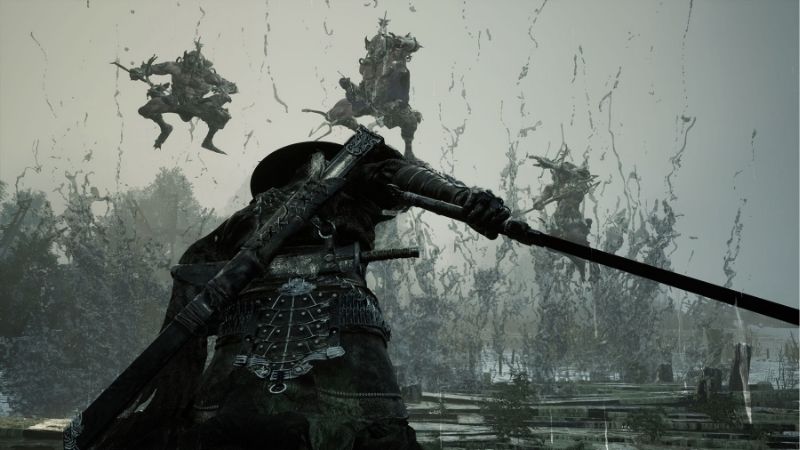
What to do now: keep Windows at your monitor’s recommended native resolution, open the released game when available in your region, and check whether a matching resolution can actually be selected. Then compare a controllable gameplay scene, a menu, and a cutscene. The ability to select 3440×1440 is encouraging, but it does not, by itself, establish a wider gameplay FOV or correctly composed cinematics.
| Question | Evidence status on October 28, 2026 | What proves it on your PC |
|---|---|---|
| Native 21:9 gameplay, such as 3440×1440 | Not officially verified | A wider, undistorted game scene with usable HUD in an installed build |
| Native 32:9 gameplay, such as 5120×1440 | Not officially verified | Correct full-width gameplay and stable camera/HUD at that output |
| Ultrawide cutscenes | Not verified | Multiple cinematics without unwanted crop, stretch, or unexpected framing |
| Adjustable in-game FOV | Not verified | A working labeled camera/FOV control confirmed in the game version you use |
| 16:9 displayed with side bars | A possible fallback, not a confirmed default | Correctly proportioned gameplay centered with unused side areas |
| Windows displaying at ultrawide resolution | Supported by compatible PC/monitor hardware | Native resolution shown in Windows Display and Advanced display |
Treat these as separate questions. It is possible for a game to render gameplay in ultrawide but keep cinematic sequences at 16:9, or to offer an ultrawide display mode while retaining a narrower fixed camera. Neither outcome should be labeled universal support until it has been observed in an identifiable version.
Understand what ultrawide support actually means
An ultrawide monitor is a display, not a guarantee that every application will fill it without distortion. A 21:9-class screen generally shows more horizontal space than a similarly tall 16:9 screen. A 32:9 super-ultrawide spans roughly twice the width of a 16:9 picture with the same vertical pixel count. But the game engine must choose to compose extra scene information, place interface elements within safe margins, and preserve cinematics properly. Display hardware alone cannot do those jobs.
Resolution, aspect ratio, and FOV are three different things
Resolution describes the pixel grid output to the display. Aspect ratio describes its width compared with its height. FOV describes the amount of game world the camera reveals. The three are related but not interchangeable. A title may accept a wide pixel grid yet stretch the same 16:9 picture across it; the resulting image technically occupies every pixel but reveals no extra scenery. Alternatively, it may show the wider gameplay world and place UI along the edges.
For buyers comparing monitors, the common labels below refer to the screens, not game modes confirmed for Phantom Blade Zero. The term “21:9” is a convenient category label: 3440×1440 and 3840×1600 are approximately 2.39:1 and 2.40:1, rather than exactly 21 divided by 9.
| Monitor resolution | Common display class | Pixels per frame | Compared with 2560×1440 |
|---|---|---|---|
| 2560×1440 | 16:9 QHD | 3.69 million | Reference |
| 3440×1440 | 21:9-class ultrawide | 4.95 million | About 34% more pixels |
| 3840×1600 | 21:9-class ultrawide | 6.14 million | About 67% more pixels |
| 5120×1440 | 32:9 super-ultrawide | 7.37 million | Twice as many pixels |
Those pixel counts show how much image work a GPU may face if the game renders at that output, not measured FPS for Phantom Blade Zero. Ray tracing, upscaling, image reconstruction, and scene complexity can change the cost substantially. A player with a QHD-rated GPU should not assume that a 5120×1440 monitor will run at the same frame rate merely because both displays are 1440 pixels tall.
True wider view versus stretched or cropped images
A correct ultrawide implementation generally uses a consistent camera treatment, preserves circles and characters’ proportions, and allows essential HUD elements to remain visible. A stretched image makes round objects look oval and widens character models artificially. A cropped image may fill the display by trimming important information from the top and bottom. A letterboxed or pillarboxed presentation preserves a narrower composition through bars rather than stretching it. For a combat game, correct proportions and readable attack cues should take priority over eliminating every bar.
You can identify these differences without special software. Use a stable game scene containing a round object, straight architecture, or a fixed recognizable character silhouette, and compare screenshots at 16:9 and ultrawide. If the extra width contains additional world scenery while the central composition keeps the same proportions, that is stronger evidence for horizontal expansion than the resolution menu alone. If the scene simply becomes wider and distorted, reject that configuration.
How to test ultrawide on a Windows gaming PC
The safest method starts outside the game, preserves your existing settings, and changes only one display variable at a time. It should take one short session after the PC version unlocks in your region. The exact graphics-menu names inside Phantom Blade Zero have not been verified against every retail build; do not interpret a generic instruction below as a claim that a particular in-game button already exists.
Check the monitor’s native Windows mode first
- Right-click an empty area of the Windows desktop and select Display settings, or open Start > Settings > System > Display.
- If several screens are connected, select the intended ultrawide monitor in the display arrangement diagram.
- Under Scale & layout > Display resolution, select the monitor’s native value marked Recommended, such as 3440×1440 or 5120×1440, if Windows offers it. Choose Keep changes when prompted.
- Open System > Display > Advanced display. Select the same monitor if a display selector is shown; note the reported current resolution and refresh rate.
- Keep a record of the original resolution, refresh rate, and cable/port connection. If the native mode is missing, resolve the Windows/driver/monitor problem first rather than blaming the game.
Expected result: the Windows desktop occupies the monitor sharply, without horizontal stretching, at its native resolution. Microsoft recommends choosing the native/recommended display resolution where available. If Windows only offers 2560×1440 on a 3440×1440 panel, a game cannot reliably prove native ultrawide behavior on that setup until the display mode is corrected.
Check game output modes without assuming a menu label
- Launch Phantom Blade Zero after your regional unlock and finish any first-run preparation. Do not confuse a preload-only install with an executable already available to play.
- Open the game’s settings interface and locate its video/display-related controls. Look for a resolution entry and a choice between fullscreen, borderless, or windowed only if your installed build exposes them. Public documentation checked for this article does not verify the exact names or combinations.
- If your monitor’s native resolution is available, select it and apply the change. Keep a note of whether the game requests confirmation or restarts the renderer.
- Test a controllable gameplay section, not only the initial logo or title screen. Observe the left and right edges, character proportions, HUD placement, and camera movement.
- Test at least one menu and one cutscene separately. A game may switch aspect ratios for story presentation even when active gameplay appears correct.
- Return to your original display mode if objects stretch, critical UI disappears, or framing becomes uncomfortable. Where a confirmation timer exists, allow it to revert an unusable mode rather than clicking blindly.
Expected result for verified 21:9 behavior: a properly proportioned gameplay view that uses additional horizontal space, with readable UI. If the ultrawide resolution option is absent: do not invent a command-line argument or an .ini key. Record the exact game version, GPU, Windows resolution, and available modes, then check developer release notes or support guidance. Missing options can indicate unsupported implementation, a mode enumeration issue, or the particular presentation mode in use; a screenshot and version information will help distinguish them.
Compare like-for-like screenshots
A quick side-by-side check is more trustworthy than a subjective impression that the game “looks wider.” Use a static checkpoint or comparable camera position. First capture a correctly proportioned 16:9 reference. Then capture the ultrawide view from as close to the same location and camera direction as practical. Keep interface and camera options unchanged. Compare the center objects’ shapes, visible world at the left and right, the player’s apparent scale, and whether on-screen prompts were moved or cut off.
A comparison is imperfect when moving enemies, scripted camera shifts, or dynamic FOV change the shot between captures; note those limitations. If you cannot reach a stable comparison, report the result as inconclusive instead of claiming that 21:9 expands the field of view.
Black bars on an ultrawide screen: what they mean
Black vertical bands on the left and right of a wide monitor usually indicate that the picture being displayed has a narrower aspect ratio than the panel. They can be intentional, especially for cinematics, or they can reflect a game output mode that does not expand horizontally. Black bars by themselves do not establish a bug. The important questions are whether the picture has correct proportions, whether gameplay is affected, and whether a verified wider mode exists.
Gameplay has side bars, but menus fill the screen
Start by verifying the Windows native resolution. Then check the resolution selected in the game’s own video controls if the option exists. If both are ultrawide and gameplay still uses side bars, that is evidence of a title-level framing limit or deliberate fixed-aspect presentation in the tested build. It is not something a Windows scaling toggle can necessarily solve. You can preserve the properly proportioned 16:9 image while awaiting an official update; there is no requirement to stretch it just to fill the panel.
If menus use the full screen but gameplay does not, write down that distinction. If gameplay fills the panel but story sequences show bars, the result is different: you may have working ultrawide gameplay with fixed-ratio cinematics. This article does not assert either behavior for the retail version before a versioned test.
The game fills the screen but looks unnaturally wide
Suspect stretching before treating the issue as an FOV improvement. For NVIDIA desktop graphics, the documented NVIDIA Control Panel > Display > Adjust desktop size and position controls include Aspect ratio, which preserves proportions, and Full-screen, which can stretch a lower-resolution picture. The setting affects compatible display scaling paths; it does not create a wider game camera. Choose Aspect ratio if the goal is to protect the picture’s shape, and undo the change if it makes other applications worse. These controls may be hidden on some laptop or hybrid-graphics configurations.
For recent Radeon software, AMD documents AMD Software > search “Display” > Display Settings > GPU Scaling > Scaling Mode, with Preserve aspect ratio, Full panel, and Center as documented choices when supported. Preserve aspect ratio maintains the original proportions; Full panel can stretch. The AMD support article notes that the labels and available controls can vary with software version and hardware. Neither NVIDIA nor AMD scaling is a verified Phantom Blade Zero ultrawide patch.
A different monitor or cable causes unexpected results
If the problem appears on the Windows desktop as well as in the game, the first suspect is the display connection or active monitor configuration, not the engine’s aspect-ratio policy. Confirm which GPU is driving the monitor, select the proper display in Windows, and consult the monitor manual for supported resolutions and refresh rates on the port in use. A cable, docking station, or adapter that negotiates a lower mode may prevent the expected resolution from appearing.
Avoid creating arbitrary custom timings as a first response. Start with supported native timings, current official GPU drivers, and the monitor’s published port capabilities. This approach prevents a simple signal or monitor-detection issue from becoming a risky software experiment.
21:9 versus 32:9: why the distinction matters
A good 3440×1440 result does not validate 5120×1440. Super-ultrawide exposes edge cases that may not appear on the more common 21:9 panels: HUD elements sitting far outside the user’s focal area, camera behavior that exaggerates peripheral geometry, captions or tutorial prompts that appear in inconvenient positions, and cinematic compositions that leave large unused side areas. A mode list may accept both resolutions while only one provides comfortable gameplay.
At 3440×1440, focus on readability and usable peripheral vision
For a 21:9-class display, first check whether the game reveals useful additional scenery while keeping Soul and nearby enemies appropriately scaled. Look at the health, stamina, or other visible HUD elements actually present in your installed version; verify that none are cut off by the screen edge. In a fast melee encounter, notice whether important warning animations remain inside a comfortable sightline. If the HUD is positioned too far out, search for a legitimate in-game HUD safe-area control only if it is present; the developer has not publicly verified such an option for the current guide.
If a 16:9 fallback is more readable or more responsive, it is a valid choice even on a premium ultrawide monitor. Filling the entire panel is not inherently better than being able to see a parry cue reliably.
At 5120×1440, test framing and GPU load separately
A 5120×1440 output includes twice as many pixels as 2560×1440. That does not mean the game will run at exactly half the FPS; CPU limits, upscaling, reconstruction techniques, memory bandwidth, and rendering settings intervene. It does mean that a 1440p performance target in the publisher’s PC requirements cannot be directly transferred to 5120×1440. Do not advertise a specific FPS at this resolution without matching hardware and measured results.
Also inspect edge composition, aiming or lock-on behavior, and cutscene framing. A wide monitor may help with immersion while placing key action outside easy eye movement. Where 32:9 is unverified or uncomfortable, a centered 16:9 or another supported proportion with preserved aspect ratio is a better fallback than forced stretching.
Do upscaling, fullscreen, or a higher refresh rate fix the aspect ratio?
These settings affect different parts of the graphics pipeline. Upscaling reconstructs an image from a lower internal rendering resolution; it does not automatically expand the camera view or guarantee 21:9 support. Frame generation inserts displayed frames but does not repair cropped cinematics. Refresh rate determines how often the monitor can update, not the image’s shape. Borderless and exclusive-fullscreen modes, when a title provides them, control display presentation and sometimes which resolution options are offered; neither is proof of a correct ultrawide scene.
The practical test is to keep the monitor’s native desktop mode unchanged and evaluate one game setting at a time. If a borderless mode produces the monitor’s ultrawide output but the game still stretches a 16:9 image, the geometry problem remains. If the game renders the correct wide world but feels sluggish, investigate FPS and graphics load separately rather than changing aspect-ratio settings. Do not conflate the two problems just because they appear in the same gaming session.
S-GAME’s public PC targets describe 1080p and 1440p outcomes with upscaling enabled, but they are not a resolution-by-aspect-ratio support matrix. This distinction is important for readers who want to infer native 3440×1440 compatibility from the word “1440p” in a requirements table. The pixel height is not the whole resolution.
Should you use ultrawide mods, Unreal Engine commands, or third-party fixes?
For an unverified release build, not as a first step. Public guides sometimes offer generic Unreal Engine configuration commands, third-party DLLs, memory injection, or field-of-view patches as though they were confirmed Phantom Blade Zero solutions. The game uses Unreal Engine 5, but that alone does not prove a specific .ini setting, plugin, or executable patch works in this title. It certainly does not prove that a modification preserves interface layout, cutscene direction, or game stability after an update.
The PC storefront also discloses third-party Denuvo DRM. That fact is not a claim that any particular ultrawide mod triggers a ban, but it is another reason not to recommend unverified injected tools or executable modifications casually. Unknown downloads carry security and compatibility risk, while editing an unfamiliar game configuration can overwrite a user’s carefully chosen settings. No unsupported fix should be framed as officially endorsed.
If a developer-supported ultrawide patch, official configuration toggle, or clearly documented game-specific community fix later becomes available, evaluate the actual release version and recovery instructions first. Check the origin and maintenance status, read the tool’s scope, preserve a copy of user settings, and understand the risk before changing files. Until then, a correct 16:9 presentation is a defensible fallback rather than a broken experience that must be modified at any cost.
Troubleshooting checklist: isolate the cause without risky edits
Use the following decision table after recording the game version and monitor model. It keeps the first step reversible and avoids confusing a game-level limitation with a Windows-level display problem.
| Symptom | First low-risk check | If it persists | What success looks like |
|---|---|---|---|
| Native 3440×1440 missing from Windows | Select the correct display; inspect Settings > System > Display | Check monitor input, GPU driver, and manual for the supported mode | Windows offers native Recommended resolution |
| Windows is ultrawide, game offers only 16:9 | Look through game display modes actually shown | Record build and report to official support; avoid guessed .ini fixes |
A documented ultrawide mode appears, or fallback stays undistorted |
| Game fills screen but objects look wide | Inspect NVIDIA/AMD aspect-ratio scaling | Compare against an unchanged 16:9 screenshot | Round objects remain round |
| Gameplay is wide; cutscenes have bars | Test a second cinematic, not just an intro | Treat it as potentially intentional framing until confirmed | Cinematic is uncropped and proportionate, even if bars remain |
| HUD or subtitles are cut off | Revert to the last readable resolution | Look for verified safe-area controls; document the behavior | All essential UI is visible |
| Only this installation behaves incorrectly after a patch | Restore normal display mode; check game updates | Verify game files through the store launcher | The original clean presentation returns |
For Steam, the documented file check is Library > right-click Phantom Blade Zero > Properties > Installed Files > Verify integrity of game files. Epic Games documents Library > three dots next to the game > Manage > Verify, with slightly different navigation in its Launcher Preview. Use these only if you actually have a corrupted installation symptom or an update-related problem; file verification cannot manufacture missing ultrawide support. It may also replace modified files. Keep personal notes or backups of custom settings before repair actions.
If the display output becomes unstable, close the game, restore the last known-good Windows mode, and confirm the desktop itself looks normal. Do not recommend reinstalling GPU drivers, deleting saves, or resetting BIOS merely because a cutscene has side bars.
How to report ultrawide behavior so others can verify it
A useful report answers what worked, under which conditions, and what did not. “It supports ultrawide” is too broad without a game build or screenshot. Likewise, “there are black bars” could describe only one cinematic. Collect a short, reproducible record with platform, monitor resolution, Windows resolution, display presentation mode if exposed, GPU and driver version, exact area tested, screenshot dimensions, and what happened to the HUD and camera.
For instance, a report of “3440×1440 selected, expanded scenery during controllable gameplay, no stretched HUD, cinematic pillarboxing observed” is much stronger than “21:9 yes.” A credible 32:9 report should be separate. Include the source and date of any post-launch patch notes rather than assuming a pre-release preview describes the retail executable. Readers comparing different GPUs or ultrawide panels can then test the same conditions.
The Steam Community discussion area and the game’s official developer channels are places to look for subsequent versioned confirmation, but forum speculation is not an official support announcement. A support reply or documented game patch that explicitly names an aspect ratio deserves more weight than a generic promise from a third-party “fix” article.
Tools That Help
- Windows Settings (included with Windows): Use System > Display and Advanced display to establish the monitor’s native resolution and active refresh rate. This should be the first check on every machine; no additional purchase is needed.
- NVIDIA Control Panel or AMD Software: Adrenalin Edition (free with supported GPU drivers): Use the vendor’s documented display-scaling settings to distinguish preserved proportions from stretched output. This is useful when the game fills the panel but shapes look wrong; it cannot add missing game-engine ultrawide support.
- Steam or Epic Games Launcher file verification (included with the respective launcher): Use the relevant Installed Files > Verify integrity of game files or Manage > Verify command after an apparent corrupted-update issue, not as a universal aspect-ratio fix. Record your working settings before changing anything.
FAQ
Does Phantom Blade Zero officially support 3440×1440?
As of the October 28, 2026 research check, S-GAME’s publicly reviewed materials do not confirm native 3440×1440 gameplay. An available resolution mode or a versioned retail screenshot showing expanded scenery and an undistorted HUD would provide stronger evidence. Until verified, mark support unconfirmed, not necessarily absent.
Will Phantom Blade Zero run at 5120×1440 on a 32:9 monitor?
There is no confirmed 32:9 compatibility result in the reviewed official material. A PC may output 5120×1440 to its monitor while a particular game uses a narrower scene inside that space. Test gameplay, menus, and cinematics individually once the installed version is playable.
Can I remove black bars by enabling fullscreen?
Not necessarily. Fullscreen or borderless presentation can alter how an application uses the display, but it cannot create a wider camera view when a game deliberately renders fixed-aspect content. Scaling to fill the panel may stretch the picture. Preserve correct proportions when native ultrawide is unavailable.
Is there a Phantom Blade Zero FOV slider?
A working in-game FOV slider has not been confirmed by the official material checked here. Do not assume an Unreal Engine command, generic configuration tweak, or third-party plugin establishes a supported control. If your version offers one, verify that it changes the actual gameplay view and does not break camera framing.
Do DLSS and FSR make an ultrawide monitor compatible?
No. Upscaling can reduce rendering workload once the game uses a resolution, but it is a separate feature from aspect-ratio support. It cannot by itself change a fixed 16:9 camera into true 21:9 or 32:9 rendering.
Why does a cinematic have bars when gameplay uses the full width?
Games can preserve a deliberate cinematic composition even when interactive gameplay expands to ultrawide. That general behavior does not confirm a Phantom Blade Zero cutscene policy. Check more than one cinematic and avoid stretching film-like scenes merely to remove side areas.
Is it worth buying an ultrawide monitor just for Phantom Blade Zero?
Not on the basis of an unverified compatibility promise. If this is your main reason to buy, wait for a versioned test of the precise panel class—21:9 or 32:9—and check both gameplay and HUD behavior. A monitor can still be useful for many other PC tasks, but the game-specific benefit needs evidence.
Final Thoughts
For Phantom Blade Zero ultrawide support, the responsible answer is not yet verified for both 21:9 and 32:9 in the public sources checked on October 28, 2026. Set your monitor to its native Windows mode, test the actual retail build after it unlocks, and look for extra horizontal scenery without distorted geometry or missing UI. If that test fails, keep an aspect-ratio-preserved fallback and document the game version for official support. The next decision is simple: verify one working gameplay scene and one cinematic before treating a display mode as real ultrawide compatibility.




