Key takeaways
- My home Xbox settings — free console feature: Verify which physical console receives eligible shared licenses, and change the designation only when the household has chosen its primary shared Xbox.
- Xbox subscription and game library screens — included with your account: Confirm plan status, game availability by platform, and the exact edition before troubleshooting an apparent license problem.
- Xbox Family Settings and Microsoft account security — free management tools: Keep children on distinct profiles, review multiplayer permissions and account sign-ins, and avoid sharing credentials.
Xbox Game Pass family sharing is possible on a designated Home Xbox: when a subscription owner sets an Xbox Series X|S or Xbox One console as their Home Xbox, other people using their own profiles on that console can play eligible games provided by the owner’s subscription. The owner does not need to remain signed in there. That is not the same as giving each family member a separate Game Pass membership, and it does not automatically grant cloud streaming or every account-specific perk. This guide shows the exact console settings, explains a two-console household, and gives safe checks for the cases where sharing does not work.
The quick answer: Home Xbox sharing is not a family subscription
Microsoft distinguishes a license attached to the subscriber’s account from access granted to a console. A designated Home Xbox can use supported digital games and non-consumable add-ons belonging to the purchaser, including eligible games licensed through Game Pass. Anyone with their own Xbox profile on that console can benefit from those console-based licenses, subject to the game and subscription terms. The subscriber can also sign into another Xbox and use their own entitlements online, but that second machine does not become an additional Home Xbox.
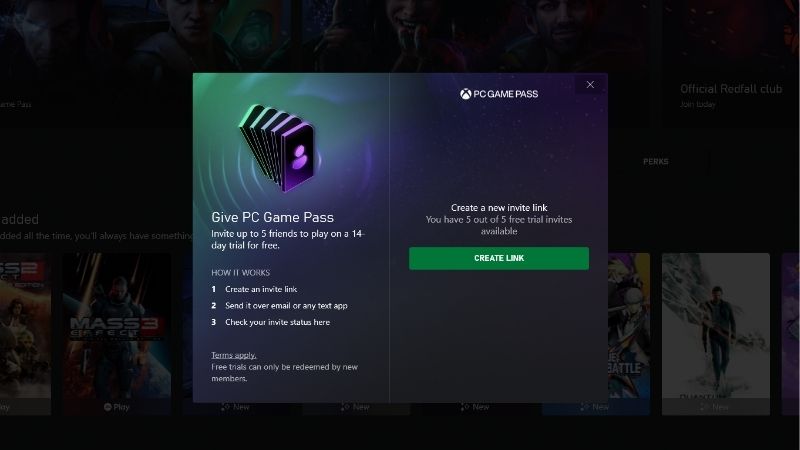
The old Game Pass Friends & Family preview was a different product: participants had individual membership access across supported platforms. That limited preview ended in August 2023. As of October 30, 2026, it should not be treated as a currently available U.S. family tier. If someone advertises a five-person Game Pass family plan, check the current official plan listings rather than relying on an old article or a shared-account offer.
| What you want | What Home Xbox can do | Important limit |
|---|---|---|
| Separate save files and achievements on one console | Each person signs in with their own Xbox profile and launches an eligible shared title. | Progress remains account-specific; titles and online permissions still have their own requirements. |
| Play an eligible console Game Pass title without buying a second membership | Other profiles on the designated Home Xbox can use its applicable shared license. | The subscribing account must hold the correct active plan and the game must remain eligible. |
| Play on two Xbox consoles | Another person can use the Home Xbox while the subscriber plays on a second Xbox signed into their account. | The second Xbox normally needs the subscriber online; use different player accounts. |
| Give everyone cloud gaming, PC subscriptions, and individual perks | Home Xbox alone does not do this. | These services are checked by platform, account, or third-party entitlement. |
Check the subscription and accounts before changing settings
Confirm what the subscriber actually owns
Open the Xbox guide with the Xbox button, navigate to Profile & system > Settings > Account > Subscriptions, and inspect the active membership on the paying account. Microsoft may update the position of subscription-management screens; the account’s Microsoft subscription page is an alternative if the console menu differs. Check the membership name, status, expiration or renewal state, and whether the game is included on Xbox console for that plan. Essential, Premium, Ultimate, and PC Game Pass do not have identical game catalogs or platform entitlements. A PC-only license should never be assumed to unlock a console title.
Next, pick one console to become the paying account’s Home Xbox. This matters in households with a Series X in the living room and a Series S elsewhere. Choosing the wrong machine can cause family members to see an ownership error while the subscribing player still appears able to launch the game. The key decision is which console needs to run games under other people’s profiles without the subscriber logged in.
Give each person a separate Xbox profile
Each person should sign into their own Microsoft/Xbox account rather than sharing a single profile. Separate profiles keep saves, achievements, friends, communication preferences, and play history attached to the right player. A child’s account can be managed with Xbox family settings, but adding a child to a Microsoft family group does not itself share a Game Pass license. Home Xbox controls the local license-sharing behavior; family controls manage permissions and safety.
Do not ask a child or friend to use the subscription owner’s password, and do not disable two-step verification to make sharing work. The subscriber needs to sign in to configure the console, but the other player should use their own profile afterward. The subscriber can review device sign-ins and security settings later without disrupting the other person’s saves.
How to set up Xbox Game Pass family sharing on Home Xbox
- Turn on the console to be shared. Connect the console to Xbox services, install pending normal system updates if required, and sign in with the account that pays for the relevant Game Pass membership. This must be the owner of the entitlement, not the family member who is going to play.
- Open Home Xbox settings. Press the Xbox button, go to Profile & system > Settings > General > Personalization > My home Xbox. This is the Home Xbox section of the console settings; some Microsoft technical documents abbreviate the path by starting at Settings > Personalization.
- Designate the console. Choose Make this my home Xbox and confirm. If the screen instead offers Remove this as my home Xbox, it is already designated for that signed-in account. Do not toggle the setting just to test it.
- Allow the license state to settle. Keep the console connected briefly after the setting change. The console must be able to check the active subscription and download or update the relevant game license. If the menu shows an error, resolve account or connectivity problems before proceeding.
- Add or select the second player’s own profile. Press the Xbox button, open Profile & system, and use Add or switch to select an existing profile or add an account. Sign in as the family member. The owner’s account does not have to stay active on the Home Xbox.
- Install or launch an eligible console game. Open My games & apps > See all, locate the title in the installed games or applicable library, and open it with the family member’s profile. If the game is not installed, use the Game Pass library while signed into the subscriber account to locate an eligible console title, install it, then switch back to the other profile for the launch test.
- Verify with the owner’s account signed out. On the Home Xbox, sign the owner out after setup, keep the family member signed in, and start the test game. A successful launch on the other profile is stronger evidence of Home Xbox sharing than simply seeing the game installed.
For verification, choose a full console title that clearly belongs to the subscriber’s current plan and does not require a separate publisher account or special paid add-on for the activity you are testing. An installed icon is not proof of an active license. If the game opens the Store or displays “Do you own this game or app?”, use the troubleshooting section below rather than purchasing it immediately.
How sharing works when your family uses two Xbox consoles
Consider a household with an Xbox Series S in a child’s room and a Series X used by the subscriber. Set the Series S as the subscribing account’s Home Xbox. The child signs in on that Series S with their own profile and launches eligible installed games. The subscriber can sign in on the Series X, which is not their Home Xbox, and use their account’s games while the Series X is connected to Xbox services. This is a common two-console configuration; it does not mean a single account can be used by two people for the same online gaming session.
| Console | Who signs in to play? | How access is checked | Expected result |
|---|---|---|---|
| Series S designated as Home Xbox | Child’s own account | Shared device-based entitlement from subscriber | Eligible console games run without subscriber signed in. |
| Series X not designated as Home Xbox | Subscriber’s own account | Subscriber’s account entitlement while signed in online | Subscriber runs their licensed titles as permitted by service and game terms. |
| Another console with neither Home status nor owner signed in | Different family member | No applicable owner license | The game may request a purchase or appropriate membership. |
This arrangement works by combining a Home Xbox device license with the subscriber’s separate signed-in entitlement. It does not create unlimited device licenses. The number of different players who can use the Home Xbox locally is not the same as the number of remote consoles that can share a membership. Nor does it guarantee concurrent sessions for every title: publishers can implement account, server, or edition-specific rules. Where the same owner account is used to play concurrently on different consoles, account-presence restrictions can interrupt a session. Use distinct profiles and test the particular game.
Microsoft’s digital-goods rules allow an account to designate one Home console at a time and generally allow up to five changes in a rolling one-year period. That is a limit on changing the designated console, not a five-console sharing allowance. If the setting says you have reached your limit, the console can display when another change becomes available. Avoid repeatedly switching between a friend’s console and your own to troubleshoot an unrelated issue.
What carries over and what stays tied to one account
Game libraries, expansions, and online console multiplayer
Console-sharing rights apply to applicable digital games and durable add-ons, including eligible content supplied by a Game Pass membership. That means a local player’s separate profile may launch an entitled title on the Home Xbox even when they did not personally buy it. The title still needs to be present in the owner’s active catalog or owned library. Once a game leaves Game Pass, subscription access to that game can end unless the household owns it separately. Different editions and expansions can also have different requirements; sharing the base game does not manufacture an entitlement to missing DLC.
Online console multiplayer is included with current eligible Xbox Game Pass console plans, and the Home Xbox sharing model supports applicable console multiplayer benefits for other profiles on the designated device. That does not automatically grant every publisher-side subscription, linked-account benefit, or paid server access. If one player can launch the game but cannot join an online session, check the game’s account requirements, Xbox privacy settings, and the owner’s plan before buying another membership.
Cloud gaming, individual perks, consumables, and PC access
Home Xbox sharing is not a cloud-streaming entitlement for every member of the household. Xbox Cloud Gaming authenticates the player and subscription on the supported cloud device; merely making a physical Xbox the Home console does not provide other accounts with the subscriber’s cloud privileges. If a family member wants to stream directly to a browser, phone, television, or another supported device using their own profile, inspect current individual eligibility and service terms. Microsoft has also announced changes to cloud playtime beginning in November 2026, so do not rely on old claims about unlimited cloud hours.
Consumable items—such as currency, single-use boosts, or other account-bound digital consumables—are not shared by the Home Xbox license. Some benefits, including subscription rewards, publisher-linked bonuses, free trials, or third-party membership features, may also belong only to the subscriber’s account. A displayed perk on the subscriber’s dashboard is not a promise that the child has that perk on a separate profile.
Windows PC follows a different licensing model. Microsoft Store ownership, offline permissions, the Xbox app sign-in, and publisher licensing can determine whether a particular PC game can be installed or launched under another Windows/Xbox identity. The Home Xbox setting on a console does not designate a Windows PC as a Home Xbox, and a console-sharing guide should not be presented as a way to give multiple people independent PC Game Pass or cloud subscriptions. If your goal is two Windows users playing independently, verify the exact game’s Windows license behavior and the applicable plan before assuming it is shareable.
Fix family sharing if a game says “Buy,” “Get Game Pass,” or “Do you own this game?”
| Symptom | Likely reason | First safe check |
|---|---|---|
| Other profile sees “Get Game Pass” | Wrong Home Xbox or plan not covering that title | Check owner profile, My home Xbox status, and console catalog. |
| Error 0x803f8001 or “Do you own this game?” | Missing device or signed-in license | Confirm this console is Home Xbox for the purchaser. |
| Family can play offline but multiplayer is blocked | Online benefit, child privacy permission, or game account rule | Check plan, Xbox privacy settings, and game’s service status. |
| A title worked yesterday but is now inaccessible | Subscription change, catalog removal, or changed Home console | Check current subscription and store entitlement. |
| Cloud gaming does not work for second account | Cloud access is not provided by Home Xbox sharing | Check that player’s own cloud eligibility. |
Start with the purchasing profile and the Home Xbox flag
Switch to the actual subscription owner’s profile on the family console and reopen Profile & system > Settings > General > Personalization > My home Xbox. Verify that the console is assigned as Home Xbox. Do not assume the correct owner configured it: it is possible for several household accounts to have different Home Xbox settings. If this console is not designated and the household has chosen it as the shared console, make the change deliberately; remember the annual change limit.
Next, verify the Game Pass plan is active for that account and the exact title is part of its console catalog. A PC Game Pass listing, cloud-only entitlement, temporarily available trial, or unavailable edition is not interchangeable with an eligible console game. For a purchased title, inspect the purchaser’s library instead of assuming Game Pass still includes it.
Restart, reconnect, and retest under the right profile
With the correct console designated, close the game, restart the Xbox through the power menu, and wait for Xbox services to reconnect. Sign in as the family member and launch the exact same eligible title. If the console is offline and has never acquired the relevant license, connect and sign in with the owner briefly so the entitlement can be checked. Do not jump to a factory reset, deleting profiles, or clearing game saves. Those steps are more disruptive and are not a first-line fix for a simple licensing mismatch.
If it still fails, test another known eligible game from the same active plan. If multiple titles fail for all non-owner accounts, suspect Home Xbox designation, network or account licensing. If only one title fails, inspect its separate edition, add-on, third-party account, licensing or service requirements. This comparison helps avoid diagnosing a game-specific restriction as a household subscription failure.
Investigate online multiplayer separately from game ownership
A player may be able to open a shared game but still see a multiplayer prompt. First check whether the subscription includes console online multiplayer and whether that benefit applies on the designated Home Xbox. Next, inspect the child’s Xbox privacy and online safety permissions through the responsible family organizer; multiplayer or cross-network play can be restricted independently of the game license. Finally, check the publisher’s own account, game-mode, server, or paid-service rules. A free-to-play game’s access requirements may differ from those of a paid title.
Do not disable parental controls, remove a child from the family group, or sign everybody into the subscriber’s profile as a workaround. These changes can weaken household safeguards and may obscure where saves belong. If you have an exact error code, document the code, console model, game edition, active plan, and which profile succeeds or fails before escalating to Xbox Support.
When your household should buy a separate membership
Home Xbox sharing suits a household whose extra player primarily uses one Xbox console and wants a separate profile for eligible installed games. It is less suitable when several people need independent cloud gaming on different devices, multiple PC installations under their own subscription identities, or an unrestricted number of consoles. In those scenarios, separate memberships—at the plan level required for each person and platform—are more predictable than moving the Home Xbox setting repeatedly.
Use a short decision test: identify each person’s primary device, the two or three games they actually intend to play, whether they require cloud access or PC access, and whether a game is in the selected plan. Only then compare subscription options. Do not assume Ultimate is necessary for every player, and do not assume a lower plan includes a specific new release simply because another household member can see it advertised.
Tools That Help
- My home Xbox settings — free console feature: Verify which physical console receives eligible shared licenses, and change the designation only when the household has chosen its primary shared Xbox.
- Xbox subscription and game library screens — included with your account: Confirm plan status, game availability by platform, and the exact edition before troubleshooting an apparent license problem.
- Xbox Family Settings and Microsoft account security — free management tools: Keep children on distinct profiles, review multiplayer permissions and account sign-ins, and avoid sharing credentials.
Frequently asked questions
Can two family members play at the same time with one Game Pass membership?
In the standard two-console Home Xbox arrangement, one player can use a supported shared console license on the Home Xbox while the subscriber signs into another console and uses their own entitlement online. Use two distinct Xbox profiles. Game-specific licenses, online services, account-presence rules, and subscription coverage can change the result, so test the particular title rather than treating it as a guarantee for every game and mode.
Does sharing Game Pass mean my child can play every Ultimate game?
No. The Home Xbox receives applicable console licenses, not an independent Ultimate membership for the child. Console availability depends on the title, edition, active plan, region, and whether a game is still in the catalog. Cloud-only access and perks that require the subscriber’s own account are different. Family age and communication restrictions also continue to apply.
Does adding someone to a Microsoft family group share Game Pass?
No. Microsoft family membership is for household management, child safety, spending permissions, screen time, and related account administration. To make eligible console games accessible to a separate profile, the subscription owner needs the correct Home Xbox designation. The two systems solve different problems and can be used together.
Can I share Game Pass across two Series X or Series S consoles?
Yes, but not by designating both as Home Xbox. Set one as the owner account’s Home Xbox for other profiles. The subscription owner can use their own account while connected to Xbox services on another console. A third console does not automatically receive a permanent share, and a second family member using the non-Home Xbox without the owner signed in may encounter a license error.
Will my saves, achievements, or in-game currency transfer to another profile?
No. Home Xbox license sharing does not merge player identities. Saves, achievements, friends, and account-bound purchases stay associated with the profile that earned or bought them, subject to each game’s own account policies. Set up the intended player’s profile before starting a new save so progress is not created under the subscriber’s login.
Why does sharing work on console but not on my PC or phone?
The Home Xbox setting is a console device-license arrangement. Windows apps and Game Pass for PC have different Microsoft Store and account licensing rules; Xbox Cloud Gaming checks the cloud player’s own eligibility. If one family member needs PC or phone access through a separate profile, review the current terms for that device and membership instead of copying console setup instructions.
How many times can I change My home Xbox?
Microsoft’s digital-goods usage rules generally allow up to five Home console changes in a rolling 12-month period. The limit counts changes, not family members or consoles that can simultaneously be assigned. If the console reports the limit has been reached, use the displayed eligibility date or contact official support when appropriate; repeatedly toggling settings will not increase the allowance.
Final thoughts
For most two-player Xbox households, the practical setup is one active Game Pass subscriber, one designated Home Xbox used by the other person’s own profile, and the subscriber’s separate signed-in console when needed. Start by selecting the console that needs device-based sharing, set it through Settings > General > Personalization > My home Xbox, and verify that a non-owner profile can launch one eligible console title while the owner is signed out. If that test passes, keep the Home Xbox setting stable. If your household instead needs independent cloud or PC access, compare current plans for those devices rather than treating console game sharing as a universal family membership.