Key takeaways
- Best overall for two high-refresh HDMI displays — TESmart HKS202-M24-USBK. A two-computer, two-display HDMI 2.1 KVM with EDID handling and independent USB/audio focus, but it is expensive and does not replace a capture device.
- Best premium one-monitor hub — TESmart HKS201-M24. One shared HDMI display, two PCs, USB peripheral routing, and Ethernet/audio desk integration; preferable to the dual-monitor model when a second switched screen would be wasted.
- Best value-oriented high-refresh HDMI KVM — AV Access 8KSW21-KVM. Two HDMI computers, one display, four USB 3.0 device ports and advertised HDMI 2.1 gaming features. Its EDID behavior has an important resolution-specific qualification.
- Best straightforward single-monitor control — StarTech SV211HDUA4K. 4K60 HDMI switching with integrated host cables, separate 3.5mm audio and a wired remote. USB peripheral bandwidth is only USB 2.0.
- Best low-cost USB-only solution — Plugable USB3-SWITCH2. One USB 3.0 device or hub can move between computers; the monitor must be switched independently and the live capture source should remain connected to the streaming PC.
- Best actual live-video switching — Blackmagic ATEM Mini Pro. Switches among four HDMI video sources, produces a 1080p program and offers USB webcam output or direct streaming. It is not a keyboard/mouse switch and not a 4K144 gameplay passthrough.
The best dual PC stream switchers solve one of three different problems: controlling a gaming PC and a streaming PC with one keyboard and display, sharing USB accessories without unplugging them, or cutting between live video sources on air. For a two-monitor gaming and OBS workstation, the TESmart HKS202-M24-USBK is our strongest full-desk KVM pick if you need HDMI 2.1-class gaming modes and separate USB/audio focus. For one high-refresh HDMI display at a lower hardware cost, the AV Access 8KSW21-KVM is worth comparing. If you already have independent screens and only want to share a keyboard, mouse, or USB hub, the Plugable USB3-SWITCH2 is the sensible low-cost answer. And if “switching” means changing what viewers see during a broadcast, choose a live production device such as the Blackmagic ATEM Mini Pro rather than a KVM. These recommendations are based on product documents and US store listings checked October 30, 2026, not our own hardware testing.
Quick verdict: Which two-PC switch actually fits your stream?
- Best overall for two high-refresh HDMI displays — TESmart HKS202-M24-USBK. A two-computer, two-display HDMI 2.1 KVM with EDID handling and independent USB/audio focus, but it is expensive and does not replace a capture device.
- Best premium one-monitor hub — TESmart HKS201-M24. One shared HDMI display, two PCs, USB peripheral routing, and Ethernet/audio desk integration; preferable to the dual-monitor model when a second switched screen would be wasted.
- Best value-oriented high-refresh HDMI KVM — AV Access 8KSW21-KVM. Two HDMI computers, one display, four USB 3.0 device ports and advertised HDMI 2.1 gaming features. Its EDID behavior has an important resolution-specific qualification.
- Best straightforward single-monitor control — StarTech SV211HDUA4K. 4K60 HDMI switching with integrated host cables, separate 3.5mm audio and a wired remote. USB peripheral bandwidth is only USB 2.0.
- Best low-cost USB-only solution — Plugable USB3-SWITCH2. One USB 3.0 device or hub can move between computers; the monitor must be switched independently and the live capture source should remain connected to the streaming PC.
- Best actual live-video switching — Blackmagic ATEM Mini Pro. Switches among four HDMI video sources, produces a 1080p program and offers USB webcam output or direct streaming. It is not a keyboard/mouse switch and not a 4K144 gameplay passthrough.
Important distinction: A KVM sends a keyboard, video display and mouse to whichever PC is selected. A USB sharing switch moves USB devices between hosts. A live video mixer chooses or composites camera and computer feeds for the audience. None of these devices automatically substitutes for a capture card in Intel’s familiar gaming-PC-to-streaming-PC arrangement. If gameplay needs to reach OBS while you keep using the gaming PC, maintain a dedicated capture or verified network-video path regardless of which desk switch you buy.
Comparison table: Features, US prices, and purchasing status
| Product / role | Verified hardware scope | Best streaming use | US price / seller (checked Oct. 30, 2026) | Stock status (Oct. 30) | Real limitation |
|---|---|---|---|---|---|
| TESmart HKS202-M24-USBK — dual-display KVM | 2 PCs; 2 HDMI displays; HDMI 2.1-class modes; EDID; USB 3.0, network and audio controls | One keyboard/mouse for a two-monitor gaming and OBS desk | $359.00, TESmart US storefront, US-plug option | In stock (manufacturer displayed 18 remaining) | Both computers need suitable video outputs and USB links; does not ingest gameplay into OBS |
| TESmart HKS201-M24 — one-display KVM hub | 2 PCs; 1 HDMI display; HDMI 2.1; EDID; USB 3.2 Gen 1 and gigabit network | High-refresh gaming and streaming PCs sharing one display and accessories | $269.00, TESmart US storefront, US-plug option | In stock (manufacturer displayed 5 remaining) | Cannot switch a second monitor as a dual-display KVM |
| AV Access 8KSW21-KVM — one-display KVM | 2 HDMI hosts; 1 HDMI display; 4 USB 3.0 shared device ports; high-rate video modes with conditions | Smaller, high-refresh shared-monitor setup | $143.99 sale, AV Access US listing | Unclear (Add to cart shown; no explicit inventory count) | EDID emulation stated for 4K60 and below; top modes require exact signal compatibility |
| StarTech SV211HDUA4K — compact HDMI KVM | 2 HDMI hosts; 1 display up to 3840 x 2160 at 60 Hz; USB 2.0; 3.5mm audio | Reliable basic display and keyboard control with wired remote | $132.21, StarTech US | In stock (US stock indicator: 146) | 4K60 ceiling and 480Mbps USB, not a 4K120 gaming switch |
| Plugable USB3-SWITCH2 — USB-only switch | 2 USB hosts; 1 USB-A device port, or a compatible hub; USB 3.0 up to 5Gbps | Share keyboard/mouse hub while displays stay independently connected | $19.95, Plugable US | Unclear (direct buying options displayed) | No native HDMI/DisplayPort; no USB-C/Thunderbolt Alt Mode or PD |
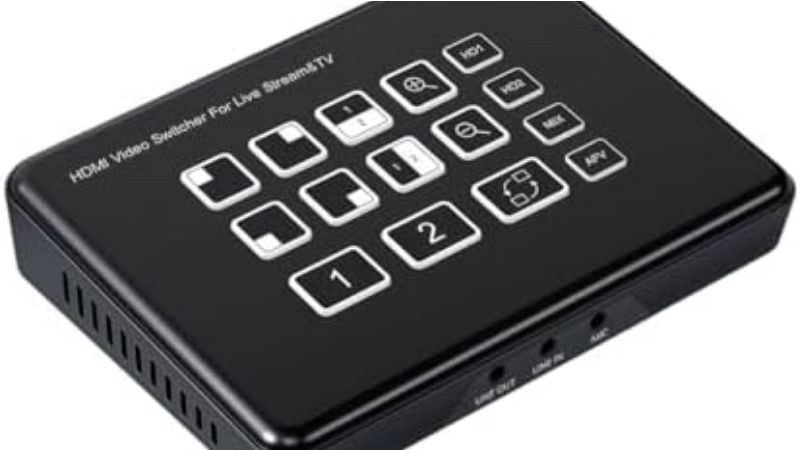
| Blackmagic ATEM Mini Pro — live HDMI video mixer | 4 HDMI video inputs; 1080p60-class program; USB webcam output, Ethernet live streaming | Cut between camera, game PC and presentation video in an OBS or standalone production | $445.00, B&H Photo US, exact Pro model | In stock (B&H listing) | Not a 4K passthrough KVM; source input is HD up to 1080p60 |
All listed prices are seller-specific observations, not universal MSRPs. In particular, the ATEM Mini Pro price above is the checked B&H offer, not a claim that Blackmagic’s own listed price is identical. Manufacturer “Add to cart” buttons alone are not sufficient proof of available inventory, so those rows are marked Unclear. Stock can change after this snapshot. Video-mode claims describe manufacturer-supported combinations; they are not performance benchmarks independently reproduced by Geek Gaming Tricks.
How we selected these stream switchers
We evaluated a practical two-computer gaming workflow rather than treating every box labeled “switch” as interchangeable. A useful product needed a real documented role: switch one or two monitors and input devices, transfer USB peripherals, or select HDMI feeds for an on-air program. We checked each exact product identifier and did not count a basic HDMI splitter as a KVM, a USB hub as a two-host switch, or an OBS controller as a physical video router. We also separated live production switching from what competitive players need on a high-refresh monitor.
Our main selection factors were the number of host computers, number of switched displays, cable count per host, display ceiling and high-refresh limitations, USB host/device topology, audio routing, EDID behavior, switching controls, supported signal formats, and an observed US purchasing state. Manufacturer product pages, support guides, and retailer listings were used for specifications and inventory; we did not assume that advertised “zero latency,” “no blackout,” or “seamless” language represents independently measured behavior. This is a research-led buying guide, not a claim of laboratory or hands-on tests.
The strongest product for a real stream is the one that does not interrupt the devices OBS must keep open. A webcam, audio interface or capture card switched off the streaming PC may disappear as an input until the host redetects it. Conversely, a keyboard/mouse KVM can be extremely useful when a capture card and primary audio chain are permanently connected to the streaming computer. Those workflow boundaries carry more weight here than the largest resolution number in a product headline.
Detailed reviews: Six dual-PC switching solutions
TESmart HKS202-M24-USBK: Best for two high-refresh HDMI monitors
Who should buy it: a streamer with two desktop computers and two HDMI monitors who wants to move keyboard/mouse control between machines without continually replugging cables. The manufacturer’s HKS202-M24-USBK listing identifies a dual-display HDMI 2.1-class KVM with EDID emulation, USB 3.0 peripherals, a gigabit network function, and independent USB/audio focus. TESmart describes high-refresh modes including 4K144 under appropriate conditions; it also documents that some higher-bandwidth modes depend on DSC, and that the device’s supported operating mode matters. Do not infer that all combinations of two screens, VRR, HDR and 4K144 will work with every GPU and monitor.
The detail that makes this a streaming pick rather than only an office KVM is the ability to keep USB/audio focus independently assigned. In a properly planned setup you could change which machine’s display you inspect while leaving a peripheral on the system responsible for the stream. That is useful if the device is a low-risk control accessory. It is still safer to connect mission-critical capture hardware and the main stream microphone directly to the streaming PC: an interruptible USB relationship is not an acceptable way to carry a continuous live source. TESmart also offers a two-computers-on-two-monitors display mode, letting one screen show the game machine and the other show OBS, while keyboard/mouse control moves as needed.
What to check before paying: both computers need two independent compatible HDMI output feeds to get the full two-monitor topology. A GPU with DisplayPort outputs may require qualified active adapters, which are not automatically equivalent to native HDMI 2.1 ports. Confirm the exact display modes, DSC support and required cables on both systems. TESmart’s product copy contains several resolution examples and implementation conditions, so plan around the specific 1440p or 4K rate you will use instead of choosing the largest advertised headline. Also confirm that your game keyboard’s macros and mouse software behave correctly in the manufacturer’s keyboard pass-through mode; its legacy emulation mode can change access to advanced HID functions.
Pros: two switched monitors, EDID support, four-way control options, thoughtful separation of peripheral and audio focus. Cons: high price, many signal cables, device-mode complexity, and unnecessary expense for a one-monitor desk. The US-plug manufacturer listing showed $359.00 and 18 remaining on the check date. Skip it if you only want to share a mouse and keyboard while using independent game and stream displays: a USB switch is far cheaper and leaves video completely out of the path.
TESmart HKS201-M24: Best one-display KVM for a polished two-PC desk
Who should buy it: someone with one primary HDMI monitor, a gaming tower and a streaming tower who wants higher-refresh display switching plus a shared accessory hub. TESmart’s HKS201-M24 is a different exact model from the HKS202: it supports one switched display rather than two. Its published hardware features include HDMI 2.1-class operation, EDID emulation, USB 3.2 Gen 1 connectivity and a built-in gigabit network function. The distinction is crucial when budgeting a full streaming desk: a one-monitor KVM cannot be treated as a two-monitor device simply because the software has two PCs connected.
In a dual-PC stream, this type of switch makes sense if you already route gameplay to the streaming computer through a capture device or another deliberate transport, and merely need to inspect either desktop on your shared screen. With the game running, switch to the streaming PC to make a careful OBS adjustment, then return control to the game. The stream path should remain attached and continue independently. If you must monitor OBS at all times, however, switching your only display away from it makes problems less visible; an always-on second stream monitor or remote monitoring window may be a better workflow than any one-display KVM.
The manufacturer’s 8K60/4K high-refresh claims depend on supported cables, display mode and compression. Those are output-signal capabilities, not capture or livestream encoding capabilities. A streamer targeting 1080p60 on Twitch can gain desk convenience without gaining any extra viewer-side resolution from buying a higher-resolution KVM. Independent audio monitoring is also worth planning: route your headset to the machine that must always play stream alerts, and verify what the KVM’s audio-focus control does to communication apps when you switch.
Pros: strong hub-style features, one-display simplicity, video modes suited to modern gaming monitors, documented EDID. Cons: costs substantially more than a basic 4K60 KVM, does not switch two screens, and remains a display/control tool rather than a live-video mixer. TESmart’s US-plug store showed $269.00 with five units remaining when checked. Choose this over HKS202 only when one shared display is genuinely sufficient and its connectivity is a better match for your hardware.
AV Access 8KSW21-KVM: Best value-oriented high-refresh HDMI KVM
Who should buy it: a two-PC gamer with one HDMI monitor who wants modern video signal support and four USB-A accessory ports without purchasing a large dual-monitor KVM. The exact 8KSW21-KVM listing describes a two-input, one-output HDMI 2.1 switch with USB 3.0 peripheral sharing, button/hotkey switching and game-oriented features such as VRR and ALLM. AV Access documents a maximum 40Gbps FRL data rate and notes that very high resolutions above 8K60 need DSC 1.2 support from both the source and display. That restriction is more informative than the product’s most aggressive “10K120” marketing headline.
The practical buying case is a 1440p gaming monitor or a compatible higher-refresh HDMI screen that both systems can use. A compact switch can remove a repeated input-toggle-and-keyboard-swap routine from the desk. Its four shared USB 3.0 ports are a convenience for a keyboard, mouse, keypad and another suitable peripheral. Yet an OBS camera or capture device should remain on the streaming PC during a live session unless you have explicitly tested how reconnecting affects scenes. The HDMI output is the shared workstation display, not a separate “game capture out” promised to OBS.
Important EDID caveat: AV Access says its automatic PC wake-up and EDID emulation apply at 4K60 and lower. Do not extend that assurance to 4K120, 1440p165, or 1080p480 just because those modes appear elsewhere in the product’s specifications. If you rely on a particular fullscreen game staying mapped to the same monitor across KVM changes, test that exact resolution, refresh rate, HDR setting and GPU driver rather than assuming the window layout will be unchanged at every advertised high-refresh mode.
Pros: four USB 3.0 device ports, a single-monitor high-refresh emphasis, button and hotkey controls, significantly less expensive than the premium TESmart models. Cons: only one display, conditional maximum video modes, EDID assurance limited to specified modes. AV Access’s US listing showed a $143.99 sale price and an Add to cart control, but did not expose a decisive inventory count in the checked result; stock is therefore marked Unclear. If the main requirement is professional audio switching or fully documented dual-monitor behavior, choose a model designed for that separate requirement rather than stretching this one.
StarTech SV211HDUA4K: Best simple 4K60 KVM with analog audio
Who should buy it: a streamer who wants one shared monitor and keyboard/mouse for two computers, uses ordinary 4K60 or lower display modes, and prefers clearly described integrated cables and audio jacks. The exact StarTech SV211HDUA4K supports up to 3840 x 2160 at 60Hz across one HDMI display. Its included host cable harness reduces the number of separate accessories you must source. It also carries 3.5mm audio input/output connections and a wired remote selector, which can be easier to reach when the main KVM unit is mounted behind a desk.
One subtle but significant limitation is the 480Mbps USB 2.0 interface. That is fine for typical keyboard and mouse traffic, but it is not equivalent to the 5Gbps USB 3.0 hub capabilities of the AV Access or TESmart options. Do not connect a high-bandwidth webcam or a USB capture card through this switch and assume it will retain the same capture format. Similarly, its 4K60 display path should not be bought for a 4K120 or 1440p240 competitive gaming monitor; those requirements demand a different verified video path.
For a modest streaming configuration, the StarTech can make an older gaming PC and dedicated encoding PC easy to administer while the actual stream signal continues through the separate capture card. Use the remote button to check OBS, adjust the stream scene or encoder settings, then return to the game PC. Verify that the microphone and headphones are where you want them: switching an analog input between PCs can change which system owns the recording source, and a streamer may prefer the microphone to be permanently attached to the OBS computer instead.
Pros: clear one-monitor scope, integrated 4-foot host cables, analog audio, remote button and an explicit US manufacturer inventory indicator. Cons: limited to 4K60, USB 2.0, and fewer options for complex video or peripheral focus. StarTech’s US page displayed $132.21 and 146 units in US stock. Its price being close to high-refresh alternatives is a reason to compare your actual cable and audio needs rather than assuming this is the cheapest option.
Plugable USB3-SWITCH2: Best budget way to share a USB desk setup
Who should buy it: a streamer whose two PCs already have independent displays, or whose monitor can switch inputs on its own. The Plugable USB3-SWITCH2 is intentionally much simpler than a KVM. It shares one USB 3.0 device connection between two host computers at up to 5Gbps. That one downstream port can connect to a compatible powered USB hub if you want the keyboard and mouse to move together. Its physical button and host-selection lights make switching predictable without installing driver software for the switch itself.
This is often the best practical purchase for a conventional two-PC streaming rig. Keep the game monitor permanently connected to the gaming GPU, keep the capture card and stream microphone permanently connected to the streaming PC, and use the Plugable to move only your keyboard and mouse. That layout avoids adding a high-bandwidth HDMI KVM to the game signal chain while still letting you troubleshoot OBS or change settings on the second computer. When a hub is involved, check its power needs and the USB device enumeration process on both hosts before your actual broadcast.
Plugable states that this model is not compatible with USB-C/Thunderbolt docks requiring Alt Mode or Power Delivery. A USB-C socket or adapter does not create video-over-USB-A capability, and this switch cannot pass a native HDMI signal on its own. It also is not a simultaneous shared connection: one host owns the downstream device at a time. If a streamer moves a webcam or USB interface through it while live, that device can disappear from OBS as soon as the other computer is selected. A powered hub may improve device power stability but will not change the one-host-at-a-time routing rule.
Pros: minimal expense, USB 3.0 data support, compact one-button design, good fit for input-device sharing. Cons: requires an extra hub to share multiple peripherals, no native video or modern USB-C dock features, and device disconnection on host transfer. The Plugable US page listed $19.95 and direct purchasing options; because an explicit live inventory count was not visible in the checked result, the stock table says Unclear. For many dual-PC streamers this is still the smartest first product to compare, because a second video switch is not necessary when each PC already has a suitable screen.
Blackmagic ATEM Mini Pro: Best for switching what viewers actually see
Who should buy it: a creator who needs to cut between a gaming computer’s output, a camera, a presentation laptop and another HDMI source in real time. The ATEM Mini Pro is a live video production switcher, not a KVM. Blackmagic documents four standards-converted HDMI video inputs, HDMI program/multiview output, a USB-C interface that can appear as a webcam source, an audio mixer, and direct streaming over Ethernet. The model supports HD program formats up to 1080p60 rather than Ultra HD production. B&H’s US product page showed the exact ATEM Mini Pro in stock at $445.00 on the check date.
The important benefit is that a streamer can choose what becomes the broadcast program without repeatedly removing and adding sources inside OBS. One button can take the audience from a camera to a game-PC video feed, while another switches to a presentation image. You can feed the program into a compatible computer over USB as a webcam source and let OBS combine overlays and alerts; alternatively, the device offers its own supported direct-streaming workflow. This reduces the need for several separate HDMI capture adapters when all those sources are intended to become one switched video program.
Its limitation is equally important. The ATEM Mini Pro is not a 4K144 or 1440p240 gaming display passthrough. Blackmagic’s supported HDMI computer input modes top out at its HD video standards, including 1080p60. A competitive gamer should keep a direct high-refresh GPU-to-monitor link and supply the ATEM with a separate compatible HD output, or use a properly planned capture/scaling route. Do not connect the primary gaming monitor through this switcher and expect full high-refresh behavior. Protected HDMI content cannot be assumed capturable, and HDMI video routing does not solve microphone, Discord or monitoring-audio decisions automatically.
Pros: real on-air cuts, four HDMI sources, multiview, audio mixing, USB webcam interface and direct streaming options. Cons: 1080p-class video ceiling, more production complexity, no keyboard/mouse switching, and a substantially higher cost than a USB-only switch. Select this device only when changing the audience’s video feed is your job. If you merely need to control OBS on a second PC with the same keyboard, the Plugable or a normal KVM addresses the actual problem more efficiently.
Buying guide: Build the right two-PC switch topology
First decide whether you are switching control, peripherals or the broadcast feed
Draw three boxes labeled gaming PC, streaming PC and monitor. Then label the connection you want to change. If you want the monitor, keyboard and mouse to follow the chosen computer, buy a KVM that supports the exact number of displays. If you only want to share the keyboard or a USB hub, a USB sharing switch is enough. If you want viewers to see one HDMI source and then another, buy a video production switcher. The word “switcher” covers these three different routes, but their outputs are not interchangeable: a USB-only switch cannot send video, a KVM typically exposes only the selected desktop to the shared display, and a live production switcher does not grant keyboard control of a PC.
For most dual-PC gaming setups, the cleanest signal path is gaming PC video output → compatible capture input on streaming PC → OBS, with gameplay sent to a separate responsive monitor through the capture device’s documented passthrough or another verified output route. Keep this path independent from whichever switch is moving keyboard/mouse focus. If a monitor is shared through a KVM, be certain the chosen display mode, console or GPU output and audio routing all remain valid across both computers.
Match the video chain to the monitor’s real refresh rate
A 4K60 KVM is not a universal 4K gaming switch. A game monitor running 4K120, 1440p165 or 1080p240 needs a compatible display path at the actual desired refresh rate and color setting. HDMI 2.1 on a product page does not alone prove every combination of VRR, HDR, chroma, bit depth and refresh rate. Some higher modes use display stream compression, and EDID behavior may vary at high bandwidth. Always check the exact per-resolution mode from the manufacturer, the GPU output, the display’s input capability and the cable certification. An inexpensive 4K60 switch can still be perfectly appropriate for an OBS preview screen that never needs to run at gaming refresh rates.
Two-monitor KVM products require additional scrutiny. With two shared screens, both host computers may need two independent video signals into the KVM. That means four host-side video connections, plus USB host links and the two display outputs, rather than the one HDMI cable a product photo can make you imagine. A USB-C laptop may output only one native external display, and a DisplayPort adapter may not preserve every HDMI 2.1 feature. Plan the complete cable map before ordering; it is easier than discovering after installation that the streaming PC has only one usable video output.
Do not interrupt the devices OBS needs during a broadcast
A live OBS scene relies on devices remaining connected to the streaming computer. USB switches have a deliberate disconnect/reconnect behavior. Move a webcam or capture adapter from the streaming PC to the gaming PC and the original host typically loses that USB device. That can result in a temporarily missing source, audio discontinuity, reset camera properties or reinitialization delays. Manufacturer claims of fast switching usually describe control transfer or display-path changes, not guaranteed continuity of recording software with an accessory that is now connected to another computer.
Prioritize stable ownership: capture card, stream microphone, stream camera and broadcast audio interface normally stay with the streaming PC; a keyboard, mouse or ordinary USB hub can move between hosts. If a product provides independent USB focus, read its port-level description and decide which devices should be locked to which machine. Some KVMs separate keyboard/mouse emulation from high-speed USB. This is useful, but the same feature can create a problem if the user assumes the webcam follows the keyboard automatically when it has been explicitly locked to the other PC.
Separate three different audio routes before going live
Game sound, stream monitoring and microphone/chat audio are not necessarily the same stream. The gameplay PC might output sound through HDMI to a capture device; the streaming PC mixes that with microphone and alert audio in OBS; and the user needs headphones that can monitor the right combination at an acceptable delay. A KVM’s 3.5mm headset port may simply switch analog audio between machines. It does not necessarily duplicate game/chat sound to OBS, and a live video switcher’s HDMI audio mixer does not automatically carry your Discord microphone back to the gaming PC.
Test audio with a local recording before a live session. Play a known sound on the gaming PC, verify that the capture source’s meters move on the streaming computer, speak into the stream mic, and trigger an OBS alert. Then switch keyboard/mouse focus and confirm that all three audio sources remain present without echoes or duplicate monitoring. If one disappears, revisit its physical connection before changing OBS gain or buying another cable. This test catches far more practical problems than relying on a switch’s general claim of “audio support.”
Understand EDID, hotkeys and USB device reconnection
EDID tells a computer which display modes its monitor reports. A KVM that preserves or emulates this information can reduce desktop rearrangements when you switch computers, but the benefit is model- and mode-specific. The AV Access 8KSW21-KVM explicitly limits its documented EDID emulation behavior to 4K60 and below. TESmart advertises more extensive EDID functionality, but you should still test the target monitor modes rather than assume no desktop or game will ever blank for a moment. If a fullscreen game moves windows or changes resolution on return, first confirm EDID settings and matching refresh rates, then bypass the KVM to isolate its effect.
Hotkeys and gaming peripherals need their own check. A dedicated emulated keyboard port may provide convenient switching hotkeys but not expose every proprietary keyboard feature, rapid-trigger setting, RGB utility or gaming-mouse driver behavior to the active host. Use the manufacturer’s documented pass-through mode if you need those advanced capabilities, then verify that the KVM can still be controlled by a physical button when hotkeys are unavailable. USB sharing switches such as Plugable simply transfer ownership to the other host; reconnect delays are expected and should not be confused with GPU render latency.
Price the total usable setup, not just the box
Before ordering, list the cables you will actually need: two PCs’ HDMI or DisplayPort outputs, one or two monitor outputs, any USB upstream cables, auxiliary power, and perhaps a compatible powered USB hub. Some KVMs include integrated host cables; others include separate cables for only part of a dual-screen setup. A seemingly inexpensive switch can become a poor purchase when it needs active video adapters, long high-bandwidth HDMI cables or a second hub to do your job. Conversely, a $20 USB switch can beat a $300 KVM if the game monitor stays attached directly to the gaming PC and you do not need to transfer video at all.
The table uses actual US seller-specific listing values checked October 30, 2026, with inventory clearly separated from “Add to cart.” Since those indicators change, verify current price, local shipping, refund conditions, and exact model suffix before paying. Do not order a similarly named older HDMI 2.0 variant because a retailer search result puts it beside the HDMI 2.1 product you researched.
Dual-PC switching setup: Three practical wiring plans
Plan A: Leave gaming and capture video alone; switch only USB controls
- Connect the gaming PC to its gaming monitor by a mode-supported direct cable or a verified capture-card passthrough route.
- Run the gameplay capture feed to the separate streaming PC, and add the capture device to OBS there using its documented device workflow.
- Attach the stream microphone, camera and broadcast audio interface directly to the streaming PC.
- Connect a keyboard/mouse hub to the Plugable USB3-SWITCH2, then connect each upstream USB host cable to the respective PC.
- Press the switch once, confirm keyboard/mouse control changes hosts, and record a one-minute OBS test while toggling back and forth. The video and audio sources in OBS must remain connected throughout.
This is the default recommendation when the only annoyance is sharing input devices. You do not introduce another HDMI negotiation into the gaming monitor path, and OBS keeps continuous access to its video source. If your stream desk uses a high-draw keyboard hub, power it appropriately and verify that both systems enumerate devices after switching.
Plan B: Share one or two monitors using a dedicated HDMI KVM
- Count the independent external displays both computers can really drive. Select a one-display model such as HKS201-M24 or AV Access 8KSW21-KVM, or a two-display model such as HKS202-M24-USBK.
- Connect each host’s documented video and USB upstream connections to its matching labeled input group on the KVM. For dual-screen operation, check that each PC supplies two native or qualified video feeds.
- Connect the KVM’s video outputs to the shared monitors and add only the USB accessories you intend to change with the selected PC.
- Keep the streaming capture card on the streaming host, not on an automatically switched USB port. Use any independent peripheral lock function only after reading its model manual.
- Select a conservative common display mode, verify both host desktops, then raise the gaming screen’s refresh rate in tested increments. Record OBS video during repeated switches and confirm the stream source and audio do not drop.
If the gaming monitor runs a mode that the KVM cannot maintain, return to a direct GPU-to-display path and use USB-only control sharing or a second screen. Preserving your actual gameplay refresh and stream stability is more important than forcing every cable through one hub.
Plan C: Change the program feed with a live video production switcher
- Keep the high-refresh gaming monitor connected through its intended responsive display route.
- Provide a separate supported 1080p HDMI feed from the gaming computer or from a correctly configured compatible output chain to an ATEM Mini Pro HDMI input.
- Connect a camera and any other supported sources to the remaining HDMI inputs; verify every input’s video standard and audio presence.
- Connect the ATEM’s USB webcam output to the production computer and choose it as an input in OBS, or configure its manufacturer-supported direct streaming method.
- Make a short local recording while cutting between each source; check program audio, alerts, sync and whether changing inputs affects the gaming screen.
This plan is for creators producing a show rather than only sharing a PC keyboard. A live switcher can replace some scene-selection or multiple-capture tasks, but it adds a production layer with its own video standard restrictions. It is not a drop-in fix for a high-refresh gaming display, and it does not resolve game-chat routing without a separate audio plan.
Common mistakes that ruin dual-PC streams
Buying an HDMI splitter when you needed a KVM or mixer
A splitter normally sends one input to multiple outputs. A basic HDMI selector chooses one of several inputs for a single display. Neither automatically transfers a keyboard and mouse or provides a program feed to OBS. If your goal is to keep a gaming PC and a stream PC usable from one desk, verify that the product includes the appropriate USB host connections in addition to video ports. If your goal is to create live cuts for viewers, verify it has actual production video inputs and a program/webcam output instead of merely a monitor output.
Switching a capture card away from OBS midstream
USB sharing means only one host owns that device. Moving a capture device from the stream PC to the game PC can remove its source from OBS, and the streaming PC may not rediscover it immediately on return. A capture device should generally stay on the stream PC throughout the broadcast. The same caution applies to an audio interface that supplies your live mic. Share lower-risk control peripherals instead, and test host changes while recording before you attempt the setup publicly.
Confusing HDMI video bandwidth with stream output quality
A switch advertised for 8K or 4K240 does not improve the picture your streaming platform receives. Its video specification is about the signal passed to a display, often with conditions such as DSC or limited EDID behavior. Stream quality is controlled by the capture path, OBS canvas/output configuration, encoder performance, upload connection and platform limits. An ATEM Mini Pro is useful precisely because it switches HD program sources, but its 1080p-class output is not a high-refresh HDMI gaming signal. Evaluate each device at the point in the chain where it actually sits.
Overlooking monitor blanking, macros and sound when switching
Before a live event, cycle every switch while the game is running in your normal display mode. Look for fullscreen mode changes, missing desktop windows, keyboard macro incompatibility, audio-device re-selection and OBS source disconnections. Change one variable at a time: use a lower refresh rate, connect the keyboard to a different port, bypass the KVM, or keep the microphone directly attached to the stream PC. A repeatable local recording and a simple wiring diagram tell you much more than generic promises of “seamless” switching.
Frequently asked questions
Do I need a KVM switch for dual-PC streaming?
No. A dual-PC stream fundamentally needs a way to get gameplay video and audio to the streaming PC, plus a way to control each system. You can have two keyboards and monitors, use remote-control software where appropriate, or switch peripherals with a USB device. A KVM is useful only when you want one set of display and input accessories to serve both computers. It is an ergonomic purchase, not a required part of the stream capture pipeline.
Can a KVM switch replace a capture card?
Normally not. A conventional KVM switches the display and controls belonging to different computers. A capture card ingests a gameplay video signal into the streaming machine so OBS can use it as a source. Some devices combine unusual switching and capture features, but the models evaluated here should be used for the functions their manufacturers document. Do not infer that an HDMI output on a KVM is a USB video-capture feed.
Which is better: USB-only switching or a full HDMI KVM?
If each PC has a separate screen and the game monitor must remain at an uncompromised refresh rate, USB-only switching is often simpler and less expensive. If your desk truly needs to share one or two screens, choose a KVM with enough verified display outputs and compatible video modes. Audio and capture hardware should generally remain on the streaming computer even when you move the keyboard and mouse. The right answer depends on what you are trying to switch, not which product lists the most ports.
Can one keyboard and mouse control both PCs at the same time?
These conventional KVM and USB sharing products assign control to one selected host at a time. A two-monitor KVM may display both computers simultaneously in a specific mode, but that does not mean one ordinary keyboard sends identical keystrokes to both machines. If you need software-based seamless pointer movement between independent desktops, that is a different workflow with network and compatibility requirements. For a stream, one-host-at-a-time physical switching is usually more predictable.
Will an 8K HDMI KVM support 4K144 gaming and VRR?
Not automatically. Look for the exact model’s 4K144 or 4K120 support, USB and video wiring requirements, supported HDMI features, DSC conditions and EDID behavior. The AV Access 8KSW21-KVM illustrates why this matters: it advertises very high video modes yet documents its EDID emulation at 4K60 and below. A supported signal on paper still needs a capable graphics output, monitor and cable; test your real combination before a critical live session.
Is Blackmagic ATEM Mini Pro suitable for a 144Hz gaming monitor?
It is suitable for switching an HD production feed, not as a 144Hz gaming-display passthrough. Blackmagic lists HD HDMI input standards up to 1080p60 and no Ultra HD standards for the ATEM Mini Pro. Keep the gaming monitor connected using its intended high-refresh path, then feed the ATEM a separate compliant video signal if you need it for show production. A KVM built for high-refresh monitor signals solves a different problem.
What should I do if OBS loses the camera after switching computers?
Confirm which USB host actually owns the camera, and stop switching that device away from the streaming PC. If the video source is no longer present, reconnect the camera directly to the streaming PC, wait for the operating system to recognize it, then select the correct video device in OBS and test a local recording. If camera configuration keeps resetting, eliminate the host switch from its signal path. A more expensive KVM does not eliminate the basic fact that the device can only be connected to the active host unless the hardware explicitly supports another architecture.
Which two-PC stream switch should I buy first?
Write down whether you have one or two monitors and whether you actually need their video connections switched. If you do not, start by comparing the inexpensive Plugable USB3-SWITCH2 and leave the capture path intact. For one high-refresh shared HDMI monitor, examine AV Access 8KSW21-KVM versus TESmart HKS201-M24; for two shared high-refresh screens, examine TESmart HKS202-M24-USBK. Buy an ATEM Mini Pro only if your audience must see multiple independently selected HDMI sources.
Final thoughts
The most useful dual PC stream switcher is the one that changes exactly what you intend without interrupting the video and audio your broadcast relies on. Choose TESmart HKS202-M24-USBK for two modern shared HDMI monitors, TESmart HKS201-M24 for a premium one-screen desk, or AV Access 8KSW21-KVM when one high-refresh HDMI display and shared USB devices are the main priority. StarTech SV211HDUA4K is appropriate for a 4K60 control desk where integrated cables and analog audio matter. If your monitors already have their own routes, start with Plugable USB3-SWITCH2 and avoid introducing an unnecessary video switch. When you must change what viewers see, the Blackmagic ATEM Mini Pro performs a different, legitimate job: live video production at HD standards. Before ordering, document the exact monitor mode, USB devices that must stay live, and the actual OBS capture path. That three-part check determines the correct model far more reliably than an “8K” sticker.