Our Top Picks
 ASUS A31 ATX Mid-Tower PC CaseBlack|w/o Fans|BTF17.13 x 9.37 x 20.12 inches18.1 poundsCheck on Amazon
To cable manage a PC case, route the thickest cables first (24-pin motherboard and CPU power) behind the motherboard tray, bring them through the nearest cutouts, then add GPU power, SATA, and fan or RGB cables, securing each bundle with reusable straps to the case’s tie-down points. Good routing tidies the build and keeps cables out of fan paths, though it usually changes temperatures only slightly.
Why Cable Management Matters
A tidy build is easier to upgrade and clean, and it keeps wires away from fans and heatsinks. It can help airflow in a cramped case by leaving a clear path for intake air. In roomy cases the thermal effect is small, so do it mainly for maintenance and appearance. Never let tidiness come before safety: do not bend connectors sharply or pull wires tight.

Sirlyr Black ARGB Sleeves for GPU/ATX Cables, 8Pin/12VHPWR & 24Pin | Flexible cover/manage GPU/ATX cables,hide wires,decorate PC case with ARGB lighting,5V 3Pin SYNC,includes SATA controller
Chosen because it specifies 8Pin/12VHPWR & 24Pin and Flexible cover/manage GPU/ATX cables.
View on Amazon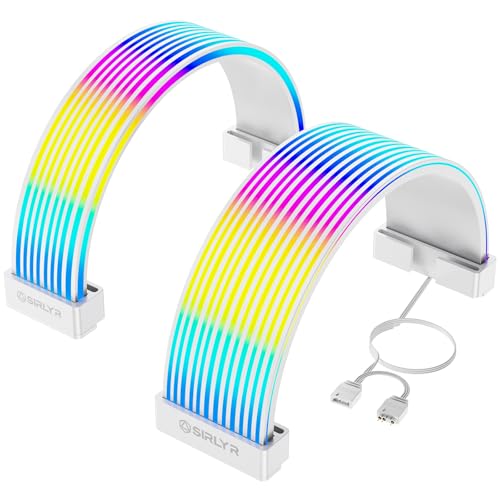
Sirlyr White ARGB Sleeves for PSU Cables, 8Pin/12VHPWR & ATX 24Pin, 5V 3Pin | Flexible LED Strips/Cover,Manage GPU/MB Cables,Hide Messy Wires,Decorate PC Case with ARGB Lighting
Chosen because it specifies 8Pin/12VHPWR & ATX 24Pin and 5V 3Pin.
View on AmazonASUS A31 ATX Mid-Tower PC Case | Panoramic design, Support for Hidden-connector Motherboards, 360mm Radiators & 380mm Graphics Cards, Clean Cable Management
Chosen because it specifies Panoramic design and Support for Hidden-connector Motherboards.
View on Amazon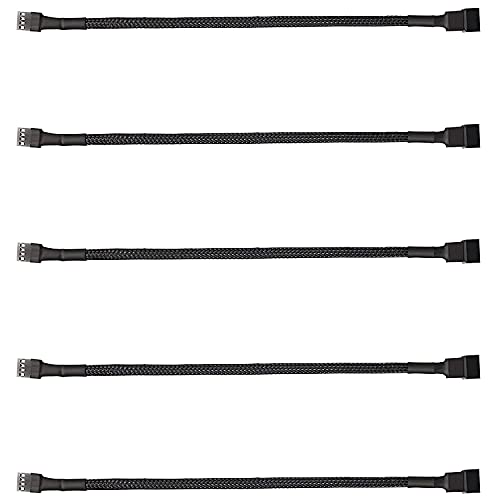
ThreeBulls 5 Pack 4-Pin PWM Fan Splitter Cable, Sleeved Braided Adapter Computer PC Fan Power Extension Cable Converter for Computer ATX Case 4-Pin/3-Pin Cooling Fan Cable (10.6")
Picked as a relevant option in this category.
View on AmazonPrerequisites
- The PC is shut down, the power supply switched off, and the cord unplugged.
- Both side panels removed.
- Reusable hook-and-loop straps (reusable ties are easier to adjust than single-use zip ties) and a small pair of flush cutters if you use zip ties.
- Optionally, adhesive tie-down mounts and cable combs.
- The motherboard and case manuals, which show the front-panel and fan header positions.
- A power supply that is modular or semi-modular makes this far easier, since you connect only the cables you need. With a non-modular PSU, bundle the unused cables and tuck them into a spare drive bay or against the back panel.
Step-by-Step Routing
- Plan before you plug. Look at your case’s cutouts and grommets. Typically there is a cutout to the right of the motherboard for the 24-pin cable, a top-left cutout near the CPU socket for the EPS cable, and bottom openings near the GPU slot.
- Install the power supply and decide which cables you need. Connect only the necessary modular cables: 24-pin, CPU power, one or two GPU cables, and any storage cables.
- Pre-route the CPU power cable. The 8-pin CPU cable is easiest to place before the motherboard is mounted, or at least before the cooler gets in the way. Run it behind the tray and out through the top cutout. If you forget, you may have to partly remove the board.
- Route the 24-pin cable. Run it from the PSU, behind the tray, and through the nearest cutout to its socket on the board’s right edge. In smaller cases, route it before installing the motherboard. Keep it flat and avoid twisting.
- Route GPU power cables. Pass them from the PSU behind the tray and out through the grommet near the graphics card slot. For the 12VHPWR or 12V-2×6 connector, follow the card and PSU maker’s guidance: seat the plug fully, avoid bending the cable right at the connector, and stop using it and contact the maker if you notice heat damage.
- Connect storage and front-panel cables. Run SATA data and power along the back, and the USB and audio headers through the nearest cutouts. Check each header against the board manual.
- Route fan, pump, and RGB cables last. Connect them to the fan headers listed in the motherboard manual, taking care to match 3-pin and 4-pin connectors and to keep pump headers powered as the cooler maker specifies.
- Bundle and secure. Use every tie-down point behind the tray. Group cables that travel together, leave a little slack so they are not under tension, and avoid pressing the bundle against the side panel.
- Close the back panel as a test. If it does not close easily, the bundle is too thick. Push cables deeper into the cutouts or reposition them rather than forcing the panel.
- Do a final check in the main chamber. Make sure no cable touches a fan blade, CPU cooler fans, or the GPU fans.
Quick-Reference Table
| Cable | Typical route | Tip |
|---|---|---|
| 24-pin ATX | PSU, behind tray, right-edge cutout | Keep flat; pre-route in compact cases |
| CPU EPS (8-pin) | Behind tray, top-left cutout near CPU | Fit it before mounting a large cooler |
| GPU PCIe power | Bottom grommet near GPU slot | Seat fully; do not bend sharply at the plug |
| SATA data and power | Behind tray to drive bays | Use short cables where possible |
| Front panel and USB | Nearest cutout to bottom edge | Consult the board manual for pinouts |
| Fans and RGB | Along edges to headers | Match connector type; keep clear of blades |
What Result to Expect
You should see a clear main chamber, with cables mostly out of sight, a back panel that closes without bulging, and no wire in contact with moving parts. After booting, listen for rattles or fan scraping and check temperatures in your monitoring tool to ensure nothing changed unexpectedly.
Common Mistakes
- Using single-use zip ties everywhere. They make upgrades annoying; reusable straps allow adjustment.
- Pulling bundles tight. Tension on connectors can loosen them or damage solder joints.
- Routing 24-pin cable after the board is boxed in. In small cases this becomes a struggle.
- Ignoring the back panel. Overfilled space makes the panel bulge and can press on cables.
- Covering PSU vents or exhaust paths. Do not stuff cables in front of the power supply fan.
- Tying cables across fans or heatsink fins. They can impede airflow or cause noise.
- Forgetting fan headers. A pump or fan connected to the wrong header can run at the wrong speed; check the cooler and board manuals.
When Not to Overdo It
Skip elaborate custom sleeving and extreme bundling if the build is under warranty and you may need to return parts, or if your case offers very little space behind the tray. Do not open the power supply to shorten or modify wires; that is dangerous and can void the warranty. Do not mix cables from different PSU makers, because pin layouts on the PSU side differ even when the plugs look identical. If you are uncertain, contact the case or PSU maker or a technician.
Maintenance After the Build
Revisit cable routing whenever you add a drive, swap a graphics card, or clean the case. Power down and unplug first, then release the straps rather than cutting them, move the affected cables, and re-secure the bundle. Dust tends to collect on cable bundles and filters, so a periodic gentle clean with compressed air keeps airflow healthy. Photograph the back of the build before major changes so you can restore the routing later.
Frequently Asked Questions
Does cable management improve temperatures?
It can help in small or crowded cases by clearing airflow paths, but reviewers generally report modest differences in open layouts. The main benefits are easier maintenance and a cleaner look.
Should I use zip ties or hook-and-loop straps?
Reusable hook-and-loop straps are easier to adjust when you upgrade. Zip ties are fine for permanent bundles. Whichever you use, trim zip tie tails flush and keep them away from edges and fans.
Do I need a modular power supply?
No, but it makes the job easier because you attach only needed cables. With a non-modular unit, bundle spare cables neatly and store them in a drive bay or behind the tray.
How much slack should I leave?
Enough that connectors are not under tension and the cable does not form a tight bend at the plug. Take particular care near the graphics card power connector, following the maker’s bend guidance.
Can I extend or shorten cables?
Extension cables are sold by third parties, but they add connection points. Never cut or splice PSU cables yourself. If a cable is too short, ask the PSU maker about the correct replacement.