
Key takeaways
- A Twitch account you control: Sign in through the official Twitch sign-in flow. Complete any email, phone, or multi-factor verification requested for your account; do not attempt to bypass these prompts.
- OBS Studio: Download or update it from the OBS Project’s official site. If OBS is already installed, check Help > Check for Updates where that command is available.
- A usable upload connection: Streaming requires consistent upload bandwidth, not just a fast download-speed result. A wired connection can reduce Wi-Fi variability, although it is not mandatory.
- Something to broadcast: Prepare a game window, desktop, webcam, capture-card feed, or other scene source and a microphone if you want commentary.
- A private preparation moment: Close personal tabs and hide notifications before using Display Capture. Connecting an account is safe to do before you build the scene.
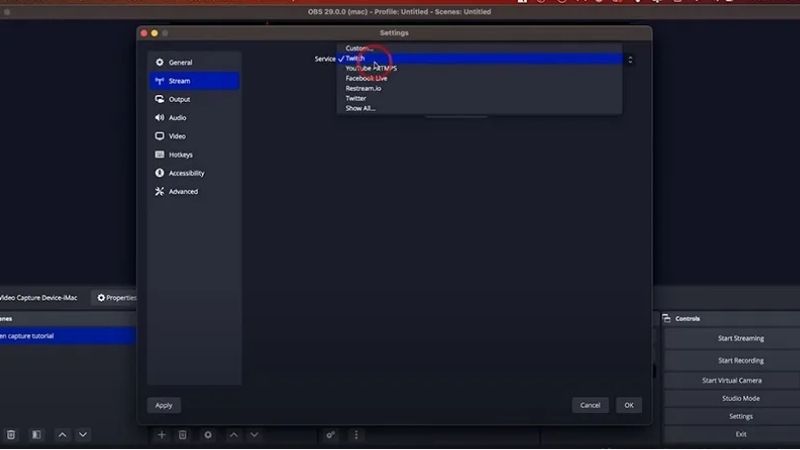
Here’s how to connect Twitch to OBS: open Settings > Stream in OBS Studio, select Twitch, and choose Connect Account (recommended). Sign in to the Twitch channel you want to broadcast from and approve the authorization. If account linking is unavailable, you can instead select the stream-key option and paste your own key from the Twitch Creator Dashboard. Connecting a channel does not automatically put you live: you still need to configure a scene, check your audio and video, and click Start Streaming when you are ready.
What you need before connecting Twitch
The instructions below focus on the desktop version of OBS Studio on Windows 11, but the account-linking concepts also apply to supported OBS installations on other operating systems. Menu labels can vary slightly with OBS updates, platform, and enabled broadcasting features.
- A Twitch account you control: Sign in through the official Twitch sign-in flow. Complete any email, phone, or multi-factor verification requested for your account; do not attempt to bypass these prompts.
- OBS Studio: Download or update it from the OBS Project’s official site. If OBS is already installed, check Help > Check for Updates where that command is available.
- A usable upload connection: Streaming requires consistent upload bandwidth, not just a fast download-speed result. A wired connection can reduce Wi-Fi variability, although it is not mandatory.
- Something to broadcast: Prepare a game window, desktop, webcam, capture-card feed, or other scene source and a microphone if you want commentary.
- A private preparation moment: Close personal tabs and hide notifications before using Display Capture. Connecting an account is safe to do before you build the scene.
OBS offers two different account connection methods. You only need one of them. Its official Twitch VOD Track Guide explicitly documents the Connect Account button, and Twitch’s Stream Key FAQ documents manual stream-key authorization.
Connect your Twitch account to OBS (recommended)
Direct account linking is the easiest route for most creators because you authorize your Twitch account without copying a secret stream key into a text field. It also allows OBS integrations that depend on a connected Twitch account; the availability of optional docks or account features can differ by OBS release.
- Open OBS Studio. If the Auto-Configuration Wizard starts, choose the streaming-oriented setup and follow its prompts. You can run the wizard later from Tools > Auto-Configuration Wizard.
- Go to Settings > Stream. Open Settings from the Controls dock or the File menu, then select the Stream category.
- Set Service to Twitch. Select Twitch from the service list rather than choosing a generic custom server for a normal Twitch stream.
- Choose Connect Account (recommended). OBS opens an authorization flow. Sign in to Twitch using the account associated with the channel you intend to stream to.
- Review and approve the authorization. Finish any legitimate account verification requested by Twitch. Confirm that the authorization belongs to OBS and that the browser is on an official sign-in or authorization page.
- Return to OBS and apply the settings. Select Apply or OK as appropriate. Reopen Settings > Stream and check that the connected-account state appears rather than a blank stream-key setup.
- Verify the channel. Open your Twitch Creator Dashboard in a browser already signed in as your intended channel. If you manage multiple Twitch accounts, make sure the authorization and dashboard belong to the same one before starting a broadcast.
Expected result: OBS recognizes Twitch as your streaming destination, and you are no longer being asked to authenticate for the same connection. This is a connection test, not proof that a live stream has started.
What if the Twitch login window does not finish?
Close the incomplete authorization window, keep OBS updated, and retry with the correct Twitch account. Check whether your browser can sign in to Twitch normally, including any required verification step. If a restrictive network, browser privacy extension, proxy, or VPN is interfering with the sign-in flow, test an ordinary trusted browser/network configuration instead of weakening Windows or account security. If the OBS connection still fails while the Twitch account works in a browser, the manual stream-key method below is a supported alternative.
Connect Twitch with a stream key instead
A stream key is a sensitive authorization secret that lets streaming software send video to your Twitch channel. Twitch says it is issued to your channel and can be retrieved from the Creator Dashboard. The key is not a public channel URL, a viewer link, or your Twitch password. Do not paste a stream key into chat, screenshots, public documentation, or someone else’s OBS installation.
- Open your Twitch Creator Dashboard. Use the Twitch website while signed into the channel you want to broadcast from.
- Find the stream settings. In the Creator Dashboard, go to Settings > Stream and locate your primary stream key, following the current Twitch interface.
- Copy the key privately. Reveal or copy it only when needed. Keep the dashboard and the key out of screen capture.
- Return to OBS Studio. Open Settings > Stream, select Twitch as the service, and choose the option for using a stream key rather than Connect Account.
- Paste the key and save. Select Apply or OK. Do not manually enter a custom ingest-server URL unless you have a specific, verified reason to change servers.
- Check the destination. Before going live, confirm that the key came from the correct Twitch channel; a valid key for another channel can send the broadcast there instead.
Expected result: OBS now has credentials to publish to Twitch when you press Start Streaming. It may not display the same account-linked features as the recommended Connect Account method. Twitch recommends that creators keep stream keys private and reset a compromised key in the dashboard.
Should you reset your stream key after connecting?
Not routinely. Twitch explains that the same key can be reused unless it has been reset. Reset it if the secret was exposed, entered into an untrusted service, or may have been viewed by someone unauthorized. After a reset, replace any saved copy in OBS or any other encoder you personally control; the old key will no longer authorize your regular stream.
Build a simple scene before going live
Once Twitch is connected, the next task is to make OBS send content rather than an empty or unintended picture. OBS’s Quick Start Guide recommends adding sources, setting up sound, and performing a short test before broadcasting publicly.
- Create a scene. In the Scenes dock, add a scene such as Gaming. A scene is the layout OBS will broadcast.
- Add game video. Under Sources, use Game Capture for a compatible Windows game when it works, or Window Capture for a particular application window. Display Capture shows the entire desktop and can expose private information.
- Add your webcam only if you want one. A Video Capture Device source can place your camera above gameplay. Move and resize it in the preview.
- Check the Audio Mixer. Speak into your microphone and play a short sample from the game. The corresponding level meters should move. If not, open Settings > Audio and choose the intended input and output capture devices.
- Avoid duplicate audio paths. If sound is being captured globally and again through a separate source, use one intentional route to prevent doubled or echoing audio.
- Inspect the preview. Verify that the intended game, camera, and graphics appear and that notifications, passwords, and private chat windows are not visible.
You do not need a webcam to stream to Twitch. A microphone is optional as well, although commentary may matter for your intended content. A short OBS recording before streaming is a practical way to test audio synchronization, source visibility, and black-screen problems without publishing to Twitch.
Choose stable video and streaming settings
OBS’s Auto-Configuration Wizard uses your computer and connection to suggest starting settings. Run it before manually copying someone else’s encoder preset. Select Settings > Video to review your Base (Canvas) Resolution, Output (Scaled) Resolution, and frame rate. Use Settings > Output to review your streaming encoder and bitrate when those controls are available.
| Starting situation | Useful approach | What to verify |
|---|---|---|
| First stream on an uncertain connection | Run Auto-Configuration Wizard; consider 720p/30 fps as a conservative starting point | Stable upload, readable text, smooth playback |
| Gaming PC and reliable upload | Test 720p/60 fps or 1080p/30–60 fps as resources allow | No encoder overload or network dropped frames |
| Single-encode Twitch stream | Use Twitch-compatible constant bitrate settings if configuring them manually | Match bitrate to stable upload and Twitch guidelines |
| Enhanced Broadcasting enabled | Use the Twitch/OBS supported multitrack settings, generally leaving automatic options enabled initially | Available GPU encoding capacity, total upstream bandwidth, Twitch Inspector |
Twitch’s traditional Broadcasting Guidelines list example settings such as 720p/30 at 3,000 kbps, 1080p/30 at 4,500 kbps, and 1080p/60 at 6,000 kbps for standard H.264 streams. These are contextual examples, not universal limits or guarantees; supported formats and Enhanced Broadcasting behavior can change. Choose stability over the highest number. The Twitch streaming FAQ recommends upload capacity above your selected broadcast bitrate so there is headroom for network variation.
Why are some bitrate or encoder controls grayed out?
Check Settings > Stream for an active Twitch Enhanced Broadcasting or multitrack-video option. This Twitch feature can manage multiple encodes and some output settings on compatible OBS versions. It is not required merely to connect your Twitch account. For a straightforward initial test, follow Twitch’s current Enhanced Broadcasting guide, or turn that option off if you specifically need to test a conventional single-encode setup and the option is available. Do not assume that a locked setting means OBS is broken.
Verify your Twitch channel and start a broadcast
- Open Twitch Creator Dashboard. Set the appropriate stream title and category or game. Keep the selected channel visible so you can confirm where the broadcast goes.
- Perform a local preview test. Use OBS Start Recording for a short sample, then stop and watch the resulting local recording. Check audio, scene layout, readable game content, and microphone balance.
- Check OBS’s status area. Look for network status and performance indicators. A clean local recording verifies capture and encoding basics but does not test the route to Twitch.
- Start Streaming in OBS only when ready. This sends your output to Twitch. A correct account link alone does not begin broadcasting.
- Confirm on Twitch. Check the Creator Dashboard or channel page from an appropriate viewing session. Account for normal stream delay; verify video and audio actually arrive.
- Watch health indicators. Keep an eye on OBS dropped frames and Twitch Inspector while running your first broadcast. If health degrades, lower load or bitrate rather than repeatedly changing unrelated settings.
- End the broadcast deliberately. Click Stop Streaming in OBS when finished and verify the channel is no longer live.
If you need a network-only test before public streaming, Twitch Inspector supports bandwidth tests. Follow Twitch’s current instructions from its official Inspector or Stream Key FAQ rather than experimenting with keys or assuming that a local recording measures internet reliability.
Fix common Twitch-to-OBS connection problems
| Symptom | Likely area | First safe action |
|---|---|---|
| Twitch is absent from the Service list | OBS version or service selection | Update OBS and check the complete service list |
| Account authorization keeps failing | Twitch sign-in, account verification, browser or network | Sign in to Twitch independently, then retry Connect Account |
| Stream key is rejected | Wrong, old, or malformed key | Copy a fresh key from the intended channel’s official dashboard |
| OBS says streaming, Twitch appears offline | Wrong channel, ingest connection, or stream delay | Check destination account and Twitch Creator Dashboard |
| Stream drops frames or disconnects | Unstable upload route or overly high bitrate | Review OBS status, Twitch Inspector, and reduce video bitrate |
| Black screen or silent stream | Scene source or audio device | Verify OBS preview, selected sources, and mixer meters |
| Bitrate controls are unavailable | Enhanced Broadcasting managing output | Review Twitch multitrack settings before changing encoder options |
OBS connects to the wrong Twitch account
Disconnect the Twitch account in OBS’s Stream settings if the current version offers that option, then repeat Connect Account while signed into the correct Twitch channel. Browser sign-in state can influence which account is authorized. If using a stream key, replace it only with the key from the intended channel. Twitch account linking and the Creator Dashboard must refer to the same channel before you start streaming.
OBS reports an authentication or stream-key error
Check that you selected Twitch rather than a custom service, verify Twitch login in a normal browser, and complete any account security verification. If using a stream key, copy it again privately from Twitch’s Stream settings. If you reset the key, update OBS afterward. Avoid posting any key or authorization screenshot to forums when asking for help.
The channel stays offline after Start Streaming
First verify that OBS is actually transmitting instead of displaying an error or reconnect countdown. Open your intended Twitch dashboard and look for the incoming broadcast; allow for normal distribution delay. Confirm the OBS stream service and account, then review Twitch Inspector to see whether video reached Twitch. If the broadcast reaches Twitch but the channel page does not show what you expect, investigate the dashboard or account state rather than reinstalling OBS immediately.
Dropped frames and repeated disconnections
OBS’s official Stream Connection Troubleshooting Guide describes dropped frames as a connection problem between the PC and the ingest server, often caused by unstable upload or a bitrate the path cannot sustain. If the issue starts only while live, try reducing the video bitrate, stopping other large uploads, checking wired versus Wi-Fi stability, and—when appropriate—testing another Twitch ingest server. The guide proposes an initial bitrate no higher than approximately 75% of the measured upload rate, but a stable sustained measurement and Twitch’s supported settings matter more than a single speed-test peak.
Viewers hear no sound, or see a black screen
These symptoms usually require a capture or audio check rather than a new Twitch account link. Look at OBS’s own preview. A black Game Capture source can be caused by the game or graphics configuration; test the correct capture method before blaming Twitch. For silent output, confirm microphone and desktop audio meters move, look for accidental muting, and make a short local recording. Fix and recheck the scene before resuming the public broadcast.
Keep your Twitch connection and stream settings secure
Use only official Twitch authorization pages and the official OBS Project download. Never ask an audience member or support stranger to receive your stream key, a sign-in code, or a screen recording that shows credentials. If you suspect a compromised Twitch account, secure the account and reset the stream key from its own settings. Avoid broadcasting password managers, private messages, or account recovery information through Display Capture.
OBS Profiles can save streaming-service settings and the connected-account state; they do not save the actual scenes. OBS documents separate Scene Collections for organizing scenes and sources. If you stream to different channels or platforms, clearly label each profile and review the destination before pressing Start Streaming. Exported profile files deserve the same caution as other sensitive setup data.
Frequently asked questions
Do I need a Twitch stream key if I already used Connect Account?
No. For an ordinary account-linked setup, OBS can authorize the stream through the connected Twitch account. The stream-key method is an alternative, not an additional mandatory step.
Does connecting Twitch to OBS automatically make me live?
No. Linking a channel configures the destination. You become live only after OBS successfully starts sending a broadcast and Twitch receives it. Make sure you have created a scene and checked its audio and video first.
Can I connect Twitch to OBS without a webcam?
Yes. Twitch’s streaming FAQ says a camera and microphone are not required to broadcast. You can stream a permitted game or another scene source, provided your account and broadcast comply with Twitch’s rules.
Is Twitch Enhanced Broadcasting necessary for my first OBS stream?
No. It is an optional multitrack-video capability on compatible setups, not a prerequisite for linking Twitch and OBS. The ordinary account connection and basic single-encode workflow are sufficient to get started.
How can I tell if Twitch is receiving a healthy stream?
Check OBS’s streaming status and dropped-frame counter, then examine the stream in Twitch Creator Dashboard or Twitch Inspector. Twitch documents Inspector health graphs and configuration checks for analyzing a stream’s ingest quality.
Final thoughts
The simplest way to connect Twitch to OBS is to select Twitch under Settings > Stream, choose Connect Account, and authorize the correct channel. Manual stream-key entry remains useful when account linking is unavailable, but its secrecy matters. Once connected, create a basic scene, test audio and video locally, and check the live broadcast on Twitch. If something fails, identify whether the problem is authentication, source capture, or the network path before reinstalling software or changing advanced encoder settings.




