
Key takeaways
- Access to the correct Epic account: Sign in through the website, using the Epic credentials or your linked PlayStation, Xbox, Nintendo, or other platform login as appropriate. Check the account’s display name and email before changing security.
- Access to your registered email: You may need it for verification, account recovery, and security notices. Epic strongly recommends verifying the email address and securing the inbox with its own 2FA.
- A phone if you choose app or SMS: Install a supported authenticator from its legitimate app-store listing, or confirm your number can receive SMS. Do not use an unofficial code-generator website.
- A private place to save recovery information: If your authenticator setup provides one-time backup codes, store them securely, outside screenshots shared in chats or publicly synced notes.
To enable Epic Games two-factor authentication (2FA), sign in at epicgames.com, open Account > Password & Security, find Two-Factor Authentication, and select Set up beside your preferred method. Complete the email, app, or SMS verification shown on-screen. Epic confirms that the method is active and emails you a confirmation. The options currently include Epic Authenticator, a third-party authenticator app, email, and SMS, although SMS access depends on your region and account. For a more resilient setup, add a second available method before you sign out, and keep any authenticator-app recovery codes private.
Quick answer: Choose your Epic Games 2FA method
Two-factor authentication makes a password alone insufficient to complete a protected sign-in. Epic’s account-support documents describe four methods, but they do not guarantee that every method is offered to every age group, device, or country. You can choose more than one method and select the one Epic should ask for first. If you are enabling 2FA mainly for Fortnite gifting, tournament entry, or a free-game claim that requires verification, configure it on the same Epic account you actually use for that activity.
| Method | What you use at sign-in | Best fit | Important limitation |
|---|---|---|---|
| Third-party authenticator app | A rotating code in a supported authenticator app | Recommended general-purpose choice if you can protect and recover your phone | Losing app access can lock you out without another method or saved recovery codes |
| Epic Authenticator | A number-matching approval in Epic’s supported mobile app | Players who prefer a phone approval prompt | App availability and enrollment screens can vary by device or region |
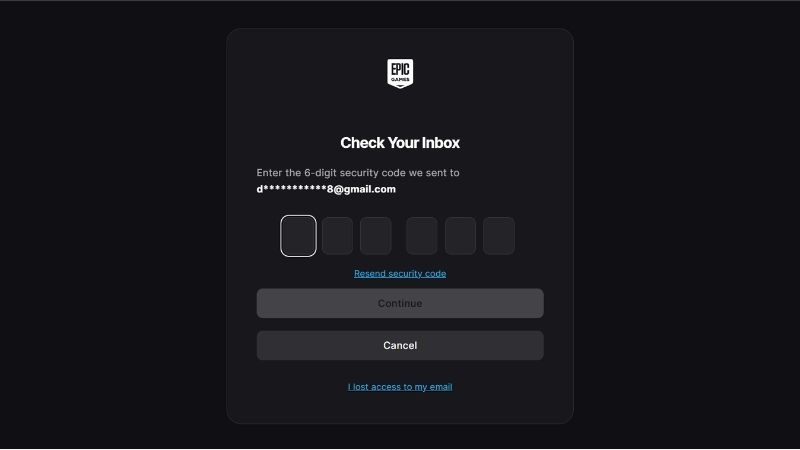
| Email authentication | A code sent to the Epic account’s registered email address | An accessible backup or straightforward first setup | Security depends on keeping the email inbox protected |
| SMS authentication | A code delivered to an eligible phone number | A secondary option where offered | Unsupported numbers or regions, and risk if phone-number access changes |
Epic’s official guide, “What two-factor authentication (2FA) methods are available to use with my Epic Games account?”, lists the four options above. Its “Securing your Epic Games account” guide recommends an authenticator application. These are account-security options, not separate subscriptions or paid products.
What you need before turning on 2FA
- Access to the correct Epic account: Sign in through the website, using the Epic credentials or your linked PlayStation, Xbox, Nintendo, or other platform login as appropriate. Check the account’s display name and email before changing security.
- Access to your registered email: You may need it for verification, account recovery, and security notices. Epic strongly recommends verifying the email address and securing the inbox with its own 2FA.
- A phone if you choose app or SMS: Install a supported authenticator from its legitimate app-store listing, or confirm your number can receive SMS. Do not use an unofficial code-generator website.
- A private place to save recovery information: If your authenticator setup provides one-time backup codes, store them securely, outside screenshots shared in chats or publicly synced notes.
You do not need to purchase Fortnite V-Bucks, download a new desktop Launcher, or give anyone your password to enable account-level 2FA. Epic account security is managed on the official account website. If your Epic account was created automatically through a console and does not yet have a full email-based login, complete that account setup before expecting all security options to appear.
How to enable Epic Games 2FA step by step
The following website path comes from Epic’s current account-security instructions. Use a trusted browser on a PC, phone, or tablet; the method is not dependent on whether you use the regular or Preview version of Epic Games Launcher.
- Go to the official site. Enter epicgames.com yourself in the browser address bar. Sign in to the account that contains your games and linked profiles. Avoid arriving from an unexpected password-reset or prize-message link.
- Open account settings. Select your profile icon in the upper-right area, then Account > Password & Security. Epic’s newer pages sometimes capitalize the heading as “Password and security,” but this is the same security section.
- Find Two-Factor Authentication. In the account page, scroll to Two-Factor Authentication and review the methods actually offered to your account. If the section does not appear, check that you have completed account setup and are signed in as the right Epic user.
- Choose Set up. Select Set up beside the method you want: Epic Authenticator, authenticator app, email, or SMS. Complete any method-specific setup or device-pairing instructions displayed by Epic.
- Verify the attempt. Enter the one-time code from your authenticator app, email, or SMS when prompted. Epic Authenticator uses a number-matching phone approval instead of requiring the same numeric-code entry flow.
- Confirm the method is active. Return to the Two-Factor Authentication section and verify that your selected method now shows as enabled. Epic also says a confirmation email is sent when setup succeeds.
- Add a second method. Where available, select Set up beside another method. To make one the default, click the three dots (…) > Make my primary 2FA method beside that enabled method.
Expected result: Your preferred authentication method is visibly active under Account security. When an additional login challenge occurs, Epic can request verification using your selected method. Enabling 2FA does not automatically sign you out of every device or mean that every future session must display a code; check the enabled status directly rather than using one sign-in attempt as the only test.
Set up a third-party authenticator app
Epic names common options including Google Authenticator and Microsoft Authenticator. The exact enrollment screen can change, so use the pairing instructions on Epic’s live page rather than assuming that every phone sees the same QR-code or manual-key control. Never paste a shared secret or backup code into a chat, forum, or support request.
- Install your preferred authenticator from your phone’s official app store and open it. Confirm your phone’s date and time are set automatically; an inaccurate clock can cause rotating codes to fail.
- On epicgames.com > Account > Password & Security > Two-Factor Authentication, click Set up beside Authenticator App (the wording may appear as Authentication app).
- Follow Epic’s account-pairing screen. If it displays a QR code, use the app’s add-account/scan option; if it provides another supported pairing flow, follow that flow instead. Keep the pairing details off shared screens.
- Look in your authenticator for the new Epic entry and enter its current one-time code into the Epic verification form. Submit before the code expires. If it changes while you type, use the newly displayed code.
- Verify that the method is active and record any backup codes Epic supplies during this authenticator enrollment. Epic documents eight-digit backup codes for recovery. Store them in a secure password manager or another private, reliable location.
- Add an available second verification method, such as your secured email. Epic’s own account troubleshooting recommends maintaining at least two methods when possible.
Why this is useful: A third-party authenticator generates the current sign-in code in your own app instead of relying solely on email or text delivery. It still requires careful phone replacement planning. Before deleting an old phone or resetting an authenticator, confirm your new device and a secondary sign-in method are ready.
Set up Epic Authenticator with number matching
Epic Authenticator is not the same product as a third-party rotating-code authenticator. Epic says it is built into its Epic Games App and Epic Games Store App on supported mobile devices. When you sign in using this method, you receive a number-match prompt and select the matching number to approve the request.
- On the Epic account website, go to Account > Password & Security > Two-Factor Authentication and select Set up for Epic Authenticator if it is available.
- Follow the on-screen enrollment instructions for the supported Epic mobile app. Download it only through Epic’s official mobile information page and the supported distribution route for your device.
- Complete any requested account confirmation. Check that Epic Authenticator becomes an active method in your account’s security section.
- For a future sign-in that requests number matching, compare the number shown on the legitimate sign-in screen with the available numbers in the phone prompt and approve only the matching request that you initiated.
If you see unexpected phone approval prompts while you are not signing in, deny them and inspect your account security. Do not accept a request merely to make notifications stop. If the Epic Authenticator option is missing on your device, use a third-party authenticator or email rather than installing an unverified APK or another person’s account app.
Enable 2FA with email verification
Email can be a practical setup choice and a useful way to regain access when a phone is lost. Its main weakness is straightforward: someone who controls your Epic email inbox may also receive Epic verification messages. Secure that inbox with a unique password and its own supported 2FA.
- Verify you can open the email account shown in Epic account settings. If it is outdated, resolve the account-email issue through Epic Support instead of continuing with an inbox you cannot access.
- Open Account > Password & Security on Epic’s website. Under Two-Factor Authentication, click Set up next to Email.
- Look for a fresh verification message at the registered address. Check Inbox, Promotions, and Spam/Junk. Epic documents mail from official domains including accts.epicgames.com and acct-auth.epicgames.com.
- Enter the current code into Epic’s verification field. Do not use a code from an older request; after successful submission, verify that Email displays as active.
- Where another method is available, enable it as well and choose the intended primary option with the three-dot menu.
If no email appears, give delivery a few minutes and confirm that Email is actually the method Epic is requesting. If the primary method is an app or SMS, the code may not be sent to email until you choose a different sign-in method. Use Epic’s official “I don’t receive two-factor authentication codes in my email” checklist rather than repeatedly guessing codes.
Enable SMS 2FA only when your number is supported
SMS is optional and not universal. Epic expressly warns that some phone numbers or regions cannot receive SMS two-factor codes. Its current country-restriction notice names several markets where SMS service has been disabled; the affected list and effective dates can change. Do not assume that choosing a US country code, using a virtual number, or routing through a VPN will make an ineligible number supported.
- Navigate to epicgames.com > Account > Password & Security and look under Two-Factor Authentication.
- If SMS is offered, select Set up, supply your own supported number with the correct country code, and continue using the displayed enrollment form.
- Wait for the latest text message, enter its verification code into the Epic form, and confirm that SMS shows as active.
- If Epic reports “SMS to this region is not supported”, stop retrying the same number. Use Authenticator App or Email instead.
- Before changing your phone number or leaving your mobile carrier, activate a backup method you can still access.
Epic’s Cabined Accounts FAQ says SMS-based 2FA may also be restricted for a younger player’s account pending parental permission, while email or an authenticator app may remain possible. Parents should use Epic’s actual consent workflow; a different date of birth or someone else’s phone number is not an appropriate workaround.
Make the right method primary and verify the account
Multiple enrolled methods are helpful only if you know which one Epic is asking you to use. In the account-security page, find the active method, click the three dots (…), and select Make my primary 2FA method. Epic documents this exact menu name. Once selected, return to the section to check which method appears as primary.
To test your setup without creating unnecessary account lockouts, first confirm that you can access the current email address and the backup method. Then use a separate private browser session to sign in through the official Epic website. If a 2FA challenge appears, complete it with your expected method. If the site does not request a challenge because it trusts the device or session, that does not prove 2FA is disabled. Recheck the account settings and confirmation email instead.
Epic also recommends separate 2FA for linked PlayStation, Xbox, Nintendo, Google, or other identity accounts, because signing into one of those services may provide access to Epic. Turning on Epic 2FA does not automatically protect every linked account’s login credentials.
Fix Epic Games 2FA codes that do not arrive or fail
| What you see | Likely reason | First safe action |
|---|---|---|
| Email code never arrives | Delayed delivery, spam filtering, incorrect inbox, or different primary method | Check the account email, wait a few minutes, inspect Spam/Junk, and confirm selected method |
| App says code is invalid or expired | Old code or device time not synchronized | Wait for a fresh app code and enable automatic time on the phone |
| SMS code missing | Carrier or number restriction, account age settings, or regional SMS block | Choose a supported authenticator or email method instead |
| Internal service error during setup | Temporary service issue, browser or network interference | Check Epic status, then try private browsing or a different browser |
| Fortnite still says 2FA is off | 2FA enabled on a different Epic account, or incomplete console-created account | Verify linked platform login and Epic display name before changing anything |
| Lost old phone or changed number | Primary factor no longer accessible | At the sign-in challenge select Try another way, then use available email or saved backup code |
Invalid or expired code
Epic’s sign-in troubleshooting says to wait about 30 seconds before using Resend code for email or SMS, then enter the newest message promptly. For an authenticator, wait for the next rotating code. Make sure the phone’s date and time are set to synchronize automatically; a wrong clock can invalidate otherwise correct app codes. Avoid entering multiple old codes in a row.
“An error occurred in our internal service”
Start with the official Epic status page, status.epicgames.com. Epic next suggests trying an incognito/private window, another browser or device, pausing a VPN or hosting connection during setup, or choosing another 2FA method. If you control the Epic account’s country setting, verify it reflects your real country; do not alter region information to bypass an availability restriction.
Fortnite reports 2FA is not enabled
Check which Epic account you changed. A console-created profile may lead to a different Epic account from the email account visible in your usual desktop browser. Epic’s support instructions say to sign out, choose the relevant console-platform logo on the Epic sign-in page, and complete the Finish Setting Up Your Account screen if it appears. Epic states that completing a missing-email setup through that official process does not erase the account’s progress or purchases. Never unlink a console account experimentally just to force Fortnite to refresh a 2FA reward.
Recover access if you lose your authenticator phone
Epic’s “My Authenticator app or SMS two-factor authentication (2FA) has locked me out of my account” guide provides a documented alternative at the Epic login challenge. It is intended for the account’s legitimate owner, not for bypassing somebody else’s authentication.
- At the official Epic sign-in challenge, select Try another way.
- If you still control the associated email inbox and that option is offered, select Email Verification, retrieve the new code, and enter it in the Security code field.
- If you saved recovery codes when setting up the authenticator, select Enter your Two-Factor verification backup codes and supply one of the account’s eight-digit codes. These codes are sensitive and must never be shared with a supposed support agent.
- Once logged in, open Account > Password & Security and set up an accessible verification method before removing the old one.
- For an old SMS number, Epic documents three dots (…) > Remove Method for the SMS factor, followed by Set up to register the replacement number. Remove and replace a method only after you have a working alternative.
If you have lost the registered inbox and all factors, use Epic’s official account recovery service. Do not follow people promising to “recover” an account through a code exchange or paid direct message. A genuine support case should not require that you disclose active 2FA codes or stored backup codes.
Protect your account after enabling 2FA
- Give Epic a unique password: Do not recycle your email, console, or social-network password. A password manager can create and store a distinct one.
- Secure your registered email: Turn on that email provider’s 2FA and preserve access to its recovery options.
- Review linked accounts: Protect any console or social identity used to sign in to Epic, and investigate services you do not recognize.
- Save backup codes privately: If you received authenticator recovery codes, store them with an appropriate recovery plan; never publish screenshots or email them to strangers.
- Do not approve unsolicited prompts: An unexpected Epic Authenticator number-match prompt can indicate an attempted sign-in. Reject it.
- Plan phone upgrades: Confirm authenticator transfer or a working secondary method before resetting or trading in an old device.
2FA reduces the harm of a stolen password, but it is not protection against sharing a one-time code on a phishing page or voluntarily approving a fraudulent login. Always start from the official account site, inspect the service domain carefully, and decline unusual access requests.
Tools That Help
- Google Authenticator or Microsoft Authenticator — free: Provides a rotating code for Epic’s third-party authenticator method; use if you want app-based 2FA and can safely manage device replacement.
- Epic Games App / Epic Games Store App — free where supported: Hosts Epic Authenticator number-matching; use when the Epic account page offers this enrollment method and your phone supports Epic’s mobile app.
- A reputable password manager — free or paid: Stores a unique Epic password and can protect backup codes in a secure location; useful when managing several game accounts and recovery details.
You do not need to buy hardware or install unofficial software to complete normal Epic 2FA enrollment. The essential tools are an official account login, a reachable email address, and your chosen verification device if that method needs one.
Frequently asked questions
Is Epic Games 2FA required for Fortnite gifts?
Yes. Epic says 2FA is required to send Fortnite gifts, to participate in certain competitive events, and to claim some free Epic Games Store games. Other eligibility rules may apply to those features; enabling 2FA alone is not a guarantee that every gift or event action is available.
Can I use two authenticator methods on one Epic account?
Epic says you can enable more than one 2FA method and choose your preferred primary method. Which combinations the account actually offers may depend on the current interface, app support, and region. The most practical goal is two independent, accessible ways to verify ownership.
Does Epic Games 2FA cost money?
Epic does not list a charge to enable the supported security methods. Standard email or authenticator apps can be used free of charge; mobile-carrier texting charges or data costs may apply under a user’s own plan.
Will enabling 2FA delete games or Fortnite progress?
No account-security instructions from Epic say that enabling 2FA removes purchases or saves. The more important risk is securing the wrong Epic account, especially when your console login created a separate incomplete account. Verify your Epic account identity before making changes.
Do backup codes come with every method?
Do not assume so. Epic specifically documents a list of backup codes issued when a user first enables 2FA with an authenticator app. If codes were offered, store them privately. Users who set up only email or SMS should not assume that an eight-digit recovery-code list was created for that method.
Final Thoughts
For a straightforward, secure setup, enable a third-party authenticator app on your actual Epic account, confirm it is active under Password & Security, and add a second supported method you can access if your phone is lost. Save any provided backup codes in a safe location. If Epic Authenticator’s number-matching option is available and you prefer push verification, you can use it instead, but reject unexpected requests. The action to take today is simple: sign in through epicgames.com, verify the account name, and finish the 2FA setup before your next Fortnite gift or Epic Store purchase.




