Key takeaways
- Activision Support online-services and Known Issues pages — free: Check platform/service incidents and documented game defects before changing local settings. Most useful when several matches or friends are affected at once.
- Windows Task Manager — free and built into Windows: Open with Ctrl + Shift + Esc and inspect Processes and Network usage. Best for identifying a competing download, sync client, or stream on a PC while reproducing lag.
- Console network tests or your router’s included QoS controls — free: PS5 and Xbox provide built-in connection tests; a router may offer built-in prioritization. Use them after the service check, especially when other household traffic makes lag worse. No paid optimizer is required.
A reliable Modern Warfare 4 packet burst fix starts by determining whether the interruption comes from your connection, the route to a game server, or local PC performance. If enemies teleport, your character snaps backward, or hit registration arrives late, check Activision’s service status, stop competing downloads, and compare one match on wired Ethernet before touching router security settings. Call of Duty: Modern Warfare 4 launched on October 23, 2026, but its official support material does not promise one universal packet-burst switch. This guide gives PC, PlayStation 5, and Xbox Series X|S players a practical order of tests, signs of progress, and safe escalation options.
Quick answer: What to try first
Work from the least disruptive action to the most technical. Change one variable at a time, use the same connection and similar match conditions for comparison, and stop when gameplay is stable. A very fast download speed does not rule out unstable delivery of small game packets. Likewise, a packet-burst warning alone does not prove that your internet provider or router is at fault.
| Symptom | Most useful first check | What the result means |
|---|---|---|
| Many players are lagging after a new update | Check Activision online services and current known issues. | A service or game-side incident may not be repairable at home. |
| Rubber-banding or intermittent hit-registration delay | Pause downloads, cloud backups, and uploads; replay a match. | Improvement suggests competing traffic or congestion. |
| Issues are worse on Wi-Fi | Connect the same device by Ethernet and compare. | Improvement implicates wireless interference, signal, or local airtime use. |
| Lag begins when someone else streams or uploads | Repeat the test with household traffic idle; then investigate router QoS. | Connection saturation or queueing becomes a stronger hypothesis. |
| FPS hitches even when offline | Check frame-time behavior and CPU/GPU load, separately from network tests. | A rendering or system problem may look like network lag. |
| Only one match or region performs badly | Leave the affected lobby, retry later, and record the pattern. | A server or network path could be involved; local changes may not help. |
First five-minute test: Close Modern Warfare 4, verify there is no official service warning, pause active downloads on every device you can control, restart the game, and play one short match. If packet-burst behavior continues, use Ethernet for a second comparable match. Record whether rubber-banding, hit delays, or network warnings become less frequent; there is no need to buy software to conduct this test.
What packet burst actually means
Packet burst versus packet loss, ping, and jitter
Online shooters exchange time-sensitive information such as player movement and actions. A packet-burst indicator generally describes irregular or bunched delivery of this information, which can disrupt the rhythm of updates reaching the client. It can coincide with packet loss, network jitter, congestion, or inconsistent processing, but it is not itself a complete diagnosis. Activision’s Modern Warfare 4 lag guide directly documents packet loss and explains that even an otherwise good connection can occasionally lose data.
Ping is the round-trip delay, normally shown in milliseconds. Jitter is variation in that delay over time. Packet loss means that some transmitted packets never arrive. A player can have acceptably low average ping yet experience brief freezes or teleporting because arrival times are inconsistent. Conversely, consistently high ping may make actions feel delayed even without obvious packet loss. Looking at all these symptoms together is more useful than insisting a single speed-test value proves a healthy gaming connection.
Network rubber-banding is not the same as a frame-time hitch
Rubber-banding occurs when the server’s view of your position and the game’s displayed movement appear to disagree, causing an abrupt correction. Network lag may also show up as enemy teleportation, delayed damage, or sudden disconnections. A local rendering hitch is different: the whole image briefly freezes or an animation becomes uneven because the PC or console cannot produce a frame on time. Modern Warfare 4 can exhibit more than one problem, especially during a busy match, so do not assign a network remedy to every stutter.
Compare behavior in a controlled single-player section or offline-capable menu with behavior in online Multiplayer, where available. If the game stutters while navigating menus and the network is otherwise idle, investigate game updates, graphics load, and device health. If offline presentation is smooth but online movement jumps backward, focus on the service, route, and home network. This is a diagnostic comparison, not a claim that every in-game mode has identical hardware demands.
Why a packet-burst icon cannot identify the culprit
An on-screen warning is a starting clue, not proof that your GPU, ISP, router, or Activision server is broken. Modern Warfare 4’s official published support instructions describe practical connection checks but do not establish a universal interpretation for every telemetry label on every launch build. If your installed version exposes latency or packet-loss data, record the displayed values and the time of the problem. Avoid publishing exact menu paths from older Call of Duty games as though they were guaranteed in this release; labels can move with patches.
Also pay attention to the scope of the complaint. If several friends on different ISPs notice the same issue during the same match, server-side factors deserve attention. If only devices on your own Wi-Fi struggle, test the wireless network. If one PC is affected but another console on the same cable is fine, inspect that PC’s background processes and network adapter before replacing the entire router.
Check Activision’s service status and current patch notes
Activision’s official Connecting to Modern Warfare 4 guide directs players to check the game’s server-status page before changing local settings. Open the Activision Support page for Modern Warfare 4, choose the online-services status for your platform, and note any alert. Then check the official Known Issues page and the latest Modern Warfare 4 patch notes. The launch-day and October 24–25 updates addressed several stability and gameplay problems; that history shows why a fresh client or service update can change symptoms even when your home network has not changed.
If the platform is experiencing a recognized outage, leave the router configuration unchanged. Verify that other internet services work, wait for the official status to recover, and test again. An issue absent from the published known-issues list is not automatically disproven; the list covers tracked cases, not every isolated complaint. If your service check is clear, continue with local troubleshooting rather than concluding the servers must be perfect.
For a useful before-and-after record, write down the date, approximate time, platform, match mode, wired or wireless connection, and whether the issue affects every match or only one lobby. This record becomes valuable if the problem is intermittent or you later report it to support. Avoid relying on vague statements such as “it happens all the time” when a specific ten-minute example is available.
Fix packet burst by removing competing network traffic
Pause downloads and uploads across the household
Start with obvious bandwidth use: game and operating-system downloads, cloud photo backups, large file transfers, video streaming, and live broadcasts. Activision specifically identifies shared connections, streaming media, and uploaded streams as possible contributors to online lag. A broadband speed test measures how much data you can move under its test conditions, but a connection can still become inconsistent when a large upload or download fills queues on the router or upstream equipment.
On Windows 11, press Ctrl + Shift + Esc to open Task Manager, select Processes, and inspect the Network column. If it is hidden, use the available column controls in your build or expand the Task Manager window. Identify known launchers, synchronization clients, and browsers using substantial bandwidth. Pause transfers in their own apps rather than abruptly ending essential Windows processes. Microsoft documents the Processes view as a place to inspect network use; it is a diagnostic tool, not an instruction to shut off security software.
If you use Steam, open Steam > Settings > Downloads and check whether Allow Downloads During Gameplay is enabled. Steam’s documentation explains that downloads are normally paused when a game launches unless the user allows them. Turn that permission off for this test and pause any active queue. Battle.net, the Xbox PC app, and console download queues should likewise be checked within their own interfaces. Disable only optional downloads; keep necessary game updates completed before joining multiplayer.
Test once with household uploads and downloads quiet. If the problem disappears, you have useful evidence for congestion or queueing. If there is no change, restore normal app use after the test and proceed rather than permanently restricting the whole household without a reason.
Separate upload congestion from raw download speed
Many home connections have less upload capacity than download capacity. A live stream, automatic cloud backup, or large file upload can therefore cause noticeable latency spikes before a download looks unusually slow. Test one match without uploads, then deliberately resume the suspected task for a brief comparison if doing so will not interrupt important work. A repeatable difference points toward traffic management as a higher-priority remedy than reinstalling Modern Warfare 4.
Measure performance while idle and during ordinary household activity, ideally with both upload and download activity noted. Do not rely on one speed-test screenshot taken at a different hour. If the connection becomes unstable only in the evening, time-of-day congestion could be occurring beyond your home. Keep the results and ask your ISP to examine evening latency or loss rather than demanding a faster plan solely because your multiplayer experience is poor.
Compare Wi-Fi with wired Ethernet
Why Ethernet is the most informative hardware test
Activision explicitly recommends wired Ethernet for Modern Warfare 4. A stable LAN connection avoids Wi-Fi interference, competing radio traffic, weak signal, and many roaming-related interruptions. It will not cure packet loss outside your home or fix a struggling server, but it sharply narrows the list of possible causes. Use a known-good Ethernet cable from the PC or console to a LAN port on the router. Do not plug the gaming device into the router’s WAN or Internet port.
Run a match using the same game mode and nearby region you normally play. Compare the frequency and severity of the interruption rather than expecting identical teammates, server loading, or match conditions. If the symptom improves markedly, focus on the Wi-Fi side: router placement, crowded channels, obstacles, or other connected devices. If Ethernet does not change the behavior, do not immediately buy a new cable or router; inspect server, ISP, and device factors next.
What to do if Ethernet is not practical
Move closer to the access point for a test, reduce obvious obstructions, and avoid placing the console or PC behind dense metal furniture. If your router supports both 2.4 GHz and 5 GHz bands, compare them at your actual playing location. The less congested, stronger link is preferable to simply choosing the band with the higher advertised speed. A modern wireless standard cannot guarantee low jitter through several walls.
For a PS5 or PS5 Pro, Sony’s official wired setup begins at Settings > Network > Settings > Set Up Internet Connection > Set Up Wired LAN > Connect. You can return to Wi-Fi through the same Set Up Internet Connection screen if the wired test is not useful. On Windows, Microsoft advises checking Settings > Network & internet > Ethernet when a wired link is connected. Confirm the status indicates connectivity and try another cable or router LAN port if it does not.
Run platform-specific network checks
Windows PC: identify whether the connection or the game is stalling
First, document the PC’s network type and whether Task Manager shows heavy traffic during the problem. In Windows 11, open Start > Settings > Network & internet and confirm that the intended Ethernet or Wi-Fi connection is active. If Ethernet unexpectedly drops and reconnects, check the cable, port, and adapter’s manufacturer-supported driver. Microsoft’s Ethernet troubleshooting guide recommends ordinary connection checks and its Network and Internet troubleshooter before disruptive resets.
Windows 11 users can launch the automatic troubleshooter from Settings > System > Troubleshoot > Other troubleshooters where this route remains present, or search for Get Help and use its network troubleshooter as Microsoft currently recommends. Follow the prompts and note whether Windows finds a general adapter issue. If the system passes and only Modern Warfare 4 struggles, stop treating Windows networking as conclusively broken. Recheck the game’s patch status, service condition, and match timing.
Do not begin with netsh resets, DNS cache purges, generic “gaming TCP optimizer” tools, or third-party routing promises. Microsoft’s Network reset is a last-resort procedure that can remove network adapter settings and require VPN or virtual adapter reconfiguration. None of those actions is documented by Activision as a guaranteed Modern Warfare 4 packet-burst remedy. Escalate only when there is evidence of a wider Windows connection failure.
PS5 and PS5 Pro: test the connection and compare LAN
From the PS5 home screen, go to Settings > Network > Connection Status > Test Internet Connection. Sony documents this connection test and recommends checking PlayStation’s service status if sign-in or connectivity fails. Record whether the console can reach the network. Passing the test does not prove that a particular Modern Warfare 4 match will have zero jitter or loss; it establishes a useful baseline.
Then connect by Ethernet through Settings > Network > Settings > Set Up Internet Connection, if you can, and compare online play. If wired is better, prioritize fixing the wireless link rather than changing game graphics settings. If the console test fails even outside the game, restart networking equipment according to the manufacturer’s instructions and retest before opening a support case. Keep custom DNS, IP, MTU, and proxy settings unchanged unless you have a specific diagnosed reason to alter them.
Xbox Series X|S: use Microsoft’s console network tests
Activision’s Modern Warfare 4 connection article provides an exact Xbox route: press the Xbox button, then select Profile & system > Settings > General > Network settings > Test network connection. Follow any specific error guidance. From the same Network settings area, Activision recommends Test multiplayer connection when you are investigating lag, disconnects, or online-game connectivity.
Run the test while no console downloads are active, and compare a match over Ethernet if possible. If the Xbox is reporting connection errors before the game starts, solve that platform-level problem first. If the test passes and the packet-burst behavior persists only in a particular lobby, gather a match-specific report instead of immediately changing NAT, DNS, or port forwarding. That distinction saves effort and avoids creating new account or multiplayer connectivity problems.
Use router QoS carefully when the connection is congested
When QoS is worth testing
Quality of Service (QoS) can prioritize the gaming device’s traffic when other applications compete for bandwidth. Activision’s Modern Warfare 4 lag guide includes enabling QoS as a network-quality recommendation for compatible routers. Some routers also support Smart Queue Management (SQM) to control queue buildup, but availability, naming, and performance vary by router and firmware. Neither technology can repair upstream loss that occurs before traffic reaches your home network.
Use QoS only after you have seen that traffic from another device makes the problem worse. Sign in to the router using the address and administrator method documented by its manufacturer or ISP; select the gaming PC or console by its device name or known local network identifier; enable the router’s documented gaming-device priority feature; save; then replay your test. The exact menu depends on the router, so a universal path such as “Advanced > Gaming > Packet Burst Fix” would be fabricated.
If the router provides a bandwidth allocation or automatic queue-management wizard, follow its manual and measure speeds when the household is idle before entering values. Poorly chosen limits can slow everyone down. Save screenshots of original settings and restore them if ping becomes worse or other household devices lose connectivity. Do not buy a specialized gaming router until simpler tests reveal an actual router limitation.
Why NAT type and port forwarding are not first-line packet-burst fixes
NAT settings primarily affect how devices establish connections and communicate through a router. They can matter for certain multiplayer connection failures, but an open NAT indicator does not prove stable packet delivery or eliminate jitter. Activision’s connection documentation discusses UPnP and port-forwarding tests for connectivity, not as a universal cure for packet-burst warnings. Avoid creating multiple overlapping forwarding rules or exposing a whole PC through a router DMZ to chase lower ping.
For an actual connection-establishment problem, start with the manufacturer-supported configuration and only change one setting when you understand its implications. Never disable a firewall or antivirus application as a permanent workaround; do not bypass console protections. If a shared campus, apartment, or managed network controls these settings, contact the network administrator rather than trying to reconfigure infrastructure you do not own.
Check streaming settings without confusing them with network repair
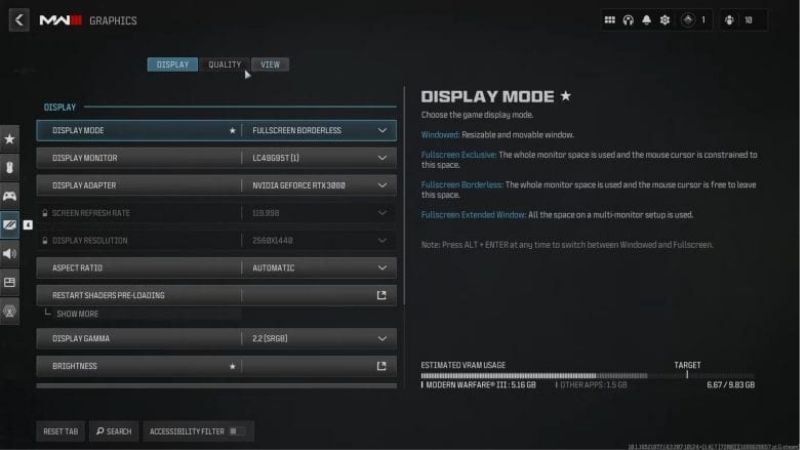
Activision documents On-Demand High-Quality Streaming in its general Call of Duty content-management guidance. It describes an Optimized option that uses more bandwidth for higher-fidelity content and a Minimal option that reduces bandwidth use and image quality. In supported Call of Duty versions, the published route is to open the game’s menu, choose Manage Files, select Graphics, and then adjust the streaming option. This is cross-title support documentation, not independent confirmation that every retail Modern Warfare 4 build presents those labels in the same place.
If your Modern Warfare 4 installation visibly has this control, note the existing choice, try Minimal for one comparable match, and restore the original option if it makes no difference or the visual downgrade is undesirable. Reducing streamed content can lower one possible source of background data use; it cannot guarantee correction of lost packets on the ISP route. If you do not see the setting, skip this test. Do not delete texture caches, alter Windows registry values, or download unofficial configuration bundles to imitate a missing menu.
Texture loading and shader compilation can also look like connection trouble when the image hitches briefly. If you see a single render hitch with no movement correction and no indication of a network interruption, compare frame times or the game’s documented performance tools rather than switching streaming options repeatedly. Keeping these diagnostic tracks separate prevents a graphics tweak from being misrepresented as proof of a network repair.
How to verify whether the fix worked
Use a repeatable checklist rather than declaring success after one smooth minute. First note the starting state: Wi-Fi versus Ethernet, active household transfers, date and time, platform, and whether the problem appears in every lobby. Then make exactly one change and play for several minutes in a comparable online mode. If the game exposes live latency or packet-loss readouts in your installed build, photograph them during the affected periods; do not assume a particular overlay name or path exists in the current version.
| Test | Record before and after | How to interpret it |
|---|---|---|
| Stop background downloads | Whether rubber-banding and delayed hit markers become less frequent. | Improvement suggests competing traffic mattered. |
| Switch Wi-Fi to Ethernet | Warning frequency, disconnections, and responsiveness in similar matches. | Improvement suggests local wireless instability. |
| Enable documented router QoS | Behavior under normal household use, not only when everything is idle. | Improvement under load suggests useful prioritization or queue control. |
| Try a later match or different lobby | Whether the issue tracks time, server, or match rather than the device. | May indicate a game-service or route-specific factor. |
| Compare offline rendering | Whether screen freezing continues without a multiplayer session. | Persistent hitches justify separate graphics/system troubleshooting. |
One test is rarely conclusive because matchmaking may select a different server or lobby. Repeat a promising change at a later time to increase confidence. A practical success result is normal movement and hit feedback across several comparable matches without repeated snap-backs or unexplained disconnects. Do not promise a numerical ping reduction unless you have actual measurements from the same setup and conditions.
When to stop local troubleshooting and report the issue
Escalate if packet-burst or severe lag repeats over Ethernet with background traffic stopped and Activision’s service status showing no outage. For an ISP report, collect the approximate times, duration, household load, wired-test result, router/modem model, and whether other online activities or devices also suffered interruptions. Ask the ISP to investigate intermittent loss, local-line errors, congestion, or route instability rather than claiming the game proves which network hop is faulty.
For a Modern Warfare 4-specific report, use Activision’s official Feedback and Bug Reporting channel. Its instructions emphasize what happened, where and when it happened, and how to reproduce it. Note your game mode, platform, launcher if on PC, patch timing, symptoms, and what changed when switching from Wi-Fi to Ethernet. If friends on different networks experienced the same event in the same match, include that detail without presenting it as definitive proof of a server defect.
Do not post private IP addresses, account credentials, router administrator pages, or full network diagnostics publicly. Remove sensitive identifiers from screenshots. If you are on a managed network, involve its administrator. If the problem began immediately after a game patch, check the next official patch notes before taking disruptive measures such as reinstalling the whole game. A reinstall can replace damaged files but does not normally fix unstable Wi-Fi, upstream loss, or overloaded household upload queues.
Frequently asked questions
Does changing DNS fix Modern Warfare 4 packet burst?
Not as a general fix. DNS primarily resolves hostnames into addresses and is not a direct control for ongoing packet timing within an established multiplayer connection. If websites and online services fail to resolve, DNS troubleshooting may be appropriate for that separate issue. For rubber-banding during otherwise connected gameplay, Activision’s documented first steps—service status, wired connection, and competing network traffic—are more relevant than randomly changing public DNS servers.
Should I disable crossplay to remove packet burst?
There is no verified universal relationship between crossplay and packet-burst behavior. Matchmaking choices may influence who you play with and sometimes which matches you join, but they do not repair a weak wireless connection or congested uplink. Only change a matchmaking option if you have an identifiable reason and the option actually exists in your game build. Do not claim a guaranteed server region or connection quality from toggling it.
Can lowering graphics settings stop packet burst?
Lower graphics settings may improve rendering consistency on a system that is GPU- or CPU-limited, but they are not a general repair for packet loss or jitter. If the symptom is a full-screen frame-time hitch, graphics diagnosis is reasonable. If you see rubber-banding while the game otherwise renders smoothly, prioritize the network checks. A PC can suffer both at once, so keep separate records rather than moving every slider simultaneously.
Is a faster internet plan the answer?
Usually not the first answer. Modern online gameplay often uses relatively modest sustained bandwidth, while packet timing, stability, and congestion can matter far more. A faster plan may help a household that regularly saturates its connection, but it cannot guarantee an improved route to Activision’s servers. Test on Ethernet and with competing traffic stopped, then ask your ISP about stability before changing plans.
Does clearing the shader cache fix packet burst?
Not reliably. Shader compilation affects rendering work, while packet burst describes irregular delivery or processing of online information. Clearing caches can cause additional compilation work and may introduce new first-run hitches. For shader-specific stutter, follow the separate Modern Warfare 4 shader optimization workflow using supported game, Windows, and driver tools. Do not treat cache deletion as a network repair.
Tools That Help
- Activision Support online-services and Known Issues pages — free: Check platform/service incidents and documented game defects before changing local settings. Most useful when several matches or friends are affected at once.
- Windows Task Manager — free and built into Windows: Open with Ctrl + Shift + Esc and inspect Processes and Network usage. Best for identifying a competing download, sync client, or stream on a PC while reproducing lag.
- Console network tests or your router’s included QoS controls — free: PS5 and Xbox provide built-in connection tests; a router may offer built-in prioritization. Use them after the service check, especially when other household traffic makes lag worse. No paid optimizer is required.
Final Thoughts
For a Modern Warfare 4 packet burst fix, start with evidence rather than aggressive tweaks. Check Activision’s service status, pause downloads and uploads, compare Ethernet with Wi-Fi, and run your platform’s network test. If congestion is repeatable, carefully test your router’s documented QoS feature; if performance is bad only in certain lobbies, record the timing and report it. A smooth picture with teleporting players points toward network investigation, while offline frame hitches call for a different diagnosis. Your next action today is simple: play one short match with background traffic paused, then repeat on wired Ethernet if possible, and keep the two results before changing anything else.