
Key takeaways
- Windows Device Manager — built into Windows, free: Use Start > Device Manager > Display adapters to identify your GPU family before looking for DLSS. This is the fastest way to distinguish an RTX card from a GTX card or an integrated GPU.
- NVIDIA app — free, official NVIDIA software: Use Drivers for compatible graphics-driver updates and Graphics > Program Settings only when you need to examine supported DLSS model overrides. It is not a paid requirement for the game’s built-in Super Resolution selector.
- NVIDIA performance/DLSS overlay — included with supported NVIDIA app configurations: Open Alt+Z > Statistics > Statistics View > DLSS when that view is available to inspect the active DLSS model and mode. Use actual gameplay and frame-time observations to judge responsiveness; an overlay does not provide a substitute for an input-latency test.
Phantom Blade Zero DLSS availability is confirmed for the PC version: NVIDIA has announced DLSS 4.5 features, and independent PC reviewers have seen DLSS in the game’s graphics settings. The important distinction is that DLSS is a family of features, not one switch that works identically on every GeForce card. RTX 20 and 30 Series owners can use Super Resolution, while frame generation has newer hardware requirements. This guide identifies the supported GPU families, explains which menu options to look for, and shows how to verify the actual result without mistaking a high generated-frame count for low-latency gameplay.
This article answers whether DLSS is available and how to check its upscaling and image-reconstruction options. It does not repeat the full Phantom Blade Zero frame generation tuning guide, the separate ray tracing settings analysis, or the broader PC requirements checklist. The feature descriptions below come from NVIDIA’s October 20, 2026 driver announcement, NVIDIA’s compatibility documentation, and independent October 26–27 PC menu coverage—not from detailed research by Geek Gaming Tricks. Menu behavior and rollout may change in later builds.
Quick answer: does Phantom Blade Zero support DLSS?
Yes. NVIDIA’s launch-period announcement lists DLSS 4.5 for Phantom Blade Zero, including Dynamic Multi Frame Generation and DLSS Ray Reconstruction. Wccftech’s October 27 PC-settings walkthrough independently identifies NVIDIA DLSS in the game’s Graphics > Super Resolution options, alongside AMD FSR, Intel XeSS, and Unreal’s TSR. DSOGaming’s October 26 performance analysis also confirms that NVIDIA DLSS is among the available PC upscalers.
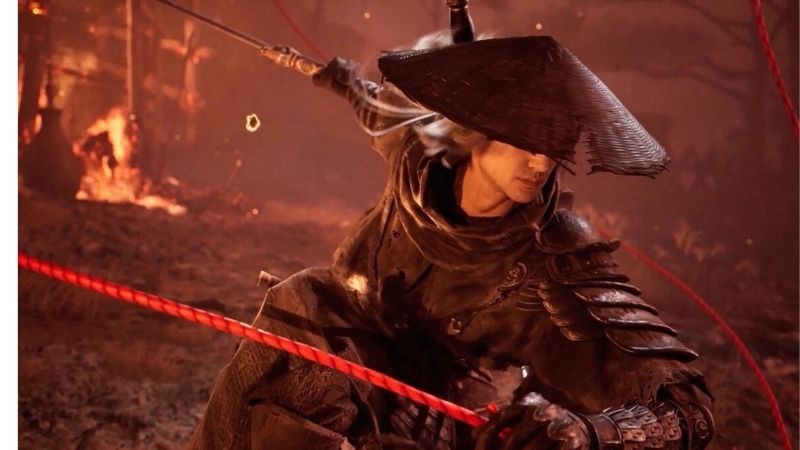
If you have a GeForce RTX card, the simplest starting point is NVIDIA DLSS Super Resolution, Quality mode, with frame generation disabled while you establish a performance baseline. If you prefer maximum image quality and your system already runs comfortably, test DLAA instead. If you enable a supported ray-tracing mode, you can then assess Ray Reconstruction, which addresses the quality of reconstructed ray-traced effects rather than merely adding conventional image sharpness.
There are three practical boundaries. First, a GeForce GTX card does not become DLSS-capable just because the game supports DLSS. Second, RTX 20/30 cards do not support NVIDIA’s DLSS Frame Generation, even though they support Super Resolution and DLAA. Third, Dynamic Multi Frame Generation belongs to RTX 50 Series, not to every card on which a menu might show a generic frame-generation setting.
DLSS compatibility by NVIDIA graphics card
NVIDIA’s published technology matrix distinguishes RTX GPU generations. The table describes hardware eligibility for the listed DLSS features, not guaranteed performance, a promise that every option will display in every game build, or proof that a particular laptop will run a graphics mode smoothly.
| NVIDIA GPU family | DLSS Super Resolution | DLAA | DLSS Ray Reconstruction | NVIDIA DLSS Frame Generation | Dynamic Multi Frame Generation |
|---|---|---|---|---|---|
| GeForce RTX 20 Series | Supported | Supported | Supported in games using it | Not supported | Not supported |
| GeForce RTX 30 Series | Supported | Supported | Supported in games using it | Not supported | Not supported |
| GeForce RTX 40 Series | Supported | Supported | Supported in games using it | Supported | Not supported |
| GeForce RTX 50 Series | Supported | Supported | Supported in games using it | Supported | Supported |
| GeForce GTX 10/16 Series | Not supported | Not supported | Not supported | Not supported | Not supported |
The distinction is especially important for an RTX 3060, RTX 3070, or RTX 3080 owner. These GPUs can run DLSS Super Resolution in a supported PC game without having access to NVIDIA frame generation. An RTX 4060 or RTX 4070 can add standard DLSS Frame Generation when the game supports it. An RTX 5060, RTX 5070, or RTX 5080 is part of the family eligible for Multi Frame Generation. That hardware classification does not mean every individual GPU has enough real performance to make the highest multiplier worthwhile.
GeForce RTX 20 and RTX 30 Series: upscaling still matters
An older RTX card remains a valid DLSS Super Resolution device. The game performs some rendering work at a lower internal resolution and uses the DLSS reconstruction model to create the output image at the selected display resolution. This can improve performance compared with rendering every pixel natively, although the result depends on scene complexity, settings, and resolution. It does not automatically remove a CPU bottleneck or stuttering from unrelated causes.
For an RTX 2060, RTX 2070, RTX 3060, or RTX 3080, begin at the native output resolution of your monitor, choose DLSS Quality, and compare motion clarity and the game’s rendered-frame rate with frame generation off. If the result is too slow, test Balanced; if the image loses too much fine detail, lower the graphics preset or reduce ray-tracing demands instead of pushing immediately to Ultra Performance.
There is a second nuance to DLSS 4.5: NVIDIA says its newer Super Resolution Models M and L can carry a greater performance cost on RTX 20 and RTX 30 hardware because those generations lack native FP8 support. NVIDIA suggests that these users may prefer Model K for a better speed-versus-quality balance. The marketing version number alone therefore does not determine the best model for an older card. Treat any NVIDIA app override as an optional A/B test rather than a required setup step.
GeForce RTX 40 Series: Super Resolution plus standard FG
The RTX 40 family adds hardware-supported DLSS Frame Generation to the earlier DLSS rendering features. That means an RTX 4070 user can reasonably see Super Resolution and a compatible NVIDIA frame-generation setting in a game that implements both, but should not expect RTX 50-only Dynamic Multi Frame Generation. If a screenshot from an RTX 5090 system shows 3X, 4X, or higher generated-frame modes, those are not universal options for RTX 40 hardware.
For the specific question of DLSS availability, prioritize the upscaler first. Confirm whether DLSS Quality improves the underlying frame rate and preserves acceptable text, foliage, weapons, and animation detail. Only then evaluate frame generation separately. The apparent frame rate can rise because additional frames are synthesized, but input sampling and gameplay simulation do not magically begin operating at that displayed rate. A demanding parry-heavy game rewards a reliable base frame rate more than an impressive counter alone.
GeForce RTX 50 Series: the complete announced DLSS 4.5 family
RTX 50 Series is the eligible generation for Dynamic Multi Frame Generation. NVIDIA describes this feature as changing the generation multiplier to better balance smoothness, image quality, and responsiveness. NVIDIA’s Phantom Blade Zero launch information identifies the game as a DLSS 4.5 title, while Wccftech reports integrated NVIDIA frame-generation modes and the availability of Dynamic MFG through the NVIDIA app in its reviewed PC environment.
Do not confuse availability with a recommendation to use the maximum multiplier. At an already smooth native or DLSS-upscaled base rate, generated frames can make motion look more fluid on a high-refresh-rate display. At a weak base rate with uneven frame times, adding displayed frames does not cure the underlying slow response. Test attack, dodge, and parry timings with the multiplier disabled first. Consult the dedicated frame-generation article if you need detailed multiplier and latency tuning.
What each DLSS option actually does
The graphics menu and NVIDIA app may use the umbrella term DLSS for several independent processes. Understanding their roles prevents two common mistakes: thinking that DLAA is an upscaling speed mode, and thinking that Ray Reconstruction is the same as frame generation.
| Feature | Main purpose | Typical reason to choose it | Key limitation |
|---|---|---|---|
| DLSS Super Resolution | Reconstruct a full-resolution image from a lower render resolution | Gain headroom for demanding settings | Can soften or destabilize detail at aggressive modes |
| DLAA | Use DLSS-derived anti-aliasing at the native rendering resolution | Improve edges and temporal image quality when performance is already sufficient | Usually does not offer the performance benefit of lower-resolution upscaling |
| DLSS Ray Reconstruction | Reconstruct ray-traced lighting information instead of relying only on traditional denoisers | Improve the stability and quality of supported ray-traced effects | Depends on a supported ray-traced rendering path and game integration |
| DLSS Frame Generation | Add synthesized display frames between rendered frames | Increase apparent motion smoothness on compatible RTX 40/50 GPUs | Does not replace the need for a responsive base rate |
| DLSS Dynamic Multi Frame Generation | Adapt frame-generation multiplier | Match displayed smoothness to changing scenes on RTX 50 hardware | Requires eligible hardware, software, and appropriate base performance |
Super Resolution versus native rendering
Suppose a player selects a 2560 × 1440 monitor resolution. With DLSS Super Resolution enabled, the game can render the 3D scene at a lower internal resolution and reconstruct an image for that 1440p output. The precise internal resolution depends on the chosen quality mode and implementation; changing the Windows desktop resolution is not the same action as changing the game’s DLSS reconstruction mode.
The practical benefit is GPU headroom. Lighting, materials, high-quality hair, and complex environments can all increase render cost. Super Resolution reduces part of the pixel workload, often making an otherwise expensive visual configuration more practical. But no reconstruction technology is free of trade-offs: thin geometry, foliage, moving strands of hair, particle effects, and disocclusion around characters are worth inspecting while the camera moves. Judge a moving scene, not only a still screenshot.
Quality, Balanced, Performance, and Ultra Performance
Wccftech’s inspected PC build lists Ultra Performance, Performance, Balanced, Quality, Ultra Quality, and the relevant AA modes beneath the Super Resolution controls. The existence of the menu choices is better supported than an assumption that one of them is optimal for all NVIDIA GPUs or monitor resolutions. In particular, the visual value of Ultra Quality and the precise scaling behavior should be tested rather than inferred from its name alone.
For 1080p, Quality is a conservative first experiment because aggressive internal-resolution reductions can remove fine scene information. For 1440p, Quality is still the sensible first stop; Balanced becomes useful if a dense area pushes the real rendered frame rate below your target. For 4K, Quality may deliver noticeable GPU savings, while Balanced or Performance can help more demanding rendering modes. The correct endpoint is the lowest-cost mode that remains visually acceptable and responsive on your own system—not an arbitrary promise of 60, 120, or 240 FPS.
DLAA and DLSS Ray Reconstruction
DLAA uses a DLSS-based anti-aliasing approach at native resolution, favoring image quality over the performance improvement of lower-resolution Super Resolution. Use it when the game is already running well and shimmering or jagged motion bothers you. Switch back to Quality upscaling if DLAA leaves too little frame-rate headroom during a large encounter.
Ray Reconstruction is relevant when using supported ray-traced effects. NVIDIA explicitly lists it in the game’s DLSS 4.5 feature announcement. In DSOGaming’s pre-release PC testing, enabling DLSS with Path Tracing caused Ray Reconstruction to be enabled by default; that is an observation from the tested build, not a guarantee that every mode or later build uses the same toggle behavior. Inspect your PC installation rather than hunting for a switch that may be automatic. For exact differences between Native, Ray Tracing, and Path Tracing, use the separate ray-tracing-settings guide.
How to find and enable DLSS in the PC graphics menu
The following route is grounded in the October 27 PC menu walkthrough and the game’s reported Display and Graphics sections. It is not a console-menu instruction, and it should be rechecked after major patches. NVIDIA’s official announcements confirm the features, but the detailed menu labels here are corroborated by independent PC coverage rather than an official S-GAME menu manual.
- Confirm your GPU is an RTX model. In Windows 11, right-click Start, open Device Manager, and expand Display adapters. Check the model name. If your laptop lists both an integrated GPU and an RTX GPU, identify the NVIDIA device before assuming the game is running on it. A GTX GPU will need a different upscaler.
- Update to an appropriate official graphics driver. Open the NVIDIA app, select its Drivers tab, and look for the current compatible Game Ready driver; NVIDIA also provides the driver through its official download site. NVIDIA’s October 20 driver announcement specifically references Phantom Blade Zero. Save open work and follow the normal installation prompts. Do not use unofficial driver packs.
- Launch the PC game and let initial shader compilation finish. Reviewers observed an initial compilation stage. Letting it complete avoids confusing one-time startup work with a persistent DLSS problem. If the game is not yet unlocked for your regional store, verify availability after its release window instead of assuming the settings are missing.
- From the game’s main menu, open Settings, then Graphics. The reviewed Graphics screen begins with a recommended quality preset and includes a Super Resolution area. Choose the upscaling-method selector under that heading. The separate Display section controls output display, window mode, resolution, and visual presentation; do not search there for the primary upscaler selector.
- Set the Super Resolution method to NVIDIA DLSS. In the reported PC build, the choices include TSR, NVIDIA DLSS, AMD FSR, and Intel XeSS. Choose DLSS only if your RTX hardware and the installation expose it. Do not force an NVIDIA-only option on Radeon, Arc, or GTX hardware.
- Choose the Super Resolution mode: Quality first. Leave frame generation disabled for the first comparison. Apply changes if the game asks, then load a repeatable scene. Note the output resolution, graphics preset, and actual responsiveness before changing anything else.
- Check the image in motion and compare with the previous setting. Move through vegetation, rotate around thin railings, inspect weapon edges, and fight an ordinary enemy. If Quality looks stable but the real frame rate is still too low, try Balanced. If the image becomes objectionably soft, return to Quality or lower another costly graphics setting.
Expected result: the game’s Super Resolution method displays NVIDIA DLSS, the selected DLSS quality mode remains active when gameplay resumes, and your system shows a measurable difference in image quality or rendered-frame performance versus the original setting. Do not call the feature verified solely because an external overlay reports more displayed FPS while frame generation is enabled.
If the selector differs: you may be on a newer build, a different rendering mode, an unsupported GPU, or a system routing the game to the wrong graphics device. First confirm the game is the PC edition and the RTX GPU is active. Then check updated game notes before assuming an old screenshot proves a broken install. There is no justification for renaming configuration files or editing the Windows registry just to expose a menu option.
Does DLSS 4.5 require the NVIDIA app?
The in-game DLSS Super Resolution selection does not, by itself, require users to manually force a driver override. The game has a native NVIDIA DLSS method according to independent PC menu reporting, and NVIDIA has announced its DLSS 4.5 integration. The NVIDIA app becomes relevant for installing the recommended driver, inspecting supported overrides, choosing a model preset, or accessing certain Dynamic Multi Frame Generation options on eligible hardware.
For an ordinary first playthrough, use the built-in game settings. Only use an override when you can explain which problem it addresses and can reverse the change. A newer model is not automatically faster on every GPU or superior in every moving scene.
Check a DLSS model override safely
NVIDIA documents the current override controls as Graphics > Program Settings > Driver Settings > DLSS Override – Model Presets. On an updated app, a Recommended selection chooses models according to the active Super Resolution mode. NVIDIA states that its newer Model M is optimized for Performance and Model L for 4K Ultra Performance, while Model K serves the other modes under its recommended setup. On RTX 20/30 cards, Model K may also be the safer performance choice when newer models carry a significant cost.
- Open NVIDIA app > Graphics > Program Settings and select Phantom Blade Zero if the app has detected it. If it is not listed, use the app’s supported scan or add-program controls only when available; do not invent a driver profile by editing hidden files.
- Find Driver Settings > DLSS Override – Model Presets. If the game is not eligible for an override or that control is absent, continue with native in-game DLSS rather than assuming the game lacks support.
- Record the original setting. Test Recommended or a model explicitly supported by the current app and GPU; do not change Super Resolution mode, frame-generation multiplier, and model preset simultaneously.
- Apply the choice, reopen the game when required, and test the same scene at identical output resolution and preset. NVIDIA documents an overlay route, Alt+Z > Statistics > Statistics View > DLSS, for viewing the active DLSS model and mode where supported.
- If performance, motion stability, or image quality worsens, restore the prior per-game override or choose the application’s default setting. A driver-level change is a reversible preference, not a prerequisite for playing.
The difference between native integration and a driver override matters for troubleshooting. If DLSS works inside the game but a model override is unavailable, DLSS itself is not necessarily broken. Likewise, forcing a latest model should not be presented as a universal cure for shader stutter, poor CPU frame times, or a slow base frame rate.
What about Radeon, Intel Arc, and GTX GPUs?
The PC build reviewed by Wccftech offers AMD FSR, Intel XeSS, and TSR alongside DLSS in its Super Resolution method list. DSOGaming independently reports that the PC game supports DLSS, FSR, and XeSS. These are distinct upscalers, not rebranded DLSS. Their performance and image quality should be evaluated using the active implementation and graphics hardware; a selector’s presence does not guarantee every optional frame-generation mode is compatible.
| Your graphics hardware | Sensible first upscaler to check | What not to assume |
|---|---|---|
| NVIDIA GeForce RTX | NVIDIA DLSS Quality | That RTX 20/30 can use NVIDIA frame generation |
| NVIDIA GeForce GTX | FSR, XeSS if offered and usable, or TSR | That installing NVIDIA app adds DLSS Tensor Cores |
| AMD Radeon | AMD FSR Quality | That NVIDIA DLSS or its overrides work on Radeon |
| Intel Arc | Intel XeSS Quality | That all modes work the same across Arc generations |
| Integrated graphics or handheld | Supported TSR/FSR/XeSS method, usually at restrained settings | That selecting the strongest upscaler makes the hardware meet the game’s real requirements |
A GTX 1660 user, for example, may still meet a game’s basic graphics requirements but cannot enable NVIDIA DLSS Super Resolution. Use the alternatives actually exposed in the game’s PC menu. If your machine has both integrated graphics and an RTX GPU, the first fix is not an upscaler override: confirm the game is assigned to the high-performance NVIDIA processor using supported Windows or laptop-vendor graphics settings.
On Windows 11, an optional routing check is Settings > System > Display > Graphics. Locate the game executable where the system presents installed desktop apps, open its graphics preference, and select the high-performance GPU if available. The exact choice can depend on the laptop’s MUX mode, display connection, and driver. Reopen the game and verify the active GPU rather than assuming the preference always overrides vendor behavior.
Why DLSS may be missing, grayed out, or disappointing
A troubleshooting decision tree is more useful than reinstalling drivers repeatedly. Start with checks that cannot damage files or erase settings.
| Symptom | Likely first explanation | Safe first check |
|---|---|---|
| NVIDIA DLSS does not appear | Unsupported GTX GPU, inactive RTX GPU, or different PC build | Check Display adapters; verify PC edition and active rendering GPU |
| DLSS appears but cannot be selected | Mode compatibility, build-specific restriction, or a graphics state needing refresh | Return to main menu, review Graphics > Super Resolution, and compare compatible rendering modes |
| DLSS is active but FPS hardly rises | CPU limit, frame cap, V-Sync behavior, or GPU no longer the bottleneck | Compare frame time, GPU utilization, and uncapped versus capped measurements cautiously |
| DLSS image looks too soft | Overly aggressive quality mode or resolution scaling | Restore Quality and verify the selected output resolution |
| Ray Reconstruction option is missing | Ray-tracing path not active or integration applies it automatically | Check the selected rendering mode and current game documentation |
| DLSS override unavailable in NVIDIA app | App version, game-profile eligibility, or unsupported GPU feature | Use native game DLSS; update the official app if needed |
| High displayed FPS still feels sluggish | Weak base rate or frame-generation latency | Disable generated frames and assess actual parry response |
When the upscaler is absent altogether
First make sure that NVIDIA DLSS is not simply hidden among several Super Resolution methods. The independently documented menu presents multiple methods rather than a single on/off DLSS button. Then verify Windows recognizes an RTX device. If it lists a GTX card only, this is a hardware-support limit, not a corrupted game installation. If an RTX device appears but the game is using the integrated adapter, apply the correct GPU-routing preference and restart the title.
If the graphics method remains absent on an RTX system, verify that you are running the current PC build and an official compatible driver. A game update may move, rename, or temporarily restrict a setting, particularly during the launch period. Consult official patch notes or support and describe your GPU, driver version, game build, output resolution, and active rendering mode. Avoid copying an unrelated player’s configuration file, replacing a game’s DLSS DLL from an unofficial source, or disabling security tools in an attempt to force the option.
When DLSS is selected but performance barely changes
Super Resolution reduces part of the pixel-rendering burden. It does not fix every reason a frame can take too long. A CPU-limited scene, a 60-FPS frame cap, thermal throttling, asset streaming, or inconsistent frame times can all obscure its benefit. Check whether the rate is capped and whether GPU load meaningfully changes between native rendering and DLSS Quality, keeping the same scene and conventional details.
If the image appears worse without a useful speed gain, restore the original setting. On an older RTX GPU, also check whether a newer Super Resolution override is introducing an unfavorable computational cost; NVIDIA explicitly warns about the performance impact of certain DLSS 4.5 models on RTX 20/30 cards. Do not conclude the entire technology is useless from one quick comparison in an unrepresentative menu scene.
When visual artifacts appear in combat
Watch sword trails, fine wires, fast camera pans, character outlines, translucent particles, and distant vegetation. Upscaling may handle a still frame well while struggling with disoccluded edges or rapid movement. If you see ghosting, shimmer, or overly soft detail, compare Quality with DLAA or native TSR, then assess whether a new NVIDIA app model preset changes the result. Change one variable per test and restore it if the trade-off is worse.
When artifacts only appear after frame generation is enabled, keep the upscaler question separate from the generated-frame question. Turn frame generation off, repeat the same scene, and see whether the problem remains. That isolates whether the issue is tied to Super Resolution, added interpolated frames, or unrelated graphics effects. The dedicated frame-generation guide can cover deeper latency and artifact tuning; this article’s purpose is to establish which DLSS parts are genuinely available.
How to verify that DLSS is helping your actual gameplay
There is no need to invent an exact percentage gain or copy another reviewer’s FPS number into your personal expectations. Wccftech and DSOGaming report performance in specific test configurations, but GPU, CPU, driver, resolution, ray-tracing mode, scene choice, and frame-generation state all affect their findings. A repeatable local comparison is more informative than treating any benchmark as a universal guarantee.
Use a simple three-pass comparison at a repeatable checkpoint or traversal route. Pass A uses your original resolution and rendering mode with frame generation off. Pass B changes only the Super Resolution method to DLSS Quality. Pass C retains DLSS Quality but adjusts Balanced only if you need more headroom. Keep the graphics preset, ray-tracing mode, V-Sync and frame-rate cap unchanged across comparable runs wherever the menu permits.
Observe at least three things. Frame-time stability tells you whether the game is keeping a consistent rhythm rather than swinging between spikes. Visible detail in motion shows whether foliage, weapons, and fast camera turns are acceptable. Input response tells you whether dodging and parrying still feel predictable. A raw FPS overlay is useful, but it should not replace actual play during a demanding encounter.
If you use NVIDIA’s DLSS statistics in the overlay, note the model and feature displayed; do not confuse those labels with a measurement of input latency. For a base-rate check, leave frame generation off. If the result is stable and looks good, you have verified a practical DLSS configuration for your own hardware. If it fails either quality or responsiveness, returning to the previous preset is a valid and useful conclusion.
Recommended starting points by resolution
These are initial test configurations, not confirmed game-specific FPS predictions or claims about results from our own hardware. Use them only as the starting point for the validation procedure above.
| Output resolution | DLSS starting option | When to change | What to prioritize |
|---|---|---|---|
| 1920 × 1080 | Quality | Try DLAA when already comfortably fast; Balanced only if needed | Sharp movement, readable thin details, responsive combat |
| 2560 × 1440 | Quality | Balanced if a repeatable scene has inadequate base performance | Clarity versus real rendered-frame headroom |
| 3440 × 1440 | Quality | Balanced when the extra pixel load is significant | Check the game’s actual ultrawide presentation separately |
| 3840 × 2160 | Quality | Balanced/Performance if path-tracing or other settings overwhelm the GPU | Consistent base rate rather than maximum generated frames |
A laptop or compact PC may behave differently from the desktop cards used in published reviews. The mobile GPU’s power limit, cooling, chosen display path, and plugged-in state matter. Test under the conditions in which you actually play, and keep the setting that remains stable after several minutes—not merely the one that produces the highest opening-scene number.
Tools That Help
- Windows Device Manager — built into Windows, free: Use Start > Device Manager > Display adapters to identify your GPU family before looking for DLSS. This is the fastest way to distinguish an RTX card from a GTX card or an integrated GPU.
- NVIDIA app — free, official NVIDIA software: Use Drivers for compatible graphics-driver updates and Graphics > Program Settings only when you need to examine supported DLSS model overrides. It is not a paid requirement for the game’s built-in Super Resolution selector.
- NVIDIA performance/DLSS overlay — included with supported NVIDIA app configurations: Open Alt+Z > Statistics > Statistics View > DLSS when that view is available to inspect the active DLSS model and mode. Use actual gameplay and frame-time observations to judge responsiveness; an overlay does not provide a substitute for an input-latency test.
No additional purchase is needed to confirm DLSS eligibility or try the supported settings on a PC you already own.
Frequently asked questions
Is DLSS officially confirmed for Phantom Blade Zero on PC?
Yes. NVIDIA’s October 20, 2026 game-driver announcement identifies Phantom Blade Zero as a DLSS 4.5 release. Independent PC reviews from October 26–27 report NVIDIA DLSS inside its Super Resolution menu. The information applies to the PC game, not a promise that the PlayStation edition exposes the same menu or NVIDIA-specific features.
Does Phantom Blade Zero have DLSS 4.5 or only DLSS 4?
NVIDIA’s earlier promotional material referenced DLSS 4, but its later launch-period documentation names DLSS 4.5. Use the later, more specific announcement for the current feature branding. That does not mean every GeForce RTX generation supports every DLSS 4.5 feature: check the GPU-generation matrix above.
Can an RTX 3060 or RTX 3080 use DLSS in the game?
Yes, these RTX 30 Series cards are eligible for DLSS Super Resolution and DLAA in supported games, including the reported PC integration here. They do not support NVIDIA’s DLSS Frame Generation or Dynamic Multi Frame Generation. On RTX 30 hardware, start with DLSS Quality and assess any newer model override carefully because NVIDIA warns of higher costs from Models M and L on older GPUs.
Is DLSS available on a GTX 1660 or GTX 1080?
No. NVIDIA’s DLSS requires eligible GeForce RTX hardware. For a GTX card, inspect the game’s alternative Super Resolution methods, which reviewers identify as FSR, XeSS, and TSR. Do not download unofficial software that claims it can add RTX Tensor Core features to a GTX GPU.
Does DLSS automatically enable Ray Reconstruction?
Not in every configuration. DSOGaming observed Ray Reconstruction being enabled by default with DLSS plus Path Tracing in its PC review build. That is useful build-specific evidence, but it is not a universal statement about Native Rendering, the lighter Ray Tracing selection, or future patches. Check which rendering mode you are using before drawing a conclusion from the presence or absence of the option.
Do I need an RTX 50 Series GPU for Phantom Blade Zero DLSS?
No. Super Resolution works across RTX 20, 30, 40, and 50 families when supported by the game. RTX 50 is specifically the eligible generation for Multi Frame Generation and Dynamic Multi Frame Generation. Someone buying hardware only for DLSS upscaling should not confuse that newer frame-generation requirement with the baseline DLSS requirement.
Can I turn on DLSS without frame generation?
Yes. Super Resolution and frame generation perform different jobs. Selecting NVIDIA DLSS as the Super Resolution method and keeping frame generation off is an appropriate first test. It also makes it easier to tell whether improved responsiveness comes from rendering more actual game frames rather than inserting synthesized display frames.
What should I do if the DLSS menu is not there after launch?
Check your GPU in Device Manager, verify that the PC game uses the RTX adapter, confirm the game and official driver are current, then revisit Settings > Graphics > Super Resolution. If the option still does not appear, report the exact game build, driver, GPU, and mode to official support. Avoid replacing game DLLs or applying questionable configuration edits as a first fix.
Final Thoughts
Phantom Blade Zero supports DLSS on PC, but the choice that matters is which part of DLSS your RTX GPU can use. An RTX 20/30 owner should focus on Super Resolution and sensible quality settings; RTX 40 adds standard Frame Generation; RTX 50 adds Dynamic Multi Frame Generation. For an actionable first step, confirm your GPU in Windows, select Graphics > Super Resolution > NVIDIA DLSS > Quality, leave generated frames off, and compare one real encounter against your original setting. Keep DLSS only if it improves performance without sacrificing the motion clarity or control response you need.




