
Key takeaways
- Host PC: Steam desktop client installed, a game that supports Remote Play Together, a computer that runs that game reliably, and a stable internet connection.
- Host Steam account: Signed in and online; the host alone owns and installs the selected game.
- Guest device: A PC signed in to Steam for the ordinary friend-invite route, or a supported device capable of accepting an Invite Anyone link with Steam Link.
- Inputs: Gamepads for titles that expect separate local controllers. A keyboard/mouse can be shared when the host explicitly permits that input and the game supports it.
- Network: Wired Ethernet for the host is preferable. For Wi-Fi guests, begin with a stable 5 GHz connection where practical.
A Steam Remote Play Together setup lets one player run a supported local multiplayer game on their PC while friends join over the internet. Only the host needs to own and install the game. Start the game, press Shift + Tab to open the Steam Overlay, right-click a friend in the Friends List, and select Remote Play Together. After your friend accepts, Steam sends the host’s game video and sound to their device and returns their controller input to the host. If the friend cannot use their controls, check the game’s local multiplayer mode and the host’s input permissions before changing network settings.
What Steam Remote Play Together actually does
Remote Play Together turns a game’s local multiplayer session into an online shared session. It does not create an online server inside the game or give the guests copies of the game. The host computer runs the game, renders the image, and streams it to remote players; guests send button presses back to the game as though their controllers were connected to the host. Valve describes this as a way to play local co-op and shared or split-screen titles online even when those games lack native online multiplayer.
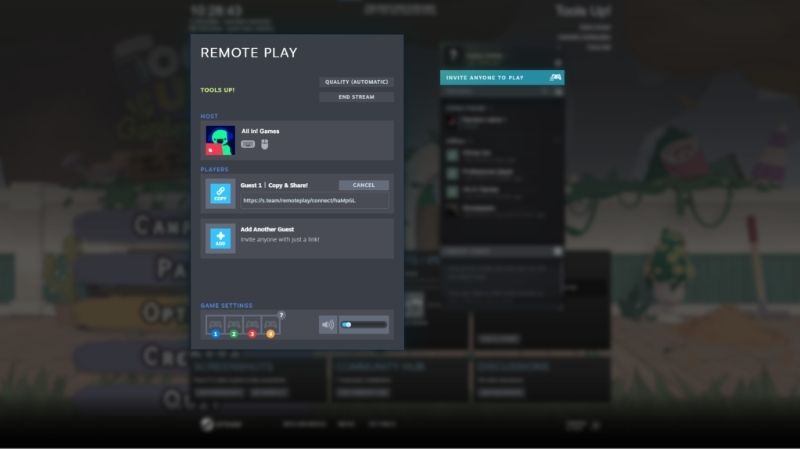
Valve says one player can invite up to four participants, or potentially more when the game and connection support it. That is not a fixed player guarantee: a two-player local co-op game usually still supports only two active roles, and a fast internet connection does not add character slots. Remote Play Together is free as a Steam feature; the host must own a legitimate eligible game, but guests do not need another license for that session.
| Steam feature | Who plays and owns the game? | Best for |
|---|---|---|
| Remote Play Together | Host owns and launches one supported local multiplayer copy; invited people join the stream | Local co-op or split-screen with distant friends |
| Remote Play Anywhere | A user streams a game from their own gaming PC to a different device | Playing your library remotely on another screen |
| Steam Families | Eligible games are shared across distinct family accounts subject to license limits | Household library sharing, not a simultaneous co-op stream |
| Native online multiplayer | Every player connects through the game’s own online services; ownership rules vary | Online matches that do not rely on the host streaming video |
Important: A Remote Play Together guest should not sign in to the host’s Steam account. Friends can join using their own Steam accounts, and Valve also provides an Invite Anyone link method that does not require the guest to own a Steam account. Keep the host’s password and Steam Guard codes private.
Check game compatibility before inviting anyone
Remote Play Together is a game-specific feature, not something available in every Steam title. Valve says supported games list the feature in the details on their Steam store page. The relevant tags or features are usually associated with local multiplayer, local co-op, and shared/split-screen play. A store listing that only says Online Co-op is not proof of Remote Play Together support.
- Open Steam and find your game. In the Steam desktop client, go to Store and open the title’s store page; on a browser, open the same game’s official Steam Store listing.
- Read the game-feature details. Check the right-side feature list for Remote Play Together. If that label is missing, do not assume a generic online co-op badge is equivalent.
- Check the game mode. Look for a local co-op, shared-screen, or split-screen option in the game’s own menu. A game still needs an in-game way to start its local multiplayer session.
- Test locally first. Launch the game on the host PC and verify that the local multiplayer menu works with the intended number of input devices. This separates game-mode problems from streaming problems.
The Steam Store’s Remote Play page includes a Find Games entry for compatible titles if you do not already own one. Choose a game whose player-count and input requirements match your group rather than assuming that all players can use separate keyboards. Some games expect one keyboard player and additional gamepads.
What you need to host or join
- Host PC: Steam desktop client installed, a game that supports Remote Play Together, a computer that runs that game reliably, and a stable internet connection.
- Host Steam account: Signed in and online; the host alone owns and installs the selected game.
- Guest device: A PC signed in to Steam for the ordinary friend-invite route, or a supported device capable of accepting an Invite Anyone link with Steam Link.
- Inputs: Gamepads for titles that expect separate local controllers. A keyboard/mouse can be shared when the host explicitly permits that input and the game supports it.
- Network: Wired Ethernet for the host is preferable. For Wi-Fi guests, begin with a stable 5 GHz connection where practical.
Steam Support recommends at least a quad-core CPU for the computer running the game and hardware H.264 decoding on the client for efficient streaming. These are general streaming recommendations, not a guarantee of smooth performance at a particular resolution. Before hosting, close downloads and applications that compete for network bandwidth.
Enable the Steam Overlay and prepare Remote Play
Steam’s documented invitation route depends on the in-game Overlay. Configure it before launching a multiplayer session so a missing hotkey does not look like a broken Remote Play connection.
- Open Steam’s global Overlay setting. In the desktop client, choose Steam → Settings → In Game and turn on Enable the Steam Overlay while in-game. This is Valve’s documented path.
- Check this game specifically. Open Library → right-click the game → Properties → General and make sure its own Enable the Steam Overlay while in-game option is enabled. A per-game override can block invitations even when the global setting is on.
- Confirm the shortcut. In Steam → Settings → In Game, verify the Overlay shortcut. By default it is Shift + Tab; use your customized shortcut if you changed it.
- Check the Remote Play configuration. Open Steam → Settings → Remote Play on the host. If Remote Play has been disabled, enable it before trying to stream. Optional advanced host settings can be adjusted later if you experience poor streaming.
- Launch the game from Steam Library. Wait until the game displays its menu, press Shift + Tab, and verify the Friends List is available in the Overlay.
Expected result: Steam’s in-game interface opens without minimizing the game. If it does not, restart Steam and the game, then recheck both Overlay switches. Valve also documents Library → Properties → Installed Files → Verify integrity of game files as a basic troubleshooting step when damaged local files interfere with Overlay features. Do not uninstall Steam merely to reset a missing overlay; Valve warns a full uninstall can remove installed game content.
Invite a Steam friend to Remote Play Together
This is the straightforward setup when both participants use Steam accounts on supported PCs. Valve’s Steam Remote Play FAQ specifically documents the in-game Shift + Tab → Friends List → Remote Play Together flow.
- Host starts the eligible game. Launch it through Steam and remain on a menu that allows local multiplayer. Make sure the host is signed in and shown as in-game to their friends.
- Check the guest is online. The friend should sign in to their own Steam account and appear in the host’s Friends List. They do not need to purchase or install the title.
- Open the Steam Overlay. Press Shift + Tab while the game is running. Open the Friends List from the Overlay.
- Send the invite. Right-click the intended friend and select Remote Play Together. If you instead see an ordinary game invite, confirm the game’s store page lists the Remote Play Together feature.
- Wait for acceptance. The friend accepts the Steam invitation on their own device. The stream should open, displaying the host’s game.
- Activate another local player. Use the game’s local co-op or split-screen menu. Have the guest press the game’s assigned join or start button. Some games require a host action before they recognize a second player.
To verify success, ask the guest whether they can see and hear the game, then test a harmless menu movement or second-player action. A picture with no guest control is an input or game-mode problem, not necessarily an internet problem. If the invitation is absent, first check the friend’s online status, the game’s Remote Play Together label, and the Overlay settings.
Use Invite Anyone when your friend has no Steam account
Valve introduced Invite Anyone as a public Steam feature in 2021. Instead of inviting only Steam Friends, the host can share a Remote Play Together invitation URL. A guest may join through Steam or the Steam Link app without owning the game or signing in to a Steam account. Do not follow old guides that require enrolling in the Steam Client Beta to use this capability.
- Host launches a supported local multiplayer game through Steam and opens the Overlay with Shift + Tab.
- Open the Remote Play Together invitation area from the Overlay’s Friends List. Valve’s Invite Anyone announcement calls this the place to obtain an invite link, sometimes shown as Copy Link. That exact button placement can change across Steam client updates.
- Copy the invitation link. Send it directly to the specific person you trust. Treat the URL as an invitation to your live game session rather than a public promotional link.
- Guest opens the link on a supported Windows, macOS, Linux, iOS, or Android device. Follow the official Steam/Steam Link prompts if the required client or app is not installed.
- Host reviews input access. Once the guest appears in the active session, confirm which controller or permitted shared input they will use. Start the game’s own local multiplayer mode to play.
For someone joining from a phone, Valve also documents a separate mobile approach: accept a Steam Friend’s invitation inside the Steam Chat mobile app, which then opens the stream in the Steam Link app. That friend-invite method and the account-free link method are distinct; you only need the one that matches the guest’s account and device.
Do not post Remote Play invitation links publicly. The game is intended to be shared, but streaming a personal session with strangers can expose in-game messages, account names, or other sensitive on-screen content. Valve describes the normal experience as sharing the game rather than the desktop, yet its support material notes that the stream may display the desktop if the game loses focus. Close private windows and notifications before inviting anyone.
Configure controllers, keyboard, mouse, and player order
After joining, open the active Remote Play Together session’s player and input controls in the Steam Overlay. Valve says hosts can manage who may use their keyboard and mouse as well as participants’ audio settings. Historical client updates state that remote keyboard and mouse control is disabled by default, so a friend with no gamepad may be able to watch but unable to move.
| What you observe | First check | Next safe action |
|---|---|---|
| Guest sees the game but cannot control it | Guest has an active controller; game supports a second local player | Review input permissions in active Remote Play session |
| Both players control the same character | Game’s keyboard/gamepad assignment and join screen | Assign separate local player devices in-game |
| Guest has only a keyboard | Game permits shared keyboard controls | Host explicitly enables appropriate keyboard/mouse sharing |
| Guest controller works in Steam but not the game | Game focus, controller recognition, local player join action | Reconnect controller and reopen game local multiplayer menu |
| Wrong person controls player one | Host-versus-guest device order | Return to local player-select screen and assign inputs again |
Valve’s client release notes state that local controllers take XInput slots first and guests take remaining slots in connection order. The game may map those slots differently, so do not promise a particular controller will always be player two. In a game that supports one keyboard and multiple controllers, let the keyboard remain with player one and assign guest controllers to later players. For games using raw input instead of standard gamepad APIs, Valve’s Remote Play Support notes compatibility limitations.
Keep guest permissions minimal: Enable remote keyboard or mouse access only when the game requires it and the player is trusted. If inputs begin affecting a menu unexpectedly, revoke the guest’s access in the Remote Play session rather than disabling system security. Stop the stream when the session is over.
Make Remote Play Together smoother with low-risk adjustments
Steam streams the host’s screen over the network while transmitting input in the other direction. Video compression, wireless interference, or a slow host can make inputs appear delayed even if the game itself runs normally on the host PC. Start with changes you can undo, and test one adjustment at a time.
- Use Ethernet for the host if possible. Valve calls this the preferred configuration because wireless interference can cause spikes in streaming latency.
- Try stable 5 GHz Wi-Fi on the guest device. Move closer to the router and avoid congested 2.4 GHz channels when the hardware supports both.
- Stop competing traffic. Pause large downloads, cloud synchronization, or video streaming on the host and nearby network devices during the test.
- Reduce streaming quality on the client. In Steam Link or the applicable Remote Play advanced client streaming settings, change the quality preference to Balanced or Fast instead of maximizing picture quality. Valve notes that limiting bandwidth can improve performance.
- Reduce the host game’s load. Lower game resolution or demanding graphics options. Valve’s support guide also suggests testing with vertical sync off in the game’s video options when diagnosing streaming issues; keep the original choice if changing it does not help.
- Inspect the performance overlay. In the advanced client streaming settings enable the performance graph, or where supported use F6 during streaming to show statistics. Look for network-time spikes and compare before and after each change.
These adjustments trade some image sharpness for a more responsive stream. There is no universal minimum internet speed that ensures smooth four-player Remote Play; real performance depends on host upload, the guest’s connection, resolution, game requirements, network congestion, and physical distance. Do not quote a latency number unless you measured it in the actual session.
Fix invitations, black screens, missing audio, and connection errors
Use the symptom table before performing invasive troubleshooting. Steam Support recommends keeping both Steam installations current and checking whether the host can run the game successfully before troubleshooting Remote Play itself.
| Symptom | Likely area | First safe fix |
|---|---|---|
| Remote Play Together is missing from the friend menu | Unsupported title, disabled overlay, game not launched through Steam | Check store feature and both overlay settings |
| Friend never receives invite | Friend status, Steam updates, invite session | Confirm both accounts online and resend after restarting game |
| Guest sees a black screen | Streaming/video capture or client decode | Restart stream, lower quality, update Steam |
| Guest has video but no input | Game local multiplayer or input permissions | Verify controller and join local player in game |
| Audio missing or echoing | Guest audio output, duplicated voice chat | Check Steam Link volume and use one chat audio path |
| Stream stutters or disconnects | Network jitter, competing traffic, host load | Try wired host and Fast/Balanced client preset |
The invite option is missing
Open the game’s Steam Store page and confirm the label Remote Play Together appears. If it does, launch the game from Library, enable the global Overlay at Steam → Settings → In Game and its per-game setting at Library → Properties → General, then test Shift + Tab. An ordinary Invite to Game button is not equivalent to Remote Play Together. Close and relaunch the game after changing Overlay settings.
The guest sees only a black screen or frozen image
Ask whether the host’s game is running normally. Disconnect the guest from the stream, return the host to the game’s main menu, and resend the invitation. Update Steam on both sides. Temporarily select a lower streaming-quality profile on the client and test again. If the game uses an unusual launcher, Steam’s support guidance notes that non-Steam games in the library are not officially supported for Remote Play, so test a known supported Steam title before changing drivers.
A controller connects but never moves player two
Begin with the game’s local multiplayer player-select screen, not its online lobby. Confirm the game recognizes the extra gamepad on the host when directly connected. Reconnect the remote gamepad, revisit the Steam Overlay’s session input controls, and ask the guest to press the game’s join or start button. If only the host’s keyboard works, allow guest keyboard/mouse sharing only if the title supports it and you trust the guest. Revoke it afterward.
Audio works twice or voice chat echoes
Remote Play streams game audio and may include voice options, while guests sometimes use another voice call at the same time. Choose one voice-chat path, lower duplicate speaker volume, and check the host and guest audio outputs. Valve specifically notes that voice recording over streaming is not supported in all cases. Missing microphone capture should not be interpreted as proof the game session itself failed.
Steam connects on one network but not another
Try a normal private home connection and avoid guest Wi-Fi, institutional networks, or networks using client isolation. Valve warns those network types commonly block Steam Remote Play. Check that Steam is allowed through the host’s normal firewall prompts. Do not advise opening arbitrary internet-facing ports or disabling antivirus as a first resort. If a managed network blocks the application, contact its administrator or Steam Support.
Verify the session and end it safely
After setup, run a short test that checks streaming and game logic separately. First have the guest report that the game picture changes smoothly and sound plays once. Next let the guest navigate the second-player character or slot for a few seconds while the host stays still. Finally, try an ordinary co-op action and confirm the game records the result. If the session only displays the game but cannot add a second player, revisit the local multiplayer menu and controller assignments.
When the game is finished, use Steam’s in-session Remote Play controls to disconnect the guest and then close the game normally. Revoke any shared keyboard/mouse permission. Keep invite links private and avoid leaving the host unattended while an active remote connection is running. Steam’s support information distinguishes Remote Play Anywhere, which may offer broader access to a host computer, from the game-sharing purpose of Remote Play Together; avoid sharing credentials or enabling unrelated remote-desktop software.
Tools That Help
- Steam desktop client (free, official): Start the supported game, use Shift + Tab, invite a friend, and adjust Steam Remote Play options. No third-party host tool is needed.
- Steam Link app (free, official): Useful for guests joining on supported phones, tablets, or other compatible devices; it receives the video stream and sends controls to the host.
- Steam Remote Play performance graph (free, built in): Enable it in advanced client streaming settings when the picture stutters or input feels delayed; compare network spikes after each change.
Frequently asked questions
Does my friend have to buy the game?
No. Only the host needs to own and install an eligible local multiplayer title for a Remote Play Together session. The game still limits how many local players can join.
Can we use Remote Play Together without a Steam account?
Yes. Valve’s Invite Anyone feature supports a join link that can work without a guest Steam account. The host still signs in to Steam and runs an eligible game; the invited device needs compatible streaming software.
Can we each use a keyboard?
Not automatically. Steam can allow keyboard/mouse sharing, but individual games may treat the shared keyboard as one input device. For distinct players, separate gamepads are often more reliable. Verify the game’s control scheme first.
How many people can play together?
Valve describes four players or more under suitable conditions, but the game must support that many local participants and the host must provide an adequate stream. For a two-player-only title, you cannot create four player slots through Steam.
Is Remote Play Together the same as Steam Families?
No. Remote Play Together streams one running local multiplayer game from a host to remote guests. Steam Families manages eligible library access across household accounts, with separate game licensing and parental-control rules.
Will my friend see my whole desktop?
Valve markets Remote Play Together as sharing the game view, not routine desktop access. However, Steam Support says a streaming session can show the desktop if the game loses focus. Close sensitive windows and notifications before sending invitations.
Final Thoughts
The most reliable Steam Remote Play Together setup starts with a verified compatible game, an enabled Steam Overlay, and a functioning local multiplayer mode. Launch the game, press Shift + Tab, invite a Steam Friend or copy an Invite Anyone link, and check that each guest’s controller can join a separate player slot. If the stream is choppy, use a wired host connection and a lighter client quality preset before touching advanced network settings. Your next step: pick one eligible two-player game, connect one guest, and test picture, sound, and second-player control for five minutes before adding more players.




