Key takeaways
- Confusing Fan Frame Size with Screw Hole Spacing: A 120mm fan does not have screw holes that are 120mm apart. The 120mm measurement refers to the outer edge of the plastic frame. The actual distance between the screw holes is 105mm. Always measure hole-to-hole when verifying compatibility.
- Ignoring Radiator Interference: If you plan to install an All-In-One (AIO) liquid CPU cooler, the radiator adds an extra 27mm to 30mm of thickness. Combining a radiator with standard 25mm fans requires nearly 55mm of total clearance. Always check if your case’s top panel has enough offset clearance to avoid colliding with your motherboard’s upper heatsinks or RAM modules.
- Buying the Wrong Mounting Screws: Case fans require specific self-tapping screws to secure them to the chassis metal. Standard fan screws are M5x10 flat-head screws. Purchasing a bulk set, like the Persberg 100pcs Computer Cooling Fan Mount Screws ($5.49), ensures you have the correct thread size to mount any fan from 70mm up to 140mm without stripping the plastic housing.
- Overlooking Fan Controller and Cable Limits: Installing a large number of fans (such as 6 or more) requires a dedicated fan hub or controller. Attempting to daisy-chain too many fans into a single motherboard fan header can exceed the header’s maximum amperage (usually 1.0 Amp), potentially damaging your motherboard.
The Short Answer
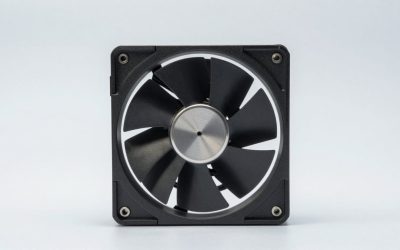
The vast majority of modern computer cases accommodate either 120mm or 140mm fans. These two options have become the industry standard for consumer desktop computers. A standard mid-tower case typically features multiple mounting locations along the front, top, and rear panels to support these dimensions. To determine exactly what size fits your specific PC case, you must check your case’s manual or measure the distance between the mounting screw holes on the chassis.
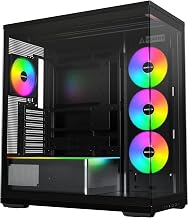
While 120mm and 140mm fans dominate the market, specialty cases may require smaller sizes—such as 80mm or 92mm fans—or much larger ones, like 200mm intake fans. Budget-friendly multi-packs, such as a DARKROCK 3-Pack of 120mm Black Computer Case Fans, typically cost around $8.99, whereas premium addressable RGB (ARGB) fans can cost $20 to $30 per individual unit. If you are purchasing a brand-new chassis, many options come with fans pre-installed. For example, the MUSETEX Y6 PC Case ($80.99) includes seven pre-installed 120mm ARGB fans, while the CORSAIR 3500X RS ARGB Panoramic Mid-Tower PC Case ($79.99) offers a spacious interior designed to let you customize your own 120mm or 140mm fan layout.
Our top picks
 DARKROCK 3-Pack 120mm Black Computer Case Fans
- High Performance Cooling Fan: The design of nine…
- Low Noise: Every fans is equipped with four…
- Hydraulic Bearing Design: High-quality bearings can make the…
 Persberg 100pcs Computer Cooling Fan Mount Screws
- Universal computer case cooling fan mounting screws.
- Fits for 70mm, 80mm, 90mm, 92mm, 120mm, 140mm…
- Size: KB 5*10mm, fit for most computer case…
 MUSETEX Y6 PC Case
- MUSETEX offers a standout Y6 ATX PC case…
- PC Case Optimized Space Layout: The internal of…
- ATX Case I/O Port Configuration: 1 x Type-C,…
| Product | Key specs | |
|---|---|---|
| DARKROCK 3-Pack 120mm Black Computer Case Fans | High Performance Cooling Fan: The design of nine… Low Noise: Every fans is equipped with four… Hydraulic Bearing Design: High-quality bearings can make the… | Check price |
| Persberg 100pcs Computer Cooling Fan Mount Screws | Universal computer case cooling fan mounting screws. Fits for 70mm, 80mm, 90mm, 92mm, 120mm, 140mm… Size: KB 5*10mm, fit for most computer case… | Check price |
| MUSETEX Y6 PC Case | MUSETEX offers a standout Y6 ATX PC case… PC Case Optimized Space Layout: The internal of… ATX Case I/O Port Configuration: 1 x Type-C,… | Check price |
 CORSAIR 3500X RS ARGB Panoramic Mid-Tower PC CORSAIR 3500X RS ARGB Panoramic Mid-Tower PC | The following product only includes 3x Pre-Installed Fans A Great Build with a Great View: The… R ARGB Fans - Enjoy high-performance cooling and… | Check price |
As an Amazon Associate we earn from qualifying purchases at no extra cost to you.
Standard Sizes
PC case fans are measured by the length of one side of their square frame in millimeters. However, because home office builders and desk designers often work with different units of measurement, it is helpful to understand how these metric sizes translate to standard inches and centimeters, as well as their corresponding screw hole spacing.
Below is a comprehensive measurement guide for the most common PC cooling fan sizes available on the market:
| Nominal Fan Size | Dimensions in Millimeters (W x H x D) | Dimensions in Inches (W x H x D) | Dimensions in Centimeters (W x H x D) | Screw Hole Spacing (Horizontal/Vertical) |
|---|---|---|---|---|
| 80mm | 80 x 80 x 25 mm | 3.15 x 3.15 x 0.98 in | 8.0 x 8.0 x 2.5 cm | 71.5 mm (2.81 in) |
| 92mm | 92 x 92 x 25 mm | 3.62 x 3.62 x 0.98 in | 9.2 x 9.2 x 2.5 cm | 82.5 mm (3.24 in) |
| 120mm | 120 x 120 x 25 mm | 4.72 x 4.72 x 0.98 in | 12.0 x 12.0 x 2.5 cm | 105.0 mm (4.13 in) |
| 140mm | 140 x 140 x 25 mm | 5.51 x 5.51 x 0.98 in | 14.0 x 14.0 x 2.5 cm | 124.5 mm (4.90 in) |
| 200mm | 200 x 200 x 30 mm | 7.87 x 7.87 x 1.18 in | 20.0 x 20.0 x 3.0 cm | 154.0 mm (6.06 in) |
Note that while the standard depth (thickness) of a PC fan is 25mm (approx. 1 inch), some high-performance or low-profile models can range from 15mm (slim fans) up to 30mm or 38mm. Always verify the depth clearance inside your case, especially if you are mounting fans adjacent to a liquid cooling radiator or a large CPU heatsink.
How to Measure Your Space
If you do not have your PC case manual on hand, you can easily determine which fan size your chassis supports by taking a few quick physical measurements. Follow these steps to measure your space accurately:
- Access the Mounting Bracket: Power down your PC, unplug all cables, and remove the side panels of your computer case. Locate the metal grates with pre-drilled screw holes or mounting tracks along the front, top, or rear of the chassis.
- Measure the Screw Hole Distance: Use a standard ruler or measuring tape to measure the distance between two adjacent screw holes (horizontal or vertical, not diagonally). If the distance is exactly 105mm (about 4.1 inches), your case is designed to hold a 120mm fan. If the distance is 124.5mm (about 4.9 inches), it supports a 140mm fan.
- Check for Dual-Mounting Slots: Many modern cases feature long, vertical rails rather than single sets of holes. These rails allow you to slide fans up or down to adjust airflow. Look at the width of these tracks; often, you will see two sets of parallel tracks, indicating the case can accommodate either 120mm or 140mm configurations.
- Assess Thickness and Component Clearance: Measure the distance between the mounting surface and your internal components (such as your motherboard, RAM sticks, and graphics card). Ensure there is at least 30mm of clearance so a standard 25mm-thick fan can spin freely without contacting cables or hardware.
By Room or Use Case
As we look ahead to the home office and gaming setups of 2026, computer hardware is increasingly integrated into our living and working environments. Choosing the right fan size depends heavily on where the PC sits and how you intend to use the space.
The Quiet Home Office (Small Form Factor & Mini-ITX)
For compact home offices, writing rooms, or minimalist workspaces where desk surface area is at a premium, Small Form Factor (SFF) cases are highly popular. These mini-ITX cases often utilize smaller 80mm or 92mm fans due to tight physical constraints. While smaller fans must spin at higher revolutions per minute (RPM) to move air—sometimes generating a higher-pitched hum—they are essential for preventing heat buildup in tight quarters. If your desk setup requires absolute silence for focus, look for slim 120mm fans that can fit into specialized mini-ITX layouts, allowing for quieter operation at lower speeds.
The Multi-Purpose Living Room (Mid-Tower Workspace)
If your PC resides in a shared living room, family den, or open-concept study, balancing aesthetics, noise, and cooling performance is crucial. Standard mid-tower cases, such as the CORSAIR 3500X RS or the MUSETEX Y6, are ideal for these environments. A mid-tower setup typically sits on or under a desk and relies on a combination of 120mm and 140mm fans. Using 140mm fans where possible allows you to move the same volume of air as a 120mm fan but at a lower RPM, keeping the room peaceful during movie nights, homework sessions, or casual gaming.
The Dedicated Gaming Room or Studio (High-Performance Full-Tower)
In a dedicated gaming room, creative studio, or VR zone where performance is the top priority, large mid-tower or full-tower cases are the standard. These setups are designed to handle high-wattage graphics cards and multi-core processors that generate significant thermal energy. These cases support extensive arrays of 120mm or 140mm fans—often up to 9 or 10 individual fans in a single panoramic chassis. In these rooms, visual aesthetics like customizable ARGB lighting and infinity mirrors are highly sought after to match ambient room lighting, creating a fully immersive entertainment hub.
Common Sizing Mistakes
Even experienced builders can run into trouble when purchasing case fans. Avoiding these common sizing mistakes will save you time and return shipping fees:
- Confusing Fan Frame Size with Screw Hole Spacing: A 120mm fan does not have screw holes that are 120mm apart. The 120mm measurement refers to the outer edge of the plastic frame. The actual distance between the screw holes is 105mm. Always measure hole-to-hole when verifying compatibility.
- Ignoring Radiator Interference: If you plan to install an All-In-One (AIO) liquid CPU cooler, the radiator adds an extra 27mm to 30mm of thickness. Combining a radiator with standard 25mm fans requires nearly 55mm of total clearance. Always check if your case’s top panel has enough offset clearance to avoid colliding with your motherboard’s upper heatsinks or RAM modules.
- Buying the Wrong Mounting Screws: Case fans require specific self-tapping screws to secure them to the chassis metal. Standard fan screws are M5x10 flat-head screws. Purchasing a bulk set, like the Persberg 100pcs Computer Cooling Fan Mount Screws ($5.49), ensures you have the correct thread size to mount any fan from 70mm up to 140mm without stripping the plastic housing.
- Overlooking Fan Controller and Cable Limits: Installing a large number of fans (such as 6 or more) requires a dedicated fan hub or controller. Attempting to daisy-chain too many fans into a single motherboard fan header can exceed the header’s maximum amperage (usually 1.0 Amp), potentially damaging your motherboard.
FAQ
Can I mount a 140mm fan in a space designed for a 120mm fan?
Generally, no. A 140mm fan has a wider frame and its screw holes are spaced 124.5mm apart, whereas a 120mm mount has holes spaced 105mm apart. However, some hybrid PC cases feature multi-slot mounting rails that can accommodate either size. Always check your case’s specification sheet to see if a specific mounting location is rated for both sizes.
Which is better for a quiet home office: 120mm or 140mm fans?
A 140mm fan is almost always better for keeping a workspace quiet. Because of its larger surface area, a 140mm fan can move the same volume of air (measured in Cubic Feet per Minute, or CFM) at a much lower rotational speed (RPM) than a 120mm fan. Lower RPMs translate directly to less motor hum and wind turbulence, resulting in a quieter room.
What is the difference between 3-pin and 4-pin PC fans?
The difference lies in how the fan’s speed is controlled. 3-pin fans are controlled by varying the voltage supplied to them, which is less precise. 4-pin fans use Pulse Width Modulation (PWM), which sends a constant 12V signal to the fan while using the fourth pin to control the speed dynamically. PWM fans allow for much finer control, letting them spin at incredibly low, near-silent speeds when your computer is idle.
How do I know which way the air flows through a PC fan?
On almost all standard computer fans, the air flows from the open face (the side where you can see the entire blade surface and logo sticker) toward the back face (the side with the plastic structural cross-braces and the electrical wire). Additionally, most manufacturers stamp two small arrows on the outer plastic edge of the fan frame: one arrow points in the direction of the blade rotation, and the other points in the direction of the airflow.