Key takeaways
- Look for an LED near the mic mute button — usually red means muted, or off means muted, depending on the brand.
- Flip the boom arm fully down and lock it into position.
- If there’s a volume/mute dial on the cable, rotate it fully and check if mic volume changes.
What's inside
- Step 1: Check the physical mute switch and boom position (30 seconds)
- Step 2: Confirm whether you’re on 3.5mm, USB, or wireless, and test the simplest config
- Step 3: Check Windows sound settings and privacy permissions
- Step 4: Fix per-app device selection in Discord, Steam, and your game
- Step 5: Roll back or reinstall the audio driver
- Step 6: Rule out interference and power settings on USB and wireless
- Step 7: The two-minute cable-swap test to isolate the actual fault
- Quick reference: fastest fix by symptom
Your gaming headset mic stops working almost always because of one of five things: a hardware mute switch flipped by accident, Windows routing audio to the wrong input device, the app you’re using (Discord, Steam, your game) having its own separate device picker set wrong, a driver glitch after a recent Windows update, or a bad connection somewhere in the mic path (boom, detachable cable, or port). The fix below is ordered fastest-to-slowest so you spend two minutes on the easy stuff before touching drivers or buying anything.
- Step 1: Check the physical mute switch and boom position (30 seconds)
- Step 2: Confirm whether you’re on 3.5mm, USB, or wireless, and test the simplest config
- Step 3: Check Windows sound settings and privacy permissions
- Step 4: Fix per-app device selection in Discord, Steam, and your game
- Step 5: Roll back or reinstall the audio driver
- Step 6: Rule out interference and power settings on USB and wireless
- Step 7: The two-minute cable-swap test to isolate the actual fault
- Quick reference: fastest fix by symptom
Step 1: Check the physical mute switch and boom position (30 seconds)
Most gaming headsets have an inline mute button on the cable or a mute-on-mute-off switch built into the earcup. It’s easy to brush against and flip without noticing. Also check if your headset mutes automatically when the boom arm is flipped up — this is common on HyperX, SteelSeries, and Corsair models as a built-in feature, not a bug.

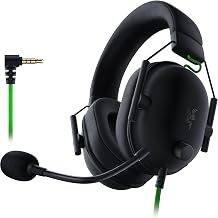
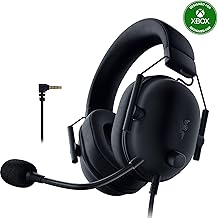
Razer BlackShark V2 X Gaming Headset: 7.1 Surround Sound - 50mm Drivers - Memory Foam Cushion - For PC, PS4, PS5, Switch - 3.5mm Audio Jack - Black
Included for 'Gaming Headset Mic Not Working? Fix It in 7 Steps' because the listing specifies 50mm Drivers and Memory Foam Cushion, details this guide uses to compare options.
View on Amazon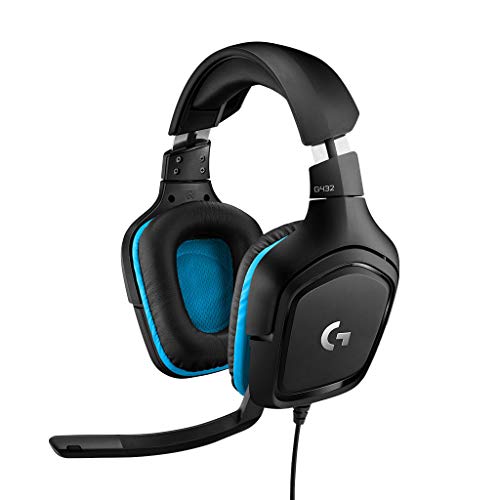
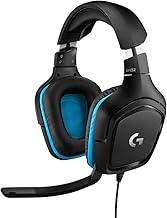
Logitech G432 Wired Gaming Headset - Black
Included for 'Gaming Headset Mic Not Working? Fix It in 7 Steps' because the listing specifies Black, details this guide uses to compare options.
View on Amazon
JBL Quantum 100M2 Wired Gaming Headset, Detachable Mic - Black
Included for 'Gaming Headset Mic Not Working? Fix It in 7 Steps' because the listing specifies Detachable Mic and Black, details this guide uses to compare options.
View on Amazon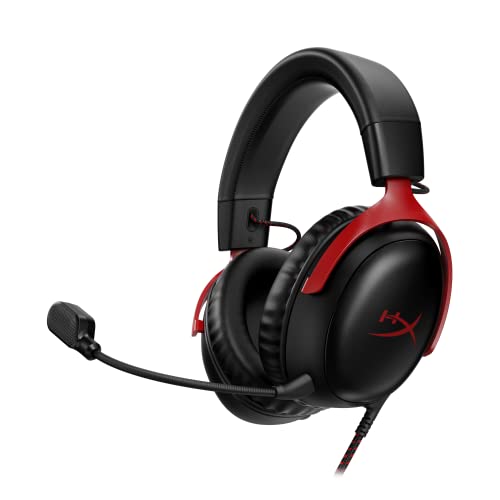
HyperX Cloud III – Wired Gaming Headset, PC, PS5, Xbox Series X|S, Angled 53mm Drivers, Spatial Audio, Memory Foam, Durable Frame, Ultra-Clear 10mm Mic, USB-C, USB-A, 3.5mm – Black/Red
Included for 'Gaming Headset Mic Not Working? Fix It in 7 Steps' because the listing specifies Wired Gaming Headset and PS5, details this guide uses to compare options.
View on Amazon- Look for an LED near the mic mute button — usually red means muted, or off means muted, depending on the brand.
- Flip the boom arm fully down and lock it into position.
- If there’s a volume/mute dial on the cable, rotate it fully and check if mic volume changes.
Step 2: Confirm whether you’re on 3.5mm, USB, or wireless, and test the simplest config
The fix path is different depending on connection type, so confirm this before going further.
| Connection type | Common failure point | Fastest test |
|---|---|---|
| 3.5mm analog (TRRS) | Wrong port (mic jack vs headphone-only jack), bent pin, splitter adapter failure | Plug directly into a laptop or phone’s combo audio jack and talk — if it registers there, the PC port or splitter is the problem |
| USB / USB-C with onboard DAC | USB port power-saving mode, driver conflict, dead onboard sound card in the headset | Move to a different USB port, ideally directly on the motherboard rather than a front-panel hub |
| Wireless (2.4GHz dongle or Bluetooth) | Dongle firmware/driver, Bluetooth profile defaulting to A2DP (output-only) instead of HFP/HSP, interference | Re-pair the dongle in a USB port farther from the GPU, or re-pair Bluetooth and select the headset as “Hands-Free” profile, not just the audio output |
If you’re on a 3.5mm splitter (common on older desktops or some audio interfaces), that splitter is one of the most frequent points of failure. Bypass it and plug straight into the motherboard’s mic jack to rule it out.
Step 3: Check Windows sound settings and privacy permissions
This is the step that fixes the mic for most people, because Windows 11 (and the 2026 updates to it) silently resets microphone permissions after major updates.
Set the correct default input device
- Right-click the speaker icon in the taskbar > Sound settings > Input.
- Make sure your headset mic is selected under “Choose a device for speaking or recording.”
- Click the device name > check the input volume meter moves when you talk. If it stays flat, the device itself isn’t receiving signal — skip to Step 7.
Check microphone privacy permissions
- Settings > Privacy & security > Microphone.
- Confirm “Microphone access” is turned on.
- Scroll down and confirm the specific app (Discord, your browser, your game) is toggled on in the list. Windows blocks apps individually even when the global toggle is on.
Disable Exclusive Mode
Exclusive Mode lets one app take full control of an audio device, which can lock out every other app’s access to the mic.
- Sound settings > More sound settings (or Control Panel > Sound) > Recording tab.
- Right-click your headset mic > Properties > Advanced tab.
- Uncheck “Allow applications to take exclusive control of this device.”
- Apply, then restart Discord or your game.
Step 4: Fix per-app device selection in Discord, Steam, and your game
Apps don’t always inherit the Windows default input device — each one has its own picker, and this is the single most common cause of “mic works everywhere except this one app.”
| App | Menu path | What to check |
|---|---|---|
| Discord | User Settings > Voice & Video > Input Device | Set input device manually, run the Input Sensitivity test, disable Automatic Input Sensitivity if the mic cuts in and out |
| Steam | Steam > Settings > Voice > Microphone | Pick the headset explicitly and click “Test Microphone” to confirm it registers before launching a game |
| In-game voice chat | Game’s Audio or Voice settings menu | Many games (especially Call of Duty and Valorant titles) have their own input device dropdown separate from Windows and Discord |
If the mic works in Windows’ own sound recorder test but not in Discord specifically, it’s almost always this step, not a hardware fault.
Step 5: Roll back or reinstall the audio driver
A Windows Update can silently push a generic driver over your headset’s dedicated one, especially for USB headsets with onboard sound cards (common on SteelSeries Arctis, Logitech G, and Razer USB models).
- Right-click Start > Device Manager > expand “Sound, video and game controllers” (or “Audio inputs and outputs” for the mic specifically).
- Right-click your headset > Properties > Driver tab > “Roll Back Driver” if the button is available.
- If not available, click “Uninstall device,” check “Delete the driver software for this device” if offered, then unplug the headset, restart, and plug it back in to force a clean reinstall.
- For USB headsets with companion software (SteelSeries GG, Logitech G Hub, Razer Synapse), reinstall that app too — it often manages its own virtual audio driver layer.
Step 6: Rule out interference and power settings on USB and wireless
USB selective suspend can cut power to a headset’s onboard DAC mid-session, which looks identical to a dead mic.
- Control Panel > Power Options > Change plan settings > Change advanced power settings > USB settings > USB selective suspend setting > set to Disabled.
- For 2.4GHz wireless dongles, move the dongle to a USB extension cable away from the GPU backplate — GPU shrouds are a major source of 2.4GHz interference on multi-slot cards.
Step 7: The two-minute cable-swap test to isolate the actual fault
If you’ve gotten this far and the mic still doesn’t register, you need to find out whether the problem is the boom mic itself, the detachable cable, or the PC’s port. This takes about two minutes and tells you exactly what to replace instead of guessing.
- Test the port: Plug a different microphone or headset into the same port/jack. If that also fails, the port or USB controller is the fault, not your headset.
- Test the cable: If your headset has a detachable mic boom or a detachable main cable, swap in a spare cable (or borrow a compatible one) and retest. Most headset brands reuse the same cable connector across several models, so even a cable from a different headset of the same brand often works for testing.
- Test the boom itself: If you have access to a second boom mic from the same model line, swap it in. If the mic still fails with a known-good cable and a known-good port, the boom mic element itself is dead.
Reading the result:
| Result | Likely fault | Next action |
|---|---|---|
| Other mic also fails in same port | Port or USB controller | Try a different port; if all fail, it’s a motherboard/driver issue, not the headset |
| Headset works with spare cable, fails with original | Detachable cable | Replace just the cable — usually $8–$20, far cheaper than a new headset |
| Headset still fails with spare cable and good port | Boom mic element | Check warranty status; boom mics are rarely user-replaceable without a soldering repair |
| Mic works fine in a different app or on another PC | Software/driver/permissions, not hardware | Revisit Steps 3–5 on the original machine |
This test matters because it stops you from replacing a $150 headset when the actual fault is a $12 cable, or chasing driver settings for an hour when the boom mic itself has failed.
Quick reference: fastest fix by symptom
| Symptom | Most likely cause | Fix |
|---|---|---|
| Mic works in Windows test but not Discord | Wrong input device selected in Discord | Step 4 |
| Mic cuts out randomly during long sessions | USB selective suspend or wireless interference | Step 6 |
| Mic worked yesterday, dead today after an update | Driver overwritten by Windows Update | Step 5 |
| Mic completely silent, LED off | Mute switch or boom-up auto-mute | Step 1 |
| Mic silent only on this one PC | Privacy permissions or Exclusive Mode | Step 3 |