
Key takeaways
- Minecraft Settings > Controller (included with the game): First choice for reviewing gameplay actions and game-specific input options; no additional purchase is needed.
- Nintendo Switch 2 Accessibility > Button Mapping and saved presets (free, built in): Change or restore supported controller inputs; use it only when the game settings cannot deliver your preferred layout.
- Nintendo Quick Settings > GL/GR Buttons (free feature on compatible hardware): Duplicate a frequently used button on a rear key while Minecraft is running; requires a compatible Switch 2 Pro Controller or Joy-Con 2 Charging Grip.
Minecraft Switch 2 controller mapping gives you three different ways to make the controls more comfortable. First, check Minecraft’s own Controller settings for gameplay actions. Next, use Nintendo Switch 2’s System Settings > Accessibility > Button Mapping for supported controller-wide changes. Finally, if you have a Nintendo Switch 2 Pro Controller or compatible Joy-Con 2 Charging Grip, you can assign a familiar button input to GL or GR from Quick Settings while Minecraft is running. These methods do not behave alike. This guide shows which one to choose, what Nintendo and Mojang have actually documented, how to test the result, and how to undo unwanted changes without touching your worlds or save data.
Choose the right mapping method before changing anything
Changing a game action, changing the physical input sent by a controller, and adding a rear-button shortcut are three separate jobs. A change inside Minecraft may apply to Minecraft’s controls, but a Nintendo system-level remap can also change the way buttons work on the HOME Menu and other software. The GL/GR shortcuts are another layer: Nintendo stores them by game and user when configured through Quick Settings. If you only want a more convenient Jump or Sneak action in Minecraft, start with the game rather than changing the entire console.
| Where you change it | Best use | Scope and limitation |
|---|---|---|
| Minecraft > Settings > Controller | Adjust a named gameplay action or related input option | Game controls; exact entries may differ by Bedrock build |
| Switch 2 System Settings > Accessibility > Button Mapping | Swap or disable a supported controller button input | Applies across much of the console, including menus and games |
| Switch 2 Quick Settings > GL/GR Buttons | Put an existing input on a reachable rear button | Compatible hardware only; configured with a game running; stored per game/user |
| Switch 2 Controllers & Accessories > Test Input Devices | Determine whether the controller registers a physical press | A diagnostic test, not a Minecraft remapping menu |
Release-day scope: Mojang scheduled the native Minecraft for Nintendo Switch 2 release for October 27, 2026. Its public controller guide describes Minecraft’s general controller behavior and the ability to customize controls, but it does not provide a verified, frame-by-frame menu map for every option in the native Switch 2 build. Where the current game menu differs, follow the controller-control labels actually shown, not an older tutorial’s screenshot.
Check Minecraft’s default controls first
Before making a custom layout, open a safe single-player world with room to move. Mojang’s general Minecraft controls guide documents the following Nintendo-console buttons as common defaults. These are a baseline to verify, not a guarantee that every custom profile or later update uses precisely the same assignments. On-screen button prompts in your installed version take priority.
| Action | Common Nintendo controller input | What to check |
|---|---|---|
| Jump / fly upward | A | Try one jump on safe ground |
| Sneak / descend while flying | B | Watch the sneak animation near a flat surface |
| Inventory | Y | Inventory menu opens and closes |
| Crafting | X | Crafting interface opens |
| Mine / attack | ZR (right trigger) | Test on a harmless block in a temporary world |
| Place / use / interact | ZL (left trigger) | Open a door or place an expendable block |
| Switch hotbar slot | L / R | Selected hotbar item moves as expected |
| Pause/menu | + Button | Pause screen appears |
For movement and camera controls, use the in-game controller diagram and current prompts rather than relying on a written left-stick/right-stick legend alone. If movement or looking behaves backwards, first inspect both Minecraft settings and any existing console-wide stick swaps. Nintendo permits swapping left and right stick inputs, which can make the gameplay layout feel completely wrong.
Remap gameplay actions inside Minecraft
Mojang says that Minecraft’s options menu lets players customize controls and restore defaults. On Bedrock, the controller-related options are normally grouped in Settings > Controller. Because the October 27 native Switch 2 build is new, the exact wording of every configurable action and any preset may vary; don’t assume that a specific setting or remap slot exists unless your installed menu displays it.
- Open the right edition. Launch the native Minecraft title on Switch 2. Check that you’re not following an old Nintendo Switch settings screenshot or Java Edition keybinding tutorial. From the title screen, select Settings. If you’re inside a world, press the + Button to open the pause menu and select Settings.
- Go to the controller controls. In Settings, look in the Controls area and select Controller. This is the Bedrock controller configuration area, not the separate Keyboard & Mouse or Touch sections. Review the actions and options the current build shows.
- Change one control at a time. If a listed action offers a selectable binding, choose that action and follow the on-screen prompt to assign a different button. Avoid changing Jump, Use, and Attack simultaneously: you need a way to identify which alteration actually helped.
- Check for a conflict before leaving. Watch for a warning or visible duplicate assignment; not every game permits every button/action combination. If the menu does not expose the desired remap, do not invent a hidden setting. Continue with Nintendo’s system mapping or GL/GR shortcut route below.
- Test in a disposable world. Exit Settings, use the changed action once in a plain local world, and confirm that the menu can still be navigated normally. Reopen the Controller section to check that the new assignment remained selected.
Expected result: Minecraft responds to the gameplay action you chose. If you see no change, verify the active controller and whether Nintendo-level remapping is also enabled; two remapping layers can make the on-screen prompts misleading. If you cannot identify the setting in your version, record the version and take a screenshot of the Controller menu before changing console-level assignments.
Use Nintendo Switch 2 system button mapping
Nintendo’s current U.S. Switch 2 help explicitly places remapping under Accessibility. Do not use System Settings > Controllers and Sensors, which is the navigation documented for the original Switch. Nintendo says Joy-Con 2, the Switch 2 Pro Controller, and supported earlier Switch controllers can use system button mapping. The controller must be connected before it appears in the list.
- From the Switch 2 HOME Menu, open System Settings.
- Select Accessibility > Button Mapping.
- Choose the currently connected Joy-Con 2 or Pro Controller, then select Edit Controller Mapping.
- Select the physical button whose input you want to change; choose the desired replacement input. For example, swapping the A and B inputs at system level changes what the game receives when those physical buttons are pressed, but also affects system interaction.
- Choose Save. Return to Minecraft, then test the intended action and a normal menu interaction immediately. If you cannot comfortably navigate the system, revert before making more changes.
For a reusable arrangement, go back to System Settings > Accessibility > Button Mapping, select that controller, and use Save as a Preset. Nintendo permits up to five saved presets per supported controller; use Load a Preset to change between them. Presets are stored on the console, not carried inside the controller to another Switch 2. Configurations are controller-type-specific, so a left Joy-Con 2 preset is not automatically a right Joy-Con 2 preset.
Know the controls that cannot be repurposed
Nintendo excludes POWER, volume, HOME, and SYNC inputs from ordinary remapping. You cannot make another button act as those protected inputs. The system can swap which physical stick provides left-stick versus right-stick input, but ordinary button mapping does not turn analog directions into arbitrary button presses. These boundaries matter if a tutorial promises unsupported one-button camera steering or a programmable HOME shortcut.
System mapping continues into most menus and applications. This makes it useful for accessibility or a persistent preference, but less convenient if you want Minecraft-only actions while leaving every other game untouched. Nintendo also temporarily disables custom mappings during certain controller tests and calibrations; a correctly working physical-button test therefore does not prove your Minecraft profile was loaded.
Assign GL or GR shortcuts on compatible hardware
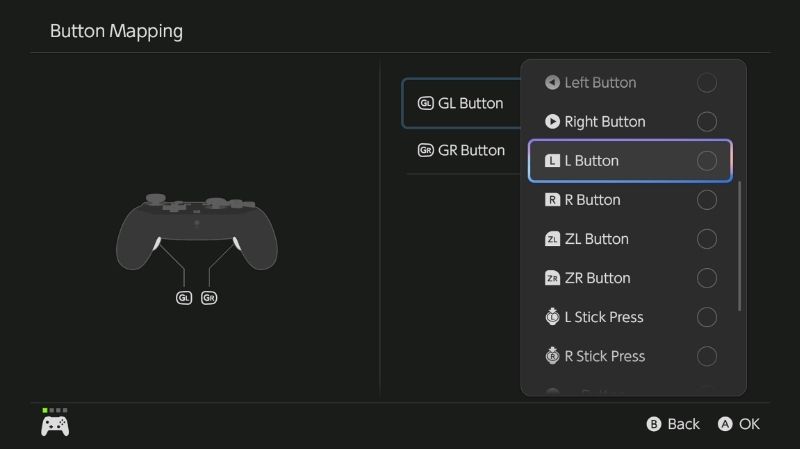
The Nintendo Switch 2 Pro Controller includes GL and GR rear buttons; compatible Joy-Con 2 Charging Grip hardware also supports GL/GR mapping. Nintendo directs players to configure these buttons from Quick Settings while a game is running, rather than through the ordinary Accessibility mapping screen. An attached Joy-Con 2 pair without the compatible GL/GR-equipped accessory should not be assumed to have these rear inputs.
- Connect the compatible Pro Controller or Joy-Con 2 Charging Grip and start Minecraft.
- While Minecraft is active, press and hold HOME for at least one second to open Nintendo Switch 2 Quick Settings.
- Select GL/GR Buttons. Choose the rear button you want to configure and assign one of the supported existing controller button inputs from the menu.
- Return to Minecraft and press GL or GR once while standing in a safe area. Confirm it reproduces the target button’s Minecraft action; if it does not, reopen Quick Settings and recheck the assignment.
Nintendo says GL/GR assignments made this way are saved on a per-game, per-user basis and shared between compatible controllers. They are not a separate native Minecraft command category and do not create extra game actions beyond the supported inputs being duplicated. A practical starter setup is to place a frequently used existing button on the rear key so you can keep a thumb on the camera stick; choose the exact function based on the controller layout currently visible in Minecraft.
Comfortable layouts for building, mining, and accessibility
A good layout reduces hand movement without turning familiar actions into surprises. Test any change in Creative Mode or a fresh Survival world first. Controller comfort is personal: these are design ideas to evaluate, not measurements of reaction time or universal competitive presets.
| Goal | Starting adjustment | Why to test it carefully |
|---|---|---|
| Build without moving your thumb away from the camera stick | Copy the current Jump or Use input to GL/GR if available | Check block placement and camera aiming together |
| Make crouch easier to hold | Try a reachable in-game binding or rear-button copy of Sneak | A poor remap can accidentally cause falls while building |
| Improve access with limited hand mobility | Start with one Nintendo system input swap; save a preset | System remaps affect menus outside Minecraft |
| Reduce accidental inventory or crafting opens | Review Y/X assignments and existing preset conflicts | Do not disable a needed button without a replacement |
| Change movement hand preference | Use Nintendo Control Stick Settings for an authorized left/right swap | Swaps stick roles, not individual analog directions |
If you plan to use a shared console, identify the user profile before customizing GL/GR. A player using a different profile may see different rear-button behavior. System button mapping is also tied to the console and connected controller rather than being portable with the physical gamepad. Save a neutral preset so another player can recover without remembering your Minecraft shortcuts.
Fix swapped, missing, or inconsistent inputs
When a control behaves incorrectly, do not reset worlds, delete Minecraft, or buy another controller first. Determine whether the problem belongs to the game binding, an active system remap, a rear-button shortcut, or the controller hardware. Nintendo marks a controller with modified system mapping using a small wrench icon in applicable system screens.
| Symptom | First safe check | Next step if unresolved |
|---|---|---|
| A and B behave opposite to expected | Inspect Minecraft Controller settings and Nintendo’s active mapping | Reset one layer, retest, then the other |
| Movement and camera are reversed | Check Accessibility > Button Mapping > Control Stick Settings | Restore normal left/right stick roles |
| GL or GR does nothing | Confirm compatible grip/Pro Controller and Minecraft is running | Open Quick Settings > GL/GR Buttons again |
| Button works on HOME Menu but not in Minecraft | Review in-game assignment and active game/controller | Update Minecraft and test a new local world |
| Button fails in every game or menu | Reset custom mapping; run Nintendo’s physical button test | Follow Nintendo controller troubleshooting/service guidance |
| Mapping is gone on another Switch 2 | Check which console and profile is in use | Load or create a preset on that console |
Test the controller without confusing game settings
- On the HOME Menu, open System Settings > Controllers & Accessories > Test Input Devices > Test Controller Buttons.
- Press the affected face button, shoulder button, or control stick button. Nintendo shows the input icon when it registers.
- Remember that HOME, Capture, C, POWER, volume, and SYNC are not included in this particular test. Don’t declare those buttons broken because they do not appear there.
- If the button registers here but not in Minecraft, review in-game controls first; Nintendo also notes that custom system mapping can be temporarily inactive while a diagnostic test is running.
If a button does not register under Nintendo’s test after custom mappings are reset, use Nintendo Support’s steps for the affected Joy-Con 2 or Pro Controller. Physical repair is more appropriate than repeatedly reinstalling Minecraft when the same input fails across compatible software.
Check updates only when the behavior persists
From the HOME Menu, highlight Minecraft without starting it, press + or –, then choose Software Update > Via the Internet. Nintendo documents this route for Switch 2 games. To check system updates, open System Settings > System > System Update. For controller firmware, the console offers System Settings > Controllers & Accessories > Update Controllers. Perform any offered official updates and retest the same mapped action.
None of these steps should remove an existing Minecraft world. Do not erase save data, use an unofficial firmware image, or modify console files to unlock mappings. If a single native-build game action is missing despite correct physical inputs and current software, note the game version, hardware, affected menu/action, and reproduction steps for Minecraft Support or a Mojang bug report.
Restore defaults without losing your worlds
Undo the layer you changed, then test before clearing the next layer. This avoids mistaking a game-specific issue for a system-wide one.
- Minecraft settings: Reopen Settings > Controller and use its visible default/reset control if your installed build provides one. Mojang confirms a restore-to-defaults option in its general control guide, although its precise screen placement is not verified for every Switch 2 build. If the option is absent, leave it unchanged and reset system mapping first.
- Nintendo system mapping: Go to System Settings > Accessibility > Button Mapping, select the relevant controller, then Reset Controller Mapping. Nintendo says this does not delete saved presets.
- GL/GR assignment: With Minecraft open and compatible hardware connected, hold HOME for Quick Settings, open GL/GR Buttons, and return the unwanted rear-button assignments to the neutral choice presented there.
- Retest: Return to a harmless area in Minecraft, verify Jump, Sneak, Attack, Use, inventory, and basic menu navigation. If these work, stop troubleshooting.
System resets change controller inputs, not game progress. They are different from Minecraft’s world editor, Switch 2 save-data management, system initialization, or controller pairing deletion. There is no reason to use any of those destructive or disruptive operations simply to restore button mappings.
Common questions about Switch 2 Minecraft controls
Can I remap A and B only for Minecraft?
Try Minecraft’s Controller settings first, because that is the game-scoped path. The Nintendo Accessibility mapping option is broader and changes supported controller input behavior beyond Minecraft. For a Minecraft-specific rear-button copy, GL/GR Quick Settings offers a per-game/per-user route on compatible hardware.
Do Joy-Con 2 and the Switch 2 Pro Controller use different menu paths?
Both appear as supported devices under Nintendo’s system Accessibility > Button Mapping. The Pro Controller has built-in GL/GR buttons, while Joy-Con 2 requires compatible GL/GR-equipped grip hardware for those rear-button shortcuts. Nintendo documents the quick-settings method separately from ordinary button remapping.
Can I save one mapping for multiple controllers?
Nintendo allows up to five standard controller presets per supported controller and can apply a preset to another controller of the same type. It does not automatically transfer custom configurations to another console. GL/GR game-specific shortcuts follow different per-game and per-user storage rules.
Can I bind a new action to the C Button or HOME Button?
Do not assume system-menu buttons can become game-specific hotkeys. Nintendo specifically excludes HOME from ordinary button remapping; C is associated with Switch 2 system functionality and also is not covered by Nintendo’s standard button test. Use supported face, shoulder, or GL/GR inputs shown by the console instead of relying on an unverified C-button workaround.
Does changing controller mapping fix Minecraft multiplayer lag?
No. Button mapping changes which input is sent or how comfortably you can trigger an action. It does not repair network latency, a Realms join failure, or crossplay permissions. Troubleshoot those separately rather than treating a missed online action as proof of a broken controller.
Tools That Help
- Minecraft Settings > Controller (included with the game): First choice for reviewing gameplay actions and game-specific input options; no additional purchase is needed.
- Nintendo Switch 2 Accessibility > Button Mapping and saved presets (free, built in): Change or restore supported controller inputs; use it only when the game settings cannot deliver your preferred layout.
- Nintendo Quick Settings > GL/GR Buttons (free feature on compatible hardware): Duplicate a frequently used button on a rear key while Minecraft is running; requires a compatible Switch 2 Pro Controller or Joy-Con 2 Charging Grip.
Final Thoughts
For the simplest next step, open Minecraft > Settings > Controller and identify one action that feels awkward. Change just that action if your game offers a binding, then test it in a temporary world. If the game doesn’t provide the change, decide whether you need a console-wide Nintendo mapping or a GL/GR shortcut for compatible hardware. Save a standard preset or remember the reset path before experimenting further. A reliable layout is one you can explain, test, and reverse—not the one with the most buttons changed.




