
Key takeaways
- Minecraft Settings > Video (included): Free built-in Graphics Mode and Render Distance controls. Use these first to measure your actual available range and restore previous values.
- Nintendo Switch 2 Software Update (included): Free console menu at HOME > highlight Minecraft > + or – > Software Update > Via the Internet. Use it when the setting appears missing or unexpectedly limited in an older build.
- Simple comparison notes (free): A phone note or paper record of game version, world, graphics mode, slider value, and smoothness. Use it to isolate one setting change without purchasing monitoring hardware.
Minecraft Switch 2 render distance controls how much of the world your console draws around you. To adjust it, open Minecraft’s main menu, go to Settings > Video, and check the Render Distance option for your selected graphics mode. If you need a smoother experience, lower the distance a little and compare the same location before changing anything else. The native Switch 2 release, dated October 27, 2026, includes Vibrant Visuals as its default look, which changes the balance between distant terrain and visual effects. The maximum available distance also depends on the active graphics mode, game build, and whether a server limits what your client receives.
What render distance actually changes
Render distance is a visibility setting, not an Internet speed setting. Minecraft’s Bedrock documentation defines it as the radius, measured in chunks, over which the game draws blocks and other visible world elements around the player or camera. One chunk is 16 blocks wide and 16 blocks long. A higher setting can show more distant hills, villages, coastlines, and large builds, but the graphics hardware must process more visible scenery.
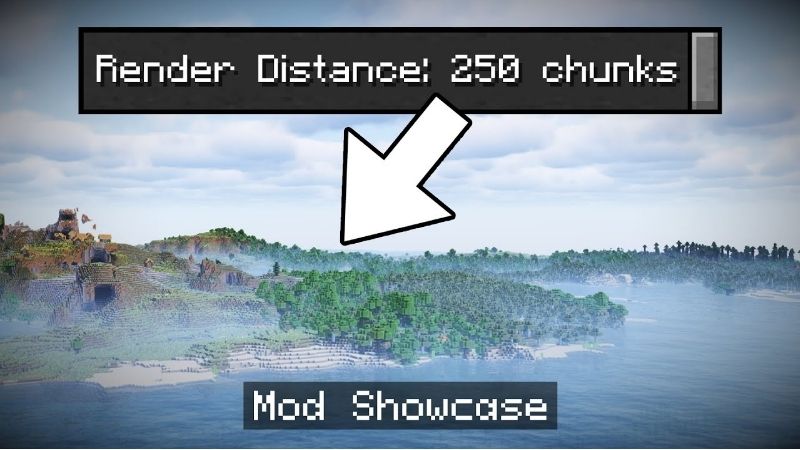
For scale, an illustrative eight-chunk radius is about 128 blocks in the horizontal direction; 12 chunks is about 192 blocks; 16 chunks is about 256 blocks. Those are simple chunk-width conversions, not guaranteed visible distances in every biome: terrain shape, fog, weather, server settings, and visual effects still affect what you can see. The setting is not a promise of any particular frame rate.
| Setting or feature | What it controls | What it does not guarantee |
|---|---|---|
| Render Distance | How far the client attempts to draw terrain and visible detail | Mob activity or reliable performance at the highest value |
| Simulation Distance | Area where game ticks handle many entities, crops, fluids, and other mechanics | That distant chunks will become visible |
| Graphics Mode | Simple/Fancy presentation or Vibrant Visuals effects | The same render-distance range in every mode |
| Server/Realm view limit | How much world data the host can provide to clients | That increasing a client slider will reveal additional host-limited terrain |
Microsoft’s official Bedrock creator guide separates render distance from simulation distance for good reason: you can see a distant farm without that farm’s crops necessarily growing at the same pace as those near active players. In multiplayer, a host’s configured view distance can cap the chunks your Switch 2 receives even if the local Render Distance value is higher.
Make sure you are using the native Switch 2 version
Mojang announced a native Minecraft edition for Nintendo Switch 2 on October 27, 2026. It is distinct from running the original Nintendo Switch game through backward compatibility. Mojang says the native release takes advantage of Switch 2 hardware and launches with Vibrant Visuals enabled as its default graphics setting. Do not assume an article about the original Switch, or a screenshot from its older Video menu, shows the same options you will have in the native edition.
- On Switch 2, return to the HOME Menu. Highlight the Minecraft game icon without opening the game.
- Press the + or – Button to display Nintendo’s software menu. Open Software Information and review the software information available for that title. Compare its listed product with the native Minecraft for Nintendo Switch 2 listing in Nintendo eShop, rather than inferring the edition from the console hardware alone.
- In that same software menu, select Software Update > Via the Internet. Install any offered update, and reopen the game after the update finishes.
- On the Minecraft main menu, select Settings > Video. If you see Graphics Mode > Vibrant Visuals, you are looking at a graphics option Mojang explicitly associates with the native Switch 2 release. This alone does not verify the precise build number, so consult the software information and Nintendo eShop listing if the edition remains unclear.
Expected result: Minecraft opens with current software and shows the Video settings available for your installed edition. If the native edition has not been acquired or downloaded, updating a separate older Switch application should not be assumed to turn it into the native product. Use the official Nintendo eShop upgrade or purchase information for your region rather than third-party installers.
Change render distance in Minecraft’s Video settings
Mojang’s published path for Bedrock’s graphics settings begins at the Minecraft main menu: Settings > Video. The Graphics Mode control may offer Vibrant Visuals, Fancy, or Simple. The separate Render Distance slider, when exposed, shows the distance your active mode allows. Do not rely on an exact chunk maximum or identical slider location across previews, graphics modes, world types, and later patches.
- Save your current world and exit to Minecraft’s main menu. This matters because Mojang says changing graphics mode may be unavailable while actively inside a world.
- Select Settings, then Video. Read the current Graphics Mode and Render Distance values before changing either one. Write them down so you can restore them.
- With the current graphics mode selected, find the Render Distance control in Video settings, if the mode exposes one. Decrease it by one or two available slider steps if distant chunk loading feels slow or frame pacing is uneven. Do not force a value outside the console’s provided range.
- Apply or retain the new value using the on-screen action your installed build presents, then reload your world. Return to the same saved viewpoint and compare the horizon and perceived responsiveness.
- If you prefer longer sightlines, raise the slider by one available step and repeat the same-scene comparison. Stop when added visible terrain no longer outweighs any stutter or slowdown you notice.
If the Render Distance control is missing, dimmed, or restricted, first return to the main menu and check the selected Graphics Mode. Some graphics options are mode-specific, and Mojang documents cases where Vibrant Visuals is unavailable while a world is open or an incompatible add-on is active. The safe fallback is to use the options actually shown by the installed game, not a tutorial that asks you to edit unsupported configuration files.
Balance Vibrant Visuals against longer sightlines
Vibrant Visuals adds upgraded lighting, reflections, shadows, and fog. Mojang calls it the default look of the native Switch 2 edition, but also notes that certain Marketplace content and split-screen gameplay cannot use it. This creates a practical choice: prioritize the visual style you like, or compare Fancy/Simple mode if seeing farther matters more to you.
Mojang’s official graphics help documents three Vibrant Visuals presets: Favor Performance, Favor Visuals, and Custom. The first is intended for slowdowns; the second emphasizes graphical effects; the third offers adjustments on supported systems. Some controls may be unavailable on a particular console or build. Do not assume a screenshot from a PC exposes every Switch 2 adjustment.
| Your goal | Safe first change | What to verify |
|---|---|---|
| Smoother movement while keeping new lighting | Use Vibrant Visuals with Favor Performance where offered; lower Render Distance slightly if accessible | Compare movement through the same busy location |
| View more distant builds or landscapes | Try Fancy or Simple graphics and see whether their distance slider offers a longer range | Compare the same horizon; note any lost lighting effects |
| Keep the richest lighting | Choose Vibrant Visuals and Favor Visuals if the console offers it | Accept a shorter view or less smoothness if either occurs |
| Play local split-screen | Expect Fancy or Simple graphics when additional local players join | Do not diagnose the automatic switch away from Vibrant Visuals as a bug |
About maximum chunk counts: community reports from the pre-release Switch 2 beta describe different ranges for standard and Vibrant Visuals modes. Those observations are not a manufacturer-published guarantee for the October 27 retail build. Mojang’s launch announcements verify the native edition and Vibrant Visuals but do not establish a single universal maximum in the official material reviewed for this article. Check the slider on your updated console and record its maximum for the active mode instead of treating an old beta value as permanent.
Use a repeatable test instead of guessing at FPS
A fast but controlled comparison is more useful than changing several settings at once. It does not require external benchmark software or a claimed performance number from a review of a different build.
- Open a world where you can safely stand still on high ground. Save the world and note a recognizable landmark near the horizon. Avoid a thunderstorm or unusually crowded combat encounter for your first comparison.
- Record whether you are in handheld or TV mode, the world type (local, Realm, or other server), your Graphics Mode, and the initial Render Distance slider value.
- Look toward the same landmark for about a minute, then rotate slowly and move through a short, repeatable route. Note visible terrain, loading delays, hitching, and controller responsiveness rather than inventing an FPS figure.
- Exit the world, adjust only Render Distance by one or two available steps, then return to that saved point. Keep other visual options unchanged for the comparison.
- Repeat once in the opposite direction if needed. If you change from Vibrant Visuals to Fancy/Simple, treat that as a separate comparison because it changes several graphical demands at once.
For consistent notes, use a simple observation table: Mode | Render-distance value | World | Handheld/TV | Horizon visibility | Smoothness notes. This is a personal comparison procedure, not a scientific performance benchmark. Weather, terrain generation, nearby entities, world add-ons, and multiplayer activity can still affect the result.
For a rough sense of why each increment matters, a square of chunks spanning a radius of eight chunks covers approximately 17 by 17 chunk positions; a radius of 12 covers about 25 by 25. These examples illustrate that raising the radius can enlarge the potential visible area quickly. They do not describe an exact renderer workload or predict a measurable performance percentage.
Why Realms and other multiplayer worlds may look different
On a local world, your console controls more of the visible-world experience, subject to the game’s limits. On a Realm or other server, the host decides how much world data is sent to your client. Microsoft explains that your effective viewing range can be restricted to the lower of client render distance and server view distance. Therefore, raising a Switch 2 slider cannot override a server-side cap.
For a useful diagnosis, create a new temporary local world using the same graphics mode and compare the visible horizon. If the local test extends farther while your online world does not, do not reinstall Minecraft or reset your saved world. Ask the world owner or server operator whether a host-side view-distance limit is in effect. On a managed Realm, treat its options as separate from your personal console’s Video settings; players may not have permission to change the host configuration.
Simulation distance also has its own gameplay implications: distant crops or mobs may not update even while distant terrain is visible. Changing local Render Distance is not a reliable fix for a farm that stops producing when you walk far away. Host settings and Bedrock mechanics govern simulation. This is a separate issue from slow chunk drawing.
Fix unusually short visibility or stutter safely
If the slider seems stuck at a low value, or terrain loads too slowly even with modest settings, work from least disruptive actions to more involved tests. Minecraft Help recommends updates and settings checks before troubleshooting add-ons. None of the steps below requires deleting a world, clearing save data, modifying a system folder, or changing console security options.
| Symptom | Likely explanation to test | First safe action |
|---|---|---|
| Vibrant Visuals is grayed out | Game is open inside a world, unsupported mode, or incompatible content | Save and return to main menu; try a plain local world |
| Render Distance slider seems lower than expected | Different graphics mode, older Switch edition, or build-specific cap | Check Video > Graphics Mode and Nintendo software information |
| Distant terrain stays missing only online | Server-side view-distance constraint | Compare against a new local world using same graphics mode |
| World loads slowly or stutters | High visual workload or content/add-ons | Lower visible distance slightly; select Favor Performance if provided |
| One Marketplace world behaves differently | Pack-specific visual settings or graphics incompatibility | Compare a plain temporary world; consult the pack creator’s notes |
Update Minecraft and the console
- From the Switch 2 HOME Menu, highlight Minecraft and press + or –.
- Select Software Update > Via the Internet and finish any offered download. Nintendo specifies this exact process for Switch 2 software.
- For a console update, go to System Settings > System > System Update. Complete it if available, then reopen Minecraft and retest the same world.
If the update cannot be installed, resolve the download or storage issue separately. Do not download unofficial Minecraft patches, shader injectors, or console modification tools to bypass graphics restrictions.
Separate graphics workload from add-on problems
If performance trouble occurs in one world but not a fresh local one, suspect world-specific content before blaming Switch 2 hardware. Mojang documents that add-ons and packs can conflict, especially when multiple packs are active. Test a blank new world first. For a world you own, back up or copy it before experimenting with active packs: Mojang warns that removing an add-on may remove its custom mobs or replace custom blocks with defaults. You should never remove content from a valued world simply to chase more visible chunks without understanding those consequences.
If the game remains slow even in a fresh world with a lower Render Distance and a performance-oriented graphics setting, record the version, selected mode, world type, and reproducible steps before contacting Minecraft Support. Include a screenshot of the Video menu if available, but do not claim an unverified maximum chunk count or measured FPS.
Common questions about Switch 2 render distance
Does the native Switch 2 version show more chunks than the old Switch game?
It has a different, more capable graphics implementation and Mojang officially confirms a native Switch 2 version with Vibrant Visuals. Pre-release reports describe higher distance limits in the native build, but an exact maximum for every retail graphics mode was not independently confirmed from an official launch specification in the sources reviewed. Compare the two versions and modes directly on updated software before quoting a number.
Does a higher render distance make farms and mobs work farther away?
No. The render setting primarily changes what the client draws. Simulation Distance controls many ticking and entity behaviors. Servers and Realms may also enforce separate limits, so seeing a distant structure does not make all its mechanics actively simulate.
Will TV mode automatically increase the chunk limit?
Do not assume so. Check the actual slider range on your current game build in both modes if this matters to you. The manufacturer sources reviewed here do not establish a guaranteed handheld-versus-docked chunk difference. TV output resolution is not the same setting as Minecraft’s chunk render distance.
Can I unlock unlimited render distance with a download?
Not through any Nintendo- or Mojang-supported tool identified for this guide. The Video menu exposes the supported range for your version and graphics mode. Avoid downloads promising unlimited chunks, altered system firmware, or unofficial save-file changes; they introduce risks without a verified benefit.
Tools That Help
- Minecraft Settings > Video (included): Free built-in Graphics Mode and Render Distance controls. Use these first to measure your actual available range and restore previous values.
- Nintendo Switch 2 Software Update (included): Free console menu at HOME > highlight Minecraft > + or – > Software Update > Via the Internet. Use it when the setting appears missing or unexpectedly limited in an older build.
- Simple comparison notes (free): A phone note or paper record of game version, world, graphics mode, slider value, and smoothness. Use it to isolate one setting change without purchasing monitoring hardware.
Final Thoughts
For the clearest first result, open the native Minecraft Switch 2 release, record the current value at Settings > Video, and compare two nearby Render Distance settings at the same saved viewpoint. Keep Vibrant Visuals if you prefer its lighting and the result is responsive; test Fancy or Simple only when longer sightlines are more important. If only an online world looks short-ranged, check the server rather than blaming the console. Until Mojang publishes a definitive retail chunk-cap table for each Switch 2 graphics mode, use the updated in-game slider—not a beta screenshot—as the authoritative limit on your own system.




