
Key takeaways
- Only your Switch 2 fails: prioritize its Nintendo user, Microsoft sign-in, installed update, and network.
- Only one friend fails: prioritize that friend’s current hosted world, permissions, Internet connection, and NAT.
- Everyone fails in several unrelated worlds: check service announcements before changing routers or accounts.
- Only Realms fails: verify the Realm is active and invitations are valid, then use Mojang’s dedicated Realms error guide. An ordinary host does not have to be online for invited Realm players to access an active Realm.
If Minecraft multiplayer is not working on your Nintendo Switch 2, start by identifying what fails: Microsoft sign-in, the ability to see a friend’s world, the invitation, or the connection after you tap Join. Then check that every player uses an updated Minecraft: Bedrock Edition build, the Switch 2 player has an active Nintendo Switch Online membership, and the host’s world allows multiplayer. Only investigate the router or NAT type after these checks. Do not delete a world, factory-reset the console, or purchase Realms to troubleshoot an ordinary friend session. This guide uses Nintendo and Minecraft support procedures, with special care around the newly released native Switch 2 version.
Identify your multiplayer symptom first
The same message, such as Unable to connect to world, can have several causes. A quick comparison with another world or friend often tells you more than repeatedly restarting the router. Minecraft’s own troubleshooting separates software version, account permissions, host availability, and network problems; Nintendo separately explains that a successful Internet test does not guarantee a successful peer-to-peer match.
| Symptom | Likely category | First safe check | Evidence of a fix |
|---|---|---|---|
| Multiplayer is disabled or grayed out | Microsoft family/privacy permission or Nintendo restriction | Ask the account organizer to review multiplayer access | Online world options are available |
| Friend/world is missing | Wrong gamertag, host offline, invitation or world access | Confirm both gamertags and ask host to enter the world | Friend or invitation becomes visible |
| Version mismatch, Breeze, or Chain error | Different Minecraft release or edition | Update both Bedrock installations | Both can join the same test world |
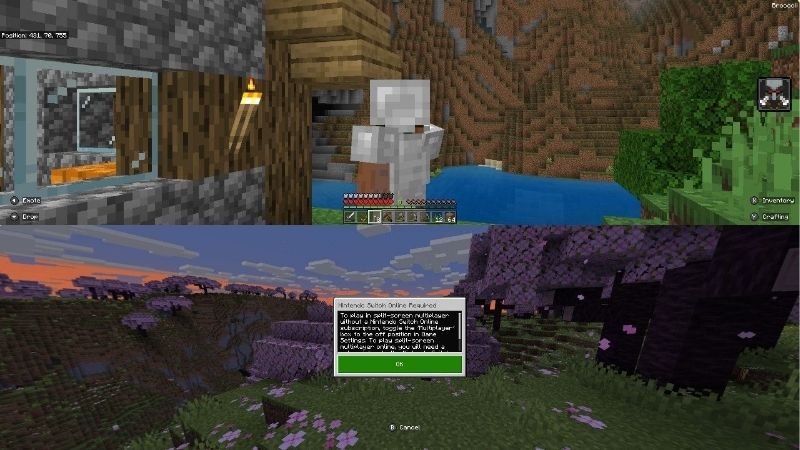
| Subscription required | Nintendo Switch Online membership not recognized | Check membership for the exact console user | Membership prompt disappears |
| Connection times out, Creeper, Door, or NetherNet error | Network path, service issue, or host availability | Run Nintendo’s Test Connection and note NAT type | Player enters the world and stays connected |
| Only one friend’s world fails | Host settings, host connection, or NAT on either side | Try a different Bedrock friend’s world before router changes | Problem isolated to one host or network |
Record the exact error name and whether the problem happens on all online modes or only one friend’s world. Minecraft’s named error codes are diagnostic clues, not proof that a particular piece of hardware is broken.
Run the five-minute checks before changing settings
- Confirm the edition. Minecraft on Nintendo Switch 2 participates in the Bedrock ecosystem. A friend running Java Edition on a Windows PC cannot directly join an ordinary Bedrock world. Ask PC friends to start Minecraft for Windows (Bedrock) rather than Java.
- Close and reopen Minecraft on both devices. Return to the Switch 2 HOME Menu, close Minecraft, and launch it again under the intended Nintendo user. Have the host do the same. This avoids troubleshooting an old disconnected session.
- Check Microsoft identity. On the Minecraft home screen, verify that the expected Xbox gamertag appears. Being friends on Nintendo’s system is not the same as being connected through Minecraft’s Microsoft account service.
- Ask the host to enter the world. An ordinary Bedrock world hosted directly by another player requires that player to be online and running it. A Realm is a different hosting service and can remain accessible while its owner is offline.
- Try one controlled comparison. Attempt to join a second friend’s Bedrock world, or ask a different authorized friend to join the problem world. Write down which combination succeeds, then continue to the corresponding section below.
Expected result: if joining works after restarting or the host opens the world, stop. If the failure persists, determine whether the message points to the game version, account permissions, or network before making a change.
Update Minecraft and Switch 2 correctly
Mojang specifically names outdated Minecraft versions as a frequent multiplayer cause. The native Minecraft for Switch 2 was scheduled for October 27, 2026; with a new release, do not assume an original-Switch installation, native Switch 2 installation, mobile build, or Windows build automatically received the same update. Use Nintendo’s current Switch 2 menu rather than copying old Switch screenshots.
- On Nintendo Switch 2, connect to the Internet and return to the HOME Menu.
- Highlight the Minecraft game icon without starting the game.
- Press the + or − Button on the controller, then select Software Update > Via the Internet. Nintendo documents this path for Switch 2. Install any update offered.
- Check console firmware separately under System Settings > System > System Update. Leave the system powered and connected while an update runs.
- Have the host and every other player update Minecraft using their platform’s official game store or launcher. On PC, confirm the game is Bedrock, not Java or a preview build.
- After updates, restart Minecraft and try one freshly hosted world. If nothing was available to update, move to the account and host checks rather than reinstalling the game.
Mojang’s Bedrock named-error list calls Breeze a world-newer-than-client error and Chain a version difference. Both point first to updating the game. Do not downgrade a friend’s world or install unofficial game files to force a match. The exact current build number may change after this article is published; rely on the update check rather than an unverified version number.
Verify Nintendo Switch Online for the correct user
Nintendo Switch Online and Microsoft sign-in are separate requirements for online Minecraft multiplayer on Switch consoles. A Microsoft account does not replace the paid Nintendo membership. The member must be the actual Nintendo Account used to open the game, not simply another person in the household who owns a subscription.
- From the Switch 2 HOME Menu, select Nintendo Switch Online.
- Choose the Nintendo Account/user who runs Minecraft. Nintendo says this view displays the current membership and other service information.
- Confirm that an individual membership is active for that user or that the user is covered by a valid family membership.
- If membership is active but Minecraft still prompts you to subscribe, Nintendo’s support flow is to fully power off the console rather than merely use Sleep Mode, restart, then open the game using the covered Nintendo Account.
- Return to the same Bedrock session and see whether the subscription warning disappears. If it remains, collect the message and contact Nintendo support before buying another membership.
This check is for online play over Nintendo’s service. Do not assume an offline single-player world or a local split-screen session uses the same subscription rules. A paid Realm is not necessary merely to join a friend who is currently hosting an ordinary multiplayer-enabled world.
Fix Microsoft sign-in or account mismatches
Mojang says the Nintendo Switch version of Minecraft links to a Microsoft account through an authorization code shown by the game. If the wrong gamertag appears, multiplayer friends may seem to disappear even while your Internet works. Its named-error reference also identifies Mushroom Block with the wrong Microsoft/Xbox account linked to the Nintendo user.
- Start Minecraft on Switch 2 under the Nintendo user that owns the relevant world and online access. Check the Xbox gamertag on the title screen.
- If Microsoft sign-in is absent or expired, follow the game’s Sign in with a Microsoft Account prompt. On a phone or PC, use the official remote-connect page displayed on the game screen and enter its temporary code.
- If you need to refresh an existing sign-in, Mojang’s documented Nintendo flow is Minecraft > Settings > Account > Sign out of your Microsoft Account, followed by Sign in for free! and the official authorization-code procedure. Check that the game still shows the same intended account before confirming any change.
- Reopen the social or Friends interface and check the exact Xbox gamertag of the friend you are trying to join, including any numbers. Then retry the invitation once.
Stop if this is someone else’s profile or a child’s account: have the legitimate account holder or guardian handle changes. Don’t use an unknown sign-in link, share security codes, clear local save data, or unlink a purchased account merely to fix multiplayer. If account linking remains blocked, Minecraft Support is more appropriate than repeatedly clearing console data.
Check the host’s world settings and invitation
If your gamertag, updates, and membership are correct but only one world is unavailable, focus on that world. Mojang states that the host must have multiplayer enabled and be online for ordinary friend-hosted games. A private or invitation-only world may also restrict who can enter.
- Ask the host to return to the main Play interface in Minecraft, locate the target world, open its world-edit/settings screen (the pencil/edit control in interfaces that show one), and inspect the Multiplayer section.
- The host should enable Multiplayer Game if it is off and choose an access level that includes you. For an invite-only world, have the host send a fresh invitation instead of opening access to strangers.
- Have the host launch that specific world and remain inside it while you join. A local world generally disappears as a joinable session when the host quits.
- On your Switch 2, use Minecraft’s Play / Friends joining flow, or the newer Social / Party friend interface if that is what your build provides. Look for the correct gamertag and world, or accept the host’s invitation.
- If the session is still missing, ask the host to make a temporary new multiplayer world with normal settings and invite you. If the new world works, investigate access settings or content in the original world instead of blaming the console.
Interface wording and location can change between Minecraft Bedrock updates, and the native Switch 2 build arrived on the date of this guide. Mojang documents the requirements, but the exact arrangement of every new Switch 2 Social/Party button is not fully verified here. If a stated screen is absent, return to the main Play screen and use the game’s visible Friends/social entry; do not invent a hidden settings menu. This troubleshooting guide is not a replacement for a full first-time crossplay setup walkthrough.
Review parental permissions without bypassing safety controls
A child account may show a message that multiplayer is blocked by the Microsoft account’s settings. Mojang explicitly says the adult family organizer must review the child account’s Xbox privacy and multiplayer permissions. Nintendo parental restrictions can also apply; changing one account’s restrictions does not automatically change the other system’s controls.
- Have the parent or authorized adult identify the exact Microsoft child account currently signed into Minecraft. The Xbox gamertag shown in the game is the starting point.
- The organizer signs into Microsoft’s official family/Xbox privacy-management interface using their own authorized account. Open the affected child’s online safety settings and review multiplayer/cross-network play permissions according to the family’s decision. Mojang’s article Managing Multiplayer Game Access for a Child Account in Minecraft describes the supported flow.
- Separately, the parent checks Nintendo Switch parental settings on the intended console user. If controls restrict the relevant online communication or activity, use the Nintendo Switch Parental Controls app’s authorized controls; do not remove the child’s account or request a PIN from the child.
- Close and relaunch Minecraft and see whether the multiplayer-disabled message changes. If it does not, the organizer can check whether the new account permission has applied and then consult Microsoft/Minecraft support.
Families can deliberately keep multiplayer restricted. The correct resolution may be to continue using an age-appropriate offline or approved local mode—not to bypass the policy. A generic Internet-speed test cannot fix a denied Microsoft account permission.
Run Nintendo’s network test and interpret NAT carefully
If the account and world checks pass but connections still time out or drop, Nintendo’s built-in test supplies useful evidence. It measures connectivity to Nintendo services and reports a NAT type; it does not guarantee every Minecraft friend-hosted connection will work. Nintendo notes that your friend’s NAT type can matter, too.
- On Nintendo Switch 2, open HOME > System Settings > Internet > Test Connection.
- Record Internet Connection (Success or failure), NAT Type, and the displayed download/upload speeds. Nintendo rates NAT A as preferable for peer-to-peer connections and says NAT B is compatible with most other types. More restrictive types can be a barrier.
- If the test fails entirely, address the Internet connection first: confirm the selected Wi-Fi network and password, move closer to the router, or reconnect the console using System Settings > Internet > Internet Settings before testing Minecraft again.
- If the test succeeds but one friend fails, have the friend check their own connection. Compare results by joining another authorized multiplayer world or using another trusted network.
- For a safe wired comparison, connect Ethernet to the built-in LAN port of the Switch 2 dock, dock the console, then use System Settings > Internet > Internet Settings > Wired Connection > Connect to the Internet via Wired Connection when shown. Re-run the connection test.
Do not immediately enable DMZ, disable your router’s firewall, or forward arbitrary ports. Those changes expose devices and rarely make sense before the basic checks. If NAT remains restrictive across multiple attempts, ask your router manufacturer or Internet service provider for supported assistance. Do not treat NAT A/B as proof that Mojang’s services are up or that the host’s world permits you to join.
Separate a service outage from a local failure
When several friends on different networks simultaneously cannot connect, or Microsoft sign-in fails for everyone, check the published Nintendo network status, Xbox service status, and Mojang-referenced PlayFab status pages. Mojang recommends these checks for multiplayer and Realms troubleshooting. One user’s router cannot repair an outage affecting the authentication or hosting service.
- Only your Switch 2 fails: prioritize its Nintendo user, Microsoft sign-in, installed update, and network.
- Only one friend fails: prioritize that friend’s current hosted world, permissions, Internet connection, and NAT.
- Everyone fails in several unrelated worlds: check service announcements before changing routers or accounts.
- Only Realms fails: verify the Realm is active and invitations are valid, then use Mojang’s dedicated Realms error guide. An ordinary host does not have to be online for invited Realm players to access an active Realm.
If an outage is confirmed, stop repetitive fixes and retry after the provider reports recovery. There is no reason to delete a world, pay for a different Minecraft edition, or reset the console because authentication servers are unavailable.
Use the exact error code to choose your next step
Bedrock sometimes shows named errors rather than Nintendo numeric codes. Mojang’s official named-code guide maps the following examples to different failure categories; your message may change in future releases.
| Minecraft error | What Mojang describes | Next action |
|---|---|---|
| Breeze or Chain | World/game version mismatch | Update Bedrock on all devices |
| Mushroom Block | Wrong Microsoft/Xbox account tied to Nintendo Switch account | Verify correct profile and supported sign-in procedure |
| Spyglass | Multiplayer permission issue | Guardian/account owner reviews authorized permissions |
| Goat | World may no longer be online | Ask host to relaunch or stay in the world |
| Hopper | World is full | Try when a player slot is free |
| Creeper, Door, or NetherNet | Network or multiplayer connection issue | Use connection and host checks above |
| Glowstone | Sign-in issue | Refresh Microsoft sign-in; check service status |
If Nintendo displays a numeric error instead, record the exact digits and use Nintendo Support’s error-code search. Codes for a Nintendo online match are not interchangeable with Mojang’s named codes. For example, Nintendo’s support article for 2618-0514 describes difficulty connecting to other consoles and directs users to investigate NAT or network conditions, not to reinstall Minecraft.
What not to do while troubleshooting
Keep the steps reversible until there is clear evidence of corrupt software or a device-level fault. Nintendo provides corrupt-data and redownload procedures for software problems, but those are not the first line of treatment for a normal multiplayer permission or NAT failure.
- Do not delete Minecraft save data or a world. Account authentication and connectivity errors rarely establish world corruption. Console software files and user save data are different categories.
- Do not format a microSD Express card to change multiplayer permissions or NAT; formatting removes data on the card.
- Do not install unofficial launchers, plugins, or server listings promising to unlock console crossplay, or hand anyone a Microsoft security code.
- Do not disable child safety restrictions without the authorized parent’s decision.
- Do not make permanent network security changes merely because one remote player cannot join your world.
If Minecraft also crashes offline or fails to launch, that is a different symptom. Nintendo’s software troubleshooting can then be applied separately after you preserve saves and confirm the exact game affected.
Check that multiplayer is really fixed
- On Switch 2, run System Settings > Internet > Test Connection and confirm the test succeeds.
- Open Minecraft and confirm the intended Microsoft Xbox gamertag is signed in, the current Bedrock update is installed, and Nintendo Switch Online covers this user.
- Ask the host to open a multiplayer-enabled Bedrock world, then join through the friend’s invite or visible world listing.
- Remain connected long enough to move, place or break a permitted block, and verify the other player can see the change. A successful menu connection by itself does not prove gameplay is stable.
- Leave normally, reconnect once, and record which troubleshooting step fixed the issue so it can be repeated after any later software update.
If the problem remains, contact the correct support team with the exact Minecraft error name or Nintendo error number, installed software version, whether one or all worlds fail, whether the Microsoft account signs in, membership status, and the NAT type. Avoid sharing passwords, recovery codes, payment details, or the router’s public IP address in a public forum.
Tools That Help
- Switch 2 Internet Test: free built-in diagnostic at HOME > System Settings > Internet > Test Connection; use when a join attempt times out, stalls, or disconnects.
- Nintendo Switch Online membership view: built-in service/account screen at HOME > Nintendo Switch Online; checking status is free, although online multiplayer requires a valid membership.
- Official Minecraft Help and Xbox family controls: free troubleshooting articles and authorized account tools; use for named errors, Microsoft sign-in, or family permission messages rather than buying a third-party utility.
No accessory or paid troubleshooting app is needed to run these checks. A docked Ethernet connection can help isolate Wi-Fi problems if you already own a suitable cable and dock, but it cannot override Minecraft account permissions or a server outage.
Frequently asked questions
Why can’t I join just one friend’s Minecraft world?
When other Bedrock worlds work, ask that friend to remain in the host world, check its multiplayer setting and invitation access, and test their connection. Nintendo notes that the other player’s NAT may contribute even if yours looks good.
Do I need Realms to fix an Unable to connect to world message?
No. Realms is an optional separate hosting model, not a mandatory repair for multiplayer errors. Confirm account access, edition/version, Nintendo membership, and world settings before considering a hosted Realm.
Does NAT type A guarantee that Minecraft multiplayer works?
No. Nintendo describes NAT A as favorable for peer-to-peer matchmaking, but host availability, permissions, versions, service status, and latency can independently stop a connection.
Can Nintendo Switch 2 players join someone using Java Edition?
Not through Minecraft’s ordinary supported cross-platform Bedrock connection. Ask the PC player to run Minecraft for Windows (Bedrock), with an eligible Microsoft account and updated release.
Does signing into Microsoft replace Nintendo Switch Online?
No. Microsoft sign-in handles Minecraft account identity and cross-platform friends, while Nintendo Switch Online provides Nintendo’s required paid access for online Minecraft multiplayer.
Final Thoughts
Choose one next check based on the actual symptom: update both Bedrock copies for version errors, check the exact Nintendo user and Microsoft gamertag for access problems, ask the host to reopen and enable multiplayer for a missing world, or run System Settings > Internet > Test Connection when connections time out. If you can enter a friend’s world, interact, leave, and rejoin reliably, the multiplayer problem is resolved. Keep account resets, router changes, and save-data operations out of the process unless official support evidence shows they are necessary.




