
Key takeaways
- Steam Support (free, official): Use Purchases to submit and review requests on your account; this is the only verified refund submission route in this guide.
- Steam purchase history (free, official): Open Account Details → View purchase history to confirm the transaction date, purchase type, payment amount, and order status before asking for a refund.
- Bank or payment-provider transaction history (free account feature): Check the original charge, authorization hold, and posted refund if Steam has approved the request but you cannot locate the money. Never send card credentials through unofficial support chats.
Want to know how to refund a Steam game without guessing which menu to use? Open Steam Support, sign in, choose Purchases, select the game, pick the issue that fits, and select I’d like to request a refund. Choose a refund destination, briefly explain your request, and submit it. Valve’s standard policy covers games requested within 14 days of purchase with less than two hours of playtime. You can still ask for review outside those limits, but approval is not guaranteed. The safe first step is to check your purchase date and playtime before submitting.
Check Steam’s refund requirements first
For most games and software bought directly on Steam, Valve offers refunds for any reason within two weeks of purchase and under two hours played. Reasons can include poor performance, accidental purchase, a game that does not run on your PC, or simply deciding it is not for you. The time limit is not a promise that every other purchase type qualifies: DLC, gifts, preorders, bundles, and in-game purchases have additional rules. Valve also says consumers in some jurisdictions may have additional rights if a game is faulty.
| Purchase type | General Steam rule | Important exception or check |
|---|---|---|
| Game or software bought on Steam | Request within 14 days of purchase, with under 2 hours played | Requests outside the standard rules can be reviewed, not automatically approved |
| DLC bought on Steam | Within 14 days, with under 2 hours played in the base game since buying DLC | DLC must not be consumed, modified, or transferred; some is marked nonrefundable |
| Prepurchase not yet playable | Generally refundable before release; standard period begins at release | Early/Advance Access playtime normally counts toward 2-hour limit |
| Unredeemed or redeemed gift | Standard refund window and recipient playtime limits | For redeemed gifts, recipient must first authorize refund |
| Steam Store bundle | Combined playtime under 2 hours and contents not transferred | Nonrefundable contents may affect bundle eligibility; check checkout details |
| Steam Wallet funds purchased on Steam | Within 14 days if purchased funds remain unused | Separate from refunding an individual game bought with Wallet balance |
| In-game purchase | Valve games: generally within 48 hours if item unused, unmodified and untransferred | Other developers must opt into the Steam refund option |
| Third-party key or retailer purchase | Steam does not refund purchases made outside Steam | Contact the seller under that seller’s policy |
Check the actual transaction rather than assuming all games in your library were purchased on the Steam Store. A game added using a redemption key can appear beside a Steam-purchased game, but Valve cannot refund an outside purchase. Likewise, a publisher subscription or consumable in-game item may use rules different from those for the full game. The table summarizes Valve’s policy checked on October 27, 2026, not a guarantee for every order.
Find your purchase date and playtime
Steam has a documented purchase-history route: in the desktop client or Steam website, select your account name near the upper-right, then Account Details → View purchase history. Find the game and check the date, amount, and method used. If the transaction is not visible in the refund flow, confirm that you signed into the account that bought it. Steam’s support FAQ also warns that very old purchases may no longer appear among refund-eligible transactions.
For playtime, open the Steam Library and select the game to check the time shown by the client. Treat it as a useful estimate, not a way to override Valve’s own account records. Valve states that online, offline, and shared-library playtime count toward the refund limit. For example, if you bought a game four days ago and Steam records 85 minutes, the two standard thresholds appear satisfied. If it records exactly two hours, do not describe the purchase as having less than two hours. Submit an honest request if circumstances justify an exception.
If Steam has not finished recording recent offline activity, do not repeatedly launch the game to verify a number. Extra playtime can move an otherwise eligible purchase past the standard threshold. Refund decisions are made from Valve’s records and rules, not a screenshot or an estimate generated by a third-party tracker.
How to request a Steam refund step by step
The same official Steam Support workflow works from a modern desktop browser and from the Steam client’s support links. You do not need to email Valve staff, find an employee’s account, or give payment information to a third-party refund service. Use the official support site and sign in with the account that owns the transaction.
- Open Steam Support: In your browser, go to help.steampowered.com and sign in. In the Steam desktop client, the Help → Steam Support entry opens the same support workflow. If a client menu has changed, the web address is the documented fallback.
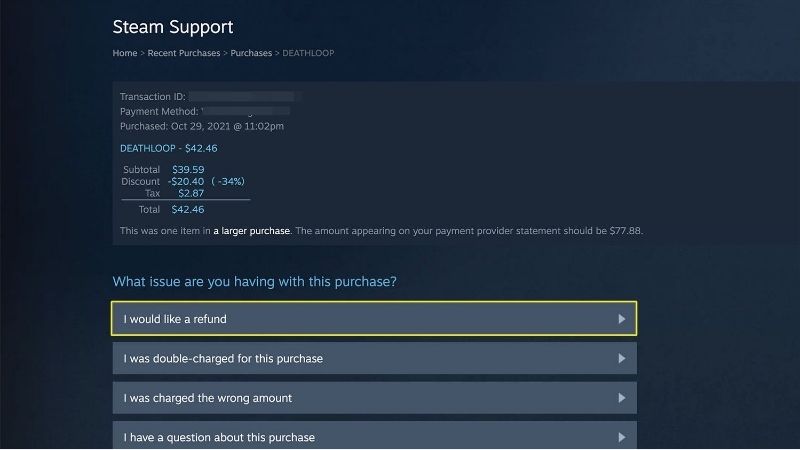
- Choose Purchases: On the Steam Support home page, select Purchases. This is the refund path Valve explicitly documents. Do not choose an unrelated account-recovery issue for an ordinary refund.
- Select the transaction: Find and click the game purchase you want refunded. Check its title and purchase date carefully, particularly if you bought a soundtrack, DLC, or bundle on the same day.
- Choose the issue: Select the reason category that best matches your situation. Examples include a technical problem or an accidental purchase. Be accurate; Valve allows ordinary eligible-game refunds for many reasons, so a fabricated technical problem is unnecessary.
- Request the refund: Select I’d like to request a refund. Steam displays a request form showing available choices. If that exact option is missing, return to the purchase record or use the help choices Steam offers instead of guessing that the refund has already been filed.
- Select your refund method: Use the form’s drop-down to select Steam Wallet or the original payment method where Steam permits it. Some regional payment methods cannot be refunded to their original source and may result in Wallet credit.
- Write a concise explanation: State what happened and why you want the refund. Mention a reproducible crash, hardware incompatibility, accidental purchase, or another genuine issue when relevant. Avoid including a password, card number, security code, or unrelated personal details.
- Submit and verify: Submit the form. Valve says you should receive a confirmation email when the request has been successfully sent, and another email after processing. Keep that confirmation while waiting for the decision.
Expected result: The confirmation means the request was submitted, not that it has already been approved. If you never receive confirmation, check your signed-in Steam account’s help requests and email folders before filing duplicates. Steam Support, not a public community reply, is the place to manage a purchase-specific case.
Choose Steam Wallet or your original payment method
Steam’s form gives the refund destinations available for that purchase. Original-payment refunds are often preferable if you want the money returned to the card or other payment instrument used. Steam Wallet credit may be useful if you intend to buy another title on Steam. Neither choice necessarily causes an instant refund, and the options can depend on the payment method and region.
Valve’s Common Refund Questions says an approved refund can take up to seven days to appear in your account; approved Wallet credit may take 24–48 hours. International payment methods can take longer. In cases where Steam cancels a recent transaction instead of issuing a separate credit, your bank may take up to 30 days to release an authorization hold, and there may be no separate refund entry on your statement. This is why an approval email and your bank statement can look different.
If your refund was approved more than seven days ago but has not appeared, Valve suggests contacting the bank about pending refunds. First check whether the money was credited to Steam Wallet or used in another Steam purchase. Do not file an unauthorized-charge dispute merely because a properly approved refund has not yet shown up; Steam distinguishes payment disputes from ordinary refund requests.
What to do when your Steam refund is denied
If the purchase is outside the normal 14-day or two-hour conditions, Valve still allows a refund request to be reviewed. That is a discretionary review, not a second guaranteed window. Explain relevant facts clearly: when a technical failure occurred, whether the game failed to launch, what troubleshooting you attempted, or whether an unusual situation prevented you from playing. Steam may still decline the request.
- Read the decision: Check the reason given in Steam’s email or support response before changing anything. A missing transaction, payment issue, and playtime limit are different problems.
- Verify your records: Compare the listed purchase date and playtime with the relevant policy for that purchase type, including any preorder or DLC exception.
- Correct a factual mistake: If you believe a refund was denied in error, return to help.steampowered.com → Purchases and submit another request with a clear, truthful explanation. Valve explicitly allows asking again when you believe handling was mistaken.
- Use the right support category: If the problem is an unauthorized charge, an inability to sign in, or an outside retailer key, follow the corresponding support or retailer process instead of repeatedly requesting an ordinary game refund.
There is no official instruction to create new accounts, hide recorded playtime, change device clocks, or alter Steam files to obtain a refund. Those techniques do not replace Valve’s eligibility records. Valve also reserves the right to restrict refunds if it finds abuse; requesting a refund on an eligible game bought just before a sale and rebuying at the discount is expressly not treated as abuse by itself.
Refund a game that went on sale after you bought it
Steam does not issue a partial refund for the difference when a game goes on sale shortly after purchase. Its official sales FAQ instructs customers to request a refund of the original purchase, if eligible, and then buy the game at the new price. That means the old refund and the new purchase are separate transactions. A sale can end before a refund arrives; Valve does not promise to extend promotional pricing.
Consider a hypothetical game purchased at $40 that is now $25. The price difference is $15, but Steam’s published option is not a $15 adjustment. You would request a refund of the original $40 purchase and buy a new copy for $25 while the sale is active. You need enough funds to pay for the new purchase if the first refund is still pending. The numbers are an illustration, not a live price quotation.
How Steam handles DLC, preorders, gifts, and bundles
Downloadable content and in-game items
For DLC bought through Steam, the standard 14-day period is coupled with less than two hours of playtime in the base game since the DLC purchase. The content must also remain unconsumed, unmodified, and untransferred. Some third-party DLC cannot be refunded, particularly when its effects permanently change a character or account; Valve says those exceptions are shown on the Store page before purchase. Do not apply the base game’s original purchase date to a separate DLC order.
In-game purchases have a different clock. In a Valve-developed game, a qualifying purchase can generally be refunded within 48 hours if the item has not been consumed, modified, or transferred. Other game developers may opt into this program, but you should confirm eligibility at the in-game transaction rather than assume all virtual currency or cosmetic purchases qualify.
Preorders, Early Access, and Advance Access
If you prepurchased a title that is not playable yet, Valve says you may request a refund before release. The ordinary 14-day period begins at release, while the less-than-two-hour playtime condition applies when actual play is available. Playtime in Early Access or Advance Access generally counts toward that limit even when you played before the official release date; beta-test time is treated differently under Valve’s policy. A separate Steam pre-order support article says very old preorders may no longer be refundable to their original payment method, with Wallet credit potentially available.
Games received as gifts
An unredeemed gift can be refunded under the standard window. Once a gift is redeemed, the recipient must first approve the refund and removal from the recipient’s library; then the original purchaser submits the refund request. Steam’s Gifts help page provides the specific recipient path through Games, Software, etc., the gift title, and the option authorizing the original purchaser’s refund. Funds return to the purchaser rather than being paid to the gift recipient.
Game bundles and outside Steam purchases
Valve’s bundle policy considers the combined usage time across bundle items, requires that the contents not have been transferred, and may impose restrictions when nonrefundable items are included. Check the bundle checkout description and the actual transaction rather than assume you can return one included title individually.
A retail activation key, a code purchased from another website, or a third-party Wallet card is outside Valve’s Steam Store refund offer. Use the seller’s original purchase documentation and policy for those transactions. Similarly, hardware refunds follow a separate Steam Hardware Refund Policy rather than the two-hour software rule.
How to check your refund status without losing information
After submission, keep the original email and return to help.steampowered.com while signed into the purchasing account if you need to review the request. To reconcile the payment, open Account Details → View purchase history and check the affected order and any Wallet activity. Steam’s Common Refund Questions notes that a Wallet refund may already have been spent on another purchase, which can make it look missing if you only check the current balance.
| Situation | What it means | Best next action |
|---|---|---|
| Confirmation email arrived | Steam received the request | Keep the email and wait for the decision |
| Refund approved, Wallet not credited immediately | Wallet credit may require 24–48 hours | Review Wallet and purchase history, then contact support if needed |
| Original payment refund pending | Bank or payment processor may be processing it | Allow normal processing; check with bank if beyond seven days |
| No separate refund on bank statement after quick reversal | Original charge may have been canceled instead | Ask bank whether an authorization hold is still pending |
| Game not visible in Purchases | Wrong account, outside Steam purchase, or old order | Check account and View purchase history before contacting Support |
| Request declined | Steam did not approve this submission | Review policy, correct any factual error, then request reconsideration if justified |
Tools That Help
- Steam Support (free, official): Use Purchases to submit and review requests on your account; this is the only verified refund submission route in this guide.
- Steam purchase history (free, official): Open Account Details → View purchase history to confirm the transaction date, purchase type, payment amount, and order status before asking for a refund.
- Bank or payment-provider transaction history (free account feature): Check the original charge, authorization hold, and posted refund if Steam has approved the request but you cannot locate the money. Never send card credentials through unofficial support chats.
Frequently asked questions
Can I refund a Steam game after more than two hours?
You may still submit a request. Valve says it will review requests outside its standard conditions, but exceeding the normal playtime threshold removes the usual eligibility assurance. Describe your specific circumstances truthfully.
Can I refund a Steam game after 14 days?
You can ask for review, but a request significantly outside the 14-day window may be declined. The standard window does not automatically restart because you reinstalled the game or logged in on another computer.
Do offline hours or Steam Families shared playtime count?
Yes. Steam’s Common Refund Questions explicitly says playtime includes online, offline, and shared-library sessions. Count the full recorded use rather than only hours played on your current computer.
Does uninstalling the game automatically refund it?
No. Uninstalling changes local files; it does not submit a request through Steam Support. You must follow the documented Purchases → I’d like to request a refund workflow and receive confirmation.
How long does a Steam refund take?
Valve says an approved refund typically appears within seven days, with approved Steam Wallet credit possibly available in 24–48 hours. International methods and some bank authorization reversals may take longer; check with your bank if money has not appeared after the period described in Steam’s help article.
Can I refund a Steam key bought from another website?
No through Steam’s own refund program. Valve states that it cannot refund purchases made outside Steam. Contact the outside seller under its terms, and keep any receipt or payment confirmation.
Will refunding a game erase achievements from my Steam profile?
Steam’s Common Refund Questions says recorded playtime and achievements are not removed from your Steam Community Profile by a refund. That does not mean the refunded game’s license stays available for play.
Final Thoughts
If you want to refund a Steam game today, first confirm its purchase date and playtime, then sign in at Steam Support → Purchases and submit the request for the correct transaction. Choose the available refund destination, keep the confirmation email, and review Steam Wallet or your payment method only after Steam has processed the request. If your case involves a gift, DLC, preorder, bundle, or third-party key, use the relevant rule before claiming the standard 14-day/two-hour offer. Your next concrete step is to open purchase history, identify the exact order, and start the official refund request while the normal eligibility window is still open.




