
Key takeaways
- Separate Steam accounts: One for each household member. Do not sign everyone in under the purchaser’s credentials.
- A working Steam sign-in: Use the installed desktop client or Steam’s official website. Steam says family management is also available through supported mobile access.
- A decision about roles: Choose Child for a member whose games, Steam features or playtime will be restricted; choose Adult only for someone who should help manage the family.
- Membership availability: Check whether an invited account is already in another family or subject to a waiting period.
- One shareable game for testing: Select a title marked eligible for Steam Families, not a free-to-play title or one that requires a separate publisher subscription.
Wondering how to set up Steam Families so people in your household can share eligible PC games without sharing passwords? Sign in to Steam, open your account’s Account Details → Family Management page, choose Create a Family, name it, and invite up to five other household members. Select Adult or Child for each invitation. Once an invitation is accepted, shareable games become available through the family’s library; child restrictions are configured separately. Steam Families is free, but a shared game still requires an available license, and some games cannot be shared at all.
What Steam Families does and who can join
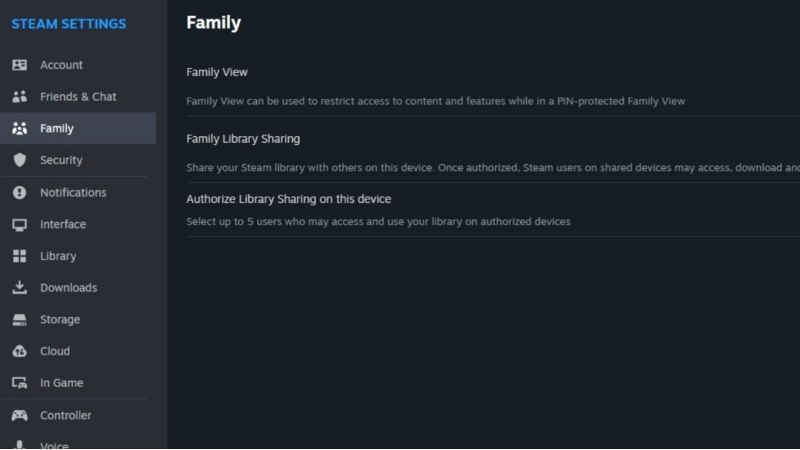
Steam Families is Valve’s current family-sharing and parental-control system. It replaced the older Steam Family Sharing and Family View workflows and became available to all Steam users in September 2024. You do not need to enroll in a beta client or authorize a second PC using the retired Family Sharing setup. An adult organizes the family through Steam’s account management page, while each person continues signing in to their own Steam account.
Valve designed Steam Families for a household of up to six close family members, counting the person who creates it. That means one creator plus a maximum of five invited members. Steam may reject an invitation when account activity does not indicate the same household; it does not promise that arbitrary friends living elsewhere can form one family. Keep each person’s account and password separate.
| Feature | What it means for setup | Important limit |
|---|---|---|
| Family size | Create one family, then invite household members | Six members total, including creator |
| Member roles | Invite each person as Adult or Child | Adults can manage family invitations and restrictions |
| Shared library | Eligible purchased games appear for other members | Publisher exclusions, region, OS and license limits apply |
| Child controls | Manage game access, features and playtime | Requires a Child role and enabled parental controls |
| Family changes | Members can eventually leave or be removed | One-year waiting rules can affect people and slots |
Steam Families does not transfer game ownership. The Steam account that bought a title keeps that license. Sharing access may end if a household member leaves, a game becomes ineligible, or the only available license is already in use. This distinction matters before anyone spends money assuming all six accounts can launch the same game simultaneously.
What you need before creating a Steam Family
- Separate Steam accounts: One for each household member. Do not sign everyone in under the purchaser’s credentials.
- A working Steam sign-in: Use the installed desktop client or Steam’s official website. Steam says family management is also available through supported mobile access.
- A decision about roles: Choose Child for a member whose games, Steam features or playtime will be restricted; choose Adult only for someone who should help manage the family.
- Membership availability: Check whether an invited account is already in another family or subject to a waiting period.
- One shareable game for testing: Select a title marked eligible for Steam Families, not a free-to-play title or one that requires a separate publisher subscription.
Creating a family does not require purchasing a premium plan or downloading a third-party app. However, you should verify account email access and use Steam Guard where supported so invitation approvals and recovery messages are not lost. Valve cautions that sharing games does not mean sharing passwords.
How to create a Steam Family on desktop or web
Valve documents the creation path from Account Details on Steam’s Store page. These steps apply to the current Steam Families system, not the old beta announcement or the discontinued Family View PIN wizard.
- Sign in to the account that will manage the family. Open the Steam desktop client and go to its Store page, or visit the official Steam Store in a browser. Confirm the displayed account is yours, not another household member’s account.
- Open Account Details. On the Store page, select your account name in the upper-right and then select Account Details. The browser route is the fallback if your client layout differs.
- Open Family Management. From your account details page, choose Family Management. Do not use an old tutorial that asks you to authorize devices under the legacy Family Sharing setting.
- Select Create a Family. Enter a recognizable family name, such as a household name, and confirm creation. Valve says you can change the family name later.
- Verify the management screen. You should now see your family and an Invite a Member action. If you instead see a family you already belong to, do not create a second one; check your current member role and waiting period.
Expected result: A family management page showing the creator and available member spaces. No other person’s game library appears until that person’s invitation is accepted and Steam confirms membership. If Create a Family is missing, check the active account, open the same page in a regular browser, and read any membership/cooldown message rather than attempting a region-changing workaround.
Invite household members as Adult or Child
Invitations should go to the actual Steam accounts people use. Valve’s documented menu is Family Management → Invite a Member; it lets you select or search for the intended account and assign a member role.
- Open the family management page. Sign in to the creating adult’s Steam account, then return to Account Details → Family Management.
- Select Invite a Member. Find the household member from the available account picker or search. Confirm the profile carefully, especially when several people have similar display names.
- Choose the role. Select Adult for another trusted manager, or Child when you need parental-control limits. Do not label someone Child just to experiment: child members cannot leave the family themselves.
- Send the invitation. Confirm the invitation and ask the recipient to sign in to their own Steam account to review its Steam notification.
- Have the member accept. The recipient opens the invitation alert and follows the on-screen acceptance flow. Steam may check that the accounts belong to the same household.
- Confirm membership. Return to Family Management and check that the person’s account is listed with the intended role. Repeat for other eligible household members, staying within six total accounts.
If the invite is not visible: Ask the recipient to open Steam’s notifications under their own account, then check the sender’s Family Management page to verify the invitation was sent to the right person. If Steam refuses to accept it, consult the rejection message before trying again. A mismatched household assessment or one-year cooldown cannot be fixed by sending the same invite repeatedly.
Understand Adult and Child permissions before confirming
| Permission | Adult | Child |
|---|---|---|
| Manage family invitations | Yes | No |
| Apply parental restrictions to children | Yes | No |
| Use eligible family-shared games | Yes, subject to available licenses | Yes, if permitted by controls |
| Request purchase approval | Receives and can fulfill requests | Can ask a family adult to purchase eligible cart contents |
| Leave the family independently | Yes, subject to later cooldown rules | No; adult or Steam Support must remove |
Every Adult can manage invites and controls, so this is a real trust decision, not an age label for display only. Parents who need to limit a child’s library or time should choose Child from the start. If someone joins accidentally in the wrong child role, Valve directs them to Steam Support for assistance; do not try to bypass the role by giving them another person’s password.
Find shared games and check game eligibility
After invitations are accepted, Valve says eligible family games appear in each member’s Steam Library alongside personal purchases. To see them grouped, open the desktop client Library, then use the library list’s dropdown and enable Group By Library. Look for the family-owned titles under the appropriate library section. You can start a shareable game from your own account without signing into the purchaser’s account.
If you do not see a game, first check whether the owner is in the family and whether the title is shareable. Valve identifies several types of exclusions. A publisher may opt out; a game may need a separate third-party account, key or subscription; free-to-play games and their paid DLC do not share through this feature; regional or operating-system restrictions can apply; and the purchaser’s games marked Private are excluded. A parental rule can also hide a game from a Child’s accessible list.
| Symptom | Likely explanation | First check |
|---|---|---|
| Family library is missing entirely | Invitation not yet accepted or client not refreshed | Verify membership in Family Management, then revisit Library |
| Only one game is missing | Publisher opted out, private title or incompatible license | Review game eligibility and owner privacy status |
| A Child cannot open an otherwise shared game | Parental game-access restriction | Adult checks that child’s permitted titles |
| Shared game shows locked or in use | No available copy of that title | Check which account is playing and the license count |
| Game cannot run on this device | OS/platform compatibility limit | Read the game’s Steam system requirements |
Do not assume a missing game is a library-sync bug. Valve’s eligibility rules are the first place to check. The owner also retains control of whether a title is marked private; changing the privacy setting is their choice, not something another family member should work around.
How many people can play shared Steam games at once?
Steam Families allows household members to play different eligible games simultaneously even when those games came from one person’s library. The restriction applies to copies of a particular game, not to whether the original owner is online. If your family owns one eligible copy of a title, only one member can use that copy at a time. For two people to play the same title at once, the family needs two suitable copies, assuming the game’s sharing rules permit it.
For example, say one adult owns Portal 2 and Half-Life. One member can play Portal 2 while another plays Half-Life. If two members both want Portal 2 concurrently, somebody in the family must own a second copy of Portal 2. Buying more copies of an unrelated game does not raise that title’s license count. Steam may offer a different family member’s copy when multiple licenses are available, but changing between editions with different DLC can affect save compatibility.
Each member’s achievements belong to that person’s Steam account. Game saves depend on the title and its save system, so do not promise a child’s progress will transfer automatically from an adult’s account. A new child account does not inherit an existing adult account’s achievements or saves merely by joining the family.
Enable parental controls and playtime limits
Once a Child account has joined, any Adult in the family can manage its restrictions. Valve’s documented route is Account Settings → Family Management → Manage. Expand the Child entry, switch on Enable Parental controls, and configure the available settings. Family management can be reached through supported client, web or mobile access; the desktop/browser path below is the official baseline.
- Sign in as an Adult. Open Account Details → Family Management and choose Manage for the current family.
- Expand the Child account. Select the child you need to configure, confirming the correct account before changing permissions.
- Enable parental controls. Turn on Enable Parental controls. This reveals the restrictions panel; adding a Child member does not by itself guarantee your desired time limits have been set.
- Choose game access. Allow appropriate titles and restrict unsuitable ones. Confirm at least one intended game appears in the child’s accessible library.
- Configure Steam features. Adjust Store, Community and Friends Chat access based on your household’s needs.
- Set playtime rules. Use the playtime controls to define daily or hourly limits, then review the child’s playtime reports and adjust as appropriate.
- Test from the child’s account. Ask the child to open the Steam Library and confirm allowed games work while restricted features behave as expected. Return to the adult management panel if anything differs.
Valve also supports requests from a Child for more playtime or feature access; an Adult can approve or reject them. A Child may ask a family Adult to pay for games in their shopping cart. Approval adds purchased games to the child’s account, not the adult’s account. Be clear about the difference between approving a purchase and granting library access: they are separate actions.
Fix Steam Families invitations and sharing problems
Work from least disruptive to most involved. Membership, licensing and account-role issues are rarely solved by reinstalling Steam. Do not remove members or change payment or region information simply to troubleshoot a missing game.
Steam says you are not in the same household
Valve evaluates account activity when someone attempts to join. If the message says the account does not appear to be part of the same household, verify that the invitation is going to the intended family member and read Steam’s support explanation. Do not use VPNs or false billing details to defeat eligibility checks. Steam Support is the appropriate escalation path if the assessment seems incorrect.
You cannot join because of a cooldown
An Adult can leave a Steam Family, but Valve imposes a one-year wait measured from when that person joined the previous family before creating or joining a different family. Separately, a family member slot normally has its own one-year cooldown after being vacated. Steam normally shows the remaining period when an invitation is blocked. An Adult may remove a member, but removing people to test sharing can leave an unusable slot. Valve documents an exception allowing you to rejoin your previous family without the normal wait when that family has room; do not assume the exception lets you immediately switch to a different family.
The shared game is locked
Open Steam Library and read which family member is currently using the title. Check the family’s copy count. If there is only one available license, wait until the player exits or obtain another legitimate copy. With multiple copies that include different DLC, Steam may offer a copy switch, but it cautions that the same save may not work across DLC combinations.
Parent controls do not appear or do not apply
Make sure the account is designated Child in the actual family roster and that you are signed in as an Adult. Open Family Management → Manage, expand that child, and confirm Enable Parental controls is switched on. If a family member was mistakenly invited as Child and cannot leave, contact official Steam Support instead of seeking unsupported PIN or account-transfer instructions.
You cannot find Family Management
On the Steam desktop client, start from the Store page and select Account Details under your account name; the same path is available in a browser at the official Steam Store. The original March 2024 beta instructions should not be used to troubleshoot the 2026 client: Valve made Steam Families available to everyone in September 2024.
Understand leaving, removing, and account safety
Before anyone joins, explain that Steam Families is designed for long-term households. An Adult can leave; a Child must be removed by an Adult or Steam Support. An Adult can remove other members, but family slots and future membership can be restricted for up to a year under Valve’s published rules. Removing a person is not a recommended fix for a temporary library-loading problem.
Valve also warns of a serious account risk: if someone cheats or commits fraud while using a game shared from your account, your account may receive a ban or lose sharing privileges. Invite only people you trust. Keep Steam Guard enabled, never reveal passwords or recovery codes, and use the official Steam family invitation process instead of third-party sharing services.
Parents should review the ability of other Adults to change Child restrictions. A home with two trusted parents may intentionally give both Adult access; an account that should not manage invitations or time limits should not be made an Adult just for convenience. Check the invitation role before the recipient accepts.
Tools That Help
- Steam desktop client (free, official): Create or manage the family through Store → Account Details → Family Management, then verify shared games in Library. No paid utility is required.
- Steam Families User Guide & FAQ (free, official): Check household eligibility, one-year cooldowns, game exclusions, license rules and the parental-control path before changing membership.
- Steam Support (free, official): Use official assistance for a rejected household invitation, an incorrect child role, or a blocked family account; never submit passwords to an unofficial helper.
Frequently asked questions
Is Steam Families free?
Yes. Steam does not charge a separate Steam Families fee. The family needs legitimately owned licenses for paid games, and a game’s publisher can still exclude it from sharing.
Can I set up Steam Families with friends in other homes?
Steam Families is intended for close family members in the same household. Valve can reject invitations when account activity does not support that requirement. It should not be treated as a general remote game-lending service.
Do all six family members get to play one copy of a game at the same time?
No. Six is the membership limit, not a license multiplier. One eligible copy supports one player at a time for that specific game, although different games from the same library can be played simultaneously.
Do Steam Families members share saves and achievements?
No automatic transfer of achievements occurs: each Steam account has its own achievements. Save handling depends on the game, and Steam specifically says progress cannot simply be migrated from an existing account to a newly created child’s account.
Can I block just one game from my child’s Steam account?
Yes. An Adult can restrict the titles a Child may access through Steam Families parental controls. Adults do not get that same child-specific game-access filter applied to other Adult members.
What if I want to rejoin my previous Steam Family?
Valve’s FAQ allows a person to rejoin the last family without the ordinary one-year waiting period, provided the family has fewer than six members. That exception is not a promise that you can immediately join an unrelated new family.
Do I still need to enable Steam Family Beta?
No. The beta opt-in step in older 2024 guides is obsolete. Steam Families became generally available in September 2024; the normal current Steam client or official web management page is the correct starting point.
Final Thoughts
To set up Steam Families correctly, start from your Steam Store account name, open Account Details → Family Management, create one household family, and invite members with the right Adult or Child roles. Check that an invitation has been accepted and a shareable title appears in Library before configuring parental controls and playtime limits. Do not confuse six members with six simultaneous licenses or assume every game is eligible. Your next action is to invite one trusted household member, verify one eligible game under Group By Library, and only then add the rest of the family.




