
Key takeaways
- Correct Epic account access: Know how to sign in with its existing email and password, or with a verified connected platform sign-in. The email on your PlayStation, Xbox, or Nintendo profile may differ from the email on your Epic account.
- A browser and working connection: A desktop or phone browser is sufficient. A private/incognito window is useful when multiple Epic profiles are saved in the same browser.
- Your current linked profile names: Record which PlayStation, Xbox, Nintendo, or Steam username appears under Epic’s Linked accounts page before changing anything.
- Verified account recovery access: Make sure you control the registered email and any enabled two-factor authentication method. Do not share one-time verification codes with anyone offering to move skins or recover purchases.
To unlink an Epic Games account from PlayStation, Xbox, Nintendo, or Steam, sign in to the correct Epic account on the official Epic Games website, open Linked accounts, expand the platform you want to disconnect, and choose Unlink. Read the warning and confirm only after checking where your game progress lives. Unlinking is not the same as merging or transferring accounts. Fortnite and Fall Guys purchases and progression remain attached to their original Epic account, but you can lose access to them from the unlinked console. Rocket League has different platform-based progression rules, and changing the wrong account can affect inventory and XP.
Quick answer: Which account do you need to disconnect?
Epic uses one account dashboard for connected console accounts, other gaming platforms, and authorized apps. The right action depends on what is linked and why you want to remove it. Before doing anything, use Epic’s article “How can I check which accounts are connected to my Epic Games account?” to confirm the displayed platform name.
| What you want to change | Where to go | What to check first |
|---|---|---|
| PlayStation Network, Xbox, or Nintendo Account | Epic Account > Linked accounts > Your linked accounts | Fortnite/Fall Guys identity, Rocket League progression, and potential same-platform restriction |
| Steam account | Epic Account > Linked accounts > Steam > Unlink | Verified Epic email and possible restriction on linking a different Steam account |
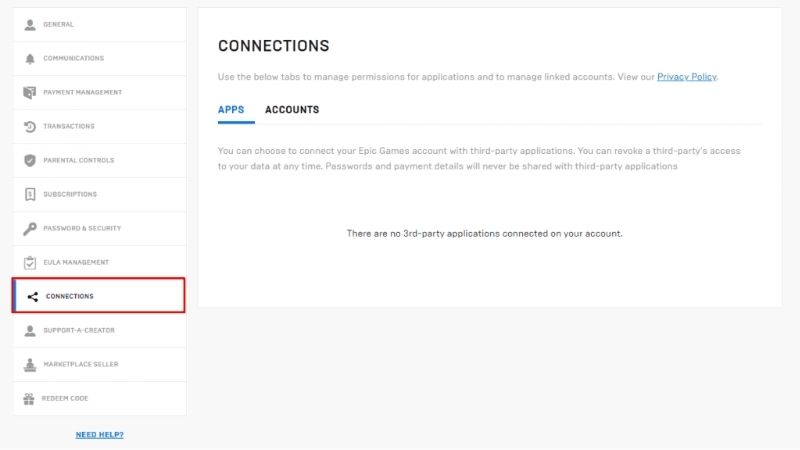
| Authorized third-party app or service | Epic Account > Linked accounts > Apps | Which app or service will lose Epic access |
| Replace an old console profile with another one | Unlink first; then Epic’s official linking-restriction removal workflow if required | 365-day rule and correct destination Epic account |
| Combine two Epic accounts or move skins between them | No supported unlinking workflow can do this | Epic does not merge accounts or transfer V-Bucks, cosmetics, friends, or Store purchases |
The account website is the management point. Signing out of the Epic Games Launcher or deleting an Epic app from a device does not establish that the platform-account link has been removed.
Read these warnings before unlinking
Epic explicitly discourages unlinking console accounts casually. The stakes are different for each game, and the warning screen is not a routine formality. Make a decision only after confirming that you can sign back in to the Epic account that actually holds your progress.
| Game or account feature | Where the relevant data lives | What can happen after unlinking |
|---|---|---|
| Fortnite | Original Epic Games account | The unlinked console cannot see that account’s progress and eligible purchases until the proper account is linked again |
| Fall Guys | Original Epic Games account | The unlinked platform can show a separate, empty account rather than the old progress |
| Rocket League | External platform account for progression, per Epic | Unlinking the account holding your progress can reset shared progress, inventory visibility, and XP on the affected connection |
| Fortnite Crew | Subscription and entitlement conditions depend on the platform account | Epic warns that future monthly content may stop when the subscription platform is unlinked |
| Other Epic Store purchases | The Epic account that purchased them | Unlinking a console does not move Store ownership to a different Epic account |
Most important: Epic says that opening Fortnite after disconnecting a console may generate a fresh, empty Epic account for that console. This does not necessarily mean your original Fortnite content was deleted. It usually means the console is no longer using the Epic account that owns it. Do not make purchases on an unexpected new account while you are trying to restore the old one.
Unlinking does not merge two inventories
If one Epic account holds a Fortnite locker on PC and another holds a different locker, connecting a console to the first account does not combine the two. Epic says account merging is unavailable, including transfers of V-Bucks, Epic Games Store purchases, cosmetics, and friends. Do not unlink an account solely because someone claims a different linkage will combine two collections.
What you need before you start
- Correct Epic account access: Know how to sign in with its existing email and password, or with a verified connected platform sign-in. The email on your PlayStation, Xbox, or Nintendo profile may differ from the email on your Epic account.
- A browser and working connection: A desktop or phone browser is sufficient. A private/incognito window is useful when multiple Epic profiles are saved in the same browser.
- Your current linked profile names: Record which PlayStation, Xbox, Nintendo, or Steam username appears under Epic’s Linked accounts page before changing anything.
- Verified account recovery access: Make sure you control the registered email and any enabled two-factor authentication method. Do not share one-time verification codes with anyone offering to move skins or recover purchases.
If your only goal is to troubleshoot a game’s temporary login error, stop and use the game’s sign-in or network troubleshooting instructions first. Breaking a working connection can create a new problem without fixing the original login error.
Find the Epic account linked to your console
This identification step prevents the most damaging mistake: unlinking from a different Epic account than the one that contains your purchases and progress. Epic’s support articles recommend using the platform sign-in when you are unsure which email address belongs to the account.
- Open a private browser window and go to epicgames.com. If you are signed in, open the profile avatar in the upper-right corner and select Sign Out.
- Select Sign in. If you know the correct Epic email, use it. Otherwise select the relevant PlayStation, Xbox, Nintendo, or other platform sign-in button and authenticate with the platform’s official sign-in flow.
- After Epic signs you in, open the profile icon, select Account, and then open Linked accounts. Epic also exposes the linked-account page directly from its support article of that name.
- Under Your linked accounts, check the display name shown under each currently connected platform. Compare it with the profile on the console you actually play on.
- If you still cannot tell which Epic account is active, open Account and inspect the account information and Account ID. Epic also documents how to view the Epic Account ID from Fortnite settings.
Expected result: You can identify the Epic account and the exact external profile you intend to unlink. If you see an unfamiliar account or a profile without normal Epic email details, do not proceed yet. Read the sections on automatically created accounts and account recovery below.
How to unlink a PlayStation, Xbox, or Nintendo account
Epic’s current article “How do I unlink my console account from my Epic Games account?” uses the Linked accounts interface. The process is performed through Epic’s website rather than the console’s system settings. The on-screen warning describes the access and progression implications for your account.
- On a computer or phone, visit epicgames.com and sign in to the Epic account you confirmed in the previous section.
- Open Account > Linked accounts. Scroll down to Your linked accounts.
- Find the PlayStation, Xbox, or Nintendo entry whose displayed profile matches the one you intend to remove.
- Expand that entry and click Unlink. If the wrong platform name appears, cancel and recheck which Epic account is signed in.
- Read the warning about progress, purchases, and linked-platform access. Only when you understand the consequences, complete the confirmation checkboxes and choose Unlink again.
- Return to Linked accounts and verify that the old platform no longer appears as connected. Do not assume you can immediately attach a different account of the same platform: that may require a separate restriction-removal process.
Successful result: Epic shows the original console profile as unlinked. If you later want to use a different console account, follow Epic’s “How do I change the console account I have linked to my Epic Games account?” instructions and the 365-day restrictions below. If you only need to reconnect the same account, confirm you are signing in to the Epic profile that owns your original content.
How to unlink Steam from Epic Games
The supported path for Steam is similar, but Epic has a dedicated article called “How to unlink my Steam account from my Epic Games account?” It explicitly asks you to verify your Epic email and warns about connecting a different Steam account afterward.
- On epicgames.com, sign in to the Epic account associated with your Steam profile. Verify the Epic account’s registered email if the site asks for it.
- Open Account > Linked accounts and locate the connected Steam profile.
- Check the Steam profile being removed. Do not disconnect a profile used for Rocket League progression without reviewing that game’s implications first.
- Choose Unlink beneath Steam, read the on-screen notice, and complete Epic’s confirmation steps.
- Refresh the Linked accounts view. Verify that Steam is no longer shown as connected. If you plan to link another Steam account, first read the platform-restriction guidance rather than assuming that the newly disconnected slot is unrestricted.
Unlinking Steam from Epic is not the same as uninstalling Steam games or changing ownership of purchases on Steam. It also does not grant rights to move Epic inventory from one Epic Games account to another.
How to remove a connected app without unlinking your console
If your concern is an authorized website, game integration, or app rather than a PlayStation/Xbox/Nintendo profile, Epic provides a different view. Its support article “How do I disable access to my Epic Account for a specific product or service, such as a site, game, or app?” explains that you can remove an app’s access without disconnecting a console identity.
- Sign in at epicgames.com with the relevant Epic account.
- Open Account > Linked accounts and select the Apps tab.
- Review the authorized products or services. Expand the entry for the app you no longer trust or use.
- Choose Unlink for that app and confirm Epic’s instructions.
- Check the Apps tab again to verify that the authorization is no longer listed. If the app also has an account with its own security settings, review those separately.
Do not confuse the Apps tab with the platform-account list. Removing an app authorization is a narrower action than disconnecting the Nintendo or Xbox account that you use to sign in to Fortnite.
Link a different console or Steam account after unlinking
Removing a currently linked profile and removing a linking restriction are two distinct actions. Epic can restrict the Epic account to the specific external profile previously associated with a platform. If you try a different PlayStation, Xbox, Nintendo, or Steam profile, you may see a message similar to “You previously linked a different [platform] account to your Epic Games account.”
- First, sign in to the Epic account that you intend to keep. Verify that its current Linked accounts page no longer lists the old account of that platform.
- Read Epic’s “How do I link a different platform account to my Epic Games account?” support article. Use its official remove the linking restriction action, not an unofficial direct-link removal service.
- If you have an active Fortnite Crew subscription on the platform you are removing, Epic advises canceling it before changing the link because future subscription rewards can be affected.
- Follow the official verification and platform-selection instructions for restriction removal. Epic permits this action only once every 365 days and says the limit cannot be bypassed. If the option is unavailable, stop rather than repeating unlink/relink attempts.
- Once the restriction is successfully removed, return to Account > Linked accounts. Under Link an account, select the intended platform, authenticate its correct external profile, and finish the link.
- Open the relevant game on the newly linked platform and check whether it displays the content associated with the intended Epic account.
The one-year restriction applies to the restriction-removal action; it is not a promise that every person can switch linked profiles freely every day or a blanket ban on reusing the original account. If you already used your one permitted removal, consult Epic Support instead of trying account-buying services or unsafe workarounds.
Protect Fortnite, Fall Guys, and Rocket League progression
Fortnite and Fall Guys: Keep the original Epic identity
Epic says Fortnite and Fall Guys progress and purchases are stored on the Epic account. If the console is unlinked, content can appear missing on that console even though it remains associated with the original Epic identity. Before reconnecting, use a browser to confirm the account email, linked-account list, and the profile that previously showed your progress. If you suddenly see an empty locker or Level 1, check the Epic account identity before buying or claiming anything new.
Relinking the correct console account to the correct Epic account can restore access to the existing content, subject to account and platform eligibility. It will not combine cosmetics across two separate Epic accounts. Epic explicitly says its support team cannot merge their progress.
Rocket League: Identify the platform with the real progress
Epic’s current account-sync documentation says Rocket League progress is saved on the external platform account where you play. If that platform holds your game history, unlinking it can remove access to your items and XP in the connected ecosystem. Do not use Fortnite’s account-storage rules to predict what Rocket League will do.
Before disconnecting a Rocket League platform, identify where the relevant XP, inventory, and primary gameplay progression live. Epic’s article “How do I unlink Rocket League accounts from my Epic Games account?” specifically warns that shared profile data and earned content can reset or stop appearing. When relinking the appropriate platforms after a supported change, Epic advises launching Rocket League on each linked platform and reaching the main menu for synchronization.
Fix common account unlinking and relinking problems
| Symptom | Likely explanation | First safe action |
|---|---|---|
| Unlink button seems missing | Wrong Epic account, wrong tab, or no linked platform | Sign out, sign in through the platform icon, then inspect Your linked accounts |
| Epic says another platform account was previously linked | Same-platform linking restriction | Read Epic’s official restriction-removal instructions and check 365-day eligibility |
| Fortnite appears to start at Level 1 | Console now uses an empty Epic identity or the wrong Epic account | Identify the original Epic account; follow Epic’s Level 1 recovery/relinking article |
| Wrong email or verification code cannot be accessed | Original Epic account is not recoverable through normal sign-in | Use Epic’s Trouble signing in? and account recovery flow; do not create a substitute account expecting old purchases to transfer |
| Rocket League items or XP no longer appear | Progress-holding external account has been disconnected | Check which platform owns the progress and consult Rocket League linking support before making more changes |
| Suspicious platform linked without permission | Possible compromised Epic account | Secure your email and Epic account, remove unauthorized links, then contact Epic Support |
The console says it is already linked to another Epic account
Epic explains that the external console profile may already belong to a different Epic account or to an automatically created Epic account without full account details. Use a fresh private browser session, sign in through that exact console platform, and inspect the resulting Epic profile. The console email may not match the Epic email. If the account lacks registration details, complete the official console-account setup instructions instead of unlinking immediately.
Your Fortnite account looks empty after unlinking
Epic’s “I was reset to Level 1 and my progress is gone” support flow distinguishes a lost link from deleted progress. If the console created an empty account after the unlink, Epic may ask you to finish registering that temporary account, verify its email, unlink the console from it, and then choose Link to an Existing Account to connect to the Epic account that owns your original progress. Follow that official recovery article in order; do not assume skipping the registration step will work for every case.
You cannot access the email or authentication method
Do not try to bypass email verification or 2FA. On Epic’s official sign-in page, choose Trouble signing in?, enter the Epic email you believe belongs to the account, and follow the available recovery steps. Epic documents Recover account, Lost access to authentication methods?, and Lost access to this email address? as account-recovery branches. You may need to submit details that help Epic verify ownership. The website, not a third-party helper, must handle these details.
Someone else linked a console to your Epic account
Epic recommends removing the suspicious platform in Linked accounts and contacting support. Secure the associated email first with a unique password and 2FA, then change the Epic password and check Epic account security. If you no longer control the account, submit an official recovery request. Never send anyone your authentication code, account password, or recovery email link.
How to verify the account change and reverse a mistake
- Return to Epic’s Linked accounts page on a private browser session and inspect the listed profile names. The removed profile should no longer appear as connected.
- If your goal was to attach a different profile, confirm that the intended platform appears connected under the correct Epic account. Do not use only the console’s player-name display as proof of the Epic account identity.
- Launch one affected game. Check Fortnite/Fall Guys cosmetics or Rocket League inventory and XP against what you recorded before making the change.
- If content is missing, stop and identify the account holding it. Epic’s sync troubleshooting article explains the different storage rules for Fortnite/Fall Guys and Rocket League.
- If a re-link is needed, use Epic’s linking steps and observe any same-platform restriction. Never treat unlink/relink as a guaranteed instant undo; restriction removal has limits.
A successful unlink means the external profile is no longer linked, not that your skins were migrated. If you disconnected the wrong profile, act carefully and preserve the old account identity so Epic Support can assist with a legitimate recovery when necessary.
Tools That Help
- Epic Games Linked accounts: Free official web dashboard for reviewing platform profiles, using Unlink, and managing Apps permissions; required when disconnecting an Epic link.
- Private/incognito browser window: Free browser feature that reduces confusion from previously signed-in Epic profiles; useful before identifying the real account and platform.
- Epic Games Account Recovery and Support: Free official support flow for inaccessible email, failed verification, compromised accounts, and platform-link questions that cannot be fixed safely in self-service.
No paid unlinking service, third-party account converter, unofficial login page, or purchased software is needed. If a seller claims it can merge two Epic inventories or bypass Epic’s one-year restriction, do not give it credentials.
Frequently asked questions
Will unlinking my Epic account delete Fortnite skins?
Epic says Fortnite items and progress remain on the Epic account that owns them, but a disconnected console will lose access to that content until it uses the correct account again. Seeing an empty Fortnite locker after unlinking does not, by itself, prove that the original locker was deleted.
Can I unlink my Epic account and connect a different Xbox or PlayStation profile?
Sometimes, but removing the old connection may not be enough. Epic has a linking restriction for previously connected profiles of the same platform. Removing that restriction is limited to once every 365 days; check eligibility through Epic’s official account support before proceeding.
Can two Epic Games accounts be merged after unlinking?
No. Epic explicitly says it cannot merge Epic accounts or transfer V-Bucks, purchases, cosmetics, or friends lists between them. Switching the connected console account is not an inventory-transfer function.
Can I unlink a Steam account without unlinking Xbox or Nintendo?
Yes, provided you are signed in to the correct Epic account and select only the Steam entry under Linked accounts. However, check how the particular game stores progression and remember the restriction on replacing a Steam account with another Steam profile.
What if my console account is linked to an Epic account with no email?
You may have an automatically created account missing registration details. Epic says to sign in using your console platform and finish setting up that existing Epic identity rather than disconnecting it casually. The progress attached to the automatically created account may not be visible after unlinking.
Does changing my Epic account link cancel Fortnite Crew?
Epic says subscription rewards can be affected when you remove the platform that holds an active Fortnite Crew subscription, and it advises canceling that subscription before a supported account switch. Check your active platform subscription directly; unlinking is not a substitute for confirming cancellation.
Final Thoughts
Before unlinking anything, sign in to Epic through the platform account you actually use and inspect Linked accounts. If you simply need to remove an app’s authorization, use the Apps tab rather than disconnecting a console. If you truly need to change a PlayStation, Xbox, Nintendo, or Steam identity, record where your Fortnite, Fall Guys, and Rocket League progress lives, then read Epic’s warning and the once-per-365-days linking restriction. Your next action should be to verify the displayed account names—not to click Unlink until you know which Epic identity owns your games.




