
Key takeaways
- The official Nintendo Account website: use accounts.nintendo.com in a browser; avoid password-reset links from unsolicited messages or unofficial support pages.
- Access to the registered email: check the normal inbox, spam/junk folder, and any filters that might block Nintendo messages.
- Any available recovery method: a registered passkey device, Google Authenticator device, unused Nintendo 2-step backup code, or a registered phone number where Nintendo offers SMS verification.
- Your console profile, if still present: on Nintendo Switch 2, the linked profile may reveal part of the registered email, helping you identify the right account.
- Basic ownership information for Support: have your account email or possible addresses, country/region and purchase information handy if you already possess them. Nintendo Support determines what verification it actually needs; never send full passwords, authenticator codes, or backup codes to strangers.
If you need to know how to recover a Nintendo Account, start by identifying what you can still access: the registered email inbox, your password, a passkey device, or a 2-step verification backup code. For a forgotten password, Nintendo provides a temporary sign-in link through its official account site. Lost your authentication device or the email itself? Use the documented alternate-verification options or Nintendo Support rather than creating a replacement account. An account taken over by someone else requires immediate security changes. This guide covers recovery of the original Nintendo Account so you can avoid losing access to its purchases, subscriptions, and linked console profile.
Quick answer: Choose the right Nintendo recovery path
Open accounts.nintendo.com in a browser on a phone or computer. Nintendo’s Forgot Nintendo Account Sign-in Info and Issues Signing in to a Nintendo Account support guides separate lost credentials from verification failures and compromised accounts. Match your situation before making any changes.
| What you can still access | Best starting point | Important limitation |
|---|---|---|
| Email inbox, but not password | Forgot your password? on the official sign-in page | The temporary sign-in link must reach the email actually registered to the account. |
| Password, but forgot email | Check the account information from your linked Switch 2 profile | The full email address may require your Nintendo Account password. |
| Password, but lost Google Authenticator | Use another method to verify your identity | Backup code, email, or registered SMS options depend on what the account has available. |
| Passkey device is lost | Try another registered passkey or password sign-in | A device without the saved passkey cannot authenticate with that passkey. |
| Child account sign-in is forgotten | Parent/guardian Nintendo Account > Family group | Children have their own Sign-in IDs and passwords, not their guardian’s credentials. |
| Email or account may be compromised | Nintendo Account Recovery Process; contact Support if locked out | Changing credentials alone may not secure linked accounts or email. |
| Account was deleted | Reactivate within Nintendo’s 30-day pending-deletion period | After 30 days Nintendo states the account cannot be restored. |
Do not factory-reset a Switch 2, delete its user, unlink a console, or purchase the same games again just because sign-in failed. None of those steps verifies ownership of a locked Nintendo Account. Preserve the existing user profile while you recover the correct account.
What you need before starting
- The official Nintendo Account website: use accounts.nintendo.com in a browser; avoid password-reset links from unsolicited messages or unofficial support pages.
- Access to the registered email: check the normal inbox, spam/junk folder, and any filters that might block Nintendo messages.
- Any available recovery method: a registered passkey device, Google Authenticator device, unused Nintendo 2-step backup code, or a registered phone number where Nintendo offers SMS verification.
- Your console profile, if still present: on Nintendo Switch 2, the linked profile may reveal part of the registered email, helping you identify the right account.
- Basic ownership information for Support: have your account email or possible addresses, country/region and purchase information handy if you already possess them. Nintendo Support determines what verification it actually needs; never send full passwords, authenticator codes, or backup codes to strangers.
Recover a Nintendo Account when you forgot the password
Nintendo’s current Forgot Nintendo Account Sign-in Info instructions describe a temporary sign-in link sent to the registered email, not a universal numeric password-reset code. Keep the link private.
- On a phone or computer, type accounts.nintendo.com into the browser’s address bar. Select Sign in if the site opens another account page.
- On the password sign-in screen, select Forgot your password? instead of repeatedly entering guessed passwords.
- Enter the email address currently associated with the Nintendo Account and select Submit.
- Open the corresponding email inbox and find the Nintendo message containing the temporary sign-in link. Check spam/junk if it is absent. Confirm that the message belongs to the request you just made.
- Open the temporary link and follow Nintendo’s instructions. If 2-step verification is enabled, complete the additional identity check before proceeding.
- After signing in, open Sign-in and security settings, choose Edit next to Password, and set a new unique password as directed. Review your recovery methods before signing out.
Check the result: on a device you control, sign out of the Nintendo Account website and sign back in with the same account. Confirm the profile is the one connected to your Switch 2 and expected purchases, not a newly created account. Nintendo’s site will never show you the old password in plain text.
If the reset email never arrives
Nintendo says a missing password-reset email often means that the address was entered incorrectly or does not belong to a Nintendo Account. Recheck common address variations before requesting another link. Search spam/junk, inspect inbox rules, and allow for email-delivery delays. Nintendo lists accounts.nintendo.com, noa.nintendo.com, nintendo.com, email.nintendo-news.com, and nintendo.net among its sending domains. If the correct email still does not work or the inbox is inaccessible, use the official Nintendo Support route; do not try to sidestep verification by creating another account.
Find the email or Sign-in ID associated with your Nintendo Account
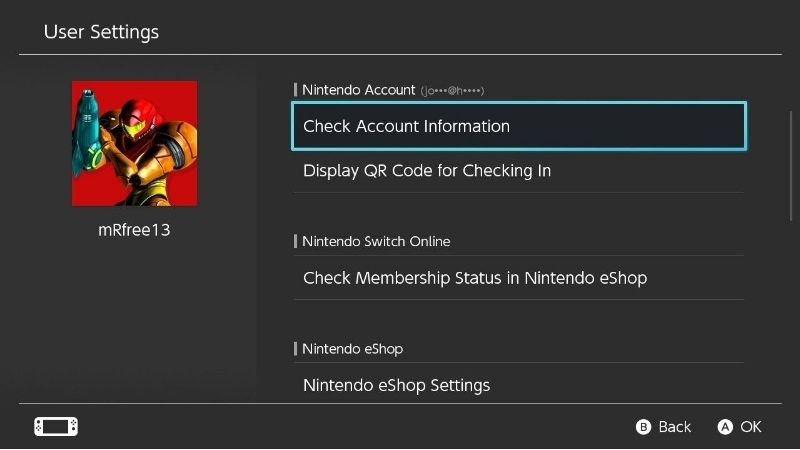
If you have a working password but cannot recall the associated email, Nintendo allows limited account-information checks from a Switch profile already linked to the account. These steps identify the account; they do not transfer game ownership to a different email.
- On the Switch 2 HOME Menu, select your user icon.
- Select User Settings. Nintendo says the Nintendo Account section displays a shortened form of the linked email address, including the first characters and part of the domain.
- If you know the account password, select Check Your Account Information, then Check Using This System, and enter your Nintendo Account password when prompted.
- Use the displayed information to return to accounts.nintendo.com and sign in with the correct credentials.
For the original Nintendo Switch, Nintendo documents a related but slightly different final choice: View e-mail address/Sign in ID. Do not follow that label blindly on Switch 2. If the console profile no longer exists, you cannot remember your password, or the full email cannot be determined, Nintendo instructs customers to contact Support.
When an email address and password are both correct but rejected
Nintendo Accounts can be configured to use Sign-in ID only. In that configuration, typing the email instead of the chosen ID can fail even if the password is valid. Try the Sign-in ID you previously created. For a Google or Apple linked login, only select those options if you had already linked them to this Nintendo Account. A Nintendo Network ID from Wii U or 3DS can no longer be used directly to sign in to a Nintendo Account; Nintendo says that sign-in method was discontinued.
Recover access after losing Google Authenticator or 2-step codes
First separate a broken or unavailable authenticator from a forgotten account password. Nintendo’s Issues with Nintendo Account 2-Step Verification Code guide offers alternate identity checks, but explicitly warns that certain email fallback options are not available if you have also forgotten the password.
- At the Nintendo Account 2-Step Verification screen, select Use another method to verify your identity.
- If you saved one of the 10 backup codes shown when setting up 2-step verification, enter an unused code. Each is single-use; keep it private.
- If you lack a backup code, select Use another method to verify your identity from the backup-code screen. When offered, request an email verification code, then enter it on the official Nintendo sign-in page.
- If the email cannot be received and a phone number was previously registered, Nintendo may offer Use another method to verify your identity again to send an SMS verification code. This is an account-dependent fallback, not a universal SMS-based authenticator setup.
- If none of the available methods works, contact Nintendo Support through the official site for an account-specific recovery review.
If the authenticator is still installed but gives an invalid code, make sure you are reading the code for the correct Nintendo Account, then follow Nintendo’s help for authenticator time synchronization where supported. Do not share a screenshot containing a live one-time code. After successfully regaining access, visit Sign-in and security settings > 2-Step Verification > Edit to review backup codes and, where appropriate, generate fresh codes using Nintendo’s documented controls. Generating new codes can change which previously saved codes remain valid, so update your secure storage immediately.
Use an alternative if your Nintendo passkey stops working
A passkey authenticates using a previously registered compatible device. Nintendo’s Unable to sign in to Nintendo Account using a Passkey explains that trying to use an unsupported device or a device without the registered passkey can fail. The right response is to use a different approved sign-in method.
- On accounts.nintendo.com, if the passkey prompt fails, return to the sign-in choices and select Sign in with password, or select Use another method to verify your identity if Nintendo offers that action on the current screen.
- Try another device on which you previously registered a Nintendo passkey, if available. If you use a phone to authenticate a console sign-in, follow the sign-in prompt for that device.
- After successfully signing in, open Nintendo Account Sign-in and security settings and review Passkey options. Remove a passkey from a device you no longer control using Nintendo’s passkey-management instructions.
- If a passkey does not work on its original phone or computer, contact the device vendor for its passkey troubleshooting and use a different Nintendo sign-in method in the meantime.
Expected result: you can enter the same Nintendo Account using another method and manage the lost passkey safely. Registering a new phone does not automatically restore a passkey that existed only on the old device.
Recover a child Nintendo Account through Family group
Child Nintendo Accounts can have a separate Sign-in ID and password. An adult should not try to authenticate as the child using the adult’s own credentials; the managing parent or guardian uses their own Nintendo Account to access the child’s settings.
- Have the parent or guardian sign in at accounts.nintendo.com with the Nintendo Account that manages the family.
- Select Family group, then the affected child account.
- Open Sign-in and security settings. For a forgotten Sign-in ID, Nintendo says part of the ID appears in the Sign-in ID section; select Edit and confirm the guardian’s password to view the complete ID.
- For a forgotten child password, use the password-management option available to the supervising account and follow Nintendo’s on-screen verification instructions. Nintendo’s password-help article directs families to reset a child’s password through the parent/guardian account.
- Try signing in again with the child’s Sign-in ID and current password. Verify that the expected child profile and associated permissions appear.
Nintendo Accounts for users ages 12 and younger do not register individual email addresses, so sending a normal adult password-reset link to a child’s personal email is not an appropriate recovery method. If the supervising account is also inaccessible, recover that adult account or contact Nintendo Support first.
What to do if you no longer control the Nintendo Account email
If you are still signed in and have another permitted verification method, Nintendo provides an How To Change Your Nintendo Account Email Address procedure. However, being signed in alone does not guarantee you can replace an inaccessible email without proving account ownership.
- On the Nintendo Account website, select Sign-in and security settings.
- On desktop, select Edit in the E-mail address section; on mobile, choose E-mail address.
- Complete any identity check Nintendo requires. If email verification is unavailable but the account already has a registered phone number, use the displayed Use another method to verify your identity option when offered.
- Enter the new email address and select Submit. Nintendo will send a verification code to the new address; enter that code and confirm the change.
If you cannot complete the existing account’s verification, stop and contact official Nintendo Support. A legitimate support representative may need to review ownership according to Nintendo’s own procedure. Do not accept offers from strangers promising to remove security checks for money, and do not send them purchase receipts containing sensitive personal information.
Secure a Nintendo Account after a suspected takeover
Unexpected new-device sign-in alerts, password changes you did not request, or suspicious account verification messages require more than an ordinary password reset. Nintendo’s Nintendo Account Recovery Process specifically addresses potential unauthorized access.
- If you can still access the original Nintendo Account, sign in from the official website and change the password to a unique one not reused with email, shopping, or gaming accounts. If you cannot sign in, use the previous recovery routes and contact Nintendo Support.
- On the Nintendo Account site, select Sign-in and security settings > Sign-in history > View > Sign out from all devices. Nintendo says all devices will need to log in again.
- Review whether the account has a passkey or 2-step verification, add an available recovery method, and store fresh backup codes privately.
- Consider Nintendo’s sign-in restriction: Sign-in and security settings > Sign-in ID > Edit to set an ID, then Sign-in method > Edit > Sign-in ID only > Submit. Only do this if you can reliably retain the new ID.
- Check saved payment information in Funds and Payment Methods. Remove payment methods you no longer want stored; contact the relevant bank or payment provider if you see unauthorized transactions.
- Secure your email inbox and any linked Google or Apple account. Changing only the Nintendo password may be insufficient when the linked login or email account is compromised.
Do not respond to an unsolicited security email by following an unfamiliar link. Instead, navigate to Nintendo’s official account site yourself. After securing access, review sign-in history and account profile details again for changes you did not authorize.
Recover a Nintendo Account pending deletion
Nintendo distinguishes a temporarily deactivated account awaiting deletion from one permanently deleted. According to How to Reactivate a Nintendo Account that is Pending Deletion, the account remains eligible for reactivation for 30 days after the deletion process begins. Nintendo says it cannot restore accounts after that period and cannot guarantee recovery of all data even when reactivation succeeds.
- Within the 30-day period, open the official Nintendo Account website and sign in with the deactivated account.
- When Nintendo displays the deactivation notice, choose Reactivate and follow its confirmation instructions.
- For a deleted child account, have the family administrator sign in, open Family group, select the deactivated child account, choose Reactivate, then confirm.
- Sign in again and check the account’s eShop purchases, subscription information, and profile. Contact Nintendo if any expected information is missing.
After the deadline, do not promise that customer support can restore licenses, funds, or the old account. Nintendo’s policy says permanent deletion cannot be reversed. Creating a new account is a separate action and does not automatically recover purchases made on the deleted account.
When and how to contact Nintendo Support
Official support is the correct escalation point when email access, all verification methods, or account ownership evidence is unavailable. Nintendo’s support website serves different countries and regions, so use the contact options presented for your Nintendo Account region instead of assuming a single U.S. phone number is suitable worldwide.
- Visit support.nintendo.com and navigate to Nintendo Account help, or use the Contact Us option linked from the relevant account-recovery article.
- Explain the precise blocker: no access to registered email, lost authenticator and codes, forgotten child Sign-in ID, unauthorized account change, or pending-deletion message.
- Give the Nintendo Account email or possible addresses and any non-sensitive evidence Nintendo requests through its official support channel. Follow its instructions for proof of ownership.
- Ask what method Nintendo can use to verify your identity and what you should avoid changing on your console until recovery is complete.
Nintendo does not publish one guaranteed recovery outcome or turnaround for every lost-email or compromised-account case. Be skeptical of a third party claiming it can unlock Nintendo Accounts immediately. Never supply a password, 2FA backup code, or real-time verification code in an unsolicited message.
Verify recovery and prevent another lockout
- Sign in to accounts.nintendo.com on a device you control and confirm the correct account nickname, region, and linked console profile.
- Confirm the account still shows the expected Nintendo eShop purchase history and the right Nintendo Switch Online membership, when applicable.
- Update the contact email if necessary and verify you can receive Nintendo messages there.
- Review security settings and keep recovery codes and passkey access in secure storage.
- If the account was compromised, examine recent sign-ins and linked payment methods again, then secure your primary email account.
- Leave unrelated console user profiles and local save data untouched. Account recovery is not a reason to erase the system.
Tools That Help
- Nintendo Account website — free: handles official sign-in, temporary recovery links, account security, and passkey settings; start here for normal credential recovery.
- Email account or registered verification device — generally free with your existing service: receives temporary sign-in and identity-verification messages or presents your already configured passkey/2FA code. Only use the method associated with your account.
- Nintendo Support — official support channel: needed when you lack email access or all eligible recovery methods, or when an attacker changed account details. Contact options depend on region.
You do not need to buy a password-reset utility, modified console firmware, or a third-party recovery service to perform the procedures in this guide.
Frequently asked questions
Can I recover my Nintendo Account without the original email?
Possibly, but it depends on your available identity-verification methods and Nintendo Support’s review. If a registered phone can receive a code, Nintendo may offer it on certain verification screens. If you cannot complete the checks, the official next step is Nintendo Support—not a workaround that bypasses verification.
Will changing my Nintendo Account password delete games?
Changing a password is an account security action, not a command to delete games or console save data. Your purchases remain associated with the original Nintendo Account. Verify that you return to the original account after recovery rather than accidentally using another account.
What if I lost the password and the 2-step verification codes?
Begin with the password recovery workflow if you still have the registered email inbox. Nintendo specifically cautions that some alternate email verification options at the 2-step screen are unavailable when you have also forgotten your password. If that combination blocks recovery, contact Nintendo directly.
Can I use a Wii U or Nintendo 3DS Nintendo Network ID to get back in?
No longer as a direct Nintendo Account sign-in method. Nintendo discontinued the Nintendo Network ID sign-in route. Use Nintendo Account credentials or an already-linked approved sign-in option instead.
Can a parent recover a child’s Nintendo Account?
Yes, through the supervising Nintendo Account’s Family group settings where the adult has the necessary rights. Child accounts use separate credentials, and Nintendo has a dedicated parent/guardian recovery path.
Can a Nintendo Account be recovered after 30 days of deletion?
No. Nintendo states that an account permanently deleted after the 30-day pending-deletion period cannot be restored, along with associated funds and licenses. Within 30 days, reactivation may be possible but complete data recovery is not guaranteed.
Final Thoughts
Recover the original account by the least disruptive verified method. If you still control the registered inbox, request Nintendo’s temporary sign-in link now. If authentication is the problem, check backup codes or registered alternatives. If your inbox is gone or someone else has changed account details, use the official Nintendo Support recovery route. Once access is restored, immediately confirm the correct account, sign out unknown devices, and protect the email and verification methods that keep your purchases accessible.
