
Key takeaways
- Nintendo Switch 2: powered on, accessible at the HOME Menu, and connected to the Internet for linking and synchronization.
- Parent’s Nintendo Account: an account held by a user age 18 or older; sign in with the parent’s credentials, not the child’s.
- iOS or Android device: the free Nintendo Switch Parental Controls app, installed from Nintendo’s official app redirect at p.nintendo.com.
- Family-group access: if you want eShop restrictions or GameChat for a supervised child, make sure the child’s Nintendo Account is in the parent’s family group and marked supervised where applicable.
- Private place to store the PIN: a 4–8 digit parental controls PIN must remain available to the parent, but should not be visible to children.
For a complete Switch 2 parental controls setup, install Nintendo’s free Nintendo Switch Parental Controls app on an iPhone or Android phone, link it to the console, and configure play-time, age-rating, and communication limits. Then use the parent’s Nintendo Account family group to restrict eShop purchases. You can set basic age and communication rules directly on the Switch 2 without a phone, but daily play-time limits and GameChat supervision require the app. Most restrictions affect everyone on the console, so set shared limits for the youngest user. The steps below follow Nintendo of America’s current Switch 2 support instructions, checked October 27, 2026.
Choose the correct place for each parental control
Three Nintendo interfaces handle different jobs: the Switch 2 console, the Nintendo Switch Parental Controls smart device app, and the Nintendo Account family-group website. They are not interchangeable. Nintendo’s Parental Controls overview and its Switch 2 setup instructions separate the controls as follows.
| What you want to control | Where to set it | Important limitation |
|---|---|---|
| Games by age rating | Console or parental controls app | Generally applies to the whole console |
| In-game communication | Console or app | Does not replace separate GameChat permissions |
| Daily time limit and bedtime | Parental controls app | Shared console-wide limit, not a separate timer for every child |
| Play activity reports | Parental controls app | Requires the app and sync |
| GameChat friends and video approval | Parental controls app | Set for the relevant child or supervised user |
| eShop spending and age-filtered store content | Parent Nintendo Account family group | Must target a supervised Nintendo Account |
Start with the app method if your goal includes screen time or GameChat. Choose the console-only method later in this guide if you only need age-rating and regular in-game communication restrictions and do not have a compatible phone. Nintendo does not require purchasing any third-party parental-control product for these features.
What you need before starting
- Nintendo Switch 2: powered on, accessible at the HOME Menu, and connected to the Internet for linking and synchronization.
- Parent’s Nintendo Account: an account held by a user age 18 or older; sign in with the parent’s credentials, not the child’s.
- iOS or Android device: the free Nintendo Switch Parental Controls app, installed from Nintendo’s official app redirect at p.nintendo.com.
- Family-group access: if you want eShop restrictions or GameChat for a supervised child, make sure the child’s Nintendo Account is in the parent’s family group and marked supervised where applicable.
- Private place to store the PIN: a 4–8 digit parental controls PIN must remain available to the parent, but should not be visible to children.
Nintendo’s app-requirements FAQ lists iOS 16.0 or newer and Android 8.0 or newer as supported versions at the time of this check. The official download page is preferable to an unofficial APK listing. Connect the phone and console to the Internet; Nintendo states that Internet access is required for initial linking.
Set up the Nintendo Switch Parental Controls app
The Nintendo support article “How to Link or Unlink Nintendo Switch 2 and the Nintendo Switch Parental Controls App” provides the six-digit pairing flow. Perform the phone steps and Switch 2 steps together while both screens are available.
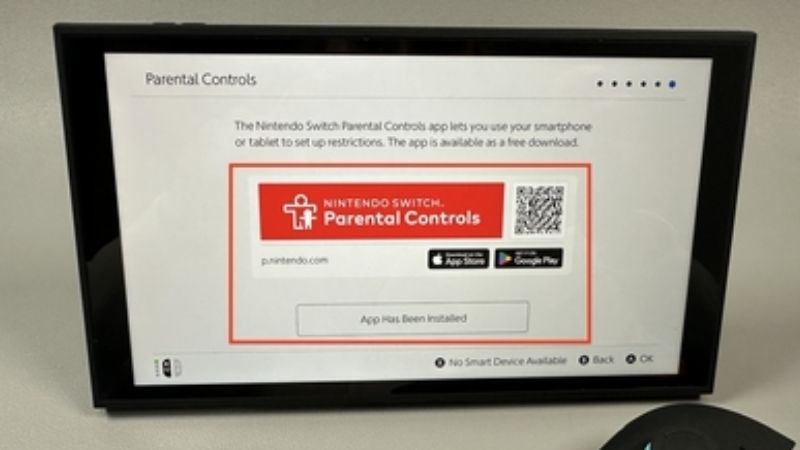
- Install the official app. On an iPhone or Android device, open p.nintendo.com in its browser. Use Nintendo’s link to the Apple App Store or Google Play, install Nintendo Switch Parental Controls, and open it. The app is free; normal mobile-data fees may apply.
- Sign in as the parent. Select Start, advance through the introduction with Next, and choose whether to share optional app usage data. Select Sign In / Create Account, sign in to the parent’s Nintendo Account in the browser, then confirm Select this account when the parent’s nickname appears.
- Get the link code. Return to the app and choose Next. A six-digit Link Code appears. Keep it on screen while moving to the console.
- Open Switch 2 parental controls. On the console’s HOME Menu, choose System Settings > Parental Controls > Set Up Parental Controls, then choose App Has Been Installed. These are Nintendo’s Switch 2 labels; avoid procedures describing legacy Switch options.
- Handle existing console-only restrictions if prompted. If the console shows Change Settings instead of Set Up Parental Controls, you previously configured local parental controls. Select Change Settings, enter your existing PIN, choose Set up in the (free) Nintendo Switch Parental Controls app, then select App Has Been Installed and Next.
- Complete pairing. Type the six-digit Link Code from the phone on the Switch 2, select OK, then Link. Confirm OK on both devices. The expected result is a linked console shown in the parental controls app, ready for configuration.
If the code expires, return to the app’s linking flow to obtain a fresh one instead of guessing. If linking fails, confirm the console has Internet access and the parent signed into the intended Nintendo Account. Do not share the link code with someone outside the household. A parent can link multiple consoles, but must verify which console is selected before changing a setting.
Set a daily play-time limit and bedtime
Open the linked Nintendo Switch Parental Controls app and select Parental Controls in the lower-right corner. Under Play-Time Limit, set an appropriate duration for the family. Nintendo’s documented control ranges from No Limit through 6 hours and includes Vary by Day for separate weekday and weekend settings.
- Select the correct console. If more than one console is linked, use the menu in the upper-left corner to identify the Switch 2 you intend to manage.
- Set daily time. Open Parental Controls > Play-Time Limit and choose a daily limit. Consider starting with a schedule the family can consistently follow, rather than treating the app’s maximum as a recommendation.
- Vary the rule by weekday if needed. Enable Vary by Day to make school nights and weekends different. Review each day before saving.
- Set bedtime. In the same play-time area, set Bedtime if you want play to stop at a particular hour. Nintendo documents bedtime choices from 4:00 p.m. through 11:45 p.m.; the three-dot menu can specify when the system becomes available the following morning, between 6:00 a.m. and 9:00 a.m.
- Decide what happens at the limit. Turn on Suspend Play When Time’s Up if you want the software to stop when a limit is reached. Without that switch, Nintendo says a notification appears but play remains possible. Let the child know in advance that a suspended game may not have saved its progress.
- Save and synchronize. Tap the app’s red Save button. Nintendo says app-set restrictions take effect when the Switch 2 next connects online. Keep the console connected long enough for the change to arrive.
If both a daily Play-Time Limit and Bedtime are configured, the earlier restriction applies. For example, choosing a two-hour limit does not let a child continue past a 9:00 p.m. bedtime simply because unused time remains. Nintendo also permits a parent to extend that day’s play time by 5, 15, or 30 minutes, or by an hour, or disable that day’s limit. These are parent decisions, not automatic rewards.
Crucial family limitation: the time limit is a console-wide rule. Even if individual play history is viewable for accounts, the shared timer is not a separate two-hour allocation for each user. On a shared system, coordinate who gets access and avoid describing the setting as a per-child quota.
Choose age ratings and communication restrictions
In the app, open Parental Controls > Restricted Features to choose a preset restriction level or Custom Settings. Nintendo documents Child, Pre-Teen, and Teen presets. For U.S. ESRB-based restrictions, its support table lists Child as restricting games rated ages 8 and up (including Everyone 10+), Pre-Teen as restricting games rated 13 and up, and Teen as restricting Mature-rated games (ages 17+). Confirm the intended rating organization; it can differ outside the U.S.
Use Custom Settings if one preset blocks an acceptable title while allowing a feature your household does not want. Adjust Restricted Software, Communicating with Others, and the software rating organization as described in the app. Nintendo states the communication control covers in-game chat and exchanges, but does not itself manage GameChat. Configure GameChat permissions separately below.
The app’s Allow List can exempt selected games from a software-rating restriction. The listed game can run without entering the parental controls PIN, but Nintendo specifies that daily play-time limits still apply. If a title is not available to add, launch it on the Switch 2 once, then check the app again. Review the allow list periodically rather than permanently bypassing all restrictions for convenience.
Approve GameChat friends and video on Switch 2
GameChat includes voice chat, optional video, and screen sharing. Nintendo says children under 16 and supervised users need linked app-based parental controls to use GameChat; the parent manages approvals for that specific user. GameChat also requires a Nintendo Account, an Internet connection, and a Nintendo Switch Online membership under Nintendo’s current U.S. support guide.
- Set up family roles first. Visit Nintendo’s account site and sign in as the parent. Under Family group, ensure the parent has the Parent/Guardian role and the child’s account is in the group with a supervised role where required. An invited existing account may need to accept an emailed request.
- Complete app permission setup. In Nintendo Switch Parental Controls, select GameChat, follow Next > Set Up Parental Controls, and choose the child’s supervised user account. Nintendo’s setup flow requires phone-number verification on the parent’s Nintendo Account to complete GameChat parental controls.
- Request approval from the console. On Switch 2, press the C Button to open the C Menu, choose the child’s user, finish any GameChat prompts, and select Select Friends and Request Approval. Choose the friends, then Send Request.
- Review the request on your phone. Open the app’s GameChat section or approval notification, then select New chat-approval requests. Review each person, discuss with your child who the person is, select Next, and approve only the contacts you recognize. Nintendo lets the parent record a note about the approved friend.
- Decide video permissions separately. Within the child’s GameChat settings, use the three-dot menu by the username and select Using Video Chat. Nintendo provides options to require approval for each video session or to prohibit video chat; select the rule you want rather than assuming friend approval also permits video.
Approval must be mutual: the person on the other end, or their parent/guardian, may also need to approve the connection. Parents can withdraw a previously granted friend permission in the app using Withdraw GameChat Permission. Reviewing GameChat history can show who the child chatted with and for how long, but the app should not be described as a substitute for talking with a child about online contacts.
Block purchases in Nintendo eShop separately
A Parental Controls PIN and software age limit do not automatically block purchases. Nintendo’s official “How to Set Nintendo eShop Restrictions” places spending restrictions in the parent’s Nintendo Account, not under the console’s Play-Time Limit menu.
- On a phone or computer, open accounts.nintendo.com and sign in with the parent/guardian Nintendo Account.
- Select Family group, then choose the Nintendo Account that belongs to the supervised child. If the account is not supervised, finish the family-group supervision setup first.
- Find Spending Restrictions. Check the option to disable purchases and auto-renewal. Nintendo says this restriction can apply to Switch 2, Switch, and Nintendo Store purchases for that supervised account.
- For additional filtering, enable Age-Based Content Restrictions to restrict content visible in the Switch 2 eShop according to the user’s age.
- Select Save changes. Verify the restriction is attached to the correct child’s account, not just the parent’s console profile.
Nintendo describes a spending restriction as a purchase block, not a configurable “$20 per month” cap. If you want to control a discretionary amount instead, Nintendo discusses adding a specific amount to an account balance as an alternative budgeting approach. Do not enter payment information into an unfamiliar link promising to activate parental controls.
Set up basic controls directly on the console without a phone
You can still block age-inappropriate games and regular in-game communication without the app. On Switch 2, go to HOME > System Settings > Parental Controls > Set Up Parental Controls. Nintendo says to press the X Button when prompted about the app, then choose Next to continue with local setup. Select Restriction Level, then Child, Pre-Teen, Teen, or Custom Settings. Choose Next, create a 4–8 digit PIN, and re-enter it to confirm.
Nintendo’s console guide says the default control-stick PIN entry assigns numbers to stick directions; holding the + Button switches to a keypad. In TV mode, take care not to expose the PIN in front of a child. To edit later, use System Settings > Parental Controls > Change Settings, enter the PIN, then follow Change Parental-Controls Settings > Restriction Level and save.
Remember what this method cannot do. It does not supply the app-exclusive daily timer, playback history, or child GameChat approvals. If you later add a phone, Nintendo’s pairing guide explains how to move from console-only settings to app management using Change Settings and the existing PIN.
Verify the restrictions and fix common setup problems
| Issue | First safe check | Expected result |
|---|---|---|
| App says no console is linked | Confirm adult account and Internet; repeat six-digit Link Code pairing | Switch 2 appears in app |
| App changes have not appeared | Tap Save, reconnect console to Internet, then check app sync | New limit/restriction is reflected on console |
| Child can still play after time notification | Enable Suspend Play When Time’s Up | Gameplay suspends at the limit |
| Child can still buy games | Check supervised account’s Spending Restrictions on Nintendo Account site | Purchase block targets correct account |
| GameChat request cannot be approved | Check parent/guardian role, supervised user, phone verification, and app setup | Child appears in GameChat approval flow |
| Allowed game still stops at bedtime | Review Play-Time Limit and Bedtime; allow list does not bypass time rules | Expected earlier time rule is understood |
| PIN unknown | Use linked app’s Parental-Controls PIN view or Nintendo’s official reset flow | Parent regains authorized access |
To verify a new rating restriction, open a game with a rating above the selected age threshold while the console is online. The parental controls screen or PIN request should behave as Nintendo describes. To verify spending controls, check the child’s restriction status on the Nintendo Account website; do not perform a real purchase as an unnecessary test. For play time, check the app’s saved values and the console’s displayed parental-control status rather than waiting for an unsaved game to be forcibly interrupted.
If the PIN is lost, Nintendo’s official support page “Forgot Parental Controls PIN on Nintendo Switch 2” recommends viewing it in the linked app under Parental Controls > Parental-Controls PIN, or using Nintendo’s authorized PIN-reset process if the app is unavailable. Nintendo warns that repeatedly entering an incorrect PIN can temporarily block attempts. Avoid unofficial PIN generators or unverified bypass videos. If you unlink the app, Nintendo warns the console’s linked parental restrictions are removed, although separately configured Nintendo Account eShop restrictions remain.
Tools That Help
- Nintendo Switch Parental Controls app: free official iOS/Android app for play limits, reports, age restrictions, and GameChat approvals; use it when you need more than console-only controls.
- Nintendo Account Family group: free account-management feature in a browser at accounts.nintendo.com; required for supervised-account purchase restrictions and family roles.
- Nintendo Support: free official setup, linking, and PIN recovery articles; consult them when the pairing code fails or an existing PIN prevents a setting change.
Frequently asked questions
Can each child have a different daily time allowance?
Not through the console-wide Play-Time Limit. Nintendo says it applies to the system, although the app can present activity by individual users in supported circumstances. For household time sharing, set a shared console rule and agree on a schedule separately.
Will an age-rated game exception also bypass bedtime?
No. Nintendo’s allow list can exempt a particular game from the restricted-software rule but does not cancel the daily play-time limit. The earlier of Play-Time Limit and Bedtime still matters.
Is a Nintendo Switch Online membership needed just to set parental controls?
No membership is listed as a prerequisite for the free parental controls app. GameChat itself has separate service requirements, including a Nintendo Switch Online membership under Nintendo’s current GameChat support instructions.
Can a second parent help manage the same Switch 2?
Yes. Nintendo’s Parental Controls app update released September 14, 2026 added shared parental controls for two guardians in the same Nintendo Account family group. Set up sharing from the app after the console is linked, and verify that the second guardian uses their own authorized Nintendo Account.
Final Thoughts
Start with three concrete decisions: set an age-appropriate Restricted Features level in the app, choose a realistic Play-Time Limit plus whether Suspend Play When Time’s Up should operate, and block eShop purchases for the supervised child through the Nintendo Account Family group if spending needs approval. If GameChat will be used, review the child’s friend and video permissions separately. Save the changes, connect Switch 2 to the Internet, and verify that the intended restriction is active before handing over the console.
