
Key takeaways
- Power: Inspect the adapter and USB-C cable for splits, kinks, fraying, or loose connections. Use NGN-01 and connect to a wall outlet during diagnosis.
- Dock: Confirm BEE-005 and inspect its USB-C seating area. Remove a protective console case if it interferes with insertion. Do not force a connection or probe the port with metal objects.
- HDMI: Nintendo specifies an Ultra High Speed HDMI cable for the Switch 2 video connection. Prefer the cable included with the console; if swapping, use another verified Ultra High Speed cable.
- Ventilation: Keep the dock and console vents free of obstructions. If either unit feels abnormally hot, stop using it until the device is safe to handle and follow Nintendo’s heat-related guidance.
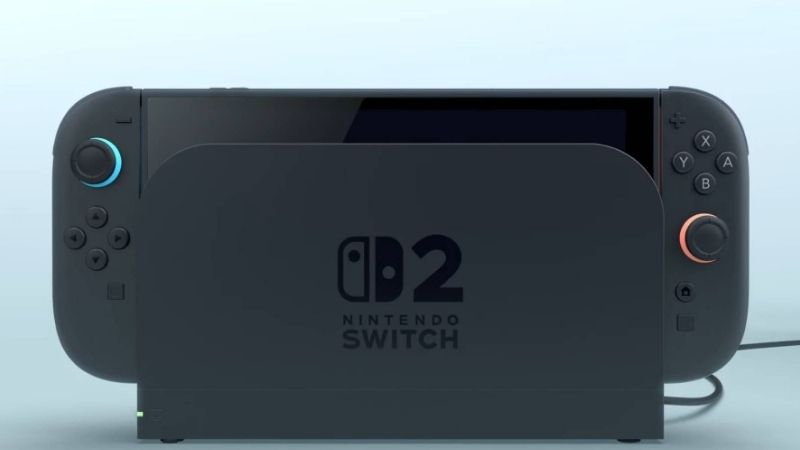
If you are facing a Switch 2 dock black screen, first confirm that the console works in handheld mode. Then check the TV input, the Nintendo Switch 2 power adapter, and the HDMI connection before changing any display settings. Nintendo recommends connecting the dock directly to a wall outlet and directly to the TV, temporarily bypassing soundbars and HDMI switches. A black console screen can be normal while docked; a blank TV is the issue you need to isolate. The steps below identify whether power, the dock, HDMI, a display setting, or the console needs attention without deleting saves or factory-resetting the system.
First identify which screen is black
Do not treat every black screen as the same problem. On Nintendo Switch 2, the handheld display normally turns off when the console enters TV mode. If the TV is showing the HOME Menu, the console turning black is expected. The dock has a TV output LED, but its behavior matters more than the mere presence of a light: Nintendo says a brief flash when the adapter is connected is normal and a solid green LED is expected when an image is being shown on the TV.
| What you see | What it suggests | First check |
|---|---|---|
| TV says “No Signal”; handheld screen works | Input, HDMI link, TV compatibility, or dock output | Select the HDMI input, then connect dock directly to TV |
| Console screen stays on while seated in dock | TV mode may not be engaged | Check correct dock, seating, power, and remove case |
| Console turns black in dock; TV remains black | Docking may be recognized, but video is not displayed | Check direct HDMI, alternate port/cable, then video settings |
| Dock TV output LED blinks continuously | Separate dock LED fault path | Follow Nintendo dock LED troubleshooting |
| Console is also black when removed from dock | Console power, charge, or wake issue | Troubleshoot handheld power first |
| Video works until entering a game | Video mode, refresh rate, HDR, or TV handshake may matter | Test a lower compatible video mode, then restore settings |
These are diagnostic clues, not a hardware verdict. For example, a TV can report “No Signal” because the wrong HDMI input is selected, while a working dock may still fail through an incompatible receiver. Stop after any step that restores a stable picture.
Check handheld operation and restart safely
Nintendo’s blank-TV procedure starts by establishing that the console itself works, rather than assuming the dock has failed. You need the console, its adapter, a TV, and access to a wall outlet.
- Turn off the TV, remove the console from the dock, and disconnect all cables from the dock.
- Unplug the Nintendo Switch 2 AC adapter from both the wall and dock or console. Wait at least 30 seconds. This is a power reset, not a factory reset.
- Plug the adapter directly into the bottom USB-C port on the console and into a wall outlet. Do not redock yet.
- Press the physical POWER button once. Confirm that the handheld display shows the HOME Menu and that the system can charge.
- If the HOME Menu works, choose System Settings > System > System Update to check for an update when an Internet connection is available. Do not interrupt an update.
If the handheld screen stays black, follow Nintendo’s separate “System Has No Power, a Blank Screen, or Won’t Wake Up” guide. For an unresponsive console, Nintendo documents holding POWER for 20 seconds to force a shutdown, releasing it, connecting power, and pressing POWER again. This is for a frozen or unresponsive console, not the first step when the handheld display is already operating normally. If the charge indicator briefly appears on a depleted system, Nintendo recommends letting it charge for 15–30 minutes before retesting. A console that will not power up or charge needs power troubleshooting or service rather than repeated HDMI changes.
Verify the Switch 2 dock, adapter, and HDMI cable
Original Nintendo Switch accessories are not automatically suitable for Nintendo Switch 2 TV mode. Nintendo identifies the Switch 2 dock as model BEE-005 and the official Switch 2 AC adapter as model NGN-01. The older Nintendo Switch adapter, HAC-002, can charge Switch 2 directly but cannot power Switch 2 TV mode through the dock. For an alternative adapter, Nintendo specifies at least 54W output; unlicensed options may still have compatibility problems, making NGN-01 the most reliable troubleshooting reference.
- Power: Inspect the adapter and USB-C cable for splits, kinks, fraying, or loose connections. Use NGN-01 and connect to a wall outlet during diagnosis.
- Dock: Confirm BEE-005 and inspect its USB-C seating area. Remove a protective console case if it interferes with insertion. Do not force a connection or probe the port with metal objects.
- HDMI: Nintendo specifies an Ultra High Speed HDMI cable for the Switch 2 video connection. Prefer the cable included with the console; if swapping, use another verified Ultra High Speed cable.
- Ventilation: Keep the dock and console vents free of obstructions. If either unit feels abnormally hot, stop using it until the device is safe to handle and follow Nintendo’s heat-related guidance.
The most useful test is the complete Nintendo-supported combination: Switch 2 console + BEE-005 dock + NGN-01 adapter + Ultra High Speed HDMI cable. A generic USB-C charger might be able to charge a handheld console without supplying enough power for a docked picture. Do not replace the console or buy a third-party dock simply because TV mode fails with an unverified charger.
Rebuild the direct TV connection in the correct order
With the console now confirmed to work in handheld mode, reconnect only the components needed for TV mode. This removes variables such as a receiver, capture card, splitter, HDMI switch, USB-C hub, or soundbar.
- Keep the console out of the dock. Plug the Nintendo Switch 2 adapter into the dock power input and connect it directly to a wall outlet for testing.
- Connect an Ultra High Speed HDMI cable from the dock HDMI output directly to an HDMI input on the TV. Temporarily disconnect intervening adapters, receivers, switches, soundbars, and capture devices.
- Turn the TV on. On its remote, use Input or Source to select the exact HDMI socket used. TV menu labels differ by manufacturer; verify the number printed beside the socket.
- Remove any protective case and lower the Switch 2 into its dock with the console screen facing the same direction as the front of the dock. Make sure the console seats fully without being forced.
- Check for the HOME Menu on the TV. If it appears, leave the direct setup connected long enough to test sleep/wake and a game before reintroducing any other HDMI device.
Expected result: the console screen turns off as the picture appears on the TV, and the dock’s TV output LED remains solid green while output is active. If the TV is still blank, try another HDMI input on the same TV, then another Ultra High Speed HDMI cable, then a second TV if one is available. Change only one component at a time so you can identify which change restores the image. If a direct connection works but an HDMI receiver or capture device does not, follow that accessory maker’s compatibility guide rather than adjusting the console at random.
Use the dock LED to choose your next test
Nintendo distinguishes a normal momentary LED flash from continuous flashing. A brief blink when power is first connected is not proof of a problem. The LED should be solid green when the dock is displaying an application on the TV. If it keeps blinking, Nintendo has a dedicated LED procedure.
- Undock the Switch 2 and check System Settings > System > System Update in handheld mode.
- Restart the console by holding POWER for at least three seconds, then selecting Power Options > Restart. Use a forced shutdown only if the system will not respond.
- If the dock can be operated normally for a firmware check, go to System Settings > System > Dock Update and follow the onscreen prompt. The console must be docked to perform a dock update.
- If blinking continues, remove the console, unplug HDMI and power, wait 30 seconds, inspect the adapter and dock, and reconnect the official components directly as described above.
Important limitation: if the TV is completely blank, you may not be able to see or complete the dock-update menu while docked. Do not try to navigate an unseen firmware update blindly. Prioritize restoring video with the direct-cable tests, or contact Nintendo if you cannot carry out the update normally. Nintendo does not instruct users to download an unofficial dock firmware file.
Adjust TV output only when the settings are accessible
If the console displays on one TV but not another—or the picture fails at a particular resolution—review output compatibility. Nintendo Switch 2 uses HOME Menu > System Settings > Display, rather than the old Switch’s “TV Settings” wording. Nintendo lists TV Resolution settings of Automatic, 720p, 1080p, 1440p, and 2160p (4K). Which modes are selectable depends on the attached display and the current mode; Nintendo notes that some resolution choices require the system to be docked.
- On a TV where you can currently see the Switch 2 interface, open HOME Menu > System Settings > Display > TV Resolution.
- Start with Automatic. If the picture drops when a high-resolution mode is selected, temporarily test 1080p (Full HD) or 720p (HD) if that option is available. Confirm that the HOME Menu remains visible.
- Within System Settings > Display, test 120 Hz Output off and set HDR Output to Off when diagnosing a TV that loses the signal only in a certain display mode. Test one change at a time.
- If the TV or receiver has a VRR setting, Nintendo recommends trying VRR off on the TV for no-video cases. The Switch 2 also exposes Display > VRR Settings; disable VRR Output temporarily only when you can access the menu and reproduce the issue.
- After finding a stable picture, return to Automatic TV Resolution or your preferred supported settings, restoring features individually so you know which option causes trouble.
Do not assume 4K, 120 Hz, HDR, or VRR is supported over every TV HDMI port or through every intermediary device. Nintendo notes that 120 Hz output is for compatible software and displays at 1080p or 1440p. A second HDMI port may have different supported modes. If your Switch 2 shows no picture anywhere, you cannot reliably change dock-dependent output settings on a screen you cannot view; go back to the power, cable, input, and alternate-TV tests instead.
If the display fails only after waking from sleep
A black screen after sleep can look like a broken dock even when the TV and console have previously worked together. First wake the console and verify the correct HDMI input. If the console becomes responsive in handheld mode, use POWER for three seconds > Power Options > Restart and then redock it. After a picture returns, retest by putting the console to sleep and waking it several times.
In System Settings > Display, Nintendo offers Match TV Power State, which coordinates TV power and console sleep where compatible. If the wake-up sequence is inconsistent, temporarily toggle Match TV Power State off, test again, and restore it if it was not the cause. Some TVs name the related HDMI control HDMI-CEC, but the precise label depends on the manufacturer. Do not change unrelated factory or service-menu settings on the TV. If only one TV has the problem, consult the TV manufacturer’s HDMI control guidance.
Know when the hardware needs Nintendo service
After testing with the correct adapter, an Ultra High Speed cable, multiple TV HDMI inputs, and a direct dock-to-TV connection, use any known-good second TV or Nintendo Switch 2 dock available to isolate the fault. Nintendo says that if a second dock works, the original dock is the likely service item. If no TV produces an image even after the approved checks, Nintendo’s general blank-TV instructions advise servicing the Switch 2 and dock; its narrower no-video procedure can direct service for the dock. The actual service package depends on the symptoms and Nintendo’s support assessment.
| Result after testing | What to tell support | Next step |
|---|---|---|
| Second dock works with same Switch 2 and TV | Original dock fails; other dock succeeds | Ask Nintendo about servicing original dock |
| Another TV works with original dock | TV-specific HDMI compatibility or input problem | Review affected TV settings and manufacturer support |
| No TV works with correct adapter, cables, dock | Persistent TV mode failure after verified direct setup | Contact Nintendo to determine console/dock service |
| Handheld also fails to display or charge | Problem occurs before TV mode | Use Nintendo handheld power service path |
| Only a soundbar/receiver path fails | Direct dock-to-TV connection works | Ask accessory manufacturer about video passthrough |
Record whether the dock LED is solid, flashing, or off, whether the handheld screen stays on when docked, and which HDMI port, cable, adapter, and TV were tested. Also note any power-adapter message shown after undocking. These observations are more useful to support than repeated guesses about a “dead HDMI port.” Avoid opening the dock, soldering the connector, using unauthorized firmware, or restoring factory settings to solve a video-output problem.
Tools That Help
- Nintendo Switch 2 AC adapter (NGN-01) and dock (BEE-005) — included hardware: use the correct components to rule out insufficient power and incompatible older Switch accessories. No purchase is needed if you have the supplied set.
- Ultra High Speed HDMI cable — included hardware: test the supplied cable and, only if available, a second known-good cable to isolate an HDMI failure.
- Switch 2 System Settings and Nintendo Support — free: use System Update, Display options, and Dock Update only when accessible; use the official service process if tests point to a hardware fault.
Frequently asked questions
Why does my Nintendo Switch 2 screen go black when docked?
That can be normal. Nintendo says the console screen switches off while a picture is displayed on the TV in TV mode. If the TV also goes black or reports no signal, check input selection, correct power, direct HDMI, and whether the console works in handheld mode.
Can I use my old Switch charger or HDMI cable for Switch 2 TV mode?
Do not rely on those accessories when troubleshooting. Nintendo states that the old HAC-002 AC adapter cannot power Switch 2 TV mode through the dock, even though it can charge Switch 2 directly. Nintendo also specifies an Ultra High Speed HDMI cable for the new setup.
Does a blinking green dock light mean the dock is broken?
Not necessarily. A brief flash when the adapter is plugged in is normal. Continuous flashing needs Nintendo’s separate TV output LED troubleshooting. A solid green light while the TV picture is displayed is the expected operating state.
Can a TV resolution change fix a black screen?
Sometimes, if video already works on another TV or at a lower mode and the settings can be accessed. Use System Settings > Display > TV Resolution to try Automatic or a supported lower mode. It is not a practical first step when the console cannot display menus on any TV.
Should I factory-reset the console to fix the dock?
No. A factory reset can remove local data and does not isolate power, HDMI, TV input, or a defective dock. Work through the reversible checks and Nintendo’s service procedure first.
Final thoughts
For the next test, undock the console, confirm handheld mode works, then reconnect the official Switch 2 power adapter and Ultra High Speed HDMI cable directly to one TV. Select the matching HDMI input before docking. If the image returns, add other HDMI devices one at a time; if not, swap the HDMI port, cable, or TV in that order. Use System Settings > Display only after you have a visible menu. If a second compatible dock succeeds where the original fails, document the result and contact Nintendo about dock service instead of resetting your console.
