
Key takeaways
- PS Remote Play for Windows — free: Sony’s official client is required to connect a PC to a PS5 or PS4. Use it to sign in, select a console, and inspect Remote Play connection information.
- PS5 Test Internet Connection — built in, free: Open Settings > Network > Connection Status > Test Internet Connection when the stream is slow or unreliable; it provides an estimated network check, not an end-to-end latency benchmark.
- USB data cable and compatible controller — no new purchase if already owned: Use a DualSense, DualSense Edge, or DUALSHOCK 4 with a working USB data cable to establish a reliable baseline before experimenting with wireless controller behavior.
To set up PS Remote Play on PC, install Sony’s free PS Remote Play app on a compatible Windows computer, enable Remote Play on your PS5 or PS4, connect a supported controller, and sign in to the app with the same PlayStation account used on your console. Select PS5 or PS4 in the app to connect. For wake-from-Rest-Mode access on PS5, you must also enable the two corresponding power-saving options. Start with both devices on your home network before trying an away-from-home connection; doing this makes account, pairing, and network problems much easier to identify.
What you need before starting
Remote Play streams a game that runs on your actual PlayStation console; it does not install PS5 games on your PC or turn a Windows laptop into a standalone PS5. Your console must be available, updated, connected to the internet, and signed in to the PlayStation account you intend to use. Sony’s official Windows setup guide lists these PC requirements:
| Requirement | Sony’s documented Windows requirement | Why it matters |
|---|---|---|
| Operating system | Windows 10 (64-bit) or Windows 11 | Use a supported Windows installation rather than an older or 32-bit release. |
| Processor | 7th-generation Intel Core or later | This is the processor family listed in Sony’s PC requirements; check your actual computer against the official support page. |
| Memory and storage | 2 GB RAM or more; 100 MB free storage or more | Space is for the client app, not for downloading the streamed game. |
| Display and audio | 1024 x 768 resolution or higher; sound card | The client needs to display and play the incoming stream. |
| Controller and port | USB port; DualSense, DualSense Edge, or DUALSHOCK 4 plus a USB cable | Sony’s Windows setup instructions use a wired controller connection. |
| Network | At least 5 Mbps upload and download; 15 Mbps or more recommended | Both directions matter, particularly upload from the console’s location. |
You also need an account for PlayStation and a PS5 or PS4 with current system software. These are Sony’s published entry requirements, not a promise that any computer or network meeting only the minimum will deliver low-latency gameplay. Real-world smoothness also depends on congestion, Wi-Fi interference, latency, and how your home and remote networks are configured. The supported Windows client is downloadable from Sony’s PS Remote Play website.
Install PS Remote Play on a Windows PC
- Open Sony’s Windows download guide. On your PC, visit the official PS Remote Play Windows instructions at remoteplay.dl.playstation.net/remoteplay/lang/en/1100001.html. This is Sony’s own download path. Avoid installers promoted as unofficial ‘Remote Play unlockers’ or third-party repacks.
- Accept the displayed terms. Read the Sony Interactive Entertainment application end user license agreement and privacy policy. Select the agreement checkbox; Sony says that doing so enables the Download button.
- Download and run the installer. Save the installer to a location you can find, run it, and follow its on-screen prompts. If the installer asks for additional software needed by PS Remote Play, follow the installer instructions rather than searching for random download mirrors.
- Launch PS Remote Play. Open the installed app using the Windows Start menu. You should reach the app’s sign-in screen. If the installer closes but no app appears, check the Start menu before running the installer again.
- Allow legitimate connection prompts. If Windows asks whether the Sony app can communicate on your network, review the app name and grant the appropriate access for your trusted home network. Do not disable Windows security controls globally to make the app work.
Expected result: PS Remote Play opens and offers Sign In. At this point the PC installation is ready, but the console may still need Remote Play enabled. Sony currently lists version 9.5.0 in its Remote Play update information; follow the app’s own update prompt if a later build is offered instead of assuming an older version number is permanent.
Enable Remote Play on your PS5
The following steps use Sony’s PS5 menu names and apply to each console user who intends to stream. Complete them on the physical console while you still have easy access to its TV and controller.
- Confirm a signed-in console account. Turn on PS5 and sign in to the account for PlayStation you will also use in the Windows app. If you have multiple user profiles, select the intended one before configuring Remote Play.
- Enable Remote Play. From the PS5 home screen open Settings > System > Remote Play. Switch on Enable Remote Play. The enabled toggle is the immediate confirmation that the console is configured to accept supported sessions for that user.
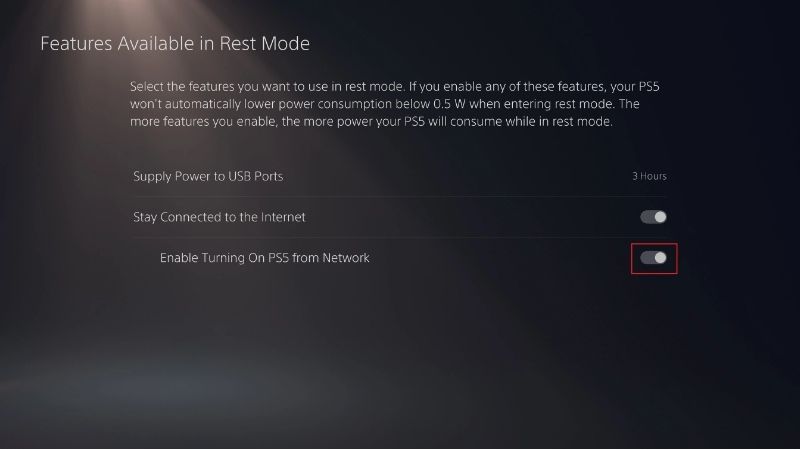
- Configure Rest Mode access if needed. Open Settings > System > Power Saving > Features Available in Rest Mode. Turn on Stay Connected to the Internet and Enable Turning On PS5 from Network. These are essential when you want the PC app to wake a PS5 resting at home.
- Check system software. Visit Settings > System > System Software > System Software Update and Settings > Update System Software. Install a Sony-offered update if needed, following the onscreen directions without interrupting power. Do not reinstall system software or factory-reset the console as a first-time setup step.
- Leave the console on or put it into Rest Mode. For a first test, leave PS5 fully on. Once your local connection succeeds, try Rest Mode with the two power-saving toggles enabled.
Expected result: Remote Play is enabled for your PS5 user and the console can be discovered while it is on. Rest Mode wake-up is a separate capability, so a successful connection with the console already on does not by itself prove that remote wake is configured correctly. A completely powered-off PS5 is different from a PS5 in Rest Mode.
Connect your controller and sign in from the PC
Sony documents DualSense, DualSense Edge, and DUALSHOCK 4 controllers for its Windows client. For your first session, use a known-good USB data cable rather than troubleshooting Bluetooth at the same time as the console connection. A cable that only supplies charging power may fail to provide the required data connection.
- Plug in the controller. Connect your supported PlayStation controller to an available USB port on the PC. If Windows does not recognize it, try another known-good data cable or USB port before editing drivers or system settings.
- Launch the Windows app. Open PS Remote Play and select Sign In. Authenticate with the same account for PlayStation already signed in on the PS5. Complete any legitimate account security challenge using Sony’s own sign-in flow.
- Choose the host. Select PS5. The app searches for a console using that account and attempts to connect. If multiple consoles appear, choose the console you intend to control.
- Verify the stream. After connection, the PS5 display should appear inside the PC app. Move around the console home screen with the connected controller. Start a Remote Play-compatible game to check both picture and controls.
- Repeat the setup test. Disconnect cleanly, put the console into Rest Mode, and attempt to connect again. Only after this succeeds locally should you test from a different network away from home.
If you see a video quality setting before connecting, it is fine to leave it at its default. Sony’s app exposes controls for Remote Play video quality, but the behavior varies by host console. Do not assume that every PS5 session offers a fixed selectable resolution or frame-rate menu; Sony says PS5 stream quality adjusts automatically according to network status.
Pair a PS5 manually if automatic discovery fails
If the PC cannot find the PS5 during initial setup, Sony provides an official pairing procedure. Put the PC and console on the same network first. Pairing is not a substitute for a healthy internet connection, the correct account, or enabling Remote Play.
- Display the pairing number. On the PS5 home screen, open Settings > System > Remote Play > Pair Device. The console displays a numeric code.
- Begin the connection in Windows. Open PS Remote Play on the same local network, sign in with the console account, and choose PS5. Follow the app’s manual registration or code-entry prompt when automatic discovery does not complete.
- Enter the console’s number. Type the currently displayed pairing number into the app and complete registration. A successful session should load the PS5 screen on your PC.
- Test the link again. Quit and reconnect while both devices remain on the local network. If the client still cannot pair, check console account, internet access, firewall prompts, and app updates before touching advanced router settings.
Security note: Treat the pairing number as a device-linking credential. Enter it only in Sony’s PS Remote Play application; you do not need to share it with strangers, account-recovery websites, or remote ‘support agents.’
Set up PS Remote Play on PC with a PS4 instead
The Windows application handles both PS5 and PS4, but the console settings are different. If your host is a PS4, do not follow the PS5’s System > Remote Play path.
- Enable the feature. On PS4, go to Settings > Remote Play Connection Settings > Enable Remote Play.
- Activate the console for the account. Go to Settings > Account Management > Activate as Your Primary PS4 > Activate. Sony notes you can activate only one primary PS4 for each account at a time.
- Allow Rest Mode access if desired. Go to Settings > Power Save Settings > Set Features Available in Rest Mode and enable Stay Connected to the Internet and Enable Turning On PS4 from Network.
- Connect from Windows. Plug in the controller, launch PS Remote Play, sign in to the same PlayStation account, and choose PS4.
- Pair manually if prompted. On PS4 choose Settings > Remote Play Connection Settings > Add Device and enter the displayed number in the Windows app. Use this after confirming both systems share a network.
Expected result: The PC shows your PS4 interface. A DualSense controller’s use with general Windows games should not be confused with Sony’s documented host-and-controller support for each Remote Play connection.
Improve video quality and reduce input delay
Remote Play responsiveness depends on more than the advertised speed of your internet plan. The console must upload the stream, the client must download it, and both networks must deliver packets with consistent timing. Sony sets a 5 Mbps minimum in each direction and recommends 15 Mbps or more in each direction for better performance. These are connectivity recommendations, not guaranteed 1080p, 60-fps, or latency results.
| Symptom | Most useful first check | Next action |
|---|---|---|
| Picture pauses, flickers, or becomes blurry | Stop major downloads or video streams on other devices | Use Ethernet at the console and, if practical, on the PC |
| Controls feel delayed | Test the same session locally with a wired controller | Compare Ethernet with Wi-Fi and reduce network congestion |
| PS5 will not wake remotely | Verify both Rest Mode network toggles | Test while at home before trying away-from-home access |
| PS5 cannot be discovered | Check account, Remote Play toggle, internet, and system software | Use Pair Device on the same network |
| Remote Play fails only on another network | Test successfully on the home network first | Inspect NAT Type and ask ISP about network restrictions |
| Microphone is silent | Check the app’s microphone status icon | Verify the selected Windows microphone and access permission |
Use Ethernet before changing router security
Sony recommends wired network connections for the console and client when a Remote Play stream is unstable. If a cable is practical, connect the PS5 to your router by Ethernet, then try the PC on Ethernet as well. This removes Wi-Fi signal variation from the first diagnosis. If only Wi-Fi is possible, reduce physical obstructions and crowded traffic, and compare performance while near the router.
Know what video controls do—and do not—offer
In Sony’s Windows instructions, app Settings can show video quality controls. However, Sony states that the PS5 stream is adjusted automatically with network conditions. Its troubleshooting instructions specifically describe lowering Video Quality for Remote Play (PS4) when using a PS4; they do not establish an identical manual resolution selector for all PS5 configurations. Start with the app’s default quality and improve network stability before forcing settings documented for another host.
Check audio, voice chat, and full-screen behavior
During a session, move the mouse over the Remote Play window to expose the control panel. Sony documents an app volume control, Mic Active/Mic Muted button, controller battery indicator, and full-screen controls. If audio is silent, first inspect the app volume and the PC’s playback device. If voice chat does not work, click the microphone status control and review Windows microphone access for the app. An integrated or external microphone may be used where supported.
Fix connection failures without risky resets
The app never discovers the console
- Check account and service access. On PS5 open Settings > Network > Connection Status and confirm internet and PlayStation connectivity. Make sure the PC signs in to the identical PlayStation account.
- Update Sony software. On PS5 open Settings > System > System Software > System Software Update and Settings > Update System Software. Launch the PC app and install an update when the Sony client prompts for one.
- Try manual pairing. Follow the Settings > System > Remote Play > Pair Device method on the same home network and look for the pairing number.
- Retest locally. Attempt a connection while both systems are nearby. If it still fails, compare what happens when the console is fully on versus in Rest Mode to identify a wake-only failure.
Check NAT Type when local play works but remote play does not
In PS Remote Play on Windows, open Settings > Information to inspect network information including NAT Type, as Sony instructs. Sony warns that NAT Type 3 can prevent connections to other devices. The official Remote Play troubleshooting page identifies UDP port 8572 for its connection process, but that does not mean everyone should immediately forward a port. First ask your network administrator or internet provider whether the router, double-NAT setup, or carrier-grade NAT is restricting the connection. Port forwarding creates an inbound network rule; it should be configured only when required, understood, and permitted on your own network. Avoid disabling the firewall, placing the PS5 in an unrestricted DMZ, or following generic port lists that are not relevant to your setup.
The Windows app installs but does not run
Confirm that Windows is supported and the installation came from Sony. Restart the app and Windows normally; check whether a required installation component was skipped. If the problem persists, uninstall PS Remote Play through Windows Settings > Apps or Control Panel > Programs and Features, then reinstall from Sony’s official download page. This removes the PC app, not your PS5 game saves. Reinstalling the PS5 operating system is not part of this procedure.
End a session without accidentally powering off the console
- Save your game. Complete an in-game save or reach a safe checkpoint, just as you would when playing directly on the TV.
- Close Remote Play. Click the close button at the top-right of the Remote Play window.
- Decide whether PS5 should rest. In the confirmation window, check Put the connected console in rest mode only if you want the console to enter Rest Mode when the remote session ends.
- Confirm. Select OK. The PC returns to its state before the Remote Play session. If you only close the client without choosing the Rest Mode checkbox, do not assume the console is powered off.
Sony also notes that some applications and content cannot be used during Remote Play, including certain VR-related games and Blu-ray or DVD playback. A game that depends on special peripherals can fail to stream even when the network is healthy. Review Sony’s official Remote Play Restrictions page before troubleshooting an unsupported title as a network problem.
Tools That Help
- PS Remote Play for Windows — free: Sony’s official client is required to connect a PC to a PS5 or PS4. Use it to sign in, select a console, and inspect Remote Play connection information.
- PS5 Test Internet Connection — built in, free: Open Settings > Network > Connection Status > Test Internet Connection when the stream is slow or unreliable; it provides an estimated network check, not an end-to-end latency benchmark.
- USB data cable and compatible controller — no new purchase if already owned: Use a DualSense, DualSense Edge, or DUALSHOCK 4 with a working USB data cable to establish a reliable baseline before experimenting with wireless controller behavior.
Frequently asked questions
Can you use PS Remote Play on a laptop without a PS5 or PS4?
No. PS Remote Play is a streaming client for an actual compatible PlayStation console, and Sony’s support documentation explicitly requires a PS5 or PS4 host. Installing the Windows program does not provide the console’s game library or a separate PlayStation Plus cloud-streaming service.
Can I play away from home?
Yes, a supported setup can connect over the internet from a different location. Enable Remote Play while at home, verify the console’s Rest Mode settings, test the local connection, and then test away from home. Availability depends on both networks and their NAT restrictions. Never assume that because the app works on the home Wi-Fi it will automatically work on every school, hotel, or office network.
Can I use a keyboard and mouse instead of a controller?
Sony says that PC users can operate games with keyboard keys when those games support hardware keyboard input. That is not a blanket promise that a PC keyboard and mouse replace the supported PlayStation controller in every game. For standard setup and troubleshooting, connect one of Sony’s listed controllers.
Should I turn on HDR?
HDR is optional, not a requirement for basic Remote Play. Sony publishes an HDR procedure involving PS5 video-output settings, a compatible HDR display, Microsoft’s HEVC Video Extension, and a Remote Play HDR checkbox. Because Windows display-setting names can vary by Windows release, first verify a normal non-HDR stream works. Only then consult Sony’s current HDR procedure and your Windows display settings; do not troubleshoot first-time connection failures by installing video extensions or changing HDR.
Does PS Remote Play require PlayStation Plus?
Sony lists a console, supported PC, PlayStation account, controller, app, and internet connection as the setup essentials. PlayStation Plus subscription requirements for particular online multiplayer games or separate cloud-streaming features are not the same thing as the requirements to establish a basic Remote Play connection. Check the game or online feature you intend to use rather than purchasing a subscription solely based on the Remote Play setup screen.
Final thoughts
Start with one local connection: install Sony’s PS Remote Play app, enable Remote Play on PS5, connect a supported controller by USB, sign in with the matching account, and select PS5. Confirm that the PC displays the console home screen and that button presses work. Next, test Rest Mode wake-up using Sony’s two network-related power settings. Only when those two tests succeed should you try playing from outside your home; if that connection fails, use the same-network pairing and NAT checks before changing router configuration. This sequence gives you a working setup with fewer unnecessary account, network, or hardware changes.
