
Key takeaways
- An Xbox Series X, Xbox Series S, or Xbox One. Xbox Remote Play is not a feature of an original Xbox, Xbox 360, or a Windows gaming PC acting as the host.
- A Microsoft account with an Xbox profile that is allowed to use the console. Use the account associated with that Xbox when you sign in on the remote device.
- A supported receiving device and up-to-date web browser. Microsoft’s Remote Play page lists Windows 10/11 PCs (Windows version 22H2 or later as specified there), Android and iOS devices, and other compatible browser-based screens.
- An internet connection. Xbox’s requirements page specifies at least 10 Mbps on the receiving side and recommends 5 GHz Wi-Fi or a suitable mobile data connection. Speed alone cannot guarantee low latency.
- A compatible controller. An Xbox Wireless Controller with Bluetooth is the straightforward choice for phones and tablets. A supported wired or wireless controller also works on appropriate PCs; exact controller support varies by platform and browser.
- A game already installed on the Xbox. Confirm you can launch it locally first. If it uses a disc or subscription license, that entitlement must remain available.
To learn how to set up Xbox Remote Play, enable remote features on your Xbox Series X|S or Xbox One, prepare its power settings, then open the official Xbox Remote Play website on a compatible PC, phone, or tablet. Sign in with the Microsoft account linked to the console, select your Xbox, and play a game installed on it. The current browser-based setup is particularly important on mobile: Microsoft moved access away from the Xbox mobile app in April 2025. Start at home on the same network so you can identify configuration problems before trying to connect while traveling.
What Xbox Remote Play does—and what it does not
Remote Play sends video and audio from your own Xbox console to a supported second screen. Your controller input travels back to that console, where the game actually runs. You can use it on another screen at home or while away, provided the console is online and reachable and your network is fast and stable enough. It is not an emulator, it does not install an Xbox game onto your phone, and it does not turn a PC copy into a console copy.
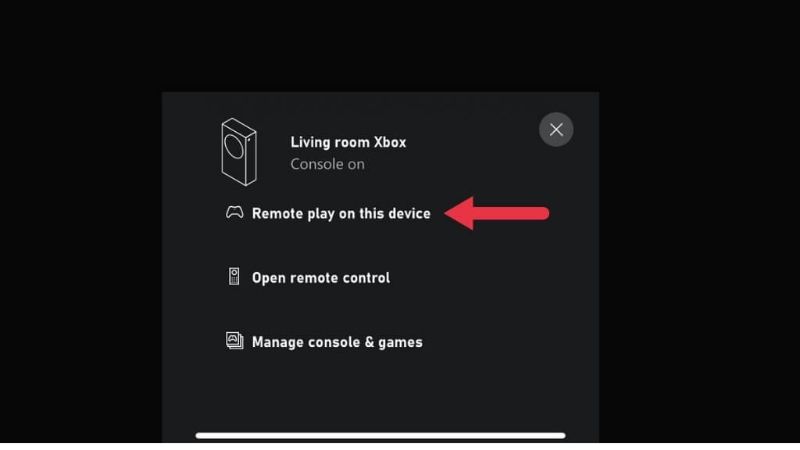
Xbox Cloud Gaming is different: cloud games run in Microsoft’s data centers rather than on the Xbox in your home. Microsoft states in its September 2026 Xbox Insider update that Remote Play itself requires no additional subscription. However, a game can still require an appropriate ownership or Game Pass entitlement, and online multiplayer can have separate membership requirements. Streaming does not override game licenses or regional restrictions.
| Question | Xbox Remote Play | Xbox Cloud Gaming |
|---|---|---|
| Where does the game run? | On your Xbox Series X|S or Xbox One | On Microsoft’s cloud infrastructure |
| Do you need a console? | Yes, with remote features enabled | Not for eligible cloud games |
| Which games can you launch? | Eligible games installed on, and accessible from, your console | Games and entitlements supported by cloud streaming |
| What affects stream quality? | Your console connection, internet route, and viewing-device connection | Your route to the cloud service and supported stream settings |
What you’ll need
- An Xbox Series X, Xbox Series S, or Xbox One. Xbox Remote Play is not a feature of an original Xbox, Xbox 360, or a Windows gaming PC acting as the host.
- A Microsoft account with an Xbox profile that is allowed to use the console. Use the account associated with that Xbox when you sign in on the remote device.
- A supported receiving device and up-to-date web browser. Microsoft’s Remote Play page lists Windows 10/11 PCs (Windows version 22H2 or later as specified there), Android and iOS devices, and other compatible browser-based screens.
- An internet connection. Xbox’s requirements page specifies at least 10 Mbps on the receiving side and recommends 5 GHz Wi-Fi or a suitable mobile data connection. Speed alone cannot guarantee low latency.
- A compatible controller. An Xbox Wireless Controller with Bluetooth is the straightforward choice for phones and tablets. A supported wired or wireless controller also works on appropriate PCs; exact controller support varies by platform and browser.
- A game already installed on the Xbox. Confirm you can launch it locally first. If it uses a disc or subscription license, that entitlement must remain available.
For the cleanest initial test, connect the Xbox to the router by Ethernet if practical, connect the receiving device to reliable 5 GHz Wi-Fi, and use a normal single-player game or menu. A faster, steadier console upload connection is beneficial when playing away from home, but Microsoft does not promise identical performance at any particular upload speed.
Enable remote features on your Xbox
Applies to: Xbox Series X|S and Xbox One with current console software. You need access to the console for a dependable first-time configuration; menus can differ slightly by update or system language.
- Turn on the console and sign in. Make sure it can connect to Xbox services and complete any pending system update before testing streaming.
- Open the Xbox guide. Press the Xbox button on your controller and select Profile & system > Settings.
- Find Remote features. Go to Devices & connections > Remote features.
- Turn on Enable remote features. If the setting is unavailable, read the message shown by the console rather than changing unrelated security or network options.
- Run Test remote play if your console offers it. Follow any recommendations the console reports. A successful test is a helpful first check, not a guarantee that every external network will work.
- Verify that a game starts locally. Return to Home and launch a game that you already own or can access. Exit to Home afterward so you can start the remote session with fewer variables.
Expected result: Remote features remain enabled and the console is ready to be found by the Xbox web experience. Do not factory-reset the console or reset your router merely because its name does not appear on the first attempt.
Set the console to wake for remote sessions
Streaming to a console that is already powered on is only half the setup. To connect when nobody is home to turn it on, the Xbox needs compatible standby behavior. Open Settings > General > Power options and select Sleep when you need remote wake. A full Shutdown (energy saving) can prevent the console from waking on demand even though Remote Play works while the console is manually on.
Also check Active hours. Xbox introduced active-hour scheduling so a console using Sleep can remain ready for remote wake during selected hours but fully shut down outside them. If remote play works in the afternoon but not late at night, examine that schedule before troubleshooting ports or reinstalling software. Set hours that match your actual needs instead of leaving the console permanently active without considering power use.
Expected result: the Xbox can be reached while it is on and should be available to wake during its configured Sleep/active-hours window. This feature requires power and a working internet connection at the console’s location; it cannot wake a console that is unplugged.
Start Xbox Remote Play in a web browser
In April 2025, Xbox announced browser-based Remote Play at xbox.com/remoteplay and stopped offering direct Remote Play entry through the Xbox app on mobile. This browser-first approach remains the safe default if an older tutorial tells you to search for a phone-app remote-play button that you cannot find.
- Open an up-to-date browser on a supported PC, phone, or tablet. Use the official Xbox address xbox.com/remoteplay. Xbox also documents opening xbox.com/play and switching to Remote Play from its menu.
- Sign in to the Microsoft account linked to the Xbox console you configured. If you manage several Xbox profiles, check the gamertag rather than assuming your browser selected the right one.
- Choose Remote Play if the site opens on a cloud-gaming page. Follow the on-screen setup instructions; interface wording may differ between versions of the Xbox web experience.
- Find your console and select it. If the website asks you to finish enabling remote features, return to the console and confirm the earlier setting and network connection.
- Connect your controller to the viewing device. Pair it to your phone/tablet or connect it to your PC as supported. Press a direction button and confirm the website or remote console responds.
- Start a locally installed game. Wait until you can see the Xbox Home screen remotely, then launch a title already accessible from the console. Use its menu to test picture, sound, and input.
Expected result: the browser displays your console’s interface and receives controller inputs. If the site shows a cloud game catalog rather than your console, check that you actually selected Remote Play rather than Cloud Gaming. Xbox’s separate play/consoles page also publishes the core connection requirements.
Connect a controller on PC, iPhone, iPad, or Android
On a Windows PC, a USB data cable is a simple way to eliminate Bluetooth pairing as a variable. If you prefer Bluetooth, use Windows Bluetooth settings, pair the controller, and verify Windows recognizes it before opening Remote Play. The controller should be connected to the PC receiving the stream, not left paired exclusively with the Xbox in another room.
On an iPhone, iPad, or Android device, turn on Bluetooth and put a supported Xbox Wireless Controller into pairing mode according to its model instructions. Select the controller in the device’s Bluetooth list. Some older Xbox One controllers do not support Bluetooth even though they look similar; use hardware-specific instructions instead of assuming every Xbox-branded controller will pair to a phone.
With the controller connected, try navigating the browser-based Xbox interface. On-screen touch controls are available only in selected games and contexts, so do not plan an all-touch setup for an arbitrary console game. If a controller works in the device’s settings but not the stream, try another compatible browser, reopen the stream after pairing, and confirm you have selected the correct game/controller mode.
Test Remote Play away from home
- Complete a successful home-network test first. Confirm remote features, controller input, video, and audio on Wi-Fi.
- Leave the console connected to power and internet. Use Sleep and suitable active hours if you expect the Xbox to wake remotely rather than remain powered on.
- Switch the viewing device to a different network. Mobile data is a practical test if your plan allows it. Avoid launching the first remote session from a hotel or office network with aggressive restrictions.
- Open the same official website and sign in. Select the console and try reaching Home before you launch a game.
- Watch stability, not just raw speed. Check for stutter, sound breakup, delayed controller response, or repeated disconnections. Reduce competing internet traffic if problems appear.
Remote Play streams video continuously and can consume a substantial amount of mobile data; usage depends on session length and stream quality. A public Wi-Fi connection can have captive portals or blocked traffic. Avoid signing in on a shared computer, and sign out when finished. If a network does not allow streaming, switching to a permitted network is safer than disabling security controls.
Fix common setup problems
| Symptom | Likely area to check | First safe action |
|---|---|---|
| The console does not appear | Wrong profile, console offline, or remote features disabled | Verify gamertag, enable remote features, then restart the browser session |
| Xbox appears but will not wake | Power option or active-hours schedule | Turn it on locally; check Sleep and the active-hours window |
| Black or frozen streaming screen | Browser session, unstable network, or console state | Refresh once, close the session, and retest from a stable home connection |
| Controller does not respond | Pairing with wrong device or browser input detection | Reconnect controller to the viewing device before reopening Remote Play |
| Pixelated video or major delay | Wi-Fi interference, console upload, competing traffic, or network route | Try wired Ethernet for Xbox and stable 5 GHz Wi-Fi for the other device |
| Game cannot be launched | Missing installation, update, disc, or entitlement | Check the game’s launch status on the Xbox itself |
Remote Play works at home but not on mobile data
First confirm the Xbox is available at home and the mobile device has a stable internet connection. Restart the streaming session, try a different permitted network, and check the console’s standby settings. A work or school network may restrict traffic independently of your hardware. Advanced router changes should come only after basic tests and trusted Xbox support guidance; exposing ports indiscriminately or disabling firewall protection is not a responsible first fix.
The controller works in Bluetooth settings but not in the game
Fully close the stream, confirm pairing on the viewing device, and reconnect. If another app is grabbing the controller, close that app before restarting the session. Test navigation on the Xbox Home screen before blaming a single game’s input settings. If your controller model requires firmware updates, use official Xbox Accessories or the console’s normal device-update workflow; avoid third-party firmware packages.
A game opens locally but Remote Play will not launch it
Check that the game is fully installed, its required update has finished, and you have the correct license or disc. Some game modes, apps, and protected playback scenarios may have streaming restrictions. The safer test is a different eligible installed game. If the failure follows one title only, focus on that game’s licensing or compatibility instead of resetting the console.
Optimize stream quality without risky settings changes
Prioritize a stable connection. Ethernet between the Xbox and home router removes one wireless hop, while 5 GHz Wi-Fi can reduce congestion on the viewing device when the signal is strong. Keep the console and receiving device updated, move closer to the router when testing locally, and pause unrelated large downloads. Latency is influenced by distance, routing, jitter, and congestion, not only the Mbps figure on a speed test.
Microsoft’s September 2026 Xbox Insider announcement described an up-to-1440p higher-bitrate Remote Play preview for Xbox Series X|S users in the Alpha and Alpha Skip-Ahead rings on supported devices. Do not assume every Xbox owner can select 1440p or that the preview settings appear in the same place on all devices. For eligible preview participants, Xbox advised setting the console’s display resolution to 1440p or 4K UHD under Settings > General > TV & display options. That is a preview-specific optimization, not a mandatory step for ordinary Remote Play setup.
How to stop or undo the setup
When finished, exit the Remote Play session from the browser’s Xbox controls, then confirm your console is no longer being controlled remotely. Closing the browser window is not a substitute for checking whether the console remains on. If you no longer want remote access, return to Settings > Devices & connections > Remote features on the Xbox and turn off Enable remote features. You can also restore your preferred power option and active-hours schedule under Settings > General > Power options.
These changes do not uninstall your games or delete saved progress. Disabling Remote features removes remote-access convenience; changing from Sleep to Shutdown saves power but generally means the console will not wake itself for a remote session.
Frequently asked questions
Do I need Xbox Game Pass to use Remote Play?
Not for Remote Play as a streaming feature, according to Xbox’s September 2026 update. You still need access to each game and may need a subscription for specific game entitlements or online multiplayer features.
Can I use Xbox Remote Play on my laptop?
Yes. On a supported Windows computer, open an up-to-date browser and go to the official Xbox Remote Play website. The game continues running on the console, while the laptop displays and controls its stream.
Can I play Xbox 360 games through Remote Play?
Xbox’s April 2025 update added support for backward-compatible original Xbox and Xbox 360 titles through its expanded remote-play web experience. The game must be playable on your current Xbox console; this does not make every Xbox 360 title compatible.
Can someone use the Xbox TV while I play remotely?
Remote Play controls the same console session rather than creating an independent second game instance. Plan on one active console gaming session. Someone else can use the physical TV for another input, but not expect the Xbox itself to run a separate game simultaneously.
Final thoughts
The most reliable path is to enable Remote features on the Xbox, confirm Sleep and active hours if you need remote wake, connect a compatible controller to the viewing device, and launch the official browser-based Xbox Remote Play page. Get one game working at home before trying a different network. If the console is missing, start with account, connection, and power checks—not risky router changes. Microsoft’s Xbox Remote Play requirements page, April 2025 browser announcement, and current Xbox Insider release notes are the primary references for the setup and version-specific limits described above.
