Key takeaways
- Best overall for PS5 4K120: Elgato Game Capture 4K X. External HDMI 2.1 and USB 10Gbps design that retains supported high-refresh gameplay while recording separately. Best for a gaming TV or monitor with 4K120 and VRR.
- Best straightforward 4K60 choice: Elgato Game Capture 4K S. HDMI 2.0 passthrough up to 4K60, VRR support in compatible modes, and up to 4K60 recording. Prefer it if your screen is 60Hz at 4K and you want a portable card.
- Best external option for wired headset planning: AVerMedia Live Gamer ULTRA 2.1 (GC553G2). HDMI 2.1 up to 4K144 passthrough, USB 10Gbps, and 3.5mm headset/gamepad connections, with software-dependent capture ceilings.
- Best fixed Windows desktop: Elgato Game Capture 4K Pro. Internal PCIe design, 4K60 HDR capture on Windows, and high-refresh HDMI 2.1 passthrough. Not a laptop or Mac solution.
- Best value HDMI 2.1 PCIe: AVerMedia Live Gamer 4K 2.1 (GC575). A Windows desktop alternative supporting 4K144 HDR/VRR passthrough and 4K60 capture in conventional workflows.
- Best lower-cost alternative with 4K60: AVerMedia Live Gamer ULTRA S (GC553Pro). HDMI 2.0 4K60 HDR/VRR passthrough and up to 4K60 capture through USB 5Gbps. Not suitable for preserving PS5 4K120.
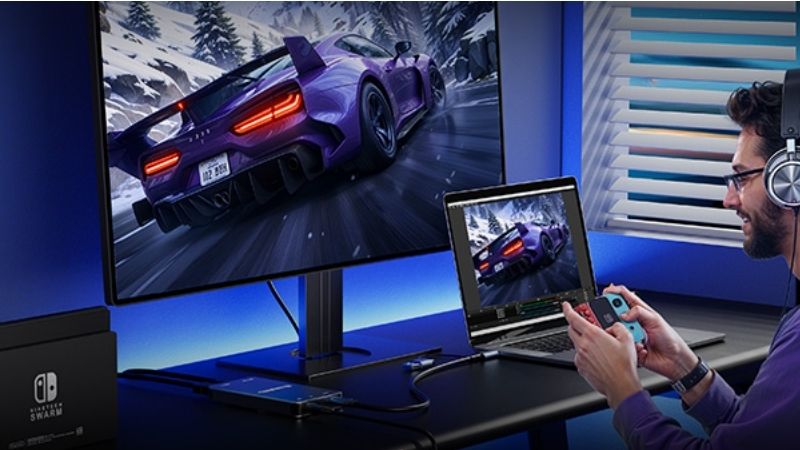
The best pass through capture cards for PS5 let you play on your TV or monitor while a separate computer captures the gameplay. For a PS5 connected to a 4K120 display, Elgato 4K X is the strongest all-around external choice because its HDMI 2.1 passthrough can preserve 4K120 and VRR, subject to the display and signal. If you always play at 4K60, Elgato 4K S is a less expensive, easier-to-justify option. AVerMedia’s Live Gamer ULTRA 2.1 (GC553G2) is worth considering for creators who also need controller/headset audio connections. Remember that passthrough resolution, recorded resolution, and stream resolution are three different specifications; choosing by the largest number on the box can mean paying for a feature your PS5 setup never uses.
Quick verdict: The right passthrough card for your PS5
- Best overall for PS5 4K120: Elgato Game Capture 4K X. External HDMI 2.1 and USB 10Gbps design that retains supported high-refresh gameplay while recording separately. Best for a gaming TV or monitor with 4K120 and VRR.
- Best straightforward 4K60 choice: Elgato Game Capture 4K S. HDMI 2.0 passthrough up to 4K60, VRR support in compatible modes, and up to 4K60 recording. Prefer it if your screen is 60Hz at 4K and you want a portable card.
- Best external option for wired headset planning: AVerMedia Live Gamer ULTRA 2.1 (GC553G2). HDMI 2.1 up to 4K144 passthrough, USB 10Gbps, and 3.5mm headset/gamepad connections, with software-dependent capture ceilings.
- Best fixed Windows desktop: Elgato Game Capture 4K Pro. Internal PCIe design, 4K60 HDR capture on Windows, and high-refresh HDMI 2.1 passthrough. Not a laptop or Mac solution.
- Best value HDMI 2.1 PCIe: AVerMedia Live Gamer 4K 2.1 (GC575). A Windows desktop alternative supporting 4K144 HDR/VRR passthrough and 4K60 capture in conventional workflows.
- Best lower-cost alternative with 4K60: AVerMedia Live Gamer ULTRA S (GC553Pro). HDMI 2.0 4K60 HDR/VRR passthrough and up to 4K60 capture through USB 5Gbps. Not suitable for preserving PS5 4K120.
Buying snapshot: Manufacturer-store prices and stock indicators were checked for the US market on October 30, 2026. They describe a moment in time, not guaranteed checkout prices or future availability. Recommendations below are evidence-based comparisons of documented capabilities, not claims of detailed research by Geek Gaming Tricks.
PS5 capture cards compared: Passthrough, recording, and stock
| Product / ideal PS5 use | Verified HDMI passthrough | Recording / host | US seller price (Oct. 30, 2026) | Stock status (Oct. 30) | Key drawback |
|---|---|---|---|---|---|
| Elgato 4K X / best external for 4K120 TV | HDMI 2.1 up to 4K144; HDR10, VRR; DSC-related limits | Up to 4K144 SDR in supported formats; up to 4K30 HDR on Windows; USB 3.2 Gen 2 preferred | $249.99, Elgato US | In stock; Add to cart | Highest capture formats depend on USB, codec, and OS |
| Elgato 4K S / simple 4K60 external | HDMI 2.0 up to 4K60 HDR; VRR; 1440p high-refresh modes | Up to 4K60; Windows HDR capture up to 1080p60; USB 3.0 Type-C | $159.99, Elgato US | In stock; Add to cart | Cannot preserve 4K120 PS5 video |
| AVerMedia GC553G2 / 4K120 plus wired chat | HDMI 2.1 up to 4K144 HDR/VRR | Up to 4K144 in supported Windows Streaming Center modes; macOS up to 4K60; USB 10Gbps | $209.99 sale, AVerMedia US | In stock; 2 units shown | Max capture mode depends on app, computer, and firmware |
| Elgato 4K Pro / 4K60 HDR desktop capture | HDMI 2.1, very high-refresh supported modes; HDR/VRR; no DSC | Up to 4K60 HDR, Windows PCIe 2.0 x4 | $299.99, Elgato US | In stock; Add to cart | Requires desktop PCIe slot; PS5 Pro 8K output not supported |
| AVerMedia GC575 / value 4K120 desktop setup | HDMI 2.1 up to 4K144 HDR/VRR | Up to 4K60 normally; 4K144 in supported Streaming Center modes; Windows PCIe Gen 3 x4 | $209.99 sale, AVerMedia US | In stock; 24 units shown | Windows desktop only; special software for top capture modes |
| AVerMedia GC553Pro / lower-cost 4K60 creator | HDMI 2.0 up to 4K60 HDR/VRR; 1440p144 supported | Up to 4K60; USB 3.2 Gen 1 Type-C 5Gbps | $139.99 sale, AVerMedia US | In stock; 2 units shown | No HDMI 2.1 4K120 passthrough |
The highest passthrough modes above are manufacturer specifications, not the maximum frames a PS5 will necessarily output. Sony documents 4K120 support on PS5; a 4K144 label on a card is principally headroom for other sources and compatible PC displays. For PS5 buyers, the meaningful dividing line is usually 4K60 versus 4K120 passthrough, followed by HDR, VRR, recording limits, and audio routing. When a retailer lists only “4K,” demand an exact passthrough refresh rate and a separate capture frame-rate specification.
How these PS5 capture cards were selected
The shortlist required an actual HDMI input and HDMI output so the console can feed a gaming screen directly while another device receives video for recording or broadcasting. A simple USB HDMI camera dongle without passthrough is not equivalent. We checked exact model numbers against manufacturer technical sheets, including USB or PCIe host requirements, maximum passthrough resolution, video formats, and HDR/VRR conditions. We also checked active US manufacturer-store listings for prices and stock; this avoids ranking discontinued hardware as a convenient purchase today.
Independent editorial coverage adds context rather than substituting for model-specific specifications. PC Gamer’s review of the AVerMedia Live Gamer ULTRA 2.1 highlighted an easy initial setup while noting its original expense and firmware maturity at the time of that review. Reviews of the 4K S from PC Gamer and Windows Central described straightforward operation and useful console capture, but did not turn its HDMI 2.0 path into 4K120 passthrough. Those are third-party observations; none of the cards below is represented as physically tested by this website.
Detailed PS5 passthrough capture card recommendations
Elgato Game Capture 4K X: Best overall for PS5 4K120 and VRR
Choose it if: you own a 4K120 television or high-refresh monitor and need an external card for a Windows PC, Mac, or supported iPad. The PS5 sends HDMI into the 4K X; its HDMI output continues to the gaming display; USB carries the capture feed to your computer. HDMI 2.1 passthrough means supported 4K120 and VRR gameplay do not have to be sacrificed merely to connect a recording workstation. The practical benefit is preserving the way your game plays while OBS records a separate 1080p60 or 4K file, not claiming a Twitch stream will be delivered at your monitor’s refresh rate.
Elgato specifies passthrough up to 4K144, with a 4K120 ceiling in certain Display Stream Compression (DSC) display configurations. High-rate recording exists in supported SDR codecs; on Windows, its documented 10-bit HDR capture is up to 4K30, and macOS HDR input is converted to SDR for capture. USB 3.2 Gen 2 at 10Gbps is the preferred computer connection for full capability. Connecting through a slower port or hub can restrict selectable recording formats even when the HDMI passthrough image remains fine.
Reasons to buy: it works for a typical PS5-to-TV-to-PC arrangement without opening a computer case; it also accommodates other consoles or a PC source. Reasons to skip: it is overkill for a permanent 4K60 screen or for users who must make 4K60 HDR recordings rather than retain high-refresh gameplay. If your streaming laptop has only a questionable USB-C hub, verify its direct 10Gbps capability before paying for an advanced USB capture device.
Elgato Game Capture 4K S: Best uncomplicated 4K60 choice
Choose it if: your PS5 is connected to a 4K60 TV and you care more about crisp recording and simple use than preserving 4K120. The 4K S has an HDMI 2.0 input and output, supports 4K60 HDR passthrough, and can record up to 4K60. It is small enough to move between a desktop and laptop, with support for Windows, Mac, and compatible USB-C iPads. The available 1080p and 1440p high-refresh modes can help with some monitors, but they do not change the absolute 4K60 passthrough ceiling.
On a PS5 set to 2160p60, you can continue playing through the connected screen and choose 1080p60 in your recording software without reducing the display to 1080p. The card also supports VRR passthrough in suitable display modes. For recorded HDR, Elgato specifies support up to 1080p60 on Windows, not 4K60 HDR recording, even though the HDR gaming signal can pass to the TV at 4K60. That distinction is particularly important to creators editing HDR footage.
Reasons to buy: a clearly documented 4K60 workflow, straightforward USB connectivity, and a lower manufacturer-store price than the 4K X. Third-party reviewers broadly report easy setup and useful captured PS5 footage. Reasons to skip: if a 120Hz mode is central to your gaming screen, choose 4K X or GC553G2 instead of hoping a firmware update will make an HDMI 2.0 capture path carry PS5 4K120.
AVerMedia Live Gamer ULTRA 2.1 GC553G2: Best for 4K120 with wired voice chat planning
Choose it if: you want HDMI 2.1 capture for a PS5 and your wired audio configuration is as important as video. The GC553G2 includes HDMI 2.1 input and output, USB 3.2 Gen 2 at 10Gbps, and separate 4-pole 3.5mm connections intended for headset/gamepad audio arrangements. Its official HDMI ceiling is 4K144 HDR/VRR passthrough; in a PS5 workflow, 4K120 compatibility is the meaningful target. The Windows software advertises recording above 4K60 in supported configurations, whereas the official macOS recording ceiling is 4K60 and HDR capture is not supported on Mac.
Do not assume plugging any headset into the card automatically produces every voice track. Verify whether you use a wired controller-connected headset or wireless/USB audio, how party chat is routed, and whether you also need to record your own microphone separately. Those connections make the GC553G2 promising for wired chat workflows, but a capture device cannot grant permission to record other players or change PS5’s protected-content behavior. On the video side, AVerMedia warns that some monitors using DSC may be limited to 4K120 passthrough rather than their advertised 4K144 maximum.
Reasons to buy: console-focused HDMI 2.1 passthrough and useful audio flexibility in an external box, with an actively available US store listing at the time checked. PC Gamer’s published hands-on review considered setup approachable while noting firmware maturity concerns in its original review period. Reasons to skip: a host computer without a suitable 10Gbps USB connection, or a buyer expecting every advertised Windows high-frame-rate mode to appear identically in OBS and on macOS.
Elgato Game Capture 4K Pro: Best Windows PCIe card for 4K60 HDR footage
Choose it if: you already own a Windows desktop streaming computer with an open PCIe slot and specifically want a 4K60 HDR recording path. The 4K Pro uses PCIe 2.0 x4, accepts unencrypted HDMI 2.1 sources, and provides HDMI 2.1 passthrough with VRR, HDR, and supported high-refresh modes. Unlike the 4K X’s lower maximum HDR recording rate, Elgato documents HDR capture up to 4K60 on this internal model. For production workflows that prioritize recorded HDR quality over portability, that is a substantive reason to choose a PCIe card.
The card’s advertised passthrough ceiling extends beyond what PS5 ordinarily sends. Elgato lists up to 8K60 and 4K240 for compatible sources, but the manufacturer explicitly excludes capture or passthrough of PS5 Pro’s 8K output due to its format. Supported 4K output from PS5 Pro is a different matter. Also, the card does not support signals using Display Stream Compression, so a monitor that depends on DSC for an exotic PC refresh rate may require a lower uncompressed mode.
Reasons to buy: Windows 4K60 HDR recording and a permanent, tidy desktop installation that avoids sharing a USB capture link. Reasons to skip: laptops, Mac workstations, small cases without free slots, or anyone who might mistake 8K60 passthrough language for guaranteed PS5 Pro 8K capture. Check motherboard slot electrical lanes and GPU clearance before ordering; a full-length slot is not always electrically wired for enough lanes.
AVerMedia Live Gamer 4K 2.1 GC575: Best value HDMI 2.1 desktop alternative
Choose it if: you have a Windows recording desktop and want to retain PS5 4K120 HDR/VRR while spending less than the Elgato 4K Pro’s direct-list price. AVerMedia specifies PCIe Gen 3 x4, HDMI 2.1 input/output, and passthrough up to 4K144 HDR/VRR, with 4K60 as the regular recording reference. Its higher recording claim up to 4K144 is tied to supported AVerMedia Streaming Center modes and hardware requirements, not a promise that any app or encoder will record every format at the maximum rate.
This is an attractive fixed-studio option for PS5 gameplay mixed with overlays, commentary and a separate webcam on the recording computer. The console’s display still receives an appropriate video signal through the card while the PC handles scene composition and encoding. AVerMedia’s documented support for 5.1 audio workflows may help some creators, but LPCM handling and capture software need verification if the project depends on surround recording rather than standard stereo streaming.
Reasons to buy: current US-store availability, HDMI 2.1 passthrough, and an internal form factor for a second-PC station. Reasons to skip: laptops, Mac-only setups, or buyers hoping the HDMI 2.1 label eliminates driver, firmware, or signal-negotiation troubleshooting. Distinguish GC575 from the older GC573; their connection standards and supported modes are not interchangeable.
AVerMedia Live Gamer ULTRA S GC553Pro: Best budget 4K60 and flexible 1440p
Choose it if: a 4K60 image on the gaming screen is enough, but you want a current, reasonably priced USB capture card capable of recording at up to 4K60. The GC553Pro uses HDMI 2.0, a USB 3.2 Gen 1 Type-C 5Gbps connection, and passthrough up to 4K60 HDR/VRR or 1440p144 in supported modes. AVerMedia lists 1080p60 HDR capture and other HDR modes under narrower limits than the general SDR recording maximum. The 5Gbps interface can fit computers without a fast 10Gbps USB port.
For a PS5 and an ordinary 4K60 television, this is the value-first alternative to the 4K S. It may also appeal to someone using a compatible 1440p high-refresh display rather than a 4K120 panel. Verify 1440p signal negotiation on the actual PS5 and monitor; a monitor’s refresh ceiling alone does not ensure the console outputs that exact mode. The model’s Windows, Mac and iPad support is valuable, but HDR features and high-frame-rate recording modes vary by operating system and software.
Reasons to buy: the lowest manufacturer-store US price among the six current picks on the check date, compact USB setup and a documented 4K60 gaming route. Reasons to skip: players who own a 4K120 TV and would notice losing that refresh rate in 120fps-capable games. Do not mistake GC553Pro for GC553G2: the former has HDMI 2.0, while the latter offers HDMI 2.1.
Buying guide: What actually matters for PS5 passthrough
Start with the TV’s real refresh rate, not the capture card’s marketing
If your television accepts only 4K60, 4K S and GC553Pro cover that use case without paying for a 4K144 passthrough claim. If you use a verified 4K120 HDMI 2.1 port, concentrate on 4K X, GC553G2, 4K Pro, or GC575. Sony confirms PS5 4K120 output support, but the game, console setting and display must all allow it. A 120Hz TV also needs the right HDMI input enabled; some displays provide one high-bandwidth port and other slower ports. Inserting a capture device adds another HDMI negotiation point, so verify the entire chain rather than assuming the console and screen alone settle the question.
The same logic applies to PS5 Pro. Its supported 4K workflows are relevant to these cards, while 8K output is a distinct signal format. Sony notes that PS5 Pro 8K uses Display Stream Compression, and Elgato explicitly excludes its 4K Pro model from handling that PS5 Pro 8K output. Do not buy an expensive card solely because its general specification mentions 8K without checking that exact console format.
Separate passthrough, capture, and finished stream quality
Passthrough is the signal that goes from the PS5 through the card to the gaming display; ideally you play on that monitor or TV, not on a delayed preview in OBS. Capture is the video data sent over USB or PCIe to recording software, potentially reduced in resolution, frame rate or color depth. Stream output is the final encoded format delivered by OBS to your platform. You might play at 4K120 HDR, capture at 4K60 SDR, and broadcast at 1080p60. That is a valid and often useful configuration, not evidence that the product is broken.
For HDR, read the source’s actual recording ceiling. Elgato 4K X records HDR on supported Windows modes up to 4K30, whereas Elgato 4K Pro lists 4K60 HDR recording. Elgato 4K S supports HDR10 passthrough at 4K60 but HDR capture up to 1080p60 on Windows. These restrictions affect editing and color workflows directly. They also explain why a card that is ‘best’ at keeping 120Hz gameplay is not necessarily best at producing HDR master files.
Check USB bandwidth, operating system, and PCIe clearance
For 4K X and GC553G2, a genuine 10Gbps USB 3.2 Gen 2 connection is the sensible target. USB-C describes a connector shape rather than a guaranteed transfer rate: a USB-C port might offer 5Gbps, 10Gbps or something else depending on the computer. A direct connection with the supplied cable removes several common unknowns. Reduced capture modes on a slower port do not necessarily prevent the HDMI OUT port from supplying a playable image to your display.
For 4K S and GC553Pro, the listed 5Gbps USB interface can be easier to accommodate. For 4K Pro and GC575, verify a desktop Windows PC, a physically available and correctly wired PCIe x4-compatible expansion slot, case clearance and cooling. A PCIe card cannot be installed inside an ordinary laptop. Mac users should read each external model’s macOS specification instead of treating Windows HDR options as portable across platforms.
Plan headset and party audio before choosing a card
PS5 audio routing can be more confusing than HDMI video. When a wired headset connects to the DualSense controller, console sound may be rerouted away from the HDMI feed, leaving the recorded image present but the audio silent. An analog splitter such as Elgato Chat Link Pro can route controller audio to a compatible capture card’s line input or a PC line input, but the splitter does not directly record the user’s microphone. Record your voice through a separate mic on the streaming computer when necessary. Wireless and USB headsets generally do not connect through the controller’s analog jack and may require a different plan.
The GC553G2 has dedicated headset and controller audio connectors intended to address part of this problem, while 4K X and 4K S provide analog line inputs for compatible setups. With a Windows-only PCIe model, plan how analog sound will enter the recording PC if HDMI chat audio is unavailable. Before streaming a multiplayer session, record a brief local test while a teammate speaks, then listen back to ensure both authorized chat and your commentary are present at usable levels.
Treat stock and sale prices as time-limited evidence
The comparison table uses seller-specific US prices checked on October 30, 2026. AVerMedia’s entries were showing sale amounts on the manufacturer’s US store; Elgato’s were direct-list prices. Those numbers can change, and a store’s ‘in stock’ marker is only valid for the observed listing at that moment. Check the exact model, seller, shipping region, return policy and checkout amount immediately before purchasing. An older model can have a more familiar name without delivering equal PS5 passthrough performance.
How to connect a PS5 capture card without losing video
- Set up the PS5 for legitimate gameplay capture. With the console connected directly to the television, go to Settings > System > HDMI > Enable HDCP and turn the option off. Sony and Elgato document this step for external gameplay capture. HDCP-protected entertainment apps cannot be captured through these cards; do not try to defeat media protection.
- Wire the HDMI path. Connect the PS5’s HDMI output to the capture card’s HDMI IN, then the card’s HDMI OUT to the TV or monitor. For a 4K120 setup, use suitable Ultra High Speed HDMI cables and a display HDMI port that supports the desired signal. USB cards also connect to the recording computer; a PCIe card must first be installed safely with the desktop powered off and disconnected.
- Confirm the display signal on PS5. Open Settings > Screen and Video > Video Output. Inspect Current Video Output Signal and Information for the Connected HDMI Device; select an appropriate Resolution and verify the 120 Hz, HDR and VRR options supported by the TV and capture card. If 4K120 disappears, check the entire HDMI path before changing software capture settings.
- Configure recording software. In OBS Studio, select the intended scene and add a Video Capture Device source from the Sources panel. Choose the detected capture card, then select a capture resolution/frame rate and color format permitted by its host interface and operating system. Do not assume that a 4K120 passthrough signal guarantees a 4K120 HDR recording preset.
- Record and verify. Play a moving scene for one minute, capture a local recording, and check the file’s actual resolution, frame rate, image color, game sound and chat. For a black preview, return first to the PS5 HDCP setting and then check HDMI IN/OUT orientation and USB/PCIe detection. For flicker or lost 120Hz, test direct PS5-to-TV operation, then reconnect the card using a known suitable cable and an officially supported video mode.
Frequently asked questions about PS5 passthrough
Will a capture card add input lag to my PS5?
These models provide a dedicated HDMI passthrough path intended for direct gaming on a connected television or monitor, so you do not need to play through OBS preview. The preview itself can be delayed because video must reach and be processed by the computer; Elgato even describes low-latency preview as a separate product feature. Use the HDMI-connected gaming display for competitive play, and test the exact TV/game mode if you are especially sensitive to latency. We have not measured incremental delay on these units ourselves.
Do I need HDMI 2.1 for PS5 120fps games?
For a 4K120 signal through a capture card, choose a model whose documented passthrough supports that mode, such as 4K X, GC553G2, 4K Pro or GC575. HDMI 2.0 cards in this guide can still pass useful lower-resolution high-refresh signals, but they are limited to 4K60. The game must support a 120fps output mode, the console option must be enabled, and the display must accept it. HDMI version alone does not guarantee the full signal chain works.
Can a card record 1080p60 while my PS5 displays 4K120?
Yes, a suitably capable HDMI 2.1 model can pass a supported 4K120 signal to the display while providing a different capture format, such as 1080p60, to the computer. This is often the sensible balance for online streaming. Consult the manufacturer’s input-to-capture matrix for the exact model rather than assuming every passthrough/capture combination works automatically.
Why does my PS5 show a black screen in OBS?
First confirm HDCP has been disabled for game capture through Settings > System > HDMI > Enable HDCP. Next check that the PS5 feeds the card’s HDMI IN, the TV uses HDMI OUT, and the recording computer detects the USB or PCIe device. If the gaming screen works but OBS does not, check the selected Video Capture Device source and reduce the capture format to a documented supported mode. Protected media remains unavailable for recording.
Can I capture PS5 party chat with a USB headset?
Not reliably by simply adding an HDMI capture card. USB and wireless headsets can bypass the DualSense analog audio jack used by many chat-splitting accessories. A wired controller-connected headset plus a compatible analog route is more straightforward. Plan a separate commentary microphone on the PC and confirm permitted party audio in a real recording before relying on the setup for a live event.
Are HD60 X or Game Capture Neo still worth considering?
Existing owners can continue using compatible hardware for a suitable 4K60 or 1080p workflow. However, Elgato currently marks HD60 X as discontinued and directs buyers toward 4K S, while its direct US listing for Game Capture Neo was out of stock at the time of the check. Neo offers 4K60 HDR passthrough with 1080p60 recording, so it is not the same as 4K60 recording on 4K S. Neither is a good first-choice recommendation for a new PS5 4K120 installation.
Which model should I choose for PS5 Pro?
Choose based on the actual screen and recording goal, not merely the ‘Pro’ name. For 4K120 playback with a portable streaming computer, 4K X or GC553G2 is more practical; for a Windows desktop targeting 4K60 HDR recordings, 4K Pro deserves attention. PS5 Pro’s specialized 8K output uses DSC, and the Elgato 4K Pro documentation explicitly says that output cannot be captured or passed through by that card. Confirm 4K compatibility on the exact model instead of assuming an 8K figure on the box makes it suitable.
Final thoughts
For a PS5 and a real 4K120 display, select Elgato 4K X as the general-purpose external option, or AVerMedia GC553G2 when its wired headset/gamepad connections are valuable. With a fixed Windows recording desktop, choose Elgato 4K Pro for 4K60 HDR capture or AVerMedia GC575 for a lower-priced HDMI 2.1 PCIe route. If you play at 4K60, the best use of your budget is often Elgato 4K S or AVerMedia GC553Pro instead. Before checkout, write down your TV’s HDMI resolution and refresh rate, the recording computer’s exact USB/PCIe capability, the desired finished-video format, and how you will capture PS5 audio; buy only after those four requirements match the product’s documented modes.