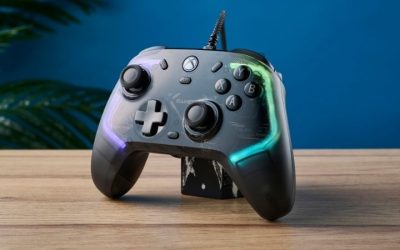
The best Bluetooth controllers for iPad gaming are the ones that your specific iPadOS version can actually pair with and that your game recognizes. Four credible, stocked U.S. options span 8BitDo Pro 2 for iPadOS 16.3+, Pro 3 for iPadOS 26+, Sony DualSense for Apple-supported PlayStation inputs, and Microsoft Xbox Wireless Controller Series X|S for familiar Xbox controls. The two 8BitDo models look related, but their Apple operating-system minimums are radically different. A Bluetooth connection does not automatically activate gamepad input in every App Store game.
iPad Bluetooth controllers: minimum iPadOS support and best reuse options
For an older compatible iPad, the 8BitDo Pro 2 is the most straightforward of these four because the manufacturer documents Apple support from iPadOS 16.3. If you already own a DualSense or Xbox Series X|S wireless controller, use that before buying anything new—Apple lists both families as supported. The Pro 3 is attractive for people on iPadOS 26 or later who want extra paddles and a charging dock. Do not buy Pro 3 for an iPad that cannot install the required Apple system release. On iPad, software support is the purchasing gate: the same Bluetooth controller may pair with an older iPad but lack the officially supported gamepad profile a particular model expects. Pro 2 is the safer new purchase when the device meets its listed iPadOS baseline; Pro 3 requires a much newer system in the article’s compatibility evidence. If a DualSense or Xbox Series controller is already in the house, confirm the iPad’s supported OS version and try pairing that first. Also check whether the game accepts external controllers at all. Buying a more expensive pad does not add gamepad support to an app that ignores controllers.
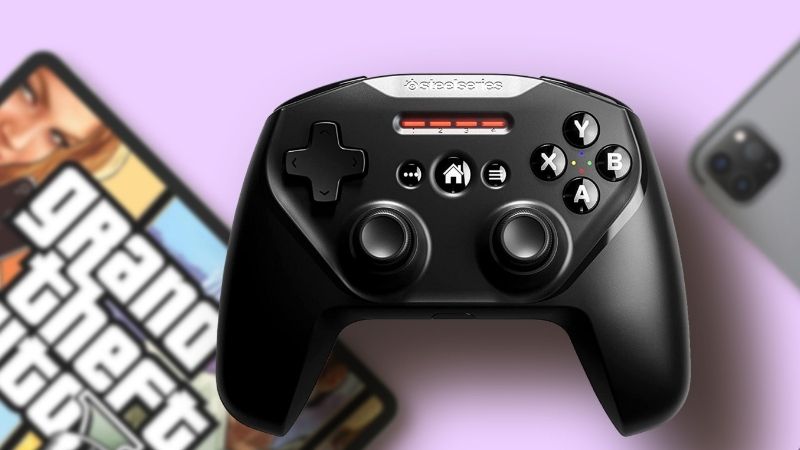
At-a-glance comparison
| Product | Relevant feature | USD price / seller / checked | Public status | Main drawback |
|---|---|---|---|---|
| 8BitDo Pro 2 Hall Effect (Black) | Symmetrical sticks | $49.99 · GigaParts · October 29, 2026 | In stock | US MaxGaming category showed the Black variant out of stock despite a cached SKU page claiming stock; use the separate GigaParts selected exact product offer. |
| 8BitDo Pro 3 (Purple) | Symmetrical TMR sticks, tactile D-pad, 2 rear paddles and L4/R4 extra bumpers, charging dock | $59.99 · MaxGaming US · October 29, 2026 | In stock (5+ shown) | Purple and G Classic are color variants, never two picks in the same article. |
| Sony DualSense Wireless Controller (White) | Classic symmetric analog layout | $74.99 · Best Buy US · October 29, 2026 | Add to cart shown | Some PC games need Steam Input or game-level DualSense support, and adaptive triggers/haptics are not universal on PC or iPad. |
| Microsoft Xbox Wireless Controller (Velocity Green) | Xbox Series X|S wireless gamepad with Bluetooth support for compatible iPad models | $59.99 · MaxGaming US · October 29, 2026 | In stock (20+ shown) | Bluetooth pairing does not guarantee any given iPad game has controller input. |
The iPad shortlist combines public U.S. retailer item offers observed October 29, 2026 with official Apple/brand compatibility details. A seller Add to cart button is not confirmation of shipment or game-level controller support.
Detailed picks and real trade-offs
Best for iPadOS 16.3 and newer — 8BitDo Pro 2 Hall Effect (Black)
8BitDo’s official Pro 2 support page lists iPadOS 16.3 and above, and its Apple pairing manual tells users to move the four-way mode slider to D before starting the Bluetooth sequence. That switch matters because Windows X-input settings are not a universal substitute for Apple D mode. The Pro 2 has balanced sticks, two rear programmable buttons and a classic D-pad. These controls suit many controller-supported Apple Arcade and iPad games, but an individual title’s controller implementation still decides what works.
The selected Black Hall Effect model is offered by a U.S. shop with an explicit in-stock label; a conflicting MaxGaming category listing should not be used to guarantee national availability. This choice is best when you want to keep an older iPad working rather than buying a controller designed around an OS release you cannot install.
Advantage: older iPadOS support and classic layout. Limitation: older-generation features and model-specific seller stock conflicts elsewhere.
Selected iPad-compatible offer: GigaParts lists 8BitDo Pro 2 Hall Effect (Black) for $49.99 with status ‘In stock’ (October 29, 2026). Selected model/part: KB0419 / 8BitDo Pro 2 Hall Black. Core compatibility: Symmetrical sticks; D-pad; two rear programmable buttons; Windows X-input over Bluetooth or wired USB; Apple D-mode Bluetooth on iPadOS 16.3+. Source note: US MaxGaming category showed the Black variant out of stock despite a cached SKU page claiming stock; use the separate GigaParts selected exact product offer. Do not equate a listing with ZIP-code shipment.
Best if the iPad already runs iPadOS 26 or newer — 8BitDo Pro 3 (Purple)
The Pro 3 has a newer tactile D-pad, TMR sticks, extra bumpers, two rear paddles and an included charging dock. For iPad pairing, the key manufacturer claim is Bluetooth support on Apple devices at iPadOS 26 and above. That minimum is nonnegotiable. Do not infer that Pro 3 supports iPadOS 16.3 because the older Pro 2 does, or because the retail title mentions Bluetooth without describing hosts.
The Purple selected offer is listed with 5+ in stock on its direct U.S. product page. If you move between an iPad and a Windows PC, remember that the officially supported Windows path is through a 2.4 GHz receiver or USB rather than generic Bluetooth. That difference should influence how you pack or store the included dongle.
Advantage: extra controls and a dock for supported newer iPads. Limitation: strict iPadOS 26 requirement and more connection modes.
Selected iPad-compatible offer: MaxGaming US lists 8BitDo Pro 3 (Purple) for $59.99 with status ‘In stock (5+ shown)’ (October 29, 2026). Selected model/part: Pro 3 Purple; variant from RET00855 family. Core compatibility: Symmetrical TMR sticks, tactile D-pad, 2 rear paddles and L4/R4 extra bumpers, charging dock; Windows 2.4 GHz/USB; Apple Bluetooth on iPadOS 26+. Source note: Purple and G Classic are color variants, never two picks in the same article.
Best if you also game on PlayStation or PC — Sony DualSense Wireless Controller (White)
Sony officially documents Bluetooth compatibility for DualSense on iPadOS 14.5 or later. Press and hold Create and PS until the lights flash, then select the device in iPad Settings > Bluetooth. For a buyer who already knows the PlayStation button layout or owns a compatible DualSense, the most sensible purchase may be no purchase at all. A pad already in the house can be tried in a supported game at no extra cost.
The selected White retail model is offered by Best Buy, with an Add to cart signal. Some advanced adaptive trigger and haptic features are not available on iPad the way they are on PS5; Sony explicitly notes feature restrictions. Do not promise the headset jack, controller speaker or PS5 game-specific effects will operate in every iPad title.
Advantage: easy reuse across PlayStation and supported Apple devices. Limitation: game-by-game button prompts and reduced special features on mobile.
Selected iPad-compatible offer: Best Buy US lists Sony DualSense Wireless Controller (White) for $74.99 with status ‘Add to cart shown’ (October 29, 2026). Selected model/part: 1000050328 / SKU 6430163. Core compatibility: Classic symmetric analog layout; USB or Bluetooth on Windows 10/11 and iPadOS 14.5+; game-specific haptics/triggers and USB-only feature limits. Source note: Some PC games need Steam Input or game-level DualSense support, and adaptive triggers/haptics are not universal on PC or iPad.
Best for Xbox control familiarity on iPad — Microsoft Xbox Wireless Controller (Velocity Green)
Apple lists the Xbox Wireless Controller Series X and Series S models as supported accessories on iPad and other Apple platforms. The selected Velocity Green Series model has an in-stock direct product listing; color does not change compatibility. Hold its pairing/connect button until the controller is discoverable, then use iPad Settings > Bluetooth to select it. If Apple asks for a firmware update, follow Microsoft’s official instructions on a supported host.
The asymmetrical Xbox stick layout may be more comfortable for someone used to Xbox and PC gamepads. Standard Xbox Wireless Controllers do not all arrive with built-in rechargeable batteries; verify what the exact package includes. Playing on iPad also depends on the title exposing controller input, and the on-screen prompt graphics may vary.
Advantage: supported Apple pairing and familiar Xbox layout. Limitation: battery/charging needs and game-level controller support must be checked.
Selected iPad-compatible offer: MaxGaming US lists Microsoft Xbox Wireless Controller (Velocity Green) for $59.99 with status ‘In stock (20+ shown)’ (October 29, 2026). Selected model/part: Series X|S Xbox Wireless Velocity Green. Core compatibility: Xbox Series X|S wireless gamepad with Bluetooth support for compatible iPad models; asymmetrical sticks and D-pad; Windows also supported. Source note: Bluetooth pairing does not guarantee any given iPad game has controller input. Batteries/charging needs depend on bundle, not a universal rechargeable battery.
Check the iPadOS version before shopping
On the iPad, open Settings > General > About and read the iPadOS version. That number is more decisive than a vague “iOS compatible” tag on a merchant card. Pro 2 supports iPadOS 16.3 or newer according to its maker. Pro 3 requires iPadOS 26 or newer. Sony lists DualSense with a lower iPadOS threshold of 14.5, while Apple lists Xbox Series X/S Bluetooth controllers among supported models; you should still follow Apple’s latest pairing help for your exact device.
If an iPad cannot install iPadOS 26, choosing Pro 3 is not a safe workaround just because the controller can pair to a different phone or a Switch. Do not assume every app is a controller game. Check the game page or its developer help first, especially for touch-first competitive titles.
Bluetooth pairing is only the first compatibility test
After enabling Bluetooth on the iPad, place the chosen controller into pairing mode and look for the exact device name. 8BitDo Pro 2’s Apple mode uses its D position and a dedicated pairing button. Pro 3 uses its Bluetooth host route on supported Apple software. DualSense pairs using Create plus PS. Xbox Series pads use the connect button. If a controller appears but no game responds, confirm you are in a controller-supported game and that the mapping is not disabled in the app.
The iPad’s Bluetooth list reflects an accessory connection; it is not a universal certification of full button, stick, gyro, trigger or rumble functionality inside every game. Developers choose which inputs are consumed. A low-level connection problem is different from game support and should be diagnosed separately.
Choose controls for the game, not the marketing label
For a precision platformer, the D-pad location and face-button spacing may drive the purchase. For third-person games, analog grip angle and the presence of trigger input matter. The 8BitDo Pro 2 and Pro 3 have symmetrical sticks; DualSense also has level sticks; Xbox Wireless Controller uses an asymmetric position. None of those physical choices changes a game’s native support. A controller with many extra rear buttons cannot force a touch-only app to expose gamepad actions.
When buying for travel, remember the charging and carrying costs. Pro 3 includes a dock and adapter package, which may be useful at home but is extra equipment for a bag. The selected Xbox Series pad’s battery contents should be confirmed at the seller. DualSense requires charging; Pro 2 supports its own charging path. Pack a cable only if it is the correct cable for the controller and your trip.
What to do when the iPad pairs but buttons do nothing
First try a known controller-supported title and see whether it offers a gamepad settings panel. Turn Bluetooth off and back on only after checking the host OS and whether the accessory is already paired to another device. For 8BitDo, confirm the mode position and minimum iPadOS; for Xbox, check firmware guidance if Apple recommends it; for DualSense, follow Sony’s official button combination. Remove and re-pair the accessory from the iPad’s Bluetooth list if the device is stuck.
Do not install unofficial drivers or promise compatibility adapters will solve an unsupported iPadOS version. Some game streaming services and remote-play apps have their own controller conditions. Verify the actual service’s current requirements before purchasing a pad solely for one app.
Controller compatibility across Apple Arcade, cloud play and App Store games
Apple’s operating-system support list confirms that a controller family can connect to the platform; it does not certify every game. An Apple Arcade title may advertise game-controller support while a touch-first App Store game may omit it. A remote-play or cloud-gaming app has a separate compatibility layer, and service availability or input mappings can change. Check the exact title and service you plan to use before buying. A controller with four extra buttons cannot create missing gamepad support, and on-screen Xbox prompts do not necessarily mean another physical controller will behave differently. Treat input recognition in the actual game as the final test.
Why a product named Bluetooth may still have a narrow host matrix
8BitDo uses several wireless modes across its products. Pro 2’s Apple D-mode pairing and Pro 3’s Apple Bluetooth support are distinct, documented paths with different system minimums. A controller may use a USB receiver on Windows and Bluetooth on iPad, even when both devices are otherwise compatible. Do not read “Bluetooth” in a marketplace headline as proof of universal Apple support, and never infer compatibility from a nearby model with a similar name. This is why the shortlist avoids a tempting Ultimate 2 Bluetooth retail entry whose selected product page did not itself establish that the sold hardware edition supported iPad.
What to check for a shared family controller
A household may have one Windows PC, one Xbox and one iPad. The Xbox Series wireless pad is the most obvious starting point if that hardware is already owned and is an Apple-supported model. A DualSense can also move between PlayStation, Windows and supported Apple devices, but controller features and pairing behavior differ. Pro 2 uses host modes, while Pro 3 has a separate 2.4 GHz receiver for Windows and Bluetooth for recent Apple systems. Switching hosts may require a new pairing action or selecting the appropriate physical mode. Consider who will be using the pad and how frequently it moves before paying for extra features.
How to choose and verify a controller
Use these checks to avoid buying a wireless controller that pairs to a different host or needs a newer Apple system than your iPad can install.
- Find your iPadOS version: Go to Settings > General > About and read the system release; Pro 3 requires iPadOS 26+ while Pro 2 requires 16.3+.
- Confirm the game accepts controllers: Open the game description or developer settings and verify supported controller play before spending money.
- Enter the correct pairing mode: Use Pro 2 D mode, Pro 3 Apple Bluetooth route, DualSense Create+PS or Xbox connect button.
- Connect through the iPad: Open Settings > Bluetooth and tap the matching accessory; confirm the connection is maintained.
- Test within a supported title: Check D-pad, sticks and face buttons, then use app settings to tune mapping if supported.
- Recheck retail offer and accessories: Verify the exact selected SKU’s price, stock, battery or cable package and delivery options for your ZIP code.
How we selected these products
We compared four physical gamepad models using Apple support lists and manufacturer iPadOS minimums before looking at their U.S. seller offers. Pro 2 iPadOS 16.3+ and Pro 3 iPadOS 26+ are distinct facts. Pairing and actual game support were not tested in-house.
We avoided a similarly named Bluetooth controller when its exact retailer page did not establish iPad compatibility. The roundup neither treats colors as additional models nor assumes every app supports all controller features.
Frequently asked questions
Will Pro 3 work on an iPad that runs iPadOS 17?
Not on the manufacturer’s stated Apple compatibility list. Pro 3 requires iPadOS 26+, while the older Pro 2 supports iPadOS 16.3+.
Are all Xbox controllers Bluetooth-compatible?
No. Apple specifies supported Xbox Wireless Controller versions. Choose a Series X/S Bluetooth model or another exact listed version.
Can I use DualSense haptic feedback in every iPad game?
No. Sony documents that some advanced controller features are not supported on mobile devices and game support varies.
Why does my controller show as connected but not work in a game?
The iPad may have paired correctly but the app may not implement controller input or may require its own mapping settings.
Do not confuse iPadOS 16.3 with 26: model-by-model Apple controller matrix
Official 8BitDo product pages draw a crucial generation line. Pro 2 officially supports Apple iPadOS 16.3 and later and has a documented Bluetooth pairing path with the hardware mode switch in D-input. Pro 3 requires iPadOS 26 or later; its Bluetooth pairing steps also use D-input. An iPad on iPadOS 17 or 18 may pair with Pro 2 but must not be promised Pro 3 support simply because the controllers share a name.
The Pro 3 lists Apple Bluetooth and wired USB, but wired USB is restricted to Apple devices with USB-C ports. Windows behaves differently: its documented Pro 3 connections are 2.4 GHz or USB, not Bluetooth. A PC connection table must not be copied into an iPad buyer guide. The Pro 2 and Pro 3 are separate models, not color variants.
Sony DualSense and current Xbox Wireless controllers have their own Apple compatibility rules that depend on iPadOS and controller generation. Apple-supported pairing does not turn every App Store game into a controller game. In particular, game-specific button maps, adaptive triggers, Bluetooth latency and headphone jack support must not be presumed from Bluetooth pairing alone.
| Exact product | Verified fact | What to check before ordering |
|---|---|---|
| 8BitDo Pro 2 Bluetooth | iPadOS 16.3+; D-input pairing | Strong legacy-iPad fit; check firmware and actual game |
| 8BitDo Pro 3 | iPadOS 26+; D-input pairing | Do not recommend to iPadOS 16/17/18 without upgrade |
| Sony DualSense | Use Apple’s current compatible device/controller guide | Confirm iPadOS and game-specific adaptive/haptic support |
| Xbox Wireless Controller | Check controller generation and Apple supported-device list | Pairing plus in-game control test before return window ends |
Pre-purchase iPad check: open Settings → General → About and note the exact iPadOS version; verify the controller hardware model (not just a marketplace title); check that the desired game advertises controller input; pair in the model-required mode and run both an Apple Arcade title and your actual target game before discarding packaging. This is advice for the reader, not a test performed by the publication.
Evidence boundary: product manuals, US-facing maker pages and retailer pages are not hands-on GeekGamingTricks product tests, verified ZIP checkout or independent editorial certification.
Final recommendation
For older iPads, Pro 2 is the safer 8BitDo route; for iPadOS 26 and a more feature-rich docked setup, Pro 3 is an upgrade. DualSense and the supported Xbox Series pad are practical alternatives, especially when one is already owned. Verify your exact iPadOS number and game support before checkout—wireless pairing alone does not guarantee playable controller support.
iPad compatibility is a version-specific test
Bluetooth pairing is only the first gate for iPad gaming. Confirm the selected controller is recognized by the installed iPadOS version and by the specific game, cloud service or emulator you will use. Some titles expose only touch input even when a controller can pair at the operating-system level. Apple-supported controller classes, firmware versions and game-level mappings are separate questions.
Before ordering, check the exact controller model, pairing mode, rechargeable battery behavior and current iPadOS compatibility notes. Pair in Settings, test both directional and face buttons inside the actual game, and identify a return route if the title does not recognize it. Do not equate “works with Bluetooth” with guaranteed haptics, gyro or button prompts in every iPad app.
For iPad, Apple compatibility and game compatibility are separate
The 8BitDo Pro 3 manufacturer page explicitly lists iPadOS 26 and later and identifies Bluetooth use on Apple platforms. That is stronger evidence for a modern iPad buyer than assuming that an 8BitDo controller labeled “Bluetooth” supports Apple. The similarly branded 8BitDo Ultimate 2 Bluetooth page specifies Switch Bluetooth and Windows 2.4 GHz/wired connections; it does not present iPad support in the same model table. Never substitute that model’s compatibility for Pro 3.
Even with a supported controller paired to iPadOS, an individual App Store game may offer touch controls only or partial button mapping. Before buying for one title, check that game’s actual controller-support notice, OS requirement, trigger support and pause/menu behavior. Pairing success in iPad Settings does not mean the desired game supports every control.
The final buyer checklist is short: confirm the model name printed on the box, iPadOS version, Bluetooth mode, game compatibility, and a practical charging cable. If the device is an older iPad unable to run the required OS, mark that configuration unsupported instead of describing the controller as universally iPad-ready.
iPad connection matrix: Bluetooth pairing does not guarantee game support
Before comparing controllers, record the exact iPad model, installed iPadOS version and two or three games that will actually be played. A controller may pair successfully in Settings and still fail to produce usable input in a game without controller support. Some controllers offer Switch, XInput or Apple-specific modes with different pairing instructions; their behavior must be checked for the exact hardware revision, not inferred from the shape or from Windows compatibility.
The 8BitDo Ultimate 2 Wireless manufacturer has published Apple support for iPadOS 26 and above with Bluetooth, while its Windows use is documented through wired or 2.4 GHz paths. That platform split is a good example of why a generic product listing that says “wireless” does not answer which radio mode works on an iPad. Also distinguish 8BitDo Ultimate 2 Wireless from similarly named Ultimate 2 Bluetooth and older Ultimate 2.4G hardware.
Test Home, D-pad, triggers, vibration if applicable, and game menus individually after pairing. If the product is intended mainly for Xbox Cloud Gaming or another streaming app, check that app’s current input and licensing rules rather than promising universal mobile gameplay. Buyers who rely on a controller clip must also check iPad weight and mounting compatibility rather than buying a phone-only clamp.
Buyer-specific decision matrix
| Buyer situation | Recommended action | Must-verify requirement |
|---|---|---|
| Recent iPadOS and cross-platform controller | Check exact 8BitDo model’s Apple mode | Confirm firmware and minimum iPadOS version |
| One specific iPad game | Check in-game controller support before paying | Bluetooth pairing alone is insufficient |
| Game streaming on tablet | Review streaming service controller requirements | Check network and app support separately from hardware |