Key takeaways
- Learn the best height for monitors with eye-level, distance, and tilt rules for gaming and work, plus dual-screen layouts and posture tips for long sessions.
As an Amazon Associate we earn from qualifying purchases.
A monitor that sits at the wrong height turns every hour at the desk into a negotiation with your neck. The real decision is not which screen to buy but where the screen should live in relation to your eyes, your chair, and the work in front of you. Get that geometry right and long sessions feel calm; get it wrong and you keep shifting, stretching, and leaning without knowing why. Height is the single adjustment that shapes everything else about a desk setup.
This guide is written for competitive gamers chasing a view of the action, office workers who spend days at a desk, streamers and editors juggling two screens, and students fitting a setup into a small room. It covers the eye-level rule, viewing distance by screen size, tilt and glare, dual-monitor layouts, and the chair and desk habits that keep posture from drifting. Follow the steps in order for a setup that fits your body rather than one your body has to tolerate.
How to Choose
Four measurements decide whether a monitor feels right: eye level, distance, tilt, and the chair beneath you. Each one is simple on its own, yet they interact, so changing one often means nudging another. Work through them in order, make one adjustment at a time, and sit in your normal working posture while you judge the result. A setup that looks correct from across the room can still strain your neck after an hour, so give each change a short session before moving on. Small errors add up over a long session, so treat each measurement as a habit to check rather than a setting to forget.
Eye Level Comes First
Start by sitting the way you actually sit when you work or play, with your back against the chair and your feet flat on the floor. Your eyes should meet the top edge of the screen or land just below it, so your gaze falls gently downward across the display. When the top of the screen rises above your eyes, your chin lifts and the muscles at the back of your neck stay tense. When it drops far below, your head bows forward and your upper back rounds. A monitor arm or a stack of sturdy books makes this easy to tune: raise or lower the screen in small steps until the top bezel lines up with your eyes.
Viewing Distance Sets the Rest
Distance matters as much as height because it decides how much of the screen your eyes must cover. A practical starting point is an arm’s length away, roughly 20 to 26 inches from your eyes to the display, then adjust for screen size. Larger screens belong farther back, since sitting too close forces constant head movement to scan the edges. Smaller screens can sit nearer without losing detail. If text looks small, enlarge the text or the interface scaling instead of pulling the monitor closer. Your eyes should take in the whole screen with small movements, not sweeping turns of your head.
Tilt and Glare Work Together
A slight backward tilt, around 10 to 20 degrees from vertical, usually keeps the screen square to your line of sight once the height is set. Tilt too far and the top of the display washes out; keep the screen bolt upright while sitting low and the bottom edge can feel hard to read. Glare is the other half of the same problem. Overhead lights and windows behind you bounce off the panel and tempt you to lean sideways or crane your neck around the reflection. Angle the screen slightly away from the light source, close a blind, or move a lamp so the glow falls beside the desk rather than onto the display.
Your Chair and Desk Decide the Range
Monitor height is not a number you can set in isolation because your chair and desk fix where your eyes start. Set the chair first: feet flat, thighs roughly level, lower back supported, and elbows near a right angle when your hands rest on the keyboard. Only then should you move the monitor, since raising the chair lifts your eyes and changes the target height. Fixed desks leave less room to manoeuvre, so a monitor arm or an adjustable stand becomes the tool that bridges the gap. If the desk is too high for your chair, a keyboard tray or a footrest can restore the balance.
Which One Fits Your Situation
Your body also changes through the day, and a height that feels right at nine in the morning can feel low by late afternoon as you tire and start to slouch. Build a small habit of checking your posture each time you sit down: feet flat, back against the chair, and eyes level with the top third of the screen. If you share a desk with someone taller or shorter, a monitor arm pays for itself quickly, because it lets each person reset the height in seconds instead of stacking books under the stand. Keep a notebook beside the desk for a week and jot down any neck or shoulder discomfort with the time it appeared; the pattern usually points straight at the adjustment that needs attention.
No single height suits every desk because bodies, screens, and tasks differ. The rules above stay the same, but the way you apply them shifts with what you do at the screen. Match the layout to your main activity and treat the rest as a secondary arrangement. A setup tuned for your longest daily task will serve you better than one split evenly between uses you rarely touch. Start with the layout that matches your longest daily task, then adjust everything else around it.
Competitive Gaming at a Close Desk
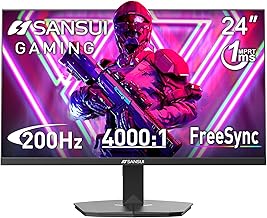
Fast games reward a screen that sits closer and lower than a work setup, with the centre of the display near eye level so crosshairs and health bars stay in your line of sight. Centre the monitor on your seating position rather than on the desk, and leave enough depth for mouse movement. A 24-inch screen suits a close desk, while a 27-inch panel needs more distance to avoid head turns. Lock the height once it feels stable.
Long Workdays at a Fixed Desk
Office work asks for endurance rather than speed, so comfort across eight hours is the goal. Place the top of the screen at eye level, sit an arm’s length away, and keep documents in the upper half of the display where your gaze rests. Take a short break every hour to stand and stretch, because even a well-set screen cannot replace movement. If your shoulders creep upward during the day, the monitor is too high or the chair too low.
Dual Monitors for Streaming and Editing
Two screens need a primary and a supporting role. Put the screen you watch most in front of you, then place the second screen beside it at the same height with an inward angle. Matching heights keeps your neck level when you glance across. In a stacked layout, keep the main screen at eye level and use the upper screen only for brief checks. Avoid putting work on the higher screen, since looking upward for hours invites a stiff neck.
Small Desks and Shared Spaces
Tight rooms reward flexible mounts. A monitor arm clamped to the back edge frees desk depth, lets the screen float at the right height, and folds away when someone else needs the table. Wall mounting works the same way when the desk cannot move. Measure eye height while seated at that exact desk before drilling or clamping anything, because a shared table serves people of different heights. A quick-release arm lets each person restore their own height in seconds.
Common Mistakes
Most monitor discomfort comes from a handful of repeatable errors rather than from the screen itself. Spotting them early saves weeks of quiet strain. Run through this list after any desk change, and treat each item as a quick check rather than a rebuild. Fix the cheapest error first, then sit through a normal session before judging the result.
- Placing the top of the screen above eye level. A high screen lifts your chin and loads the back of your neck. Lower the display until the top bezel sits at or just below your eyes, then check again after a full session.
- Sitting too close to a large screen. A big panel at close range turns reading into head exercise. Push a 27-inch or larger screen back until you can see the whole display without turning your head, and enlarge text instead of leaning in.
- Tilting the screen too far back. A heavy tilt distorts the top of the image and invites glare from ceiling lights. Return the panel close to vertical, then add only a slight backward angle until the image looks even from top to bottom.
- Centring the monitor on the desk instead of on yourself. A screen lined up with the furniture but off to one side of your chair twists your neck all day. Shift the chair or the monitor so the centre of the screen lines up with the centre of your seated body.
- Setting the height once and never revisiting it. Bodies, chairs, and desks change over time, and a new chair or a different pair of shoes can shift your eye height. Re-check the setup every few months and after any furniture change.
Frequently Asked Questions
These are the questions readers ask most often once they start adjusting their own desks. The answers below give a starting point for each one; fine-tune from there based on how your neck and eyes feel after a real session. When two answers seem to pull in different directions, trust the one that matches your main daily task.
How high should a monitor be relative to my eyes?
The top edge of the screen should sit at eye level or just below it, so your gaze angles downward across the display. Sit in your posture, feet flat and back supported, and raise or lower the monitor until the top bezel lines up with your eyes. If you wear bifocals or progressive lenses, you may prefer the screen lower so you read through the lower part of the lens.
How far away should I sit from a 27-inch monitor?
An arm’s length is a reliable starting point, roughly 24 to 32 inches from your eyes to a 27-inch screen. Sit back until you can take in the whole display with small eye movements rather than turning your head to reach the corners. If text feels small at that distance, increase the text size or interface scaling instead of dragging the monitor closer to your face.
Should I tilt my monitor up or down?
Tilt the top of the screen slightly away from you, about 10 to 20 degrees from vertical, so the panel faces your eyes squarely. This keeps brightness even from the top of the display to the bottom and reduces reflections from overhead lights. Avoid tilting the screen sharply in either direction, and re-check the angle whenever you change the height, since the two adjustments affect each other.
What is the best height for dual monitors?
Set both screens to the same height, with the top bezel of each at or just below eye level, and place the monitor you use most in front of you. Angle the second screen inward so a glance across stays level instead of climbing or dropping. In a stacked layout, keep the main screen at eye level and use the upper screen only for brief checks.
FAQ
How high should a monitor be relative to my eyes?
How far away should I sit from a 27-inch monitor?
Should I tilt my monitor up or down?
What is the best height for dual monitors?
More from Amazon
Programs that pair well with the guide above. Offers and eligibility are set by Amazon and may change.
Free shipping on eligible items, Prime Video and more. Eligible new members can start with a free trial.
Start a Prime free trialAd-free music streaming. Eligible new subscribers can start with a free trial.
Try Music Unlimited freeA Prime membership for ages 18-24 with a trial period. Eligibility is set by Amazon.
See Prime for Young AdultsAudiobooks and podcasts to listen to on the go. Eligible new members can start with a free trial.
Try Audible freeAs an Amazon Associate we earn from qualifying purchases.