Our Top Picks
As an Amazon Associate we earn from qualifying purchases.
The best possible mouse settings for PC gaming are the ones that match the hand, the game, and the desk, not the highest numbers on a specification sheet. Mouse settings decide how far the crosshair moves for a given hand movement, how smoothly that movement is reported to the game, and whether the aim feels predictable from one day to the next. Get the settings right and the mouse disappears; get them wrong and every flick feels slightly off, even on an excellent mouse.
There is no universal best setting, because sensitivity is personal. A low-sensitivity player moves the mouse with the whole arm and needs a wide desk, while a high-sensitivity player moves it with the wrist and needs a smaller area. The goal is not to copy a professional player’s numbers, but to find the sensitivity where the hand can turn, flick, and track without straining, and then to keep the rest of the settings consistent so the muscle memory can build.
This guide explains each setting in turn: DPI, in-game sensitivity, polling rate, acceleration, and the Windows settings that affect them all. It is a guide rather than a product shortlist, because the settings depend on the player and the game rather than on any single mouse, and the best setup is the one that feels consistent after a week of play.
The settings in this guide are a starting point, not a verdict. Every hand is different, and the right sensitivity for one player can feel sluggish or twitchy for another, even on the same mouse and the same game. The only reliable way to find the setting is to play with it for a week, paying attention to tracking and flicks rather than to the numbers on the screen. A setting that feels good on day one and still feels good on day seven is the right one, and it should then stay fixed while the muscle memory builds around it.
How to Choose
DPI and sensor behaviour
DPI sets how many counts the sensor reports per inch of movement. A DPI between 400 and 1600 suits most players, because it keeps the sensor in its native range where tracking is cleanest. Very high DPI values add no accuracy and can introduce smoothing on some sensors, so the DPI should be chosen for comfort, not for the biggest number on the box.
In-game sensitivity
In-game sensitivity multiplies the DPI to decide how far the view turns. The combination of DPI and sensitivity, often called the effective sensitivity, is what matters: a low DPI with a high in-game sensitivity feels similar to a high DPI with a low sensitivity, but the low DPI end of that range usually tracks more cleanly. Set the in-game sensitivity so a full sweep of the mouse area turns the view by a comfortable amount for the game being played.
Polling rate
Polling rate decides how often the mouse reports its position to the PC, measured in hertz. A higher polling rate gives smoother cursor movement and lower latency, with 1000 Hz as the standard for gaming and higher rates available on newer mice. The difference between 1000 Hz and higher rates is small for most players, but it is free performance on a mouse that supports it, so it is worth enabling.
Acceleration and angle snapping
Pointer acceleration changes the cursor speed based on how fast the hand moves, which makes aim unpredictable: the same hand movement can produce a different result depending on speed. Most competitive players turn acceleration off, both in the game and in Windows, so the aim stays consistent. Angle snapping straightens small movements into straight lines, which helps drawing but hurts aiming, so it should also stay off for gaming.
Windows pointer settings
Windows has its own pointer speed and an Enhance pointer precision option, which is acceleration by another name. For gaming, the Windows pointer speed should sit at the middle notch and Enhance pointer precision should be off, so the game receives the raw input from the mouse without the operating system modifying it. Raw input in the game settings achieves the same result and is the preferred option when the game offers it.
Lift-off distance
Lift-off distance is how high the mouse can be raised before the sensor stops tracking. A low lift-off distance suits players who lift and reposition the mouse often, since the cursor will not drift while the mouse is in the air. Many gaming mice let this be adjusted in software, and a low setting is the safer choice for competitive play.
Consistency over time
The most important setting is the one that stays the same. Changing DPI or sensitivity every week prevents muscle memory from forming, so once a comfortable setting is found, it should stay fixed for at least a few weeks of regular play. Small adjustments are fine; constant changes are not.
A Starting Point That Works
Start with a DPI of 800, a polling rate of 1000 Hz, acceleration off, and raw input on. Set the in-game sensitivity so that moving the mouse across the full width of the mouse pad turns the view by roughly a half turn in the game. Play with that setting for a week, then adjust in small steps: if turning feels slow, raise the sensitivity slightly; if aiming feels twitchy, lower it slightly. The goal is a setting where tracking a moving target feels smooth and flicking to a new target lands close without overshooting. Write the final numbers down, so they can be restored after a reinstall or on a new PC.
Settings by Game Type
Competitive shooters reward lower sensitivities, because precise tracking matters more than fast turning, and the wide mouse area gives the arm room to work. Fast arena games reward slightly higher sensitivities, since the player turns constantly and needs to react in every direction. Strategy and simulation games are the least sensitive to mouse settings, and the priority there is a comfortable desktop sensitivity rather than a tuned in-game value. In every genre, the settings should be set once and left alone while the player adapts.
Common Settings Mistakes
The most common mistake is copying a professional player’s exact numbers, which were tuned for a different hand, a different mouse, and a different desk. The second is leaving Windows acceleration on, which makes the aim inconsistent without any visible warning. The third is changing settings after every bad game, which prevents the hand from learning any single setting. Fix these three and most players will find their aim steadies within a week, without any new hardware.
Mice and Pads That Make Settings Easier to Dial In
Good settings only help if the hardware can hold them. These mice offer adjustable DPI, solid sensors and polling-rate options, and a decent pad keeps tracking consistent.
Logitech G305 Lightspeed Wireless Mouse
A light wireless mouse with a 12K sensor and a simple DPI button. It is an easy way to try a lower sensitivity.

Logitech G305 LIGHTSPEED Wireless Gaming Mouse, Hero 12K Sensor - Black | 12,000 DPI, lightweight, 6 programmable buttons, 250h battery life, on-board memory, PC/Mac, lightweight gaming mouse
One of the home product options compared in this guide.
View on AmazonRazer DeathAdder V3 Wired Mouse
A lightweight wired mouse that supports high polling rates, aimed at players who want to experiment with 1000Hz and above.

Razer DeathAdder V3 Wired Gaming Mouse, 8Khz, 59g, Black | Focus Pro 30K Optical Sensor, Fast Optical Switches Gen-3, 6 Programmable Buttons, Ergonomic, Speedflex Cable
One of the home product options compared in this guide.
View on AmazonLogitech G502 X Wired Mouse
A feature-rich shape with many buttons and an on-the-fly DPI control for players who switch sensitivity by game.

Logitech G502 X Wired Gaming Mouse - Black | Optical Switches, 13 Buttons, Infinite Scroll, PC/MacOS Compatible
One of the home product options compared in this guide.
View on AmazonRazer Gigantus V2 Cloth Mouse Pad (Large)
A thick cloth pad with a textured surface that offers steady control for settings changes.
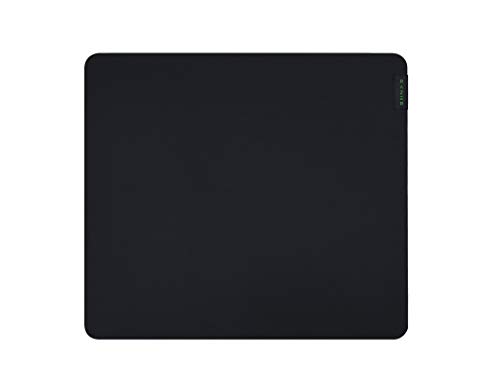
Razer Gigantus V2 Cloth Gaming Mouse Pad (Large), Thick, Classic Black | Textured MicroWeave Cloth Surface, Thick, High-Density Rubber Foam, Non Slip Base
One of the home product options compared in this guide.
View on AmazonComparison Table
| Setting | Starting point | What it changes | Common mistake |
|---|---|---|---|
| DPI | 800 | Counts per inch of movement | Chasing the highest number |
| In-game sensitivity | Half turn per pad width | How far the view turns | Copying another player’s numbers |
| Polling rate | 1000 Hz | How often the mouse reports | Leaving it at the default low rate |
| Acceleration | Off everywhere | Speed-dependent cursor movement | Leaving Windows acceleration on |
| Raw input | On | Bypasses Windows pointer speed | Playing with OS pointer changes active |
| Lift-off distance | Low | Tracking while the mouse is raised | High setting causing cursor drift |
Before You Buy
Write down the current settings before changing anything: the DPI, the in-game sensitivity, and the polling rate, so the old setup can be restored if the new one feels worse. Change one setting at a time and play with it for several sessions before changing another, since changing everything at once makes it impossible to tell which change helped. Use the same game and the same practice routine to judge each change, so the comparison is fair. Keep a short note of each setting and how it felt, and stop adjusting once the aim feels consistent: the goal is a setting that stays fixed while the skill grows around it, not a setting that is tuned forever.
Which One Is Right for You?
For a competitive shooter, start at 800 DPI with a low in-game sensitivity and a wide mouse area, and give the setting a full week before judging it. For a fast arena game, raise the sensitivity a step and keep the polling rate high. For strategy and simulation games, prioritise a comfortable desktop sensitivity and leave the in-game settings near their defaults. In every case, turn acceleration off, enable raw input, and resist the urge to change settings after every session: consistency is what turns a good setting into a good aim. A simple practice routine helps the setting settle: spend a few minutes each session on tracking a moving target and a few minutes on flicks to new targets, using the same routine every day so the results can be compared fairly. If the aim feels off on a particular day, check the obvious causes first, such as a dirty sensor, a worn mouse pad, or a changed desk position, before touching the settings. Most bad days are not a settings problem, and changing the sensitivity to fix a bad day usually makes the next week worse. Keep the mouse pad clean and the sensor lens free of dust as well, since a dirty surface changes the glide and the tracking in ways that feel like a settings problem but are not.
Frequently Asked Questions
What DPI should I use for gaming?
A DPI between 400 and 1600 suits most players, with 800 as a good starting point. The exact value matters less than the combination with in-game sensitivity, so choose a DPI that feels comfortable and tune the game sensitivity around it.
Does a higher polling rate make a difference?
It makes the cursor movement smoother and reduces latency slightly. The difference between 1000 Hz and higher rates is small, but 1000 Hz is a clear step up from the 125 Hz default of a basic office mouse, so it is worth enabling on any gaming mouse.
Should I turn off mouse acceleration?
Yes, for gaming. Acceleration makes the same hand movement produce different results depending on speed, which hurts consistency. Turn it off in the game, in the mouse software, and in Windows by disabling Enhance pointer precision.
How long should I keep a sensitivity before changing it?
At least a week of regular play. Muscle memory needs repetition to form, and changing the sensitivity every day prevents the hand from learning any single setting. Make small adjustments only after that trial period.
FAQ
Which One Is Right for You?
What DPI should I use for gaming?
Does a higher polling rate make a difference?
Should I turn off mouse acceleration?
How long should I keep a sensitivity before changing it?
More from Amazon
Programs that pair well with the guide above. Offers and eligibility are set by Amazon and may change.
Free shipping on eligible items, Prime Video and more. Eligible new members can start with a free trial.
Start a Prime free trialAd-free music streaming. Eligible new subscribers can start with a free trial.
Try Music Unlimited freeA Prime membership for ages 18-24 with a trial period. Eligibility is set by Amazon.
See Prime for Young AdultsAudiobooks and podcasts to listen to on the go. Eligible new members can start with a free trial.
Try Audible freeAs an Amazon Associate we earn from qualifying purchases.