
Key takeaways
- The EA app opens without a repeating sign-in or “Preparing game” loop.
- The affected game’s Play button launches the correct title and reaches its opening menu.
- Any temporarily disabled overlay, startup apps, or diagnostic switches have been restored as appropriate.
- Windows Firewall and antivirus protections remain enabled; any specific exception has been reviewed.
- Your Steam or Epic Games account remains linked to the intended EA account, if applicable.
- No game saves, installation directories, or custom configuration were deleted without a backup.
- If the issue persists, you have the exact error text, EA Error Reporter ID, and completed-test notes ready for official support.
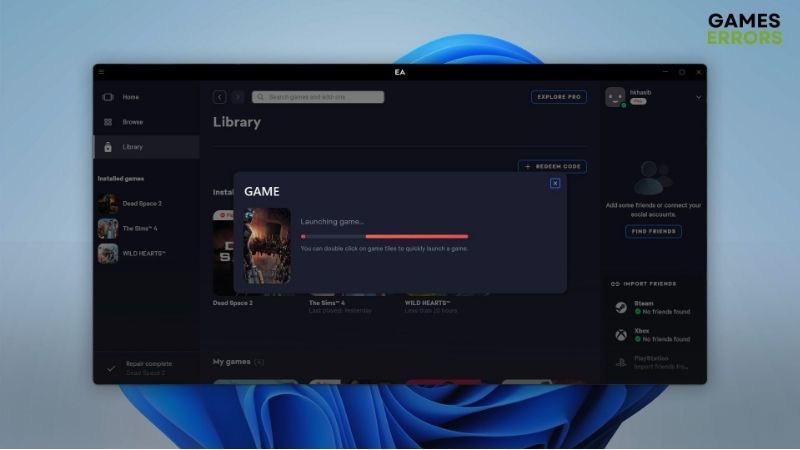
An EA App not launching games fix starts by identifying which step fails: the Play button does nothing, the launcher hangs on “Preparing game,” a window closes immediately, or EA Javelin anticheat reports an error. EA’s official guidance recommends repairing the affected game’s files, testing with the EA in-game overlay disabled, and using App Recovery to clear launcher cache when appropriate. Check EA’s service status before changing local settings. Do not delete game folders, disable antivirus protection, or reinstall Windows as your first fix.
Identify your EA launch problem before changing anything
Several different faults can look like a broken Play button. A damaged game installation needs a different response from a failed account link, a stuck EA app session, or a separate anticheat error. Start with the exact wording you see and whether other games in the same launcher can open.
| What happens | Likely area to investigate | Best first check |
|---|---|---|
| Click Play and nothing happens | Stale process, launcher/game integration, damaged files | Close running game processes; retry once and use Repair |
| “Preparing game” never finishes | EA app cache, background conflict, updates | Run App Recovery and check Windows/GPU updates |
| Game opens briefly, then closes | Corrupted game files, overlay conflict, game-specific crash | Repair files and test without the EA overlay |
| Steam or Epic opens EA, then returns to Play | Account linking, launcher handoff, wrong entitlement | Verify the linked EA account and retry from the original store |
| EA Javelin anticheat displays an error | Anticheat service, supported configuration, conflicting program | Follow the exact EA anticheat error guidance |
| EA app displays an EC error code | Authentication, connectivity, corrupted EA app files | Match the exact EC code to EA’s troubleshooting page |
| Many users have the same online sign-in failure | EA app or game-service outage | Consult EA Help Server Status before local reinstallations |
A successful fix means the affected game passes the launcher, shows its own menu or initial loading screen, and stays open long enough to demonstrate the original failure is gone. A game that opens but immediately crashes after entering a match may require game-specific troubleshooting beyond the launcher.
Start with six safe checks
- Check EA service status. Open the official EA Help Server Status page and look for the EA app and your specific game. A reported outage is not repaired by clearing local files. Recheck later instead of changing numerous Windows settings.
- Confirm which EA account is signed in. Make sure the account displayed in the EA app owns the game, has the required access, or holds the relevant EA Play entitlement. For games purchased through Steam or Epic Games Store, the correct platform account must be linked to the intended EA account.
- Restart Windows normally. Save your work and choose Start > Power > Restart. This clears transient launcher and game processes more safely than repeatedly ending unfamiliar background services.
- Check for a stalled game process. Press Ctrl + Shift + Esc and inspect Task Manager. If the affected game is still running without a usable window, close that game process only after confirming it is not saving or updating. EA specifically recommends checking for running game processes when an update is required to launch.
- Allow pending updates to finish. Check the EA app for an available game update and Windows Update for relevant patches. If GPU updates are needed, download an appropriate driver from the GPU or PC manufacturer’s supported source; do not change drivers just because a launcher briefly hesitates.
- Test the launch again once. Open the EA app, select the same game, and note the new message. If it now opens, stop. If it fails in the same way, follow the matching section below rather than cycling randomly through every fix.
What to expect: A stuck process or expired sign-in state may clear after a full restart. If the launcher still returns to Play, a targeted game repair is the next practical step. Avoid repeatedly restarting during installation or verification, since interrupted writes can cause extra repairs.
Repair the affected game in the EA app
EA’s first-party Games that won’t download, install, or load in the EA app article instructs players whose game will not load to repair the game files. Repair is usually a better first attempt than uninstalling an entire game: it checks installation data and downloads replacements when necessary.
- Open the EA app and go to Library.
- Find the affected game tile and choose its three-dot menu.
- Select Repair. Menu placement can vary with the app build or an external storefront, so use the options available for your installed game.
- Let the repair complete. Keep the PC connected, avoid force-closing the launcher while it is writing files, and ensure you have enough free storage for any replacement download.
- Select Play again and confirm whether the game reaches its opening screen.
If Repair is unavailable: Some games are managed primarily through another store or do not expose the same menu. Check the game’s installation and file-verification options in its original platform rather than claiming every title has an identical EA app Repair button. A repair that succeeds but leaves a specific game crashing after launch points toward a game-specific issue, driver compatibility, mods, or local save/configuration problems.
Turn off the EA in-game overlay as a diagnostic test
EA acknowledges that its in-game overlay can sometimes cause a game to crash or fail to launch. You can test this without touching game files, but remember to restore the feature when the experiment ends because it can carry game invites and messages.
- In the EA app, select your profile thumbnail.
- Open Settings, then Application.
- Turn In-game overlay off, if that switch is present in your current version.
- Close and reopen the affected game through its normal launch route. Do not disable unrelated security software to make this test work.
- If the game opens successfully, record that the overlay appears implicated. Re-enable it after troubleshooting if you need its invitations or messages; if the failure returns when enabled, report that behavior to EA.
If nothing changes: Re-enable the overlay and move on. You have ruled out one plausible conflict without losing settings or re-downloading the title.
Clear EA app cache with App Recovery
When the EA app is stuck in “Preparing game,” cannot load its library correctly, or remains out of sync with a recent update, EA recommends clearing its application cache. The official tool is App Recovery; it is preferable to guessing which folders under AppData can be deleted safely.
If the EA app opens
- Select the menu icon with three horizontal lines in the EA app.
- Go to Help > App Recovery. The exact label capitalization may vary.
- Choose Clear Cache and allow the app to restart or close as directed.
- Sign in again if prompted, reopen Library, and try the same game once more.
If the EA app will not open
- Open the Windows Start menu and choose All Apps.
- Expand the EA folder and launch App Recovery, if available.
- Confirm Clear Cache and then reopen the launcher.
Important limitation: EA says clearing cache can address launcher sync, downloads, and missing-library symptoms; it cannot repair a live server outage. It also is not a guaranteed fix for every crash or anticheat failure. Avoid manually clearing game save folders or cloud-save data. If your problem concerns a game save, back it up separately before further changes.
Fix “Preparing game” that never progresses
EA’s own loading-issue guidance lists a sequence for the stuck “Preparing game” screen: clear cache, check background programs, update Windows and the GPU driver where relevant, and use a clean boot to isolate interference if needed. Follow that sequence rather than jumping straight to reinstalling the operating system.
- Run App Recovery once using the previous section, then reopen the game.
- Exit unnecessary launchers, screen overlays, capture software, download managers, and file-sharing tools before the next test. Save your current work first.
- Confirm Windows 11 and the supported graphics driver are current. Prioritize model-specific driver advice on gaming laptops, especially when a manufacturer provides customized graphics packages.
- Try launching the game once from the EA app. If it works, bring background applications back one at a time to identify a repeatable conflict.
- Only if the problem persists, consider Microsoft’s documented clean boot procedure below. It is a diagnostic experiment, not a permanent setting to leave on blindly.
If the game shows a named error instead of “Preparing game,” stop this generic sequence and follow that error’s official help page. In particular, anticheat, authentication, and account-linking problems need their own checks.
Check Steam or Epic Games Store account linking
If a game was purchased on Steam or Epic, the EA app may still participate in the launch process. The failure can arise during account linking rather than from corrupt game files. EA documents separate account-linking flows for both stores, so verify the accounts before repairing the Windows installation.
- Open your original storefront and confirm the purchase, installation, or active subscription there.
- Sign in to the EA account you expect to use. In your EA account’s Connected Accounts section, inspect the relevant Steam or Epic connection using EA’s official account page.
- Start the game through the storefront you originally used. Follow any legitimate EA sign-in or account-link prompts shown by the official launcher.
- If prompted to link an account you did not expect, stop before approving. Check ownership and existing connections; do not unlink accounts speculatively because account-linking changes may affect access and progress.
- After confirming the correct account, restart both launchers and test again. If the store still hands off to EA and immediately returns to Play, use the original storefront’s supported game-file verification and EA support for the linked-account state.
Do not share account passwords, one-time verification codes, or backup codes with a troubleshooting website or chat contact. This guide cannot verify your entitlements; only your account pages and EA’s support team can confirm a disputed ownership or linking issue.
Follow a separate path for EA Javelin anticheat errors
Some EA PC titles use EA Javelin anticheat. If the launcher displays a service error or a message that another program cannot run at the same time as the game, troubleshooting the EA app cache alone is unlikely to settle the cause. EA maintains a specific How to install and troubleshoot EA Javelin anticheat on PC guide.
- Record the exact error text and number. Different anticheat messages have different official fixes.
- For the error stating that the anticheat service cannot find its folder or start the game, EA suggests closing the app and relaunching the EA app as administrator, then starting the game directly from that app. Use elevation only for this EA-documented case, not as a permanent requirement for every game.
- If that service error continues, follow EA’s official reinstall steps for EA Javelin anticheat for your supported game. Do not obtain an anticheat installer from a third-party mirror.
- If EA identifies another conflicting program by name, close that program or follow its vendor’s guidance. EA notes that certain cheat tools, debuggers, and incompatible utilities are blocked; do not attempt to bypass anticheat protections.
- Reboot if the EA procedure calls for it and confirm the original message is gone. If a new error appears, troubleshoot that exact error rather than repeating anticheat removal.
Anticheat requirements are specific to the affected title and configuration. Do not disable Windows security features, Secure Boot, kernel protections, or antivirus globally as a generic “EA App not launching games” fix. Those changes carry security and stability risks and may not address the actual error.
Check security and background software without weakening Windows
EA acknowledges that background programs can interfere with its launcher and games. Security suites may also block a specific executable, but disabling your firewall or antivirus for all applications is not an appropriate first step. Microsoft’s guidance says a narrow, recognized application exception is less risky than opening firewall ports broadly.
- Temporarily exit nonessential overlay, download-management, macro, or screen-recording utilities from their own menus and test a single launch.
- Open Windows Security and review relevant protection history if a known EA app or game executable was blocked. Confirm the file is from the official EA or game installation before changing any allow-list entry.
- If Windows Firewall is confirmed to block a legitimate app, use a narrowly scoped allowed-app rule as described by Microsoft; do not turn off the entire firewall or expose arbitrary ports.
- Undo diagnostic exceptions or background-app changes if they do not improve the issue. If a corporate or school PC has managed security policies, contact the administrator rather than bypassing them.
Expected result: A specific interfering application or blocked executable becomes identifiable. If multiple tests produce no change, restore your normal protections and proceed to a controlled clean boot or official EA error reporting.
Use a clean boot only when simpler tests fail
A clean boot helps distinguish an EA issue from a third-party startup conflict. Microsoft provides the exact Windows procedure and warns that some device features can be temporarily unavailable while services are disabled. Take notes so you can restore the configuration afterward.
- Sign in with administrator access, save work, and search Windows for System Configuration (
msconfig). - Open the Services tab and select Hide all Microsoft services before choosing Disable all. Do not proceed if the Microsoft-services checkbox is not selected.
- On the Startup tab choose Open Task Manager; record the startup items you disable so you can restore them later.
- Restart Windows and test the affected game. If it now launches, re-enable third-party services and startup items in groups following Microsoft’s isolation method until you find the culprit.
- After troubleshooting, use Microsoft’s Reset the computer to start normally after clean boot troubleshooting instructions and restore the startup items you intentionally disabled.
Warning: Do not modify the Advanced boot tab, firmware settings, or unrelated system services. A clean boot is optional and should be skipped on managed PCs if policy forbids it. If the launch still fails under a clean boot, restore normal startup; the next step is collecting a useful diagnostic report, not leaving services off permanently.
Reinstall the EA app only after targeted repairs
When the launcher itself is damaged or EA’s error-code guidance identifies corrupted app files (for example, EC:109), reinstalling the official EA app is justified. EA’s support page describes uninstalling the EA app through Windows Control Panel and reinstalling it. Do not interpret that as permission to delete game directories or saved-game folders.
- Before uninstalling, note your EA account and the locations of installed games. Back up any local saved games, custom settings, or mods according to the specific game’s official instructions.
- Close the EA app and games. In Windows, open Control Panel > Programs > Uninstall a program, select the EA app, and uninstall only that launcher.
- Download the fresh installer from EA’s official website; do not use random DLL packs, modified launchers, or third-party repair bundles.
- Install and sign in using the correct EA account, then look for your existing library and installed games. Do not start deleting or re-downloading titles unless the launcher explicitly requires it and you have checked the existing install path.
- Test one affected game. If the original failure remains, stop repeating reinstalls and capture a diagnostic report for EA.
Do not assume an uninstall preserves every local setting: launchers, games, mods, cloud-save behavior, and save-file locations vary. A backup is the appropriate safeguard before destructive changes. On Windows 11, Microsoft’s built-in Repair or Reset controls appear only for apps that expose them; do not assume those options exist for the EA app installation you have.
Match an error code to EA’s official explanation
When EA provides an EC code, treat that code as more specific than the generic “Play does nothing” symptom. EA’s Fix EA app error codes and launch issues documentation distinguishes corrupted app files from authentication and network conditions:
| EA code | EA’s meaning | More appropriate response |
|---|---|---|
| EC:109 | EA app files are corrupted or missing | Reinstall the launcher from EA’s official installer |
| EC:10000 | EA account authentication problem | Confirm the correct login and account-access path |
| EC:10500 | Authentication failure that may involve a service outage | Try cache recovery and check EA status; wait if EA reports an incident |
| EC:10005 | Network/connectivity issue | Diagnose connection and service status before reinstalling games |
| EC:10701 | EA app communication problem involving local port 3216 | Follow EA’s documented adapter/VPN diagnostic steps if that exact code appears |
These codes apply to EA app-level issues; do not assume every game launch failure will display one. Avoid copying one error code’s network, permissions, or installation fix to a different code without evidence.
Submit an EA Error Reporter case if the game still will not launch
EA provides an EA Error Reporter that can collect diagnostics even when the EA app does not open. A useful report is more actionable than repeatedly reinstalling software without recording the actual failure.
- If the EA app opens, use its menu icon and choose Help > EA Error Reporter. If it will not open, search Windows Start for EA Error Reporter, or use the ErrorReporter utility in the documented EA app directory if present.
- Choose the problem type and provide the game’s exact name, Windows version, installation source (EA, Steam, or Epic), error message, and the first step that reproduces the failure.
- If you are working with an EA support case, enter its case number in the field EA provides. Review the diagnostic-data consent option before submitting.
- Submit the report and save the Report ID. EA also documents log files under
%localappdata%\Electronic Arts\EA Desktop\LogsandC:\ProgramData\EA Desktop\Logsfor support cases. - Share logs only through the official EA support process. Review attachments for personal information; never send a password or a two-factor authentication code.
Include whether game Repair finished, whether clearing cache changed the result, whether the problem affects one title or all titles, and whether a clean boot altered the outcome. Those observations help distinguish a general launcher fault from a title-specific issue or a wider EA service incident.
Final verification and restoring your settings
- The EA app opens without a repeating sign-in or “Preparing game” loop.
- The affected game’s Play button launches the correct title and reaches its opening menu.
- Any temporarily disabled overlay, startup apps, or diagnostic switches have been restored as appropriate.
- Windows Firewall and antivirus protections remain enabled; any specific exception has been reviewed.
- Your Steam or Epic Games account remains linked to the intended EA account, if applicable.
- No game saves, installation directories, or custom configuration were deleted without a backup.
- If the issue persists, you have the exact error text, EA Error Reporter ID, and completed-test notes ready for official support.
Frequently asked questions
Why does EA open, then return to the Play button?
The launcher may have handed off to a game process that exited immediately, a failed storefront-account link, an overlay conflict, or a title-specific startup error. Confirm whether the game briefly appears in Task Manager, use EA’s game Repair, and test the overlay before trying broader system changes.
Does clearing the EA app cache delete installed games?
EA’s supported App Recovery function is intended to clear launcher cache rather than serve as a game uninstaller. Still, do not manually delete game directories, saves, or arbitrary folders under AppData. Verify library and entitlement information after reopening the launcher, and keep backups before any later reinstall.
Should I always run the EA app as administrator?
No. EA documents elevated launch for some installation or EA Javelin anticheat errors, but those are specific circumstances. Running every game and launcher permanently elevated increases privilege and can create additional compatibility problems. Use the documented step only when it matches your error.
What if only one EA game fails while the others work?
Focus on that game’s files, its update state, its own requirements, and any game-specific EA support page. A failure affecting only one title is weaker evidence that the entire EA app installation is broken. Repair or verify the title before reinstalling the launcher.
What if the issue is caused by an EA outage?
EA’s Server Status page is the appropriate first check for service disruptions. Local cache deletion, reinstalling graphics drivers, and changing Windows firewall settings cannot fix an outage on EA’s side. Preserve your system configuration and retry when the service is restored.
Final thoughts
The most dependable EA App not launching games fix is a targeted, reversible troubleshooting sequence: verify service and account status, close stale game processes, repair the game’s files, test the in-game overlay, and use EA App Recovery for launcher problems. Follow EA’s separate anticheat or error-code instructions when those messages appear. Reserve reinstallations and clean-boot diagnostics for persistent failures, and use EA Error Reporter rather than deleting game content when you have exhausted the supported steps.




