Key takeaways
- Do a clean driver install using a display driver removal utility in Safe Mode, then install the latest driver fresh.
- Check Device Manager for a card listed with a warning triangle, which signals a driver conflict rather than a hardware failure.
- Make sure Windows is fully updated, since chipset and platform updates affect PCIe device detection.
- If the card shows as an unknown device, install the motherboard chipset drivers first, then the GPU driver.
Your games are running on integrated graphics, Device Manager shows no dedicated card, or the screen only works from the motherboard’s video port. A GPU that will not show up is a common and fixable problem, and it rarely means your expensive graphics card is dead. More often it is a seating issue, a power connector, a driver conflict, or a BIOS setting quietly routing everything through the integrated GPU.
This guide takes you through diagnosing a GPU that is not being detected, in the order most likely to solve it fastest. From the physical checks that fix the majority of cases to the driver and BIOS tweaks that catch the rest, you will have a clear path to getting your card recognized and running again.
Our top picks
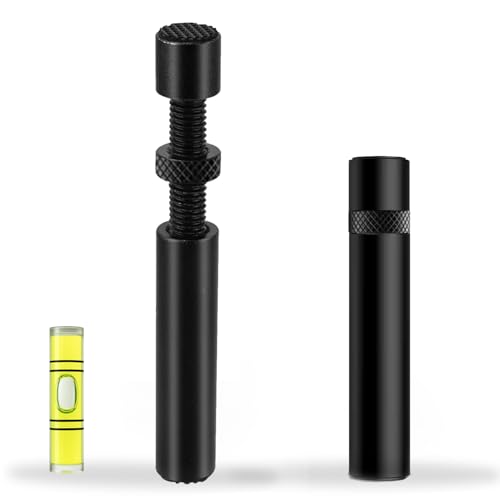 California JOS California JOS GPU Support Bracket
- ✅ Package Includes: 1 PCS Large Black GPU…
- ✅Prevents GPU Sag and Damage
- ✅Durable All-Aluminum Build
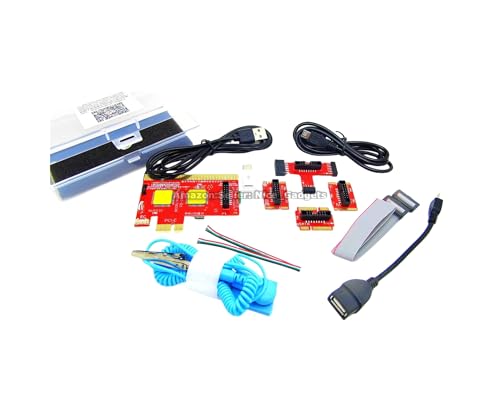 New USB PCIe Motherboard Diagnostic Tester Kit
- Please DO study the listing page the "Product…
- Easy To Use Unique USB Diagnosis with Videos…
- USB Diagnosis Unique Feature - Save hassles of…
 greenDracaena Dracaena.io 2-Pack PCIe Riser Adapter Card
- PCIe 16X to 1X riser card links GPUs…
- Powered by 6-pin, MOLEX or SATA input for…
- Built for multi-GPU mining rigs and expansion builds
| Product | Key specs | |
|---|---|---|
| California JOS California JOS GPU Support Bracket | ✅ Package Includes: 1 PCS Large Black GPU… ✅Prevents GPU Sag and Damage ✅Durable All-Aluminum Build | Check price |
| New USB PCIe Motherboard Diagnostic Tester Kit | Please DO study the listing page the "Product… Easy To Use Unique USB Diagnosis with Videos… USB Diagnosis Unique Feature - Save hassles of… | Check price |
| greenDracaena Dracaena.io 2-Pack PCIe Riser Adapter Card | PCIe 16X to 1X riser card links GPUs… Powered by 6-pin, MOLEX or SATA input for… Built for multi-GPU mining rigs and expansion builds | Check price |
 Pilipane Pilipane Graphics Card Virtual Display Emulator Pilipane Pilipane Graphics Card Virtual Display Emulator | [MINING STABILITY SOLUTION] : Tackle mining interruptions effortlessly [COMPACT DESIGN , LOW POWER] : With a… [HIGH RESOLUTION SPOOFING] : Simulate 4K resolutions like… | Check price |
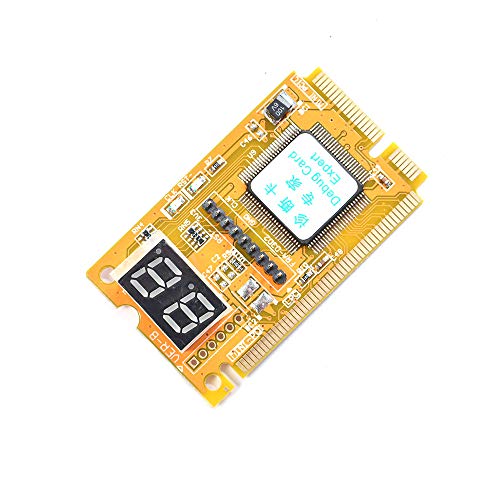 Comimark Comimark 1Pcs Mini 3 in1 PC Comimark Comimark 1Pcs Mini 3 in1 PC | 3 in 1 tester. For PCI, PCI-E, and LPC. Diagnostic post-test card. | Check price |
 Wisoqu Computer Accessory Graphics Card Tester with Wisoqu Computer Accessory Graphics Card Tester with | High Efficiency: The computer graphics card tester can… Versatile Testing Capabilities: The graphics card tester diagnostic… Comprehensive Fault Diagnosis: When troubleshooting computer graphics card… | Check price |
 Hilitand Computer Graphics Card Tester Hilitand Computer Graphics Card Tester | [Quick Fault Detection] The graphics card tester quickly… [ Design] The graphics card tester with indicator… [Comprehensive Testing] Specifically designed to test data bus… | Check price |
| Masyrt Purpose AGP PCI E Graphics Card | High Efficiency: The computer graphics card tester can… Versatile Testing Capabilities: The graphics card tester diagnostic… Comprehensive Fault Diagnosis: When troubleshooting computer graphics card… | Check price |
As an Amazon Associate we earn from qualifying purchases at no extra cost to you.
⚡ Save on Your Next PC — Amazon Prime
Prime members get fast free shipping on the systems above, plus early access to Prime Day & Black Friday PC deals. New members get a 30-day free trial.
Watch: Why Is My GPU Not Being Detected? (2026 Fixes) — Video Review
Check Physical Seating and Power First
The number one cause of a missing GPU is an imperfect slot connection or missing power. Power down, unplug, and firmly reseat the card in the top PCIe x16 slot until the retention clip clicks. Then confirm every PCIe power cable is fully connected; a card that is under-powered may spin its fans but never initialize. Heavy modern cards also sag over time, which can slowly break slot contact, so a support bracket or anti-sag holder helps keep the connection solid on long-term builds.
Plug Your Monitor Into the GPU, Not the Motherboard
This trips up a surprising number of people. If your display cable is plugged into the motherboard’s HDMI or DisplayPort, you are using the CPU’s integrated graphics, and the dedicated GPU may appear inactive. Move the cable to the ports on the graphics card itself, which sit lower on the rear of the case. This single change resolves a large share of no-GPU complaints instantly.
Address Driver Problems
- Do a clean driver install using a display driver removal utility in Safe Mode, then install the latest driver fresh.
- Check Device Manager for a card listed with a warning triangle, which signals a driver conflict rather than a hardware failure.
- Make sure Windows is fully updated, since chipset and platform updates affect PCIe device detection.
- If the card shows as an unknown device, install the motherboard chipset drivers first, then the GPU driver.
Check BIOS Settings
Your motherboard BIOS controls which graphics device takes priority. Enter the BIOS and look for a primary display or initial display output setting, and set it to PCIe or the dedicated GPU rather than the integrated graphics or auto. Also confirm the PCIe slot is enabled and, if available, set to run at the correct generation. Enabling Resizable BAR here can also help the system properly initialize the card. Save and reboot.
Isolate the Card and Slot
If it still is not detected, narrow down the fault. Try the GPU in a different PCIe slot to rule out a dead primary slot. If you have another system, test the card there to determine whether the card or the motherboard is at fault. Diagnostic tools like a PCIe POST test card or a graphics card tester can confirm whether the slot and card are communicating. A card that works in another machine points to a motherboard or BIOS issue in the original system.
Tips for GPU Detection Troubleshooting
- Always plug your monitor into the graphics card’s own ports, not the motherboard.
- Reseat the card and its power cables before assuming a hardware failure.
- Use a support bracket on heavy cards to prevent sag from breaking the slot connection over time.
- Do a clean driver reinstall rather than installing over a corrupt existing driver.
Frequently Asked Questions
Why is my monitor working but my GPU not detected?
Your monitor is almost certainly plugged into the motherboard’s video output, so you are seeing integrated graphics while the dedicated card sits idle. Move the display cable to the ports on the graphics card itself and the GPU should take over.
Can a weak PSU cause my GPU not to be detected?
Yes. If the card is not getting adequate power through its PCIe connectors, it may fail to initialize even though other components work. Confirm all GPU power cables are seated and that your PSU has enough wattage for the card.
How do I know if the GPU or the slot is faulty?
Test the card in a second PCIe slot or another PC. If it works elsewhere, the original slot or BIOS is the issue. If it fails everywhere, the card itself may be faulty. A PCIe tester card can further confirm slot communication.
Will reinstalling drivers fix a GPU that is not showing up?
Often yes, if the cause is a software conflict. Use a driver removal tool in Safe Mode to fully clear the old driver, then install the newest version. If the card is physically undetected in BIOS, however, fix the seating and BIOS settings first.
Conclusion
A GPU that is not detected is usually a connection or configuration problem, not a dead card. Reseat the card and its power cables, plug your monitor into the GPU’s own ports, do a clean driver install, and set the BIOS to prioritize the dedicated card. Isolate the card and slot only if those steps fail. Work through them in order and you will get your graphics card recognized and back to pushing frames.