
Key takeaways
- Modern Warfare 4 Benchmark Tool — included with the game: compare FPS and latency under the same built-in sequence; use it after each controlled graphics adjustment. No separate purchase is needed.
- NVIDIA app — free: install official supported drivers, inspect per-game DLSS overrides and verify reported DLSS model statistics when the overlay supports them. Only GeForce owners need it.
- Windows Task Manager — included with Windows: use the Performance tab to identify the active GPU and obvious system-resource saturation before assuming that an absent DLSS option or poor FPS is a game defect.
Modern Warfare 4 DLSS settings are worth adjusting because the fastest-looking frame counter is not necessarily the most responsive setup. For most GeForce RTX owners, start with your monitor’s native display resolution, enable NVIDIA DLSS Super Resolution, choose Quality at 1080p or 1440p, and test Balanced or Performance when GPU load is still too high. Keep NVIDIA Reflex enabled when the option is present. RTX 40 owners can also test Frame Generation; RTX 50 owners can test Dynamic Multi Frame Generation, but competitive players should compare both against ordinary DLSS with generation disabled. This guide separates confirmed support from practical starting points, with checks you can repeat on your own PC.
Quick answer: Recommended DLSS starting points
There is no single universal “best” Modern Warfare 4 DLSS preset. The right setting depends on monitor resolution, GeForce generation, underlying rendered frame rate, scene complexity, and whether you value aiming response or cinematic smoothness. Activision confirms DLSS 4.5 among its PC upscalers and a built-in benchmark; NVIDIA confirms Super Resolution on GeForce RTX hardware, Frame Generation on RTX 40 systems, and Dynamic Multi Frame Generation on RTX 50 systems. Those are product capabilities, not verified frame-rate gains for your card.
| Player and display | Start with | Frame Generation | What to check first |
|---|---|---|---|
| 1080p competitive multiplayer, any RTX GPU | Native 1080p; DLSS Quality if GPU-limited; compare native/Filmic SMAA | Off for the initial latency baseline | Aim feel, distant-target clarity, native rendered FPS |
| 1440p multiplayer or DMZ | DLSS Quality; try Balanced if GPU load remains high | Off initially; optional visual-smoothness test on RTX 40/50 | 1% lows, scene clarity, responsiveness |
| 4K campaign with ray tracing | DLSS Balanced, then Performance if necessary | Optional when underlying FPS is already comfortable | Motion artifacts, ray-traced scene cost, input feel |
| High-refresh RTX 50 visual showcase | DLSS Quality/Balanced appropriate to resolution | Test Dynamic Multi Frame Generation independently | Base frame delivery, frame pacing and supported refresh target |
| RTX 20/30 cards | DLSS Quality or Balanced; compare older model preset if needed | Not supported by DLSS Frame Generation | Native FPS and the cost of DLSS 4.5 model overrides |
These are editorial starting points, not performance measurements or Activision-sanctioned presets. Quality generally preserves more input detail than more aggressive upscaling, while Performance uses a lower internal resolution to reduce rendering work. If a GPU is not the bottleneck, selecting a lower DLSS mode may produce little benefit and can cost clarity. Treat changes in CPU- or network-bound situations separately.
Understand what each DLSS setting actually changes
Super Resolution improves the cost of rendering, not your network
DLSS Super Resolution renders at a lower internal resolution and reconstructs an image for the selected output resolution. That can reduce GPU work and improve delivered frame rate when the graphics card is the limiting component. Quality, Balanced, and Performance describe different compromises; they are not fixed quality scores. At the same output resolution, a more aggressive mode has less rendered information to reconstruct, so hair, fences, distant silhouettes and moving particles may look less stable.
Keep Windows and the game’s display output at your monitor’s native resolution when you compare modes. A 1440p monitor running the game at 1080p with DLSS Performance adds a second change to the experiment and makes it harder to identify the reason for softness. Only change the output resolution when you deliberately want to evaluate a separate, lower-resolution configuration.
Frame Generation adds displayed frames but not equivalent simulation updates
DLSS Frame Generation synthesizes intermediate frames using motion information. This can make movement appear smoother on a capable display, but it does not cause the underlying game simulation, controls or server to process twice as frequently simply because a counter rises. An RTX 40 card can use conventional DLSS Frame Generation in Modern Warfare 4, according to NVIDIA; RTX 50 hardware adds Dynamic Multi Frame Generation with support for multipliers as high as 6X. Neither claim means every GPU can sustain a desirable base frame rate.
For a campaign sequence with ray-traced reflections, displayed smoothness may be the priority and generated frames can help. In close-range multiplayer firefights, delayed response to new input can matter more than a spectacular displayed FPS number. Start with generation disabled, establish an acceptable responsive baseline, and only then turn it on for a direct same-scene comparison. Never report generated FPS as if it were a benchmark of genuinely rendered frames.
Reflex addresses a different link in the latency chain
NVIDIA Reflex is a latency-reduction feature rather than an image upscaler. NVIDIA confirms Reflex availability for GeForce RTX systems in Modern Warfare 4. Enable Reflex if offered, then verify that it remains active after changing presets. A game’s optional On + Boost choice, when present, can alter GPU behavior and power consumption; it is not required as a blanket recommendation for laptops or every desktop.
Latency also depends on the game’s CPU/GPU workload, display, mouse/controller, network and frame delivery. A lower latency value in the game’s benchmark is useful, but it should be compared under identical conditions. Reflex cannot eliminate packet burst, server congestion, mouse sensor issues or controller drift. It belongs in this graphics guide only as part of the FPS-versus-responsiveness decision.
Which GeForce cards support Modern Warfare 4 DLSS features?
Every GeForce RTX family from RTX 20 upward has access to DLSS Super Resolution features where supported by the game’s implementation and compatible drivers. The feature set is not the same across generations. More recent models and frame-generation overrides can require updated NVIDIA app components as well as a supported game implementation.
| GeForce family | DLSS Super Resolution | DLSS Frame Generation | Dynamic Multi Frame Generation | Reflex |
|---|---|---|---|---|
| RTX 20 Series | Yes; model choice matters | No | No | Yes |
| RTX 30 Series | Yes; model choice matters | No | No | Yes |
| RTX 40 Series | Yes | Yes | No | Yes |
| RTX 50 Series | Yes | Yes | Yes, up to supported 6X mode | Yes |
| GeForce GTX or non-NVIDIA GPUs | No NVIDIA DLSS path | No NVIDIA DLSS path | No NVIDIA DLSS path | No NVIDIA RTX path |
This distinction prevents a common error: telling RTX 3060 owners to enable a Frame Generation switch that is intended for newer hardware. Owners of Radeon or Intel graphics can instead evaluate the game’s supported AMD FSR Redstone or Intel XeSS 3 options, using the same repeatable benchmark principle. Activision also lists Filmic SMAA T2X as a conventional anti-aliasing option. Avoid presenting another vendor’s upscaler as a hidden DLSS mode.
Why RTX 20 and 30 users should consider their DLSS model
DLSS 4.5 model availability does not guarantee that the newest model is the fastest choice on older hardware. NVIDIA says its newer M and L Super Resolution models have a greater performance cost on GeForce RTX 20 and 30 series GPUs because those cards lack native FP8 support. Model K may be a more efficient option for these generations, even if newer models improve particular visual details. When the NVIDIA app offers model overrides, evaluate them using matched scenes rather than assuming a higher version number means higher FPS.
The same principle applies to laptop variants: an RTX 4070 laptop and an RTX 4070 desktop are not interchangeable performance predictions. Power limits, cooling and CPU limitations affect the baseline from which an upscaler operates. Confirm the actual GPU listed in Windows and the hardware supported by the installed driver before comparing your results with somebody else’s chart.
How to enable DLSS in the game
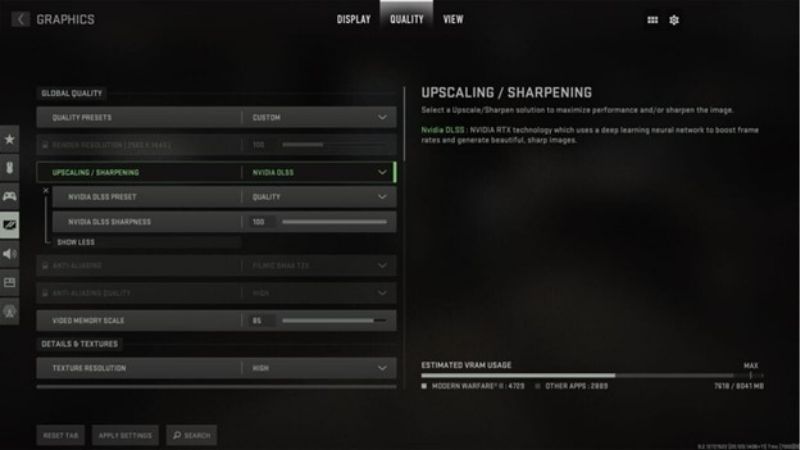
Activision confirms that Modern Warfare 4 offers a Resolution Scaling Technique choice and a global sharpness slider in its PC graphics controls. A launch-window third-party walkthrough places these settings at Settings > Graphics > Quality, where NVIDIA DLSS is an available scaling technique. Exact on-screen labels and placement may change in patches or by storefront, so use that observed route as a starting location rather than claiming Activision has documented every click.
- Record the starting configuration. Open Modern Warfare 4 on PC, enter Settings using the gear menu, select Graphics, and open the Quality tab. Note the current graphic preset, display resolution, scaling technique, sharpening and any frame-generation setting. Take a local screenshot if convenient. This is your rollback baseline.
- Set the correct output first. In the Graphics display controls, leave Display Resolution at the monitor’s native resolution and confirm the refresh rate is the intended value. If you play at 1440p, do not switch to 1080p merely to make DLSS available. Apply a broad preset before changing individual Quality values because a preset can overwrite manual choices.
- Select NVIDIA DLSS. Under Graphics > Quality, locate Resolution Scaling Technique and choose NVIDIA DLSS. The currently observed PC menu places AMD FSR, Intel XeSS and Filmic SMAA T2X in the same selection area. If a patch uses an “Upscaling / Sharpening” grouping instead, verify the selected technology is DLSS rather than assuming similarly named options are equivalent.
- Choose one Super Resolution mode. Use Quality for an image-first baseline at 1080p or 1440p, or start with Balanced at 4K if the GPU is already heavily loaded. Test Performance only when the benchmark demonstrates a meaningful improvement that outweighs lost clarity. Do not simultaneously change ray tracing, render resolution, image sharpening and DLSS quality.
- Enable Reflex, then leave generation off for the first test. Modern Warfare 4 supports Reflex on RTX GPUs, but its exact position may differ from the upscaling selector. The launch-window PC Graphics walkthrough shows Reflex in graphics Display controls. If your build offers On and On + Boost, start with On unless testing indicates a reason to use Boost.
- Benchmark and save your result. Run the built-in Benchmark Tool, which Activision says reports average FPS, CPU/GPU statistics, ping and input latency. Record the mode, visual settings and driver version, then repeat from the same menu after changing only one DLSS option. If a setting is absent, use the compatibility and troubleshooting sections below rather than forcing an unsupported toggle.
Once a preset produces stable image quality and good aiming response, keep it for a real multiplayer session before making more changes. A benchmark can expose a graphics bottleneck but cannot fully simulate every smoke effect, player interaction or network condition. Conversely, an isolated bad online match is insufficient evidence that a DLSS model has a performance defect.
Best settings for 1080p, 1440p, and 4K
1080p: Protect target clarity and real input response
At 1080p, the internal images used by more aggressive DLSS modes contain relatively little detail. That can make small distant targets or narrow edges harder to read, particularly in fast pans. Begin with native-resolution rendering or DLSS Quality and evaluate which looks clearer at the same camera position. If GPU usage is well below saturation or the processor is already limiting FPS, dropping to Balanced or Performance may not improve responsiveness.
For competitive 1080p play, prioritize Reflex and a stable stream of genuinely rendered frames before experimenting with generation. Frame Generation may look smooth in a replay, but that does not automatically improve the time between mouse input and a new simulation frame. If your monitor has a high refresh rate, use its native refresh setting; keep any in-game FPS cap and synchronization configuration constant while comparing upscalers.
1440p: Quality first, Balanced when GPU-limited
1440p is a useful middle ground for Super Resolution because Quality mode has more input information than at 1080p, yet still reduces graphics workload when the GPU is busy. Start at native 2560-by-1440 output with Quality, run a benchmark, inspect moving foliage and fences, and compare the game’s displayed input latency. If GPU-bound results remain below your comfort target, switch to Balanced with all other settings preserved.
Performance mode can be a reasonable fallback on a lower-power RTX system, especially if ray tracing is enabled, but it should not be automatic. The lower internal input detail can be visible on moving enemies and faraway scene geometry. RTX 40 and 50 owners may later try generation in Campaign or DMZ, but should first determine whether Base DLSS already meets their responsiveness goal.
4K: Use the GPU headroom where it matters
At 3840-by-2160 output, the GPU has substantially more pixels to shade, and upscaling can be an efficient way to free headroom. Begin with Balanced if demanding graphics features are active, compare Quality for a sharper result and Performance if you still see a GPU bottleneck. Leave the output at 4K so the display receives the expected signal while DLSS adjusts internal rendering work.
Campaign players using optional ray-traced reflections may find greater value in Frame Generation than those focused on competitive Multiplayer. The game’s ray-tracing options are confirmed across Campaign, Multiplayer and DMZ, but the right combination remains GPU-dependent. Rather than assuming the advertised 6X generated-frame ceiling equals “six times the responsiveness,” check native game feel, motion around thin objects, HUD artifacts, and the difference between displayed and genuinely rendered frames.
Set up Frame Generation without misleading FPS numbers
RTX 40: Test conventional Frame Generation after Super Resolution
For RTX 40 owners, first obtain a consistent base result with Super Resolution and Reflex. Then enable the game’s supported DLSS Frame Generation feature if its control is available. Match the same resolution, benchmark scene and graphics preset before comparing. Look for smoother motion, but also watch fast-moving objects and camera turns for interpolation artifacts. A displayed FPS jump can be impressive while mouse response remains dictated largely by the underlying frame pipeline.
Turn generation off again to verify whether your choice is actually preferable. If the game feels sluggish in close combat or visual errors distract you, Super Resolution alone is a valid final configuration. There is no requirement to enable every new technology simply because your GPU supports it.
RTX 50: Use Dynamic Multi Frame Generation deliberately
NVIDIA says its DLSS 4.5 Dynamic Multi Frame Generation can adjust the generation multiplier automatically toward a target display rate, with up to 6X in compatible applications. It provides a precisely documented configuration path in the NVIDIA app: open Graphics, choose the game’s profile where available, then set DLSS Override – Frame Generation Mode to Dynamic. You can choose Max refresh rate or Custom target within the supported control. Keep a record of the original driver setting so you can undo it.
One important limitation is explicit in NVIDIA’s own March 2026 instructions: the Dynamic mode described there is not compatible with frame-rate limiters or V-Sync. Do not recommend enabling Dynamic while simultaneously imposing an unrelated manual cap and then wonder why behavior is inconsistent. Use NVIDIA’s supported mode guidance, and recheck it after software updates. If the option is missing, first confirm RTX 50 hardware, current NVIDIA app/driver, and that the game profile actually supports that override.
Why a higher displayed FPS number may not feel faster
Consider a hypothetical system that renders 70 real frames each second and displays additional generated frames between them. The screen can look substantially smoother, but the game still receives fresh player and simulation state at the underlying cadence. This 70 FPS example is a thought experiment, not a measured Modern Warfare 4 result. Input lag may change with a particular implementation, and the relationship cannot be inferred from a single generated FPS counter.
To judge frame generation correctly, test identical aiming movements with generation both on and off. Consult the game’s reported input latency where available and note whether you are comparing the same driver and graphics scene. For competitive play, a lower displayed FPS configuration with steadier real frames and less delay can be a better choice than a higher interpolated value.
Use the NVIDIA app to confirm model and driver behavior
NVIDIA’s GeForce Game Ready driver 621.01, released October 21, 2026, explicitly includes support for Modern Warfare 4; this is a verified release in the checked driver documentation, not a statement that 621.01 must remain the newest driver forever. Update via the official NVIDIA app or your supported GPU manufacturer’s driver channel, choosing the correct hardware and Windows edition. Laptop owners should check vendor-certified driver recommendations when unusual power or switching behavior is involved.
- Check the installed graphics driver. Launch the NVIDIA app, open the Drivers area and read the installed driver information. If you update, use the app’s supported install flow, restart when requested and rerun the baseline. Do not install an arbitrary third-party DLL or modded driver for a competitive game protected by RICOCHET.
- Check the DLSS model preset only if necessary. From NVIDIA app > Graphics, select the global setting or the Modern Warfare 4 profile and locate DLSS Override – Model Presets. NVIDIA documents Recommended as a supported choice. The current model assignment depends on mode; it is not a generic “make every game faster” button.
- Verify the active override. NVIDIA documents an overlay check at Alt+Z > Statistics > Statistics View > DLSS. Inspect the reported model where supported. If the DLSS entry does not appear, verify the overlay is enabled and that Super Resolution is active; do not assume the driver applied an override solely because you selected it.
- Restore defaults if performance degrades. Switch the override back to the original value, reopen the game and rerun the same benchmark. RTX 20/30 owners should be particularly cautious about forcing newer M or L models because NVIDIA acknowledges their extra hardware cost without native FP8 support.
A model override is an advanced tuning choice, not a prerequisite to using the game’s built-in DLSS. Start with the native in-game selection and only override after you have an observable artifact or repeatable measurement to address. This approach also makes it easier to recognize when a future driver update changes model defaults.
Troubleshooting missing DLSS, blur, stutter, and crashes
DLSS is missing or grayed out
First confirm you actually have a GeForce RTX GPU rather than a GeForce GTX card, integrated graphics processor, or a non-NVIDIA GPU. Then verify the installed driver, review the game’s selected graphics adapter if it is exposed, and restart after updating. On switchable-graphics laptops, ensure Modern Warfare 4 is running on the discrete RTX processor before concluding support is broken. If you are using FSR or XeSS, switch the scaling technique to NVIDIA DLSS first; do not expect DLSS-specific suboptions while another technology is selected.
If Super Resolution is available but Frame Generation is not, check the GPU generation separately. An RTX 30 system cannot be made RTX 40-compatible through an app override. Dynamic Multi Frame Generation requires RTX 50 hardware and compatible NVIDIA app/game support. Record the GPU, driver, storefront and game build before reporting an error, because these details determine whether the missing switch is expected.
The picture is too soft, oversharpened, or unstable
Return to a matched test view and increase the Super Resolution mode from Performance to Balanced or Quality. If softness persists, compare the native-output Filmic SMAA setting without changing the game’s output resolution. Activision confirms Modern Warfare 4 includes a global sharpness slider; adjust that moderately rather than maximizing it, because excessive sharpening can create halos or exaggerate noise. Look at fine structures during motion, not just stationary screenshots.
Frame-generation artifacts can be misread as upscaler artifacts. Turn generation off, keep Super Resolution the same, and replay the same camera movement to isolate the cause. Then turn optional ray tracing off separately if you need to determine whether the GPU workload is contributing to unstable frame pacing. Changing five options at once may produce a faster counter but prevents useful diagnosis.
FPS improves in the benchmark but the game still stutters
Average FPS is not the entire story. Note variation in frame times, CPU versus GPU load, whether a background process is competing for resources, and whether the stutter occurs when first encountering assets. Activision’s own PC materials document Advanced Shader Delivery as a feature to provide precompiled shaders on compatible systems; that is a different topic from a DLSS preset and should not be “fixed” by repeatedly clearing caches without cause.
If a multiplayer match shows rubber-banding or packet-burst notices, a graphics preset may be irrelevant. Test in a controlled local benchmark as well as an online session: if the benchmark is smooth but movement corrections are erratic only online, investigate network health separately. Avoid disabling Windows security, tampering with anti-cheat, or downloading unofficial optimization executables.
The game crashes or becomes unstable after a change
Restore the last stable graphics preset and disable Frame Generation and DLSS overrides first. Reopen the game and retest. The official October 23–25 Modern Warfare 4 launch patch notes include stability fixes, but they do not establish that every current crash has a DLSS-specific cause. Keep the game current and compare official known-issues reports before applying invasive fixes.
Steam users can check installation integrity at Library > game Properties > Installed Files > Verify integrity of game files, as Valve documents. Close other disk-intensive processes while that runs. For other storefronts, use their documented repair function rather than inventing a Steam menu path. Avoid modifying game executable files, replacing signed DLLs, or disabling RICOCHET protections to test an unofficial frame-generation solution.
How to measure whether your DLSS change helped
Use a small controlled experiment rather than comparing unrelated online clips. Activision’s built-in Benchmark Tool is appropriate because it reports average FPS and input-latency information alongside system characteristics. However, its numbers still belong to your hardware, selected scene and game version. The published 90 FPS recommended-spec target is an official target, not a guarantee for every effects-heavy multiplayer session or ray-traced 4K scene.
- Fix the test conditions. Choose one output resolution, graphics preset, ray-tracing choice and game version. Record your RTX model, monitor refresh rate, driver and DLSS model. Allow the game to settle after a recent install or driver change.
- Run a baseline. Use native/Filmic SMAA or DLSS Quality with Frame Generation disabled, and note reported average FPS, CPU/GPU indications and input latency. The test does not need to match internet benchmarks; it needs to be repeatable on your machine.
- Change one option. Compare DLSS Quality and Balanced. Then, if relevant, compare generation off and on while keeping the other settings unchanged. Never treat a higher generated FPS number as direct proof of faster input handling.
- Verify visually. Inspect distant geometry, text, reticle surroundings and motion against the same in-game scene. Check for blur, shimmer, ghosting or distracting transitions in frame pacing.
- Choose and preserve the winner. Save the configuration with the best balance of responsive real frames and acceptable visual quality. If the result is uncertain, revert rather than making additional untracked changes.
A simple handwritten record with columns for output resolution, scaling mode, Frame Generation, Reflex, average FPS, latency and visual notes is more useful than a “best settings” screenshot without test conditions. If a patch changes the result, you will have enough context to identify what shifted and repeat only the relevant comparison.
Tools That Help
- Modern Warfare 4 Benchmark Tool — included with the game: compare FPS and latency under the same built-in sequence; use it after each controlled graphics adjustment. No separate purchase is needed.
- NVIDIA app — free: install official supported drivers, inspect per-game DLSS overrides and verify reported DLSS model statistics when the overlay supports them. Only GeForce owners need it.
- Windows Task Manager — included with Windows: use the Performance tab to identify the active GPU and obvious system-resource saturation before assuming that an absent DLSS option or poor FPS is a game defect.
Frequently asked questions
Is DLSS Quality always best for Modern Warfare 4?
No. Quality is a sensible initial choice when clarity matters and the GPU is the bottleneck, particularly at 1440p. At 4K with expensive ray-traced features, Balanced or Performance may offer a better compromise. At 1080p when CPU-limited, even Quality may provide little improvement over native rendering. Let a same-system benchmark and moving-image comparison determine the result.
Should I use DLSS Frame Generation in competitive multiplayer?
Use it only after comparing input feel and underlying performance against a generation-off baseline. NVIDIA’s generated frames improve displayed smoothness but are not substitutes for native simulation updates. Competitive players commonly prioritize predictable latency, especially when the base frame rate is low. A smooth campaign and a responsive multiplayer configuration can legitimately use different presets.
Does DLSS 4.5 work with RTX 3060 or RTX 3070?
DLSS Super Resolution is supported on these RTX 30 cards in games that implement it, including Modern Warfare 4. DLSS Frame Generation is not. NVIDIA also cautions that newer M and L model overrides have a larger performance cost on RTX 20/30 hardware, so a default or Model K choice may be more efficient. Always verify the model actually in use instead of relying on a version label.
Is 6X Dynamic Multi Frame Generation the same as six times lower input lag?
No. “Up to 6X” refers to a supported frame-generation multiplier, not a promise of six times more real rendered game updates or six times better latency. The NVIDIA app’s Dynamic mode also has stated synchronization and limiter constraints. Inspect base FPS, frame pacing, image artifacts and input feel before deciding that a larger output counter serves your needs.
Final Thoughts
For Modern Warfare 4 DLSS settings, begin with native output resolution, DLSS Quality or Balanced, and Reflex. Establish a benchmark with Frame Generation off before experimenting with it on RTX 40 or RTX 50 hardware. Move one setting at a time and use NVIDIA’s documented override controls only when your GPU supports them. Your next step is simple: record your current configuration, run one baseline benchmark, and compare exactly one DLSS quality change. Keep whichever setting improves the experience you actually value, not merely the highest generated FPS number.




