Key takeaways
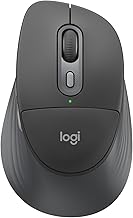
- Shape and Angle: A standard flat mouse keeps your palm facing down, which pronates the forearm. A 57-degree vertical angle like the Logitech Lift or a sculpted thumb rest like the MX Master 3S reduces pronation and gives your thumb a place to rest instead of dragging on the desk.
- Weight and Balance: Heavier mice (90g+) feel stable for productivity but require more force to start and stop. Lighter mice (under 80g) reduce finger and shoulder fatigue during fast, repetitive movements in games.
- Hand Size and Grip Match: A mouse that is too small forces you to claw your fingers; one that is too large forces you to over-extend to reach buttons. Measure from the base of your palm to the tip of your middle finger. Under 17cm is small, 17-19.5cm is medium, over 19.5cm is large.
- Button Placement and Resistance: Stiff clicks, hard-to-reach side buttons, or a notchy scroll wheel increase micro-strain. Low-force switches and well-positioned thumb buttons let you keep your hand relaxed.
What's inside
The most comfortable computer mice for long sessions are the Logitech MX Master 3S for overall ergonomics and productivity, the Logitech Lift Vertical for wrist and forearm relief, the Razer Basilisk V3 for palm-grip gaming comfort, and the SteelSeries Rival 3 as a lightweight, small-to-medium hand option that prevents finger fatigue.
What Makes a Mouse Comfortable for Hours?
Comfort is not just soft-touch plastic. For sessions over 2-3 hours, fatigue comes from three specific sources: wrist extension (bending your hand up), ulnar deviation (bending your hand sideways), and sustained grip force. The best ergonomic mice reduce one or more of these without forcing you to learn a completely new grip.
The 4 Criteria to Judge Before Buying
- Shape and Angle: A standard flat mouse keeps your palm facing down, which pronates the forearm. A 57-degree vertical angle like the Logitech Lift or a sculpted thumb rest like the MX Master 3S reduces pronation and gives your thumb a place to rest instead of dragging on the desk.
- Weight and Balance: Heavier mice (90g+) feel stable for productivity but require more force to start and stop. Lighter mice (under 80g) reduce finger and shoulder fatigue during fast, repetitive movements in games.
- Hand Size and Grip Match: A mouse that is too small forces you to claw your fingers; one that is too large forces you to over-extend to reach buttons. Measure from the base of your palm to the tip of your middle finger. Under 17cm is small, 17-19.5cm is medium, over 19.5cm is large.
- Button Placement and Resistance: Stiff clicks, hard-to-reach side buttons, or a notchy scroll wheel increase micro-strain. Low-force switches and well-positioned thumb buttons let you keep your hand relaxed.
Ranked: The Most Comfortable Mice for Extended Use
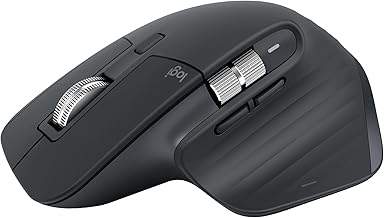
1. Logitech MX Master 3S – Best Overall Comfort for Productivity and Long Sessions
The MX Master 3S remains the benchmark for all-day comfort for medium to large hands using a palm grip. Its right-handed sculpted body, deep thumb cradle, and pronounced thumb wheel allow your hand to rest in a natural, relaxed position rather than hovering. At 141g it is intentionally heavy, which helps with precise, slow movements in editing, spreadsheets, and browsing without needing to grip tightly. Quiet Click switches reduce click noise and require less actuation force, which matters over thousands of clicks per day. Connectivity includes Bluetooth and Logi Bolt, usually in the $90-$110 range, with a rated battery life of up to 70 days on a full charge.
Best for: 8+ hour workdays, palm grip, hands 18cm and larger, users who prioritize wrist support over gaming agility. Not ideal for small hands or fingertip/claw gamers due to its size and weight.
2. Logitech Lift Vertical – Best for Wrist and Forearm Pain Prevention
The Lift is a 57-degree vertical mouse designed to put your hand in a handshake position. This angle reduces forearm pronation, which is the primary cause of forearm tightness when using a flat mouse for hours. It is significantly smaller and lighter than the larger Logitech MX Vertical, making it accessible for small to medium hands (especially hands under 18cm). It weighs 125g, has a textured grip, and keeps all buttons within easy reach without finger stretching. It is available in right-handed and left-handed versions, typically $60-$80.
Best for: Users who feel forearm soreness, wrist pressure, or tingling with traditional mice. Takes 2-3 days to adapt to the vertical orientation, after which most users report less end-of-day fatigue. Less suited for fast-paced FPS gaming where a flat, low-profile mouse offers more flick control.
3. Razer Basilisk V3 – Most Comfortable Ergonomic Gaming Mouse
The Basilisk V3 balances gaming performance with genuine palm-grip comfort. Unlike ultra-light honeycomb mice that can feel sharp after hours, the Basilisk V3 has a full right-handed ergonomic shell with a thumb rest, textured side grips, and a slightly higher hump that fills the palm. It weighs 101g – heavier than competitive esports mice but that weight adds stability and prevents you from over-gripping during long RPG or strategy sessions. Features like the tilting HyperScroll wheel and 11 programmable buttons are placed to avoid awkward thumb reaching. Usually priced $60-$80.
Best for: Palm-grip gamers with medium to large hands who play 3-5 hour sessions and want comfort without sacrificing a 26K DPI sensor and responsive switches. Not the best choice for very small hands or users who want a sub-70g mouse for competitive shooters.
4. SteelSeries Rival 3 – Best Comfortable Budget and Small-Hand Option
The Rival 3 is a standout for comfort at a lower weight and price. At 77g, it is light enough to reduce finger fatigue but retains a solid, rounded ergonomic shape for right-handed use that works for both palm and claw grips. Its dimensions (120.6 x 58.3 x 37.9mm) suit small to medium hands well, and the matte finish resists sweat buildup during long sessions. It uses 60-million-click mechanical switches and a TrueMove Core sensor that is more than sufficient for 1080p and 1440p gaming. Typically $25-$40.
Best for: Students, budget setups, and users with hands under 18.5cm who find the MX Master 3S or Basilisk V3 too bulky. It lacks the advanced thumb support of premium ergonomic models but wins on low fatigue due to its weight.
Comfort Spec Comparison
| Model | Weight | Dimensions (L x W x H) | Hand Size Fit | Best Grip Style | Battery / Connection |
|---|---|---|---|---|---|
| Logitech MX Master 3S | 141g | 124.9 x 84.3 x 51mm | Medium – Large (18cm+) | Palm | Up to 70 days, USB-C, Bluetooth / Logi Bolt |
| Logitech Lift Vertical | 125g | 108 x 70 x 71mm | Small – Medium (15-18.5cm) | Palm / Relaxed | Up to 24 months (1x AA), Bluetooth / Logi Bolt |
| Razer Basilisk V3 | 101g | 130 x 60 x 42mm | Medium – Large (17.5cm+) | Palm | Wired USB-A |
| SteelSeries Rival 3 | 77g | 120.6 x 58.3 x 37.9mm | Small – Medium (16-19cm) | Palm / Claw | Wired USB-A |
How Weight and DPI Settings Affect Fatigue: A Worked Example
A spec sheet lists weight and DPI, but it does not tell you how far your hand actually has to move. You can reduce fatigue significantly by raising DPI and lowering the physical distance you need to swipe.
The formula is: Inches of mouse movement to cross screen = Horizontal pixels / DPI. For a 1920×1080 monitor at 800 DPI, you need 1920 / 800 = 2.4 inches to go from left to right. At 1600 DPI, you only need 1920 / 1600 = 1.2 inches. On a 2560×1440 monitor, 800 DPI requires 3.2 inches per sweep, while 1600 DPI requires 1.6 inches.
Over a 4-hour session with an estimated 800 full sweeps, the difference is substantial: 800 x 3.2 inches = 2560 inches (213 feet) of hand travel at 800 DPI versus 800 x 1.6 inches = 1280 inches (106 feet) at 1600 DPI. Halving that travel distance reduces repetitive shoulder and wrist movement, which is why many ergonomic guides recommend 1200-1600 DPI for desktop work and lowering in-game sensitivity instead of using very low DPI. Pair this with a heavier mouse like the MX Master 3S for control at higher DPI, or a lighter mouse like the Rival 3 if you prefer fast, low-resistance swipes.
Decision Matrix: Find Your Match in 30 Seconds
| If You Are… | Choose This | Why |
|---|---|---|
| Working 6-10 hours, large hands, palm grip, no competitive gaming | Logitech MX Master 3S | Full palm support and thumb rest eliminate hovering; weight aids control |
| Feeling wrist/forearm ache with a flat mouse | Logitech Lift Vertical | 57-degree angle removes pronation, the main cause of that ache |
| Gaming 3+ hours, palm grip, want comfort + performance | Razer Basilisk V3 | Ergonomic hump and thumb rest with gaming sensor and extra buttons |
| Small hands, tight budget, or want a light, versatile mouse | SteelSeries Rival 3 | 77g and compact shape prevent claw-grip fatigue at low cost |
| Alternating between work and light gaming on one mouse | Razer Basilisk V3 or MX Master 3S | Basilisk for better gaming, MX Master for better scrolling/productivity |
Settings That Make Any Mouse More Comfortable
Shape alone will not fix fatigue if your settings force you to overwork your hand.
- Set DPI to 1200-1600 for desktop: As calculated above, this cuts travel distance in half versus 800 DPI. Keep pointer speed in Windows/macOS at the default 6/11 and disable Enhanced Pointer Precision to avoid acceleration.
- Lower in-game sensitivity instead of DPI: If 1600 DPI feels too fast in an FPS, lower the in-game sensitivity slider to 0.6-0.8 rather than dropping global DPI back to 400. This keeps desktop movement comfortable while giving you precise aim.
- Increase scroll speed: Set vertical scrolling to 3-5 lines at a time instead of 1. Fewer flicks of the wheel means less index finger strain on long documents.
- Enable angle snapping only if needed: Most users should leave it off for natural movement, but if your lines wobble due to wrist instability, the smoothing in Logitech Options+ or Razer Synapse can reduce corrective micro-movements.
- Position matters more than the mouse: Keep your elbow at roughly 90-100 degrees, wrist floating slightly above the desk, and the mouse at the same height as your elbow. Even the most ergonomic mouse will cause strain if you have to reach forward for it.
Frequently Asked Questions
Is a vertical mouse better for everyone?
No. A vertical mouse is measurably better for reducing forearm pronation and is often recommended for people with existing wrist discomfort. For pure gaming performance and fast aim, many players still prefer a traditional ergonomic shape like the Basilisk V3 because it allows faster wrist pivots.
Is a heavier or lighter mouse more comfortable?
It depends on grip and task. For productivity and slow, precise work, 90-140g provides stability so you do not need to pinch the mouse. For fast gaming and fingertip grips, 60-80g reduces the force needed to accelerate and stop, which lowers finger fatigue. If you are unsure, 75-105g is a safe middle ground.
How do I know if a mouse is too small?
If your fingers hang over the front edge, your ring finger drags on the pad, or you have to curl your palm to reach the scroll wheel, the mouse is too small. Ideally your palm should contact the hump and your middle finger should rest naturally with a slight bend.