
Phantom Blade Zero accessibility settings cover several useful basics, but the available evidence does not support calling the game fully accessible for every player. Steam lists adjustable difficulty, text size, subtitle options, custom volume controls, and stereo sound for PC. PlayStation’s PS5 listing separately confirms subtitled dialogue, difficulty presets, control and tutorial reminders, pausing, manual saving, volume controls, and 3D audio. Pre-release reviews add details about camera comfort and input choices, although some reports conflict. This guide separates confirmed platform listings, review-observed options, and features still unverified so you can choose practical settings without relying on a fictional accessibility menu.
This article focuses on readability, hearing, motion comfort, controller use, and manageable combat. It is not a PC performance-settings guide, frame-generation benchmark, or shader-stutter fix. Geek Gaming Tricks has not conducted a hands-on accessibility audit of the retail PC or PS5 build. The sources were checked October 28, 2026, ahead of the listed North American launch window; in-game labels and patch behavior should be rechecked on your installed version.
Quick answer: which accessibility features are actually listed?
Start with subtitles and the easiest appropriate difficulty, then reduce effects that make combat harder to follow. On PC, the Steam storefront explicitly identifies five accessibility categories, including adjustable text size and subtitle options. On PS5, PlayStation identifies eight categories, including spoken-dialogue subtitles, control reminders, a difficulty preset that reduces challenge, and the ability to pause offline gameplay and cinematics. Both listings support the idea that you have meaningful adjustments to make before your first boss encounter; neither is a detailed checklist proving every visual, motor, or cognitive accommodation.
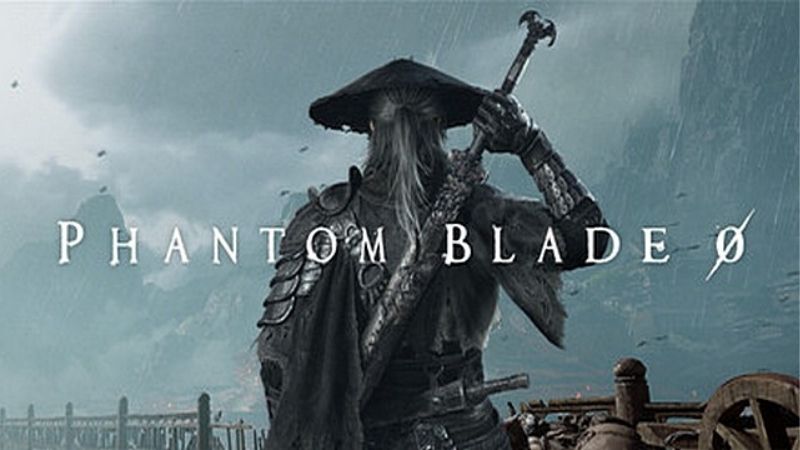
A platform listing is a better baseline than an unverified screenshot, but a category label is not necessarily a promise about the number of sliders or the exact words in the game’s menu. Where the two stores use different terminology, keep the platforms separate rather than assuming a feature advertised on PS5 is available identically on PC.
| Player need | PC: Steam listing | PS5: PlayStation listing | Important limitation |
|---|---|---|---|
| Reduce combat challenge | Adjustable difficulty | Adjustable difficulty (basic) | Mode names and save restrictions matter; do not assume every mode can be changed freely |
| Read spoken dialogue | Subtitle options; subtitle languages listed | Fully subtitled spoken dialogue | Does not prove captions cover footsteps or environmental sounds |
| Enlarge text | Adjustable text size | No specific text-size category in PS5 game’s eight-feature list | A review reports two subtitle font sizes; it does not establish scalable HUD text everywhere |
| Balance sound | Custom volume controls; stereo sound | Individual volume controls; 3D audio | Stereo output is not the same feature as console-supported spatial audio |
| Relearn controls | Gamepad support and Steam Input API are listed separately | Control reminders and tutorial reminders | Neither listing proves native per-action remapping |
| Pause or save intentionally | Not separately established by Steam’s five labels | Game pausing and manual saving | Special challenge modes may have different save rules |
| Reduce camera discomfort | Not named in Steam’s five labels | Not named in PlayStation’s eight labels | PS5 review reports shake adjustment and motion-blur off; verify your installed build |
| Color-blind filters or gameplay high contrast | Not independently established | Not established as in-game features | PS5 system color filters are separate from game-specific indicators |
Evidence levels: the two storefront columns represent published platform listings; comfort controls observed in reviews are discussed separately below. “Not established” means the sources do not verify a feature, not that it is necessarily absent in every patch or platform edition.
Find the right settings without assuming an Accessibility tab
A detailed review from a player with low vision reported that accessibility-related controls in the PS5 build are scattered among interface, audio, display, and controller areas, rather than collected into one dedicated accessibility menu. Another PS5 reviewer found two subtitle sizes, camera-shake intensity adjustment, and a motion-blur toggle. That makes a broad settings tour more reliable than instructions to open a supposedly universal Settings > Accessibility page inside the game.
When the game becomes playable in your region, open its main menu or pause menu and inspect the actual labels on your installed build. First identify language/subtitles, then audio, display or graphics, controls, and gameplay/difficulty. If any named option in this guide is missing, do not follow a guessed submenu path: check the game’s version and platform, consult its in-game help or official patch notes, and use the appropriate system-level alternative described later.
Make one change at a time. Test it in a safe area with a dialogue exchange and a short encounter, rather than judging everything from the title screen. Write down your original values so you can undo a change that makes timing, visibility, or sound localization worse. If the game saves some preferences by account, profile, or platform, confirm they remain active after restarting the game.
A five-minute setup pass before the first difficult fight
- Select a manageable difficulty. Choose the story-focused Wayfarer mode if your priority is learning the combat rhythm rather than overcoming maximum enemy aggression. The developer explicitly describes it as intended for players who want to enjoy the story. If you start on a different mode, verify whether your installed version permits changing it later rather than assuming a mid-game switch is always allowed.
- Turn on subtitles and enlarge them if offered. Check readability while someone is speaking over a bright or effects-heavy background. A subtitle label that looks readable on a menu can still become hard to track in battle.
- Balance dialogue against effects and music. Raise voice relative to effects if speech is being masked. Avoid muting every gameplay sound at once; audible attack cues can be valuable even when subtitles are on.
- Reduce uncomfortable camera effects. PS5 review coverage reports controls for camera shake and motion blur. Use the lowest comfortable shake value and disable blur where those options are actually present. Retest camera tracking during a dodge or parry.
- Check input reach and feedback. Review the controller preset or control diagram. On PS5, console-level custom assignments and vibration settings are confirmed options if the game itself lacks a suitable layout. On PC, evaluate Steam’s controller configuration before considering third-party utilities.
- Verify the result. Replay a short dialogue segment and practice against a low-risk enemy. If the game is harder to read, navigate, or control, restore the previous setting and change only the factor causing the problem.
These actions are not an accessibility certification. They are a conservative setup sequence based on the listed features and clearly identified review observations.
Subtitles, language, and text size
Subtitle availability deserves more attention than a simple yes/no label. Steam lists full English and Simplified Chinese audio, plus subtitle support across multiple interface languages, including English, French, German, Spanish, Japanese, Korean, and others. PlayStation’s US product page says spoken dialogue is fully subtitled. That is helpful for understanding voiced story scenes, but dialogue subtitles are not automatically the same as full closed captions for non-speech sound effects.
Adjust subtitle size before changing display resolution
On the review-tested PS5 build, TechRadar reports two sizes for subtitles: normal and large. A low-vision accessibility review also found subtitle-size controls, but reported limits in other formatting choices. Therefore, the practical first test is to enable the larger subtitle option if it appears, and then check a bright outdoor scene, a dark cutscene, and a busy combat moment. There is no corroborated basis here to promise fully adjustable subtitle outlines, speaker colors, background opacity, or an extra-large third size.
Steam’s Adjustable Text Size accessibility category is broader wording than the specific subtitle-size observations on PS5. Steam describes that category as text-size adjustment, but it does not reveal precisely which interface elements change in Phantom Blade Zero. A sensible PC verification is to compare a long dialogue subtitle, an item description, the settings menu, and a combat HUD prompt before and after any in-game size control. If only some elements become larger, report that distinction rather than describing the entire UI as scalable.
Increasing Windows text size is useful for Windows and many apps, but it does not guarantee a fullscreen game’s rendered HUD will become larger. On Windows 11, Microsoft documents Start > Settings > Accessibility > Text size, adjust the slider, then Apply. Test whether the game responds; if it does not, return to the in-game text controls instead of increasing scaling repeatedly. For Windows Magnifier, use Windows key + Plus to start, Windows key + Minus to decrease zoom, and Windows key + Esc to close it. Magnification can hide important attack cues at the edges of a fast-action game, so treat it as a menu-reading aid when appropriate, not a universal combat solution.
Dialogue subtitles versus environmental captions
The PS5 feature label “Subtitles (Advanced)” sounds comprehensive, but the explanatory text specifically concerns spoken dialogue. A separate accessibility review from a low-vision perspective reported that descriptive captions for relevant nonverbal sounds were not available in its tested PS5 build. That means players who rely on environmental audio cues should not assume that every sound has a visual counterpart.
Check this directly by comparing a conversation, a stealth sequence, and an encounter with off-screen threats. If dialogue is subtitled but attacks, footsteps, or environmental hazards remain sound-only, lower combat difficulty, keep the camera oriented toward threats, and use visual warning indicators that your build actually displays. Those workarounds may reduce difficulty; they do not replace missing audio-description or full-caption support.
Changing the PS5 system closed-captions style is not proof that the game uses those system styles. PlayStation explains that its system captions apply to supported content, and individual software decides whether the relevant content is exposed. Do not promise that changing PS5 caption font, background, or colors will automatically modify Phantom Blade Zero’s dialogue subtitles.
Difficulty and the ability to learn at your own pace
Difficulty adjustment is one of the few areas explicitly acknowledged on both official storefronts. S-GAME’s August 2026 PlayStation Blog identifies Wayfarer as the story-oriented choice, Hellwalker as a harder mode involving more advanced, adaptive enemy intelligence, and Sixty-Six Days as a special high-stakes challenge. Other preview-era coverage identifies Pathbreaker as the standard middle option. These are more informative than calling the game simply “easy, normal, and hard.”
| Mode | Who it is for | Confirmed or qualified point |
|---|---|---|
| Wayfarer | Players prioritizing story or gentler combat learning | Explicitly recommended by S-GAME for enjoying the story |
| Pathbreaker | Players wanting a middle-ground action challenge | Named in contemporary difficulty coverage; exact balance modifiers are not fully documented here |
| Hellwalker | Experienced players seeking tougher, more adaptive opposition | S-GAME confirms more advanced/adaptive enemy intelligence |
| Sixty-Six Days | Players actively seeking additional stakes | Special challenge associated with limited deaths in preview coverage; check the installed game’s unlock and saving rules |
Choose by your access needs, not by reputation. If combat timing, fatigue, motor control, or attention makes repeated attempts costly, the first useful adjustment is a lower difficulty. When testing whether another setting helps, stay on the same difficulty so you can identify which change made the experience easier. Do not start a limited-death challenge for the purpose of experimenting with accessibility settings.
PlayStation’s game listing separately includes Manual Saving and Game Pausing for the PS5 version, with pausing described for offline play including cinematics. Those are valuable when a player needs breaks, but the store label does not guarantee manual saves work during every boss phase or special mode. Save in an allowed safe location when the game offers it, check that the save is recorded, and avoid assuming that Sixty-Six Days follows the normal save rules. If a particular mode restricts saving, that distinction belongs in a platform-and-version-specific review before being advertised as accessible for players requiring frequent breaks.
For a more comfortable learning loop, practice one defensive action at a time and evaluate whether you can clearly detect its cue. A lower difficulty may reduce pressure, but it cannot correct a controller you cannot operate or a warning that is only communicated through inaccessible sound. Adjust the underlying barrier rather than treating difficulty as a substitute for every accommodation.
Controller remapping and motor accessibility
This is the category with conflicting review evidence, so it deserves a careful answer. A TechRadar reviewer who played on PS5 Pro reports three controller presets but no per-button remapping option in the build tested. Another release-era review reports a control-scheme screen, full button/key remapping, axis inversion, and sensitivity controls without a sufficiently clear platform-specific comparison in the excerpt reviewed. These two descriptions should not be fused into a confident claim that the retail PS5 and PC versions have identical remapping menus.
The safe conclusion is that controller layout choices have been reviewed, but native per-action remapping needs verification on the specific platform and build. Fortunately, PS5 and Steam provide separate mechanisms that can help even when the game menu is limited.
Remap a DualSense button through the PS5 system
Sony documents the following path for PS5 consoles, independent of Phantom Blade Zero’s own menu:
- From the PS5 home screen, open Settings > Accessibility.
- Select Controllers > Custom Button Assignments for DualSense Wireless Controller.
- Choose the physical button you want to change, then choose the function to assign.
- Select Apply. Return to the game and test the assignment in a safe area or menu before entering combat.
- If the changed layout creates a conflict, return to the same console setting and restore the previous assignment.
This system feature changes how the controller’s buttons are interpreted; it does not guarantee that every on-screen button prompt inside the game updates to match. Test interactions, defensive actions, menus, and confirmation/cancel behavior. If the change helps one action but makes basic navigation impossible, undo it. A DualSense Edge profile or PlayStation Access controller can offer different options, but support should be checked against Sony’s documentation rather than assumed from the standard DualSense instructions.
Check the PC controller layer without stacking remappers
The Steam product listing advertises controller support and a Steam Input API integration indicator, but that is not a detailed promise about every action’s remapping behavior in the game. For PC, first open Steam’s Library, select Phantom Blade Zero after it is installed, and inspect the controller configuration or layout screen exposed for that game and your connected controller. If a layout editor is available, save a copy of the original mapping before changing one action. Then test both the gameplay action and the button used to navigate menus.
Some setups offer Steam Input profiles through the controller settings associated with a game’s library entry, and the visible location of these controls can vary by Steam desktop, Big Picture, device type, and whether Steam Input is enabled. Since a precise path for this game was not verified in the sources checked, this article does not invent a submenu name beyond Library. If the controller layout controls are absent, use Steam’s documented help for your controller type or the game’s official support rather than installing an unknown remapper. Avoid running several remapping layers together; duplicate mappings can cause unexpected input or mismatched prompts.
Vibration and adaptive triggers can be adjusted separately
PS5’s Settings > Accessories > Controller (General) page includes Vibration Intensity and Trigger Effect Intensity on supported controllers. The game’s PlayStation page also identifies DualSense haptic feedback and adaptive triggers as supported features. If strong feedback is distracting, painful, or fatiguing, lower these console settings and test whether the game’s moment-to-moment controls feel more comfortable.
Controller vibration is not the same thing as stereo or 3D game audio. If you depend on tactile cues, removing vibration may reduce useful feedback. Make one small adjustment, play a safe scene, and restore intensity if a needed cue becomes harder to notice. A game-specific vibration control reported by a reviewer may offer more granular behavior, but its names and availability should be checked in the current build.
Motion comfort, camera shake, and visual clarity
Phantom Blade Zero’s fast combat makes camera behavior an accessibility consideration rather than a cosmetic preference. A PS5 Pro hands-on review identifies the ability to adjust camera-shake intensity and disable motion blur. Another accessibility-related review reports motion-blur and camera-shake toggles, plus brightness settings. These are review observations, not features individually enumerated in Steam’s five accessibility tags or Sony’s eight store categories.
If your build exposes the settings, start by disabling motion blur and reducing camera shake, then play a short combat encounter. Blur may make quick turns and particle effects less legible; stronger shake may make it harder to keep track of the player and enemy attacks. The best setting is the one that preserves the information you need without triggering discomfort. Avoid making assumptions about independent options for camera bob, head movement, field of view, or a photosensitivity mode: none was verified as a named Phantom Blade Zero retail toggle in the sources checked.
Brightness or HDR adjustments should be tested on a scene with both deep shadows and bright highlights. Raising brightness indiscriminately can wash out visual warning contrasts. On PS5, system-level Settings > Accessibility > Display and Sound includes Color Correction, High Contrast, and Reduce Motion features for relevant console content. These are PS5 accessibility features, not confirmation of a game-native color-blind preset, enemy highlighting mode, or gameplay motion reduction. Their effects on a given game image can vary; verify visibility while playing rather than assuming the console interface setting transforms every rendered game cue.
If you are particularly sensitive to rapid flashes, a lack of an explicit independently verified photosensitivity control matters. Reduce play duration, choose a comfortable display brightness, and review recent game footage carefully if safe for your circumstances; do not rely on an unconfirmed “reduce flashing” option. Pause and stop if symptoms appear. The presence of camera-shake controls does not amount to a photosensitivity safety guarantee.
Audio balance and hearing support
Steam explicitly lists Custom Volume Controls and Stereo Sound. PlayStation identifies separate volume adjustments and 3D audio support for PS5. For players who have difficulty distinguishing speech from overlapping effects, independent audio channels may be more useful than simply increasing the master volume. Adjust dialogue upward relative to music and effects where the corresponding sliders exist, then check both a quiet conversation and a crowded combat scene.
Do not assume the same channel labels or numeric range across PC and PS5. The Steam and PlayStation listings provide feature categories, not a screenshot of every audio control. A review of the PS5 build describes independent music, effects, and dialogue sliders, which is useful context but still should be checked in the installed version.
For PlayStation 5, Sony documents Settings > Sound > Audio Output > Headphones > Mono Audio for Headphones. This console option can help players who need a combined left/right headphone signal, but it can also remove directional information that a player uses to locate opponents. Switch it on deliberately and evaluate whether visual cues compensate for the lost spatial direction; turn it off if the result is worse. The game’s advertised 3D audio likewise requires a supported setup and is not inherently the best solution for everyone. On PC, the storefront’s stereo tag does not independently establish a particular virtual surround implementation.
No verified source in the research set confirms complete visual indicators for every important nonverbal audio event. If hearing access is a priority, assess the game by actual cue type: story dialogue, menu feedback, enemy attack warnings, off-screen movement, and interactive world sounds. Full subtitles for dialogue are useful, but they may leave essential information elsewhere inaccessible.
What the current sources do not confirm
It is tempting to turn a short store accessibility checklist into a longer catalog, especially when a console already has similar features. That would mislead people deciding whether a game fits their needs. As of the research check, the materials reviewed do not establish complete game-native support for color-blind presets, arbitrary HUD scaling, high-contrast enemy highlighting, full environmental captions, screen-reader narration of in-game menus, one-handed mode, hold-versus-toggle alternatives for each action, a combat slow-motion assist, or a dedicated photosensitivity preset.
A low-vision review specifically raises problems with menu text scale, subtitle formatting limits, and the absence of various visual accommodations in its PS5 test build. This does not demonstrate that every accessibility feature is absent on the PC edition, nor does it invalidate the features advertised by Steam and Sony. It is a reminder to distinguish marketing categories from how well the option works for a particular barrier.
| Feature or question | Current evidence assessment | Sensible next check |
|---|---|---|
| Full in-game button remapping | Conflicting hands-on reports | Inspect installed PS5/PC menus and distinguish platform presets from per-action mapping |
| Two subtitle sizes | Observed in a PS5 Pro review | Compare normal and large text in multiple scenes |
| Dedicated accessibility menu | Not found in a low-vision PS5 review | Review separate interface, audio, display, and controls sections |
| Color-blind/high-contrast gameplay mode | Not established for the game | Look for a labeled in-game option; do not substitute PS5 UI color filters as proof |
| Full non-dialogue sound captions | Not established; one review reports their absence | Test environmental and combat cues independently of speech subtitles |
| Game-specific screen reader/audio description | Not established | Distinguish PS5 console screen reading from narration of the game itself |
| Motion blur and camera shake controls | Observed in PS5 reviews | Confirm current-build labels, change one control, test and undo as needed |
| Manual saving in every mode | Not established | Check the chosen mode’s saving rules and confirm a new save actually appears |
A missing verification is a reason to test, not a license to claim a feature does not exist. Conversely, a reviewer seeing a setting on one platform is not proof that another platform has it. Firmware, patches, controller type, region, and game mode can change the result.
How to verify a useful setup on your platform
A quick reproducible test is more valuable than a long list of toggles. Keep the test small: one area with dialogue, one ordinary enemy encounter, and one menu or inventory screen. Choose two or three changes that address your most significant barrier. Record the game build when accessible and note whether you are on PC, PS5, or PS5 Pro.
PC verification checklist
- Check Steam’s Phantom Blade Zero store page for the current accessibility categories and language support. Remember that the store labels are feature declarations rather than a versioned test of each menu.
- In the installed game, inspect the actual subtitle, audio, graphics/display, input, and difficulty controls. Do not assume that PS5 reviewer terminology maps exactly to PC.
- If adjusting controller input through Steam, change one binding at a time and verify both gameplay and menu actions. Restore the original layout if prompts or inputs conflict.
- If Windows Magnifier or text scaling is used, confirm the effect on the game and check that the enlarged view does not hide enemy warnings.
- Relaunch the game and verify that the settings persist. If an option disappears after a patch, document the build and contact official support rather than editing unknown configuration files.
PS5 verification checklist
- From Games home > PlayStation Store, open the game’s hub; Sony says the triangle button or side panel can display the game’s accessibility features. Read that list as PS5-specific.
- In the game, review subtitles, difficulty, audio, and display preferences. Use the game’s own settings first where they offer the needed behavior.
- For custom physical button assignments, use Settings > Accessibility > Controllers > Custom Button Assignments for DualSense Wireless Controller. Test interaction prompts and combat inputs carefully.
- For reduced vibration or trigger resistance, use Settings > Accessories > Controller (General) and adjust only the appropriate supported option.
- For temporary magnification, Sony documents Settings > Accessibility > Display and Sound > Zoom > Enable Zoom, with PS button + square to enter zoom while supported. Be aware that zoom is unavailable in some features and may limit awareness of enemies outside the magnified area.
- Check pause and save behavior in the chosen difficulty. Confirm that you can resume from an intended point after a break, rather than assuming the store feature applies identically to every challenge mode.
If a workaround solves a settings-menu problem but makes gameplay worse, keep it restricted to the menu when possible. Neither platform should require you to buy extra hardware just to try its built-in accessibility settings.
Tools That Help
Steam game properties and controller configuration (PC, free): Use the installed Steam client to review available controller layouts and the game’s listed features. Appropriate when reaching or repeating a physical input is difficult; check the active controller and restore the original layout if the new mapping breaks menus. No additional purchase is needed.
PS5 Accessibility settings (PS5, built in): Use Settings > Accessibility for DualSense assignments, zoom, and supported display features. Appropriate when a game control scheme is difficult to operate or small interface text is hard to inspect. These console tools do not automatically add missing in-game captions or color-blind support. No additional purchase is needed.
Windows Magnifier and Text size (Windows 11, free): Use Windows key + Plus for temporary zoom, Windows key + Esc to exit, or Settings > Accessibility > Text size to enlarge system text. Appropriate for reading menus or launcher text; verify whether the game responds before treating it as a fix for its HUD. No additional purchase is needed.
Frequently asked questions
Does Phantom Blade Zero have an easy mode?
Yes. S-GAME describes Wayfarer as the option for people who want to enjoy the story, and both Steam and PlayStation list adjustable difficulty. That does not mean every advanced challenge mode has identical saving or switching rules. Start with Wayfarer if learning the combat safely is more important than maximum difficulty.
Can I change subtitle size on PC and PS5?
Steam lists adjustable text size and subtitle options for PC. Reviewers of the PS5 version observed a choice between normal and large subtitles. Test exactly which text elements change in your build: subtitle scale, menu text, and HUD text should not be treated as interchangeable.
Can I remap every button in the game?
Not confidently across every platform based on current evidence. PS5 review reports conflict on native per-button remapping. Sony does independently document console-level DualSense button assignments, and Steam offers a controller-configuration layer on compatible PC setups. Verify the game-specific mapping screen before advertising full native remapping.
Is there a color-blind mode or high-contrast mode?
Neither has been confirmed as a dedicated Phantom Blade Zero gameplay feature in the checked sources. PS5 has platform-level Color Correction and High Contrast options, but those do not establish an in-game filter for combat cues, enemies, or interactable objects. Test any system feature before depending on it.
Does the game provide captions for every important sound?
PlayStation confirms subtitles for spoken dialogue, but that does not prove non-dialogue sound effects are captioned. A low-vision-focused PS5 review specifically notes the absence of descriptive sound captions in the tested build. Players depending on those cues should verify combat and environmental sounds separately.
Do PS5 screen reader and closed-caption settings work throughout gameplay?
Not automatically. Sony’s screen reader and caption controls are platform features with their own supported contexts. The reviewed game listings do not establish full in-game menu narration or conversion of every gameplay sound to captions. Treat those as separate accessibility questions.
Final thoughts
Phantom Blade Zero has a documented accessibility baseline: difficulty options, dialogue subtitles, audio control, and useful platform-specific assistance. Its limits matter just as much: there is no basis to promise comprehensive in-game remapping, detailed caption customization, or a full set of vision and motor accommodations on every platform. Start with Wayfarer, readable subtitles, balanced dialogue volume, and the least uncomfortable camera presentation; then perform a short, reversible control-and-combat test. If a necessary feature cannot be verified in your installed build, seek a platform-specific demonstration or official clarification before relying on it for access.




