
Key takeaways
- Phantom Blade Zero’s built-in Display and Graphics settings — included with the PC game: Check the chosen resolution, reconstruction method, Frame Generation mode, Motion Blur, and any limiter before changing software outside the game. No separate purchase is required.
- NVIDIA app, AMD Software: Adrenalin Edition, or Intel’s supported graphics utilities — free for compatible hardware: Confirm the GPU driver and available vendor-specific features. On supported GeForce RTX 50 hardware, the NVIDIA app provides the documented Dynamic MFG override; do not expect that setting on an incompatible RTX model.
- Windows Task Manager and Advanced display settings — built into Windows: Use Task Manager’s Performance > GPU to identify the active graphics device, and Settings > System > Display > Advanced display to inspect the output refresh rate. These tools establish hardware/display context; they do not themselves measure input latency.
Phantom Blade Zero frame generation can make combat and camera movement look smoother on PC by inserting generated frames between frames the game actually renders. NVIDIA has confirmed DLSS 4.5 Dynamic Multi Frame Generation for the launch, while PC reviewers have found AMD FSR and Intel XeSS options in the graphics menu. But higher displayed FPS does not mean the game responds to parries or dodges as quickly. Start with a stable, playable rendered frame rate, check which technology your GPU supports, and compare the same encounter with generation on and off. This guide explains supported hardware, launch-era settings, input latency, and when switching the feature off is the better choice.
This article is about frame generation and combat responsiveness, not how to repair compilation hitches. For one-time shader preparation or persistent traversal stutter, use a dedicated stutter-diagnosis workflow. For hardware eligibility, consult the separate PC requirements explanation. The findings below reflect vendor announcements and independent PC coverage checked October 28, 2026, not detailed research by Geek Gaming Tricks.
Quick answer: should you enable frame generation?
Enable frame generation when the game already renders frames consistently, the GPU and game build expose a supported method, and the additional motion smoothness is worth any input-lag or image-quality trade-off. Disable it when parries feel late, the native/rendered frame rate is low or erratic, you see distracting duplication around fast-moving blades, or a displayed-FPS counter looks good while gameplay feels uneven. In a reaction-heavy game such as Phantom Blade Zero, responsiveness matters at least as much as a large number on an overlay.
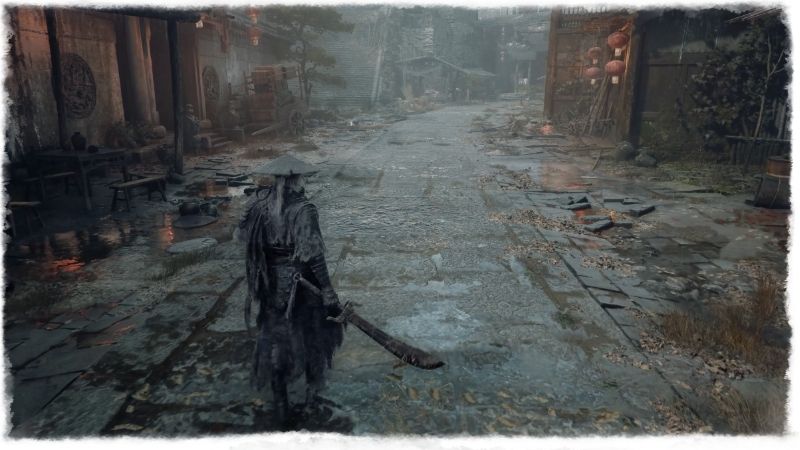
A practical starting point is to stabilize the game near 60 genuinely rendered frames per second, where your hardware and chosen settings allow it, before comparing generation modes. That is a testing recommendation, not an official game requirement and not a claim that every player needs exactly 60 FPS. A stable lower base may still be playable without generation; attempting to mask severe 20–30 FPS performance with generated frames is unlikely to produce the most responsive combat.
| Your situation | First choice | Why |
|---|---|---|
| GeForce RTX 50 Series, strong rendered FPS | Try DLSS Frame Generation, then compare an appropriate Multi Frame Generation mode | RTX 50 hardware supports NVIDIA’s newer multi-frame options, but higher multipliers are not automatically better |
| GeForce RTX 40 Series | Test standard DLSS Frame Generation (2X), if offered | RTX 40 supports DLSS frame generation but not RTX 50-only Dynamic Multi Frame Generation |
| GeForce RTX 20/30 Series | Start with DLSS Super Resolution; use an alternative in-game generator only if actually offered | DLSS upscaling and proprietary DLSS Frame Generation are different compatibility features |
| AMD Radeon supported by the game’s FSR implementation | Test FSR upscaling first, then a compatible FSR frame-generation option | The game’s review build shows AMD options, but generation depends on the specific GPU and software path |
| Compatible Intel Arc device | Use XeSS upscaling first; evaluate XeSS Frame Generation/MFG if available | XeSS Multi Frame Generation is hardware- and implementation-dependent |
| Any GPU with visible parry delay or heavy ghosting | Disable generation and reduce rendering workload | Motion interpolation cannot replace reliable simulation/input response |
What frame generation does—and what it cannot do
A conventional rendered frame contains the results of game simulation, input processing, scene rendering, and display presentation. Frame generation creates one or more additional images between rendered frames, often using motion information and image-analysis techniques. A display may therefore show far more frames than the game engine is actually rendering. This can make motion look smoother without reducing the interval at which the game evaluates your next button press.
That distinction is essential here. An overlay might report approximately twice as many displayed frames with 2X generation, but the parry window and animation response are still constrained by the underlying simulation, rendering pipeline, input handling, display, and any latency-reduction technology. Actual output is rarely a perfectly fixed multiplier because workloads, frame pacing, display limits, and generation overhead vary. Treat a 2X or 4X label as a mode name, not a measured guarantee of twice or four times better combat responsiveness.
Upscaling and frame generation are separate features. DLSS Super Resolution, AMD FSR, and Intel XeSS can render the game at a lower internal resolution and reconstruct a higher-resolution image. Their primary advantage is lowering the work required to render each real frame. Generation then adds interpolated display frames between those real frames. You can often benefit from upscaling even if you decide not to use frame generation; do not assume selecting an upscaler automatically enables a generator.
Ray Reconstruction is separate again. NVIDIA describes it as an AI reconstruction method for ray-traced effects, not a frame generator. Independent analysis reports that Phantom Blade Zero enables Ray Reconstruction with DLSS when path tracing is selected in the reviewed build. Path tracing changes the rendering workload, DLSS upscaling changes the rendering resolution, and frame generation changes the displayed output cadence. Adjust them one at a time to know what helped.
Confirmed PC support and GPU compatibility
NVIDIA’s October 20, 2026 launch announcement names Phantom Blade Zero and explicitly confirms DLSS 4.5 Dynamic Multi Frame Generation alongside ray-tracing features. In an October 27 PC performance article, Wccftech reports in-game upscalers TSR, NVIDIA DLSS, AMD FSR, and Intel XeSS and describes integrated frame-generation choices: AMD up to 2X, Intel up to 4X, and NVIDIA up to 6X in the build reviewed. Those reported menu maxima do not mean each GPU can select each multiplier. Some options are restricted by GPU generation or the currently installed driver/app version.
NVIDIA’s published hardware matrix is more useful than the broad statement that a game “supports DLSS”: RTX 50 supports the full Multi Frame Generation family, including Dynamic mode; RTX 40 supports standard DLSS Frame Generation; RTX 20 and 30 support DLSS upscaling but not NVIDIA’s proprietary frame-generation feature. The specific menu available to a PC owner may be narrower than the promotional feature list. For Radeon and Intel, game-integrated support has been observed by an independent reviewer, but the exact GPU/driver combination still needs validation in the installed game.
| PC hardware | Upscaling path to examine | Frame-generation path to examine | Compatibility caveat |
|---|---|---|---|
| NVIDIA GeForce RTX 50 | DLSS Super Resolution | DLSS Frame Generation, Multi Frame Generation, or Dynamic MFG | 5X/6X or Dynamic options depend on supported software and the title’s integration |
| NVIDIA GeForce RTX 40 | DLSS Super Resolution | Standard DLSS Frame Generation | No NVIDIA Dynamic Multi Frame Generation on RTX 40 |
| NVIDIA GeForce RTX 20 or 30 | DLSS Super Resolution | Check other supported in-game paths; no NVIDIA DLSS Frame Generation | Do not mistake DLSS Quality for access to DLSS FG |
| AMD Radeon with compatible FSR generation support | AMD FSR | In-game AMD frame generation, reported up to 2X | Support varies by Radeon model, FSR version, driver, and game build |
| Intel Arc with supported XeSS 3 features | Intel XeSS | XeSS Frame Generation/Multi Frame Generation, reported up to 4X | Intel says multi-frame generation specifically requires Intel hardware |
| Older or integrated graphics | Available game upscaler, if supported | Only a feature actually shown as supported on this device | No universal promise that a generator will be selectable |
NVIDIA: DLSS Frame Generation versus Dynamic Multi Frame Generation
On RTX 40, standard DLSS Frame Generation inserts generated images between rendered images to improve displayed smoothness. On RTX 50, Multi Frame Generation can insert more than one. NVIDIA’s March 31 update describes Dynamic mode as automatically adjusting the generation multiplier toward a target output frame rate, rather than holding a fixed multiplier throughout the game. A 240 Hz monitor does not make 240 responsive game-simulation frames; Dynamic mode is a display-smoothness tool, not an input-rate upgrade.
For RTX 50 owners, NVIDIA provides a documented configuration route in the NVIDIA app > Graphics > game profile > DLSS Override – Frame Generation Mode. Choose Dynamic, then select Max refresh rate or a Custom output target when those controls are present for the game. NVIDIA explicitly warns that Dynamic mode is currently incompatible with V-Sync and frame-rate limiters. Therefore, do not pile a conventional cap and V-Sync onto a Dynamic test and assume the resulting pacing measures the feature fairly. Prefer one coherent pacing strategy, observe behavior, and restore your prior settings if the combination is unstable.
For RTX 40 users, the RTX 50-only Dynamic option is not a missing driver repair. Use the standard mode exposed by the game, if present. For RTX 20 and RTX 30 users, DLSS Super Resolution can still improve the real rendered frame rate, which may matter more to combat input feel than chasing an unsupported DLSS Frame Generation toggle.
AMD: what FSR support means in this game
Independent launch-era PC coverage shows AMD FSR in Phantom Blade Zero’s Super Resolution selection and an AMD frame-generation implementation reported up to 2X. AMD’s own technology documentation states that FSR 3 frame generation supports Radeon RX 5000 Series and newer GPUs as a platform family, while newer ML-based FSR features have narrower version- and GPU-specific requirements. Neither statement proves that every RX 5000, 6000, 7000, or 9000 model exposes every particular frame-generation option in Phantom Blade Zero.
Use the in-game FSR path as the first reference rather than assuming a global driver switch is equivalent. AMD also documents ways to activate certain FSR features through Adrenalin in supported titles, but the presence of an AMD Software option is not evidence that a particular Phantom Blade Zero build supports a particular FSR replacement or ML model. If the generation control is unavailable, keep FSR upscaling, verify the actual GPU and software support, and do not copy unsigned frame-generation DLLs or unsupported patches into the game folder.
Intel: XeSS upscaling does not automatically mean XeSS MFG
Wccftech reports an Intel frame-generation choice up to 4X in the reviewed PC build. Intel’s XeSS 3 developer documentation explains that its Multi Frame Generation implementation can create up to three generated frames in addition to a rendered frame, and that XeSS Low Latency is part of the frame-generation design. Intel also specifies that its multi-frame feature is restricted to Intel hardware, although some other XeSS capabilities can operate on compatible third-party GPUs.
Consequently, an Intel XeSS option in the Super Resolution menu is not enough to prove your GPU can use XeSS Multi Frame Generation. Confirm the exact Intel Arc or Core Ultra graphics model, look for the generation setting in the current game build, and test with a consistent scene. If it is not offered, leave the feature off rather than trying to force it with registry hacks or unverified mods.
How to enable frame generation in Phantom Blade Zero
The following workflow is grounded in an October 27 review that documents the Display, Graphics, Super Resolution, and Frame Generation portions of the PC interface. Menu placement can differ with a patch or the current selected GPU. This is a game-settings workflow for Windows PCs; it does not imply the same options exist on PlayStation 5.
- Check the GPU and driver first. On Windows 11, open Settings > System > Display > Advanced display to check the display’s available refresh rate. Open Task Manager > Performance > GPU to confirm the GPU model; a dedicated GPU may be listed separately from integrated graphics. Make sure you are using a compatible graphics driver obtained through your GPU vendor or PC manufacturer. NVIDIA’s October 20 announcement specifically provides a Phantom Blade Zero-ready driver; you do not need to install untrusted optimization packages.
- Start the game and allow first-run preparation to finish. Early PC reviewers report a shader-compilation stage at startup. Wait for it to complete before evaluating frame rates, or the initial setup load can distort your comparison. This is preparation, not an activation step for frame generation.
- Open the PC graphics configuration. From the game menu, open Settings, then the Graphics page described by PC reviewers. Locate the Super Resolution options. Select the technique appropriate to your device—NVIDIA DLSS, AMD FSR, or Intel XeSS—and set a sensible reconstruction quality, such as Quality as a starting experiment at 1440p. If a technique is absent, do not claim the installed GPU supports it.
- Find the corresponding Frame Generation control. The reviewed build includes integrated Frame Generation options under graphics settings; the available multiplier depends on GPU and software. Select a supported 2X setting first when possible. On RTX 50, compare the in-game option with the NVIDIA app’s documented Dynamic override only if the latter is offered for this game and your profile. Never force a 4X or 6X label onto RTX 40 hardware.
- Keep the baseline settings stable. Open the Display settings noted in the review and record the active resolution, display mode, refresh rate, and any frame-rate limit. Under the reviewed Visuals controls, note V-Sync and Motion Blur. If you are testing NVIDIA Dynamic mode, respect NVIDIA’s documented V-Sync/limiter incompatibility. Change only one of these settings at a time and record the previous values.
- Compare the same short combat sequence twice. First measure and feel the game with generation Off, using the same resolution, reconstruction mode, graphics preset, and area. Then repeat with the chosen generation setting On. Compare the actual timing of parries, camera movement, image artifacts, and pacing—not solely the highest overlay FPS.
Expected result: Your graphics screen offers a supported frame-generation mode and motion appears smoother without a meaningful loss of control. If the control is missing: confirm the active GPU, driver, selected reconstruction technology, and supported GPU family. An unsupported device cannot be fixed by changing an unrelated Windows graphics switch. Undo: return to the same Frame Generation control and set it to Off; for an NVIDIA app override, restore the previous profile value. Preserve the baseline configuration that felt best in combat.
A safe method for NVIDIA Dynamic mode
Dynamic Multi Frame Generation is an additional RTX 50-specific configuration choice, not a required setting for all GeForce users. If your NVIDIA app exposes it for Phantom Blade Zero, open NVIDIA app > Graphics, select the game profile, then DLSS Override – Frame Generation Mode > Dynamic. Choose Max refresh rate or Custom using the actual options shown. NVIDIA’s published instructions associate these controls with its March 31, 2026 app update. If the title is not listed or the override is unavailable, use supported in-game controls rather than inventing an override profile.
For a fair comparison, begin with a familiar non-Dynamic mode, make sure the game’s current V-Sync/limiter configuration does not conflict with NVIDIA’s warning, and compare the same encounter. Watch for oscillation between multipliers, unexpected pacing, or new visual artifacts. Revert to the prior mode immediately if combat feels delayed. A higher monitor refresh rate creates an opportunity for more displayed images; it does not guarantee a lower input-to-action delay.
Why input lag matters more than the FPS headline
Phantom Blade Zero emphasizes quick attacks, dodges, and parries. If a frame-generation system queues or synthesizes additional images while the game continues updating gameplay at the base rate, a high output-FPS number can coexist with late-feeling inputs. Some generation technologies use low-latency features to limit overhead, but none can magically turn a slow-rendering scene into a high-frequency simulation of new inputs.
An independent Wccftech reviewer used an RTX 4080 and Core i7-13700F and described preferring high native-feeling performance over the compromises needed to push heavier ray tracing with DLSS Frame Generation. Separately, DSOGaming tested an RTX 5090 and reported roughly 54–60 FPS at 4K with DLSS Quality and path tracing before generation; 2X MFG increased the output to around 100 FPS in that setup without a noticeable input-latency penalty to its tester. Those results can both be true: the GPU, baseline, graphics mode, and individual sensitivity differ. Neither review proves that 2X generation is universally lag-free or that 100 generated FPS are equivalent to 100 real FPS.
The best rule is comparative, not doctrinaire. If an input feels better at 85 rendered FPS with generation off than at 45 rendered FPS plus generated images, choose the 85 FPS result even if the latter shows a bigger number. Conversely, if your base rate remains near a stable 60 and a modest generator looks cleaner on a high-refresh display without affecting your timing, keeping it enabled may be sensible.
| What improves | What might not improve | How to decide |
|---|---|---|
| Displayed motion smoothness | Speed of game simulation or new input sampling | Compare parry/dodge timing with the same encounter |
| Higher overlay-reported output FPS | Consistency of the base rendered FPS | Observe frame-time spikes or repeated hitches separately |
| Camera panning at high display refresh | Ghosting around particles, weapon edges, and HUD elements | Check fast lateral movement and interface clarity |
| Perceived smoothness with RT/PT | CPU limitations, streaming stalls, or compilation delays | Reduce graphics workload first if the base rate is poor |
| A larger multiple from MFG | Guaranteed better feel or reduced lag | Use the least aggressive mode that delivers a worthwhile visual benefit |
Settings to change before raising the multiplier
If the game feels sluggish, improve real rendered performance first. On a GPU that struggles with 4K path tracing, consider switching the rendering method from Path Tracing to Ray Tracing or standard rendering. Independent PC analysis says ray-tracing and path-tracing changes in the reviewed build require returning to the main menu, not merely flipping a switch in the middle of combat. Confirm the available options in your installation and retest a comparable checkpoint after the switch.
Next, consider a less demanding graphics preset. Wccftech documents adjustments for shadows, reflections, lighting, effects, textures, and environment detail. A lower lighting or shadows setting may help a heavy scene, while reduced view distance or effects detail can relieve other bottlenecks. Do not indiscriminately drop every setting to Low and then credit the resulting FPS gain to frame generation. Change one category, compare real performance, and keep the improvement only if the visual trade-off is acceptable.
Upscaling Quality is another useful first move. At a given output resolution, DLSS/FSR/XeSS Quality typically retains more image detail than Performance but renders more work internally. Try Quality, then Balanced if required, and judge thin geometry, fine hair, and motion in the actual game rather than relying on screenshots. There is no universal optimal preset for every GPU, resolution, and ray-tracing mode. The developer’s recommended specifications assume upscaling enabled; they do not promise 4K path tracing with every graphics setting maxed out.
Finally, check visual distractions. Wccftech documents Motion Blur under Display’s Visuals controls. Disable or reduce it temporarily if sword edges or fast camera turns appear smeared; this can help you determine whether the blur comes from a deliberate post-processing effect or generated-image artifacts. It does not guarantee that turning off blur eliminates interpolation ghosting. Where available, keep vendor-supported latency reduction enabled when the feature’s official documentation calls for it, but avoid asserting that an unverified “Reflex On + Boost” toggle exists in every Phantom Blade Zero build.
When frame generation looks worse
Ghosting near swords or character silhouettes: Fast camera pans and weapon swings make motion prediction challenging. If you notice repeated edges, smeared particles, or transient duplication, compare generation Off versus 2X in the same sequence. Try a cleaner upscaling quality and remove distracting Motion Blur. If artifacts persist, prefer lower generation intensity or Off; don’t assume that a driver-level sharpness slider fixes the source.
Uneven pacing despite high displayed FPS: A game can alternate between heavy and light scenes. A generator may provide a large display-FPS number while a repeating traversal hitch still interrupts the base frames. Repeat a route twice and observe whether the hitch happens at the same location. The shader-stutter guide covers this failure mode; do not erase caches or reinstall drivers simply because a generator does not hide it.
No visible Frame Generation setting: First verify which GPU is active and whether the game’s Super Resolution method matches it. An RTX 30 card can expose DLSS Quality without exposing NVIDIA DLSS Frame Generation. An Intel system may show XeSS upscaling while lacking compatible XeSS MFG. An AMD GPU may have FSR reconstruction yet need a supported generation implementation. Check the vendor’s official feature matrix and the installed graphics controls, then stop if the combination is not supported. Avoid unverified launch flags or copied DLLs.
Controls feel delayed: Leave resolution, upscaling mode, and preset unchanged and turn generation Off. Play a short sequence that you already know well. If parry timing feels immediately better, prioritize the base rendered rate and reduce RT/PT or other expensive settings. If the difference is negligible and visual smoothness improves, a modest multiplier may work for you. Do not use a displayed-FPS counter as a substitute for your own input comparison.
Generated FPS is unexpectedly lower than expected: Display-refresh limits, graphics driver state, frame pacing, V-Sync behavior, CPU limits, and generator overhead can affect observed output. Verify the feature is actually enabled, note the display’s refresh rate, and keep conflicting limiter settings out of a Dynamic MFG test. Avoid promising a perfect 2.00X or 4.00X increase, because real performance does not behave like a fixed arithmetic multiplier.
A repeatable 10-minute comparison plan
A useful benchmark does not require professional lab equipment, but it does need consistent conditions. Complete the game’s first-run compilation, select a reachable checkpoint, choose one camera-pan path and one short encounter, and avoid recording one test in a quiet corridor and the other during an effects-heavy boss animation. If you change the resolution or ray-tracing state between runs, you are no longer isolating generation.
- Record the GPU, driver, Windows edition, monitor refresh rate, output resolution, chosen upscaler, quality preset, ray-tracing mode, graphics preset, and in-game frame-generation state.
- Run the same scene with generation Off. Note the actual rendered FPS if the chosen measurement tool distinguishes it from generated output, and note any stutter, parry delay, camera judder, or ghosting you can directly observe.
- Enable a supported 2X generation mode when available. Repeat with the same route and settings. Keep the test as similar as possible and do not change a frame-rate cap between runs except when a documented Dynamic-mode incompatibility makes that necessary; record such a change explicitly.
- For supported RTX 50 hardware, optionally compare Dynamic MFG or a higher multiplier as a separate third run. Stop increasing the multiplier when extra smoothness no longer offsets artifacts or a delayed feel.
- Return to the baseline setting that gives the best combination of input response and visual consistency. If you modified the NVIDIA app profile, revert that profile as well when choosing generation Off.
No single short run is proof of universal stability. A scene with simple camera movement can mask artifacts that appear during boss attacks. Retest at least one effect-heavy location before deciding, especially if you plan to keep ray tracing or path tracing enabled. A simple written record is more valuable than a screenshot showing a spectacular but unexplained FPS peak.
Tools That Help
- Phantom Blade Zero’s built-in Display and Graphics settings — included with the PC game: Check the chosen resolution, reconstruction method, Frame Generation mode, Motion Blur, and any limiter before changing software outside the game. No separate purchase is required.
- NVIDIA app, AMD Software: Adrenalin Edition, or Intel’s supported graphics utilities — free for compatible hardware: Confirm the GPU driver and available vendor-specific features. On supported GeForce RTX 50 hardware, the NVIDIA app provides the documented Dynamic MFG override; do not expect that setting on an incompatible RTX model.
- Windows Task Manager and Advanced display settings — built into Windows: Use Task Manager’s Performance > GPU to identify the active graphics device, and Settings > System > Display > Advanced display to inspect the output refresh rate. These tools establish hardware/display context; they do not themselves measure input latency.
No additional purchase is needed to determine whether the game offers an appropriate frame-generation mode or to compare its responsiveness. Optional specialist frame-time equipment can improve measurement quality, but the decision to keep a mode enabled should not depend on buying another product.
Frequently asked questions
Does Phantom Blade Zero have DLSS Frame Generation at launch?
Yes. NVIDIA’s October 20 announcement confirms DLSS 4.5 Dynamic Multi Frame Generation for the PC launch, and independent October 27 coverage reports integrated NVIDIA frame-generation options. The level of support depends on GPU generation: DLSS Frame Generation is available on RTX 40 and RTX 50, while RTX 50 is required for NVIDIA’s Multi Frame Generation and Dynamic modes.
Can an RTX 3060 or RTX 3080 use DLSS Frame Generation?
Not NVIDIA’s proprietary DLSS Frame Generation. RTX 30 hardware supports DLSS Super Resolution but is excluded from the RTX 40/50 DLSS Frame Generation feature in NVIDIA’s published compatibility matrix. If the game exposes another supported generation technique for your hardware, evaluate that separately rather than calling it DLSS FG.
Does the game support AMD FSR and Intel XeSS frame generation?
An October 27 PC performance report describes in-game AMD 2X and Intel up-to-4X generation options alongside their upscalers. That is independent hands-on evidence for the reviewed PC build, not a guarantee that all Radeon or Arc devices expose every option. Verify your exact GPU, software version, and the installed game’s menu.
Will 120 displayed FPS with frame generation feel like 120 native FPS?
Not necessarily. Generated images can make motion smoother, but they do not imply the game simulates inputs as often as a native 120-FPS render. If a combat encounter feels more responsive at a lower displayed number with generation disabled, favor that behavior over the larger headline number.
Is frame generation a fix for shader stutter or traversal stutter?
No. A generated image cannot reliably remove a stall in the base rendering pipeline. Phantom Blade Zero reviewers describe first-run shader pre-compilation, and some note traversal hitches. Let compilation complete and diagnose persistent hitches separately before changing frame-generation multipliers.
Should I enable 6X Multi Frame Generation on an RTX 50 GPU?
Only if the game/app offers that mode on your exact GPU and a higher output target is useful on your display. Start from a stable base, compare 2X first, then test a higher mode if the image remains clean and controls remain satisfactory. More generated frames are not an automatic advantage during precise parries.
Why can I not combine Dynamic MFG with V-Sync or a frame cap?
NVIDIA’s official Dynamic MFG instructions state that Dynamic mode is currently incompatible with V-Sync and frame-rate limiters. If you enable a Dynamic override, use the documented target-output options and avoid treating a conflicting limiter configuration as a valid performance baseline. Revert the override if it causes unexpected pacing.
Final Thoughts
Phantom Blade Zero frame generation is a useful way to improve displayed smoothness, especially when a capable GPU already maintains steady rendered performance. It is not a substitute for a responsive base frame rate, and it does not turn every GPU into an RTX 50-series card. Check your actual in-game options, start with upscaling and a stable graphics preset, test the least aggressive supported generation mode in a familiar fight, and keep it only if the parry timing and image clarity are still right for you.




