
Key takeaways
- Steam Performance Monitor — free, included with Steam. On the Steam edition, open Steam > Settings > In Game > Performance Monitor and set a detail level. Use it to distinguish base FPS from displayed FPS when frame generation is active and identify large lows during a fight. No additional purchase is needed.
- NVIDIA app or AMD Software: Adrenalin Edition — free official GPU tools. Use the application appropriate to your actual GPU to inspect the installed driver and obtain compatible updates. Consult an OEM driver page first when your laptop manufacturer requires a validated package; do not install both vendors’ software indiscriminately.
- A short settings log — free note or spreadsheet. Record exact mode, GPU, resolution, upscaler, frame generation, FPS and combat feel for each comparison. It is more useful than a single unsupported “best settings” preset copied from a different system.
Phantom Blade Zero ray tracing settings let PC players choose among Native Rendering, Ray Tracing, and Path Tracing. Start with Native Rendering if responsive sword combat matters most; try Ray Tracing when you have GPU headroom; reserve Path Tracing for a powerful graphics card and a willingness to use upscaling. The important catch is that reviewers found you must return to the main menu to change the tracing mode—you cannot simply toggle it in the middle of a fight. This guide explains the visible differences, the documented menu route, the performance evidence, and a repeatable way to determine which option is genuinely usable on your PC.
This is a lighting-and-ray-tracing guide, not a replacement for the separate Phantom Blade Zero PC requirements, frame generation, or shader-stutter articles. It draws on NVIDIA’s published feature announcements and independently reported pre-release PC testing available on October 28, 2026. Geek Gaming Tricks did not personally benchmark the game. Exact labels, support, and performance should be confirmed against your installed build after release or updates.
Quick answer: which graphics mode should you use?
For a first playthrough, use Native Rendering with a comfortable graphics preset and confirm that the game stays smooth during a real encounter. Native Rendering is the sensible baseline because it avoids the extra cost of hardware ray tracing, even though the game’s standard lighting already looks detailed. If you hold your desired frame rate with headroom, compare Ray Tracing in a scene featuring water, reflective materials, or strong shadows. Enable Path Tracing only when the improvement in indirect lighting outweighs its substantially greater cost and the game still responds well during parries and dodges.
| Rendering mode | Visual purpose | Performance trade-off | Who should start here |
|---|---|---|---|
| Native Rendering | Standard game lighting without the additional ray-tracing mode | Typically fastest of the three choices | Most players, particularly mainstream GPUs and high-refresh-rate users |
| Ray Tracing | Adds physically informed reflections and shadows, with ray-traced effects announced by NVIDIA | Slower than Native, generally less costly than Path Tracing | Players with spare GPU performance who want a useful visual upgrade |
| Path Tracing | More comprehensive ray-traced lighting and indirect-light treatment | Highest GPU cost; upscaling often necessary | Enthusiasts who prioritize image quality and can verify a responsive base frame rate |
These are PC modes, not the names of the PS5 graphics presets. A GPU that can launch the game is not necessarily fast enough to use Ray Tracing or Path Tracing comfortably. NVIDIA’s feature announcements confirm ray-traced effects and DLSS Ray Reconstruction, while the practical trade-offs come from independently researched PC builds. Do not infer that a stated hardware minimum is also a ray-tracing recommendation.
What Ray Tracing and Path Tracing actually change
Ray tracing uses simulated light rays to inform selected visual effects. It is not synonymous with raising the ordinary Lighting Quality or Reflection Quality sliders; those controls can influence detail within the chosen rendering mode, but turning them up does not automatically activate the game’s separate Ray Tracing selection. The mode itself must be chosen in the graphics menu.
Ray-traced reflections and shadows
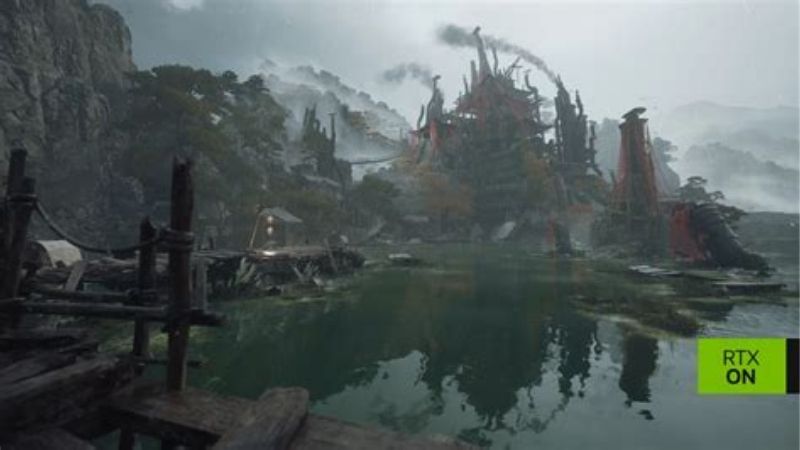
NVIDIA announced ray-traced reflections and shadows for the PC version. Reflections matter where a pond, polished floor, or metallic surface should show nearby objects, including some objects that screen-space methods may miss when they move out of view. Shadow changes can affect contact edges, the softness of a distant cast shadow, and how well objects seem anchored to a scene. These can be noticeable during slow exploration, but their value is more subjective during a hectic boss fight where attention is on tells, timing, and positioning.
The game also includes a number of ordinary detail adjustments—shadow quality, reflection quality, lighting quality, ambient occlusion, textures, view distance, and effects. Reviews show these controls exist in the PC menu; they are not independent promises that every effect can be switched between rasterized and ray-traced techniques. A useful comparison holds those conventional detail settings constant while changing only the rendering mode.
Where the water caustics fit
A caustic is a concentrated pattern of light formed by reflection or refraction, such as a shifting bright pattern around water. NVIDIA’s broad pre-release feature description named ray-traced caustics alongside reflections and shadows. A more detailed launch-period PC comparison, however, reported water caustics specifically in the Path Tracing mode, not the lighter Ray Tracing selection in its tested build. Those statements are not interchangeable: the first describes the game’s PC feature set, while the second identifies where the effect was observed in one particular version.
For a purchase or settings decision, treat the exact availability of caustics by mode as build-dependent until you verify the retail version. In a watery scene, compare Native, Ray Tracing, and Path Tracing without changing camera angle or time of day more than necessary. If the water effect appears only on Path Tracing, do not promise it as a benefit of enabling the lighter RT mode. Visual marketing labels are less useful than what the installed settings actually produce.
Path tracing and indirect light
Path Tracing is a more aggressive rendering choice. Instead of adding only a handful of traced effects, it substantially changes how light is accumulated through the scene. The most visible differences can be indirect illumination beneath awnings, color reflected from nearby surfaces, interior shadows, and how light behaves around dense foliage. Independent visual comparisons described much stronger scene-to-scene differences under Path Tracing than between neighboring conventional graphics presets.
Some contemporary reports disagree on the precise indirect-lighting technique used by the game’s non-path-traced modes. One review describes traditional pre-baked lighting, while a detailed technical comparison labels the baseline as Lumen GI and the Path Tracing mode as ReSTIR GI. Without an official rendering breakdown for the precise shipping build, it would be misleading to assert one definitive global-illumination implementation across every mode. You do not need to settle that engine detail to make the right user-facing choice: assess the actual images, minimum frame rate, and input responsiveness on your own system.
How to enable ray tracing in Phantom Blade Zero on PC
Published PC menu coverage identifies two top-level settings areas relevant here: Display and Graphics. The reviewed Graphics screen includes presets, Super Resolution options, frame generation, and the separate rendering-mode choices. Reviewers identify the available selections as Native Rendering, Ray Tracing, and Path Tracing. Most importantly, DSOGaming explicitly reports that a switch between the RT/PT modes requires returning to the main menu rather than making the change during gameplay.
Use this sequence on a PC build where these options are present:
- Finish the first-launch shader compilation and reach the main menu. Do not interrupt a long initial compilation simply because it appears to take time. If you are already playing, advance to a safe checkpoint or a point where the game has recorded your progress, then return to the main menu using the game’s normal exit-to-menu function.
- Open the main menu’s Settings and then Graphics. In the PC menu examined by Wccftech, the Graphics area contains the recommended preset, Super Resolution, frame generation, tracing choices, and conventional Details controls. If your edition labels the settings differently, locate its graphics section rather than assuming the console version has the same controls.
- Select Native Rendering for the baseline. Keep the display resolution and ordinary graphics preset fixed. Start with the game’s High or Very High preset only if your GPU can run it smoothly; otherwise choose a lower preset first. Save or apply the selected mode if the build prompts you.
- Load the same playable area and check responsiveness. Watch the frame-rate display and perform a few repeatable attacks, dodges, or parries. Note any sudden drops, image flicker, or delay you can feel. Record the baseline before proceeding.
- Return to the main menu, then switch to Ray Tracing. Reload the same checkpoint or comparable area and repeat the test. If the result remains stable, compare surfaces and shadows. If the rate drops below your comfort target or the response feels worse, go back to Native Rendering.
- Try Path Tracing only if appropriate for your GPU. Again return to the main menu, keep other options as close as possible to the previous test, and compare. Upscaling can help, but a high generated-frame number does not prove the underlying game is responsive.
- Keep a record of your winning configuration. Write down rendering mode, resolution, upscaler and quality mode, frame-generation state, graphics preset, and frame rate. Recheck the settings after major driver or game updates rather than assuming the option always persists.
Expected result: the selected rendering mode takes effect when you load gameplay, and the corresponding reflection or lighting changes become visible in comparable scenes. If the option does not appear: confirm you are on the PC version with a supported DirectX 12 GPU and current compatible driver, then check whether a new game build changed the feature list. Do not edit hidden Unreal Engine configuration files, add undocumented launch commands, or install a third-party ray-tracing mod to force a feature the menu does not expose.
Display settings versus graphics settings
The Display page in the independently reviewed PC build includes output display, window mode, resolution, frame-rate limit, V-Sync, HDR, motion blur, sharpness, camera shake, and film grain. Graphics is where reviewers show the preset, Super Resolution and the tracing selections. Keeping that division straight prevents a common error: spending time searching for Path Tracing under a monitor’s HDR or V-Sync options.
Display resolution affects how expensive rendering is. A 4K output has substantially more pixels than 1440p, and tracing cost can climb sharply with resolution. If your performance is borderline, first select a sensible output resolution, then test an upscaler. Changing an image setting and the tracing mode simultaneously makes it harder to identify what actually improved or hurt performance.
How much FPS does ray tracing cost?
The strongest evidence is not a universal recommended FPS number; it is a controlled comparison on one machine with a stated GPU and settings. Wccftech’s October 27, 2026 PC benchmarks report the following results on a GeForce RTX 5090 at 4K, Ultra preset, using the same publication’s test setup. These values should be read as that test’s observations, not an official guarantee or a prediction for a different card.
| Wccftech 4K / Ultra test, RTX 5090 | Observed FPS | What it illustrates |
|---|---|---|
| Native Rendering | 67 | Baseline for that test configuration |
| Ray Tracing | 52 | About 22% fewer FPS than Native in that comparison |
| Path Tracing | 33 | About 51% fewer FPS than Native in that comparison |
That gap explains why Ray Tracing can be the middle-ground choice. It does not mean every RTX 5090 will return exactly 52 FPS with RT enabled, and it certainly does not mean an RTX 3060 Ti or Radeon RX 6700 XT will produce the same numbers. CPU, driver, resolution, upscaling mode, scene, background activity, and build revision all matter. The publication also reported that switching from Very High to Ultra offered only a modest visual improvement while adding a performance cost, making Very High a worthwhile conventional-preset starting point.
DSOGaming independently reported 25–27 FPS for an RTX 5090 with Path Tracing at native 4K using TSR, and roughly 54–60 FPS at 4K with DLSS Quality on that same review setup. It also saw about 46–47 FPS at native 1440p with Path Tracing. Those results are not a contradiction to erase by averaging the two tests: the reviewers used different machines, drivers, rendering comparisons, and scenes. Do not place their scores in a single model-ranking table as though they were part of the same benchmark run.
What counts as a playable result?
This is a timing-focused action game, so prioritize consistency over a screenshot-friendly average. A fluctuating 70 FPS accompanied by visible hitches may feel less dependable than a stable lower figure. Use 60 FPS as an initial responsiveness target when feasible, not as an assertion that every player or system must achieve it. On a 120Hz or higher-refresh monitor, a more ambitious target may make sense, but only after you have enough base performance to maintain it in heavy combat.
Measure the worst repeatable battle or dense scene you can safely revisit, not only an empty corridor. Note both the average and conspicuous one-second lows or frame-time spikes. If your system becomes unresponsive when reflections, particles, or multiple enemies appear, an attractive Path Tracing screenshot is not sufficient reason to keep the mode enabled.
Which PC graphics cards should use each mode?
Steam’s public minimum and recommended PC specifications describe running the game with upscaling enabled, not the performance of its ray-tracing modes. The minimum lists a GeForce GTX 1660 6GB or Radeon RX 5500 XT 8GB for a 1080p/30 FPS target; the recommended GPU is an RTX 3060 Ti 8GB or RX 6700 XT 12GB for a 1440p/60 FPS target. Both tiers specify 16GB RAM, Windows 10/11 64-bit, DirectX 12, and SSD installation. They do not establish that the 1440p recommendation can maintain 60 FPS with Ray Tracing or Path Tracing enabled.
GTX and older non-RT cards: start with Native Rendering
The GTX 1660 listed in the minimum requirements does not have the dedicated RTX ray-tracing hardware featured in NVIDIA’s GeForce RTX line. If you are on a minimum-class GPU, focus on a lower conventional graphics preset, the game’s supported upscaling solution, and a stable base frame rate. Do not use the minimum 1080p/30 target as a reason to activate effects intended for much faster GPUs.
Similarly, a player using the minimum-listed Radeon RX 5500 XT should not interpret the ability to launch the DirectX 12 game as a promise that its most expensive ray-traced effects are practical. Start without RT. A clear, predictable image and repeatable controls usually matter more than chasing a lighting feature beyond the intended hardware tier.
Midrange RTX or recent Radeon cards: test RT rather than assume it
An RTX 3060 Ti, RTX 4060/5060-class model, or suitably capable Radeon may expose some relevant graphics options, but availability and performance are separate questions. RTX 20/30-series GPUs can support DLSS Super Resolution and Ray Reconstruction on supported titles, yet NVIDIA’s Frame Generation and newer Multi Frame Generation modes have stricter generation requirements. AMD FSR and Intel XeSS options shown in the game’s graphics menu are separate from NVIDIA DLSS; feature names should not be treated as cross-vendor equivalents.
At 1080p or 1440p, begin with Native Rendering and the upscaler best suited to the installed GPU. Test the lighter RT mode next. If it falls short, prefer lowering resolution or conventional graphics details before using extremely aggressive frame generation to disguise a weak simulation frame rate. The specific cut-off must come from your own test rather than a made-up claim that every card within a GPU family reaches a fixed FPS.
High-end RTX cards: weigh Path Tracing against control response
Path Tracing becomes more plausible on high-end hardware, particularly when paired with an appropriate DLSS mode. Even so, published RTX 5090 measurements show a heavy native 4K penalty. An RTX 4090 or RTX 5080 should not be assumed to outrun that cost without upscaling. Start at DLSS Quality when available, measure an intense fight, and reduce to the lighter RT mode if the actual base game rate feels sluggish. If the image looks dramatically better but sword timing becomes inconsistent, the better technical setting is the one you can control reliably.
Gaming laptops deserve their own check because a mobile GPU’s performance can vary with its power limit, thermal headroom, and whether the laptop is plugged in. A desktop GPU name and a laptop GPU name are not enough to predict matching ray-tracing performance. Test at the laptop’s real operating conditions and avoid forcing a high-power mode if heat, noise, or sustained clock throttling makes the result unstable.
DLSS, Ray Reconstruction and frame generation: different jobs
Three technologies often appear together in this discussion, but each solves a different problem. Super Resolution renders at a lower internal resolution and reconstructs the output image. Ray Reconstruction improves the denoising and reconstruction of ray-traced lighting information when supported. Frame Generation produces additional displayed frames between conventionally rendered frames; it can improve apparent smoothness but does not make the game simulation update or react to a button press as though every displayed frame were a new base frame.
Use upscaling before adding generated frames
For an RTX GPU, start with a supported DLSS Super Resolution Quality mode while leaving frame generation off. Check both visible detail and the base frame rate. If the game struggles, moving to Balanced can be reasonable, but watch for loss of fine texture detail or instability in dense foliage. On a Radeon or Intel card, use a supported FSR or XeSS implementation instead of following instructions that assume NVIDIA-only controls exist.
At 1080p, aggressive upscaling may soften thin details. At 4K, Quality upscaling often gives more room to improve expensive lighting while retaining useful clarity, though the result still depends on motion, scene content, and implementation. Do not automatically set Ultra Performance simply because Path Tracing is slow. If the visual compromises are obvious, switch down from Path Tracing rather than destroying image definition to preserve the most demanding mode.
What DLSS Ray Reconstruction adds
NVIDIA confirms Ray Reconstruction for the game’s advanced lighting. DSOGaming observed that enabling DLSS alongside Path Tracing activated Ray Reconstruction by default in its reviewed PC build and that reconstructed shadows looked cleaner in its comparison than the alternative it examined. A separate detailed technical review described Ray Reconstruction as selectable with the lighter RT mode but required with Path Tracing in the pre-release build. These statements concern particular PC menu versions; if the retail patch presents different controls, follow the options actually exposed rather than treating a missing toggle as a bug.
Ray Reconstruction does not remove the rendering work demanded by Path Tracing. It may improve the image or performance in particular configurations, but it cannot turn an underpowered GPU into a high-end one. When comparing modes, record whether Ray Reconstruction is automatic, optional, or unavailable so a difference in denoising is not mistaken for a difference caused only by RT selection.
Frame generation should not hide a slow base game
NVIDIA documents DLSS 4.5 technologies for the game. Its GPU compatibility information distinguishes RTX 50-series Dynamic Multi Frame Generation, RTX 40-series Frame Generation support, and older generations that retain DLSS Super Resolution and Ray Reconstruction without those same generation modes. Wccftech also documents frame-generation choices through multiple vendors in a reviewed PC build. The visible menu entry therefore depends on the GPU, selected upscaler, driver, and game version.
Test first without frame generation, then enable a supported mode only if the base combat already feels responsive. A displayed 120 FPS that includes generated frames is not identical to a game simulating inputs at 120 FPS. In DSOGaming’s review, rapid movement produced visual artifacts while frame generation was active; disabling Motion Blur greatly reduced those artifacts on its test system. That is a useful troubleshooting experiment, not proof that every artifact on every GPU is caused by motion blur.
For more detailed GPU-generation compatibility and frame multiplier behavior, use the separate Phantom Blade Zero frame generation guide. This article’s decision is narrower: do not sacrifice reliable parry timing just to keep Path Tracing on.
A repeatable test to choose the best setting
The game did not offer a built-in benchmark in DSOGaming’s reviewed version. The publication used the starting area because it found that area comparatively demanding within its early-game test scope. You can create a more practical personal comparison by revisiting the same checkpoint and repeating a short action sequence three times. The point is consistency, not pretending a quick user test is a laboratory benchmark.
- Record the machine and software. Note your exact desktop or laptop GPU, driver version, display resolution, graphics preset, upscaler, and whether frame generation is off. If you have already changed multiple graphics options, choose one reasonable baseline and stop adjusting unrelated settings.
- Enable the Steam performance monitor if you own the Steam edition. In the Steam desktop client, open Steam > Settings > In Game, find Performance Monitor, and choose a detail level and screen position. Valve’s documentation distinguishes displayed FPS including generated frames from the actual game frame rate when frame generation is detected.
- Test Native Rendering first. In a repeatable route or combat sequence, observe average FPS, any one-second minimum dips, and how consistently the controller or keyboard responds. Note major camera pans and particle-heavy moves.
- Return to the main menu and select Ray Tracing. Repeat the same route. Compare not only the mean FPS but also the moments that felt bad. If the difference is barely visible in your playstyle and performance worsens, the RT upgrade is poor value on your setup.
- Repeat with Path Tracing only if there is sufficient headroom. Keep upscaling and all other settings identical for the first comparison. If the mode is too slow, add an appropriate upscaler and record that as a new, clearly labeled test rather than silently replacing the baseline numbers.
- Select and confirm the winner. Save the mode that balances lighting and combat timing. After reloading the game, check that the choice persisted and try a real fight before considering the setup complete.
A simple log prevents false conclusions:
| Test | Mode | Upscaler | Frame generation | Your average / lows | Combat feel |
|---|---|---|---|---|---|
| Baseline | Native | Your selected mode | Off | Measure in-game | Note whether parries feel consistent |
| Visual upgrade | Ray Tracing | Same as baseline | Off | Measure in same area | Keep only if responsive |
| Maximum lighting | Path Tracing | Same first; adjust only if necessary | Off first | Measure in same area | Stop if responsiveness suffers |
These rows are a worksheet, not published benchmark results. Your measurements are the evidence that matters for your GPU. If you are using the Epic Games Store edition, Steam’s overlay instructions are not guaranteed to apply; choose an available, trustworthy performance monitor for your PC or use a built-in GPU driver overlay you already have.
Fix missing options, crashes or disappointing ray-tracing performance
When Path Tracing is absent or performance collapses, start with the least invasive explanation. The missing option may be tied to graphics hardware, driver support, a different game build, or even being in the wrong menu. It is not automatically a broken installation.
| Symptom | First safe check | What to do next |
|---|---|---|
| Ray Tracing or Path Tracing is missing | Confirm PC > main menu > Settings > Graphics, not Display or an in-game pause screen | Check the exact GPU and current game version; do not force hidden settings |
| Tracing mode cannot be changed while playing | Return safely to a checkpoint and the main menu | Select mode there, reload, and verify the effect |
| FPS drops sharply after enabling RT | Compare the same scene with Native Rendering | Use a lighter mode or quality upscaling; lower resolution if needed |
| Path Tracing looks noisy or unstable | Check whether Ray Reconstruction is active or automatic with DLSS | Compare one supported upscaler at a time; avoid mixing settings during our research |
| Visual artifacts become obvious with frame generation | Disable Motion Blur and retest, based on one published PC test | Switch frame generation off if artifacts or control delay persist |
| Performance worsens after a driver update | Note the new driver and compare at the same preset | Check official driver release notes and game updates; avoid unofficial packages |
Update a graphics driver without making the problem worse
NVIDIA released a Game Ready driver announcement for Phantom Blade Zero on October 20, 2026. Use the NVIDIA app or the official GeForce driver download for an exact desktop/laptop model supported by the package. AMD users can use the official AMD Software: Adrenalin Edition update path, but AMD separately advises owners of some laptops and all-in-one systems to prefer OEM-validated drivers if a generic package causes compatibility problems. Do not install a driver simply because an unrelated guide quotes a higher version number: verify that it supports your GPU, Windows version, and system type.
Before updating, record the current version and close the game. Install the official update, restart Windows if requested, and test Native Rendering before turning ray tracing back on. If a new driver makes the game unstable, check the manufacturer’s documented rollback procedure or the laptop maker’s validated package. Do not use random driver download portals, disable security software, or alter firmware to address a graphics-menu difference.
If a setting change makes the game feel worse
The rollback is intentionally simple: leave the fight safely, return to the main menu, reopen Settings > Graphics, choose Native Rendering, and restore the previously recorded preset and upscaler. If frame generation was newly enabled, turn it off for the baseline test. Re-enter the same scene and check that both image stability and input response return. If the issue continues even in Native, investigate game updates, shader compilation, background GPU activity, and general PC health separately; that falls outside the narrow question of which RT mode to use.
Do not delete shader caches, reinstall Windows, or manually remove game configuration folders just because switching RT costs FPS. Those actions can create more problems without addressing the ordinary workload increase from ray-traced effects.
PC ray tracing versus PS5: do not confuse the modes
This guide describes the PC rendering choices observed in PC graphics menus. PS5 and PS5 Pro use their own console performance/fidelity options and may employ ray-traced effects, but a console toggle is not a promise of the identical Path Tracing implementation, NVIDIA DLSS controls, or a PC-specific Graphics menu. Ray Reconstruction in this article refers to NVIDIA’s PC technology. You cannot reproduce a GeForce RTX menu simply by finding a console preset called Quality or Performance.
If you see a video labeled “PS5 Pro ray tracing,” check the platform, build, mode, resolution, and whether the creator used a performance option. For a console buyer, the relevant question is which official console mode delivers the desired balance of visual quality and responsiveness. For a PC owner, the question is which of the documented PC rendering modes your own GPU can sustain.
Tools That Help
- Steam Performance Monitor — free, included with Steam. On the Steam edition, open Steam > Settings > In Game > Performance Monitor and set a detail level. Use it to distinguish base FPS from displayed FPS when frame generation is active and identify large lows during a fight. No additional purchase is needed.
- NVIDIA app or AMD Software: Adrenalin Edition — free official GPU tools. Use the application appropriate to your actual GPU to inspect the installed driver and obtain compatible updates. Consult an OEM driver page first when your laptop manufacturer requires a validated package; do not install both vendors’ software indiscriminately.
- A short settings log — free note or spreadsheet. Record exact mode, GPU, resolution, upscaler, frame generation, FPS and combat feel for each comparison. It is more useful than a single unsupported “best settings” preset copied from a different system.
Frequently asked questions
Does Phantom Blade Zero support ray tracing on PC?
Yes. NVIDIA’s announcements confirm ray-traced graphics effects for the PC edition, and independent PC reviews show selectable Ray Tracing and Path Tracing modes. The practical performance cost depends on your GPU, resolution, and accompanying graphics settings.
Is Path Tracing worth turning on?
It can be, if you value the improvements in indirect lighting and can sustain a responsive base game rate. Reviews found a substantial visual change and a substantial performance penalty. For players who prioritize quick defensive timing, Native or the lighter Ray Tracing mode may be the more useful choice.
Can I enable ray tracing during gameplay?
Published pre-release PC tests say no: change Ray Tracing or Path Tracing from the main menu rather than within active gameplay. Save or reach a checkpoint before leaving a fight, then reload to verify your new selection. Menu behavior may change in a later update, so verify against your installed build.
Do I need DLSS to use ray tracing?
DLSS is not the definition of ray tracing. However, DLSS Super Resolution and Ray Reconstruction can make demanding traced modes more practical and look cleaner on supported GeForce RTX hardware. AMD FSR and Intel XeSS are separate upscaling choices. Choose the options actually supported by your GPU and game version.
Will a GTX 1660 or RTX 3060 Ti run Path Tracing well?
Do not infer that from the game’s listed minimum or recommended PC requirements. Those Steam targets are with upscaling and do not promise specific Path Tracing frame rates. A GTX 1660 belongs at the Native Rendering baseline; an RTX 3060 Ti owner should start there too, then test lighter Ray Tracing only if its measured performance allows it.
Does frame generation fix low Path Tracing FPS?
It can increase displayed FPS, but it does not create the same number of newly simulated game frames. If the underlying game feels slow, use upscaling, reduce resolution, or change to a less demanding rendering mode before adding generated frames. Always test parries and motion artifacts, not just the counter.
What are the best ray-tracing settings for a 1440p monitor?
Start with Native Rendering, an appropriate High or Very High preset, and a supported quality-oriented upscaler if necessary. Measure a demanding fight. If you have stable headroom, switch to Ray Tracing from the main menu and measure again. Avoid a blanket Path Tracing recommendation without a GPU-specific test.
Final Thoughts
Keep Native Rendering until a repeatable combat test proves you have room for more. Then try Ray Tracing for a visible lighting upgrade; only move to Path Tracing when its better indirect light justifies the FPS cost and your controls remain dependable. Use the main menu for the switch, compare the same scene, and record base performance before enabling frame generation. If a beautiful image makes a difficult parry feel unreliable, return to the last smooth mode—that is the setting that best serves the game you are actually playing.




