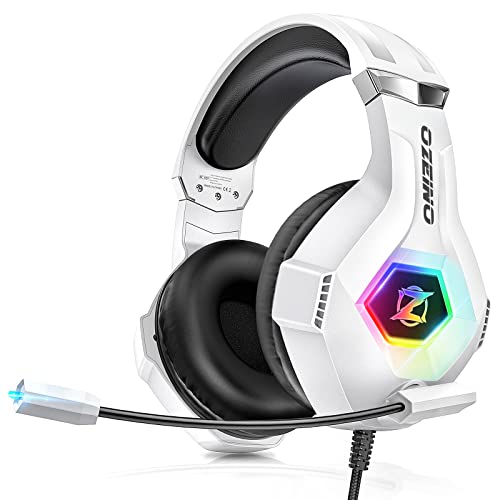
Our Top Picks
When a headset mic stops working, the fastest fix is to check three things in order: the physical mute switch or jack, Windows microphone privacy access, and the selected input device in Sound settings. Those three account for most cases, and Microsoft’s own support guidance for microphone problems starts in the same places. Only after those do driver reinstalls, Bluetooth re-pairing, or a hardware fault come into play.
Quick Answer: The 60-Second Checklist
- Look for a mute switch on the headset, an inline remote, or a mute button on the earcup or boom arm. Many gaming headsets have an LED that shows mute state.
- Re-seat the plug. A single 3.5 mm plug with four contacts (TRRS) carries both audio and mic; a headphone-and-mic split cable needs each plug in the correct socket.
- Open Start, then Settings, then Privacy and security, then Microphone. Make sure microphone access is on, apps are allowed to use it, and desktop apps are allowed too, which is the one that affects most games and voice chat clients.
- Open Settings, then System, then Sound, and under Input pick your headset mic as the device for speaking or recording. Speak and watch the input level bar move.
- Check the app itself. Discord, Teams, game launchers and in-game voice menus each have their own input device selector, and they can be set to a device you no longer use.
If the level bar moves in Windows but the app hears nothing, the problem is the app’s setting. If the bar never moves, the problem is the device, cable, port or permissions.

Wireless Headset with Mic for Work, Bluetooth Headset with Microphone Noise Cancelling & Mute Button, 65H Working Time Wireless Headphones with Mic for Work/PC/Call Center/Computer/Laptop/Teams/Zoom
Picked as a relevant option in this category.
View on Amazon
Trucker Bluetooth Headset, Wireless Headset with Mic, Bluetooth Headsets with Dual Noise Cancelling Microphone & Mute Button, 55Hrs Working Time PC Headsets for Cell Phones, Computer, Truck Driver
Chosen because it specifies Wireless Headset with Mic and 55Hrs Working Time PC Headsets for Cell Phones.
View on Amazon
LEVN Wireless Headset, Wireless Headset with Mic for Work, AI Noise Cancelling, 65 Hrs Working Time, Bluetooth Headphones with Microphone from Computer/Call Center/Teams
Chosen because it specifies Wireless Headset with Mic for Work and AI Noise Cancelling.
View on AmazonSymptom, Likely Cause and Fix
| Symptom | Common cause | First fix to try |
|---|---|---|
| Mic missing from the input list | Wrong port, loose plug, driver issue, or device disabled | Re-seat the plug, try another port, check Device Manager |
| Mic listed but level bar never moves | Hardware mute, privacy toggle off, or wrong device selected | Check mute switch, then Privacy and security, then Microphone |
| Works in Windows, silent in one app | App uses a different input device | Change the input device inside the app’s audio settings |
| Others hear you very quietly | Low input volume, boom arm too far from mouth, or mic boost off | Raise Input volume in Sound settings; reposition the boom |
| Others hear crackling or static | Loose connector, USB hub power issue, or interference | Use a rear motherboard port; replace the cable if possible |
| Bluetooth headset has no mic in calls | Wrong profile or device connected as output only | Re-pair; select the hands-free input entry in Sound settings |
| Mic worked yesterday, not today | Windows update changed defaults or a driver was replaced | Re-select default device; reinstall or roll back the audio driver |
Step 1: Rule Out the Physical Causes
Hardware causes are boring but common. Gaming headsets often have more than one mute control: a flip-up boom that mutes when raised, a wheel on the earcup, and a button on a USB dongle or inline controller. Check each. If the headset is wireless, confirm the battery is charged, because some models disable the mic or drop the link when power is low.
For a wired analog headset, look at the plug. A plug with two black rings (TRRS) is a combined headset jack and works with laptop headset ports. A plug with a single ring is stereo audio only. A desktop with separate green and pink jacks needs a splitter or the two-plug version. If you plug a four-pole headset into a desktop’s pink mic jack only, the mic often will not work. Makers of audio hardware document these jack types in their manuals, so check the headset’s manual for the intended connection.
For a USB headset, try another USB port directly on the PC rather than a hub. Unplug, wait a few seconds, and plug it back in so Windows enumerates it afresh.
Step 2: Windows Privacy and Input Settings
Windows can block microphone access entirely. Microsoft’s guidance lists the path as Start, Settings, Privacy and security, Microphone. Three toggles matter there: microphone access for the device, letting apps access the microphone, and letting desktop apps access the microphone. If the last one is off, classic desktop programs such as game launchers and many voice chat clients may get no audio, even though Windows itself shows the mic as working.
Next, go to Settings, System, Sound and scroll to Input. Choose your headset from the list. Microsoft notes there is a test option on the device’s properties page; use it and speak normally. If you see a level bar respond, Windows is receiving audio. Also check the input volume slider. A slider near zero produces the “others can barely hear me” complaint.
The menu wording can differ a little between Windows 10 and Windows 11 and between updates. If you cannot find a page named exactly as above, search the Settings app for “microphone”.
Step 3: Use the Built-In Troubleshooter
Microsoft’s guidance also points to a recording audio troubleshooter under Settings, System, Sound, Advanced, then troubleshoot common sound problems. It can reset some defaults and flag a disabled device. It will not fix a broken cable, but it is a low-risk step before touching drivers.
Step 4: Driver and Device Manager Fixes
If the headset never appears as an input device, Microsoft’s steps involve Device Manager: right-click the Start button, open Device Manager, and expand Sound, video and game controllers. You can try updating the driver from there. If that does not help, uninstalling the device and restarting lets Windows reinstall the driver on boot. Microsoft’s text mentions an option to attempt removal of the driver for the device; read the prompt carefully before ticking it, and keep the headset maker’s driver or software installer on hand in case it is needed.
For USB headsets with their own software suite, also check that the suite is not forcing the mic off or applying a profile that disables it. Closing and reopening the suite, or updating it from the maker’s support page, is a reasonable step.
Step 5: App-Level Settings
Many people fix Windows and still stay silent in a game or call because the app is set to a different device. Open the app’s voice or audio settings and pick the headset as the input explicitly rather than leaving it on a default entry. Some apps apply noise suppression or automatic input sensitivity; if the sensitivity threshold is set too high, soft speech never opens the gate. Lower the threshold or switch to push-to-talk to test.
Also check for exclusive mode. In the device’s advanced properties, an option may allow apps to take exclusive control of the device. If two programs both want it, one can end up with no audio. Turning the exclusive option off is a common troubleshooting step suggested by audio hardware makers.
Wired vs Wireless vs Bluetooth: Where Things Break
| Connection | Typical failure | What to check |
|---|---|---|
| 3.5 mm analog | Wrong jack or plug type, dirty contacts | Plug type, port label, try another device to test the headset |
| USB wired | Port or hub power, driver, software profile | Direct PC port, maker software, Device Manager entry |
| 2.4 GHz wireless dongle | Dongle not paired, interference, low battery | Re-pair per manual, move dongle away from a USB 3.0 hub, charge |
| Bluetooth | Connected for music only, not for hands-free input | Remove and re-pair; pick the hands-free input if listed |
Bluetooth deserves its own note. Many headsets expose two audio modes: a stereo music mode and a hands-free mode that includes the microphone. Switching between them can reduce playback quality, and some PCs or apps do not switch automatically. If the mic shows up only in one mode, check Sound settings for both entries. Reviewers of Bluetooth gaming headsets commonly note that a dedicated dongle gives a more dependable mic than a generic Bluetooth connection, though this varies by model.
Isolate the Fault
If you reach this point with no result, work out whether the headset or the PC is at fault. Plug the headset into a phone, another computer or a console controller. If the mic works elsewhere, the issue lies with your PC’s settings, ports or drivers. If it fails everywhere, the cable, boom or mic capsule is likely damaged. Check the warranty and contact the maker; opening the earcup yourself can void it.
Also try a different user account on the same PC, or a clean boot, to see whether background software such as an audio enhancer, a game overlay, or a virtual audio cable is intercepting the input.
Common Mistakes
- Setting the headset as output but leaving the laptop’s built-in mic as the input.
- Turning on privacy access for apps but not for desktop apps.
- Using a splitter backward, with the headset plug in a headphone-only socket.
- Assuming a USB headset’s volume wheel also controls mic gain.
- Reinstalling drivers before checking the mute switch.
- Leaving a noise gate or automatic sensitivity in an app so strict that normal speech is cut off.
Pick the Fix by Situation
| If this describes you | Start here |
|---|---|
| New headset, no mic at all | Plug type and port, then Sound settings input selection |
| Worked before, stopped after an update | Privacy and security, then re-select default input, then driver |
| Only one game or app has the problem | That app’s input device and sensitivity setting |
| Wireless headset, mic drops out | Battery, dongle position, re-pairing, firmware from the maker |
| Mic works on phone but not PC | Windows privacy and input settings, driver |
Frequently Asked Questions
Why does my headset work for sound but not for the microphone?
Output and input are handled as separate devices. Windows may be sending audio to the headset while using a different microphone, or the microphone toggle in Privacy and security may be off. Check both the output and input device in Sound settings.
Why can I hear others but they cannot hear me in Discord or a game?
The app likely has its own input device setting, which can point to an old device. Open the app’s voice settings, pick the headset mic by name, and use its built-in input test if it has one.
Does a single 3.5 mm plug work on a desktop PC?
Only if the port is a combined headset jack. Many desktop motherboards have separate headphone and microphone sockets, and a four-pole headset plug may not provide a working mic there. A splitter adapter or a USB sound adapter is the usual solution, and the motherboard manual shows how its ports are labeled.
Should I uninstall the audio driver?
Treat that as a later step. Microsoft’s guidance lists uninstalling the device in Device Manager and restarting for cases where the device is not detected. Try the mute switch, privacy settings and default device selection first, since they are quicker and carry less risk.
My mic is very quiet. What can I change?
Raise the input volume under Sound settings, bring the boom arm closer to the corner of your mouth, and check that the app is not applying aggressive noise suppression. If the level is still low, the maker’s software may offer a gain control.
When is the microphone itself broken?
If the headset fails on several devices and cables or ports have been ruled out, the mic capsule or boom wiring may be damaged. Contact the maker about warranty service rather than opening the headset.
FAQ
Why does my headset work for sound but not for the microphone?
Why can I hear others but they cannot hear me in Discord or a game?
Does a single 3.5 mm plug work on a desktop PC?
Should I uninstall the audio driver?
My mic is very quiet. What can I change?
When is the microphone itself broken?
More from Amazon
Programs that pair well with the guide above. Offers and eligibility are set by Amazon and may change.
Free shipping on eligible items, Prime Video and more. Eligible new members can start with a free trial.
Start a Prime free trialAd-free music streaming. Eligible new subscribers can start with a free trial.
Try Music Unlimited freeA Prime membership for ages 18-24 with a trial period. Eligibility is set by Amazon.
See Prime for Young AdultsAudiobooks and podcasts to listen to on the go. Eligible new members can start with a free trial.
Try Audible freeAs an Amazon Associate we earn from qualifying purchases.