
Key takeaways
- Minecraft: Bedrock Edition: your Switch 2 copy and the Realm must run compatible, current Bedrock releases. Java-only Realms cannot be joined from a Switch 2.
- Microsoft account: Minecraft must display the Xbox gamertag that received the Realm invitation. A Nintendo friendship alone is not a Realms invitation.
- Nintendo Switch Online: the console user joining online needs a valid membership. Verify the actual user, especially on family consoles.
- Invitation: the Realm owner must invite your gamertag or share an active invitation link. Do not publish private invite links.
- Realm ownership: the owner maintains an active Realms subscription and keeps the Realm open. The owner does not have to remain signed into the game.
If your Minecraft Switch 2 Realms connection fails, check four things before changing your router: the right Microsoft/Xbox account is signed in, you have a valid Realm invitation, your Nintendo Switch Online membership is active, and the Realm owner has an active, open Bedrock Realm. Then update Minecraft and test your Switch 2 Internet connection. A Realm is not the same as a world hosted directly by a friend: the owner normally does not need to be online for invited members to play. These steps apply to Minecraft: Bedrock Edition on Nintendo Switch 2, including the native edition listed for October 27, 2026.
Find out where your Realms connection fails
A missing Realm, an invitation that will not open, and a timeout while loading a world point to different causes. Keep the original error text or code and note whether the same Microsoft account can see its Realm on another supported Bedrock device. Start with this table; do not buy another subscription simply because the Realm is absent from your list.
| What you see | Most useful first check | Result to look for |
|---|---|---|
| Realm missing from Play > Realms | Confirm the signed-in Xbox gamertag; recheck invitation or Realm membership | Realm becomes visible under the expected account |
| Invitation does not work | Try the official Inbox path or confirm invite link is still active with the owner | Invite is accepted and Realm appears in list |
| Online play or subscription prompt | Check Nintendo Switch Online for the exact Switch user | Membership is recognized without prompting purchase |
| Realm listed but closed/expired | Ask owner to inspect status, subscription and Realm Hub settings | Realm shown open and joinable |
| Loading stalls or connection times out | Update Minecraft, restart safely and test console network | Player loads into Realm and can move normally |
| Error Arrow or other named code | Record full code; follow its Mojang error category | Error no longer appears on repeated attempts |
| Only a child account cannot join | Adult organizer verifies Microsoft multiplayer permission | Multiplayer/Realm access becomes available |
First safe test: ask a trusted member who is already invited whether they can join that same Realm now. If nobody can join, escalate to the owner or service-status check; if only one account fails, focus on the account, invitation and device.
Check what you need to join a Bedrock Realm
Realms membership and platform online membership are different products. The person paying for a Minecraft Realm subscription is generally the owner. An invited friend does not need to buy their own Realms subscription, but on a Nintendo console they still need Nintendo Switch Online for Internet multiplayer. Realms for Minecraft: Java Edition are separate from Bedrock Realms and are not interchangeable with Switch 2.
- Minecraft: Bedrock Edition: your Switch 2 copy and the Realm must run compatible, current Bedrock releases. Java-only Realms cannot be joined from a Switch 2.
- Microsoft account: Minecraft must display the Xbox gamertag that received the Realm invitation. A Nintendo friendship alone is not a Realms invitation.
- Nintendo Switch Online: the console user joining online needs a valid membership. Verify the actual user, especially on family consoles.
- Invitation: the Realm owner must invite your gamertag or share an active invitation link. Do not publish private invite links.
- Realm ownership: the owner maintains an active Realms subscription and keeps the Realm open. The owner does not have to remain signed into the game.
If you are merely joining an existing Realm, do not purchase a second Realm subscription as a troubleshooting step. First have the owner verify your membership and the Realm’s active status.
Accept or recheck your Realm invitation
Minecraft Help documents both an Inbox method and a link-entry method for Bedrock Realm invitations. The following names are from Mojang’s published steps. On the native Switch 2 edition, buttons may appear in slightly different positions or the Social interface may redirect to the invitation area; use the named Play, Realms, and Inbox controls when present rather than inventing a console-only menu.
Use the invitation Inbox
- Open Minecraft on Switch 2 and confirm the correct Microsoft/Xbox gamertag on the title screen.
- Select the Inbox button with a bell icon next to Profile, then open Invites.
- Find the invitation from the intended Realm and choose Accept. Return to Play > Realms.
- Select the newly listed Realm and choose Play. Once the world finishes loading, check that your character appears at the expected location.
If the invitation is missing, have the owner confirm the exact gamertag they invited and send another invitation. If you see a Social/Party screen instead, return to the Minecraft title screen and open Play; the published Realms navigation is the reliable starting point.
Use an invitation link if one was provided
- Open Minecraft > Play > Realms.
- Select + Add/join Realm, then Join an existing Realm.
- Enter the invitation link/code provided privately by the owner and select Join.
- Once accepted, open the Realm from the Realms list on future sessions. If the game says the link is invalid, ask the owner to check whether it was disabled, removed, or expired.
The Realm owner can inspect invitation links from Play > Realms > Realm Hub > Community > Members > Manage Realm Members > Invite Links. A link can be deactivated or revoked. Do not ask people to paste private invite tokens publicly or into unsolicited third-party forms.
Verify Microsoft sign-in and Nintendo Switch Online
An Xbox/Microsoft sign-in error and an expired Nintendo membership can look like the same Minecraft problem. Verify them independently before changing any settings or subscriptions.
Check the correct Nintendo account
- From the Switch 2 HOME Menu, launch Nintendo Switch Online.
- Select the console user who is launching Minecraft and review the membership status and expiration date.
- If the user belongs to a family membership, check that this exact Nintendo Account is included. If membership is active but Minecraft still prompts for one, fully shut down and restart the console, then start Minecraft under the same user.
This membership check is documented by Nintendo and requires no payment unless Nintendo confirms the user lacks an eligible plan. It does not tell you whether the separate Realm owner’s subscription is current.
Refresh Microsoft authentication only if needed
- Open Minecraft and select Settings > Account > Sign out of your Microsoft Account. Use this only if the gamertag is wrong or Minecraft reports a sign-in problem.
- Close Minecraft, restart the Switch 2, and reopen the game.
- Select Sign in for free! when offered. Minecraft supplies an alphanumeric code and directs you to aka.ms/remoteconnect on a trusted phone or computer.
- Enter the code using the official Microsoft authorization page, complete sign-in privately, and check that the intended Xbox gamertag reappears in Minecraft.
- Return to Play > Realms. If the Realm remains absent, ask its owner to confirm the invitation for that exact gamertag.
Security: the verification code is for the official sign-in flow. Do not send passwords, recovery codes or authorization codes to a stranger offering to “fix” your Realm. Do not repeatedly switch accounts in an attempt to bypass parental controls.
Update the game and test the console connection
Realms may reject older Minecraft releases. Nintendo has an exact Switch 2 software-update path; use it rather than steps written for the original Switch or Windows Minecraft Launcher. The native Nintendo Switch 2 edition has its own release schedule, so checking the game update is especially important around launch.
- Connect Switch 2 to the Internet, return to the HOME Menu, and highlight the Minecraft icon without launching the game.
- Press the + or − Button to open the software menu. Select Software Update > Via the Internet. Install an offered update and let it finish.
- If the console itself needs an update, use System Settings > System > System Update; restart if Nintendo prompts you to do so.
- Run HOME > System Settings > Internet > Test Connection. Write down whether Internet Connection says Success, the NAT type, and whether speeds look abnormally low.
- Reopen Minecraft and try the same Realm once. If it loads, stop changing settings. If it does not, test a second known working online service or, with permission, a different network to isolate local connectivity.
A successful Nintendo Internet test only verifies basic network access; it does not prove the Realms service or Microsoft authentication is healthy. NAT type alone also cannot identify every Realms failure. If the network test fails, correct the Switch 2 Wi-Fi connection first; while docked you may use the dock’s wired Ethernet connection for a stable comparison.
Ask the Realm owner to check its status
If one member sees the Realm while another cannot, the owner should check invitations and member permissions. If nobody can connect, check whether the Realm subscription is active and whether the Realm was temporarily closed. Mojang provides two ways to manage Bedrock Realms: in Minecraft’s Realm Hub or through the owner’s Minecraft.net profile.
- Open the Realm Hub: launch Minecraft, select Play > Realms, and open the affected Realms Hub. Mojang documents Community, Timeline, World, and Settings tabs.
- Check membership: under Community, inspect the member list and authorized invites. Confirm that the friend’s exact gamertag has access and has not been removed or blocked.
- Check ownership and service: the Realm owner should open Settings and review the subscription details and whether the Realm is temporarily closed. Subscription controls are owner-only.
- Use the official web option if necessary: on Minecraft.net, sign in as the Realm owner, open Profile > All Games, select Bedrock Edition and the appropriate Realm, then verify membership and the current active world.
If the Realm is closed, the owner can reopen it from Realm management. For a persistent connection error affecting all members, Mojang recommends closing and reopening the Realm. Ask all players to finish their current session before doing so, and allow the Realm to restart before inviting everyone to reconnect.
Critical distinction: a temporary Realm close/reopen is not the same as Reset World or Replace World. Mojang describes Reset World as replacing the current world with a new one. Never use Reset World, Replace World, a backup restore or save deletion merely to repair a join error; those operations can change or discard world progress.
Check whether the problem is with Realms services
An outage may affect multiple players and devices at once, which is why testing another invited member is useful. Mojang points users to Microsoft/PlayFab and Xbox service-status resources. The official PlayFab status page can reveal related incidents, but a green PlayFab indicator does not guarantee every Minecraft Realm is available.
- Ask two trusted members on different networks whether this same Realm loads. Record the approximate time, region and full error message.
- Check the PlayFab Status site for relevant incidents and follow Minecraft’s official Realms troubleshooting page for any support notice.
- If other authorized players also fail while local Internet tests succeed, avoid account resets and router changes until the owner confirms the Realm is open and there is no wider service issue.
- If only your Switch 2 fails, try normal network comparisons: restart the game, reconnect to the same Wi-Fi, move closer to the router, or use wired Internet while docked. Return to the Realms list after each single change.
Avoid turning off console security settings, placing your Switch 2 in a router DMZ, or forwarding random ports as a quick fix. Such changes are difficult to diagnose and are not a required first step for joining a managed Realm.
Handle specific Realms error messages
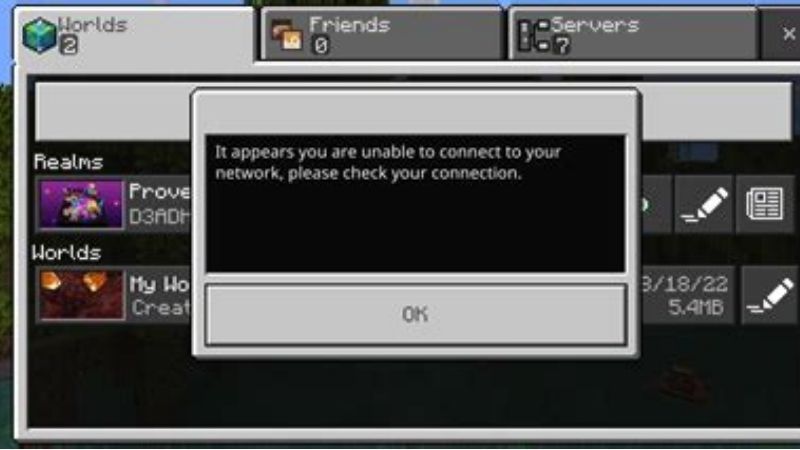
Mojang assigns names to several Bedrock error codes. Those names are categories for troubleshooting rather than reliable proof of a single cause. For example, Arrow indicates a Realm connection issue, while an account-authentication error belongs in the sign-in path. Match the exact error shown on your screen to the official named-code guide before acting.
| Message or behavior | What to do next | What not to do |
|---|---|---|
| Arrow — Realm connection error | Check Realm owner status, invitation, active subscription, and Microsoft sign-in; retry after restart | Do not reset or replace Realm world |
| Account/sign-in error such as Axolotl | Verify Xbox gamertag; refresh Microsoft sign-in with official device-code flow | Do not share authentication codes |
| Minecraft version mismatch | Update Minecraft on the Switch 2 and other Bedrock clients | Do not assume Java and Bedrock are interchangeable |
| Realm absent from list | Inspect Inbox invite and owner membership list; confirm correct gamertag | Do not buy a second Realms subscription |
| Timeout while loading | Confirm service status and Internet test; compare another network and another invited player | Do not reformat storage or delete save data |
| Multiplayer disabled by account settings | Ask authorized family organizer to review Microsoft multiplayer permissions | Do not bypass the family account |
If a child sees an account-permission message, the Microsoft family organizer must approve multiplayer access. Nintendo parental-control settings can also affect online features. Do not claim that reinstalling Minecraft, changing DNS or replacing the console can override a family-permission denial.
Verify that the Realm is working again
Do not stop the diagnosis simply because the Realm briefly appears on the list. Verify a stable play session with a small, reversible test so you know which action actually fixed it.
- Open Minecraft > Play > Realms, choose the original Realm, and select Play. Confirm the expected world name and familiar location.
- After loading, move a short distance, open your inventory, and confirm interactions respond normally. Avoid changing important blocks during this test.
- Leave the Realm normally and join it again. If possible, ask one trusted friend to join at the same time.
- If only one network still fails, note the network type, NAT, date/time and any exact named error. If all members fail again, the owner should contact Minecraft Support with those details.
If a temporary Realm close/reopen solved the issue, do not repeat it routinely. Repeated disconnects deserve a service/network investigation; a single successful test does not guarantee future availability.
Tools That Help
- Nintendo Switch 2 Internet Test — free, built in. Use System Settings > Internet > Test Connection to verify baseline connectivity and record NAT and bandwidth readings; no additional hardware is required.
- Minecraft Realms Hub — included with Minecraft account access. Owners and invited players can inspect Realm listings; owners use Community and Settings to check members and Realm state. Realm hosting itself is a paid subscription for the owner.
- PlayFab Status and Minecraft Help — free official web resources. Use these to check known supporting-service incidents and error-code categories before making risky local changes.
Frequently asked questions
Does the Realm owner have to be online for Switch 2 players to join?
No. Bedrock Realms are hosted online, so an invited player can join while the owner is offline, provided the Realm is open and the subscription and required services are active. This is different from joining a regular world running on a friend’s device.
Do invited players need to pay for Minecraft Realms?
No. The owner pays for the Realms subscription. However, Switch 2 players generally need an active Nintendo Switch Online membership for Internet multiplayer, plus the correct Microsoft account and Realm invitation.
Can Nintendo Switch 2 join a friend’s Java Edition Realm?
No. Minecraft on Switch 2 uses Bedrock Edition, and a Java Edition Realm belongs to a different edition. Ask the owner to confirm the Realm type before troubleshooting the connection.
Will closing and reopening a Realm erase the world?
Mojang treats temporarily closing and reopening a Realm separately from the destructive Reset World and Replace World controls. The owner should use only the temporary close/open procedure to troubleshoot a connection issue and avoid world-management commands.
Why does the Realm appear on my phone but not Switch 2?
First compare the Xbox gamertag signed in on each device. Next verify the Switch 2 user’s Nintendo Switch Online entitlement and installed Minecraft version. A Realm existing on another device does not automatically prove the console is signed into the same Microsoft identity.
Final Thoughts
Choose the next step based on the symptom: if a Realm is missing, verify the gamertag and invitation; if Nintendo membership is requested, check the exact Switch user; if everybody gets an Arrow or timeout error, ask the owner to confirm the Realm is open and check service status. Use Nintendo’s connection test only after those account and Realm checks. A successful fix means you can join the same Bedrock Realm twice and remain connected—not merely that the Internet test says Success. Avoid Reset World, random port forwarding and reinstalling the game unless official support identifies a separate need.




