
Key takeaways
- Look for the exact content type. A skin changes a player’s appearance; a world template is not necessarily a standalone texture pack. Read the listing before using Minecoins.
- Check the Vibrant Visuals label. Mojang says compatible Marketplace material can carry a Vibrant Visuals designation. If the listing does not establish compatibility, do not assume the pack supports it.
- Check whether access is owned or subscription-based. Content from Marketplace Pass or Realms Plus may depend on an active entitlement and can change within the subscription catalog.
- Consider how you will play. Nintendo says Vibrant Visuals is unavailable in split-screen and with some Marketplace content. If local multiplayer matters, evaluate how the textures look in Fancy or Simple mode too.
- Do not assume cross-device currency portability. Nintendo’s Switch 2 listing states that Minecoins bought on Nintendo devices are used within the Nintendo ecosystem.
Minecraft Switch 2 texture packs change how blocks, items, and other parts of a Minecraft Bedrock world look. The safest place to get them on Nintendo Switch 2 is the in-game Minecraft Marketplace, where you can check a pack’s description, ownership, and any Vibrant Visuals compatibility information before downloading. To apply a downloaded pack to a specific world, open Play, edit that world, and look under Resource Packs for the pack to activate. If the pack looks wrong, first check its compatibility and pack order rather than deleting your world. This guide explains the differences between texture packs, add-ons, mash-ups, and graphics modes, plus safe fixes for packs that will not download or display correctly.
What texture packs change on the native Switch 2 edition
A texture pack changes visual assets such as the appearance of familiar blocks or items. A resource pack is the broader Bedrock category for visual or audio assets; many Marketplace texture packs appear in the world’s Resource Packs controls. An add-on may include resource and behavior packs that alter gameplay, while a mash-up commonly combines a themed world with textures, skins, and sometimes music. These terms overlap in menus, but they do not mean the same thing.
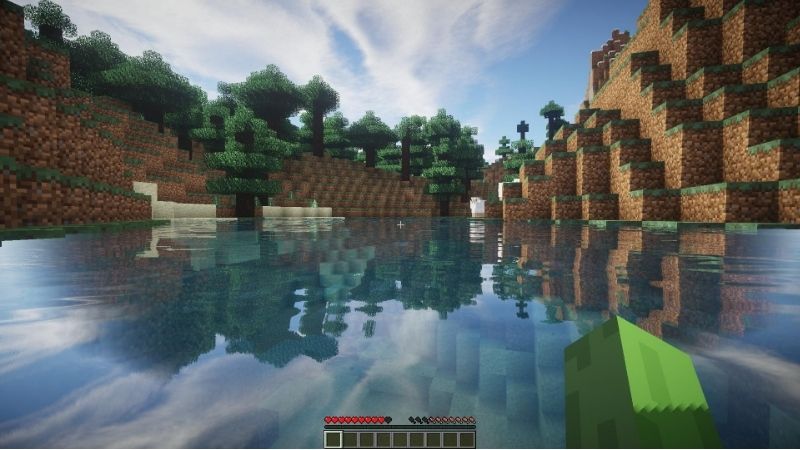
The native Minecraft for Nintendo Switch 2 was listed for release on October 27, 2026. Nintendo and Mojang advertise Marketplace content and the Super Mario Mash-Up Pack for this version. They also state that Vibrant Visuals is its default graphics experience. That does not mean every older or newly purchased texture pack can use the enhanced lighting mode at the same time. A pack can change textures without providing enhanced lighting effects, and some content can prevent Vibrant Visuals from being selected.
| Content type | What to expect | Where to manage it |
|---|---|---|
| Marketplace texture pack | Changes the appearance of compatible game assets; may have specific graphics-mode requirements | Marketplace library; world Resource Packs; sometimes Global Resources |
| Add-on with resource/behavior packs | Can include textures and gameplay changes such as custom entities or blocks | World editor Resource Packs and Behavior Packs |
| Marketplace world or mash-up | Often supplies its own world, themed textures, and other assets; its creator may set conditions | Marketplace library, then Create This World or the included world template |
| Vibrant Visuals graphics mode | Lighting, reflections, fog, and shading from the game’s graphics pipeline; not a texture-pack download | Main menu Settings > Video > Graphics Mode |
| Java Edition shader/pack | Made for a different edition or file format; no direct Switch 2 installation path confirmed | Do not treat Java mod installation instructions as console steps |
A console player should not need to install a computer file manager, edit Minecraft system folders, sideload unknown archives, or modify Switch 2 firmware to use ordinary supported Marketplace packs. This guide addresses the publisher-supported Marketplace path, not unsupported modding.
Check the pack before downloading or buying
Start by deciding whether you want a different art style in an existing survival world or a complete themed adventure. A texture pack is usually more appropriate for the first goal; a mash-up world or template may be more suitable for the second. The official Minecraft Marketplace lists texture packs by creator and provides a product page for each pack, but a listing alone is not proof of Switch 2 performance or Vibrant Visuals support.
- Look for the exact content type. A skin changes a player’s appearance; a world template is not necessarily a standalone texture pack. Read the listing before using Minecoins.
- Check the Vibrant Visuals label. Mojang says compatible Marketplace material can carry a Vibrant Visuals designation. If the listing does not establish compatibility, do not assume the pack supports it.
- Check whether access is owned or subscription-based. Content from Marketplace Pass or Realms Plus may depend on an active entitlement and can change within the subscription catalog.
- Consider how you will play. Nintendo says Vibrant Visuals is unavailable in split-screen and with some Marketplace content. If local multiplayer matters, evaluate how the textures look in Fancy or Simple mode too.
- Do not assume cross-device currency portability. Nintendo’s Switch 2 listing states that Minecoins bought on Nintendo devices are used within the Nintendo ecosystem.
For a first test, use a pack you already own or a free option available in the Marketplace rather than buying a large bundle to resolve a technical problem. This avoids confusing a purchase problem with an installation problem.
Download texture packs from Minecraft Marketplace
Mojang’s official “How to Access Minecraft Marketplace Content” guide provides a consistent Bedrock path for owned textures, add-ons, skins, and worlds. Use it on the native Switch 2 game, not the Nintendo eShop software-download screen, which is for game software and related console content.
- Launch Minecraft on Nintendo Switch 2 and let the main menu finish connecting. For previously purchased content, verify that you are signed in with the Microsoft account associated with that content. If the Marketplace shows an account sign-in prompt, complete it using Minecraft’s own account flow.
- Select Marketplace from the Minecraft main menu. Use its category or search tools to open the texture pack you want. Confirm the creator, the type of content, and any available compatibility note before purchasing.
- For an owned or subscription-included pack, select My Library on the left side of Marketplace. Choose Owned or Marketplace Pass, as applicable. Find the exact pack and open its listing.
- Select Download when that button appears. Mojang’s library guide says different content types may instead display Create This World or Equip. Those actions apply to the content shown; do not mistake them for the Activate control of a texture pack.
- Allow the download to complete, then return to the main menu. Check that the pack is available under the correct world’s Resource Packs controls before treating the download as an installation success.
Expected result: the pack appears among the owned or available resource packs for the relevant world. If its listing is missing, go back to Marketplace > My Library and check the signed-in Microsoft account and subscription rather than buying the same item again. Mojang explicitly lists a wrong account or expired Marketplace Pass entitlement among the causes of missing content.
Activate a texture pack in an existing world
Mojang documents these world-level Bedrock resource-pack controls in its “Activate Add-Ons in Minecraft: Bedrock Edition” help article. The article covers resource packs used by add-ons; it is also the verified world-editor path to check when a compatible downloaded visual pack exposes a Resource Packs entry. The exact Activate options for individual Marketplace texture products can vary with the pack or bundled world type.
- From Minecraft’s main menu, select Play and open the Worlds list. Identify the world you want to change. Make or preserve a safe copy if the world contains custom blocks, entities, or other content you cannot afford to lose.
- Select the pencil/edit icon beside that world. In the world settings, open Resource Packs; do not select Behavior Packs unless the product instructions require gameplay components.
- Open the Available or My Packs section exposed by your version. Select the downloaded pack, then choose Activate when offered. If the pack is bundled into a purchased world template rather than provided separately, use the product’s intended world-creation action instead.
- Return to the world settings and confirm that the pack is present in the Active list. If multiple packs are active, note their order so you can undo any visual conflicts.
- Select Play and visit a familiar area with easily recognized blocks, signs, and items. Compare what you see with the original look. A changed thumbnail in Marketplace alone does not prove that the pack is active in your world.
For a new world, Mojang’s corresponding route begins at Play > Create New World, where you can choose world creation or Marketplace content and open the resource-pack controls. If you simply want to test a pack, create a separate disposable world first. That isolates the visual pack from add-ons already attached to a valued save.
Use Global Resources only when that option is available
Minecraft Bedrock also has a Settings > Global Resources area in supported interfaces. It applies enabled resources more broadly than a single world. However, Mojang’s verified Switch 2 launch guidance does not provide a full, Switch-2-specific screen-by-screen description of every global resource-pack action. If you see this option on your current build, review its Available and Active lists and use the game’s displayed activation control. If you do not see it, use the verified per-world procedure above rather than looking for unofficial configuration-file paths.
Global resources are convenient for a consistent personal interface or visual style across worlds, but a world template or server may still require its own specific resources. Testing a pack on one world first makes it easier to tell whether a conflict is global or world-specific.
Understand Vibrant Visuals compatibility before changing graphics modes
Nintendo and Mojang describe Vibrant Visuals as a built-in graphics pipeline with upgraded lighting and visual effects, not as a standalone purchased pack. The native Switch 2 edition uses it by default. Mojang’s current Vibrant Visuals page explains that specially compatible Marketplace offerings carry a Vibrant Visuals label; its graphics troubleshooting documentation also says incompatible worlds or texture packs can make that graphics mode unavailable.
Some earlier Mojang testing and launch material said worlds and texture packs were not supported with Vibrant Visuals at that stage. The later Marketplace program introduced content specifically marked for Vibrant Visuals. Therefore, neither blanket statement—”all packs work” nor “no pack works”—is accurate across every pack and version. Check the actual product and the installed game.
| What happens | Likely explanation | Safe next step |
|---|---|---|
| Vibrant Visuals works with a pack | That content and game build may support the combination | Keep it if textures, lighting, and performance are acceptable |
| Vibrant Visuals becomes gray or unavailable | Mojang lists conflicting worlds or texture packs as possible blockers | Exit the world, check Settings > Video, and temporarily deactivate the optional pack |
| Pack looks different in split-screen | Vibrant Visuals does not operate in local split-screen | Expect Fancy/Simple rendering; compare textures in that mode |
| Textures apply, but new reflections are missing | A texture change is not equivalent to Vibrant Visuals support | Check the pack’s label and active Graphics Mode |
| A Marketplace world enforces its own look | Some purchased worlds have bundled required resources | Try a separate ordinary test world; do not strip required packs from the original world |
To check the graphics mode, save and exit to Minecraft’s main menu; select Settings > Video > Graphics Mode and review Vibrant Visuals, Fancy, or Simple. Mojang advises returning to the main menu when a mode is grayed out while playing an active world. If a pack requires Fancy or Simple, using that mode is a supported compatibility trade-off, not proof that the pack download is broken.
Use the Super Mario Mash-Up Pack as a known Switch example
Nintendo says the Super Mario Mash-Up Pack is exclusive to Nintendo editions of Minecraft and ships in the Switch 2 release with an updated Vibrant Visuals presentation. This is useful evidence that Nintendo-specific, enhanced Marketplace-style content exists. It does not establish compatibility for every third-party texture pack or promise that Mario content can be transferred to a non-Nintendo device.
If you are specifically looking for Mario textures, open the Minecraft listing or the included pack/world options before paying for something with a similar title. A mash-up may include themed locations, skins, and music that are part of its own world experience; applying a generic resource pack to a pre-existing survival save is a different action.
Fix missing, inactive, or broken texture packs safely
Use the least disruptive fix first. A missing purchase, a graphics-mode conflict, and corrupted game software are different problems; deleting a world is not a sensible first response to any of them.
| Symptom | First safe check | What success looks like |
|---|---|---|
| Pack not in library | Marketplace > My Library; correct Microsoft account and Owned/Marketplace Pass filter | Purchased or entitled pack is listed |
| Downloaded but default textures remain | Edit world > Resource Packs > Active; check exact pack and priority | Distinctive textures appear after loading |
| Vibrant Visuals option disabled | Exit world and check Settings > Video; test without optional pack | Graphics Mode is selectable when incompatibility is removed |
| Visual assets conflict | Reorder active Resource Packs, one change at a time | Intended pack’s overlapping textures take priority |
| Marketplace download fails or shows a code | Check connection, restart, update, then clear Marketplace cache if needed | Download completes and pack is accessible |
| Game freezes or repeatedly crashes | Test in a fresh world with one pack; check software update and corrupted data | Game runs reliably without the conflicting pack |
If the pack is missing from your library
Return to Marketplace > My Library. Mojang says to verify the Microsoft account used to acquire the item, whether the download completed, and the status of Marketplace Pass or Realms Plus if the item came through a subscription. Catalog content can change or lose subscription eligibility, so a lock icon does not necessarily mean a damaged download. Check the item’s ownership in the official Marketplace; avoid rebuying until you have identified the entitlement problem.
If the world still shows default textures
Edit the world from Play and inspect Resource Packs > Active. If the desired pack is not there, return to Available/My Packs and activate it. If it is active alongside other packs, Mojang says the higher-priority pack wins when assets overlap; use the pack-order controls offered by the world editor and test after each change. Do not assume multiple full-world texture packs will always blend cleanly.
A useful diagnostic is a new test world with only the intended resource pack active. If it works there but not in the original world, the original save’s add-ons, templates, or pack priorities are more likely than a hardware fault. If the purchase is itself a world template, use its Create This World function rather than expecting independent textures everywhere.
If Marketplace cannot download the pack
For a temporary Marketplace error, Minecraft Help recommends waiting and retrying, checking connectivity and account sign-in, updating Minecraft, and restarting. It also publishes a cache-clearing route: from the Minecraft main menu open Settings > Storage > Clear Marketplace Cache, then restart Minecraft and try the Marketplace again. This is an in-game cache step; do not choose options that delete worlds or saved content.
If a Minecraft update is pending, Nintendo’s supported procedure is: from the console HOME Menu, highlight Minecraft without starting it; press + or –; choose Software Update > Via the Internet. After it finishes, restart the game and test the download. For continuing launch or corruption problems, Nintendo documents System Settings > Data Management > Manage Software > Minecraft > Scan for Corrupted Data. Follow the console’s result prompts and protect saves before considering a reinstall; scanning is not a substitute for a save backup.
If a pack causes freezing or missing custom blocks
For behavior-changing add-ons, Mojang specifically warns that disabling content can remove custom mobs or replace custom blocks in the world. Preserve a backup before changing those add-ons, especially on a long-running save. Deactivate optional items one at a time and use a fresh-world comparison. Removing a purely cosmetic pack should not be conflated with removing an add-on that defines custom gameplay content.
Only escalate to Minecraft Support once you can describe the exact pack title and creator, the game version, whether the issue appears in a new world, the active Graphics Mode, and the error text. That information is more useful than a generic report of “textures broken on Switch 2.”
Texture packs in Realms and multiplayer worlds
A Realm owner can apply eligible add-ons or resource packs at the world level using Mojang’s documented route: Play > Realms > [your Realm] > Realm Hub > World > Edit World > Resource Packs. The owner selects the pack, activates it, confirms changes, and allows the world to upload. Mojang says clients joining a Realm automatically download and apply add-ons activated by that Realm. This is different from changing only your personal appearance with a globally enabled client resource.
If you are a Realm guest, ask the owner whether the world requires a resource pack before changing account settings. If a pack download fails on entry, try a reliable connection and the Minecraft Marketplace troubleshooting steps. Do not reset, replace, or upload over the Realm world simply to fix textures; those owner actions can change shared world content.
Vibrant Visuals is primarily cosmetic, and Mojang says friends with the setting enabled or disabled can play together on Realms. A pack’s compatibility is a separate question; a Realm using a particular world template may enforce resources independent of another player’s preferred look.
Frequently asked questions
Can I install Java Edition texture packs on Minecraft Switch 2?
Do not assume so. Switch 2 runs a native Bedrock edition, and Java resource packs or shader mods follow different formats and installation workflows. Nintendo and Mojang do not provide a supported general-purpose Switch 2 file-import procedure in the sources reviewed here. Use Marketplace content explicitly intended for Bedrock and verify the installed version.
Are texture packs and RTX or Vibrant Visuals shaders the same?
No. A texture pack changes assets, while Vibrant Visuals provides supported game-engine effects such as lighting and reflections. A compatible creator pack can be designed to work with Vibrant Visuals, but downloading a texture pack does not automatically add hardware ray tracing or reproduce a PC-only shader stack.
Will a texture pack change my saved buildings?
An ordinary cosmetic resource pack changes the presentation rather than the block layout. However, add-ons and world templates may include gameplay resources with different consequences. Test in a copied world and follow Mojang’s backup advice before removing behavior packs or content that defines custom blocks.
Why did my texture pack stop working after an update?
A game update may alter compatibility, pack priorities, or a particular creator’s resource definitions. First update the game, check the Marketplace library for the pack version, recheck its Active status, and test a fresh world. Do not assume a permanent incompatibility without checking the creator’s listing or submitting reproducible details to support.
Do I need Nintendo Switch Online to use a texture pack offline?
Nintendo Switch Online is described by Nintendo as a membership for supported online multiplayer features, not a general prerequisite for viewing textures in an offline world. Initial Marketplace access, account verification, and downloads still require connectivity, and subscription-supplied content depends on active entitlement. Do not confuse those requirements with multiplayer membership.
Tools That Help
- Minecraft Marketplace > My Library (included; purchases may be paid): Check owned or subscription-entitled texture packs and retrieve official downloads. Use it before spending more Minecoins or suspecting damaged saves.
- Minecraft World Editor > Resource Packs (free built-in control): Activate, disable, or reorder compatible packs for a specific world. Use this for your first single-pack comparison.
- Minecraft Settings > Video and Settings > Storage (free built-in controls): Verify graphics-mode compatibility and, for Marketplace errors, use Clear Marketplace Cache. Neither operation should be confused with deleting a world.
Final Thoughts
For your next step, open Minecraft > Marketplace > My Library, select one owned texture pack, and activate it in a separate test world using Play > Edit World > Resource Packs. Verify that the changed textures appear before enabling another pack. If Vibrant Visuals is disabled, check that exact pack’s compatibility and compare Fancy or Simple rather than forcing unsupported files onto the console. If the pack does not appear in your library, resolve the Microsoft account or Marketplace entitlement first. This single-pack test tells you what to fix without risking your main world.




