
Key takeaways
- Confirm you can sign in to accounts.nintendo.com from a normal browser session using your intended Nintendo identity.
- If the issue was on Switch 2, confirm the local console user is linked to the correct Nintendo Account, without changing users or deleting save data.
- Open the Nintendo eShop or the Nintendo service that previously failed and verify the error no longer occurs.
- Check that the correct purchase history, account settings, or family-group information appears in the appropriate account. A different, empty account is not a successful recovery of the original one.
- If 2-Step Verification or passkeys were involved, confirm you retain at least one working recovery route and store backup codes securely.
A Nintendo Account login error can have several different causes: an incorrect sign-in ID, a missing email verification code, a broken passkey prompt, a temporary Nintendo service issue, or an account that is already signed in on another browser session. Start by checking the exact message and whether you can sign in at accounts.nintendo.com. If the website works but your Nintendo Switch 2 does not, focus on the console connection and account-linking screen. If both fail, address the account credentials or verification step first. Do not delete a console user, reset the system, or create a second account simply to clear a login message.
Quick diagnosis: Match the error to the safe first step
The table below groups different Nintendo support procedures by symptom. It is not a claim that every sign-in problem has a single technical cause. The right starting point depends on the message shown and the device where it appears.
| Symptom | Likely issue | First safe action | What success looks like |
|---|---|---|---|
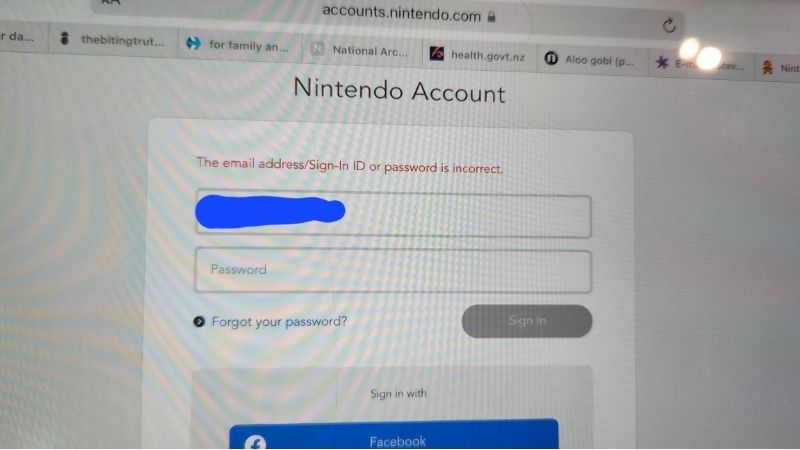
| “The email address/sign-in ID or password is incorrect” | Wrong credentials, sign-in method, or child-account ID | Use the official Nintendo Account sign-in page; check Sign-in ID and Forgot your password? | You can authenticate to the intended account on the web |
| Google Authenticator code is missing or rejected | 2-Step Verification access or time-sync problem | Open the registered authenticator; use another identity-verification method if needed | Nintendo accepts the current verification or backup code |
| Passkey sign-in cannot be completed | Unregistered or unavailable passkey device | Use password sign-in or another previously registered method | Nintendo completes authentication without the unavailable passkey |
| Verification email never arrives | Delayed, blocked, or wrong mailbox | Check spam, safe-sender settings, and the resend control | A fresh valid email code reaches your mailbox |
| “Access Denied” in a browser | Conflicting browser account session or cache | Sign out of other Nintendo sessions and retry in the intended browser | The correct Nintendo Account is shown |
| 2124-7503, 2124-5002, or 2124-5210 | Possible Nintendo Account service disruption | Check official Network Status; retry later | Service recovers and sign-in completes |
| 2810-1224 when entering the eShop | Console sign-in or online connection issue | Restart console, reconnect to Wi-Fi, wait 10 seconds, retry | Account sign-in or eShop connection succeeds |
Nintendo’s support articles for “Issues Signing in to a Nintendo Account,” “Issues with Nintendo Account 2-Step Verification Code,” and its individual error-code pages are the reference points for these branches. Do not interpret a service-outage error as proof that your password has been stolen, and do not interpret a bad password message as proof that Nintendo’s servers are down.
First checks before changing account settings
- Record the full error text or code. Note whether it occurred at accounts.nintendo.com, when linking a Switch 2 user, in Nintendo eShop, or inside a connected app. A photo of the error screen is enough; avoid screenshots containing backup codes or sign-in secrets.
- Check Nintendo’s official Network Status page. Visit Nintendo’s network-status site from a phone or PC. If Nintendo Account services are under maintenance, try again after service resumes rather than repeatedly changing passwords.
- Test the same account on the web. Open accounts.nintendo.com/login, confirm the Nintendo domain, and try the credential method you normally use. A successful browser login narrows a console-only problem, though additional console verification may still be required.
- Check the console network. On Switch 2, open System Settings > Internet > Test Connection. If the console is offline, restore the network before attempting account linking. A working internet test does not guarantee Nintendo’s account service is available.
- Avoid irreversible actions. Do not delete the local Switch user, factory-reset the system, unlink account services at random, or submit the same verification code repeatedly. Move to the matching section below.
Expected result: You can identify whether the failure is a service issue, an internet issue, a credential issue, or an identity-verification issue. If the code or message changes, use the newest message to choose the next step.
Fix an incorrect email address, password, or Sign-in ID
Nintendo Accounts can use an email address or Sign-in ID and password, depending on your chosen settings. If sign-in preferences were changed to Sign-in ID only, entering the correct email address may still fail. A Nintendo Network ID from older Nintendo hardware is not a substitute for Nintendo Account credentials: that sign-in method was discontinued. Linked Google and Apple sign-in may be alternatives for accounts on which you had already connected those services.
- On a phone or PC, navigate directly to accounts.nintendo.com/login. Do not use a reset page received through an unexpected message or advertisement.
- Try the E-mail address/Sign-in ID field with the identifier you configured for that Nintendo Account. Check for extra spaces, a different email alias, and a password manager filling a different user’s credentials.
- If you do not know your password, select Forgot your password? on Nintendo’s official sign-in screen. Enter the email associated with the Nintendo Account and follow the message Nintendo sends.
- Open the reset email and complete the Nintendo verification prompts. If your account requires 2-Step Verification or a registered phone number, complete those prompts too; resetting a password does not eliminate the account’s security checks.
- Return to the Nintendo Account sign-in page and sign in with the intended account. Verify its account information before retrying the console link.
If you no longer know the email address, Nintendo explains how to view part of it on a linked console: from the HOME Menu > user icon > User Settings, examine the Nintendo Account details. On Switch 2, Nintendo documents a Check Your Account Information option for additional account details, subject to password verification. If you cannot access the registered mailbox, contact Nintendo Support through its official recovery process rather than opening an unrelated new account.
Child accounts use different credentials
A Nintendo Account for a child does not sign in with the parent’s email. Nintendo instructs the parent or guardian to open their Nintendo Account’s Family group, choose the child’s account, and view Sign-in and security settings to inspect the child’s Sign-in ID. The parent can reset the child’s password through the supervised-account flow. Child accounts cannot set up Nintendo Account passkeys or 2-Step Verification in the same way general accounts can. If parental supervision is involved, use the family-group settings instead of applying the general adult-password reset steps.
Fix Nintendo Account 2-Step Verification errors
For Nintendo Account 2-Step Verification, the six-digit time-based code normally comes from the Google Authenticator app configured for that account. An email verification code is a separate identity-checking path: do not search your inbox for an authenticator code that the sign-in page is actually asking you to read from your app.
If the authenticator code is available but rejected
- Open Google Authenticator on the phone used to enroll Nintendo Account 2-Step Verification and select the entry for the correct Nintendo Account.
- Enter a current code promptly. Codes change periodically; a code copied near the end of its period may expire before submission.
- Check your phone’s automatic date and time. Nintendo’s support instructions also describe a Google Authenticator Android path, More options > Settings > Time correction for codes > Sync now, where that app version provides it. If the menu has changed, use your device’s automatic-time settings rather than guessing a replacement control.
- Try signing in again. If the code still fails, select Use another method to verify your identity on the Nintendo 2-Step Verification screen.
If you lost your authenticator phone
- At the Nintendo verification prompt, select Use another method to verify your identity.
- Enter one of the 10 backup codes originally provided when 2-Step Verification was enabled. Each backup code is single-use, so keep the remaining ones in a secure place.
- If you have no backup code, Nintendo’s current support flow may offer another identity-verification method using the registered email address. If email cannot be received but the account has a registered phone number, the flow may offer SMS verification.
- If you also forgot the password, or none of the offered verification methods works, use Nintendo Support for account recovery. Do not follow unofficial “2FA bypass” services.
- After access is restored, visit Account Settings > Sign-in and security settings > 2-Step Verification on Nintendo’s website. Review backup codes or update verification settings using Nintendo’s authenticated process, then re-enable strong account protection if anything was changed.
Security boundary: Keep passwords, authenticator codes, SMS codes, and backup codes private. Nintendo Support can guide recovery without asking you to publish these secrets online. Do not deactivate security solely to make an error message disappear unless you have legitimate, authenticated access and a plan to restore protection.
Fix passkey sign-in problems
A passkey is tied to a compatible device and its authentication system. Nintendo says an unsupported device can show “You can’t use a passkey to sign in from this device,” while a device that does not hold the registered passkey may say “Couldn’t complete passkey sign-in. Please use password sign-in instead.” Neither message alone means your Nintendo Account has been deleted.
- On the sign-in page, try the phone or computer on which you originally registered the Nintendo passkey. Unlock it with the device’s supported authentication method.
- If that device is unavailable, choose Can’t use passkey sign-in? or Use another method to verify your identity, depending on the displayed screen. Sign in using your password, another registered passkey, or the verification method Nintendo offers.
- If you can authenticate through an alternate method, open the Nintendo Account website and review the registered passkeys. Remove a passkey for a device you no longer control using the account’s authenticated settings, then register a new supported device if desired.
- If the registered device itself cannot perform biometric or screen-lock authentication, use the appropriate Apple or Google device-support instructions; this is distinct from resetting Nintendo Account credentials.
Nintendo’s sign-in page may display a passkey option that is unavailable in a particular browser or device. Use password sign-in instead of attempting to force that browser to support passkeys. A Switch 2 can use the linked smartphone’s sign-in process, but it does not require passkey creation on the console itself.
Fix email verification codes that never arrive
Nintendo can request an email identity-verification code even if you have not enabled the authenticator-based 2-Step Verification feature. According to Nintendo Support, the delay and resend procedure depend on which type of email was requested.
- Confirm that the Nintendo Account sign-in screen is showing a masked address for the mailbox you actually control. Search the Inbox, Promotions, and Spam/Junk folders.
- Check for mail filters that block @accounts.nintendo.com messages. Add [email protected] to the email service’s safe-sender list if relevant.
- On a Switch 2 identity-verification screen, choose Haven’t received the email? to request another code. On the Nintendo Account website, use Resend verification code when that button is displayed.
- Allow time for delivery. Nintendo says some verification emails can take up to 30 minutes, while its broader email-help guidance notes certain messages may take longer. Do not assume an account failure after only a few seconds.
- If your Nintendo Account already has a registered phone number and the sign-in flow offers it, select Use another method to verify your identity and follow the SMS steps. This option is not universal and cannot be created retroactively while locked out.
- If the address is wrong, inaccessible, or messages still fail, use Nintendo’s account-support process. Repeatedly requesting password reset emails with a different, unregistered address will not recover the original account.
Fix Access Denied or a wrong-account browser session
Nintendo attributes some Access Denied cases to a mismatch between the account being requested and a different Nintendo Account already active in the browser. This commonly matters when family members use the same phone or computer to link a console user, although the message may have other causes.
- On the browser used for Nintendo sign-in, sign out of any Nintendo Account currently open. Check other open Nintendo tabs and linked Google or Apple sign-in sessions if they are steering the page to the wrong account.
- Open a fresh tab and navigate directly to accounts.nintendo.com. Try the intended account again.
- If Access Denied persists, clear Nintendo-related browsing cache/cookies using your browser’s privacy settings, then retry. This can sign you out of websites, so make sure your recovery methods are available first.
- Try a different supported browser or device if necessary. Do not assume the issue is caused by a console firmware update when it occurs exclusively on a phone browser.
When a reset link opens in another browser, Nintendo advises making sure that browser is not holding the wrong Nintendo session either. If no session change helps, contact official Nintendo Support rather than downloading browser extensions that claim to repair Nintendo login.
Fix sign-in on Nintendo Switch 2 without altering saves
For an existing local user that is not yet linked to a Nintendo Account, Nintendo’s official account-linking procedure begins at HOME > System Settings > Users > select user > Sign in to a Nintendo Account / Link Nintendo Account. The final control depends on whether the user is new or already has an associated account. Do not select Link until the account details are correct: Nintendo says that connection cannot be changed to a different Nintendo Account for that local user after linking.
Choose the correct sign-in option on Switch 2
- At the QR-code sign-in screen, use a phone camera to scan the code if you have a phone. The phone browser opens Nintendo’s account authentication.
- If the phone browser already shows a different Nintendo Account, switch to the intended account before confirming any link. Nintendo explicitly recommends checking which account is active.
- When linking a new local user, enter the five-digit confirmation code shown on the console. It expires quickly and can stop accepting repeated incorrect attempts; if rejected, restart the QR sign-in flow rather than making up new codes.
- Review the Nintendo Account identity and select Link only if the email/account name is the one you meant to associate. For an ordinary account sign-in that is not a new link, a successful phone verification can complete sign-in automatically.
- If you cannot use the QR method, select Sign in with a password on the console’s QR sign-in screen. Enter the Nintendo email or Sign-in ID and password, then complete any requested extra verification.
If the eShop still says the account cannot connect
If you see error 2810-1224, Nintendo instructs you to hold the console’s Power button for about three seconds, choose Power Options > Restart, reconnect to Wi-Fi, wait at least ten seconds, then retry account sign-in or Nintendo eShop. This is a specific Nintendo-published response to that code, not a universal fix for all credential and verification errors.
Codes 2124-7503, 2124-5002, and 2124-5210 are documented by Nintendo as potentially related to temporary Nintendo Account service outages. Consult the Network Status page and retry later. Do not erase game save data or reset the system to resolve a listed service disruption. Error code 2155-0404 when linking also has a Nintendo support note describing a likely temporary service issue.
What to do if the account may be compromised
An unfamiliar device sign-in notification, unexpected identity-verification email, or changes you did not authorize require a different response from an ordinary mistyped password. Nintendo’s “Nintendo Account Recovery Process” documents steps for owners who still have access to their account.
- Access Nintendo Account directly through its official website. If you can sign in, change the password to one unique to Nintendo, then secure the email inbox connected to the account.
- Open Sign-in and security settings > Sign-in history > View > Sign out from all devices to invalidate other active sessions. Expect to sign in again on your own devices.
- Review registered sign-in methods, linked Google/Apple accounts, phone number and 2-Step Verification. Remove methods you do not recognize through authorized account controls and restore strong verification.
- Check saved payment methods if unauthorized account access is suspected. Nintendo also recommends reviewing linked accounts and removing saved payment methods when appropriate.
- If you have lost access altogether, use Nintendo’s official account recovery channels. Do not offer backup codes, receipts with sensitive details, or identity documents to anyone except Nintendo through its authenticated support process.
Only perform these security changes if you own the account or are the authorized parent or guardian of a supervised account. Changing sign-in settings for someone else’s account is not a troubleshooting method.
How to verify the issue is fixed
- Confirm you can sign in to accounts.nintendo.com from a normal browser session using your intended Nintendo identity.
- If the issue was on Switch 2, confirm the local console user is linked to the correct Nintendo Account, without changing users or deleting save data.
- Open the Nintendo eShop or the Nintendo service that previously failed and verify the error no longer occurs.
- Check that the correct purchase history, account settings, or family-group information appears in the appropriate account. A different, empty account is not a successful recovery of the original one.
- If 2-Step Verification or passkeys were involved, confirm you retain at least one working recovery route and store backup codes securely.
Stop troubleshooting once the actual account and the failing service work correctly. If web login succeeds but the console still fails, record the exact code and consult Nintendo’s console-specific support article. If both fail and recovery prompts are unavailable, escalate the case to Nintendo Support rather than attempting unverified bypasses.
Tools That Help
- Nintendo Account website (free): Use accounts.nintendo.com/login to identify credential and verification problems and access your own account settings. No purchase is required.
- Nintendo Network Status (free): Use Nintendo’s official service-status page when the error code indicates maintenance or a temporary account-service problem.
- Google Authenticator or securely stored backup codes (free): Use these only when your Nintendo Account already has the corresponding 2-Step Verification method enabled; do not share codes with a support forum.
Frequently asked questions
Can I sign in with a Nintendo Network ID from a Wii U or 3DS?
No. Nintendo ended Nintendo Network ID as a direct sign-in method for Nintendo Accounts. Use the Nintendo Account’s own email/Sign-in ID and password or another account sign-in method you had linked, such as Google or Apple.
Why does Nintendo say my email is incorrect when I know the password?
If the account’s preferred sign-in method has been configured as Sign-in ID only, Nintendo explains that the email/password combination can fail even when the email is otherwise correct. Try the Sign-in ID and verify your preferences once signed in.
Does a Nintendo Account login error mean my games are gone?
No. A failed authentication attempt does not itself prove that purchased games or saves are deleted. But signing into a different Nintendo Account can make expected purchases unavailable. Recover the intended account and avoid deleting local user data as a first step.
Can Nintendo Support remove 2FA if I lost everything?
Nintendo provides an official account-recovery route when available verification methods cannot be used, but recovery depends on the account and identity evidence Nintendo can verify. It should not be presented as an automatic override or guaranteed outcome.
What if a passkey works on my phone but not my PC?
Nintendo says the passkey must be available on the device used for authentication. Try the registered phone or another previously registered passkey device. On unsupported devices, use an available alternative sign-in method.
Should I factory reset Switch 2 if login errors continue?
Not as an early step. Account-service failures, incorrect credentials and unavailable verification codes are not fixed by resetting the console. Test the network, use the matching Nintendo support instructions, and contact Nintendo before taking an action that could risk local data.
Final Thoughts
The most useful next move depends on where Nintendo Account sign-in fails. Start at Nintendo’s official login page, record the message, and check Network Status before touching account or console data. Use the password-reset flow for credential mistakes, the documented backup-code or alternate-method flow for 2-Step Verification, and the registered-device fallback for passkey errors. If you’re linking a Switch 2 user, double-check the account identity before selecting Link because that association cannot simply be switched later. When your recovery method is unavailable, contact Nintendo Support with the exact error code—not your password or security codes.
