
Key takeaways
- Xbox app: Opens without an endless authentication spinner, returns to the correct profile, and does not immediately revert to Sign in.
- Microsoft account: The personal account that owns the gamertag signs in through the expected Microsoft flow.
- Microsoft Store: Opens the Library and can check for updates without an account prompt loop.
- Gaming Services: The official repair tool has completed if you needed it; do not change services further if the app now works.
- Games and cloud saves: Check the correct library and, before launching a title with local-only progress, make sure any cloud synchronization has finished where supported.
If the Xbox app sign in is not working on your Windows PC, first check Xbox service status and whether your personal Microsoft account can sign in on the web. Then restart Windows, update the Xbox app and Microsoft Store, and use Repair before considering Reset. If the account works in a browser but the PC app still fails, Microsoft also provides an official Gaming Services Repair Tool. Start with these reversible checks instead of deleting game folders, removing account credentials, or running unfamiliar PowerShell scripts. This guide focuses on the Xbox app for PC and Windows 11, with Windows 10 notes where Microsoft publishes them.
Quick diagnosis: Match your sign-in symptom to a safe first step
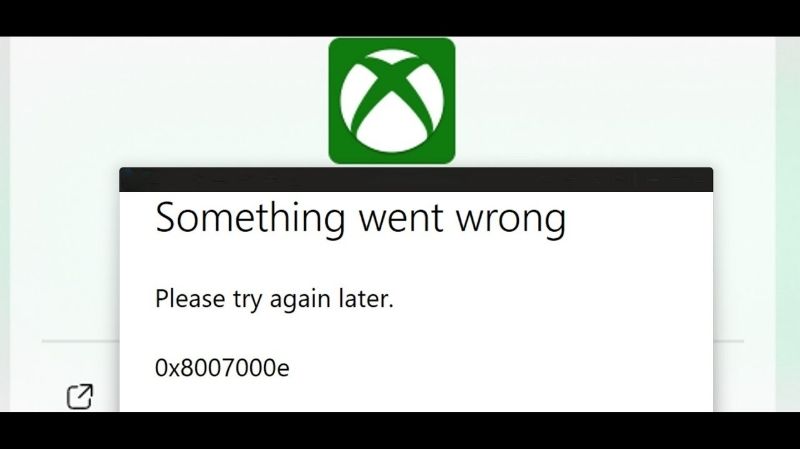
The same Xbox app sign-in screen can appear for several unrelated reasons. Record the exact wording or error code, note whether a browser sign-in works, and decide which branch below fits before changing settings. Do not assume an Xbox outage is happening just because your own app fails.
| What you see | What it may indicate | Best first action |
|---|---|---|
| Xbox app opens but never completes sign-in | Microsoft authentication, account picker, app state, or service issue | Check Xbox Status, then test the intended personal Microsoft account in a browser |
| Account signs in on the web but not in the PC app | Local Xbox app, Store, Windows, or Gaming Services issue | Restart; update Store and Windows; then Repair the Xbox app |
| Microsoft password, code, or security prompt fails in browser too | Account-side sign-in or verification issue | Use the Microsoft account Sign-in Helper instead of resetting games |
| Store downloads and Xbox sign-in both fail | Microsoft Store or Windows app infrastructure may be affected | Update Store; check the Store app; run its official cache reset if needed |
| Xbox app displays a different gamertag or no owned games | Different Microsoft/Xbox identity may be selected | Check the identity shown in the app and Store; verify the account holding the entitlement |
| Xbox app or games continue failing after app repair | Gaming Services or deeper Windows component issue | Use the Xbox Gaming Services Repair Tool; save results for Support |
Do not diagnose by an unverified code chart. Many generic Windows hexadecimal codes appear in multiple contexts, so this guide does not assign a fixed Xbox sign-in meaning to codes such as 0x80004005 or 0x800704cf without a matching current Microsoft support page. Follow the exact error text and official help link shown by the app.
Check the Xbox network status and your connection first
A service interruption can prevent account authentication even when your Wi-Fi, browser, and Windows installation seem healthy. The official Xbox Status dashboard lists service categories; its current conditions change, so check it when your issue actually occurs rather than relying on an old outage article.
- Check the official Xbox Status dashboard. In your browser open support.xbox.com/xbox-live-status. Review alerts related to account/profile, gaming, or the app, if the dashboard provides those labels. If there is a relevant incident, avoid destructive repairs and retest after Xbox reports recovery.
- Test the Internet on the same PC. Open a trusted website and your Microsoft account sign-in page. If no websites open, restore the network connection before troubleshooting the Xbox application.
- Restart Windows normally. Select Start > Power > Restart. After rebooting, launch the Xbox app once and wait for the standard sign-in window to finish loading.
- Try a different trusted connection only if necessary. If an account works on another device but the PC cannot reach sign-in services, test the PC on a different trusted network where practical. This helps identify network-specific restrictions; it does not prove a particular router setting is wrong.
Expected result: The Xbox app loads your correct profile without looping back to Sign in. If it does, stop. If there are no relevant service alerts and the network is working, continue with the account test.
Test the Microsoft account outside the Xbox app
Xbox sign-in is tied to a personal Microsoft account. A quick browser test separates an account recovery problem from a local Windows application problem, and Microsoft recommends its Sign-in Helper for most account-side failures.
- Open a private place to test your identity. Open your usual browser and manually navigate to account.microsoft.com or the Microsoft account help page. Check the domain before entering credentials. You should not provide a password, recovery code, or authenticator code to a third-party troubleshooting website.
- Enter the intended personal Microsoft account. Use the email alias or phone number associated with your Xbox gamertag, not automatically a work or school account just because that account signs in to Windows.
- Check the outcome. If Microsoft signs you into the account dashboard, the credentials probably work; proceed to the Windows-side steps. If you cannot sign in here either, do not repeatedly repair or reinstall the Xbox app.
- Run the official Sign-in Helper if account sign-in fails. Visit aka.ms/sign-in-helper using Microsoft’s help link and follow its identity-specific instructions. Choose another registered verification method if Microsoft offers one.
- Protect your security information. If a verification message is missing, inspect the correct mailbox, spam folder, and available legitimate alternative method. Microsoft warns that repeated code requests can trigger additional security checks.
What to expect: A successful browser login tells you to investigate the Xbox app, Store, or Gaming Services. A failed browser login points to an account-specific recovery path. A subscription or game-license problem is not the same as an inability to authenticate.
Confirm the correct Xbox and Microsoft Store account
On a shared PC, it is easy to sign in to Windows, Microsoft Store, and the Xbox app with different identities. This may look like a sign-in failure when the real symptom is an unexpected gamertag, missing purchase, or a Game Pass entitlement on another account. Check which account has the relevant games before making any account changes.
- Open the Xbox app and inspect the profile area. Select the profile picture or Sign in entry, depending on whether the app is already authenticated. Confirm the displayed gamertag matches the one intended for play.
- Open Microsoft Store. Select the account/profile icon near the top of the Store window and read which Microsoft account is signed in. Do not assume it must always be the same identity for every shared-purchase configuration, but record the difference.
- Verify the account holding the purchase or PC Game Pass benefit. Check the Microsoft account’s order history or subscription status through its official dashboard rather than purchasing the game again.
- Use the app’s visible account chooser to correct a mismatch. If Sign out or Switch account is presented, use the documented in-app flow and then sign in with the intended personal Microsoft account. Menu labels vary across Xbox app releases, so do not follow an old screenshot that suggests deleting cached credentials manually.
Expected result: The Xbox profile and game library show the intended user. If the correct profile is visible but the application still cannot finish login, continue with software updates.
Update the Xbox app, Microsoft Store, and Windows
Microsoft’s official instructions for Store apps prioritize updating Windows and the Store before repair or reinstall. An outdated app or a pending Windows component update can make an authentication flow unreliable. Use native update controls rather than unknown installer archives.
- Install Windows updates. On Windows 11, open Start > Settings > Windows Update > Check for updates. Install applicable updates and restart if prompted. Windows 10 uses Settings > Update & Security > Windows Update. Standard Windows 10 support ended in October 2025, so upgrade planning matters for long-term troubleshooting.
- Open the Microsoft Store Library. Launch Microsoft Store and choose Library > Get updates as stated in Microsoft’s Windows 11 support instructions. In Store versions showing a different update label, use the Store’s Library update control rather than an unverified website.
- Allow Store and Xbox app updates to finish. Check the Xbox app entry when visible in the Store’s Library. Avoid force-closing it while an update is being applied.
- Restart the PC once more. Launch the Xbox app and try the normal sign-in flow. Check for the correct profile and whether the Store can open your library.
If the Microsoft Store itself refuses to launch, use its dedicated troubleshooting path below before attempting Xbox-specific fixes. If the Store and Xbox app are current and the problem remains, use Windows Repair.
Repair the Xbox app before you reset it
Windows provides a less disruptive Repair action for supported installed apps. Microsoft says the Reset option is the next step when Repair is missing or ineffective, but a reset removes app-level settings and can require signing in again. Check your game files, local settings, downloads, and unsynced progress before taking a more invasive action; do not promise a reset preserves every game-specific state.
- Open Installed apps. On Windows 11 go to Start > Settings > Apps > Installed apps. On Windows 10, open Settings > Apps > Apps & features.
- Find Xbox. Locate the Xbox app in the installed-app list. On Windows 11 select the three-dot More menu beside it, then Advanced options if the option appears.
- Select Repair. In the app’s Advanced options page, choose Repair when offered. Wait until Windows finishes, then open Xbox and try signing in again.
- Use Reset only when justified. If Repair fails and the app still loops, review the consequences and select Reset from the same page if available. This is not the same as resetting Windows or deleting the entire game library.
- Retest with the intended account. Relaunch Xbox, follow the official Microsoft sign-in flow, and check the correct gamertag and game library.
Microsoft explicitly notes that not every app exposes Advanced options, Repair, or Reset. If any control is absent, do not invent a command-line replacement. Skip to the official Gaming Services tool or Xbox Support. If an update fixes the issue, there is no reason to reset the app.
Run the official Gaming Services Repair Tool when needed
If the Xbox app still misbehaves after normal account and Windows checks, the official Xbox support page provides a Gaming Services Repair Tool. It is intended for PC gaming service issues and is safer than copying old PowerShell commands that remove Windows services or Store packages without understanding their effects.
- Start the Xbox app for PC and handhelds. If the program can open far enough to show its navigation, select your profile picture.
- Open the support section. According to the Xbox support listing, select Support > Gaming Services Repair Tool, then choose Start Troubleshooting.
- Follow the tool’s current prompts. Permit only actions requested by the official Xbox application. Do not manually delete service folders or terminate processes while the repair utility is running.
- Restart and verify. When the tool completes and requests a reboot, restart Windows. Then open the Xbox app and try signing in once with the correct Microsoft account.
- Escalate if the tool cannot be opened. If a sign-in loop prevents you from reaching the profile or Support menu, use the official Xbox Support site for the repair tool or account-specific help; the in-app route may not be usable until you recover app navigation.
Source limitation: The Xbox Support search index confirms the in-app path above, but its current JavaScript-dependent article cannot be fully rendered in our source reader. Treat the application’s actual prompts as authoritative and do not assume every Xbox app build has an identical sidebar layout.
Fix Microsoft Store problems without deleting games
If Store login, Library, and Xbox login all misbehave, investigate the Store separately. Microsoft provides a built-in command to reset Microsoft Store’s cache. That is different from factory-resetting Windows, uninstalling Gaming Services, or deleting Xbox game installation folders.
- Close the Xbox app and Store. Finish any active Store updates if possible.
- Run the official cache reset. Press Windows key + R, type
wsreset.exe, and select OK. Microsoft says a blank Command Prompt window may briefly appear before Microsoft Store opens automatically. - Check the Store again. Open Library, run Get updates, and test Store sign-in. Also confirm Settings > Time & language > Date & time shows an accurate time and time zone; Microsoft identifies time/location as Store troubleshooting factors. Labels may differ between Windows releases.
- Retry the Xbox app. Restart if Windows prompts for it, and test login. If the Store is fixed but Xbox is not, return to the Xbox app Repair and Gaming Services branches, not an OS reinstall.
What not to do: Do not erase the WindowsApps directory, delete arbitrary Gaming Services registry keys, turn off Microsoft Defender, or copy unsolicited command sequences. The official Store cache reset and app Repair workflow come first.
Handle sign-in loops, security prompts, and verification errors
The sign-in window closes or returns to Sign in
First test the same personal Microsoft account at account.microsoft.com. If it succeeds, close Xbox, install Windows and Store updates, restart, and repair Xbox as described above. If a browser also loops through a security check, Microsoft’s security-challenge help advises checking browser cookies, content blockers, VPN/proxy interference, and another trusted browser or network. Disable a blocker only temporarily for diagnosis, then restore your protection. An account security challenge is not the same thing as a broken Gaming Services installation.
The Microsoft verification email or code never arrives
Use the on-screen authorized alternatives and Microsoft’s official verification-code help. Inspect the actual verification mailbox and spam folder; do not repeatedly request codes. Microsoft notes that excessive attempts can trigger limits. Never ask support volunteers or a website to take your one-time code, backup key, or authentication recovery details.
You receive Error 400 during Microsoft sign-in
Microsoft’s Error 400 support page recommends selecting Other ways to sign in when shown, updating the app, testing another device, or using a different network. It is a general Microsoft account error, so these steps are appropriate when the displayed sign-in page itself returns Error 400; it is not evidence that a game or Xbox profile has been corrupted.
A purchase or Game Pass game is missing after sign-in
Identify the actual gamertag and Microsoft account before resetting anything. The Store account and Xbox app account can differ, and a missing title may be an entitlement or library filter issue rather than an authentication failure. Check the account’s order and subscription history; avoid buying a second copy just to test whether sign-in works.
When reinstalling the Xbox app is appropriate
Reinstallation is a late step after service-status checks, account verification, updates, Repair, and any official Gaming Services repair. Microsoft’s Store-app troubleshooting includes reinstalling from the Store Library, but it does not promise all local application settings or game-specific files survive every uninstall. Back up anything the game documents as local-only, complete pending cloud synchronization where possible, and verify game install locations first.
- Confirm a reinstall is necessary. Keep a record of the exact Xbox app error, Windows version, whether web sign-in works, and the results of official repairs.
- Use Windows uninstall only for the Xbox app. On Windows 11 select Settings > Apps > Installed apps > Xbox > Uninstall if Windows offers it. Do not select Gaming Services or unrelated games for removal.
- Reinstall from the official Store. Open Microsoft Store, locate Xbox through its official listing or Library, and select Install as appropriate. Avoid unofficial installers and modified packages.
- Restart and verify. Open Xbox, sign in to the correct personal Microsoft account, and check the profile before attempting downloads. If reinstall is blocked or does not help, contact Xbox Support with your diagnostic details.
For a Microsoft account with missing authentication methods, a reinstall is not a recovery solution. Microsoft warns that its agents cannot bypass verification or change secure account information. Use the Sign-in Helper and documented recovery procedures.
How to confirm the sign-in issue is fixed
- Xbox app: Opens without an endless authentication spinner, returns to the correct profile, and does not immediately revert to Sign in.
- Microsoft account: The personal account that owns the gamertag signs in through the expected Microsoft flow.
- Microsoft Store: Opens the Library and can check for updates without an account prompt loop.
- Gaming Services: The official repair tool has completed if you needed it; do not change services further if the app now works.
- Games and cloud saves: Check the correct library and, before launching a title with local-only progress, make sure any cloud synchronization has finished where supported.
If the issue returns after a restart, capture the exact message, when it appears, the Windows build, and which official step temporarily fixes it. That information is more useful to Xbox Support than an unexplained list of registry changes.
Tools That Help
- Xbox Status dashboard — free: Use it first to distinguish a relevant Microsoft service incident from an isolated PC issue.
- Microsoft account Sign-in Helper — free: Use it when you cannot sign in to your personal Microsoft account in a browser, not simply when the Xbox application window hangs.
- Xbox Gaming Services Repair Tool and Windows Repair — free: Use the Xbox in-app tool for gaming service issues and Settings > Apps > Installed apps for the least disruptive app recovery.
You should not need to purchase any software or a new Windows license to try these official steps. Do not pay a third-party website to accept account codes or run a remote repair session.
Frequently asked questions
Does reinstalling the Xbox app delete installed PC games?
Uninstalling the app is not the same as deliberately uninstalling a game, but Microsoft does not guarantee that every local setting, download state, or game-specific file remains untouched. Check install locations and save behavior before removing the Xbox app, and do not manually delete game directories.
Why can I sign in at Microsoft.com but not the Xbox app?
A working browser login makes a local app, Store, Windows, or Gaming Services issue more plausible. Restart, update, Repair, and use the official Gaming Services tool in that order. It does not rule out every account-side entitlement or policy restriction.
Should I install Xbox Identity Provider from a random download site?
No. Use Microsoft Store or Xbox Support for supported app components. Avoid downloading identity packages from mirror sites or following outdated registry-removal instructions. If a documented official support flow asks for a component update, get it only from Microsoft.
Do I have to sign into Microsoft Store with the same account?
Not always for every shared-PC or purchasing scenario. The practical question is which account owns the game or subscription and which Xbox profile you want to use. Check both identities and Microsoft’s account information before changing either one.
Can the Xbox app fail because the Xbox service is down?
Yes, an outage can affect authentication, but a past outage does not establish that one is happening now. Check Xbox Status at the moment you encounter the issue. If a relevant incident is posted, wait for the official restoration rather than resetting accounts or Windows.
Final thoughts
Start with Xbox Status and a browser sign-in test. If the account works, restart Windows, install Microsoft Store and Xbox updates, and use Repair on the Xbox app. Only move to Reset, the official Gaming Services Repair Tool, or reinstall after the reversible checks fail. If the personal Microsoft account itself cannot authenticate, use aka.ms/sign-in-helper instead. Your next action is simple: test the same Xbox-linked Microsoft account in a browser, then follow the corresponding branch rather than trying several fixes at once.




