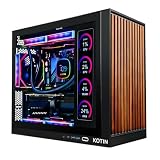
Key takeaways
- Display: 27-inch curved FHD, 1920 × 1080
- Processor: Intel Core i7-7700HQ — 7th generation, 4 cores / 8 threads, mobile BGA part
- Memory: 16 GB DDR3 SO-DIMM as listed
- Storage: 512 GB as listed
- Form factor: display, PC and speakers in a single chassis
The best all-in-one PC deal for most people right now is the HP OmniStudio 27-inch All-in-One, because it is the only model in this roundup that combines a current-generation AMD Ryzen AI 7 445 processor, 16 GB of RAM and a 27-inch FHD panel in one box — a combination that stays comfortable for years rather than months. If your budget is tighter, the MECHAZER 27-inch curved all-in-one delivers the same screen size and 16 GB of memory for far less, at the cost of an older processor generation. If you need a 4K touch panel for design, annotation or a family hub, the suevery 27-inch touchscreen all-in-one is the premium pick. Below, 12 deal-priced all-in-ones are broken down by processor class, memory type and amount, display size, bundled peripherals and — the spec most shoppers overlook — upgrade limits. That last column is where cheap all-in-ones quietly become expensive ones.
Top 3 Picks
Best overall: HP OmniStudio 27-inch All-in-One
It is the only machine here built on a current-generation platform with an NPU for on-device AI workloads, and it pairs that with 16 GB of RAM, a 512 GB SSD and a 27-inch FHD display. For a home office that needs to last five years without a mid-life crisis, this is the safest place to put your money.
Best budget: MECHAZER 27-inch Curved All-in-One
You get a 27-inch curved FHD panel, 16 GB of memory and 512 GB of storage at the lowest tier of this list. The Core i7-7700HQ is several generations old and sits outside official Windows 11 processor support, but for browsing, documents and video calls it still has eight threads to work with.
Best premium: suevery 27-inch Touchscreen All-in-One
A 27-inch 4K touch display with a Core i7 and 16 GB of RAM class hardware is the configuration to buy if you annotate, sketch, present or want a wall-mountable family screen. The 4K resolution also pushes pixel density to roughly 163 PPI, which is a visible step up from any 1080p panel at the same size.
Quick Comparison
| Product | Best for | Key specs | Price tier |
|---|---|---|---|
| MECHAZER 27″ Curved AIO | Big-screen value on a tight budget | 27″ curved FHD, Core i7-7700HQ (4C/8T), 16 GB DDR3, 512 GB | Budget |
| MECHAZER 19″ Compact AIO | Tiny desks, reception and kiosk duty | 19″ panel, space-saving chassis, internals not specified in listing | Budget |
| HP OmniStudio 27″ AIO | Long-term work-from-home | 27″ FHD, Ryzen AI 7 445 with NPU, 16 GB RAM, 512 GB SSD | Premium |
| Lenovo IdeaCentre 24″ AIO | Mainstream office multitasking | 24″ FHD, 4-core Intel, 16 GB RAM, 256 GB SSD | Premium |
| Qehi 24″ Business AIO | Small-business front office | 24″ FHD 1080p, Core i5 class, business-oriented build | Mid-range |
| HP 21.5″ N100 AIO | Quiet, low-power everyday computing | 21.5″ FHD, Intel N100 (4C/4T, 6 W class), 8-in-1 hub, keyboard + mouse | Mid-range |
| Lenovo IdeaCentre AIO 8 GB / 512 GB | Storage-first budget buyers and students | 8 GB RAM, 512 GB SSD, IdeaCentre all-in-one chassis | Mid-range |
| Dell 23.8″ AIO | Managed business fleets | 23.8″ FHD, Intel Core 3 100U, Windows 11 Home | Premium |
| STGSivir 21.5″ AIO | Raw multi-tasking per dollar | 21.5″ FHD, Core i7 class, 16 GB RAM, 512 GB SSD | Budget |
| suevery 24″ AIO | Family room and light gaming | 24″ panel, Core i5 class, marketed for home and office | Budget |
| suevery 27″ Touchscreen AIO | Creative, touch and presentation work | 27″ 4K touch, Core i7 class, 16 GB RAM class | Premium |
| Lenovo 24″ FHD AIO | Home office with an external monitor | 24″ FHD, Intel processor, 16 GB RAM, 256 GB PCIe SSD, HDMI | Mid-range |
How We Chose
Every pick here was assessed from published listing specifications and established platform facts, not from physical evaluation. The first filter was platform age: a machine with a current-generation processor and a supported operating system was ranked above one with older silicon at the same price, because the older chip determines how long the machine stays viable, not how fast it feels on day one. The second filter was memory — amount and type. 16 GB is treated as the practical floor for a machine expected to run a modern browser, a video-call client and an office suite at once, and memory generation matters because DDR3-1600 in dual channel moves data at roughly 25.6 GB/s while DDR4-3200 in dual channel reaches about 51.2 GB/s.
The third filter was display size and resolution, scored against typical desk depth rather than raw numbers, since a 27-inch 1080p panel is not automatically better than a 24-inch 1080p one. Fourth was what actually arrives in the box: a bundled keyboard, mouse or docking hub changes the true cost of a deal. Fifth was the upgrade path — whether memory and storage are socketed or soldered, and whether the storage bay is SATA or NVMe. Finally, each product was matched to a specific use case so that no two recommendations compete for the same buyer. Prices are discussed only as general market ranges, because listing prices move daily.
1. MECHAZER 27-inch Curved All-in-One – Best for Big-Screen Value on a Tight Budget
This is the model to look at when screen area per dollar is the whole point. The MECHAZER 27-inch pairs a curved FHD (1920 × 1080) panel with 16 GB of memory and 512 GB of storage — the same headline memory and storage numbers you will find on machines selling for considerably more. The trade-off is processor generation. The listing names an Intel Core i7-7700HQ, a 7th-generation mobile quad-core with hyper-threading: four cores, eight threads, in a 45 W class package.
- Display: 27-inch curved FHD, 1920 × 1080
- Processor: Intel Core i7-7700HQ — 7th generation, 4 cores / 8 threads, mobile BGA part
- Memory: 16 GB DDR3 SO-DIMM as listed
- Storage: 512 GB as listed
- Form factor: display, PC and speakers in a single chassis
Eight threads and 16 GB of RAM are still a genuinely usable combination for document work, email, spreadsheets, video calls and browser-based tools. Where the ceiling shows is sustained heavy multitasking — several large spreadsheets open alongside dozens of browser tabs — and in operating-system support. Microsoft’s Windows 11 supported-processor list begins at 8th-generation Intel Core, so a 7th-generation chip like the i7-7700HQ sits outside official support. The machine may install and run the OS, but feature updates and driver support are not guaranteed the way they are on a supported platform.
The memory specification deserves attention because it is easy to misread. DDR3 SO-DIMM is cheap to buy secondhand, which is a plus if the chassis has accessible slots and you want to push beyond 16 GB. But DDR3-1600 running in dual channel moves roughly 25.6 GB/s, against about 51.2 GB/s for DDR4-3200 in dual channel and roughly 89.6 GB/s for DDR5-5600. That bandwidth gap is what makes an older platform feel sluggish in memory-heavy tasks long before the CPU cores are saturated. On the upgrade side, the CPU is a soldered mobile part, so there is no processor upgrade path — memory and storage are the only meaningful improvements.
The 27-inch panel at 1080p works out to roughly 82 PPI. That is on the low side for text; you will want to sit at least 26 to 30 inches back to avoid seeing pixel structure, which in turn means a desk with real depth. A curved panel at this size is mostly about perceived immersion rather than productivity, but it does slightly reduce the eye-travel between the far edges of the screen.
Pros
- 27-inch curved FHD panel at the lowest price tier in this roundup
- 16 GB of memory and 512 GB of storage at a budget price
- Eight threads still handle office, email and video calls comfortably
- Single-unit design means no tower, no monitor cable, no separate speakers
Cons
- 7th-generation processor sits outside official Windows 11 support
- DDR3 memory caps effective bandwidth at roughly half of a DDR4-3200 system
- Soldered CPU means no processor upgrade path
- 82 PPI on a 27-inch 1080p panel needs generous desk depth to look clean
Versus the STGSivir 21.5-inch: both are budget machines built around older Intel silicon, and both list 16 GB of RAM and 512 GB of storage. The choice comes down to what you value. The MECHAZER gives you six more inches of diagonal screen and a curved panel; the STGSivir gives you a denser 21.5-inch display at roughly 103 PPI, which is noticeably sharper for text, and a smaller footprint. If your desk is shallow or you read a lot of documents, the smaller, denser screen wins. If you watch video and want the biggest canvas for the money, the MECHAZER wins.
2. MECHAZER 19-Inch Compact All-in-One – Best for Tiny Desks and Front-Desk Duty
The 19-inch MECHAZER is the smallest machine on this list and the one with the clearest job: fitting where nothing else will. It is an all-in-one built around a 19-inch display in a space-saving compact chassis, aimed at reception counters, clinic check-in desks, kiosk-style stations, workshop offices and apartments where a 27-inch panel would physically dominate the room.
- Display: 19-inch class panel
- Form factor: compact, space-saving all-in-one chassis
- Processor / memory / storage: not specified in the listing name — verify before purchase
- Footprint: substantially smaller than a 24-inch or 27-inch all-in-one
The honest caveat here is that the listing name does not state the processor, memory amount or storage capacity, and that matters more on a 19-inch machine than on any other product in this roundup. Compact all-in-ones in this size class are frequently built around entry-level or older-generation silicon, and 19-inch panels commonly land at either HD (1366 × 768) or HD+ (1600 × 900) rather than full 1080p. Neither of those is a dealbreaker for the jobs this machine is suited to — point-of-sale software, scheduling, email, a browser window and a label printer — but they are the difference between a good purchase and a disappointing one, so confirm the exact CPU, RAM, storage and resolution from the product details before you commit.
Where a small all-in-one genuinely earns its place is in the reduction of cable clutter and desk footprint. A 19-inch all-in-one occupies roughly the same desk area as a large sheet of paper plus its stand, with a single power cable and no separate tower on the floor or monitor arm on the wall. In a reception environment that is worth real money in tidiness alone.
One practical warning specific to this size class: because the chassis is small, cooling capacity is limited. Machines in this category typically use low-power processors, and that is a feature rather than a flaw — they run quietly and draw little power. But it also means you should not expect to run sustained heavy workloads, video encoding or anything resembling gaming on a 19-inch all-in-one. Treat it as an appliance for a defined job.
Pros
- Smallest footprint in this roundup — fits counters and cramped desks
- Single-cable setup, no tower, no monitor arm
- Low power draw typical of compact, low-power platforms
- Quiet operation suits front-desk and customer-facing environments
Cons
- Processor, memory and storage are not stated in the listing name — you must verify
- 19-inch panels in this class are often HD or HD+ rather than 1080p
- Limited cooling headroom rules out sustained heavy workloads
- Small screens mean more window-switching for anything spreadsheet-heavy
Versus the HP 21.5-inch N100: the HP is the better-specified small machine if you can spare the extra two and a half inches of diagonal. It names its processor (Intel N100, four cores, four threads, a 6 W class part), states Windows 11, and bundles an 8-in-1 docking hub plus a keyboard and mouse. The MECHAZER 19-inch wins only on absolute footprint. If space is truly the binding constraint, it is the pick; if you simply want a small machine, the HP is the safer purchase because you know exactly what you are getting.
3. HP OmniStudio 27-Inch All-in-One – Best for Long-Term Work-From-Home
This is the pick that makes the most sense for anyone who intends to keep the same machine for five years. The HP OmniStudio 27-inch pairs a 27-inch FHD display with an AMD Ryzen AI 7 445 processor, 16 GB of RAM and a 512 GB SSD, and HP positions it as a next-generation AI PC — meaning the processor includes a dedicated neural processing unit alongside the CPU and integrated graphics.
- Display: 27-inch FHD, 1920 × 1080
- Processor: AMD Ryzen AI 7 445 — current-generation Ryzen AI series with integrated Radeon graphics and an NPU
- Memory: 16 GB RAM
- Storage: 512 GB SSD
- Platform: current-generation AI PC class, Windows 11 era
Why the NPU matters, practically: on-device AI features — live captioning, background blur and eye-contact correction in video calls, local image enhancement, and the growing set of assistant functions baked into the operating system — can run on the NPU instead of the CPU or GPU. The benefit is not raw speed; it is that those tasks consume far less power and leave the CPU free for whatever you are actually doing. On a desktop that is a modest gain. On the platform’s longevity it is a larger one, because software is increasingly written to expect that hardware.
The current-generation platform is also the reason this machine tops the list over cheaper 27-inch alternatives. A modern processor generation buys you three things that older silicon cannot: a supported operating system path for the life of the machine, memory and storage interfaces that are not already obsolete, and a realistic expectation of driver and firmware updates. If you are buying for a home office where the machine is the centre of your working day, that is worth paying for.
Set against the 27-inch 1080p panel, 16 GB is the right amount of memory and 512 GB is a workable amount of storage. Roughly speaking, a Windows 11 installation and a standard office suite consume somewhere in the region of 40 GB, leaving the better part of 450 GB for documents, photos, a music library and a handful of applications. That is comfortable for office work, and it is where a 256 GB machine starts to feel tight within a year or two.
As with any 27-inch 1080p display, expect roughly 82 PPI. Text is not razor-sharp at this size and resolution; the panel is better suited to a mixed workload of video calls, documents and browser work at a comfortable viewing distance of around 26 to 30 inches. If your priority is maximum text sharpness rather than screen area, a 24-inch 1080p panel is denser, and a 27-inch 4K panel is denser still.
Pros
- Current-generation Ryzen AI platform with a dedicated NPU
- 16 GB RAM and 512 GB SSD — a configuration that ages well
- 27-inch display gives genuine side-by-side window space
- Supported platform means a longer, more predictable software life
Cons
- Premium tier — you pay for the current-generation silicon
- 27-inch 1080p works out to roughly 82 PPI, not the sharpest text
- No discrete graphics, so heavy 3D work and serious gaming are out
- Needs a desk deep enough to sit well back from a 27-inch panel
Versus the Lenovo IdeaCentre 24-inch: both are premium-tier machines with 16 GB of RAM, but they solve different problems. The Lenovo offers a denser 24-inch 1080p panel — about 93 PPI against the HP’s 82 — which is visibly crisper for reading and spreadsheet work, and it comes with a four-core Intel processor and a 256 GB SSD. The HP counters with a larger screen, twice the storage, and a current-generation platform with an NPU. If sharpness and desk space matter most, the Lenovo is the smarter buy. If you want the biggest, most future-proof box for the money, the HP is the one.
4. Lenovo IdeaCentre 24-Inch All-in-One – Best for Mainstream Office Multitasking
The IdeaCentre 24-inch is the machine for someone who spends the day in a browser, an email client, a spreadsheet and a video-call window, and who wants all four to be comfortable. It pairs a 24-inch FHD panel with 16 GB of RAM, a 256 GB SSD and a four-core Intel processor.
- Display: 24-inch FHD, 1920 × 1080
- Processor: Intel four-core
- Memory: 16 GB RAM
- Storage: 256 GB SSD
- Pixel density: roughly 93 PPI at 24 inches
The 24-inch size is the quiet hero of this configuration. At 1920 × 1080 it produces roughly 93 PPI — about 13 percent denser than the same resolution spread across 27 inches. That difference is genuinely visible in text rendering: smaller fonts, dense spreadsheets and long documents look cleaner, and you can sit closer without noticing individual pixels. For anyone whose work is primarily reading and typing rather than watching video, a 24-inch 1080p panel is a better use of money than a 27-inch 1080p panel.
Sixteen gigabytes of RAM is the right call at this tier and it is what separates this machine from the 8 GB alternatives further down the list. The arithmetic is unglamorous but worth spelling out: a modern 64-bit desktop operating system with a browser, a chat client and an office suite open commonly occupies 5 to 7 GB before you have done anything demanding, and a browser with twenty active tabs can add another 2 to 3 GB on its own. On 8 GB you are managing memory; on 16 GB you are not.
The 256 GB SSD is the compromise. After the operating system and an office suite, you are realistically working with something in the region of 200 to 210 GB of free space. That is fine for documents and cloud-synced files, and tight if you keep a local photo library or a large media collection. The question to ask is whether the SSD is a PCIe NVMe drive or a SATA drive: SATA III tops out around 550 MB/s in practice, while a PCIe 3.0 x4 NVMe drive reaches roughly 3,500 MB/s and a PCIe 4.0 x4 drive around 7,000 MB/s. For everyday office work the difference is smaller than the numbers suggest, but for large file operations it is real.
Lenovo’s IdeaCentre line is a mainstream consumer and small-business family with wide parts availability and a long track record, which matters when you are buying a machine you intend to keep. The trade-off at this price tier is that you are paying for the current platform and the 16 GB configuration rather than for raw storage capacity.
Pros
- 24-inch 1080p panel at roughly 93 PPI — sharp, comfortable text
- 16 GB RAM is the right amount for modern multitasking
- Four-core Intel processor handles office workloads without drama
- Moderate footprint suits standard desks better than a 27-inch panel
Cons
- 256 GB SSD is the tightest storage on this list
- Four-core, non-hyper-threaded class silicon limits heavy parallel work
- Premium tier pricing for a mainstream configuration
- Less screen area than the 27-inch machines at a similar price
Versus the Lenovo 24-inch FHD model further down this list: these two are the closest pair in the roundup and the comparison is almost entirely about storage and price tier. Both offer a 24-inch FHD panel with 16 GB of RAM. The IdeaCentre here carries 256 GB and sits at premium tier; the other Lenovo 24-inch carries a 256 GB PCIe SSD, names HDMI explicitly for external displays, and sits at mid-range. If the specifications are otherwise similar, the cheaper one with the confirmed PCIe SSD is the better deal — check the drive interface before you decide.
5. Qehi 24-Inch Business All-in-One – Best for Small-Business Front Offices
The Qehi 24-inch is positioned squarely at business use rather than home use, and that framing shapes who should buy it. It combines a 24-inch FHD 1080p display with a Core i5 class processor in a chassis built for an office or a shop counter.
- Display: 24-inch FHD, 1080p
- Processor: Intel Core i5 class
- Orientation: business all-in-one
- Pixel density: roughly 93 PPI at 24 inches
A Core i5 class processor is the sensible middle of Intel’s range for business work. It is not the fastest chip you can buy, and it is not meant to be. What it delivers is enough sustained performance for accounting software, inventory systems, point-of-sale terminals, video conferencing and the ordinary mix of browser and office applications that make up most working days, without the power draw and heat of a performance part.
The 24-inch 1080p display is the correct choice for this use case, and the reason is desk depth. A business counter or a small office desk is usually shallower than a home studio setup, and a 24-inch panel at roughly 93 PPI looks clean at 20 to 26 inches, which is exactly where a counter-mounted screen ends up. Push a 27-inch 1080p panel into that same space and you are sitting close enough to a lower-density screen that text starts to look soft.
Where this machine needs careful evaluation before purchase is in the specifics the listing name does not carry: the exact processor model, the amount of memory, the storage capacity and type, and the port selection. On a business machine those details determine whether it can drive a second display, whether it can accept a wired network connection, and how many USB peripherals you can attach. For a front-desk deployment those are not optional details — they are the deployment. Confirm the RAM amount, the drive interface and the rear port layout from the product details, and confirm the processor model rather than the class.
The other business consideration is serviceability. Machines sold into office environments typically favour accessible memory and storage bays over sealed designs, which extends useful life considerably. If the Qehi offers accessible SO-DIMM slots and an M.2 bay, a machine bought with modest memory can be brought up to 16 GB or more for a small additional cost later. If it is sealed, whatever it ships with is what you live with.
Pros
- 24-inch 1080p panel is well matched to counter and small-desk distances
- Core i5 class processor is the right balance for business workloads
- Business positioning suggests an office-appropriate chassis and port layout
- 24-inch footprint fits where a 27-inch machine will not
Cons
- Listing name does not state RAM, storage or exact CPU model
- No discrete graphics — integrated only
- Mid-range tier pricing for a configuration that needs verification
- Limited headroom for anything beyond office and browser workloads
Versus the Dell 23.8-inch: both are 24-inch class business machines with 1080p panels, and they compete directly. The Dell names its processor — Intel Core 3 100U — and ships with Windows 11 Home, which gives you certainty about the platform. The Qehi names a Core i5 class chip, which is typically a step above Core 3 in Intel’s hierarchy, but leaves memory and storage unspecified. If you are buying for a small business where predictability matters more than peak performance, the Dell’s transparency is worth more. If you want the stronger processor class and are willing to verify the rest, the Qehi is the better value.
6. HP 21.5-Inch FHD All-in-One with Docking Hub – Best for Quiet, Low-Power Everyday Computing
This is the machine to buy when you want an all-in-one that disappears into the background. It pairs a 21.5-inch FHD display with an Intel N100 quad-core processor, ships with Windows 11, and includes an 8-in-1 docking hub plus a keyboard and mouse.
- Display: 21.5-inch FHD, 1920 × 1080
- Processor: Intel N100 — four cores, four threads, 6 W class efficiency part
- Operating system: Windows 11
- Included: 8-in-1 docking hub, keyboard and mouse
- Pixel density: roughly 103 PPI at 21.5 inches
The N100 is the defining feature and it is frequently misunderstood. It is a four-core, four-thread efficiency processor with a base power rating of just 6 W, and it does not have hyper-threading — so it will not win a race against a Core i5. What it does extremely well is handle browser-based work, email, documents, spreadsheets, video streaming and video calls while running cool and near-silently. In a bedroom office, a shared living space or anywhere noise is a problem, that is a feature you notice every day.
The power arithmetic is worth running, because it is often oversold as a reason to buy. A machine in this class typically averages around 20 W at the wall during mixed office work. Run it eight hours a day, 250 days a year: 20 W × 8 h = 160 Wh per day, which is 0.16 kWh; over 250 days that is 40 kWh. At a typical residential rate of about $0.17 per kWh, that comes to roughly $6.80 a year. Compare a mainstream 24-to-27-inch all-in-one averaging 45 W: 0.36 kWh a day, 90 kWh a year, about $15.30. Compare a tower desktop plus a 27-inch monitor averaging 210 W: 1.68 kWh a day, 420 kWh a year, roughly $71.40. Over five years the gap between the tower setup and this machine is around $320 — a real number, but one that a single purchase decision usually dwarfs. Buy this for the silence and the footprint, not for the electricity bill.
The bundled accessories change the value calculation more than most shoppers expect. A docking hub, keyboard and mouse bought separately represent a genuine additional cost, and on a mid-range machine their inclusion narrows the gap to a cheaper bare-bones alternative considerably. The 8-in-1 hub in particular is useful on an all-in-one, because these machines typically have a limited number of rear ports.
At 21.5 inches and 1080p, the panel works out to roughly 103 PPI — the densest 1080p screen on this list apart from 4K panels. Text looks crisp, and the screen fits comfortably on a shallow desk. The trade-off is working area: two documents side by side is about the practical limit.
Pros
- Roughly 103 PPI — the sharpest 1080p text in this roundup
- 6 W class processor runs cool and near-silently
- Docking hub, keyboard and mouse included in the box
- Low power draw and a small footprint suit tight spaces
Cons
- Four threads without hyper-threading limits heavy multitasking
- 21.5 inches of screen limits side-by-side working area
- Integrated graphics only — no gaming beyond the lightest titles
- Not the machine for video editing or sustained compute work
Versus the MECHAZER 19-inch: both are small, low-footprint machines, but the HP is the better-specified of the two by a wide margin because it names its processor, its operating system and its bundled accessories. The MECHAZER wins only on absolute size. If you have a genuine space constraint measured in inches, the 19-inch machine earns its place; if you simply want a compact all-in-one, the HP is the safer purchase and the one that will feel more responsive day to day.
7. Lenovo IdeaCentre All-in-One 8 GB / 512 GB – Best for Storage-First Budget Buyers
This IdeaCentre flips the usual budget compromise on its head. Instead of trading storage for memory, it offers 512 GB of SSD storage and 8 GB of RAM in Lenovo’s established IdeaCentre all-in-one chassis.
- Memory: 8 GB RAM
- Storage: 512 GB SSD
- Family: Lenovo IdeaCentre all-in-one
- Orientation: general home and office use
Eight gigabytes is the point of contention, so let us be precise about what it means. A 64-bit desktop operating system with a browser, a messaging client and an office suite open typically occupies 5 to 7 GB. That leaves roughly 1 to 3 GB of genuine headroom. Light use — a few tabs, a document, a video call — is fine. Heavy browser use is not: twenty to thirty active tabs can consume 2 to 3 GB on their own, and the moment the system runs out of physical memory it starts paging to the SSD, which is far slower than RAM and is felt as stutter rather than slowness.
That said, 8 GB is not automatically a mistake, and this machine is the clearest case for it. If your work is a single application at a time — a point-of-sale system, a booking system, a classroom tool, a single cloud application in a browser — 8 GB is sufficient, and the money saved is better spent on the 512 GB of storage you get here. Doubling the storage is often more valuable to a real user than doubling the memory, because running out of disk space is a hard stop and running out of memory is a slowdown.
The storage figure is worth putting in context. After the operating system and a standard office suite, 512 GB leaves somewhere around 450 GB of usable space — roughly double what a 256 GB machine offers. That is the difference between keeping your photo library local and moving it to an external drive, and for a family machine or a student machine that matters more than it sounds.
The key question to resolve before buying is whether the memory is upgradeable. If the IdeaCentre has accessible SO-DIMM slots, then the 8 GB configuration is not a limitation at all — it is a discount. Adding memory later is straightforward and inexpensive, and the machine becomes a 16 GB machine for less than the cost of buying one pre-configured. If the memory is soldered, the 8 GB is permanent and this machine should only be bought by someone whose workload genuinely fits in it.
Pros
- 512 GB of SSD storage at a mid-range price — double the 256 GB tier
- Lenovo IdeaCentre build and parts availability
- A sensible fit for single-application and kiosk-style workloads
- Often the cheapest route to a genuinely large SSD in this list
Cons
- 8 GB of RAM is a real constraint for heavy browser multitasking
- Memory may be soldered on some configurations — verify first
- Processor and display size are not named in the listing
- Not the right machine if you routinely run many applications at once
Versus the Lenovo 24-inch FHD model: both are Lenovo machines with a 256 GB versus 512 GB storage split, but the more useful comparison is memory. The 24-inch model offers 16 GB of RAM and a named Intel processor; this IdeaCentre offers 512 GB of storage and 8 GB of RAM. Pick by which constraint bites first in your own work: if you open a lot of tabs and applications, take the 16 GB machine and manage your files in the cloud. If you run one or two applications and store a lot locally, take this one.