Key takeaways
- Check that the missing iCUE tile and supported controls return after a normal restart.
- Test the exact trigger that previously broke detection, such as reconnecting a receiver or waking Windows from Sleep.
- Verify there are no new Device Manager errors for the affected hardware.
- Check the iCUE software version and device firmware where visible; record the result.
- Restore any temporary diagnostic changes, including other applications or power settings, one at a time.
If a Corsair keyboard, mouse, headset, cooler, or RGB controller is missing from iCUE on Windows 11, start by confirming that the device works and connects to the PC without a USB hub or passthrough. Restart Windows, open iCUE 5, and check whether the device appears. If Windows sees the device but iCUE does not, repair iCUE from Windows Settings before uninstalling drivers or deleting files. A Corsair iCUE device not detected fix depends on whether the problem is the physical connection, iCUE software, a wireless receiver, or a specific RGB component. Follow the symptom-based checks below and stop as soon as the device returns.
Identify the symptom before changing anything
A missing tile in iCUE does not automatically mean that Windows cannot use the hardware. A keyboard may still type, a mouse may still track, or a cooler may continue running even if lighting and software controls are unavailable. The distinction matters: a failed USB connection needs different troubleshooting from a failed iCUE module or conflicting lighting utility.
| What you see | Likely area to investigate | First safe check |
|---|---|---|
| Device works in Windows but has no iCUE tile | iCUE service, supported device/module, software conflict | Restart iCUE; check version and repair |
| Windows does not recognize the USB device | USB port, cable, receiver, power, or driver | Connect directly to another known-working USB port and inspect Device Manager |
| Device vanished after updating iCUE | Damaged iCUE installation or module | Run iCUE 5 Modify/Repair |
| Wireless device missing, wired mode works | Receiver, power, pairing, or device-specific wireless setup | Check power and the supplied receiver; test a direct connection |
| Device disappears after Sleep or at startup | USB resume or power-management behavior | Reconnect once and restart the PC before considering power-setting changes |
| RGB memory or cooler missing; other Corsair devices show | Component-specific iCUE communication or third-party RGB conflict | Temporarily close other RGB or monitoring applications |
Keep a record of the exact Corsair model, connection type, iCUE version, Windows version, and when the problem began. These details help you avoid repeating changes and are useful if Corsair Support needs to investigate.
Check the USB connection and restart the system
Corsair’s device-detection guidance explicitly recommends connecting a device directly to a PC USB port instead of using a hub, switch, or USB passthrough. This is a useful diagnostic even if the accessory normally works through a dock.
- Close running work and shut down or restart the PC. Disconnect a removable USB accessory only when it is safe to do so. Do not unplug an active firmware-update device, an internal cooler controller, or an internal USB header while the PC is running.
- Connect the external device directly. Try a different known-working USB port on the computer, bypassing hubs, monitors, keyboard passthrough ports, and docking stations. Check that the cable is fully seated. If the accessory supports data over USB, use a suitable data-capable cable rather than an unverified charge-only cable.
- For wireless accessories, check both ends. Make sure the headset, keyboard, or mouse has power and that its compatible Corsair receiver is connected. If the product supports wired operation, try it in its manufacturer-supported wired mode. Do not assume every Bluetooth connection exposes all iCUE features.
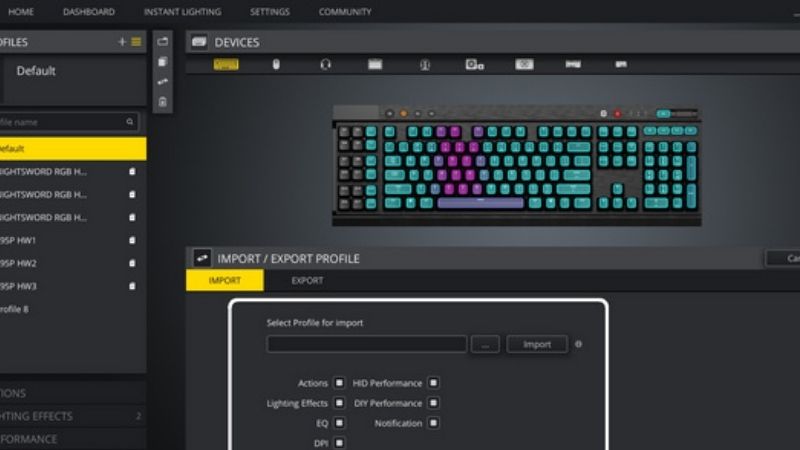
- Launch iCUE 5 again. Allow it to finish loading its device components. Look for the actual device tile rather than relying only on whether LEDs illuminate.
Expected result: the missing device appears in iCUE and its supported controls respond. If it works only on one port or only when connected directly, the original USB path needs further investigation. If Windows itself does not recognize the device, continue with Device Manager before attempting a full software reinstall.
Check whether Windows recognizes the device
Microsoft’s Device Manager can reveal whether Windows detects the hardware and whether a driver is reporting an error. Device categories and displayed names vary by Corsair model; a headset may appear under audio or USB devices, while a keyboard or mouse may appear under Human Interface Devices, keyboards, or mice.
- Right-click Start and choose Device Manager.
- Check relevant categories such as Human Interface Devices, Universal Serial Bus controllers, Sound, video and game controllers, Keyboards, and Mice and other pointing devices. These are places to inspect, not a promise that every Corsair model uses a particular category.
- Look for a clearly identified device, an Unknown USB Device, or a warning icon. Open its Properties and record any error code or description.
- If a device is not listed, use Action > Scan for hardware changes when available, then retry a direct USB port. A different Windows PC can help distinguish a faulty peripheral or cable from a problem confined to one computer.
- If Windows reports a specific driver error, consult Microsoft’s Error codes in Device Manager and its guidance on updating drivers. Install device drivers from Windows Update or official hardware-vendor sources only.
Expected result: Windows recognizes the accessory without a new error. If no PC recognizes it or the USB connector is physically damaged, stop trying application repairs and contact Corsair Support. Do not uninstall unrelated USB host controllers or delete drivers at random: doing so can disconnect input devices and complicate recovery.
Restart iCUE and isolate lighting-software conflicts
Conflicts can occur when multiple programs try to monitor or control the same lighting hardware. Corsair names tools such as MSI Center/Mystic Light, ASUS RGB utilities, Gigabyte RGB Fusion, NZXT CAM, and other RGB or monitoring applications as potential conflicts for some Corsair devices. This does not mean all installations of those programs always cause the issue.
- Close iCUE normally. If it is frozen, close its application process in Task Manager, then reopen it.
- Temporarily exit other RGB control and hardware-monitoring applications and test the missing Corsair device. Do not permanently uninstall every utility without first checking whether closing it changes the result.
- If available in your iCUE version, open the iCUE Settings page and use Restart iCUE Service. Corsair documents this option for certain RAM and cooler detection problems; interface location may differ between releases.
- Reopen iCUE and test the same device tile, RGB zone, or sensor value. If the issue goes away only when another application is closed, review that application’s hardware-control settings and software updates.
Expected result: iCUE regains control without changing device firmware or Windows security settings. If the device remains missing, check that you have a supported iCUE installation and then use the built-in repair function.
Confirm device support and iCUE software version
Not every Corsair accessory offers every iCUE feature, and third-party RGB integrations depend on separate plugins and hardware-vendor support. Before interpreting a missing tile as a failure, check the exact product’s support page and whether it is compatible with your installed iCUE generation. A motherboard or accessory from another brand may require a partner plugin or SDK and may have limited features even when integration is functioning normally.
- Open iCUE Settings and locate Software Updates. Corsair’s April 2026 support guide identifies this area as a place to check the iCUE version and available component updates.
- Compare that version and the device’s exact model against Corsair’s official software and product-support information. If supported updates are offered, follow the application’s prompts and restart if required.
- If only a third-party motherboard or RGB device is missing, check the partner’s integration compatibility and plugin rather than assuming a Corsair keyboard driver repair will fix it.
If your issue started immediately after an iCUE upgrade, note both the previous working version and the installed version. This is a useful clue for Support, but it is not evidence that downloading an untrusted old installer is safe.
Repair iCUE 5 without deleting your profiles
Corsair specifically documents iCUE 5’s Windows Modify option for device-detection issues and missing dashboard sensors. Repair is preferable to a clean reinstall because it is less disruptive and does not require manually deleting Corsair application folders.
- Exit iCUE and save any important work.
- Open Windows 11 Settings > Apps > Installed apps.
- Find CORSAIR iCUE 5 Software (the exact label may vary), select its three-dot menu, then choose Modify if available.
- Allow the Corsair repair process to complete. Follow any prompts and restart Windows when requested.
- Open iCUE and verify whether the missing device, lighting controls, or dashboard sensors have returned.
Expected result: the device is detected without having to remove all of your settings. Corsair notes that in some cases more than one repair attempt is needed. If the Modify option is not shown, do not attempt an unrelated Windows app reset that may remove settings; use Corsair’s official installer or documented removal process instead.
Use device-specific checks when only one component is missing
Wireless headset, mouse, or keyboard
Check power, charging, receiver connection, and the model-specific pairing procedure. Test the wireless receiver directly in the PC rather than a hub. A Corsair wireless headset may work as an audio device in Windows yet not display its expected iCUE controls. For a headset, check Windows Settings > System > Sound to see whether it is available for output or input. If neither Windows nor another PC detects the receiver, that points to a connection or hardware issue rather than a missing iCUE theme.
RGB RAM or memory lighting
Corsair’s March 2026 guidance says RGB memory can remain fully functional as memory while iCUE lighting control is absent. First close other RGB tools, check for the RAM-related module under iCUE’s Software Updates, and restart the iCUE service if available. Corsair also discusses motherboard SPD Write support and BIOS compatibility, but that is a model-specific motherboard setting: do not change BIOS options solely because RAM lighting is missing. Follow your motherboard’s documentation or get manufacturer support before touching firmware settings.
AIO cooler or internal RGB controller
Check whether the cooler is actually operating, not just whether its RGB tile is visible. Corsair states that some coolers may continue operating normally even when their iCUE controls disappear; that is not a guarantee for every model or failure mode. If temperatures rise abnormally, the pump appears stopped, or the PC reports a cooling failure, stop demanding workloads and shut down safely. Do not open a running PC to reseat internal USB headers, fan connections, or power cables. After powering down and unplugging the system, consult the exact cooler and controller installation guide or seek qualified assistance.
Troubleshoot devices missing only after Sleep
Corsair’s startup-and-Sleep support article describes cases where Windows suspends USB ports to save power. To verify this pattern, fully restart Windows, open iCUE, put the system to Sleep once, and check whether the same device disappears after wake. If direct reconnection reliably restores it, that supports a resume-related issue, not necessarily a defective device.
Corsair describes disabling USB selective suspend as one possible remedy, but Microsoft explicitly recommends keeping selective suspend enabled because it conserves power and is important to normal USB behavior. Do not disable it system-wide as a routine first fix. First check for Windows, chipset, iCUE, and supported device updates; test another port; and use a complete reboot. If an experienced user chooses a temporary power-setting test under Corsair’s guidance, record the original configuration and restore it after testing. Some Windows power plans do not expose the relevant menu at all.
When the only problem is after Sleep, a system-wide app reinstall is often not the first useful experiment. Record whether the issue depends on sleep, hibernation, docking, or a particular USB controller so that the support case can target the correct subsystem.
Update device firmware only when detection is stable
Firmware updates can fix specific device problems, but starting an update while a device repeatedly disconnects increases the risk of interruption. Corsair’s July 2026 instructions say that supported iCUE 5.14-or-newer devices can check firmware from their device tile’s settings. Wireless updates may require both the receiver and device to be connected directly to the PC.
- Confirm that the Corsair product remains recognized, receives reliable power, and has a steady direct connection.
- In iCUE, select the supported device and use its settings wheel to look for Check for Updates, if offered on that model and version.
- Install a recommended official update only after reading any prompts. Do not disconnect the device or receiver during the process.
- Restart iCUE or Windows as instructed and check the firmware and device tile again.
Do not use Force Update merely because a device is invisible; that feature is for applicable, recognized hardware, and arbitrary firmware files are not safe substitutes. If the update fails or the device loses detection mid-process, stop and follow Corsair’s firmware-recovery guidance or contact Support. Do not repeatedly flash an unrecognized controller.
Clean reinstall iCUE only if simpler fixes fail
If Windows recognizes the device, physical checks pass, other RGB apps are not interfering, and a repair has failed, Corsair documents a clean reinstall for potentially corrupted local iCUE files. Its June 2026 instructions offer an official iCUE Removal Tool and a manual process. Back up profiles first: a full cleanup can delete locally stored lighting, macros, fan configurations, and other preferences.
- Export any iCUE profiles you need to keep, and confirm you can access the exported files outside the folders being removed.
- Download the installer and, if you choose that route, the iCUE Removal Tool from Corsair’s official support and software pages. Do not download similarly named cleanup tools from third-party driver sites.
- Follow Corsair’s current instructions to uninstall or run its supported removal tool. A manual clean process removes only the specified Corsair folders from locations such as
%appdata%,%localappdata%,%programdata%, and the relevant Corsair program folder after uninstalling. Do not delete unrelated manufacturer or Windows folders. - Restart Windows, reinstall the official current compatible iCUE version, and restart once more if prompted.
- Check device detection before reimporting profiles and before relaunching other RGB software. This helps identify whether the base application is functioning.
Expected result: supported devices appear in the fresh install and remain visible after reopening iCUE. If the same accessory still fails on a different PC, or Windows never detects it, reinstalling iCUE repeatedly is unlikely to identify the underlying fault.
Verify the fix and know when to contact Corsair
Once a device reappears, confirm that its relevant functions—not just its RGB lights—are working. A keyboard should type, a mouse should move and apply supported changes, a headset should pass a short audio and microphone check, and a supported cooler should show sensible readings while the PC operates within normal temperatures.
- Check that the missing iCUE tile and supported controls return after a normal restart.
- Test the exact trigger that previously broke detection, such as reconnecting a receiver or waking Windows from Sleep.
- Verify there are no new Device Manager errors for the affected hardware.
- Check the iCUE software version and device firmware where visible; record the result.
- Restore any temporary diagnostic changes, including other applications or power settings, one at a time.
If the device remains absent, contact Corsair Customer Support with the exact model and serial number if requested through its official support channel, Windows and iCUE versions, the connection type, whether Windows detects the hardware, any error codes, and which steps changed the behavior. Do not post account passwords or other sensitive information in a public forum.
Frequently asked questions
Why does my Corsair keyboard work but not show in iCUE?
Basic typing can continue through Windows’ input drivers even when iCUE cannot load its device interface. Confirm the keyboard model and iCUE compatibility, bypass USB hubs, restart the app, check RGB software conflicts, and try the iCUE 5 repair.
Should I uninstall all USB drivers to fix iCUE detection?
No. Start with direct connections and the specific device’s status in Device Manager. Microsoft’s driver steps are intended for an identified device and error. Removing unrelated USB controllers or random drivers can disrupt keyboards, mice, and other peripherals.
Can a Corsair cooler or RAM keep working when iCUE cannot see it?
Often yes, and Corsair specifically documents this for certain RGB memory and cooler detection failures. That does not establish that a particular cooler is operating safely. Independently monitor cooling behavior, temperatures, and system warnings, and shut down if cooling appears compromised.
What if the device disappeared just after an iCUE update?
Check the direct USB connection and run Settings > Apps > Installed apps > CORSAIR iCUE 5 Software > Modify where available. Corsair names this as its primary application-level repair route after a version change. Back up profiles before considering a clean reinstall.
Final thoughts
The fastest way to resolve a Corsair device missing from iCUE is to separate Windows hardware detection from iCUE control. Test the direct USB or receiver connection first, isolate conflicts, repair iCUE 5, and only then consider a profile-backed clean reinstall. Treat firmware updates, BIOS settings, USB power management, and internal cooler connections as model-specific operations rather than generic shortcuts. If Windows cannot see the device or the same hardware fails on multiple computers, stop cycling through software fixes and seek the manufacturer’s hardware guidance.