Key takeaways
- The exact ASUS motherboard or complete-system model and any applicable revision are verified.
- The intended BIOS update solves a documented need, and all ASUS prerequisites have been reviewed.
- The firmware utility is identified correctly: EZ Flash 3, newer EZ Flash, or a model-specific alternate method.
- The correct ASUS BIOS image is on a compatible FAT32 USB drive: extracted CAP for EZ Flash 3 or approved ZIP for newer EZ Flash.
- Important data and firmware settings are backed up; BitLocker recovery access is confirmed where relevant.
- Reliable power will remain connected throughout the flash, reboot, and any related firmware stage.
- The final BIOS version, boot/storage configuration, Windows startup, and encryption protection will be verified afterward.
The safe way to learn how to update ASUS BIOS with EZ Flash is to identify the exact motherboard, download its matching firmware from ASUS, prepare a FAT32 USB drive, and open the built-in utility from UEFI BIOS. On boards using ASUS EZ Flash 3, extract the downloaded ZIP and select the .CAP file. Newer supported boards using ASUS EZ Flash can select the BIOS ZIP directly. Do not start either process until your files are backed up, your BitLocker recovery key is accessible if Windows is encrypted, and you have reliable power. This guide explains the safe steps, verification, and what to do if a file is rejected.
Check whether you need the BIOS update
A BIOS update changes motherboard firmware, not Windows itself. It may address a documented security issue, CPU support, memory compatibility, startup behavior, or another fix listed in ASUS release notes. It is not a general-purpose frame-rate upgrade. A newer version is not automatically worth installing if your system is stable and its changes are irrelevant.
Go to the support page for your specific ASUS motherboard and compare its installed BIOS version with the newer release’s date, description, and any prerequisites. If ASUS specifies a prerequisite BIOS, a firmware transition, or an Intel Management Engine (ME) update, follow those directions in their stated order. Some updates change supported processors or memory behavior; others are security-focused. Do not guess that a firmware package for a similarly named board will work.
Stop before flashing if the motherboard identity is uncertain, the download is for a different revision or OEM system, the release instructions conflict, or you cannot safely preserve recovery access to encrypted storage. If the PC is part of a managed workplace, coordinate with the administrator before making firmware changes.
Confirm your exact ASUS motherboard and existing BIOS version
Retail ASUS motherboards may have closely related names with different suffixes, Wi-Fi options, chipset generations, or board revisions. For example, a file intended for one ROG STRIX variant should not be presumed compatible with another. The ASUS model name—not merely the CPU socket or chipset family—is the key lookup.
- Read Windows System Information. Press Windows + R, enter
msinfo32, and open System Summary. Record BaseBoard Manufacturer, BaseBoard Product, BaseBoard Version if shown, and BIOS Version/Date. This is a useful starting point; OEM-reported fields can be incomplete. - Cross-check with the actual motherboard. Check the original packaging, purchase invoice, manual, or the printed board label. Turn off and unplug a desktop before inspecting its internals. Do not touch exposed electronics needlessly.
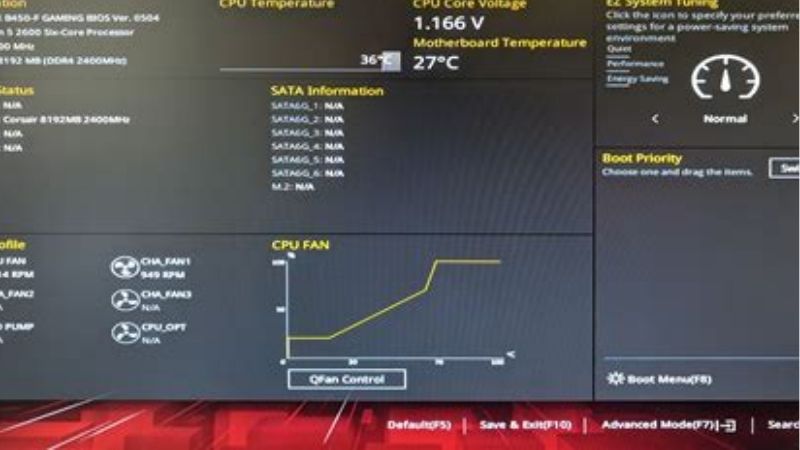
- Check the BIOS screen. On many ASUS desktop boards, press Delete or F2 at startup. The Main or EZ Mode screen typically displays the motherboard and firmware version. The exact position varies by model.
- Identify a prebuilt PC or laptop. A system from ASUS, another PC vendor, or a laptop may need firmware listed for the complete system rather than the retail board with a similar name. Use the device’s model-specific support page.
Write down the current version and compare it with the target version shown on the correct ASUS BIOS & Firmware or BIOS & Software page. If there is any mismatch, do not select the file in EZ Flash.
Know which ASUS BIOS update utility your PC uses
ASUS distinguishes between EZ Flash 3 on many older Intel and AMD motherboards and the newer EZ Flash utility on supported Intel 800-series and subsequent platforms. This distinction determines which file format you should put on the USB drive.
| Method | Typical supported hardware | BIOS file to select | Important distinction |
|---|---|---|---|
| ASUS EZ Flash 3 | ASUS UEFI boards whose specifications or BIOS menu list EZ Flash 3, including supported older Intel and AMD models | Extracted .CAP from the ASUS BIOS ZIP |
Launch from the board’s UEFI Tool menu |
| ASUS EZ Flash | ASUS-supported Intel 800-series and later updated models | BIOS ZIP directly, or supported .CAP file |
Check the board’s Intel ME compatibility requirements |
| USB BIOS FlashBack | Only boards with the dedicated hardware feature | Renamed .CAP file following the exact FlashBack instructions |
Uses a dedicated USB port/button; not the same procedure as EZ Flash |
| ASUS Firmware Update / EZ Flash on a laptop | Specific ASUS notebooks, all-in-ones, handhelds, and mini PCs | Model-specific extracted firmware file | Firmware menu and file naming differ from desktop motherboards |
ASUS’s May 2026 guide explicitly says the newer ASUS EZ Flash can read a BIOS ZIP without extraction, while the February 2026 EZ Flash 3 instructions use an extracted .CAP. Follow your actual firmware utility, not whichever procedure happens to appear first in a search result. ASUS also has a separate USB BIOS FlashBack support guide; do not rename files with BIOSRenamer solely because you are using EZ Flash 3.
Prepare your USB drive, settings, and power
The standard desktop EZ Flash instructions from ASUS call for a USB flash drive with a single partition formatted FAT16 or FAT32; a capacity of at least 1GB is recommended. A small, ordinary FAT32 USB drive is usually the simplest option. If your drive has multiple partitions or an unsupported format, prepare a suitable alternate USB device rather than experimenting inside firmware.
| Before you begin | Action | Check before proceeding |
|---|---|---|
| Important data | Back up files to independent storage | Backup is accessible |
| Model and BIOS | Verify board, revision if relevant, installed version, intended version, and release prerequisites | Exact match with ASUS product page |
| USB storage | Use a single-partition FAT32 drive; formatting erases its contents | Firmware utility can read the drive |
| BIOS customization | Record memory profile, boot order, storage mode, fan curves, and other needed settings | Photos or notes are saved outside BIOS |
| Security | Check drive encryption and save the recovery key if enabled | You can access the correct key |
| Power | Use a stable outlet; avoid likely interruptions | No power cable or USB removal during flash |
Save a picture of important settings before you update. A firmware update may restore defaults or change options. Pay particular attention to XMP/EXPO memory profiles, fan controls, boot priority, RAID or storage-controller settings, virtualization, and Secure Boot. Do not blindly change storage mode or TPM settings afterward. A mismatch can keep an otherwise healthy Windows installation from starting or may trigger BitLocker recovery.
When preparing a USB drive on Windows 11, copy off any data you want to keep, open File Explorer, right-click the USB volume, select Format if that option is offered, choose FAT32, and start the format only after verifying the selected drive. Windows formatting destroys files on that volume. If FAT32 is not available, use a different compatible USB drive. Do not format the Windows system drive.
Save your BitLocker recovery key before entering UEFI
Windows 11 can use BitLocker Drive Encryption or Device Encryption. Firmware and TPM-related changes can alter the measurements used to unlock the drive at boot and cause a BitLocker recovery screen. Microsoft explains that you may need a 48-digit recovery key to continue. Finding that key after the update has interrupted boot can be considerably harder.
- Determine whether encryption is active. Depending on Windows edition and hardware, check Settings > Privacy & security > Device encryption or Control Panel > System and Security > BitLocker Drive Encryption. Not all interfaces are visible on every edition or policy-managed machine.
- Locate your key now. Follow Microsoft’s Find your BitLocker recovery key instructions. It may be associated with your Microsoft account, work/school account, or a separate secure backup. Verify that the key belongs to this device. Keep it private.
- Temporarily suspend protection when appropriate. Microsoft’s guidance on non-Microsoft firmware updates documents Suspend protection in BitLocker management. Suspending is not the same as decrypting the drive or discarding the key. On managed systems, ask IT to prepare BitLocker safely.
- Plan to resume it. After the computer boots normally, verify encryption status and select Resume protection if needed. Do not assume it resumed automatically after a particular number of restarts.
Do not clear the TPM, disable security protections permanently, or change Secure Boot casually to avoid a recovery prompt. If the recovery key is missing or the encryption status is unclear, postpone a discretionary BIOS update until you can protect access to the data.
Download the correct BIOS file from ASUS
Use ASUS’s official Download Center or the Support section of the exact product page. Avoid third-party firmware repositories and unofficial download links, even if their files appear to have a newer version number.
- Search ASUS Support for the complete motherboard model. Open its product page and choose Driver & Utility or Driver & Tools, followed by BIOS & Firmware or BIOS & Software, depending on the page.
- Read the release notes and any prerequisites. Check whether ASUS requires an Intel ME firmware step, an intermediate BIOS version, or a specific sequence. Follow those instructions for that exact motherboard.
- Download the target BIOS package. Keep the original download available on your PC in case you need to verify the correct file afterward.
- For ASUS EZ Flash 3: right-click the downloaded ZIP in Windows and select Extract All. Locate the actual
.CAPfirmware image and copy it to the root directory of your FAT32 USB drive. - For the newer ASUS EZ Flash: ASUS states that supported boards can select the downloaded BIOS
.ZIPdirectly; copy that ZIP to the USB drive. An extracted.CAPis also supported on applicable models, but consult the Intel ME prerequisite guidance before choosing that route. - Safely eject the USB drive from Windows and reconnect it to a direct motherboard USB port before launching the BIOS utility. You do not need to make the drive bootable.
ASUS’s Intel Management Engine Firmware Update Instructions, updated February 2026, describes ME-related preparation for supported Intel platforms. Do not assume that every ASUS Intel motherboard updates Intel ME in the same way: the newer ZIP-based EZ Flash process may handle an ME step differently from an older board or a CAP-based update. When ASUS calls for a separate ME Update Tool, follow the exact model instructions rather than downloading a generic installer.
Update the BIOS using ASUS EZ Flash 3
These steps apply to a desktop motherboard whose BIOS includes ASUS EZ Flash 3 Utility. The visible menu labels may differ on some ASUS ROG, TUF Gaming, and PRIME boards.
- Enter BIOS Setup. Restart the PC with the prepared USB connected. Repeatedly press Delete when the ASUS startup logo appears. Some ASUS systems use F2. If Windows launches instead, restart and try again; do not force repeated power-offs.
- Open Advanced Mode. If the firmware starts in EZ Mode, press F7 or select Advanced Mode with the mouse.
- Find the utility. Open the Tool tab and select ASUS EZ Flash 3 Utility. Confirm you see the USB device.
- Select the correct file. Select the USB volume and the extracted
.CAPfile that matches the exact motherboard. Confirm the file details when prompted. If the model or version looks wrong, back out before authorizing a write. - Approve the update. ASUS’s instructions show an initial Yes confirmation to read the file and a second Yes to start after checking the firmware information. Read both screens carefully.
- Allow the update to finish. Keep the computer connected to reliable power. Do not remove the USB drive, press Reset, force shutdown, or interrupt a restart while the flash or a related firmware operation is in progress.
- Restart when instructed. ASUS documents a completion prompt and reboot. Allow the firmware to finish its own boot sequence; do not declare the flash complete simply because the progress bar reaches a particular percentage.
Expected result: the PC restarts and the UEFI BIOS shows the target version. If you do not see your USB or firmware file, stop at the selection screen and address that problem first. Never force a mismatched image into the utility.
Use the newer ASUS EZ Flash on supported motherboards
ASUS’s May 29, 2026, ASUS EZ Flash Introduction covers newer supported Intel 800-series and later motherboards. It identifies a key difference: the utility can read the BIOS ZIP file without decompressing it. The exact on-screen controls still depend on the board.
- Download the correct BIOS ZIP from your board’s ASUS support page, and read the release notes, especially any Intel ME compatibility information.
- Copy the ZIP to a single-partition FAT32 USB drive and connect it to the motherboard.
- At the ASUS logo, press Delete or F2 as appropriate to enter BIOS. Press F7 for Advanced Mode when needed.
- Open Tool > ASUS EZ Flash. Select the USB volume and the BIOS ZIP file.
- Review and confirm the requested firmware version. Authorize the update only when the displayed information matches your intended release.
- Wait for the utility’s completion and reboot. Do not remove power or restart manually during flashing.
This ZIP-first workflow is not a universal shortcut for older EZ Flash 3 boards. If the BIOS menu actually says EZ Flash 3, return to the extracted-CAP instructions above. The product manual and ASUS FAQ for the relevant motherboard take precedence over generalized tutorials.
What about ASUS laptops and handheld gaming PCs?
ASUS also uses ASUS Firmware Update or EZ Flash 3 Utility in some laptops, ROG handhelds, all-in-ones, and mini PCs. ASUS maintains a separate support article for these products. It should not be replaced with a retail desktop motherboard procedure.
For a supported ASUS notebook, the general method is to download the device-specific BIOS file under BIOS for ASUS EZ Flash Utility, extract it to a FAT32 USB drive, enter the laptop’s BIOS (often by holding F2 while powering on), and select Advanced > ASUS Firmware Update or the labeled EZ Flash tool. ASUS specifies connecting AC power and maintaining at least 20% battery on relevant portable products. ROG handhelds can use different keys and menu layouts; follow the exact model’s instructions. Don’t assume a desktop .CAP image or FlashBack procedure applies to a laptop.
Verify the update and restore settings carefully
After the automated reboot, enter ASUS UEFI BIOS once more. Confirm the BIOS version is the version you intended to install. Then review settings before changing them. BIOS updates may restore defaults, and some firmware options affect whether Windows can boot.
- Check version and recognition. Confirm the BIOS version on the Main or EZ Mode screen. Verify that the processor, installed memory, and expected storage devices are detected.
- Inspect boot configuration. Confirm that the correct Windows Boot Manager appears in boot priority. Compare critical storage mode, Secure Boot, and other settings with the notes you made. Do not switch RAID to AHCI or vice versa without understanding your existing configuration.
- Review memory and cooling settings. ASUS may restore a default memory speed rather than your previous XMP/EXPO profile. Re-enable settings only when appropriate and validated on your hardware; the first priority is a stable boot.
- Use defaults only when indicated. ASUS’s EZ Flash 3 FAQ recommends restoring BIOS default settings with F5 after an update if the system becomes unstable. Because loading defaults can also overwrite a working customized configuration, read the confirmation and restore required settings afterward.
- Boot Windows and cross-check. Once Windows 11 loads, open
msinfo32again and compare BIOS Version/Date. Also confirm network, audio, storage, and normal desktop behavior. - Verify encryption protection. If BitLocker was temporarily suspended, resume it and check its status. If Windows requests the recovery key, use the verified key from Microsoft’s documented recovery process, not an untrusted unlock tool.
A successful progress indicator is only one checkpoint. The update is properly verified when the intended firmware version is present and Windows boots with expected hardware and security settings.
Troubleshoot ASUS EZ Flash errors without taking unnecessary risks
Most preparatory errors can be handled before flashing. If the update has already begun, do not interrupt it to try a different file; follow ASUS’s model-specific escalation or recovery instructions.
| Symptom | Likely explanation | First safe action |
|---|---|---|
| USB drive does not appear | Unsupported file system, partition layout, or USB connection | Retry a direct motherboard port and a compatible single-partition FAT32 drive before starting |
| BIOS file missing | EZ Flash 3 expects extracted CAP, or the file is not on the visible drive | Confirm whether the utility is EZ Flash 3 or newer EZ Flash and prepare the specified format |
| “Selected file is not a proper BIOS!” | Wrong motherboard image or unsupported downgrade | Stop; recheck exact model, current BIOS, and ASUS release notes |
| Board rejects an older BIOS | Downgrade blocked by firmware policy | Do not force downgrade or use third-party flash tools |
| Update completed but Windows won’t boot | Boot order or firmware settings may have changed; another fault is also possible | Check BIOS storage detection and previous boot settings without random security changes |
| Recovery key prompt | BitLocker detects a changed boot environment | Enter the correct stored recovery key; verify encryption status afterward |
| Black screen after update | Boot/POST or hardware initialization issue, potentially serious | Use the exact model’s ASUS no-display and recovery documentation; avoid blind repeated flashing |
EZ Flash says the BIOS file is not proper
ASUS’s troubleshooting page explicitly lists two causes of the error Selected file is not a proper BIOS!: a firmware file for the wrong motherboard model and an attempted unsupported downgrade. Check that you did not mix up a model variant or select an older release. Also ensure the utility is expecting the file format you supplied. Re-download from ASUS if the file appears damaged, but do not bypass the model/version checks.
The BIOS update completed, but the PC will not boot
Check for storage detection and Windows Boot Manager in UEFI. If the system becomes unstable after the firmware update, ASUS documents loading UEFI defaults with F5 on supported models, but capture the current configuration and check necessary boot and storage settings first. If Windows is encrypted and prompts for recovery, use the correct BitLocker key. Do not clear the TPM or disable Secure Boot merely to make the prompt disappear.
If the PC has no display or cannot enter UEFI, consult ASUS’s motherboard-specific CrashFree BIOS 3, USB BIOS FlashBack (where available), or No Power/No Boot/No Display instructions. Those are separate recovery procedures, not permission to keep retrying random BIOS files. Contact ASUS support if you cannot determine the supported path.
The progress bar looks frozen
Do not assume a fixed timeout for every model or firmware version. Firmware updates can pause or reboot as components are initialized. Keep power connected and avoid pressing Reset, pulling the USB drive, or shutting down simply because the display has not changed immediately. If the system ultimately reports an error or fails to start, use the official recovery guidance for your exact board instead of guessing that the flash completed.
Frequently asked questions
Can I update an ASUS BIOS without Windows?
Yes. ASUS EZ Flash 3 and newer EZ Flash run inside supported UEFI firmware, so the normal USB process does not require Windows to be running during the write. You can prepare the file with a working computer, but you still need the correct model-specific ASUS package and reliable power.
Should I rename the ASUS BIOS file with BIOSRenamer?
Not for an ordinary EZ Flash 3 update unless the particular board’s ASUS instructions explicitly say otherwise. ASUS uses BIOSRenamer in its distinct USB BIOS FlashBack procedure. EZ Flash 3 normally selects the extracted .CAP file, while newer supported EZ Flash can read the ZIP directly.
Will updating my BIOS erase Windows files?
The firmware update is not a Windows reinstall, but an interrupted or problematic flash can affect boot access, and firmware changes can trigger BitLocker recovery. ASUS recommends backing up data before upgrading BIOS. Treat a verified backup and recovery key as prerequisites, not optional conveniences.
Can I downgrade the BIOS if a newer version causes problems?
Do not assume so. ASUS’s EZ Flash troubleshooting FAQ says some older versions are rejected because downgrading is not supported. Never use an unofficial forced-flash workaround. Consult ASUS for the exact board and version before attempting any rollback.
What if the ASUS EZ Flash menu is not present?
Check your motherboard specifications and manual; the tool name and support can vary. The newer ASUS EZ Flash guide covers supported Intel 800-series-and-later models, while the EZ Flash 3 guide applies to boards with that built-in utility. Some systems instead offer a different ASUS firmware updater or model-specific recovery method. Do not assume every ASUS device supports all methods.
Final safety checklist
- The exact ASUS motherboard or complete-system model and any applicable revision are verified.
- The intended BIOS update solves a documented need, and all ASUS prerequisites have been reviewed.
- The firmware utility is identified correctly: EZ Flash 3, newer EZ Flash, or a model-specific alternate method.
- The correct ASUS BIOS image is on a compatible FAT32 USB drive: extracted CAP for EZ Flash 3 or approved ZIP for newer EZ Flash.
- Important data and firmware settings are backed up; BitLocker recovery access is confirmed where relevant.
- Reliable power will remain connected throughout the flash, reboot, and any related firmware stage.
- The final BIOS version, boot/storage configuration, Windows startup, and encryption protection will be verified afterward.
ASUS EZ Flash offers an official way to update supported motherboards without flashing from within Windows. The most important step is not clicking Yes: it is confirming the exact board, choosing the file format your particular ASUS utility expects, and protecting boot and recovery access. If any of those checks fail, stop before writing firmware and consult the model’s ASUS documentation.