Key takeaways
- Application: either NVIDIA App opens to the relevant supported graphics setting, or the NVIDIA Control Panel Store app launches when you require the classic interface.
- Driver: the correct NVIDIA adapter appears in Device Manager without a new warning or error code.
- Function: you can locate the desired per-game or display option and confirm that the change behaves as expected.
- Stability: the setting remains accessible after a normal restart; games and displays still function as before.
- Security: all installers and Store packages came from NVIDIA, Microsoft Store, or a trusted device manufacturer’s support site.
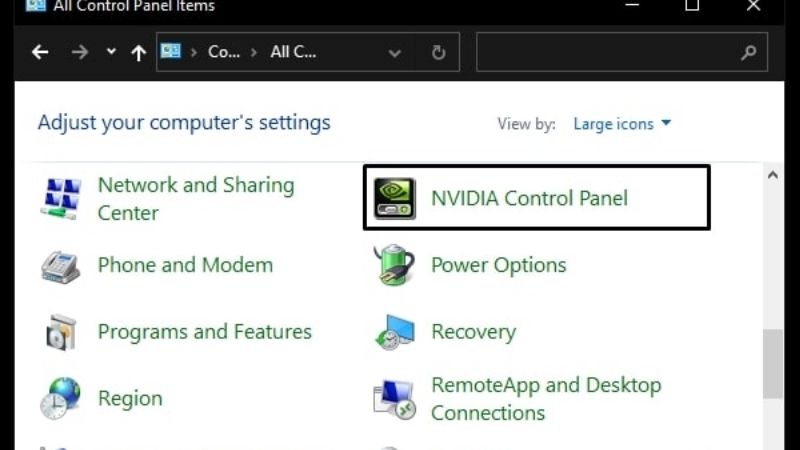
The Nvidia Control Panel missing fix you need on Windows 11 depends on whether the classic utility has been retired, uninstalled, or simply hidden. In May 2026, NVIDIA announced that it was retiring the classic Control Panel for GeForce Game Ready and Studio Drivers after moving actively supported features into NVIDIA App. A missing desktop shortcut after a new or clean driver installation may therefore be expected, not evidence of a broken GPU. Search for the app in Start, then try NVIDIA App for your settings. If you specifically need the legacy panel, use the official Microsoft Store version, check its installation, and troubleshoot your NVIDIA display driver only when there are signs that the driver itself is not working.
Why NVIDIA Control Panel may be missing in 2026
The important change: NVIDIA’s May 26, 2026 GeForce driver announcement states that the classic NVIDIA Control Panel is retiring for Game Ready and Studio Drivers. Existing installations can remain, but a clean installation may remove the classic panel. NVIDIA says users who still need it can download it from Microsoft Store; the company is no longer adding features, fixes, or other changes to that legacy GeForce tool. NVIDIA RTX PRO users have a different transition timetable, with professional Control Panel features supported until their migration is complete.
For supported GeForce RTX graphics cards, NVIDIA App is now the primary place for actively supported controls. Open Graphics > Program Settings for settings corresponding to the old Control Panel’s 3D Settings > Manage 3D Settings. Look under System > Display for available display controls. NVIDIA App features and menus vary with the GPU, driver, and application version, so a particular option may not be available on every PC.
A separate issue involves older NVIDIA DCH drivers and Microsoft Store installation. NVIDIA’s NVIDIA Control Panel Windows Store App support article explains that the legacy panel is distributed through Microsoft Store for DCH driver installations, and an incomplete Store download can leave the application absent or out of date. The relevant fix is different from repairing a damaged display driver.
| What you see | Likely explanation | First safe action |
|---|---|---|
| No NVIDIA Control Panel entry on desktop right-click | Shortcut absent, Windows 11 menu differences, or legacy panel no longer installed | Search the Start menu; check NVIDIA App |
| Control Panel missing after a clean NVIDIA driver install | 2026 legacy-app retirement, or Store app was not installed | Use NVIDIA App; install legacy panel from Microsoft Store only if needed |
| Control Panel appears in Installed apps but will not open | Store app version or local app failure | Update it, then try Repair or reinstall |
| NVIDIA GPU is missing or shows a warning in Device Manager | Possible driver or device problem | Check the adapter status before changing drivers |
| Display settings are absent on an NVIDIA laptop | Display may be routed through integrated graphics on a hybrid design | Check the laptop’s display routing and OEM documentation |
| Work PC cannot install the Microsoft Store app | Organization policy may block installation | Ask your administrator instead of bypassing policy |
Check whether the classic panel is installed
Applies to: Windows 11 desktops and laptops that still use a supported NVIDIA graphics driver. These checks do not change system settings or remove drivers.
- Search by name. Select Start, type NVIDIA Control Panel, and check whether the application appears. Launch it if it does. If it opens normally, the problem may only be a missing shortcut rather than a missing app.
- Check Installed apps. Go to Settings > Apps > Installed apps and search for NVIDIA Control Panel. A listed app may be present but unable to launch; an absent entry indicates that Windows is not listing it as an installed app for this view.
- Check the desktop context menu carefully. Right-click an empty area of the desktop and, if the Windows 11 menu offers it, choose Show more options. The presence or absence of a right-click entry alone is not a reliable test of driver health.
- Check NVIDIA App. Search for NVIDIA App in Start. Open it and locate the setting you wanted to change, such as a per-game graphics profile or display adjustment. If the required control is there, no legacy-app installation may be necessary.
Expected result: either the legacy application opens, or you establish that the desired function is available in NVIDIA App. If neither application exists, continue to the official download options. Do not download a supposed Control Panel EXE from a third-party driver repository.
Use NVIDIA App instead when it contains the setting you need
This is the preferred path for a supported GeForce RTX system using current Game Ready or Studio software. The old Control Panel and NVIDIA App are separate programs: reinstalling one does not necessarily fix the other. NVIDIA’s official GeForce driver announcement and NVIDIA App release notes explain the transition of actively supported settings to the new interface.
- Launch NVIDIA App from Start. If it is not installed, obtain the NVIDIA App installer from NVIDIA’s official website, not an unofficial download mirror.
- For a game’s GPU options, open Graphics, select the game or application, then inspect Program Settings or relevant driver controls. If you want a system-wide option, inspect Global Settings where supported.
- For resolution, display configuration, G-SYNC, or related controls, inspect the sections offered under System, particularly Display. Exact controls can depend on the display’s connection path and GPU.
- Change one setting at a time, note its original value, and test the relevant game or display before making further changes.
Verify: the intended setting can be opened, changed, and confirmed in the corresponding NVIDIA App view. For a missing feature, consult NVIDIA’s current release notes and your GPU’s supported features. The May 2026 transition announcement specifically concerns actively supported GeForce functionality; do not assume identical feature coverage across all older cards, notebook configurations, or professional GPUs.
Install the classic NVIDIA Control Panel from Microsoft Store
Applies to: a user who actually needs the legacy utility and has a compatible NVIDIA graphics driver. NVIDIA’s support article identifies the genuine Microsoft Store listing under product ID 9NF8H0H7WMLT. The listing is also named NVIDIA Control Panel. Do not mistake an unrelated app with a similar name for NVIDIA’s software.
- Check the GPU driver first. Open Device Manager > Display adapters and make sure the expected NVIDIA device is listed without a warning. A valid NVIDIA driver is a prerequisite; the Store app is not a substitute for the driver.
- Open Microsoft Store. Search for NVIDIA Control Panel and confirm you have the official listing. NVIDIA’s documented Store URL is
https://www.microsoft.com/store/apps/9NF8H0H7WMLT. - Install or open. Select Get or Install if offered. The available button may depend on your account, device, Store version, and whether the app is already installed.
- Launch from Start. After installation, search for NVIDIA Control Panel and run it. Do not assume a desktop right-click shortcut must reappear.
- Retest the needed control. Open the particular legacy setting you wanted. If a feature is absent, verify whether your GPU and display path support it rather than reinstalling repeatedly.
Expected result: the classic panel launches and displays controls appropriate to the installed hardware. If Microsoft Store reports a compatibility error, stop and investigate the driver and system requirements. NVIDIA’s older DCH Store-app documentation describes prerequisites including an NVIDIA DCH display driver, a supported x64 Windows environment, an internet connection, and a functioning Windows Update service. However, these are requirements for that Store-distributed app, not proof that every modern GeForce system needs the legacy panel installed.
Repair a Store installation that is listed but will not open
If NVIDIA Control Panel appears in Installed apps but is blank, closes instantly, or displays a version-related launch warning, troubleshoot the app before reinstalling the graphics driver. Microsoft’s Fix problems with apps from Microsoft Store recommends keeping Windows and Store apps current, repairing or resetting supported apps, and reinstalling when necessary.
- Restart Windows. Save open work, select Start > Power > Restart, and try opening the panel again. If it works, stop here.
- Check Store updates. Open Microsoft Store > Library and use the available update control. Also check Settings > Windows Update > Check for updates. Install appropriate supported updates, restart if prompted, and retry.
- Try Repair if Windows offers it. In Settings > Apps > Installed apps, find NVIDIA Control Panel, open its three-dot menu, and select Advanced options only if present. Choose Repair and retest. Microsoft warns that not every app exposes this option.
- Use Reset only after checking the implications. If Reset is offered and Repair fails, consider it after recording your app preferences. Reset can remove stored app data or preferences. It is not the same as resetting Windows itself.
- Reinstall only the legacy app if needed. If the panel remains broken, uninstall NVIDIA Control Panel through Windows Settings, restart, then reinstall it from the official Microsoft Store listing. Do not casually remove the NVIDIA display driver as part of this app-only operation.
Verify: the same launch failure no longer occurs. If Microsoft Store cannot install or update any apps, troubleshoot Microsoft Store connectivity and updates first; that is a broader system problem. On company-managed devices, permission and policy restrictions may be intentional.
Check the NVIDIA graphics driver only if there is evidence of a driver problem
A missing desktop option is not sufficient reason to wipe a working driver. Move to driver troubleshooting only when Device Manager cannot identify the NVIDIA GPU, it reports an error, the manufacturer installer fails, or graphics and display functions are malfunctioning as well. Microsoft documents checking Display adapters and the device properties before attempting to repair driver problems.
- Identify the actual hardware. Press Windows + X > Device Manager and expand Display adapters. Record the exact NVIDIA GPU name if present. If the computer lists both Intel/AMD integrated graphics and NVIDIA graphics, that can be normal on a laptop.
- Inspect device status. Right-click the NVIDIA adapter and select Properties. On General, note any error code or device-status message; on Driver, note the driver provider and version. Do not infer a specific fix from the Control Panel shortcut alone.
- Download the correct driver if a repair is justified. Use NVIDIA’s official driver search or the laptop manufacturer’s support page. Match the exact model, Windows 11, laptop/desktop class, and intended driver branch. NVIDIA notes that notebook OEMs may offer certified packages for their systems.
- Install according to official instructions. Save your work, close applications, and run the trusted package. Follow prompts, then restart when requested. A driver install can briefly blank the screen or change display arrangement; avoid interrupting it without cause.
- Check Device Manager again. Verify that the NVIDIA adapter is recognized without an error, that basic graphics functions work, and that NVIDIA App—or the legacy Store app, if needed—can access its supported controls.
Important: a clean installation of modern NVIDIA software may not preserve the classic Control Panel. NVIDIA explicitly says legacy installations remain unless a clean installation is performed. Reinstalling the newest driver solely to force the old Control Panel back may therefore be counterproductive. If the driver works, solve the app requirement directly rather than rolling back to an old graphics driver.
Special cases: laptops, older GPUs, and managed PCs
Hybrid-graphics laptops
Some laptops route the built-in display through an Intel or AMD integrated graphics processor even while the NVIDIA GPU accelerates games. In that configuration, certain NVIDIA display options may be absent because the connected display is not controlled directly by the NVIDIA GPU. This does not automatically mean that NVIDIA Control Panel or the driver is corrupt. Check your laptop’s OEM manual for its graphics mode, MUX switch, external-display routing, and any supported display-mode changes. Do not assume a BIOS setting exists or switch display modes without reviewing the manufacturer’s instructions.
Older GeForce and professional cards
NVIDIA’s migration announcement describes GeForce RTX functionality and makes a separate exception for NVIDIA RTX PRO users. Do not assume that every feature, GPU generation, or professional driver is supported by the same release. If your GPU is older, verify the application’s actual supported hardware and driver prerequisites before relying on a new NVIDIA App menu. Consult your applicable NVIDIA or workstation vendor support documentation.
Workstations, virtual desktops, and Store restrictions
NVIDIA’s enterprise documentation explains that the Control Panel Store package may be unavailable on virtual GPUs when Store installation is disabled, the system is offline, or enterprise policies block the package. Its virtual-GPU instructions are not a blanket repair recipe for every home GeForce PC. If your Windows device is managed, use the IT-approved software channel and ask an administrator for deployment help. Do not disable organizational security rules or attempt unsupported sideloading.
How to confirm the fix worked
After completing only the steps that apply to your situation, use this checklist:
- Application: either NVIDIA App opens to the relevant supported graphics setting, or the NVIDIA Control Panel Store app launches when you require the classic interface.
- Driver: the correct NVIDIA adapter appears in Device Manager without a new warning or error code.
- Function: you can locate the desired per-game or display option and confirm that the change behaves as expected.
- Stability: the setting remains accessible after a normal restart; games and displays still function as before.
- Security: all installers and Store packages came from NVIDIA, Microsoft Store, or a trusted device manufacturer’s support site.
If the GPU and driver are healthy but the classic app is unavailable, continuing to use NVIDIA App is an acceptable outcome. If a driver warning remains, record the GPU model, Windows build, driver version, exact message, whether the PC is OEM-managed, and the point at which the failure appears before contacting official support.
Frequently asked questions
Did NVIDIA remove Control Panel permanently?
NVIDIA announced the retirement of the classic Control Panel for Game Ready and Studio Drivers in May 2026. The company says already-installed copies can remain, while users who still need the classic app can obtain it from Microsoft Store. Retiring a product does not mean every existing copy disappears immediately.
Why is NVIDIA Control Panel missing from my desktop right-click menu?
Windows 11 menu presentation, a missing shortcut, or the legacy application not being installed can all explain it. Search in Start and check Installed apps before changing drivers. If NVIDIA App has the setting you need, you can use it instead.
Can I install NVIDIA Control Panel without an NVIDIA graphics driver?
The Microsoft Store app is a control interface, not a GPU driver. NVIDIA documents the DCH driver prerequisite for the Store-distributed legacy application. Installing the interface alone will not make an unsupported or undetected graphics card work.
Should I use DDU, delete registry keys, or disable Windows security to restore the panel?
No, not as routine first-line fixes for a missing app or shortcut. Start with locating NVIDIA App, using the official Store listing, and repairing Store installation problems. Driver cleanup and invasive system changes introduce risks and should be considered only for a separately diagnosed driver failure with an appropriate recovery plan.
Final thoughts
The right NVIDIA Control Panel missing fix in 2026 often begins with recognizing NVIDIA’s software transition. Search for the legacy app, use NVIDIA App for migrated GeForce settings, and install or repair the old panel from Microsoft Store only when you actually need it. If Windows does not recognize the NVIDIA GPU or reports a driver error, then move to model-specific driver troubleshooting. Treat the missing shortcut, a broken Store app, and a malfunctioning graphics driver as different problems—and stop once the function you wanted is working.