Key takeaways
- Copy personal files to an external drive or cloud storage.
- Note your GPU brand (AMD, Intel, or NVIDIA) for the driver step.
- Have a wired or reliable Wi-Fi connection ready for post-install updates.
Installing Linux specifically for gaming is no longer the daunting weekend project it once was, but a little preparation still separates a smooth first boot from a stack of driver headaches. The goal is simple: get a stable desktop, working GPU drivers, and Steam with Proton up and running so your library just plays.
This guide walks through the process from start to finish, in plain language, and points to the beginner-friendly handbooks and reference books that can help you troubleshoot along the way. Follow it in order and you will have a gaming-ready Linux machine without needing to memorize a single terminal command in advance.
Our top picks




As an Amazon Associate we earn from qualifying purchases at no extra cost to you.
⚡ Save on Your Next PC — Amazon Prime
Prime members get fast free shipping on the systems above, plus early access to Prime Day & Black Friday PC deals. New members get a 30-day free trial.
Watch: How To Install Linux For Gaming — Video Review
Prepare Your Hardware and Backups
Before touching an installer, back up anything important on the target drive, because installing an operating system can wipe existing partitions. Confirm your graphics card model, since that determines which drivers you will enable later, and make sure you have a spare USB stick of at least 8GB to create installation media.
- Copy personal files to an external drive or cloud storage.
- Note your GPU brand (AMD, Intel, or NVIDIA) for the driver step.
- Have a wired or reliable Wi-Fi connection ready for post-install updates.
Choose a Gaming-Friendly Distribution
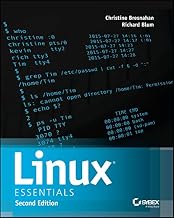
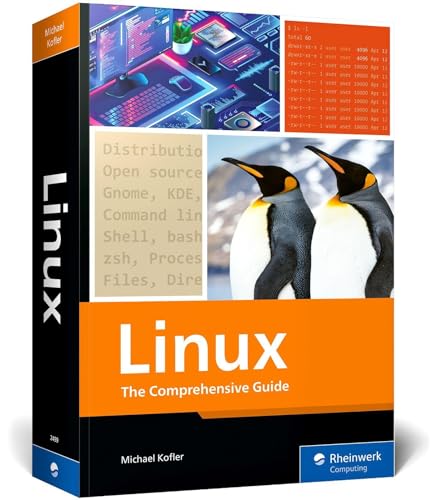
Your first real decision is the distro. Beginners coming from Windows are best served by an approachable, well-documented option, and a book like a step-by-step Linux Mint 22.3 guide or a Bazzite handbook can smooth the transition. Mint and other Cinnamon-based images offer a familiar layout, while gaming-focused distros pre-bundle Proton tweaks and drivers so you spend less time configuring.
Create Installation Media and Boot
Download your chosen distro’s ISO and write it to the USB stick using a tool such as balenaEtcher or the Rufus utility on Windows. Restart the machine, open the boot menu, and select the USB drive. Most distros let you run a live session first, which is a safe way to confirm your Wi-Fi, sound, and display all work before committing to an install.
Install Drivers and Set Up Steam
Once installed, run your system updates first, then enable proprietary GPU drivers through the distro’s driver manager if you use NVIDIA hardware; AMD and Intel graphics typically work out of the box. Install Steam from your software center, open Settings, and turn on Steam Play (Proton) for all titles. Reference books such as a general “How Linux Works” guide are handy here if you want to understand what the system is doing under the hood.
Optimize for Performance
With games installing, a few tweaks squeeze out extra frames. Enable your GPU’s game mode or performance governor, add the MangoHud overlay to monitor frame rates, and per-game you can force specific Proton versions if a title misbehaves.
- Use ProtonDB listings to check compatibility notes for individual games.
- Keep your kernel and Mesa drivers current for the best GPU performance.
- Close background services you do not need to free up memory.
Frequently Asked Questions
Will installing Linux delete Windows?
Only if you choose to. Most installers offer a dual-boot option that shrinks your Windows partition and installs Linux alongside it, letting you pick an operating system at startup.
Do I need to know terminal commands to game on Linux?
No. Modern distros handle installation, driver setup, and Steam through graphical tools. The terminal is useful for troubleshooting, and beginner books explain it gently, but it is not required to get playing.
How long does the whole process take?
Creating the USB and installing the distro usually takes under an hour. Downloading updates and your game library afterward depends mostly on your internet speed.
What if a game will not launch after install?
Check its ProtonDB page for known fixes, try forcing a different Proton version in the game’s compatibility settings, and make sure your GPU drivers are fully updated before assuming it is unsupported.
Conclusion
Installing Linux for gaming in 2026 comes down to five calm steps: back up, pick a friendly distro, make your USB, install drivers and Steam, then tune for performance. Keep a beginner reference handbook nearby for the occasional hiccup, and within an hour you will have a fast, tidy gaming system that runs the bulk of your library without the overhead of Windows.