Key takeaways
- Confirm a consistent pattern: Does every new download fail, or only one title? A title-specific error calls for the corruption scan; repeated writing errors across titles make a card or storage problem more plausible.
- Check the card again: A familiar card may have been disturbed or could have a damaged contact. Retest only after fully shutting down the console.
- Check where software is installed: Nintendo says an inserted Express card becomes the default destination for downloaded software. When diagnosing a problematic card, testing a title in system memory can help separate the card from broader download or Internet issues, provided adequate console storage is available.
- Do not conflate networking with storage: A connection test failing before content downloads suggests a network problem; a card-write warning after download begins suggests a different branch. Record the actual message rather than guessing.
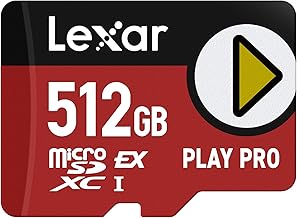
If you encounter Switch 2 microSD Express errors, first confirm that your card bears the microSD EX logo. Nintendo Switch 2 cannot use an ordinary microSD, microSDHC, or microSDXC card for downloaded games, even if that card worked in the original Switch. For a supported card, update the console through System Settings > System > System Update, then power it completely off before reseating the card. If the error affects only one downloaded game, scan that game for corrupted data. Do not format the card as your first fix: formatting erases screenshots, videos, and other data stored on it. This guide explains which error points to which check, and when replacement or Nintendo service is appropriate.
Identify the error before changing anything
An error when inserting a card is different from a failed download, a corrupted game, or an actual storage-capacity limit. Nintendo provides separate support procedures for each. Record the exact on-screen message and error code, if shown, and note whether the system can still open games installed in its internal memory. That information helps determine whether the problem follows the card, a particular game, or the console.
| What happens | What it may indicate | Safest first action |
|---|---|---|
| Card is not recognized, or the system cannot read it | Unsupported card type, poor seating, outdated system software, card or slot fault | Confirm the EX logo, update the console, then power off and reinsert |
| Error 2002-2046 or “Unable to access microSD card” | A card-access problem; the code alone does not identify the broken component | Use Nintendo’s 2002-2046 checks, beginning with updates |
| An error in the 2002-2000–2002-2499 range | Nintendo groups many of these under card-access troubleshooting | Update, power off, verify compatibility, inspect, and reseat |
| Error 2016-0247 while downloading | Nintendo’s support procedure addresses card-related download failures | Check compatibility and seating, then system updates |
| A particular downloaded game freezes, fails, or reports bad data | Possible corrupted game files, not necessarily a faulty card | Scan that game for corrupted data |
| A regular Switch microSD card displays an import option | Expected limited support for transferring old screenshots and videos | Use the import function; do not treat it as game storage |
The examples above come from Nintendo’s official “microSD Express Card is Not Recognized,” “Error Code: 2002-2046,” “Error Codes: 2002-2000 to 2002-2499,” and “Error Code: 2016-0247” instructions. Not every error with a similar number is identical; follow the precise code shown on your console when Nintendo provides a dedicated page. A failure after a specific game launches may require software repair even when the card itself is recognized.
Why ordinary microSD cards do not work for Switch 2 games
Nintendo Switch 2 uses the newer microSD Express standard for expandable game storage. The identifying detail is the EX symbol on the card. Merely seeing “microSDXC,” “UHS-I,” “A2,” or a fast advertised speed on a product label does not establish that it is a microSD Express card. Nintendo supports compliant microSD Express cards with capacities up to 2 TB; cards are purchased separately. A compatible card requires a one-time system update downloaded over the Internet when you first use this storage type.
This limitation can be confusing when upgrading from the original Nintendo Switch. A non-Express microSD card from that console can be used on Switch 2 to import screenshots and captured videos through “Import from a Nintendo Switch microSD Card,” but it cannot serve as Switch 2 game-download storage. Moving a regular card into Switch 2 therefore is not a way to transfer installed games or save files. Game save data resides in the console’s system memory, not on the microSD Express card. Nintendo separately lists downloaded games, updates, DLC, screenshots, and captured video among supported card content.
For troubleshooting, verify the card type from its printed EX icon and the specifications on the original packaging, rather than relying on retailer shorthand such as “Switch-compatible.” A card that meets the original Switch requirements can still be incompatible with Switch 2. If the card is not an Express model, replace it with a compliant one rather than trying different file systems or computer-based format tools.
Run the low-risk checks in the right order
These steps use Nintendo’s own menu paths and remove the common causes before any data is erased. Stop when the console recognizes the card and the original activity works again.
Update Nintendo Switch 2 over the Internet
- Connect the console to a working Internet connection. From the HOME Menu, open System Settings.
- Scroll to System, then select System Update. Allow the console to check for the latest update and finish any required installation.
- After the console restarts, attempt the same operation again: read the card, launch the game, or download a small item. The first use of a microSD Express card specifically requires an online system update.
- If you cannot update because the console has no Internet access, first restore that connection. Do not assume formatting a card on a PC substitutes for Nintendo’s required system update.
Expected result: A supported and properly seated card becomes available without another access warning. If the system still reports the card as unreadable, proceed to the physical seating test. Do not interrupt an ongoing system update or install unofficial console firmware.
Power down and reseat the card
- Hold the physical POWER button for at least three seconds, then select Power Options > Power Off. Do not simply put the console to sleep.
- On the back of Switch 2, gently open the adjustable stand to expose the microSD Express slot. Press down on the card until it clicks and rises, then carefully slide it out.
- Confirm the EX marking. Inspect the exposed connectors and the visible slot opening for damage or dirt. If the card contacts need cleaning, Nintendo’s general card-error guidance describes a soft, dry cloth; never scrape contacts or insert metal tools or fluids into the console slot.
- Orient the microSD Express card with its label facing away from the console, press it gently into the slot until it clicks, and power the Switch 2 on again.
- Retry the same activity. If the card becomes available, open the previously failing title or restart the download to check whether the issue is actually resolved.
If there is obvious damage or debris inside the slot, stop rather than forcing the card. Nintendo’s dedicated not-recognized guidance directs damaged or contaminated hardware toward card replacement or console service. If a card is physically stuck, Nintendo has a separate removal procedure; it should not be pried out.
If only a game fails, scan for corrupted software
A card that appears normally in the system but causes one downloaded game to fail needs a different test. Nintendo documents an exact Switch 2 corruption check, which is preferable to formatting the entire card because it targets an individual software installation.
- From the HOME Menu, choose System Settings.
- Choose Data Management on the left, then Manage Software on the right.
- Select the downloaded game that fails, then choose Scan for Corrupted Data. Allow the scan to finish.
- If the console finds an issue or offers a redownload, follow the displayed directions and check that the correct purchasing Nintendo Account is available. Confirm the game launches after download and installation.
If the scan does not repair the title, Nintendo’s error-code guidance allows deleting the problematic software under System Settings > Data Management > Manage Software > [game] > Delete Software, then redownloading it. Deleting game software is not the same as deleting your game save data. Even so, double-check what the screen says before confirming any deletion. Avoid manually deleting folders from the card on a computer, which can create additional content problems.
To redownload a purchased game, Nintendo’s support page gives two practical paths. If the game icon remains on HOME, select the icon and choose Download. Otherwise, open Virtual Game Cards from HOME, select the purchasing user and the game, then choose Load on This System. If you specifically need the data without loading its virtual game card, select that game’s Options > Download Data. Availability depends on the account and game entitlement; an error in this workflow does not by itself prove the memory card is defective.
When the card is recognized but downloads still fail
Nintendo’s “Error Code: 2016-0247” covers situations where a download fails to write to a microSD or microSD Express card, including a card that previously worked. Its recommended sequence includes a full power-off, removal and reinsertion, compatibility verification, and a system update. Use those before erasing content.
- Confirm a consistent pattern: Does every new download fail, or only one title? A title-specific error calls for the corruption scan; repeated writing errors across titles make a card or storage problem more plausible.
- Check the card again: A familiar card may have been disturbed or could have a damaged contact. Retest only after fully shutting down the console.
- Check where software is installed: Nintendo says an inserted Express card becomes the default destination for downloaded software. When diagnosing a problematic card, testing a title in system memory can help separate the card from broader download or Internet issues, provided adequate console storage is available.
- Do not conflate networking with storage: A connection test failing before content downloads suggests a network problem; a card-write warning after download begins suggests a different branch. Record the actual message rather than guessing.
If the system repeatedly cannot read the same supported card, try a second known-compatible microSD Express card if you have one, without buying hardware prematurely. Nintendo advises replacing an unreadable card when appropriate and arranging console service if multiple Express cards cannot be read. A repeatable fault with several compatible cards is more significant than a single error on an unverified card.
Formatting is a last resort, not a routine tune-up
Formatting irreversibly deletes data stored on the microSD Express card. Back up any screenshots or captured videos you need to keep before proceeding. Downloaded software can generally be obtained again with the purchasing Nintendo Account, while game save data stays in the system memory. If the card cannot be read at all, some media may be impossible to back up; do not imply the format is risk-free.
Nintendo currently publishes two different menu descriptions across its support pages. Its dedicated “How to Format a microSD Card or microSD Express card on Console” article lists the Switch 2 path System Settings > System > Clear microSD Card Data, followed by Continue > Clear Data. Its “microSD Express Card is Not Recognized” article also documents System Settings > System > Formatting Options > Format microSD Card > Continue > Format. The pages do not explain the difference. Follow the option visible on your updated console and read its deletion warning; do not assume both paths exist on every software version.
- Back up irreplaceable card media first. Keep the console connected to stable power and confirm the card is the correct one.
- From the HOME Menu, open System Settings > System. On a screen matching Nintendo’s dedicated formatting guide, select Clear microSD Card Data. If your system instead shows the documented alternate Formatting Options > Format microSD Card route, use that only if it is genuinely present.
- Enter the parental-controls PIN if required and read the entire on-screen warning. Select the relevant Continue action only when you intend to erase the card.
- Confirm Clear Data or Format as labeled on your console. Allow its restart to finish, then verify that the card is recognized and redownload any necessary game software.
If you cannot reach a format option because the card never appears, do not keep switching between PC file systems in hopes of forcing recognition. Use a second known-compatible Express card to isolate the problem, or contact Nintendo service. Nintendo does not instruct users to factory-reset their entire Switch 2 as the first remedy for a card-reading issue.
How to protect your data while changing cards
Save files and installed games must be considered separately. Nintendo keeps game save data in the console’s internal memory; the Express card stores downloads and media. That means deleting downloaded software or formatting the card need not erase saves, but your photos and video clips on the card can disappear permanently. Do not tell someone to copy a game save from the Express card, because Nintendo says saves are not kept there.
If replacing a working but small card with a larger one, Nintendo provides an official Windows-oriented migration procedure. Use compatible cards, a computer or card reader, and copy the entire folder structure without renaming or editing files. Crucially, do not erase or reformat the original card until the replacement has been verified. Nintendo cautions that copying in environments other than Windows may not work correctly. It also advises against mixing data between cards or moving one card between different consoles. Use this transfer procedure for migration from a readable card—not as a guaranteed recovery method for a damaged or unreadable card.
When to replace the card or contact Nintendo
| Test result | Reasonable next decision |
|---|---|
| A normal microSD card has no EX symbol | Get a supported microSD Express card; formatting cannot add Express hardware support |
| One compatible card fails; a second compatible card works | Treat the first card as suspect and ask its retailer or manufacturer about replacement |
| Several known-compatible cards fail on the same console | Follow Nintendo’s service guidance for a possible console slot or hardware problem |
| Only one downloaded game fails after card recognition | Use game corruption scanning and a software redownload before replacing hardware |
| Visible contamination, damaged pins, or a physically stuck card | Stop manual handling; contact Nintendo rather than forcing or scraping the slot |
Keep the exact error code, the card’s make and labeled capacity, and the results of each test when contacting support. This is more useful than saying only that “the SD card is broken.” Nintendo’s official not-recognized guidance specifically asks that one or more problematic cards be included for testing when a console is sent for service. Follow the current service-request instructions for your region, rather than assuming every failure qualifies for a free repair.
Tools That Help
- Nintendo Switch 2 System Settings — free: Use System > System Update, Data Management > Manage Software > Scan for Corrupted Data, and the on-screen card controls for official checks; no third-party utility is necessary.
- A clean, soft, dry cloth — usually already available: Only for gently wiping exposed card contacts when visibly dirty. Do not push cloth, liquids, compressed-air nozzles, or metal objects into the console slot.
- A computer with a compatible card reader — optional, cost varies: Needed only to preserve accessible screenshots/videos or to follow Nintendo’s documented Windows-based card-to-card migration. It is not required to run the console’s first-line checks.
Frequently asked questions
Can I use the microSD card from my first Switch?
Not to install or run downloaded games on Switch 2 unless the card itself is microSD Express. A regular microSD card from the older console can be used only for Nintendo’s supported import of screenshots and captured videos. Nintendo’s microSD compatibility page explains this exception.
Does error 2002-2046 prove my Switch 2 card is dead?
No. Nintendo lists system updates and additional troubleshooting before card replacement or console repair. Save the error code, check compatibility, update, and reseat the card with the power off before diagnosing a physical fault.
Will formatting microSD Express delete my game saves?
Nintendo says save data is stored in system memory, not on the Express card, so card formatting does not erase those saves. However, formatting deletes card contents, including screenshots, videos, and downloaded software data. Back up irreplaceable media first.
What is the maximum supported microSD Express capacity?
Nintendo states that compliant microSD Express cards up to 2 TB are supported. The Express standard matters more than a large capacity or speed rating printed on an ordinary microSD card.
Should I use a PC repair app or low-level formatting tool?
Not as a first-line fix. Nintendo’s documented sequence uses the console’s system update, safe card reseating, game-data scanning, and built-in card controls. An unfamiliar utility adds data-loss risk and cannot turn an ordinary microSD card into an Express model.
Final thoughts
For your next action, check the EX symbol on the actual card, then run System Settings > System > System Update. If the card is compatible but inaccessible, fully power off, reinsert it, and retry. If one downloaded game alone is failing, use Data Management > Manage Software > Scan for Corrupted Data. Reserve card erasure for a situation where important media is already backed up and Nintendo’s less destructive checks have failed. If two known-compatible cards remain unreadable, document the errors and contact Nintendo service.