Key takeaways
- Open an eligible game and confirm that its animated screen or active gameplay is visible, not just the Xbox web interface.
- Verify that game audio and user input work alongside the picture.
- Keep the session active for a few minutes, close it normally and start the game again.
- If possible, confirm that a second game also loads. Do not claim service-wide recovery based on one title.
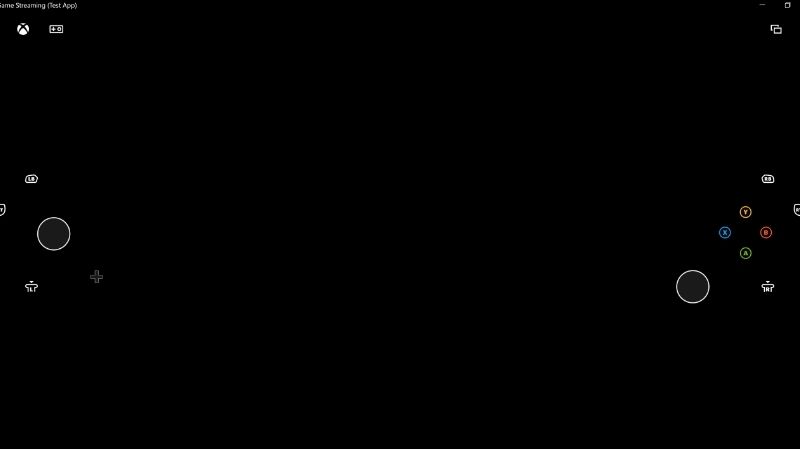
An Xbox Cloud Gaming black screen usually needs a different fix from a game that refuses to launch. First check Xbox Status, then close and relaunch the stream. If the game still shows a black video pane, open the same cloud game in another supported browser or the Xbox app on a Windows PC. That comparison tells you whether to investigate your browser, the app, the network, or the Xbox service. Do not reset Windows, delete installed games, or change router security settings just to troubleshoot cloud video. Start with the reversible checks below and stop as soon as playback returns.
Quick diagnosis: Identify where the black screen happens
Before changing a setting, record whether you hear game audio, whether Xbox menus still work, and whether other cloud games start. A black area inside the stream is not the same as a television displaying no HDMI signal, a Windows monitor losing video, or a locally installed PC game crashing. This guide addresses streamed Xbox Cloud Gaming content on supported browsers, the Windows Xbox app, and related streaming devices.
| What you see | Likely area to investigate | First safe test | What the result tells you |
|---|---|---|---|
| Cloud page opens, but every game stays black | Service, sign-in session, stream startup, browser or app | Check Xbox Status; launch one other supported game | Multiple failures warrant a service and environment check |
| Game audio plays but its picture is black | Video rendering, browser or display path | Close the stream; try an updated second browser | Working video elsewhere points toward the original client |
| Only Microsoft Edge fails | Edge extension, cached site data, browser version | Update Edge, test without extensions, then clear cache | A browser-specific issue is more likely than a game outage |
| Only the Windows Xbox app fails | Xbox app, Store app state or Windows components | Try xbox.com/play in Edge; update then Repair Xbox app | A browser success narrows the issue to the app environment |
| All clients work on another network | Local Wi-Fi, router, ISP or network path | Compare Ethernet/5 GHz Wi-Fi with another permitted connection | The original network deserves closer investigation |
| Only one game is black | Game-specific launch or session problem | Start another cloud-enabled title | Do not change device-wide settings before collecting the title and time |
| TV has no picture at all, including menus | Display input, HDMI or television | Restore the TV menu/input display first | This is not necessarily an Xbox Cloud Gaming video fault |
Check the Xbox service and your access first
- Open Xbox Status. In a separate browser tab, visit the official Xbox Status dashboard and look for incidents affecting cloud gaming, launching games or account sign-in. The page may be interactive and require JavaScript.
- Check the correct account and region. Sign in at xbox.com/play with the Microsoft/Xbox account you intend to use. Xbox Cloud Gaming requires eligible cloud access, a supported device and an available game in a supported region. A subscription, available playtime and catalog can differ by plan; do not assume only one plan is eligible or that every game is streamable.
- Record any message. A displayed subscription, region, waiting-time or sign-in notice is not equivalent to a blank video renderer. Resolve the stated eligibility or sign-in issue first through Microsoft/Xbox account support.
- Launch another cloud-enabled game. Select a different eligible title from xbox.com/play. If both fail, investigate the service or client. If one title works, note the other game’s name and failure time for support.
Expected result: An eligible title advances from the Xbox launch flow to a visible interactive video stream. If Xbox publishes an incident, stop device-wide troubleshooting and retry after the incident is resolved. This article does not claim a live outage is occurring.
Restart the cloud session without losing settings
- Use the stream’s visible exit or back control if available; otherwise close that browser tab or Xbox app window. Do not repeatedly force-close the entire Windows desktop.
- Open a new supported browser window and navigate directly to xbox.com/play. Sign in again only if prompted.
- Select the same game and test whether its title screen appears. If it remains black, try a second supported title to distinguish a game-specific problem from a general startup failure.
- On Windows, close other video-heavy browser tabs, screen-recording sessions and unnecessary foreground apps, then retry once. Microsoft recommends reducing tab and extension load when Edge cannot render webpages reliably.
Verify: The stream shows moving video and responds to controller or keyboard input where supported. An audio-only session does not count as fixed. If the game only starts after relaunching, record whether the issue returns the next time the stream starts.
Compare a second supported browser on PC
Xbox lists Microsoft Edge, Google Chrome and Safari as supported browser options for xbox.com/play on compatible devices. On a Windows PC, switching between Edge and Chrome is a useful diagnostic test. This does not require installing another game or buying another subscription.
- In your current browser, go to xbox.com/play and note the game and account used.
- Open a different supported, up-to-date browser on the same PC and visit the same address. Sign into the same Xbox account.
- Start the same cloud-enabled game. Compare the video, audio and input, not merely whether the library page loads.
- If the second browser works, return to the original browser and follow the extension/cache steps below. If both fail, try the Xbox app or test another network before changing graphics-related settings.
What this does not prove: One successful session does not conclusively exclude every intermittent network problem. It does provide a low-risk clue about which client environment to examine next. If an organization manages the PC or browser, ask the administrator before changing its policies.
Update Microsoft Edge and test its extensions
Microsoft’s official Edge troubleshooting instructions support checking for updates, reducing browser resource load and disabling extensions. Those steps can resolve page display failures generally; Microsoft does not guarantee that each one fixes a specific Xbox Cloud Gaming black screen.
- Open Edge. Choose Settings and more (…) > Settings > About Microsoft Edge. Allow any offered update to finish, then restart Edge if prompted.
- Choose Extensions > Manage extensions. If the Extensions icon is absent next to the address bar, use Settings and more (…) > Extensions to reach the same area.
- Temporarily switch off extensions that modify site content or playback, particularly ad blockers, script modifiers and privacy tools. Do not uninstall them; testing with the toggles off is reversible.
- Return to xbox.com/play and start a cloud-enabled title. If video returns, re-enable extensions one at a time and retest to identify the conflict.
- If no extension is responsible, restore the original extension settings and move to the cache check rather than leaving your browser protections off unnecessarily.
Expected result: Video begins normally with the same account and network. If Edge still fails but Chrome works, capture the Edge version shown on the About page and consider reporting a browser-specific failure to Microsoft or Xbox.
Clear cached Edge files before deleting cookies
Browser cache can hold stale site resources. Microsoft documents a clear-browsing-data path, but removing cookies will also sign you out of some sites. Start with the smaller, reversible cleanup when possible.
- In Edge, open Settings and more (…) > Settings > Privacy, search, and services.
- Find Clear browsing data and select Choose what to clear under Clear browsing data now. The wording may shift slightly with Edge updates; Microsoft also documents History > Open history page > Delete browsing data.
- Choose the desired Time range, select Cached images and files, and clear that category first. Leave saved passwords, payment details and other categories unchecked unless you specifically intend to remove them.
- Close and reopen Edge, return to xbox.com/play, and test the stream.
- If cache-only cleanup fails and you suspect a stale sign-in session, you may also clear relevant cookies/site data. Expect to authenticate again. Review Edge’s sync settings before deleting browsing information across synced devices.
Undo or recovery: Browser cache rebuilds when pages reload; deleted cookies generally cannot be restored and may require new sign-ins. Clearing a browser cache does not delete your cloud games or cloud saves. Do not delete Windows user folders or Xbox installation directories in place of the browser controls.
If the web Preview fails, return to the regular Xbox page
Xbox announced a refreshed cloud-gaming web experience as a public preview in January 2026. Microsoft notes that navigation and features may behave differently during the preview, so one interface should not be assumed to match every account.
- If the problem occurs at play.xbox.com or after opting into Preview Features, open xbox.com/play in the same supported browser.
- Sign in with the same Xbox account and try an eligible game in the regular web experience.
- If the regular experience works, report the preview-specific issue through the Preview Feedback option, if accessible. Include browser version, title, time and whether audio continued during the black screen.
This is a diagnostic comparison, not a promise that a preview interface is responsible. The Xbox team may change preview availability and navigation over time.
Fix black video in the Windows Xbox app
If browser cloud streaming works but the Windows Xbox app displays only black video, focus on the app and Windows rather than the router. Microsoft recommends restarting, updating and repairing Store apps before resetting them.
Update the Xbox app and Windows
- Close the Xbox app completely and restart the Windows PC using Start > Power > Restart. Open Xbox again and test the cloud session.
- Open Microsoft Store. Go to Library and use Get updates or Check for updates, depending on the current Store interface. Install offered updates for Xbox and associated Store components.
- Open Start > Settings > Windows Update > Check for updates. Install applicable updates, then restart if requested.
- Launch Xbox, open the same cloud-enabled game, and verify that the streamed video appears.
Repair before Reset
- On Windows 11, select Start > Settings > Apps > Installed apps.
- Find Xbox, open its More (…) > Advanced options entry, then select Repair, if provided. Some app builds do not expose every recovery option.
- Reopen the Xbox app and test cloud playback. If Repair is not available or does not help, consider Reset only after noting that it can remove local app settings and sign-in state.
- After Reset, sign in with your intended account and retry the same cloud title. If the browser also fails, leave app resets behind and investigate the network or service.
Microsoft’s Repair feature is designed to be less disruptive than Reset. Neither action guarantees a cure. Do not delete installed game directories or remove Gaming Services by command line for a cloud video issue unless a current official support procedure explicitly asks you to do so.
Test the network without changing router security
Xbox’s official cloud-gaming guide recommends an internet connection of at least 20 Mbps for stable play. Its product page distinguishes device minimums, including around 20 Mbps for PCs, consoles and tablets and lower minimums for some mobile devices. Speed alone cannot prove a healthy stream; consistency, Wi-Fi interference and the route to the streaming service matter too.
- Run a reputable speed test on the device and network where the black screen happens. Note the measured download speed and whether the connection drops repeatedly. This is a diagnostic test, not a direct measurement of Xbox’s own streaming endpoint.
- On a PC, connect by Ethernet if available. Otherwise try a stable 5 GHz Wi-Fi connection close enough to the router for good reception, as Xbox recommends. Do not assume 5 GHz always reaches farther than 2.4 GHz.
- Pause large downloads, cloud backups and other heavy network activity on your own network. Close the affected stream, then start the same title again.
- If permitted, compare with a different trustworthy network or hotspot. Do not make large data-usage tests on metered mobile service without considering charges.
- If one network repeatedly fails while another consistently works, restart the modem/router according to its manufacturer’s instructions and ask your ISP or network administrator about the connection path. Avoid unsolicited DNS changes, port forwarding or disabling firewall protections.
Expected result: The cloud session transitions into visible video and remains interactive for several minutes. If only low quality or lag improves while the screen stays fully black, proceed with client/display diagnostics instead of repeatedly increasing speed.
Check Windows graphics updates only when evidence points there
If several browsers on one Windows PC produce black video while cloud streaming works on another device using the same network, a local video playback or graphics-driver issue becomes plausible. This is an inference from the comparison, not a Microsoft diagnosis of a particular driver.
- Confirm whether ordinary online video also fails in the affected browser and whether the Windows desktop remains visible. If the entire monitor loses signal, investigate display hardware separately.
- Open Start > Settings > Windows Update > Advanced options > Optional updates. Microsoft says supported Windows hardware drivers, including video drivers, may be available here.
- Install only relevant updates presented by Windows Update or the official PC/GPU manufacturer for your exact model. Restart Windows if prompted.
- Retry the cloud video using the same browser, game and network. If nothing changes, avoid repeated driver replacement or unverified cleanup utilities.
Safety: Do not use random driver-download sites, disable device security, edit the registry or force a BIOS downgrade. Microsoft does not publish a universal graphics setting that guarantees an Xbox Cloud Gaming black-screen fix across all GPUs and browsers. For managed work or school PCs, ask IT before installing drivers.
What to do on TV, streaming devices and consoles
Xbox Cloud Gaming also runs on supported Xbox consoles, smart TVs and streaming devices. The exact interface varies by manufacturer and Xbox app version, so do not use Windows-only repair paths on a television.
- First verify that the television’s own system menus are visible. If even those are black, solve the TV input, display or power problem before diagnosing game streaming.
- If the TV menu works, exit the cloud game and relaunch a different eligible title. Check Xbox Status and the device’s network connection.
- Close and reopen the Xbox app or restart the TV/streaming device using its standard controls, then apply the manufacturer-supplied app and system updates.
- Where the device supports both Ethernet and Wi-Fi, compare a stable supported connection without changing router security. Record the TV model and Xbox app version if the failure persists.
Scope note: Xbox Cloud Gaming is not the same as streaming from your personal Xbox console with Remote Play. Likewise, a TV showing “No Signal” on an HDMI input is not an Xbox cloud-video decoder diagnosis. If you see a manufacturer’s error, use that device maker’s official troubleshooting guide.
Verify the fix and know when to contact Xbox Support
One game loading a single static splash screen is not enough to declare the issue resolved. Perform this short test with the same account and device where you originally saw the failure:
- Open an eligible game and confirm that its animated screen or active gameplay is visible, not just the Xbox web interface.
- Verify that game audio and user input work alongside the picture.
- Keep the session active for a few minutes, close it normally and start the game again.
- If possible, confirm that a second game also loads. Do not claim service-wide recovery based on one title.
If the failure remains, contact Xbox Support through the official Xbox website. Supply your device model, operating-system or browser version, whether the regular or preview web experience was used, Xbox app version if applicable, game title, region, time of failure, any error message, and the results of the two-browser/two-network tests. Never send your password, account security codes or recovery codes to support chat participants or strangers.
Tools That Help
- Xbox Status dashboard — free: Check for a documented cloud-gaming or sign-in incident before changing your own device.
- Microsoft Edge and Microsoft Store/Windows Update — free: Use Edge’s supported update, extension and cache controls; use Store and Windows updates when the Xbox app is the failing client.
- Speedtest.net or Fast.com — free to use: Compare approximate connection performance while remembering that a good general speed test does not prove the Xbox streaming route is healthy.
You do not need to purchase a registry cleaner, driver optimizer or new GPU to follow these initial steps. An existing Ethernet cable may help test network reliability, but should not be described as a guaranteed fix for black video.
Frequently asked questions
Why is Xbox Cloud Gaming black but I can still hear audio?
The stream may be reaching your device while the video is not displaying correctly. That makes client-side video rendering worth testing first. Compare another supported browser on the same PC, then follow Microsoft’s Edge update, extension and cache steps. Audio alone cannot pinpoint the cause; test another game and Xbox Status as well.
Can Xbox Cloud Gaming run in Chrome instead of Edge?
Yes. The official Xbox cloud-gaming page lists Microsoft Edge, Google Chrome and Safari as supported browser examples. Keep Chrome current and use xbox.com/play. If one browser works and another is black, the difference helps narrow your troubleshooting.
Does an Xbox Cloud Gaming black screen mean my Game Pass expired?
Not by itself. Xbox access depends on supported region, title and eligible plan or other cloud entitlement, and current plan rules can vary. A visible eligibility or billing message should be handled as an account/access issue, not assumed to be a video-rendering error. Check your account and the game listing rather than buying another plan blindly.
Should I disable hardware acceleration?
Do not present this as a guaranteed Xbox or Microsoft-approved cure. A graphics/video-decoding problem is only one possibility. First compare supported browsers, disable conflicting extensions, clear cache, update the app and check Windows-supported graphics updates. Consider additional browser graphics experiments only with version-specific official guidance and a reversible way to restore your settings.
Will clearing Edge cache delete my Xbox game saves?
Clearing cached browser images and files does not delete Xbox cloud saves. Clearing cookies may sign you out of websites, and Reset on the Windows Xbox app can remove local app data. Do not delete a console’s saved data or installed PC game files while investigating browser playback.
Why does cloud gaming show black on my TV but not my PC?
The working PC suggests that at least one device can reach the stream. Compare the television’s supported app, software updates and network connection, and first verify its menus remain visible. Do not assume that a TV app has Windows-specific settings or that a black HDMI input means cloud services have failed.
Final thoughts
For an Xbox Cloud Gaming black screen, the most useful next decision is where the failure follows you. Check Xbox Status, relaunch the stream and try the same game in another supported browser. If only Edge fails, inspect updates, extensions and cache; if only the Windows Xbox app fails, update and Repair it; if all clients fail only on one network, test Ethernet or stable 5 GHz Wi-Fi. Document the exact failing combination and escalate to Xbox Support if the video remains black. This sequence is more useful—and safer—than immediately resetting Windows or removing drivers.